Online: 2782 online | Members: 0 | Guests: 2782
Thursday, June 4, 2026

1. Left click the Start button and wait for the secondary menu to appear
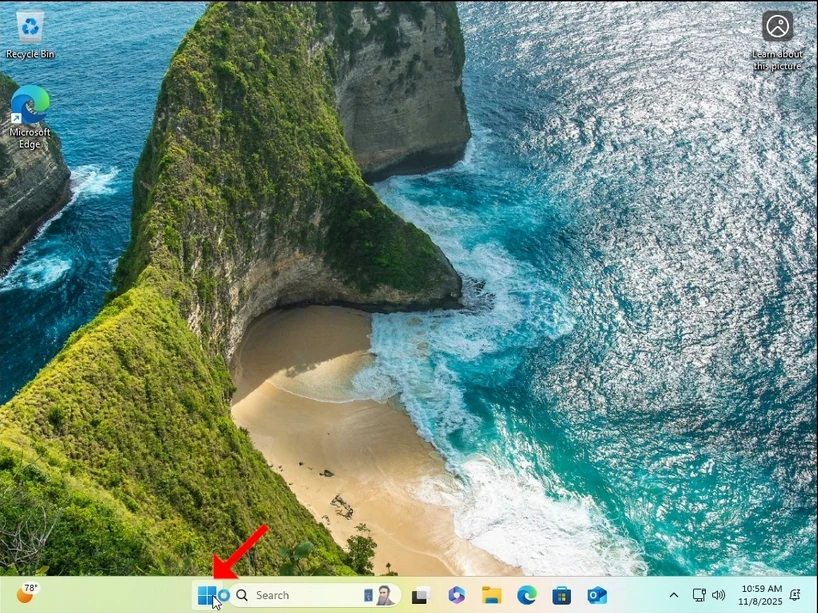
how-to-perfom-a-typical-backup-with-windows-backup-in-windows-11-1.webp

2. In the secondary menu, look for the Shutdown or sign out option, hover over it with the mouse cursor and wait for it to extend itself. If it doesn’t, click on it once.
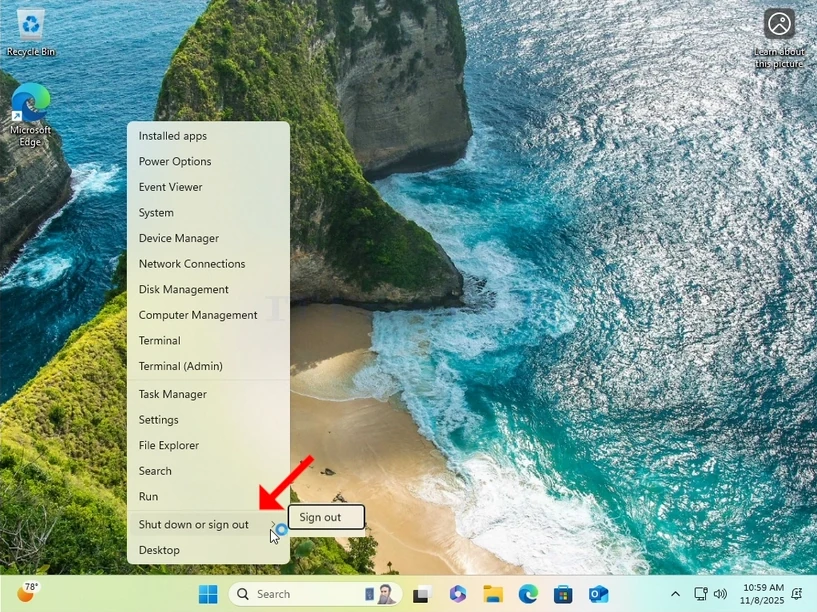
how-to-perfom-a-typical-backup-with-windows-backup-in-windows-11-2.webp

3. In the extended menu, click on Restart while pressing and holding the SHIFT key on your keyboard.
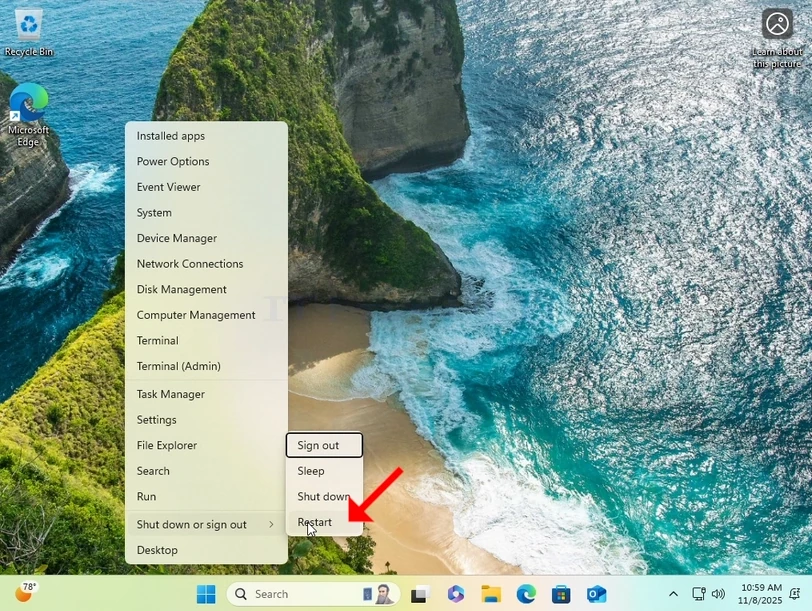
how-to-perfom-a-typical-backup-with-windows-backup-in-windows-11-3.webp

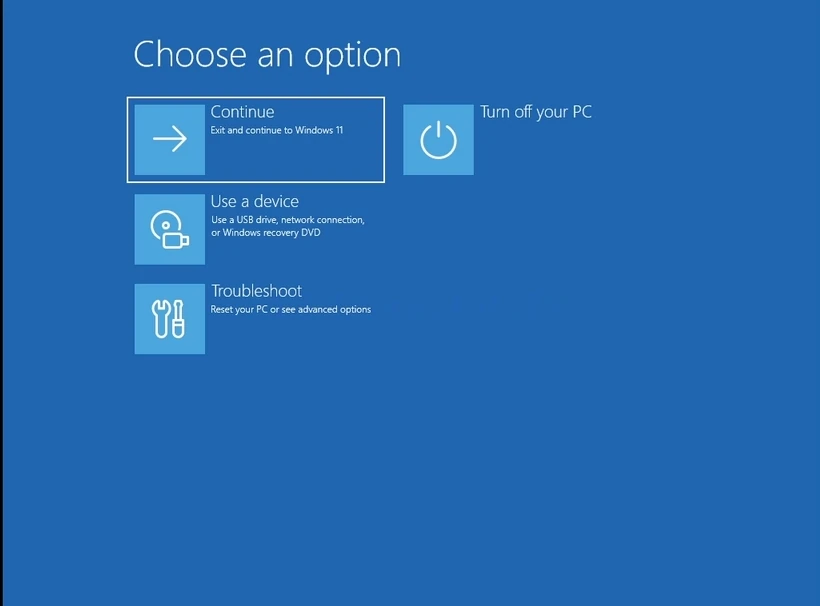
4. Wait for the computer to restart and to Windows to boot into its Recovery Mode.

how-to-perfom-a-typical-backup-with-windows-backup-in-windows-11-4.webphow-to-perfom-a-typical-backup-with-windows-backup-in-windows-11-7.webphow-to-perfom-a-typical-backup-with-windows-backup-in-windows-11-8.webp

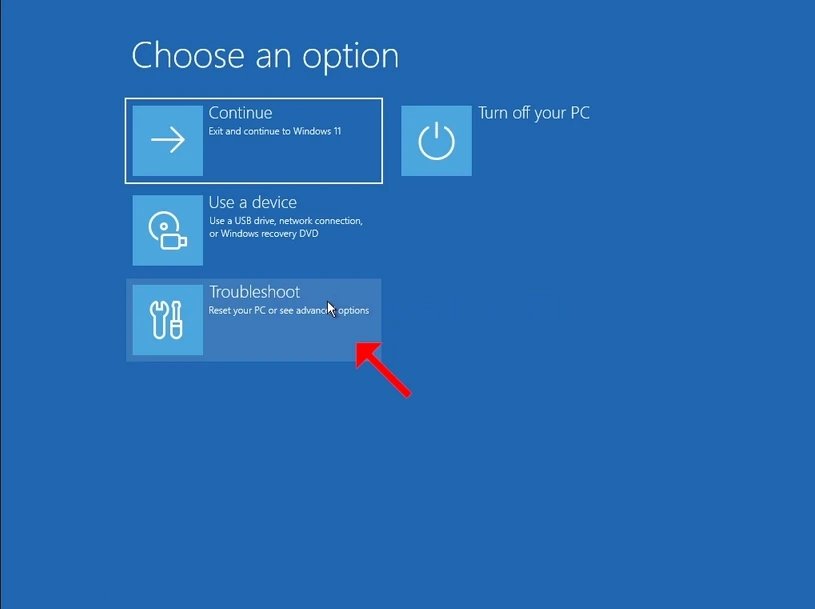
5. Click on Troubleshoot

how-to-perfom-a-typical-backup-with-windows-backup-in-windows-11-9.webphow-to-perfom-a-typical-backup-with-windows-backup-in-windows-11-10.webp

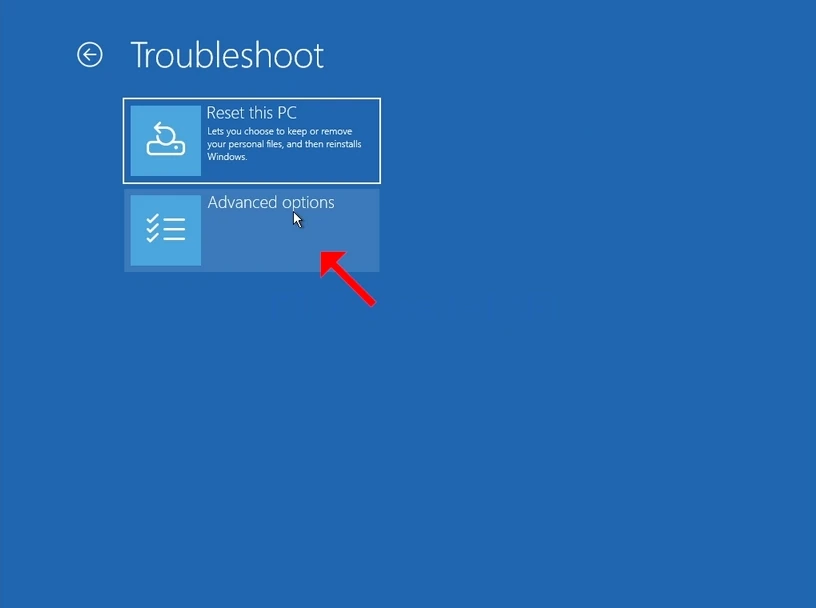
6. Click on Advanced options.

how-to-perfom-a-typical-backup-with-windows-backup-in-windows-11-12.webp

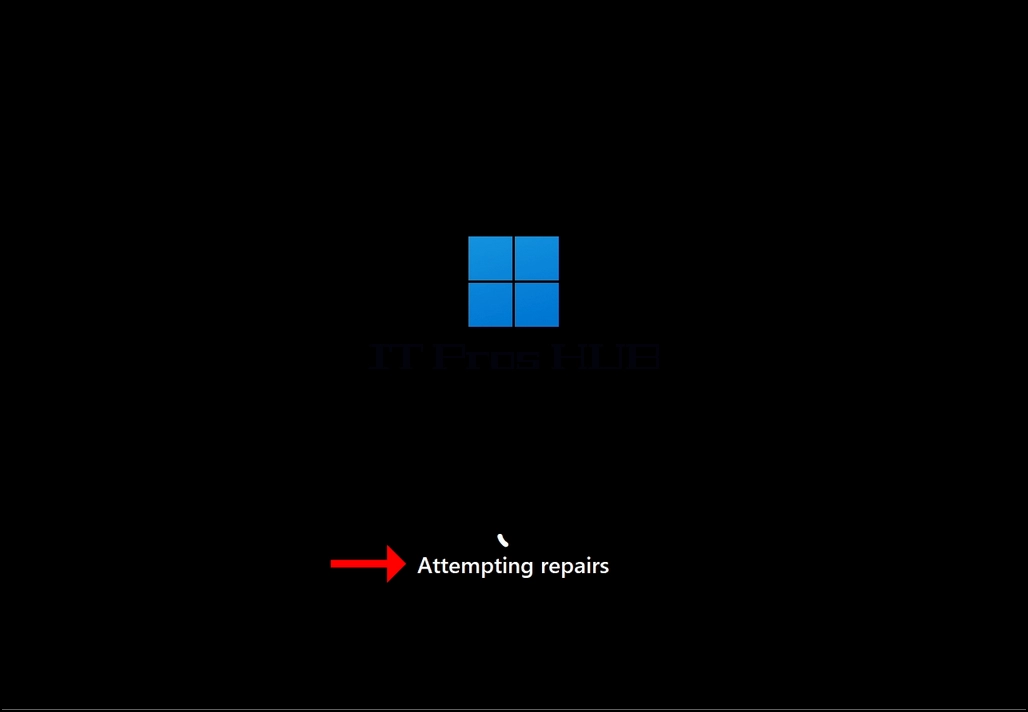
7. In Advanced Options, click on Startup Repair and wait patiently for Windows to attempt repairing any startup issues.
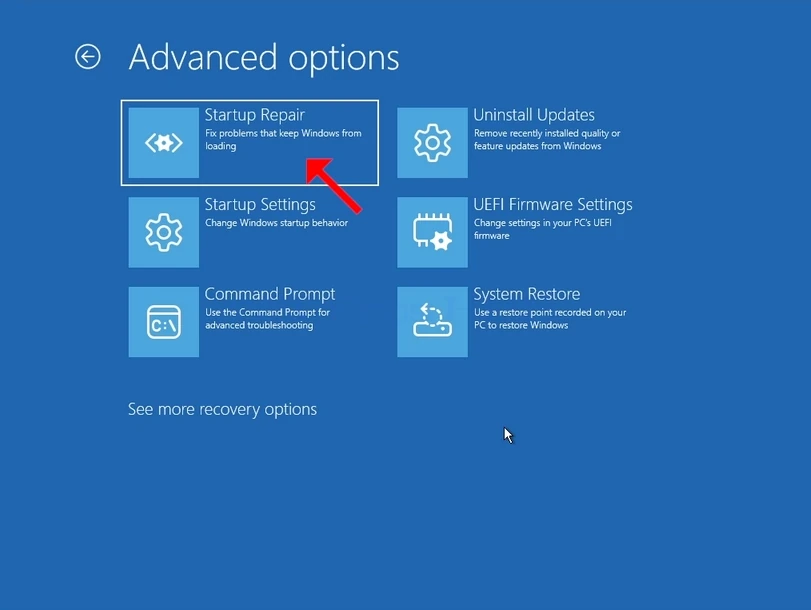
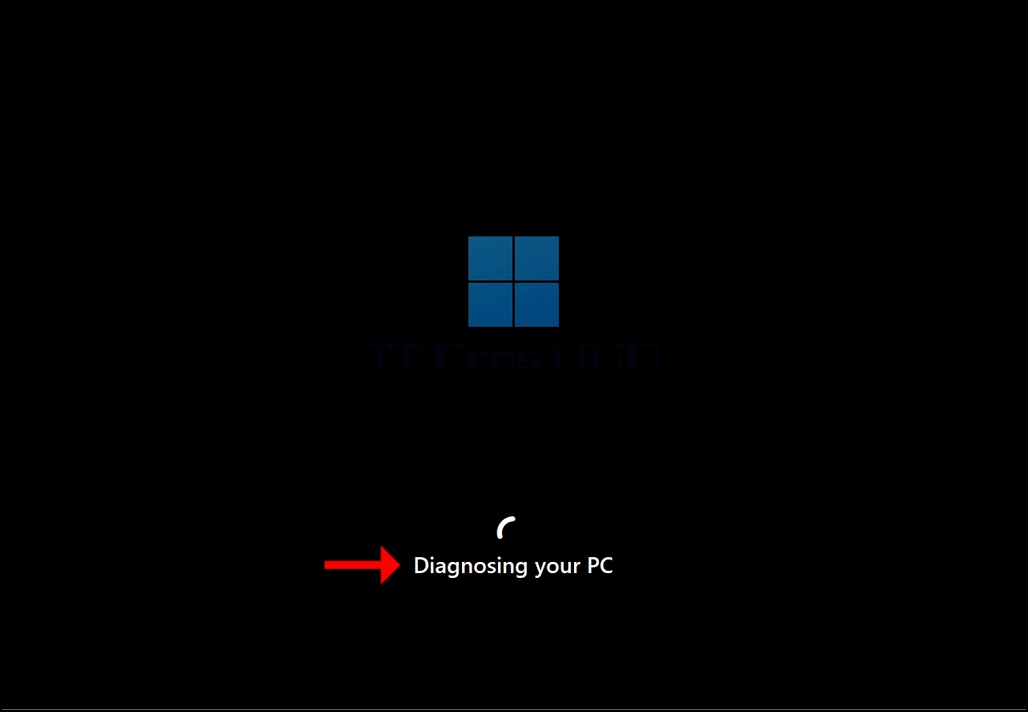
how-to-perfom-a-typical-backup-with-windows-backup-in-windows-11-13.webphow-to-perfom-a-typical-backup-with-windows-backup-in-windows-11-15.webphow-to-perfom-a-typical-backup-with-windows-backup-in-windows-11-17.webp

Latest Articles

Read More...
date dark
hits dark 4824
Read More...
date dark
hits dark 4837
Read More...
date dark
hits dark 4805
Read More...
date dark
hits dark 5175
Read More...
date dark
hits dark 2345
Read More...
date dark
hits dark 2766
Read More...
date dark
hits dark 2228
Read More...
date dark
hits dark 2716