



- Details
- Written by: IT Pro
- Category: How to Articles
- Hits: 6653
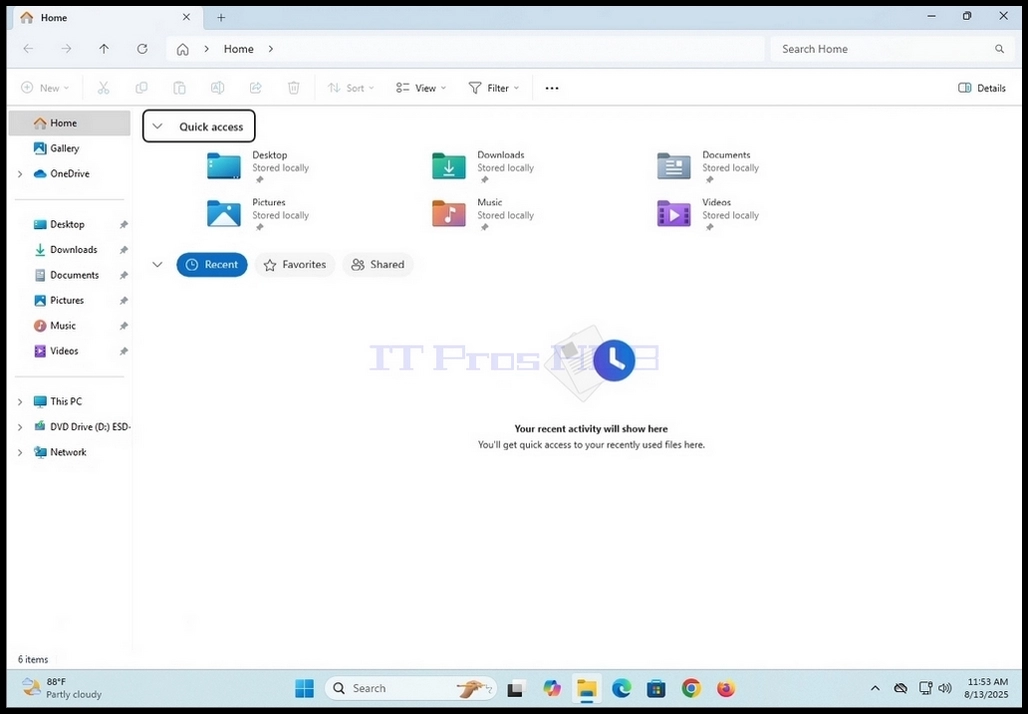
1. Go to Windows Explorer and from there, go to the left pane of the window and look for This PC. Click on it once, wait for the page to load.


2. Once This PC is loaded you should see your disks and partitions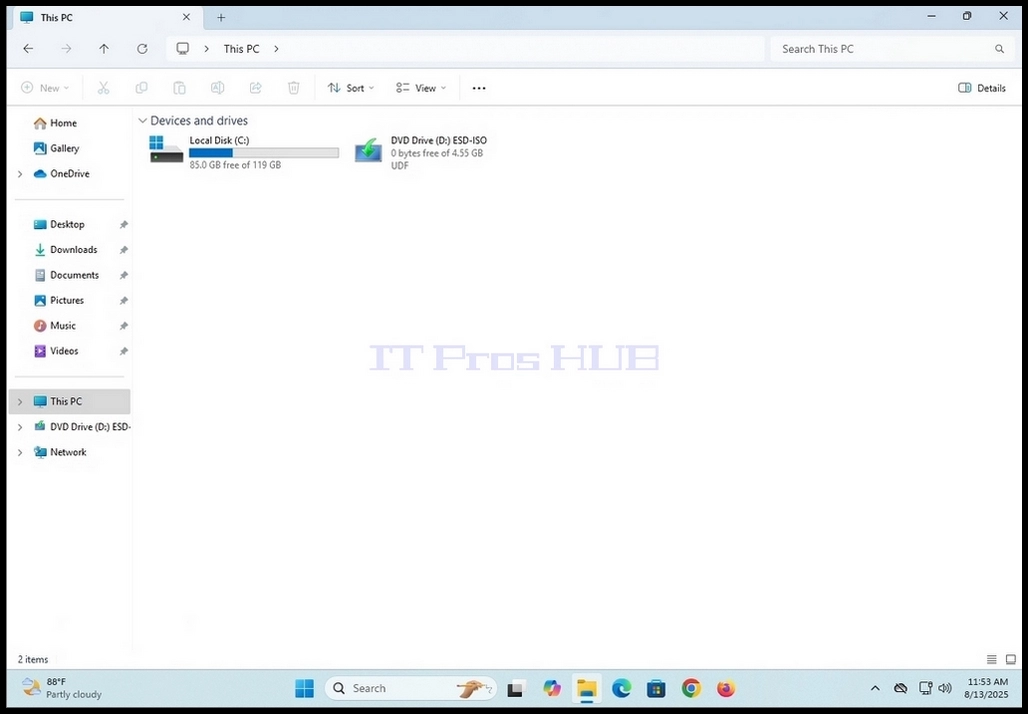
3. Choose the partition/disk you would like to compress by marking it once by left clicking on it.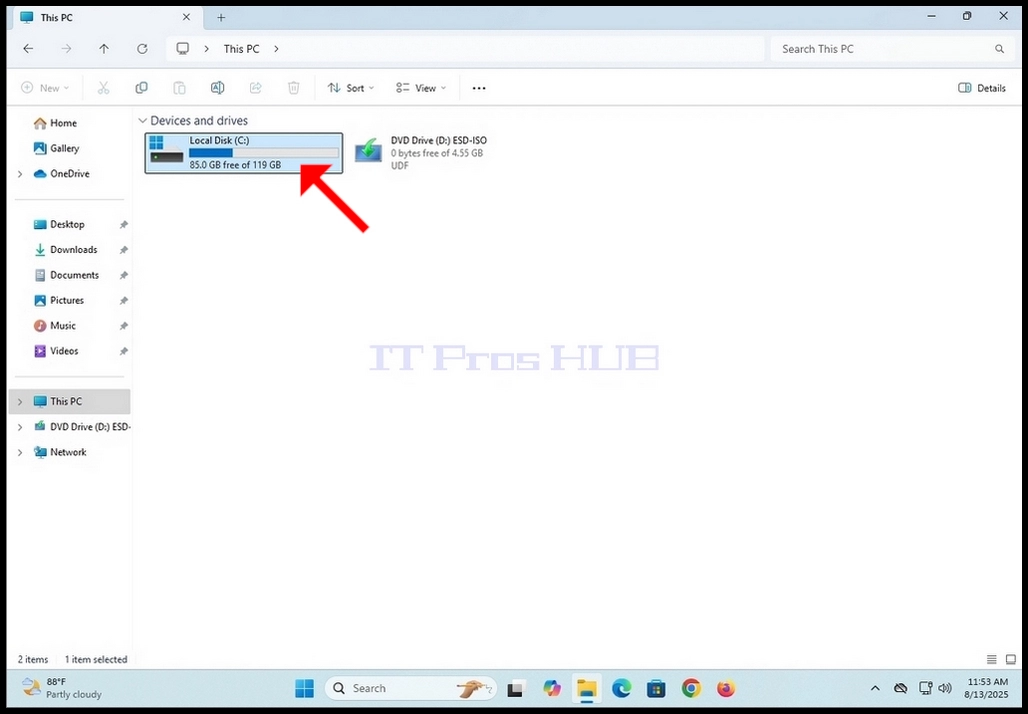
5. In the newly opened side menu, look for Properties and click on it once. Wait for the Properties window to load.
6. The properties window should be loaded with the General tab chosen. If it’s not chosen, please choose it by clicking on it once.
7. In the General tab, in the bottom part, look for the Compress the drive to save disk space sentence. Tag that option by clicking once on tagging box left to it. Once tagged, you should see a blue B sign in that box
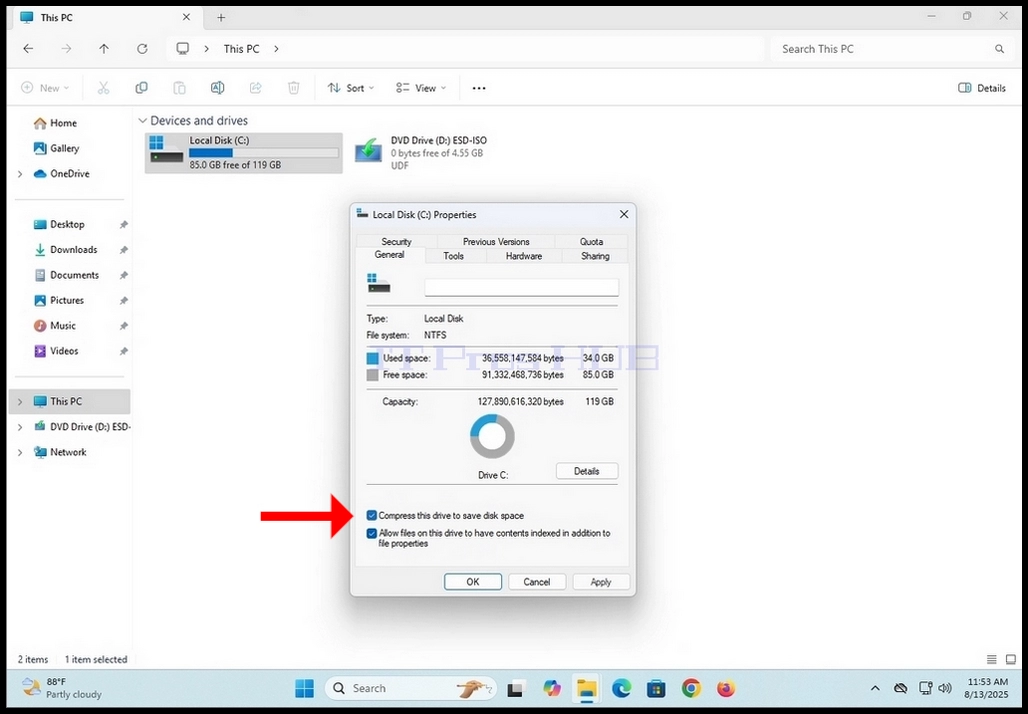
8. Click on the Apply button to apply the change
9. Once clicked, a pop-up window titled Confirm Attribute Changes will appear.
10. In that confirmation window there should be 2 options:
a. Apply changes to drive C:\ only
b. Apply changes to drive C:\, subfolders and files
- In this article we will choose the latter option (b) since this option saves the most space by default.
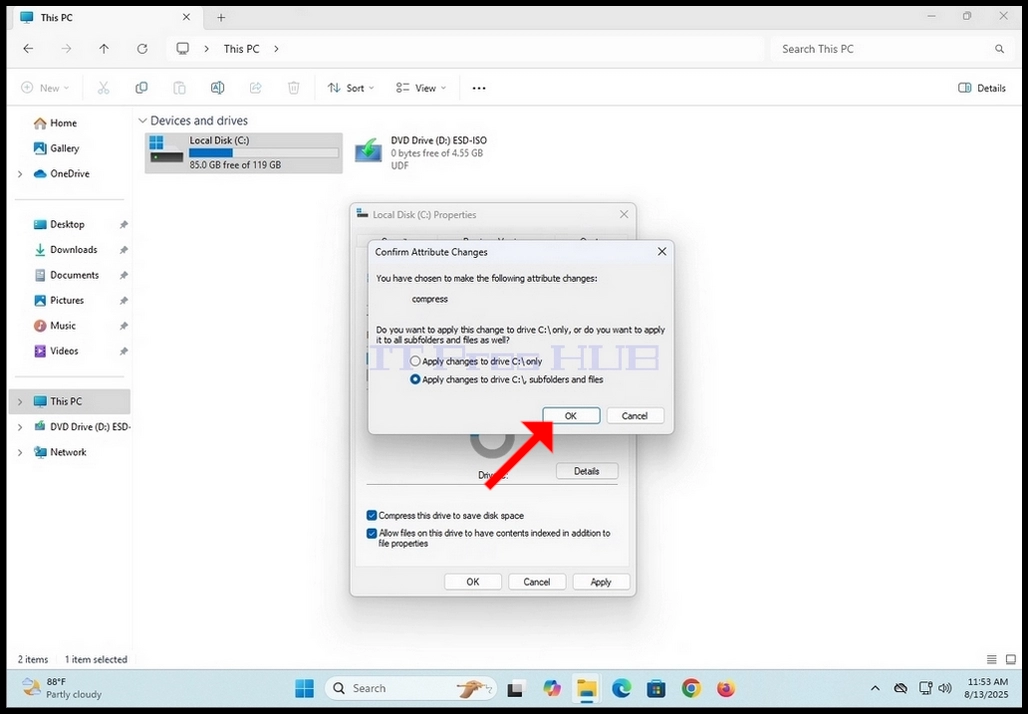
12. Once this option is chosen, click the OK button.
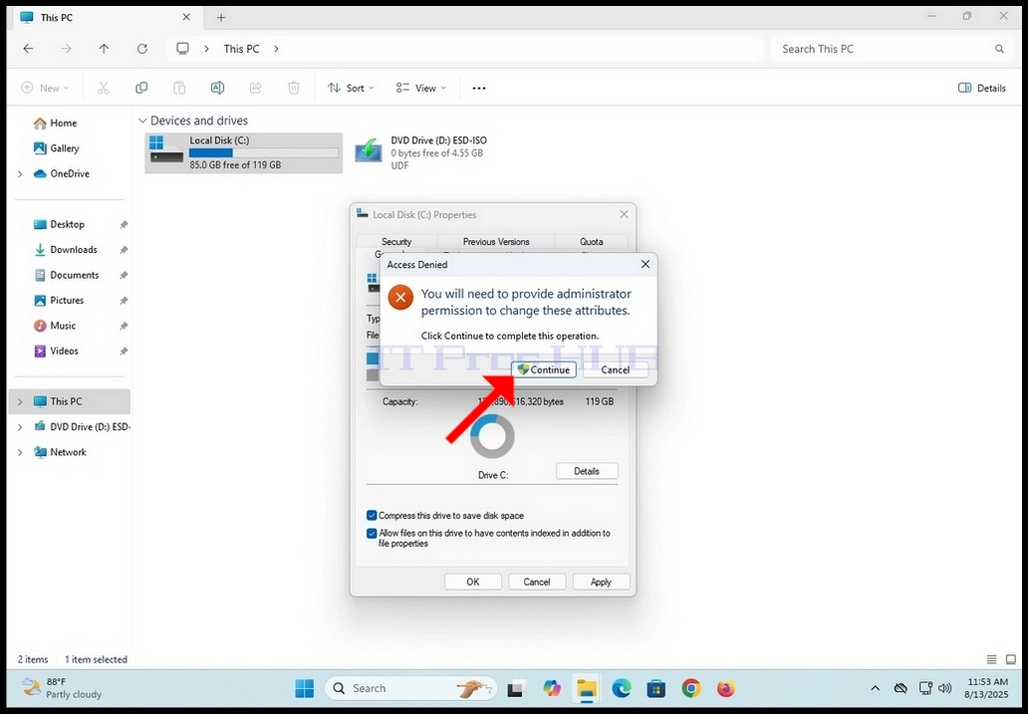
13. In most cases, Windows Security feature will prompt you to allow access to this action. As you can see here, in this case of this article, it does indeed ask for permission to do so.
15. In most cases, Windows will prompt you for an error compressing the selected attributes by popping up a warning window titled Error Applying Attributes. In that case, click on the Ignore All button.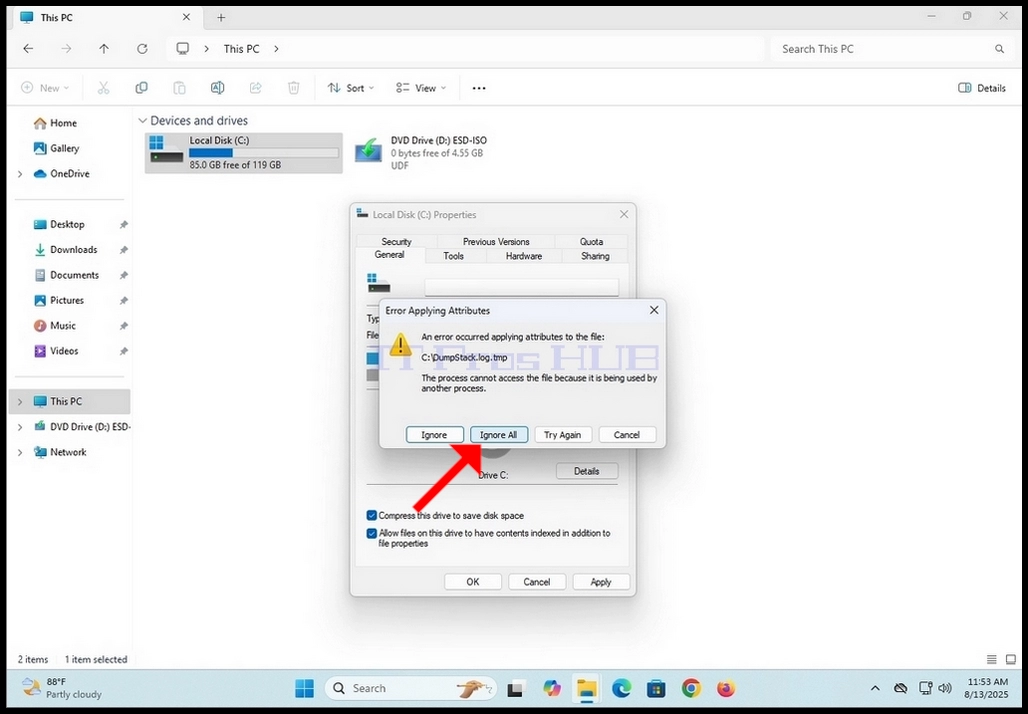
16. After clicking the Ignore All button, Windows will start compressing the disk/partition based on the attribute selected. This process will be represented by a window titled “Applying attributes…” with an process indicator bar. Note that you can continue working on your computer while the compression process is being done. Take into account that the more intensive your work would be the more time it would take for the compression process to finish.
17. By most accounts, this process takes a lot of time, even on fast NVMEs. This length of this process also depends on the number of files and folders present on the selected disk/partition. The more files and folders – the more time it would take to compress them.
18. It is recommended to perform this process as early as possible after installing Windows so it takes less time.
19. Another very important note – compressing the disk/partition slows down read/write times of the disk. You must take that into account before performing this action and do the ROIs. If saving space is more important than performance – do it. If the degradation of performance is negligible considering your work – do it.
20. Once the process is done, the compressing indicator process window will disappear and you should notice a change in your free space for the better.
21. Note that before we started the compression process, free space was 85GB, now it’s 86.1GB. it might not seem much but if there were significantly more files on that disk, the space saving would have been much more apparant
- Details
- Written by: IT Pro
- Category: How to Articles
- Hits: 6962
1. Go to Windows Desktop

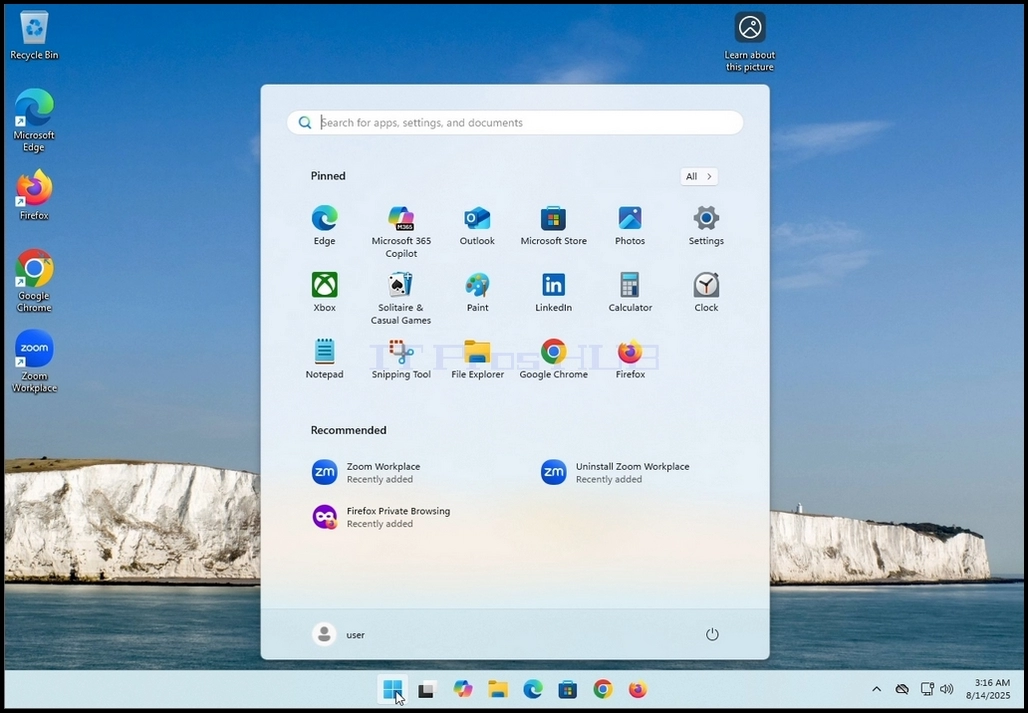
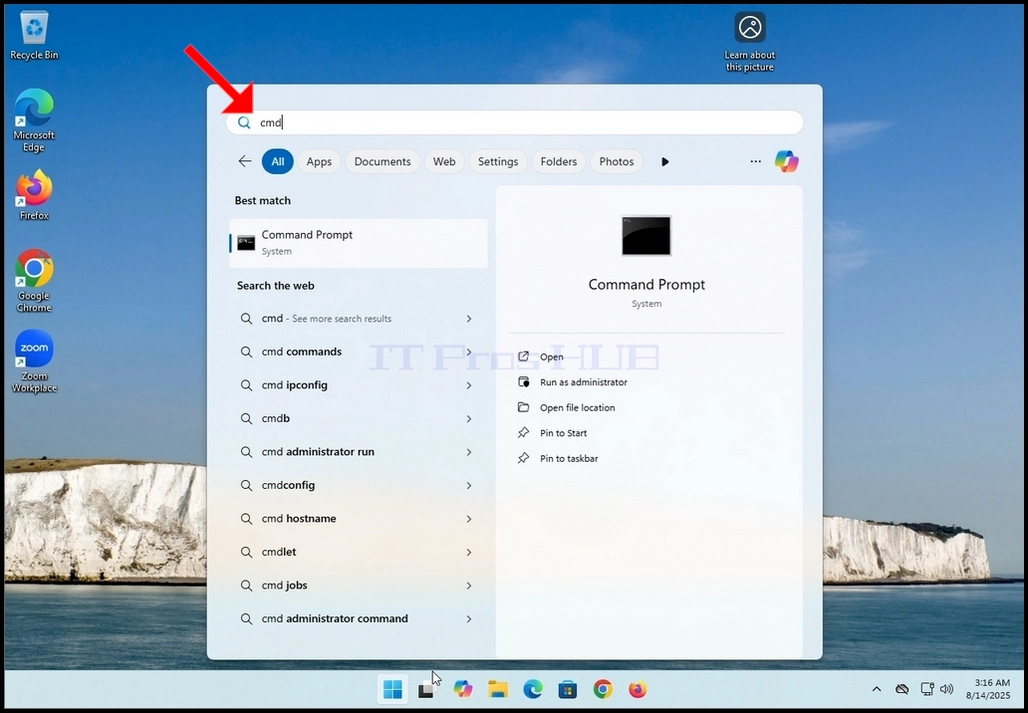

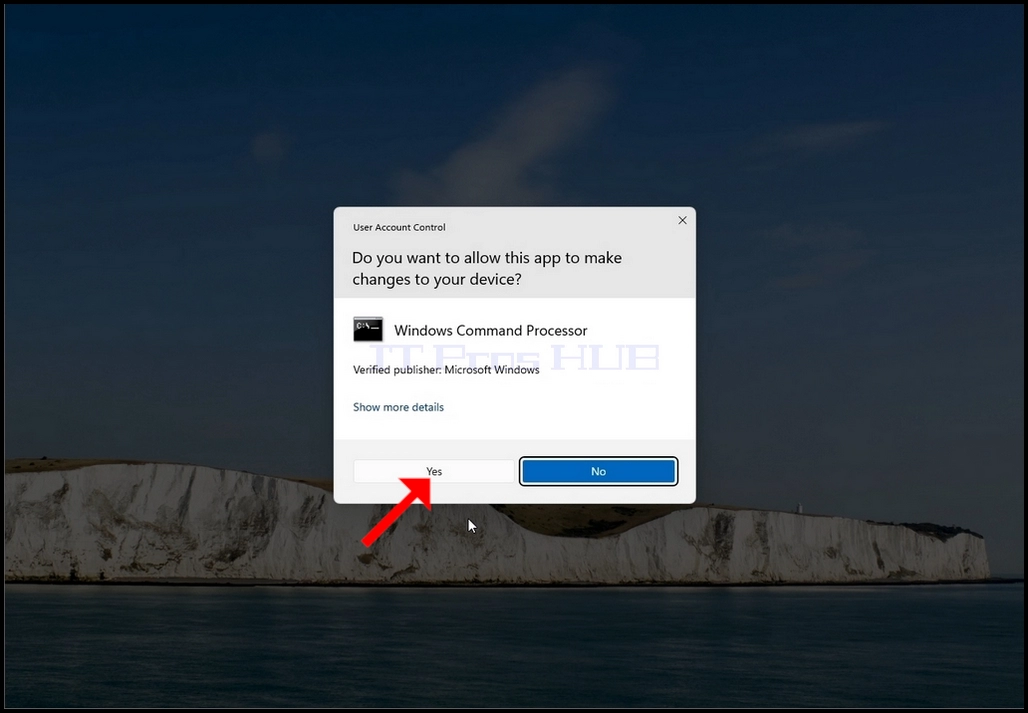
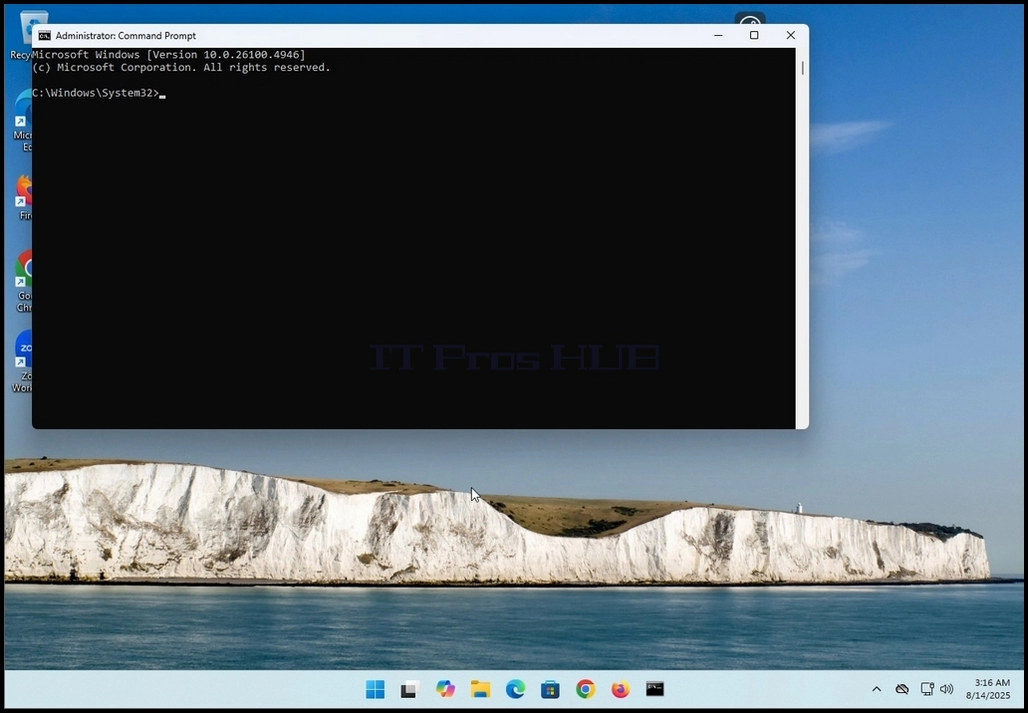
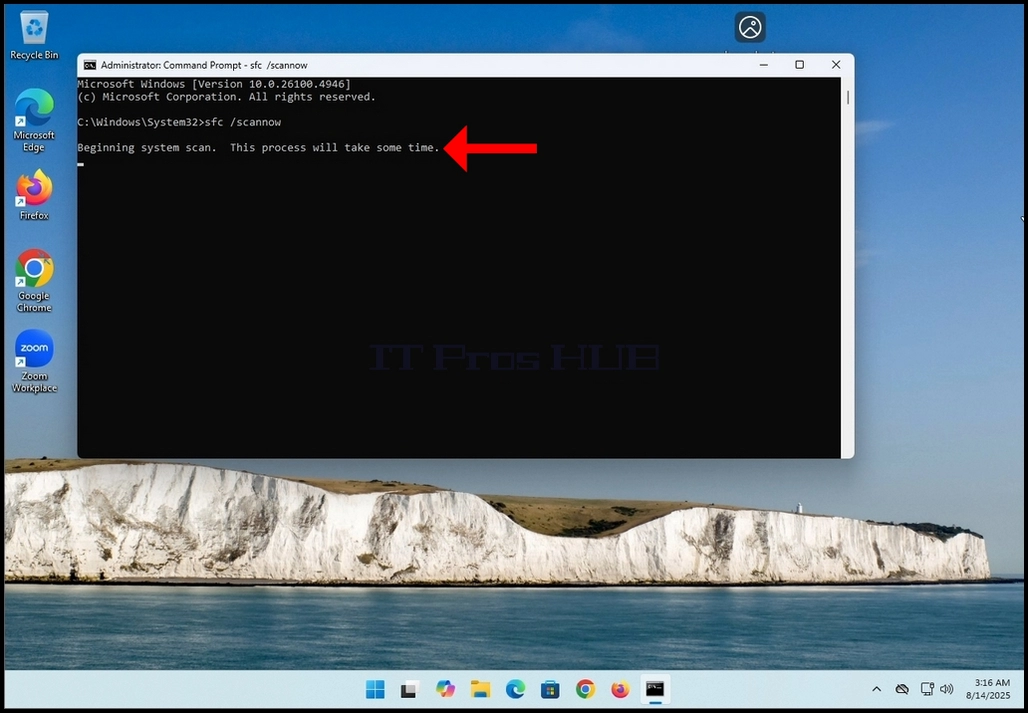
6. In the Command Prompt window type: “sfc /scannow” and hit the ENTER key.
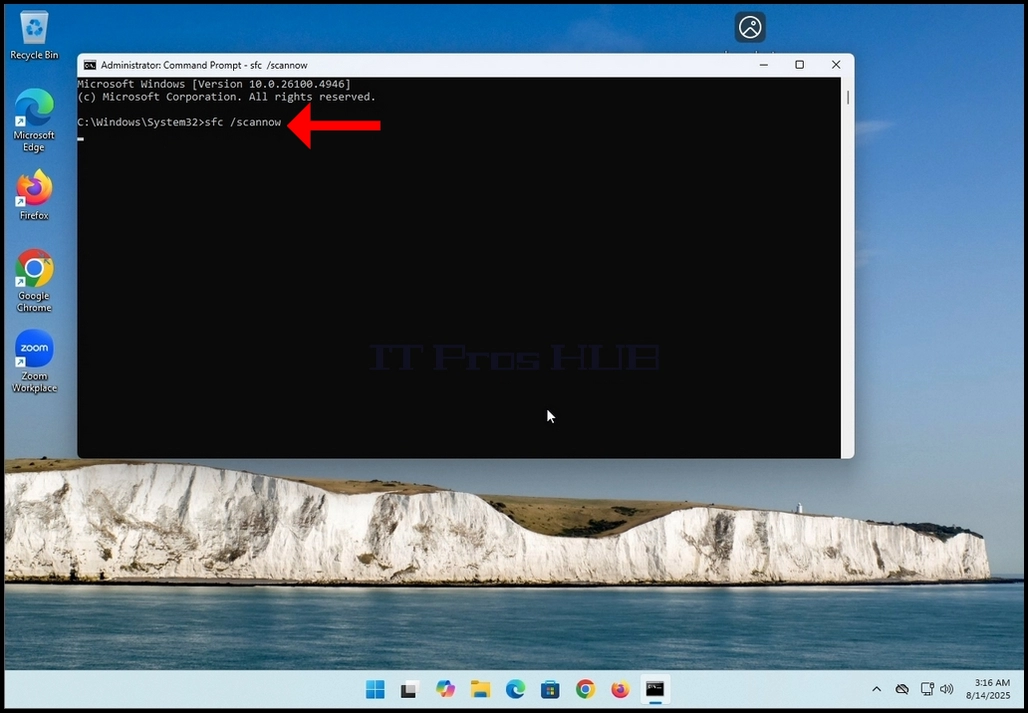
7. After hitting the ENTER key a sentence will appear in the row below. The sentence would say: “Beginning system scan. This process will take some time..”
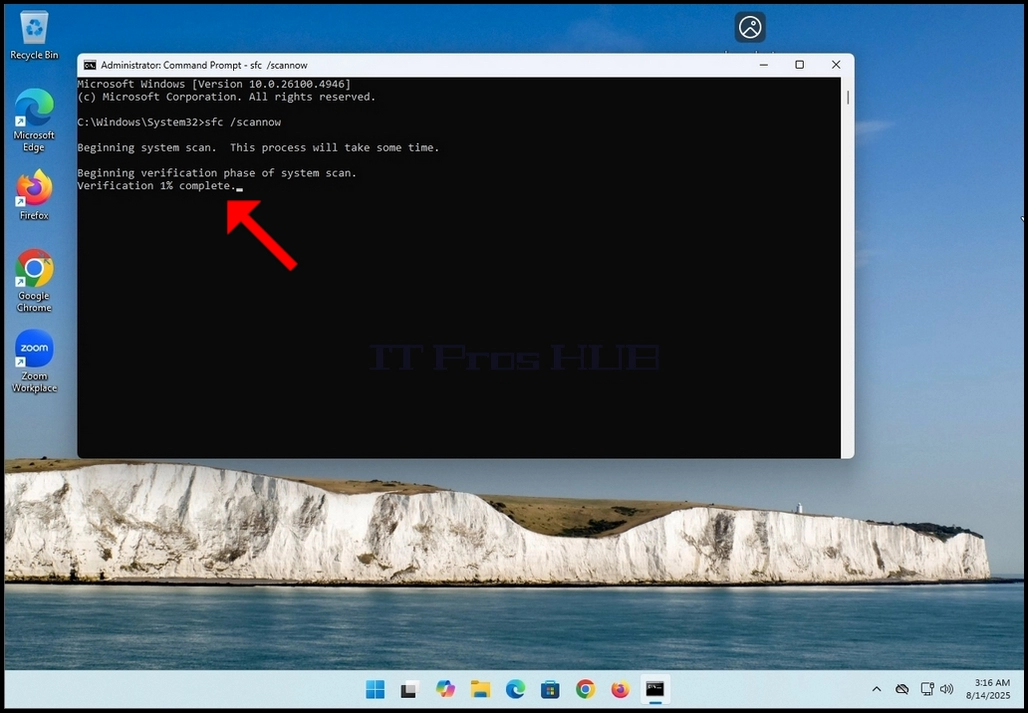
8. A few seconds after the latter sentence appears, a progress indicator should appear as well saying : “Verification 1% complete”.
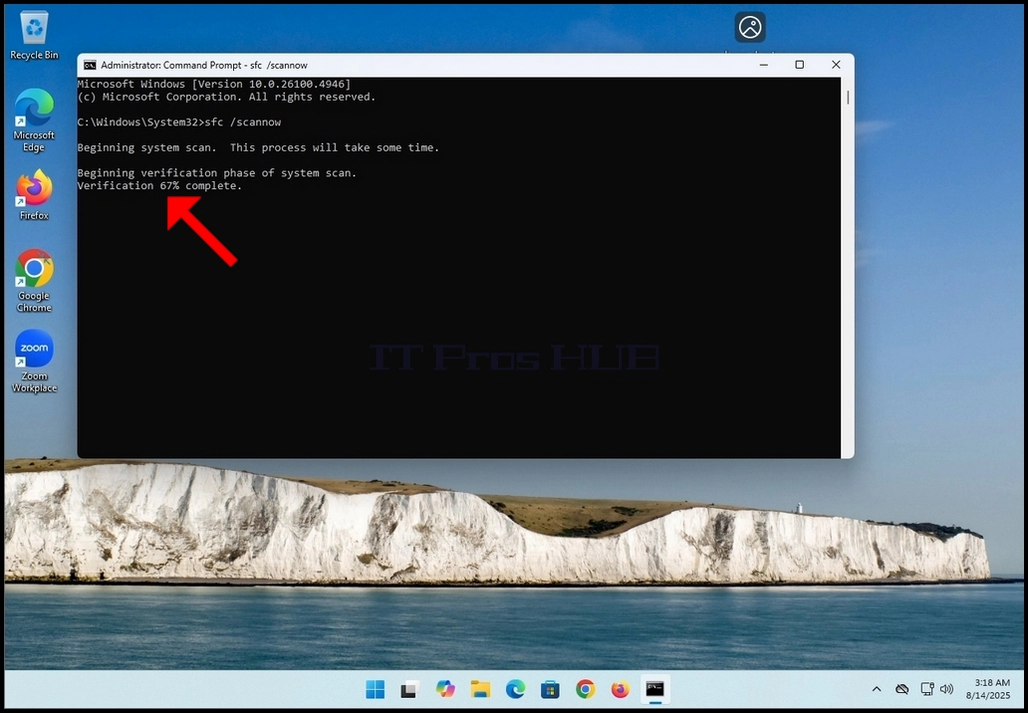
9. Wait until the percentage reaches 100.
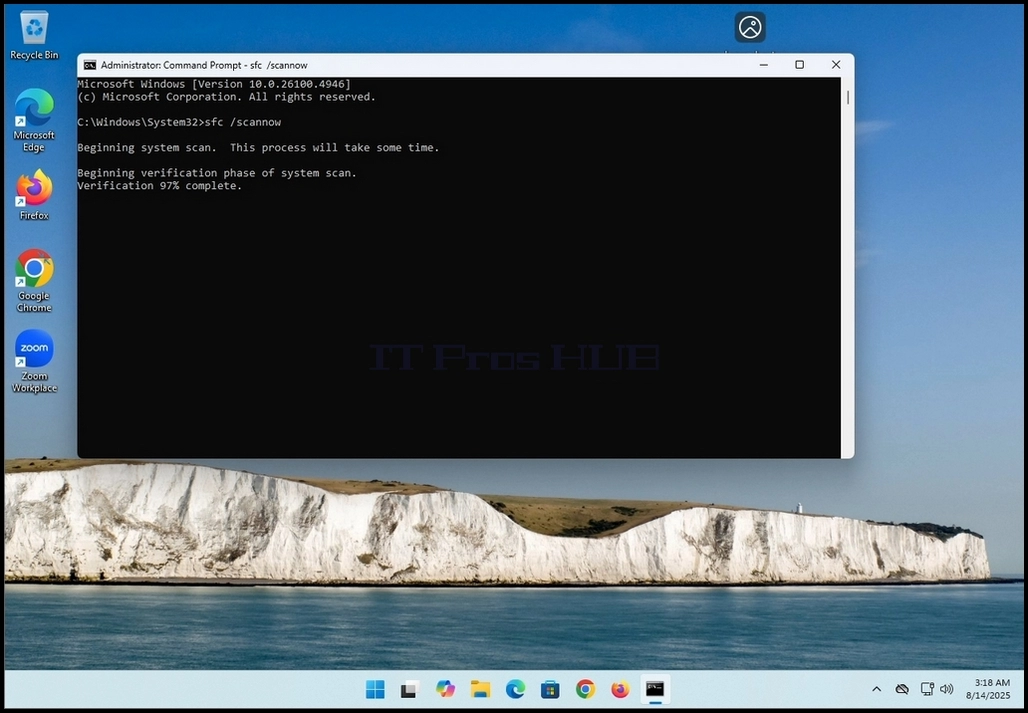
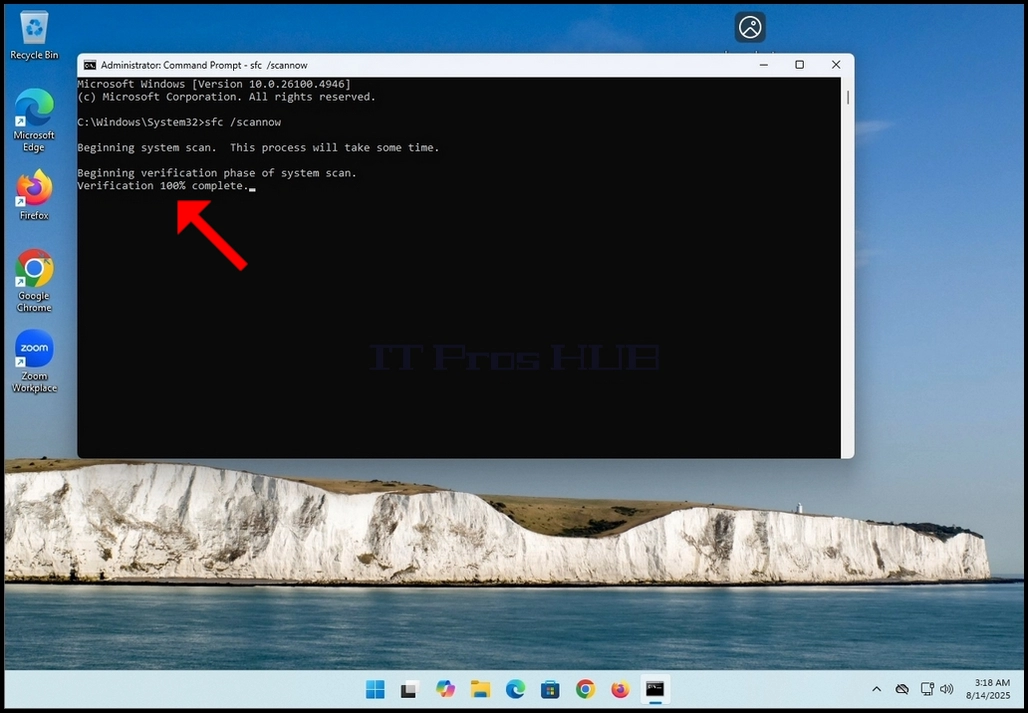
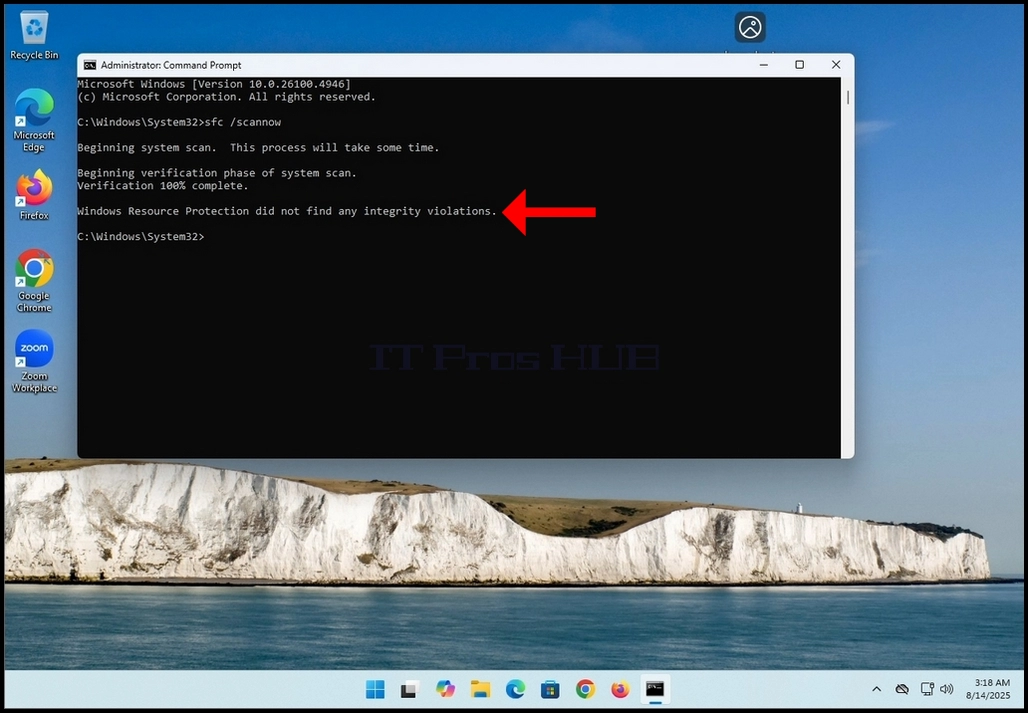
10. After the progress indicator shows 100% a new sentence in the row below will appear saying either:
a. Windows Resource Protection did not find any integrity violations – that means there were no errors in the system.
b. Windows Resource Protection found corrupt files and successfully repaired them – this means that Some files were damaged but fixed.
c. Windows Resource Protection found corrupt files but was unable to fix some of them – this means that Corruption detected but not repaired.
d. Windows Resource Protection could not perform the requested operation – this means that Scan couldn’t complete (offline repair or file system problem).
- Details
- Written by: IT Pro
- Category: How to Articles
- Hits: 8312
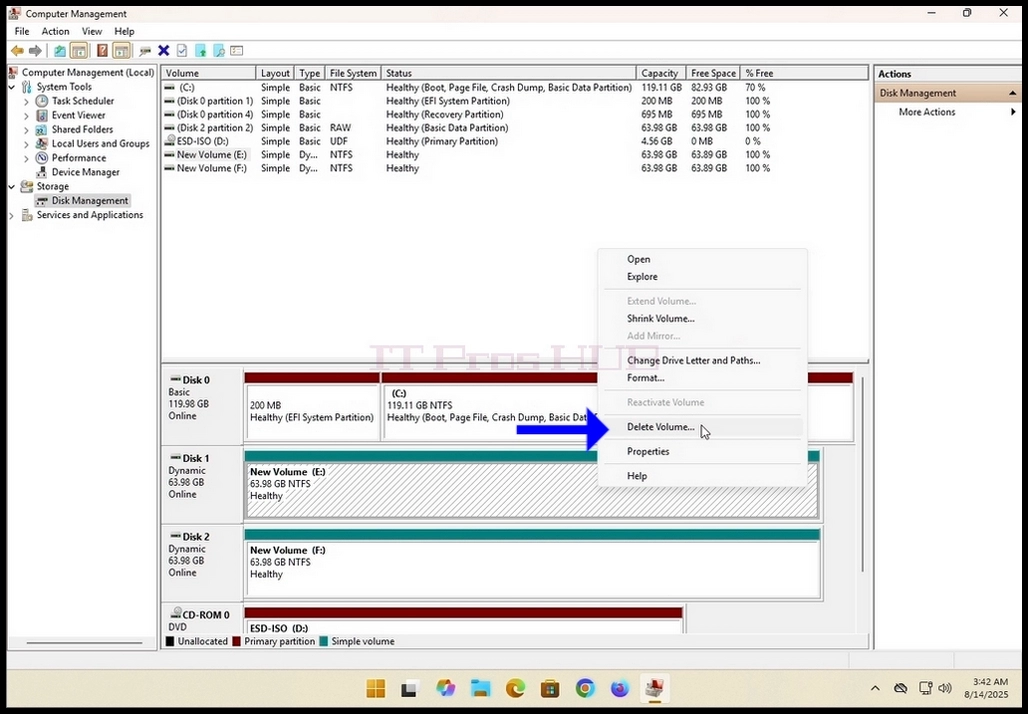
2. In Comuputer Management, on the left pane, look for Disk Management and click on it once.
3. Look for one of the disks you would like to be a part of the spanned volume and
right click on it. Wait for a side menu to appear.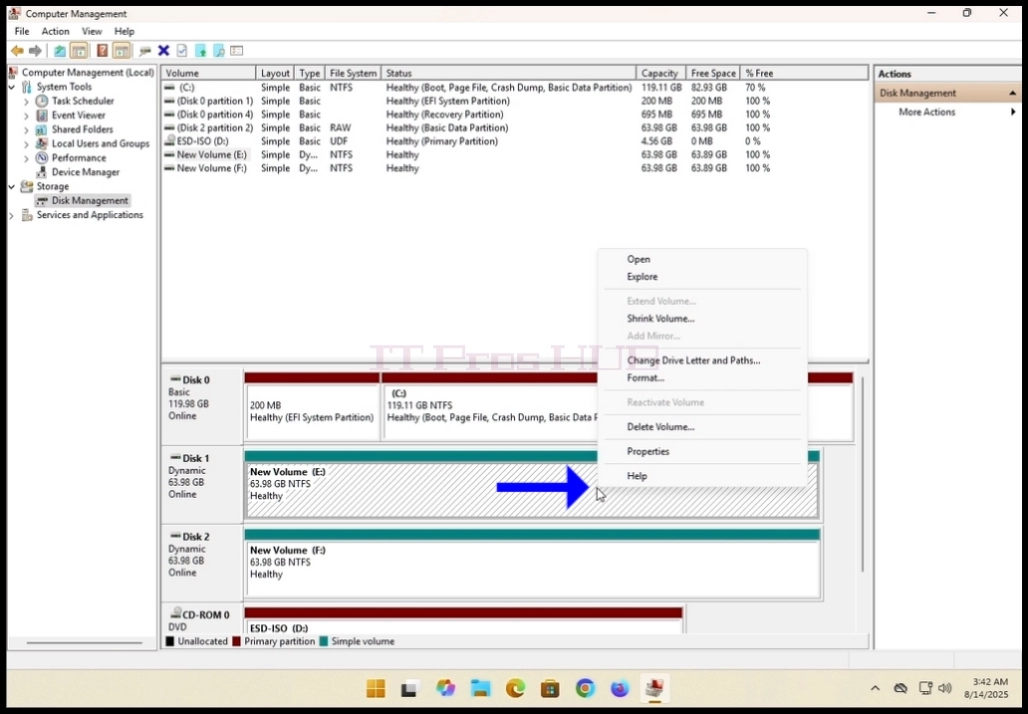
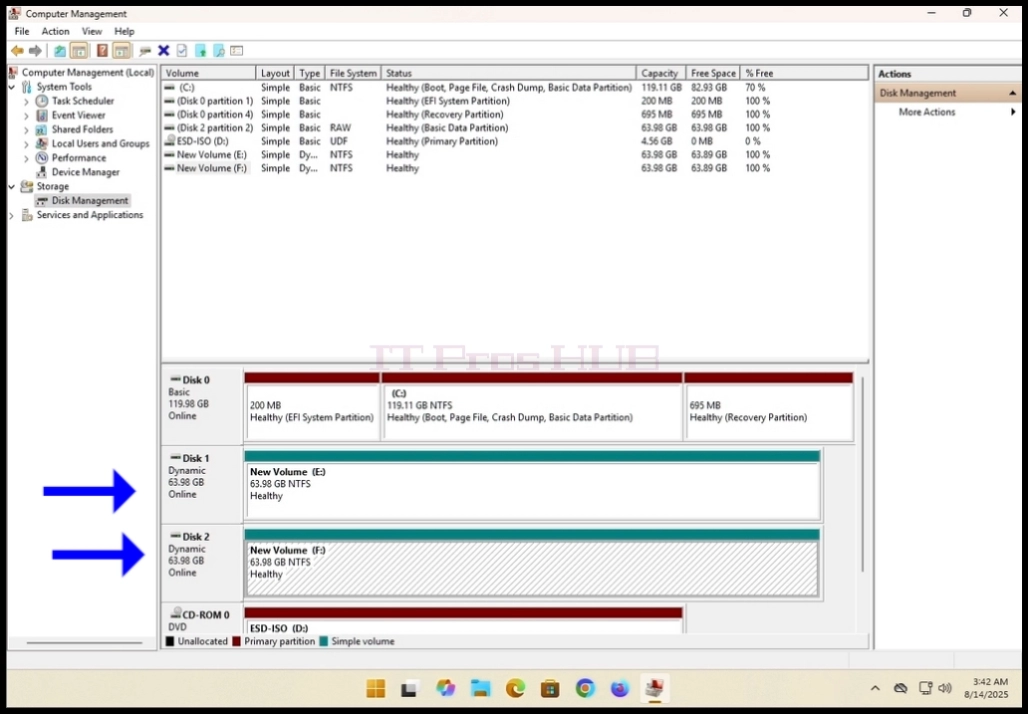
4. In the case of this article we will delete existing volumes out of the disks
we want to use in our spanned volume. As you can see, though
they are both dynamic, Disk 1 and Disk 2 are currently configured as something other than a spanned volume.
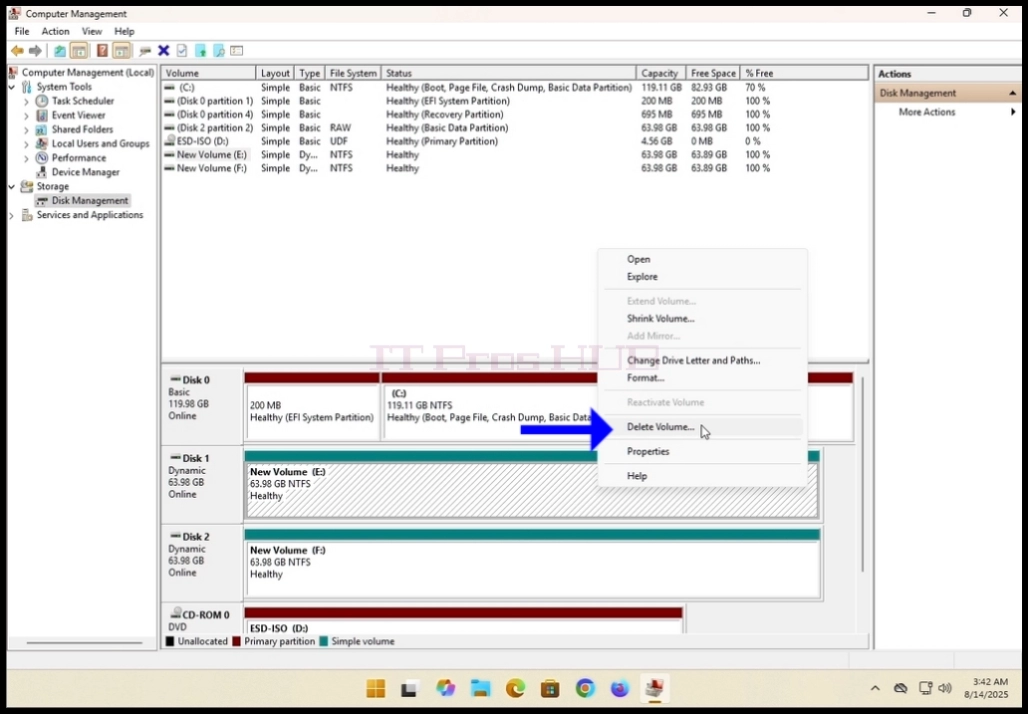
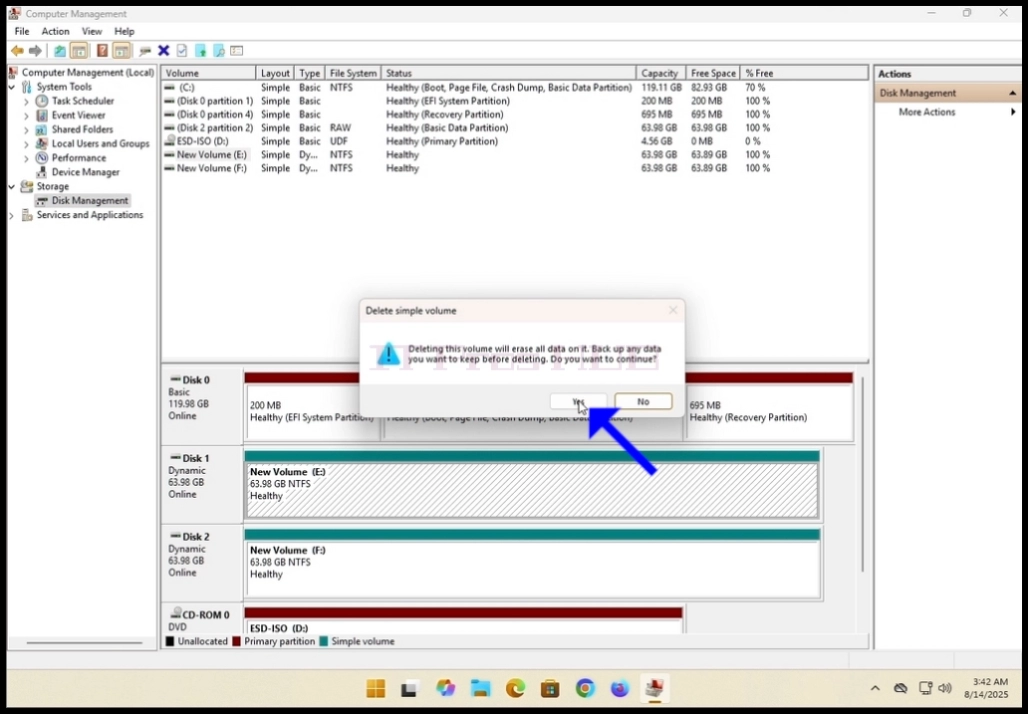
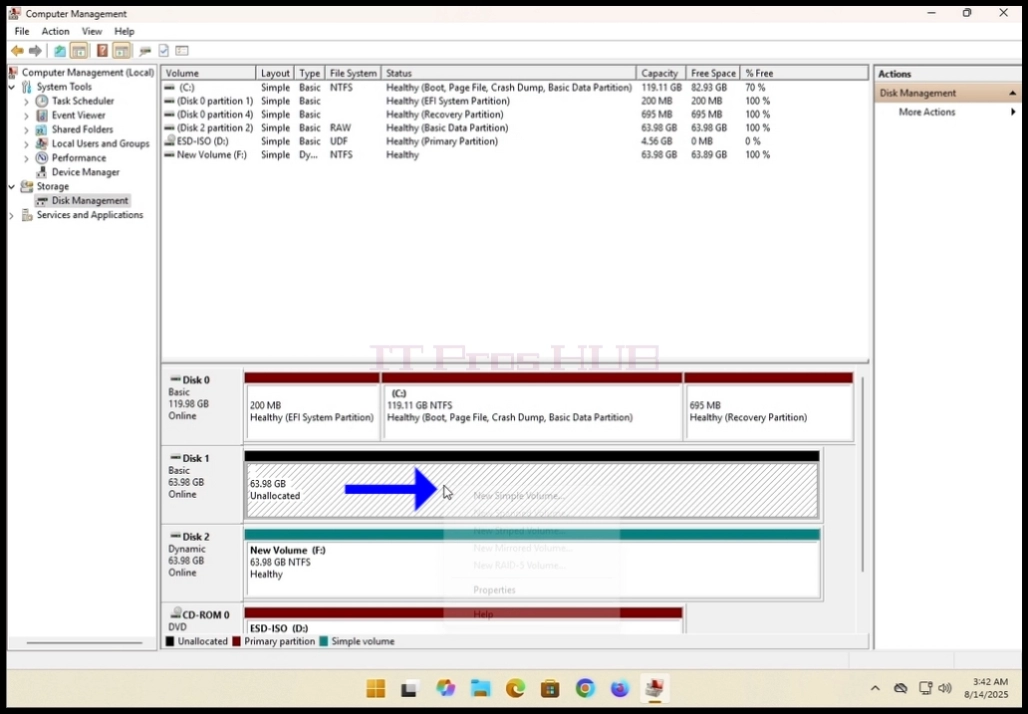
7. Perform the same action to the second disk in the array.
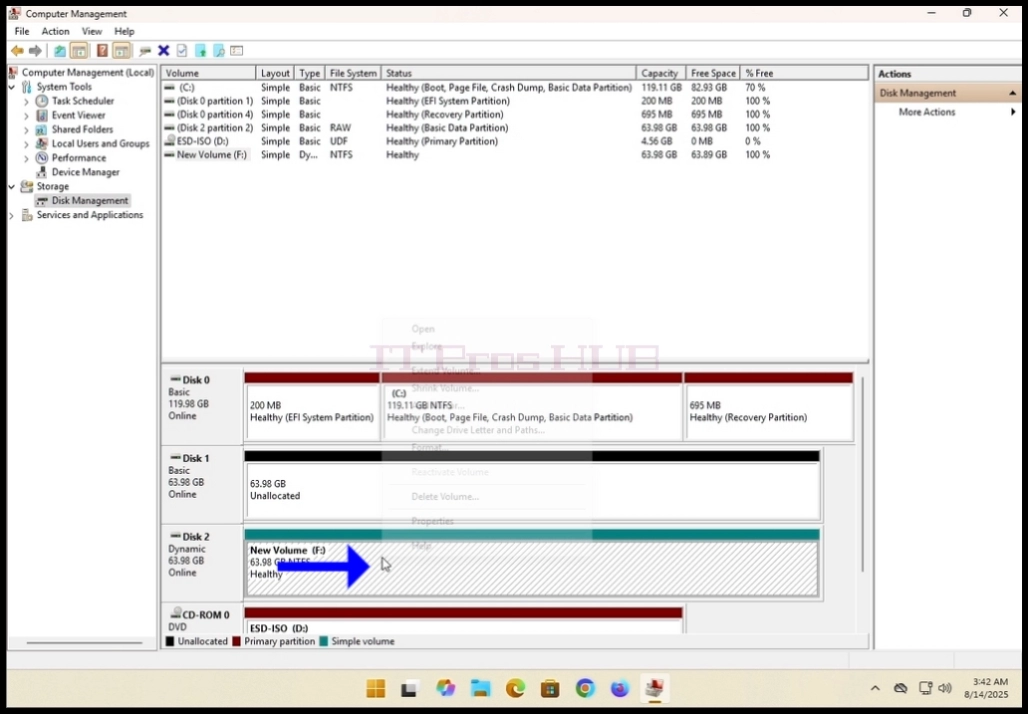
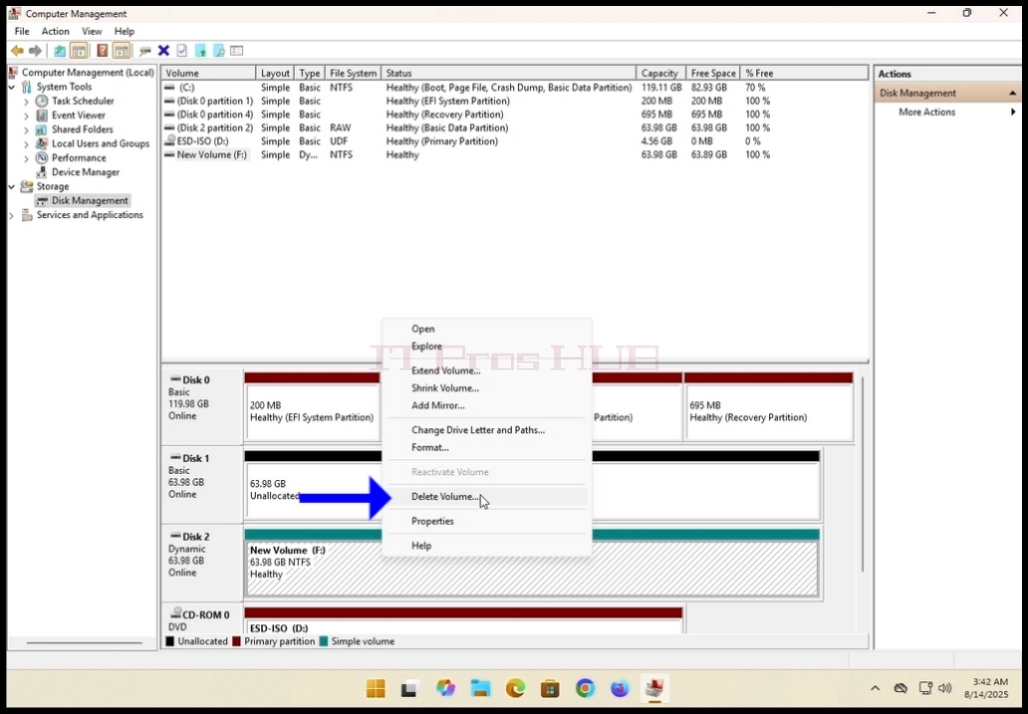
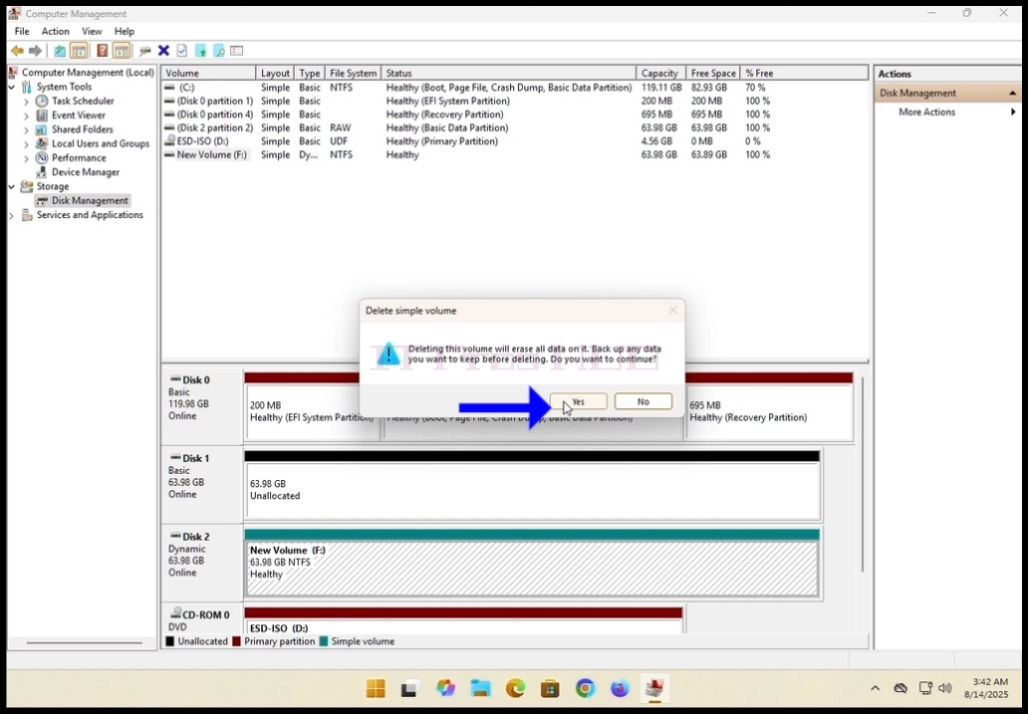
8. Make sure both disks have only unallocated volumes.
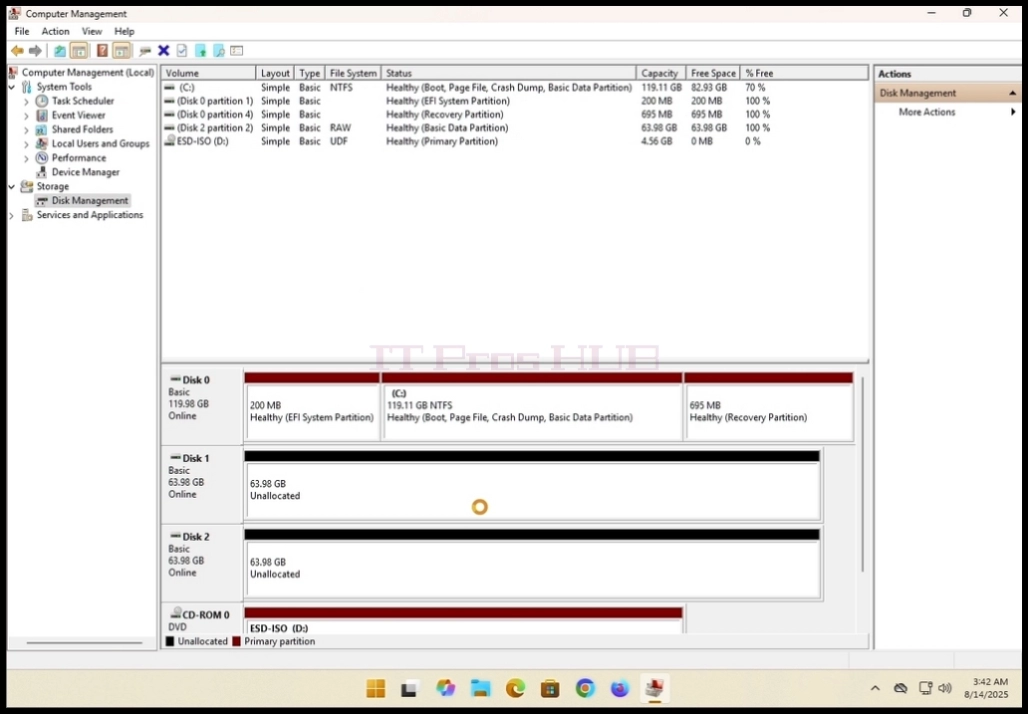
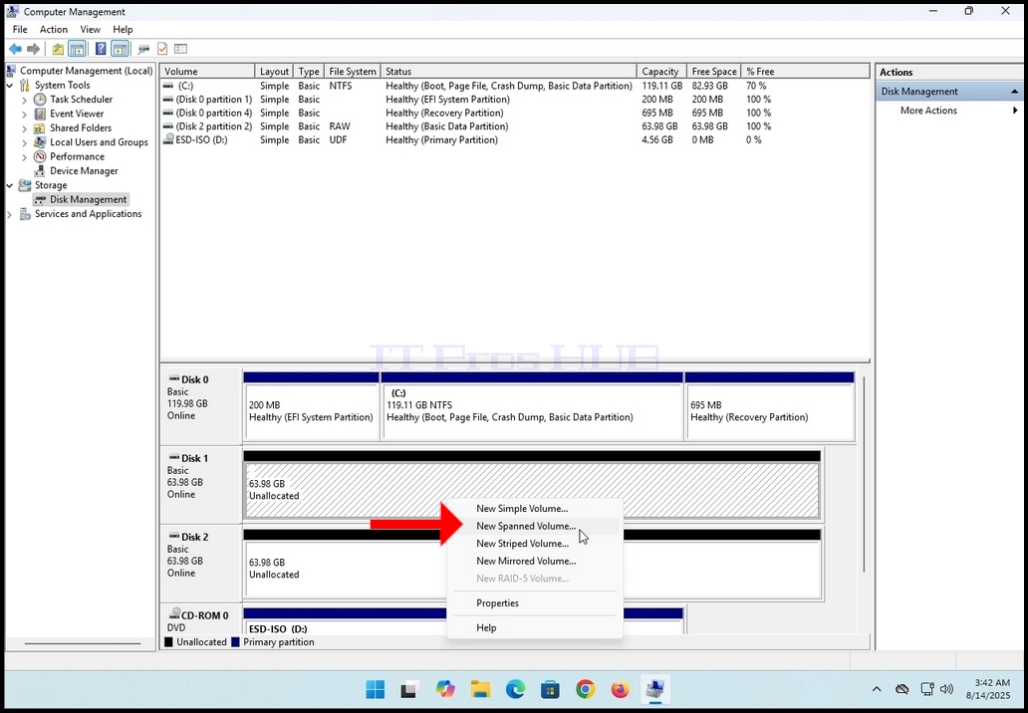
10. Click NEXT.
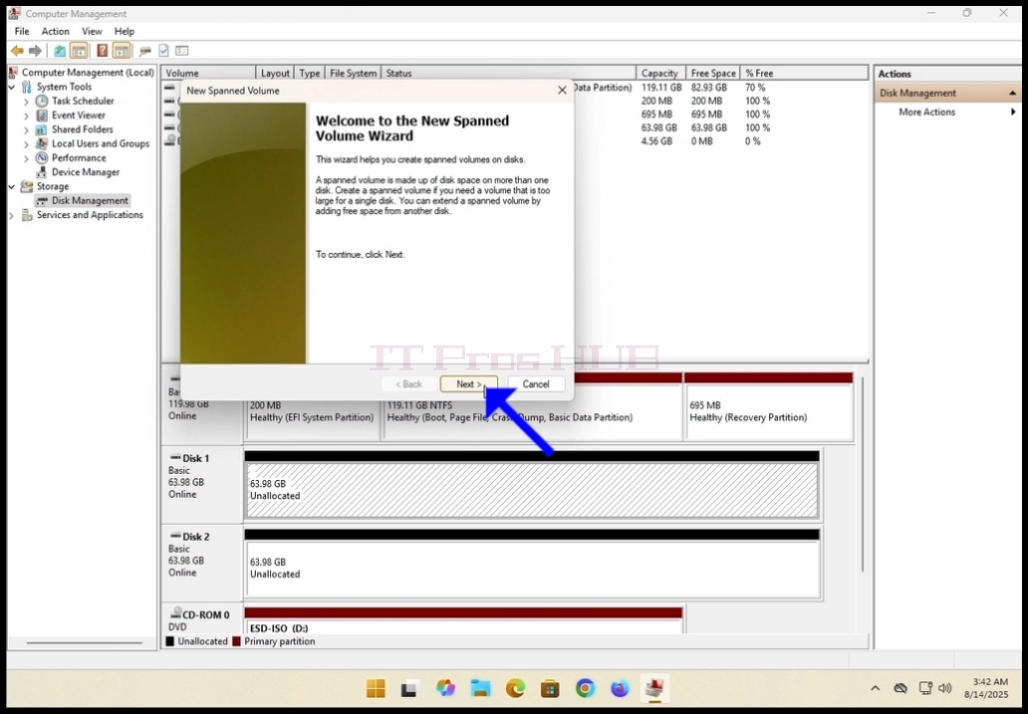
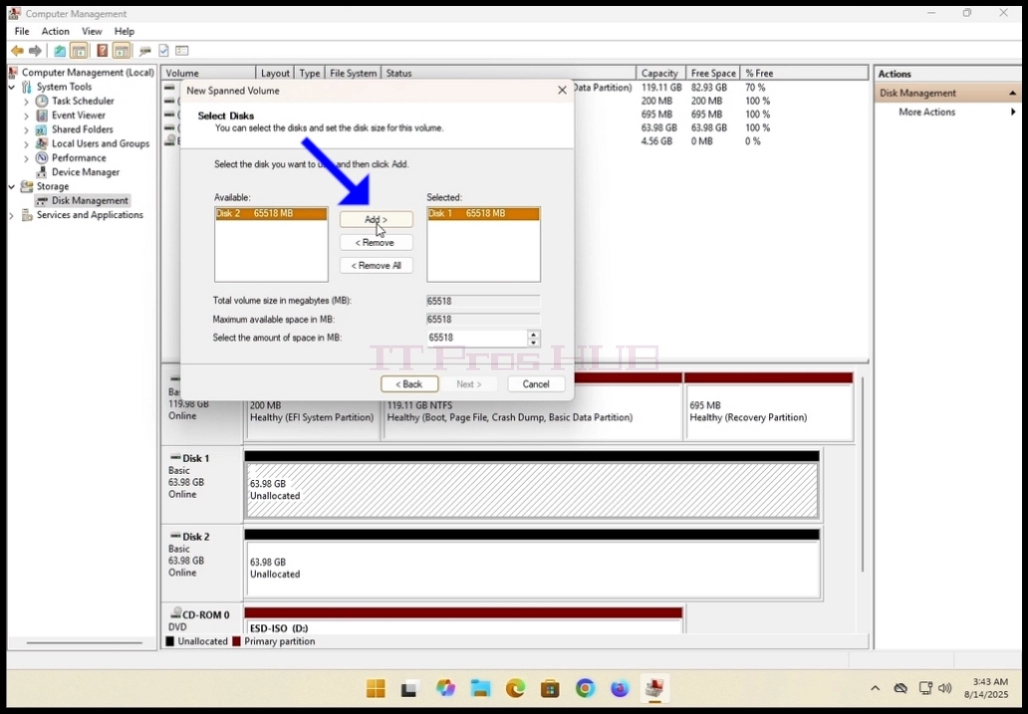
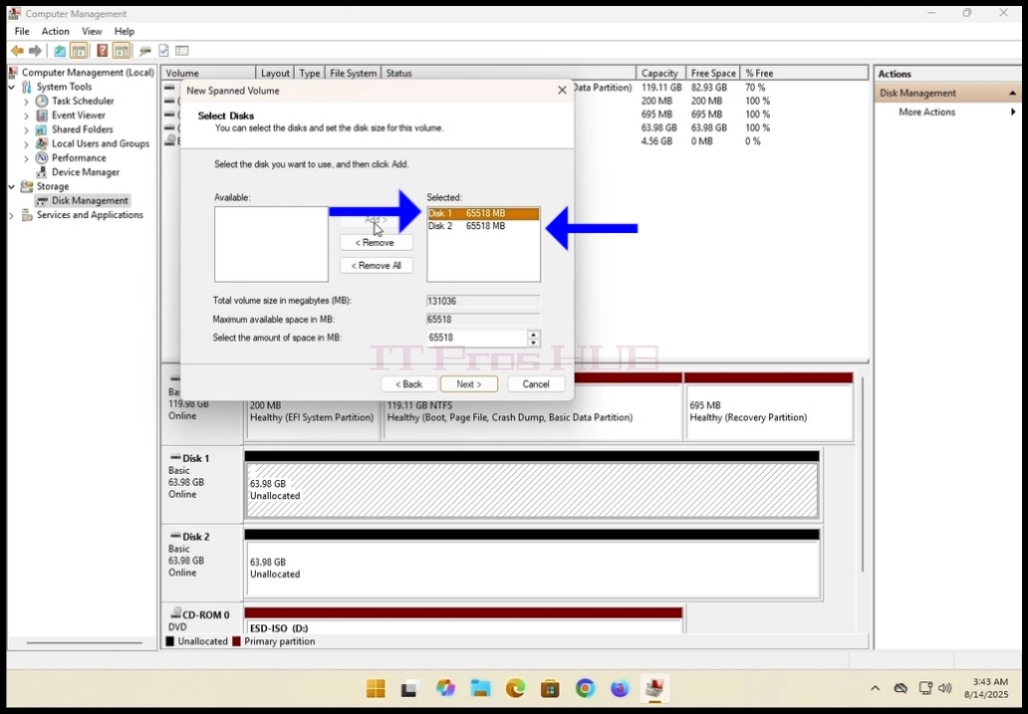
11. In the current Select Disks window, notice the 2 boxes. The box on the right contains
the disk previously right clicked on and the left boxf contains all of the available
disks to add to the spanned volume array.
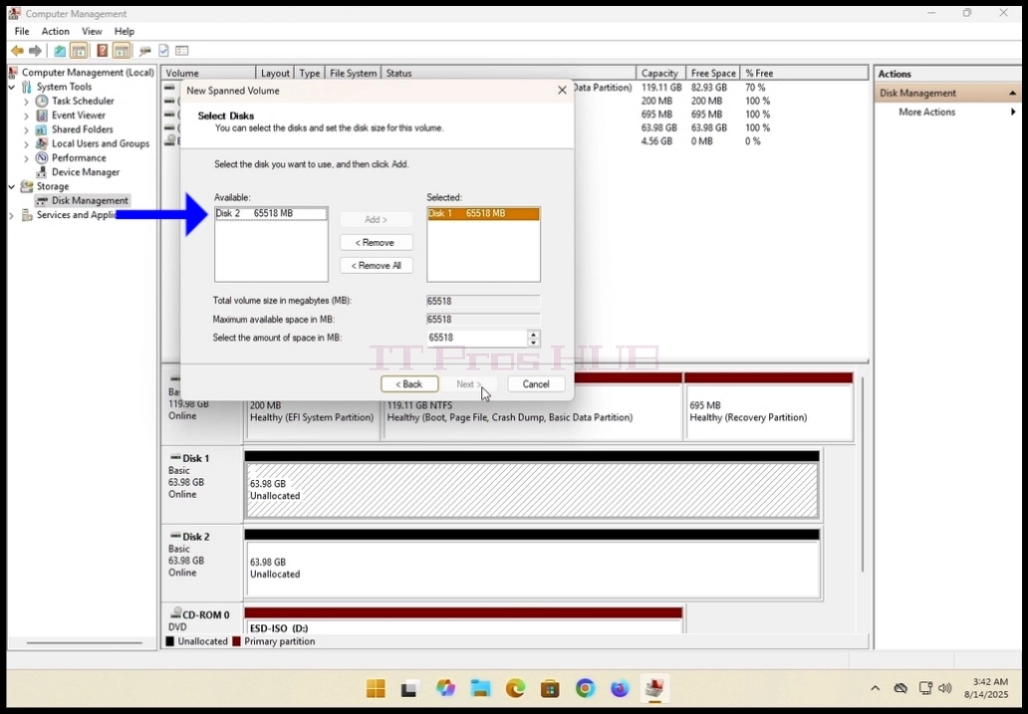
12. In the case of this article and as metioned before, we will use disks 1 and 2.
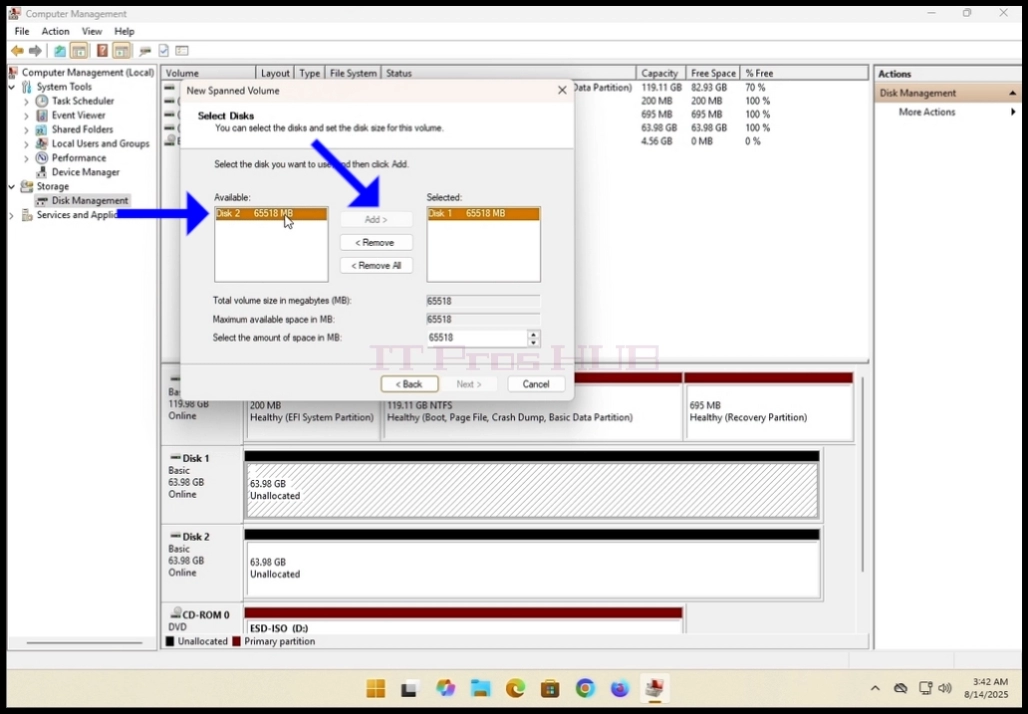
16. You have now configured a spanned volume!
- Details
- Written by: IT Pro
- Category: How to Articles
- Hits: 6061
1. Open Google Chrome browser
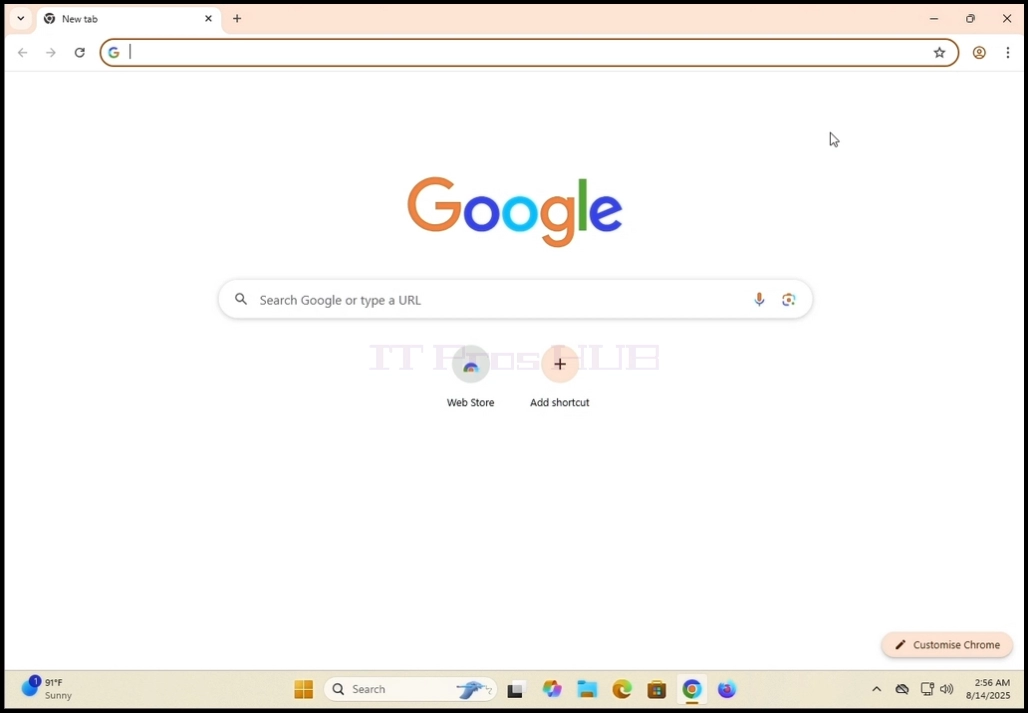
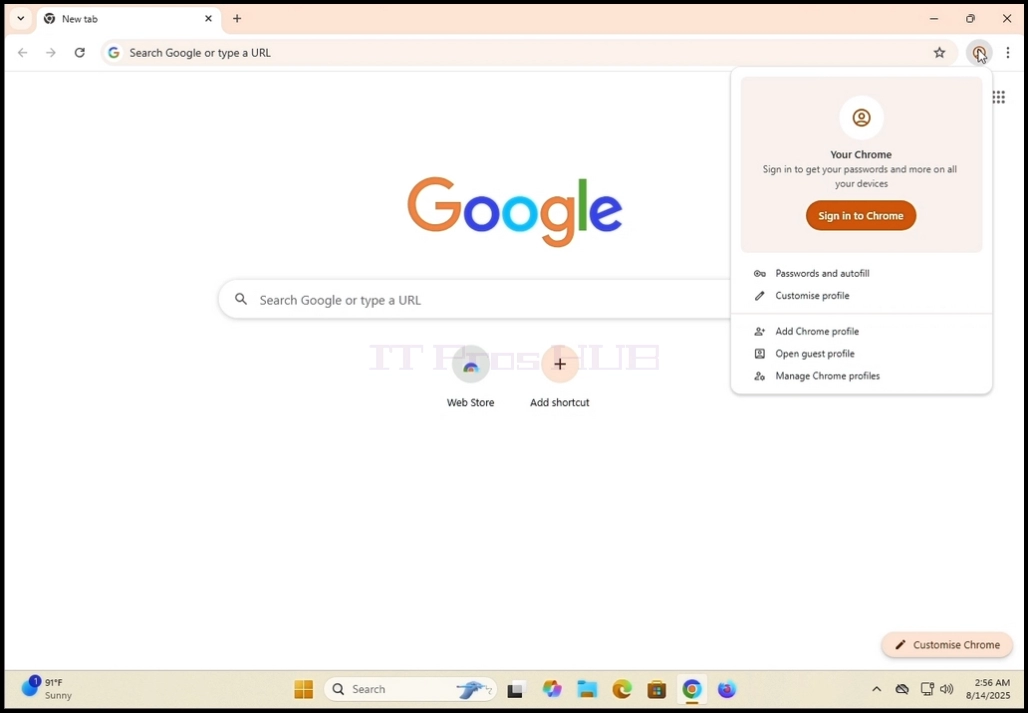
2. look for the profile icon in the top right corner of Google Chrome browser. Click on it
once and wait for a pop-up window to appear. The window is called Your Chrome.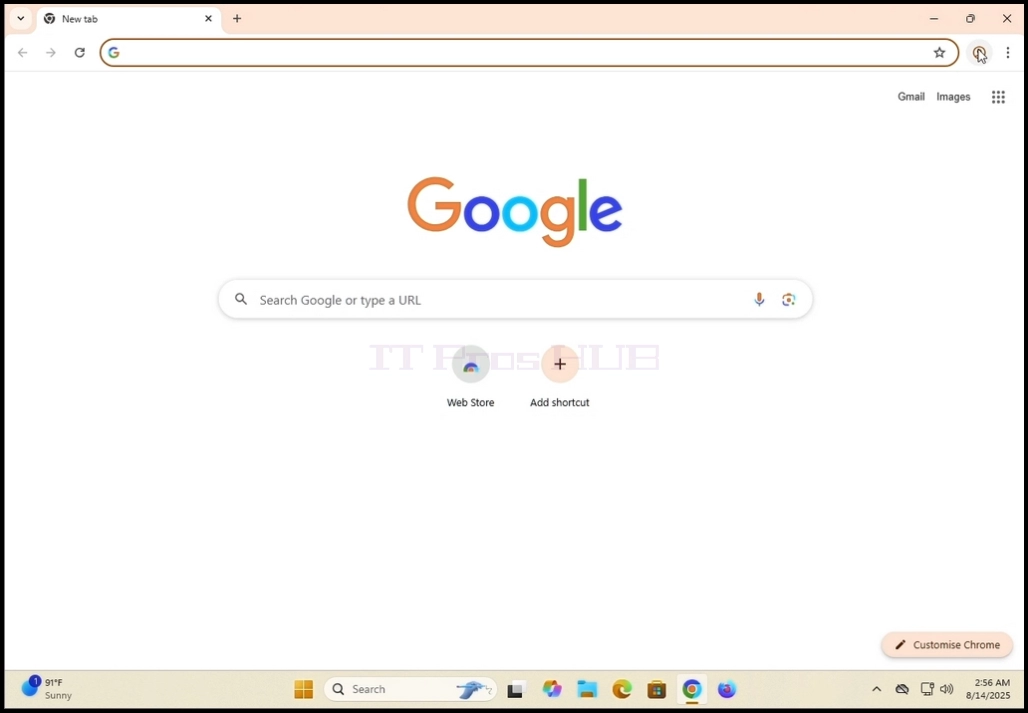
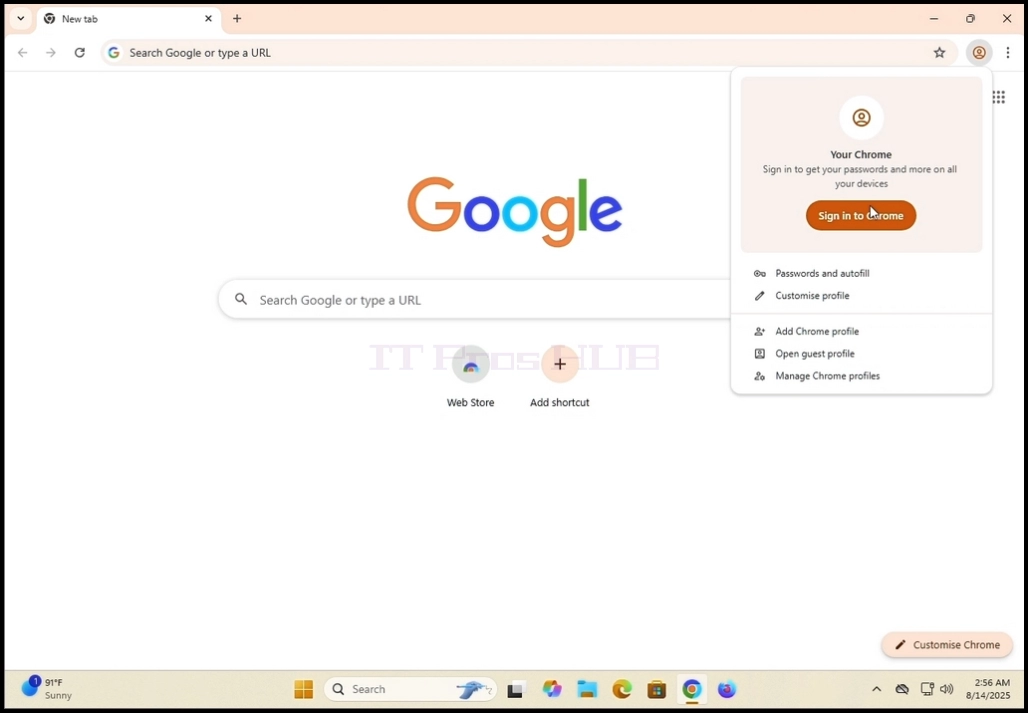
4. Once clicked, the pop-up window will get closed and Google Chrome's page should change to the Sign in to Chrome page.
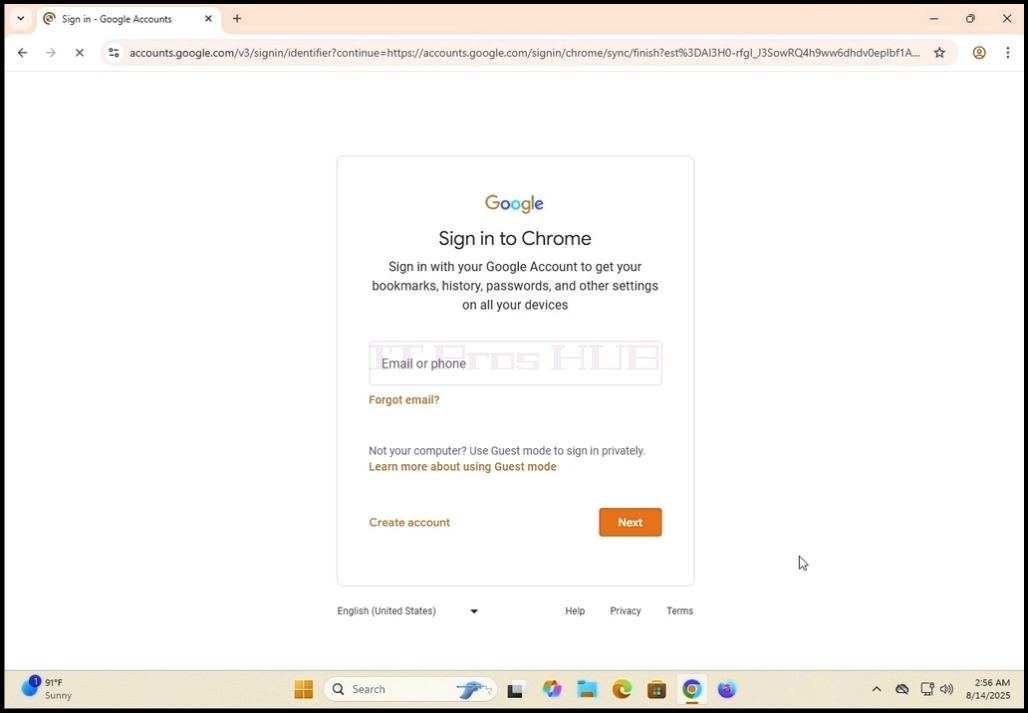
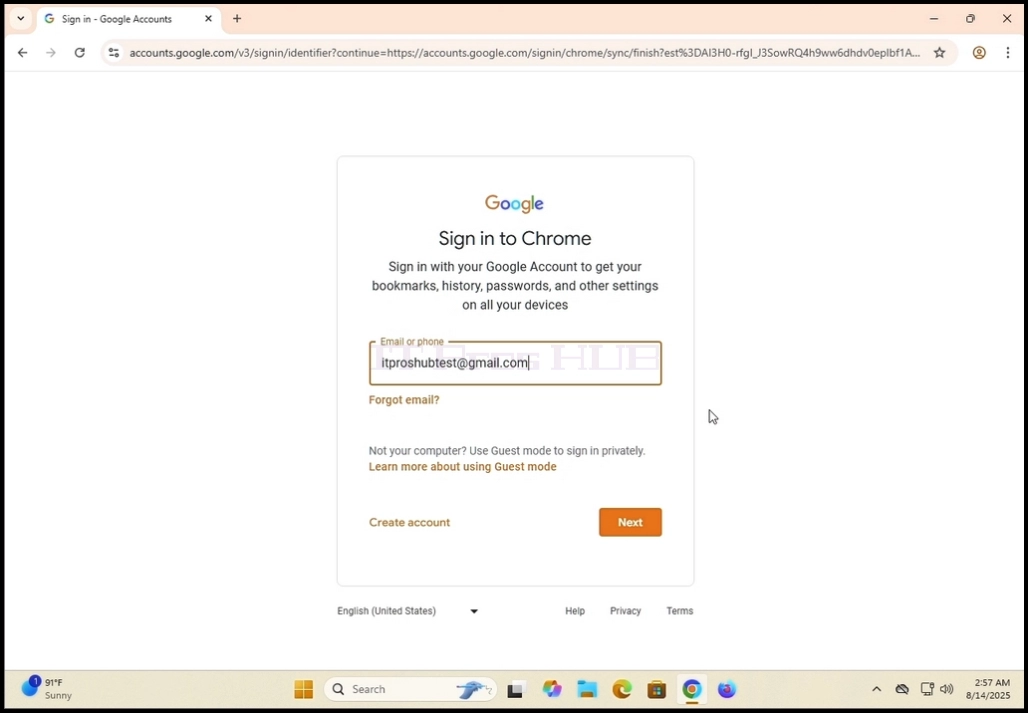
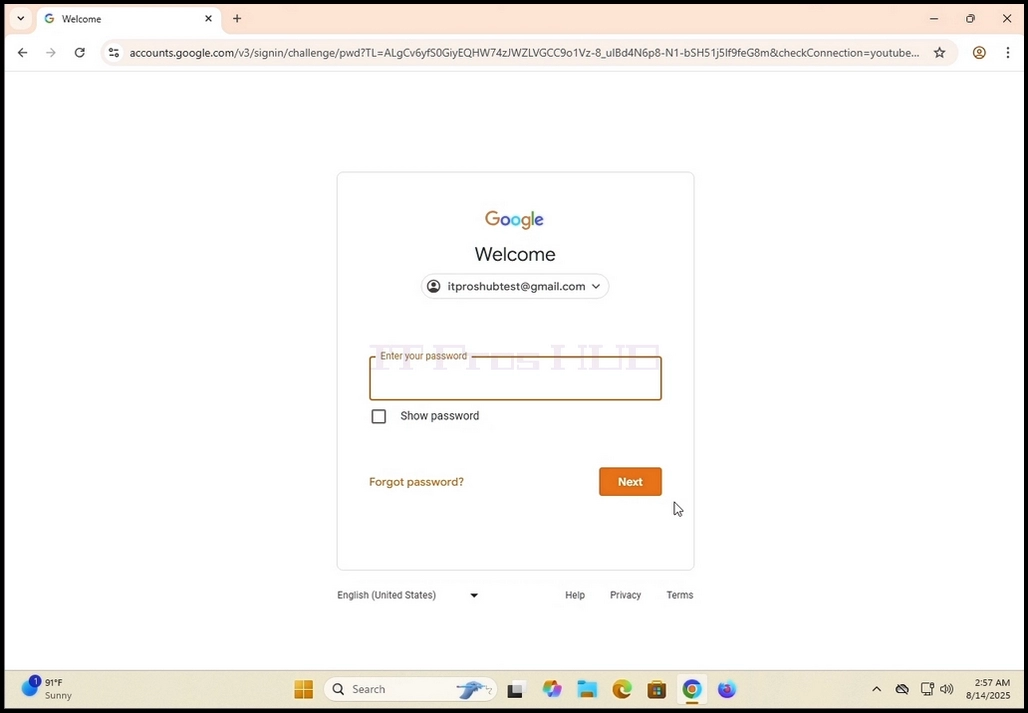
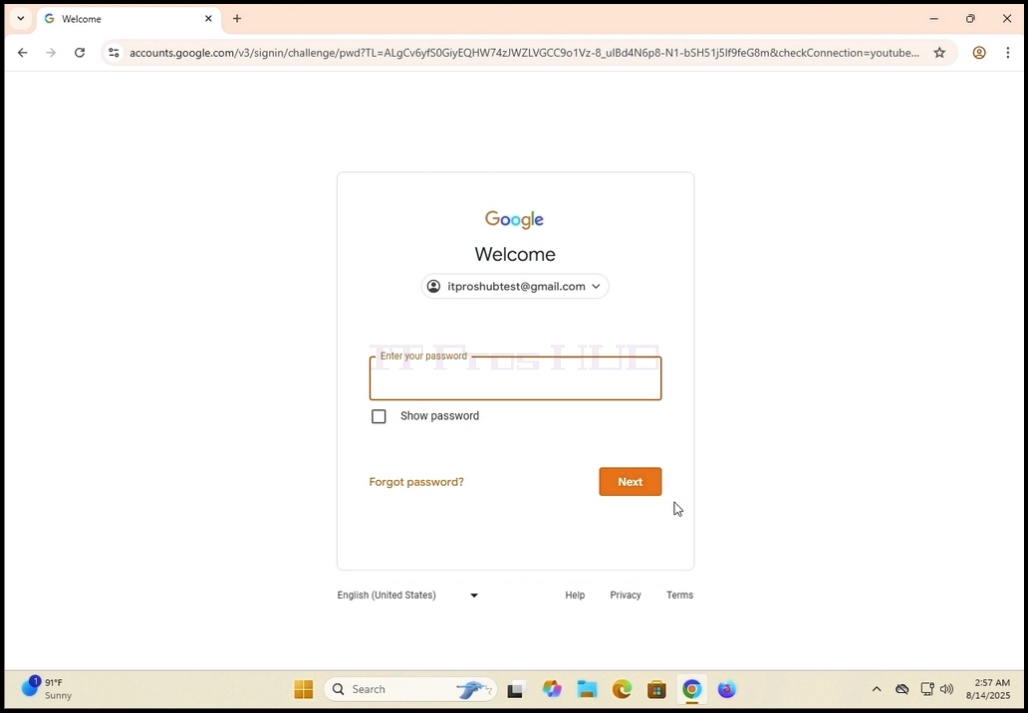
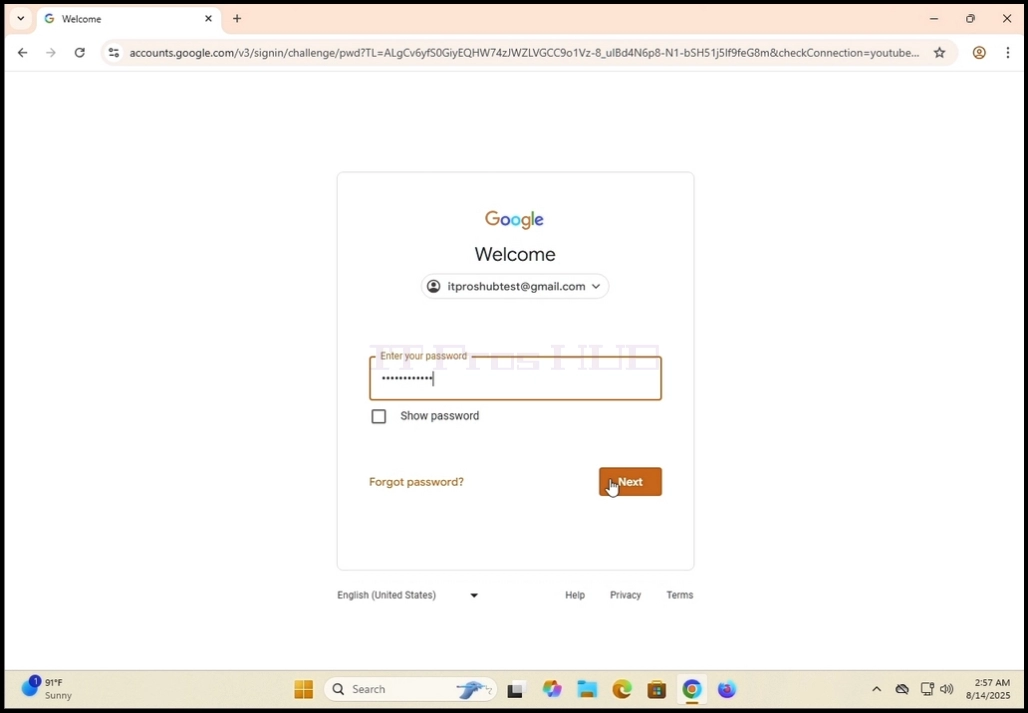
6. Wait for the password window to load. Enter your Gmail password and hit the ENTER key or
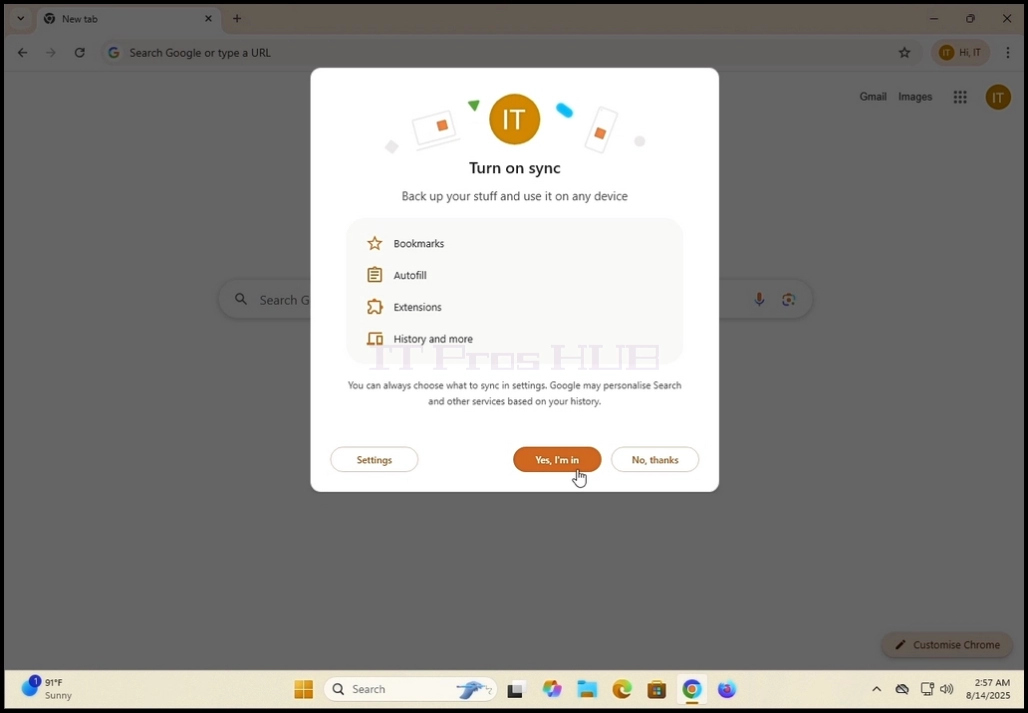
click the Next key. Wait for a Turn on sync pop-up window to appear.
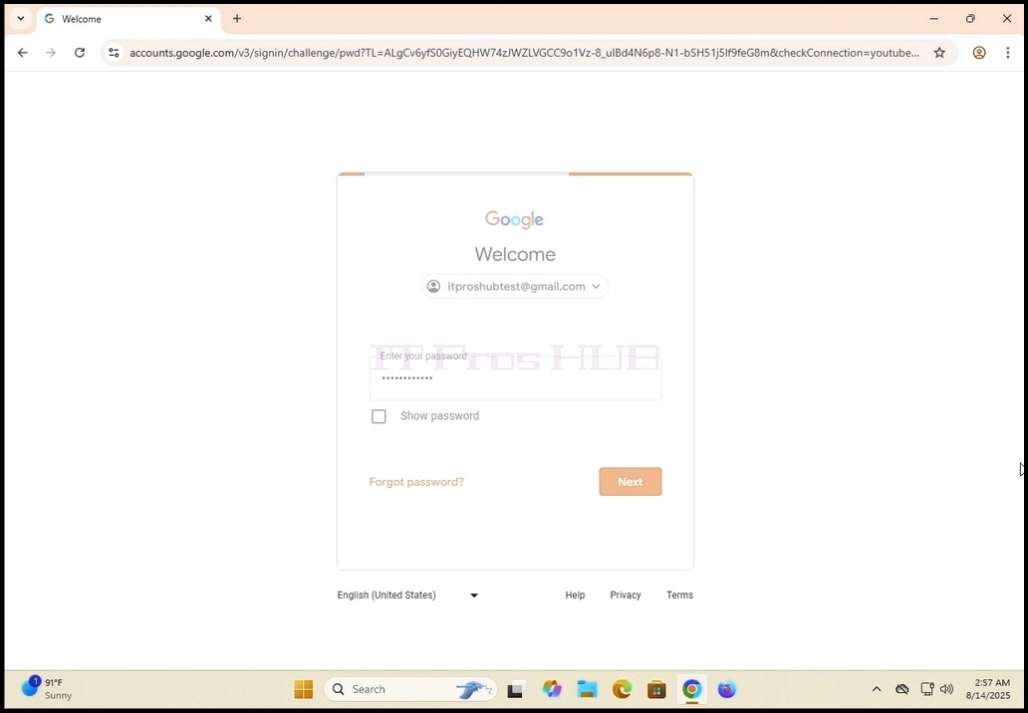
7. In the Turn on Sync window, you can choose whether to sync this Google Chrome local browser to
your Google account alltogether.
Click Yes, im in in order to sync
Click No thanks to pass syncing.
Our recommendation - Sync which is what we are going to demonstrate in this article.
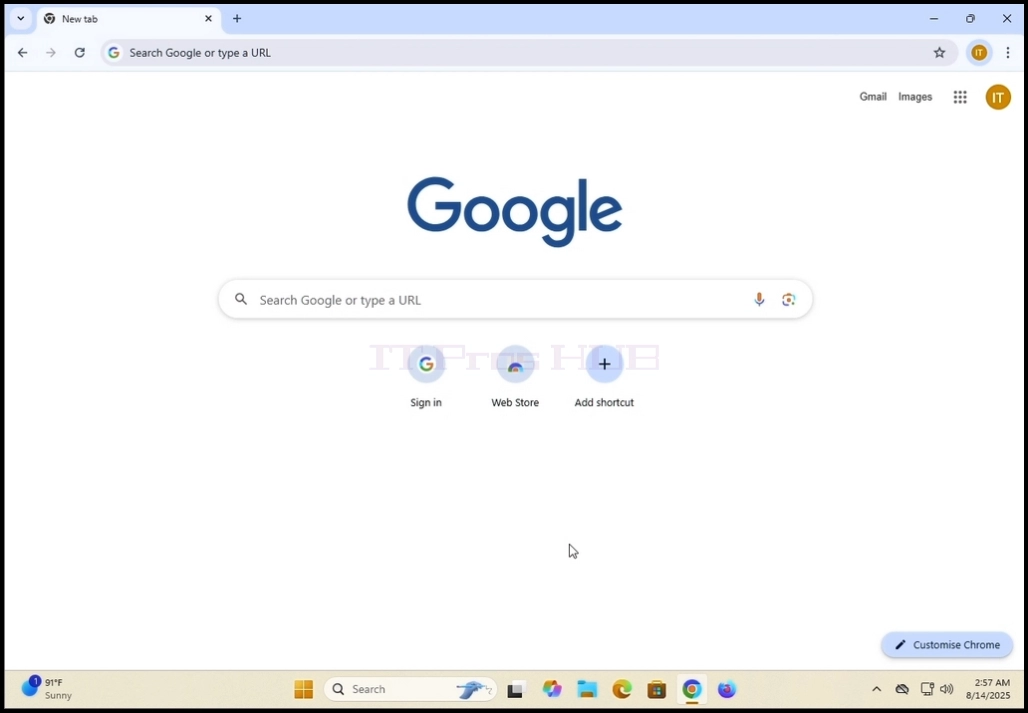
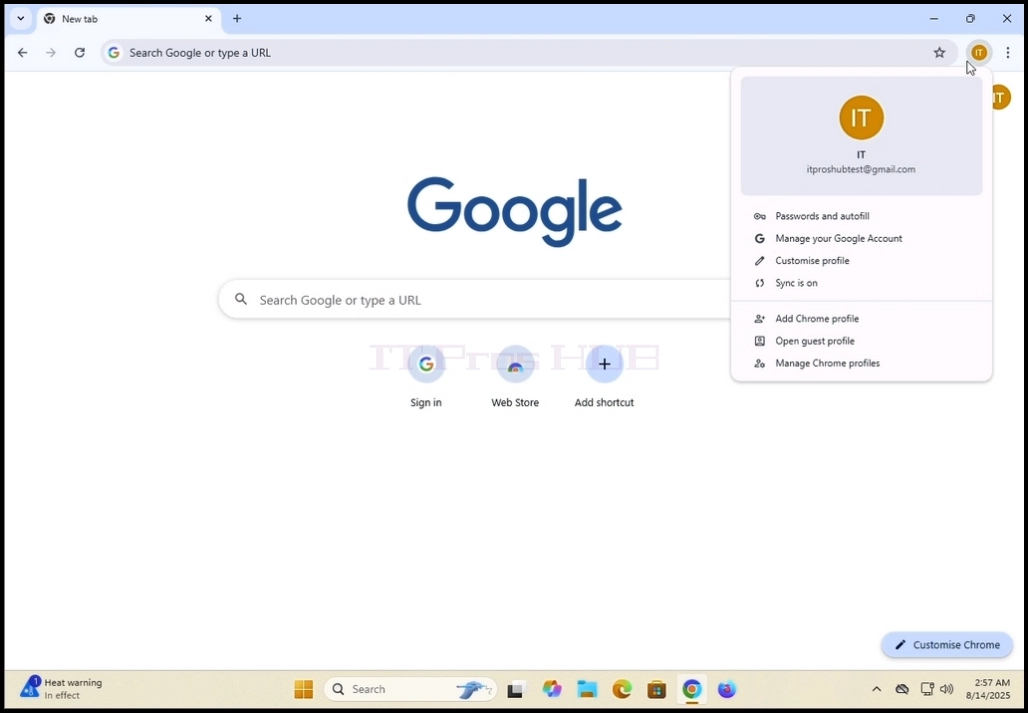
8. Google Chrome is now connected to your Google account and synced with it as well. All of your
saved data in Google Chrome under your Google account should appear locally in this browser.

- Details
- Written by: IT Pro
- Category: How to Articles
- Hits: 6492


3. Once found, click on the Computer Management icon and wait for the Computer
Management window to load

4. In the Computer Management window, on the left pane, look for the Disk Management
sentence. It should be under the Storage main branch. Once found, click on it once.
Wait for the window to change to to Disk Management.

5. Once Disk Management is loaded you will see a list of your disks. Look for the
disk you have recently plugged into your computer. Make sure the size of the disk
matches the disk you had connected to the comptuer. Most of the time that disk should be
marked with a red circle and an X inside of it, meaning it is not an initilized disk.
7. After clicking Initialize, a new pop-up window wil appear, titled Initizlie Disk.
8. In that window, mark the the disk which should be initilized. Make sure that the disk number
is the same as the one on the previous list.


11. The disk is now initialized and ready to be used

12. In the next step we will fortmat the disk to be able to start storing data on it.


15. Click Next.

16. choose the desirble size of the partition. In the case of this article, we
will use all of the available size of the disk to create the partition. Click Next.

17. Here, choose the desired drive letter for your new partition. In the case of this
article we will remain with the pre-chosen option of E. Click Next

18. Here, you can choose whether to format the new partition of to leave it be to be done later on.
Either way, in order to store data on the partition it has to be formatted on one way or another.
In the case of this article we will choose to format the partition. Therefore we will choose
the second option; "Formart this volume with the following settings:".
19. After choosing the latter mentioned option, we will be presented with the following options:
File system, Allocation unit size, Volume label, Perform a quick format and Enable file and folder compression.
20. In the case of this article we will keep the default pre-picked options and use them:
File system: NTFS
Allocation unit size: Default
Volume Label: New Volume
Perform a quick format - yes
Enable filre and folder compression - yes.
21. A bit of an explanation about these options:
File system: NTFS, exFAT or FAT32 - the most commonly used is NTFS, exFAT is used mostly for very large external volumes.
FAT32 is used with older systems
Allocation unit size: Allocation unit size (also known as cluster size) is the smallest block of disk space that a file system (like NTFS, FAT32, or exFAT) uses to store data on a drive.
Volume label: merely a name for your new volume/partition to be identified better and faster.
Perform a quick format: Saves time in preparing new volumes. A full format takes a lot of time as it is so
in bigger volumes it would take even more time.
Quick Format:
What it does:
Deletes the file system’s index (the “table of contents”).
Marks all sectors as empty, but does not actually erase the data.
Simply recreates a blank file system (e.g., NTFS, FAT32, exFAT).
Data recovery: Data can still be recovered using recovery tools until it’s overwritten.
Time required: Very fast — usually seconds or minutes, even on large drives.
Use case:
When you’re reusing a healthy drive.
When you’re in a hurry and don’t need a deep clean.
Full Format:
What it does:
Deletes the file system’s index and checks every sector on the disk for errors (bad sectors).
Writes zeros (or other patterns) to the entire disk in modern Windows versions, effectively erasing data.
Data recovery: Very difficult — data is overwritten, so recovery is unlikely.
Time required: Much longer — can take hours, depending on drive size.
Use case:
When you’re preparing a new drive for first use.
When the drive has had issues or bad sectors.
Enable folder and file compression: Available only in NTFS file system. Compresses files and folders to save space.
Good for saving space, not good for performance.


24. Wait for the Disk Management app to perform its job. Once it's done a side notification
will appear on the bottom right side of the screen declaring a new volume has been found by the operating system.


25. You can double check the volume's presence by going to This PC and checking it out.


