



- Tietoja
- Kirjoittanut: IT Pro
- Kategoria: How to Articles
- Osumat: 5916
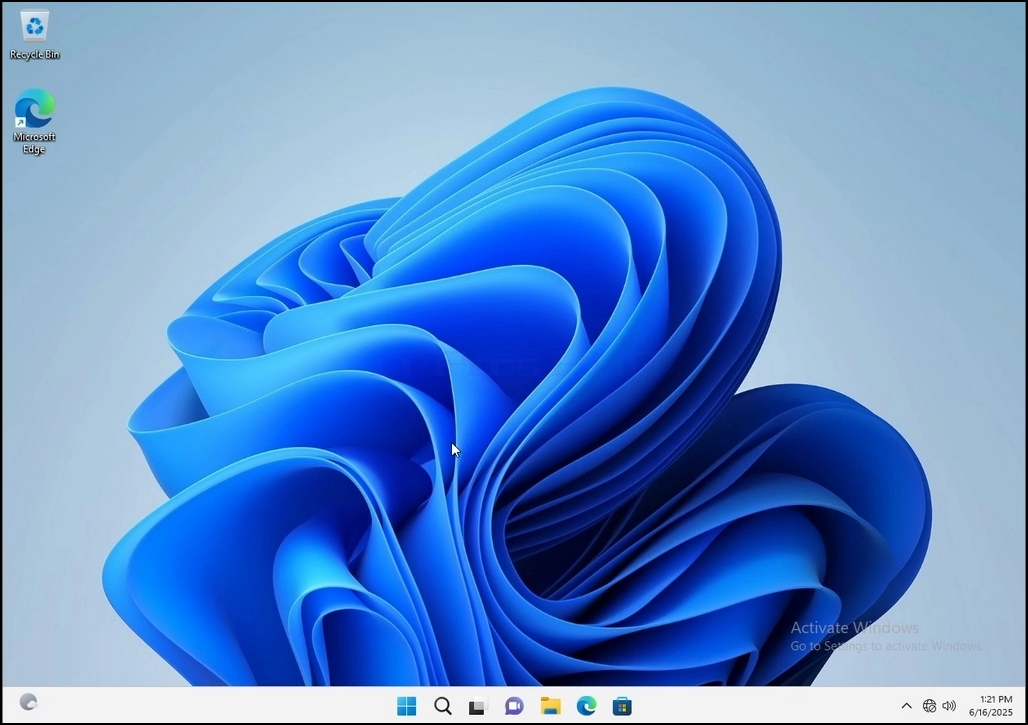
1. Go to Windows Desktop
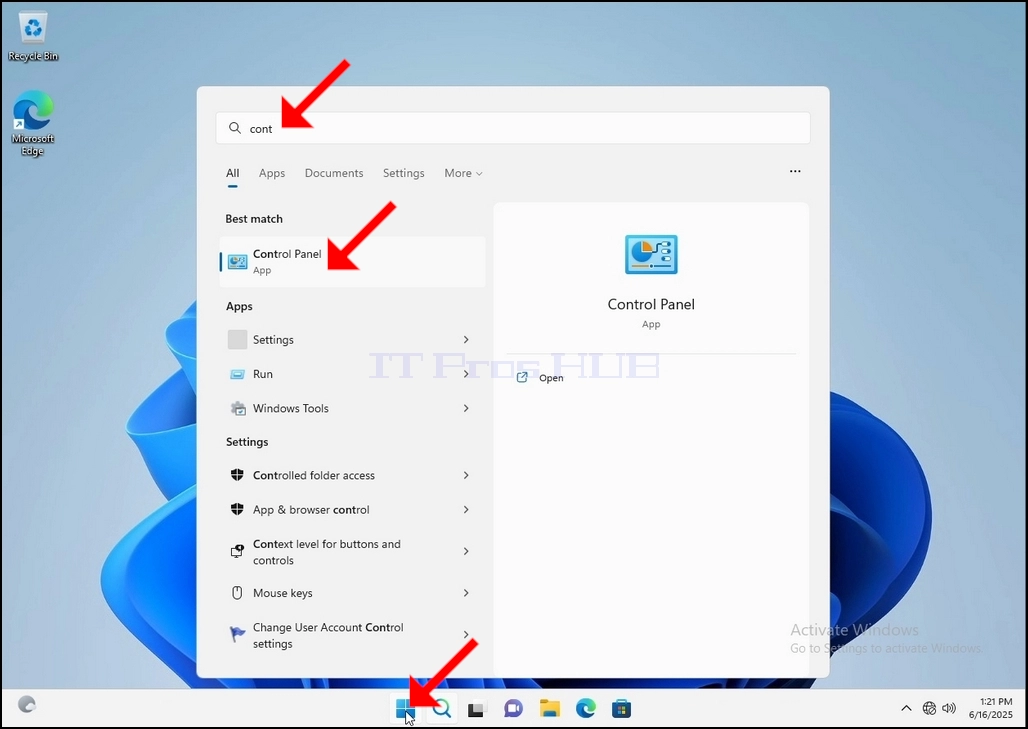
2. Click Start

Once it finds it, click it and wait for the Control Panel window to appear.
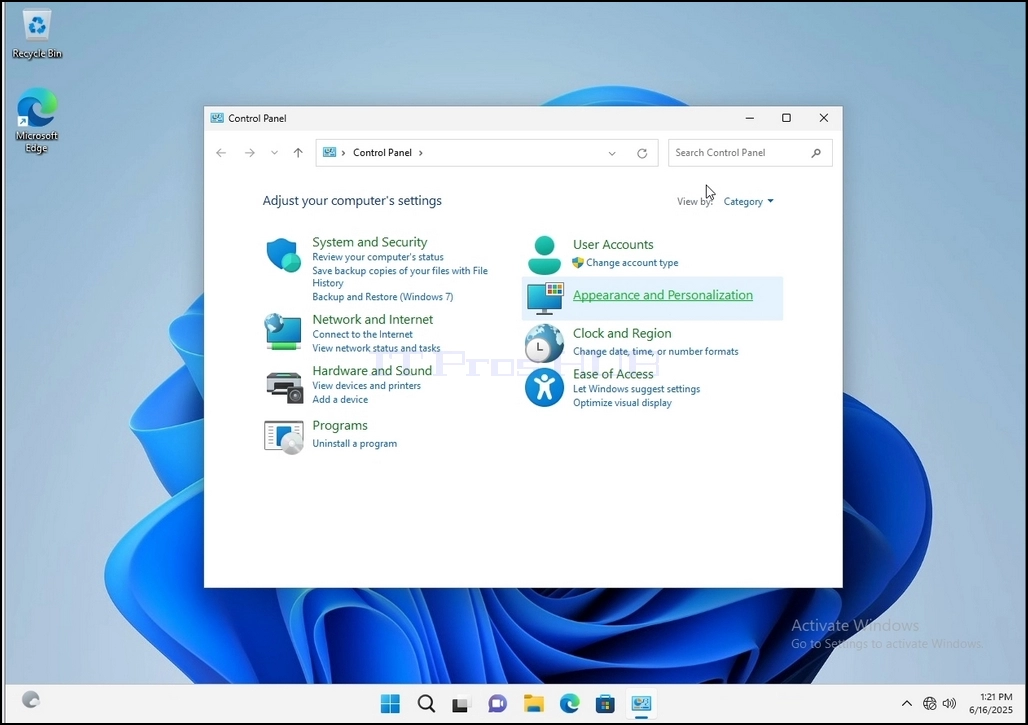
4. Once the Control Panel window is open, enlarge it by clicking the enlarging icon on the top right corner of that window.
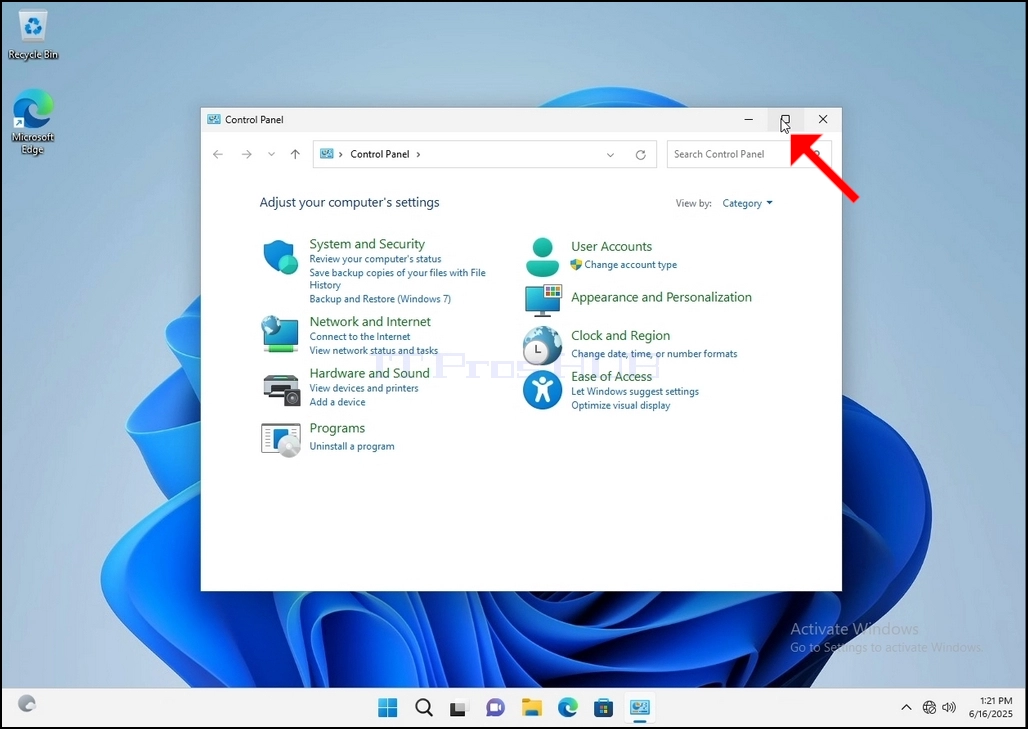
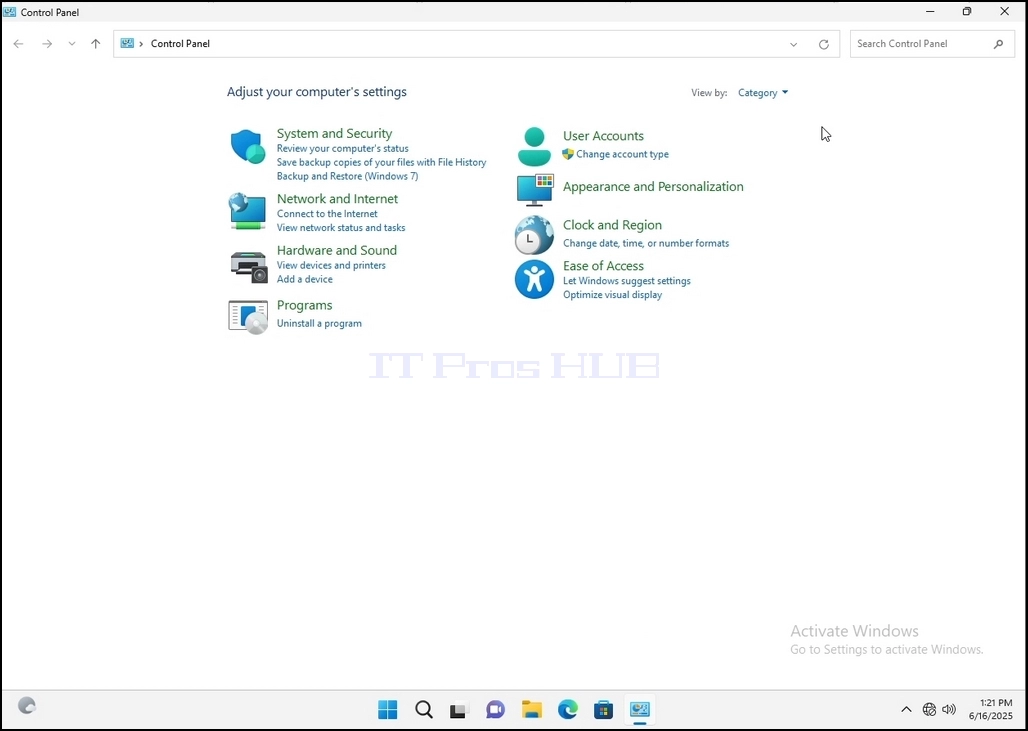
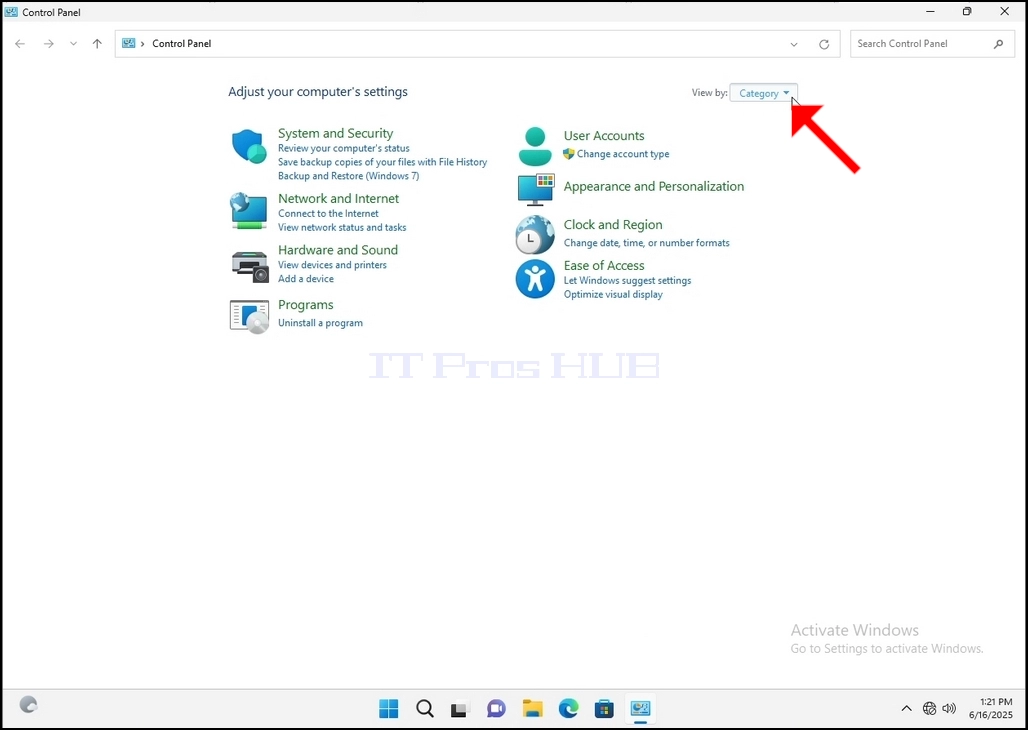
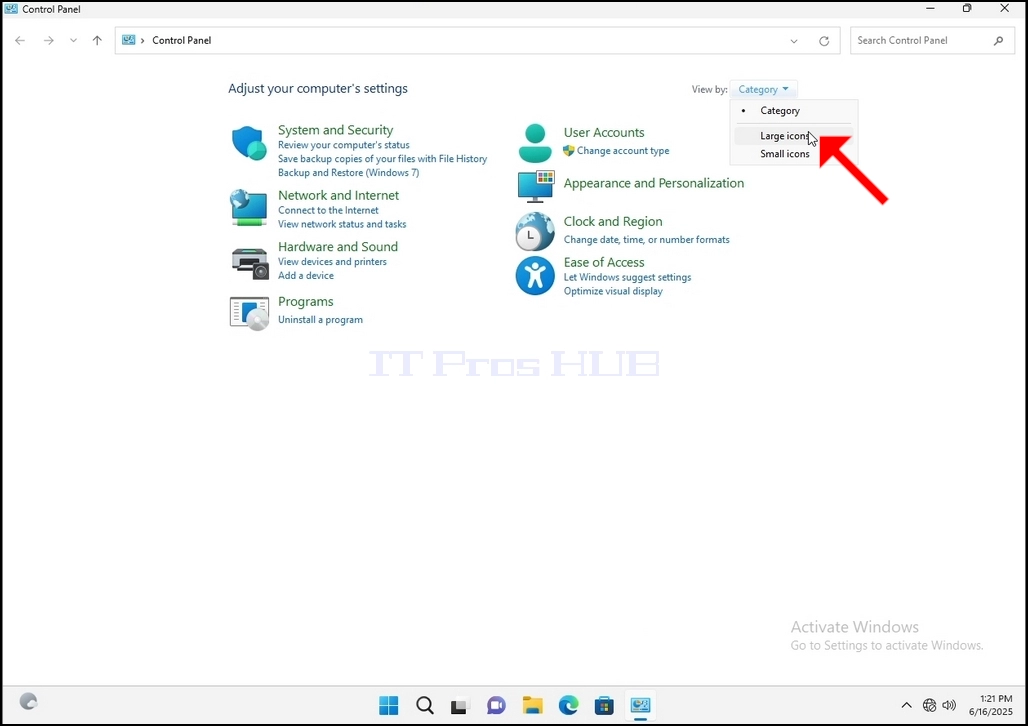
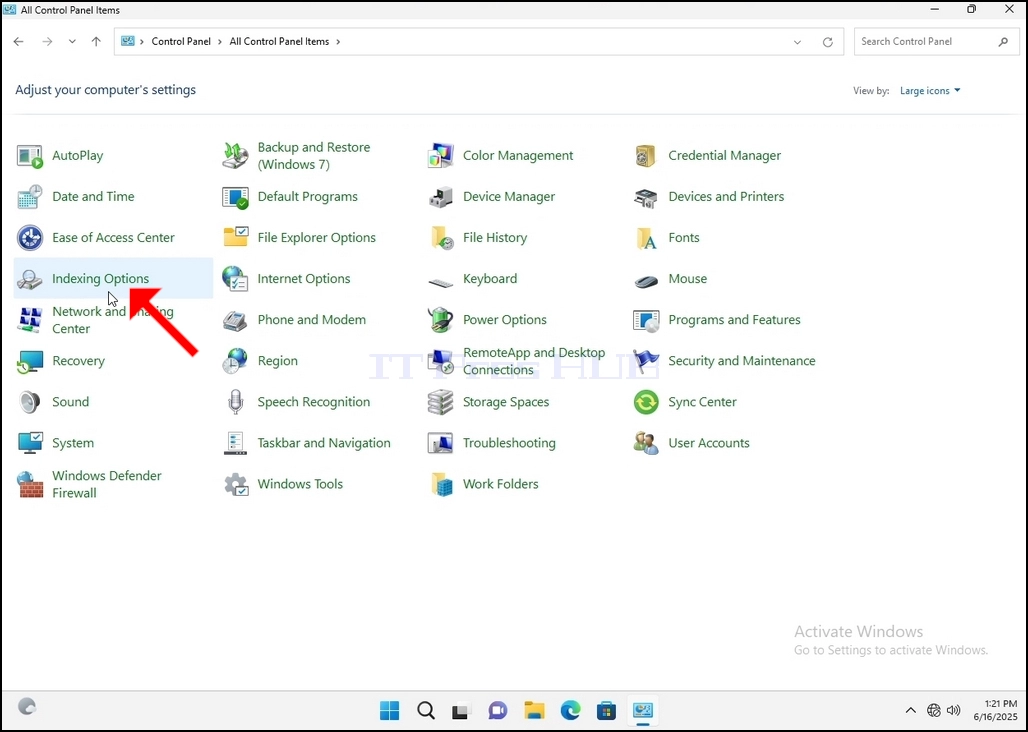
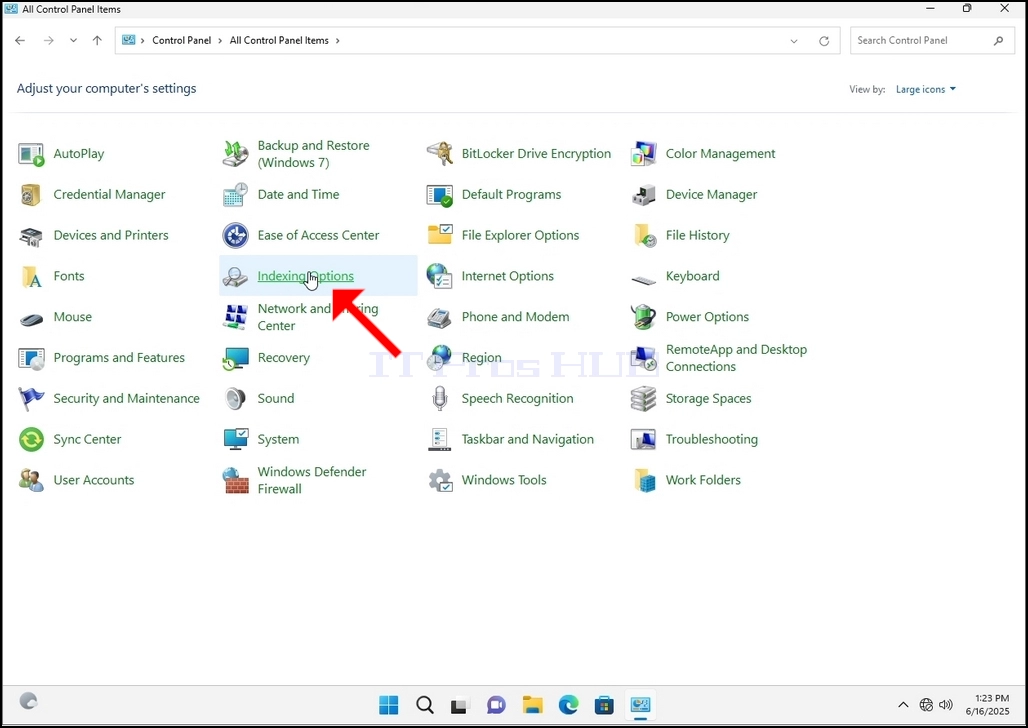
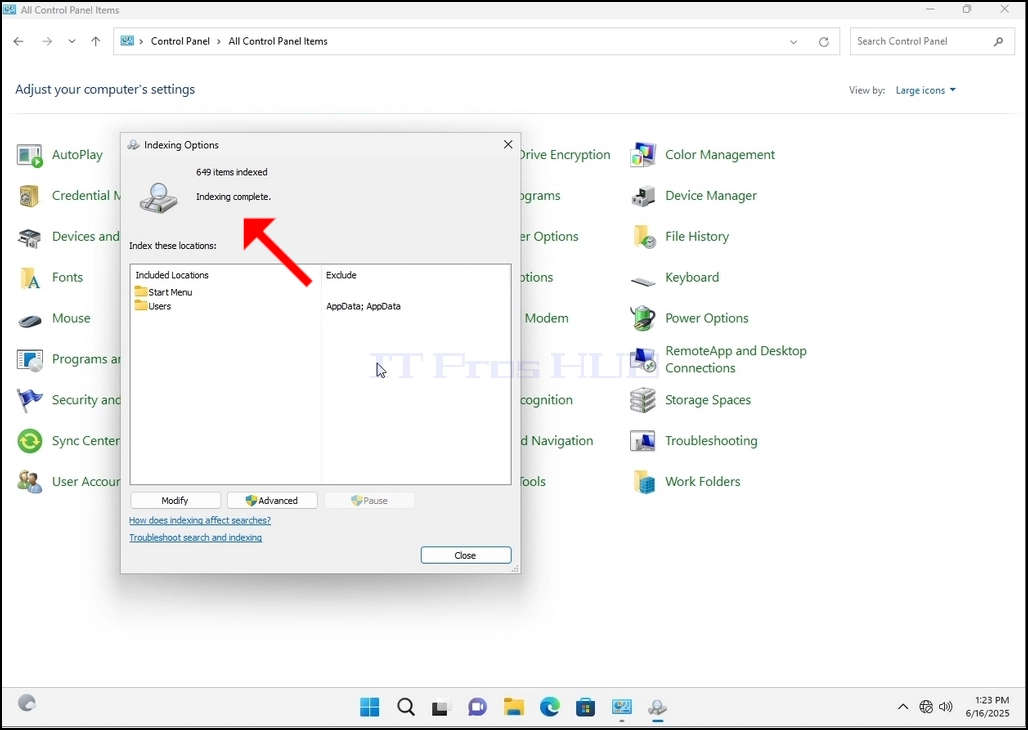
6. Look for the Indexing Options icon and click it. Wait for the Indexing Options window to appear.
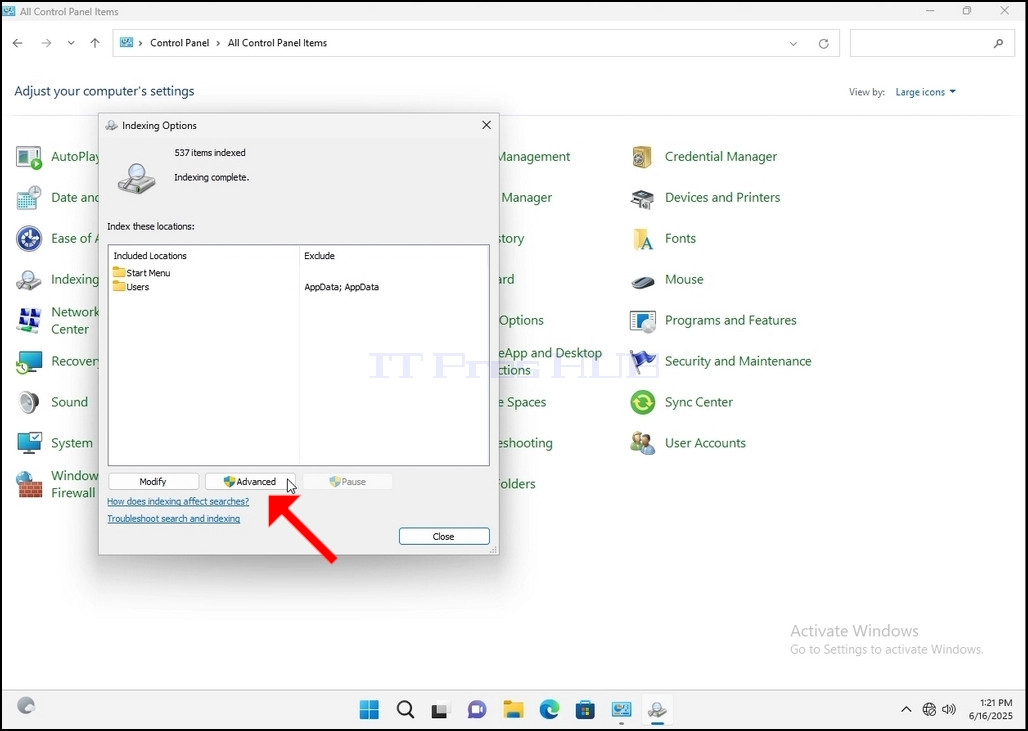
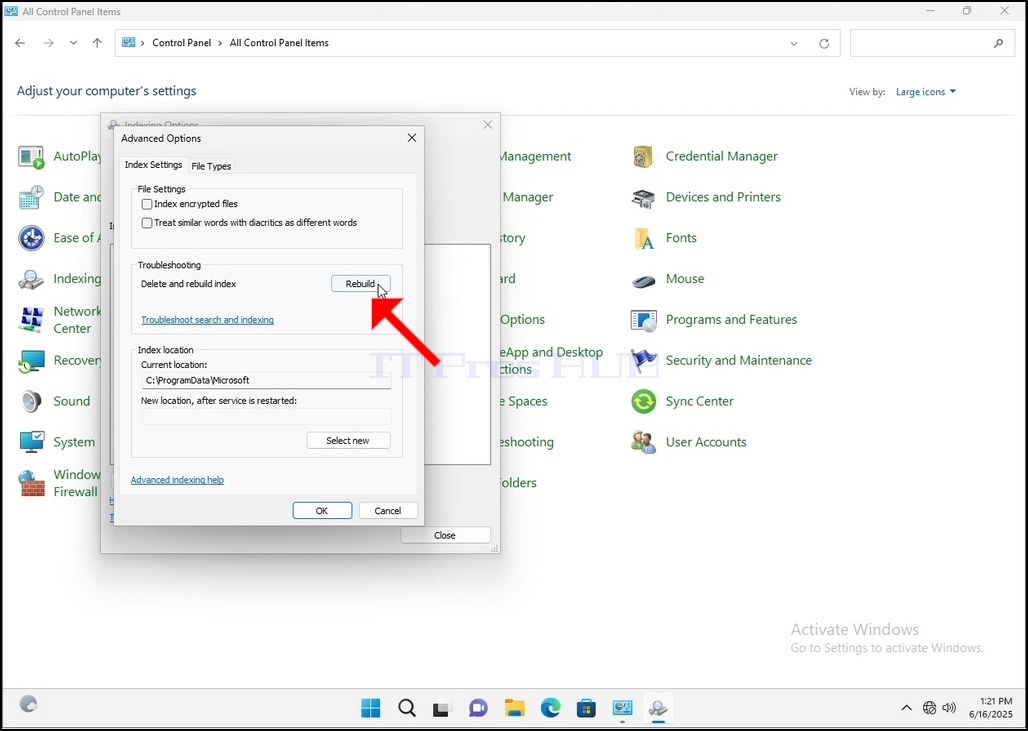
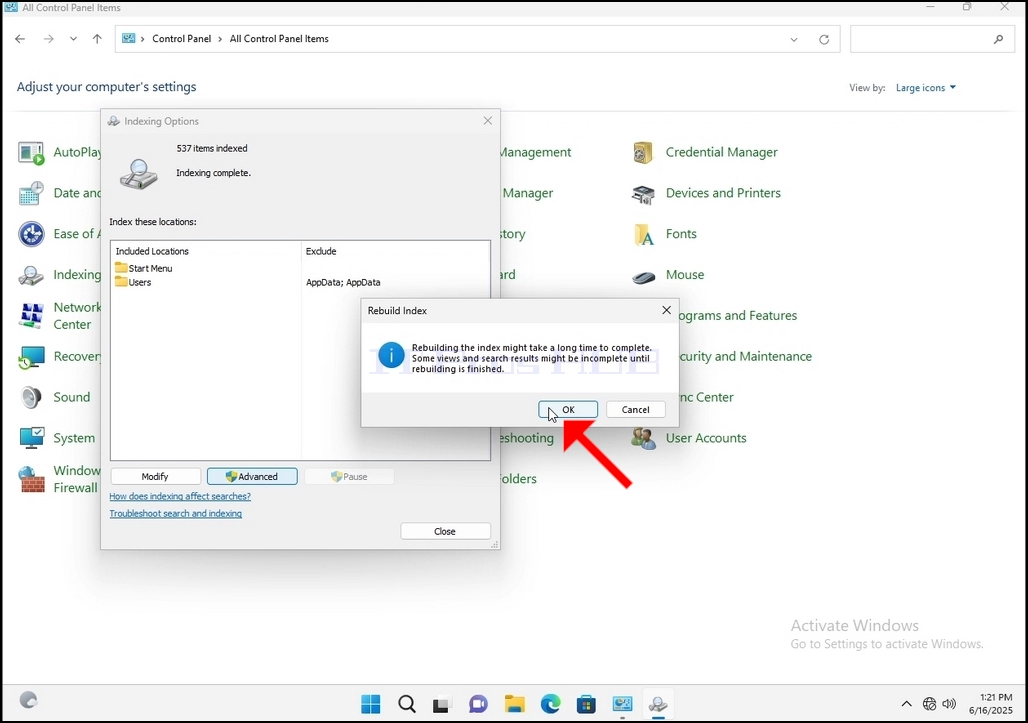
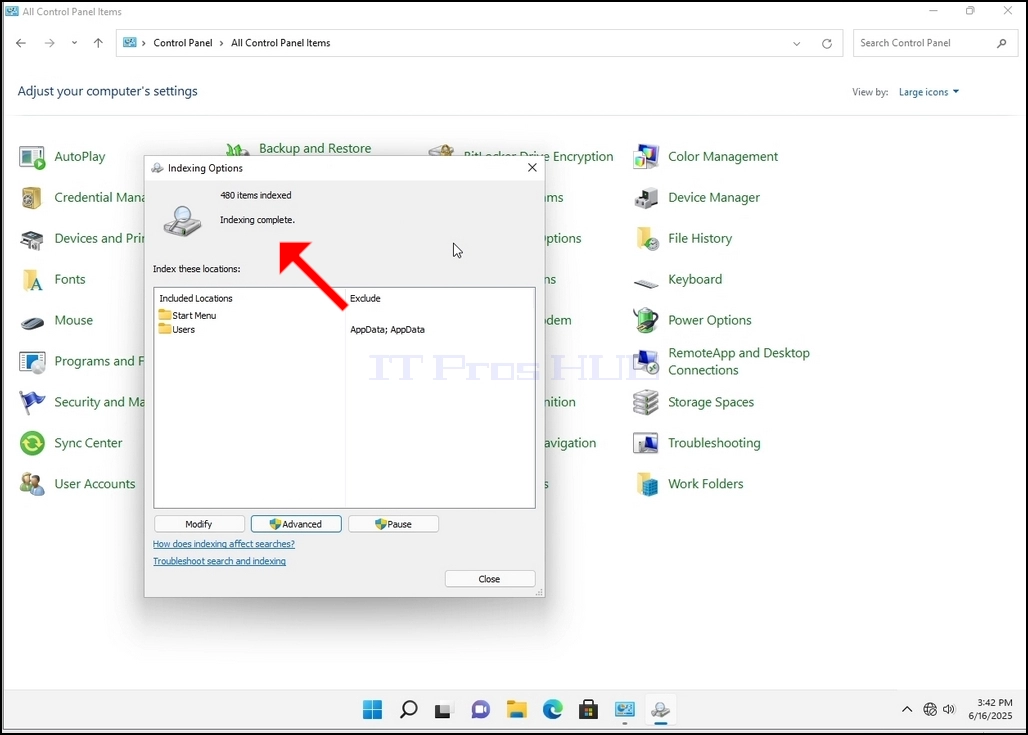
9. After clicking OK in the confirmation box, Windows will start rebuilding its index. It might take some time for the actual process to start, Wait patiently a few seconds to a few minutes. The moment the process starts, the "Indexing Complete" sentence will be replaced with "Indexing in progress. Search results might not be complete during this time."
In addition, the number of items indexed will be reset to 0 for a moment and then start to increase.
Note that All of the windows that are related to the Indexing process can now be closed and the rebuilding process would still be running the background.
Note that the Indexing process' speed might be reduced due to user activity on the computer. The more intense the activity the less the Indexing speed would be.
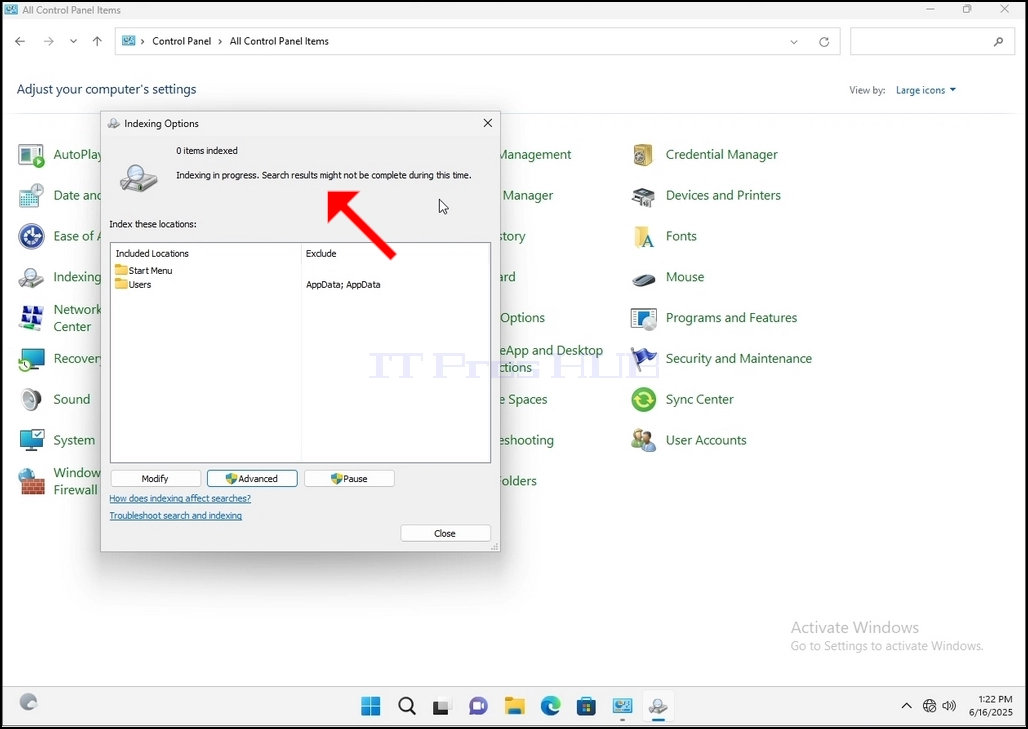
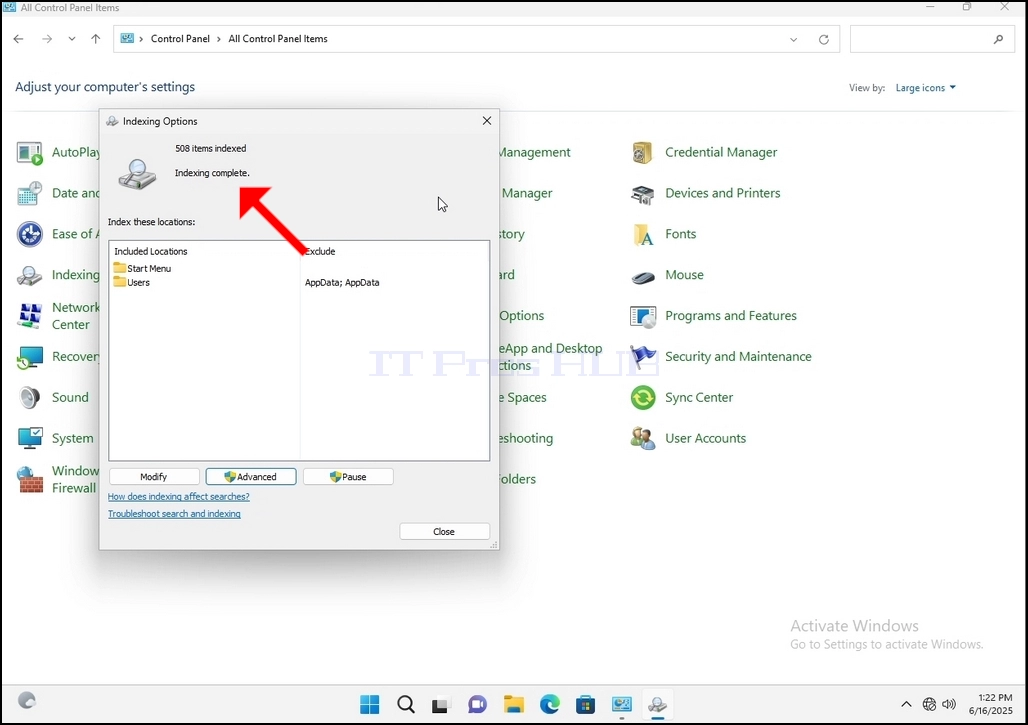
10. To check if the indexing process is done, go back to the Indexing Options through Control Panel as explained in the previous stages. If the process is complete, you would see the "Indexing Complete" sentence appears again.
Since Windows does not notify the user once this process is done, there is indeed a need to perform the latter mentioned. Depending on the number of files, folders, drivers and partitions marked for indexing, this process could take between a few minutes to a few hours.
- Tietoja
- Kirjoittanut: IT Pro
- Kategoria: How to Articles
- Osumat: 6310
1. Go to Windows Desktop
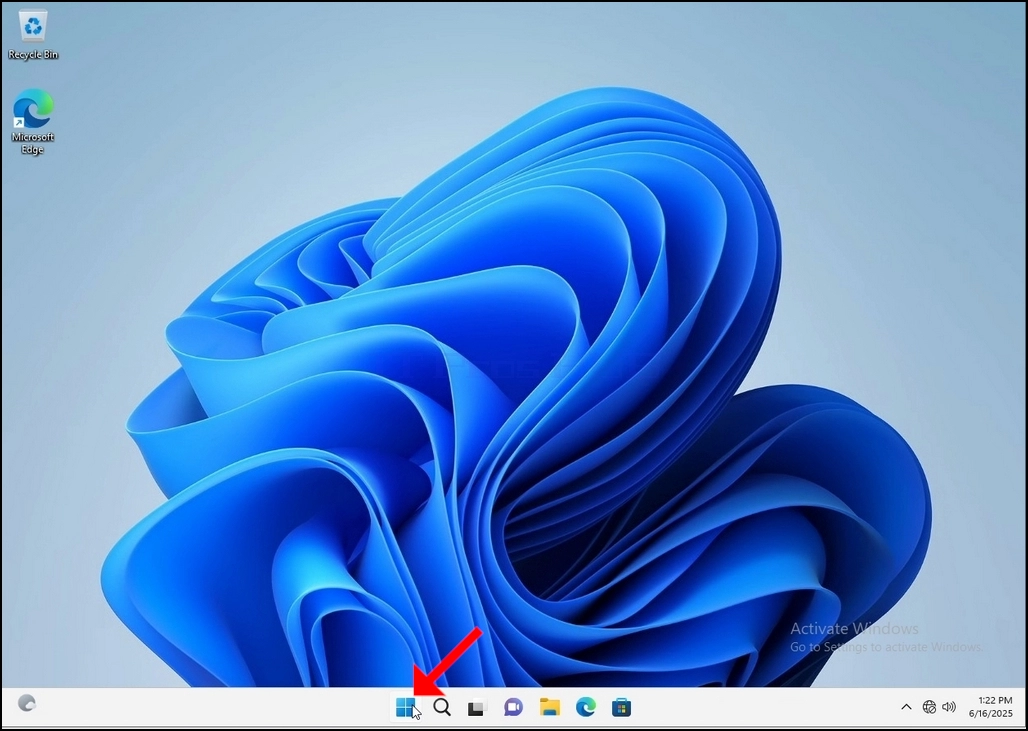
2. Click Start
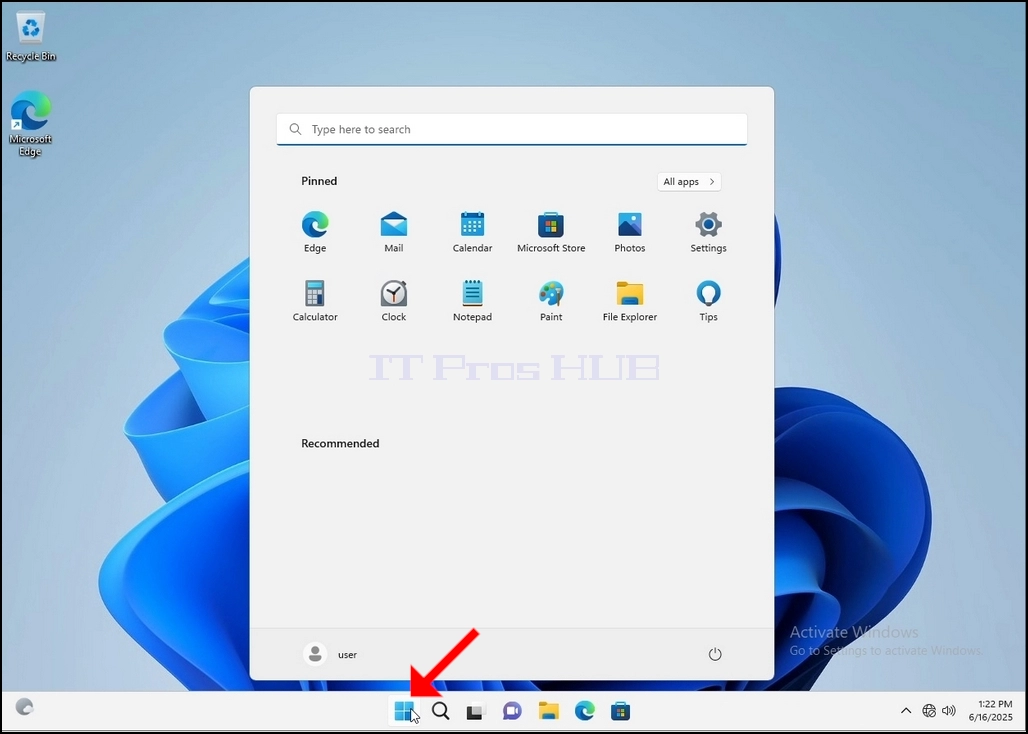
Once it finds it, click it and wait for the Control Panel window to appear.
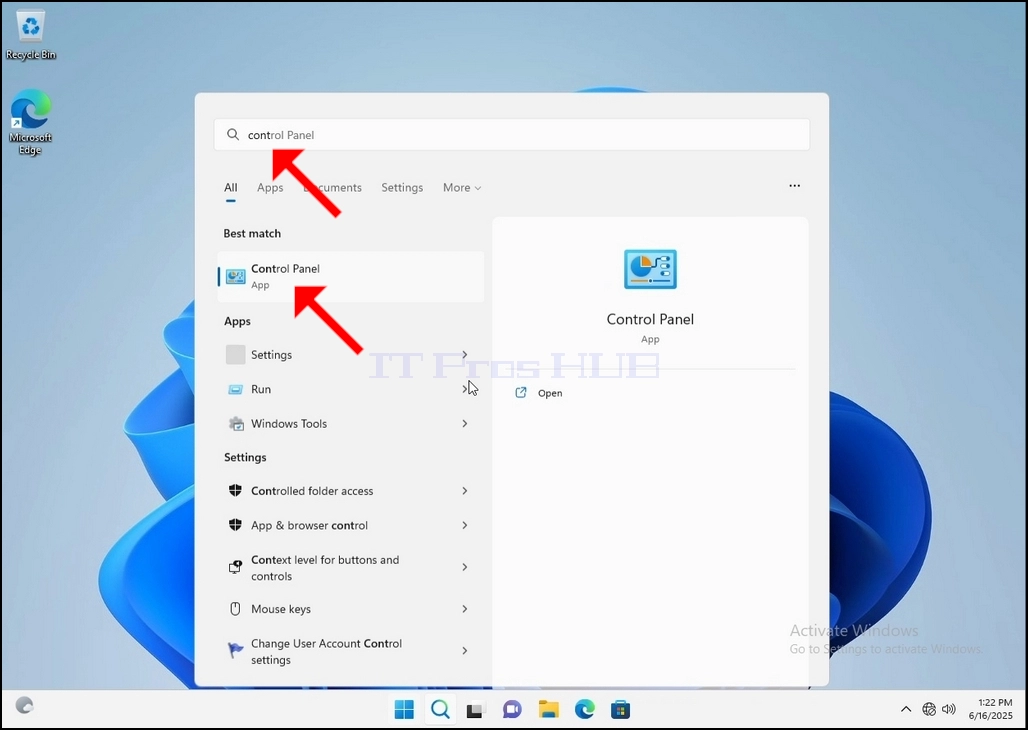
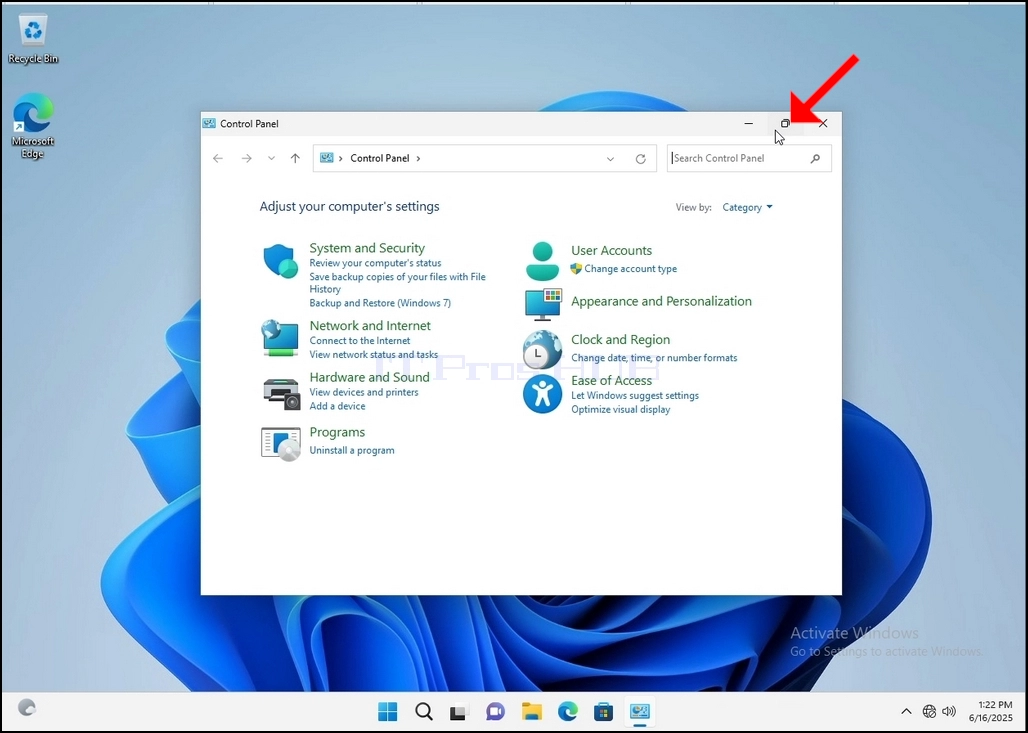
4. Once the Control Panel window is open, enlarge it by clicking the enlarging icon on the top right corner of that window.
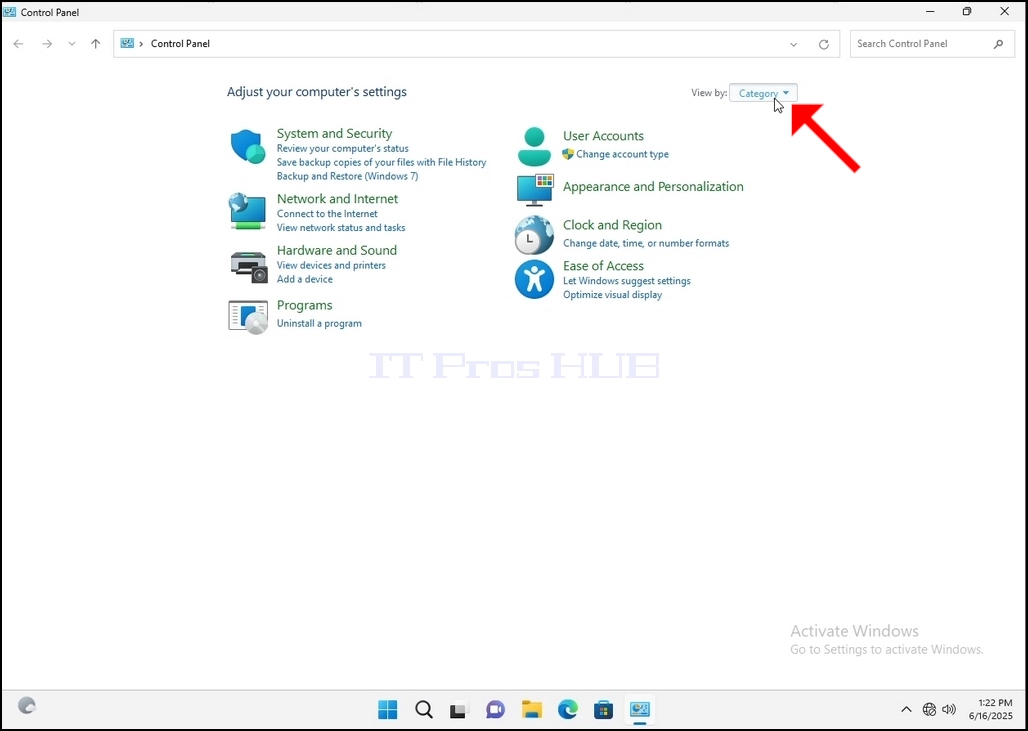
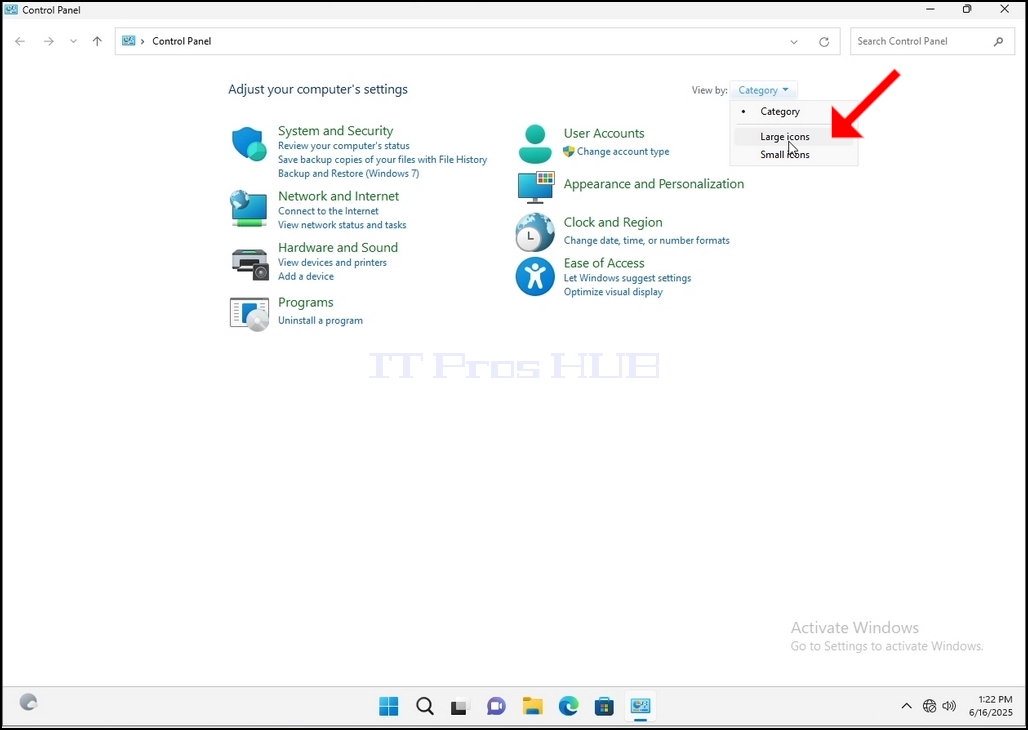
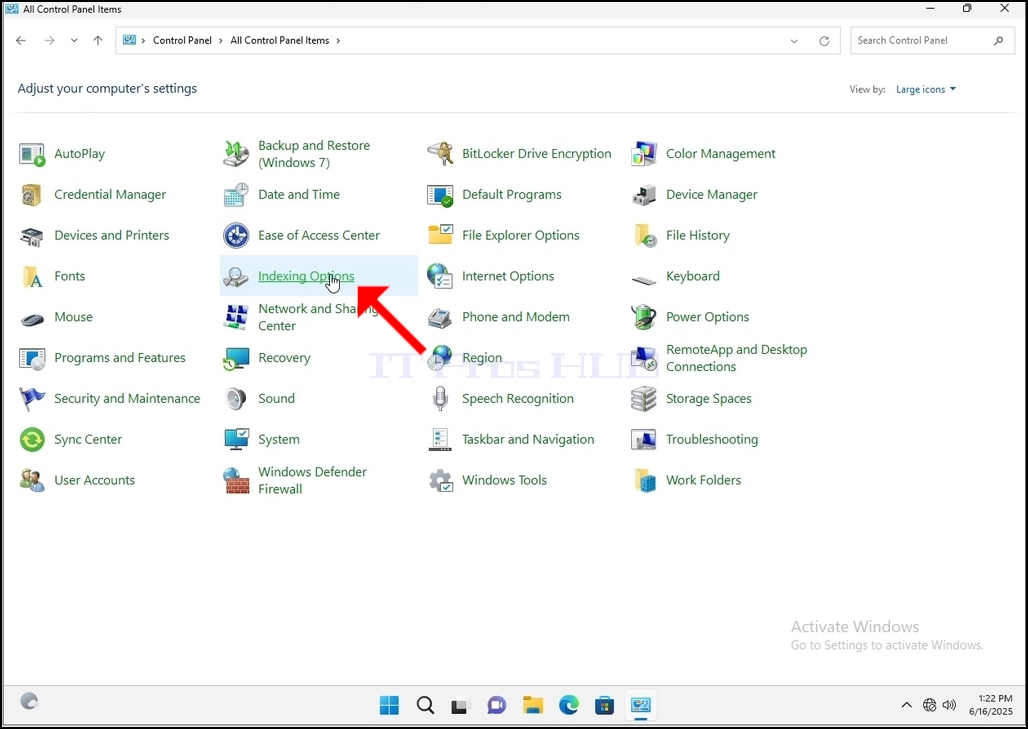
6. Look for the Indexing Options icon and click it. Wait for the Indexing Options window to appear.
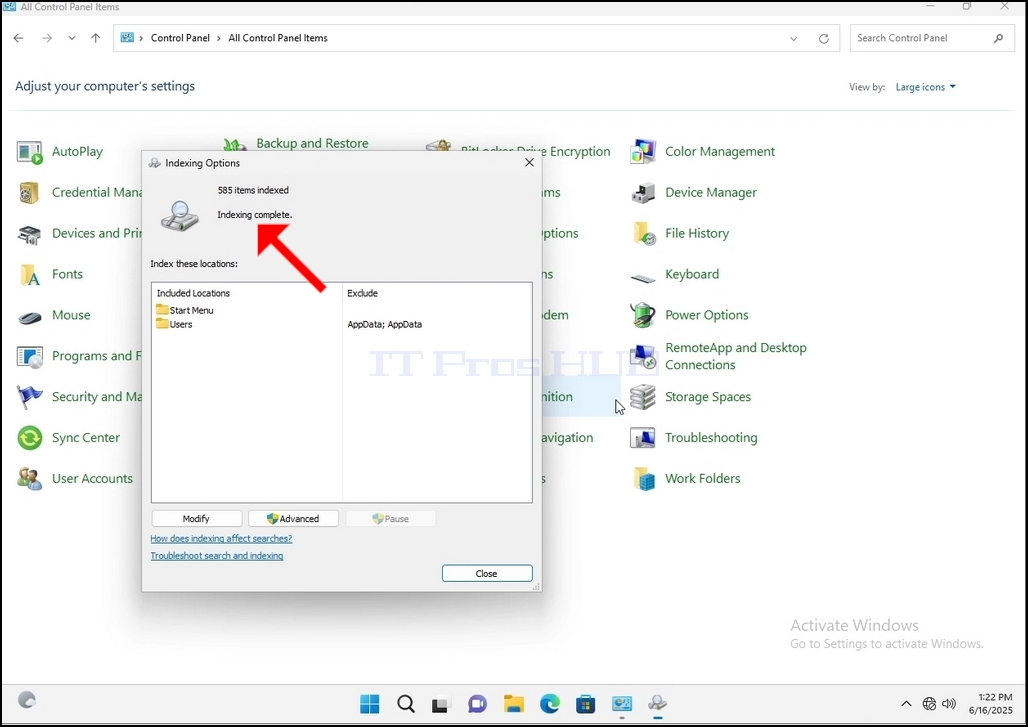
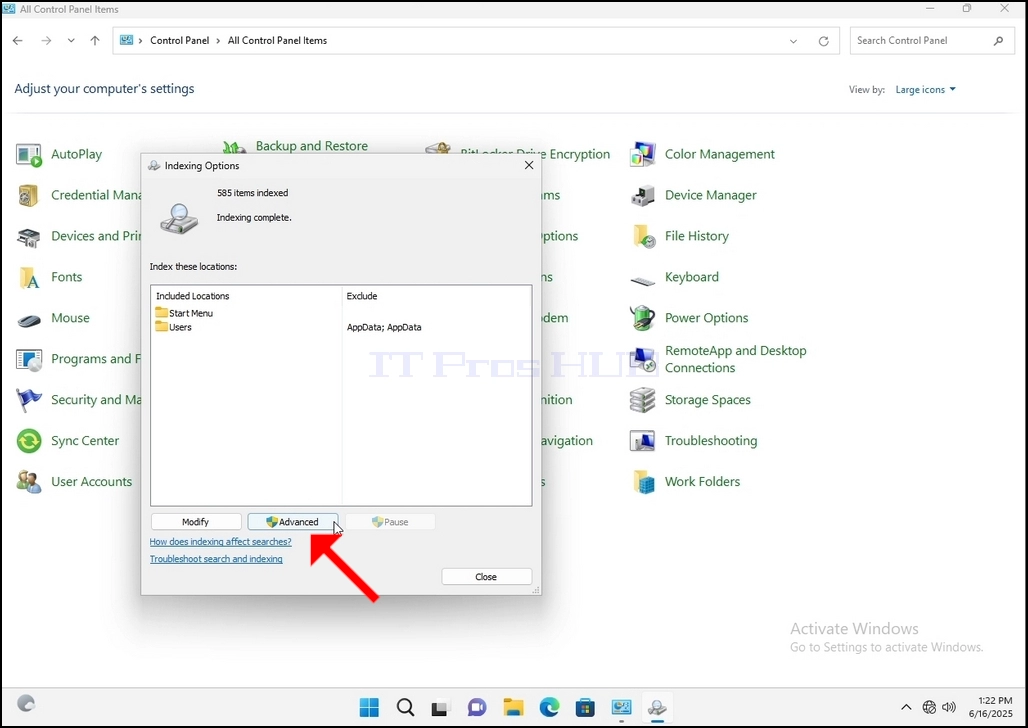
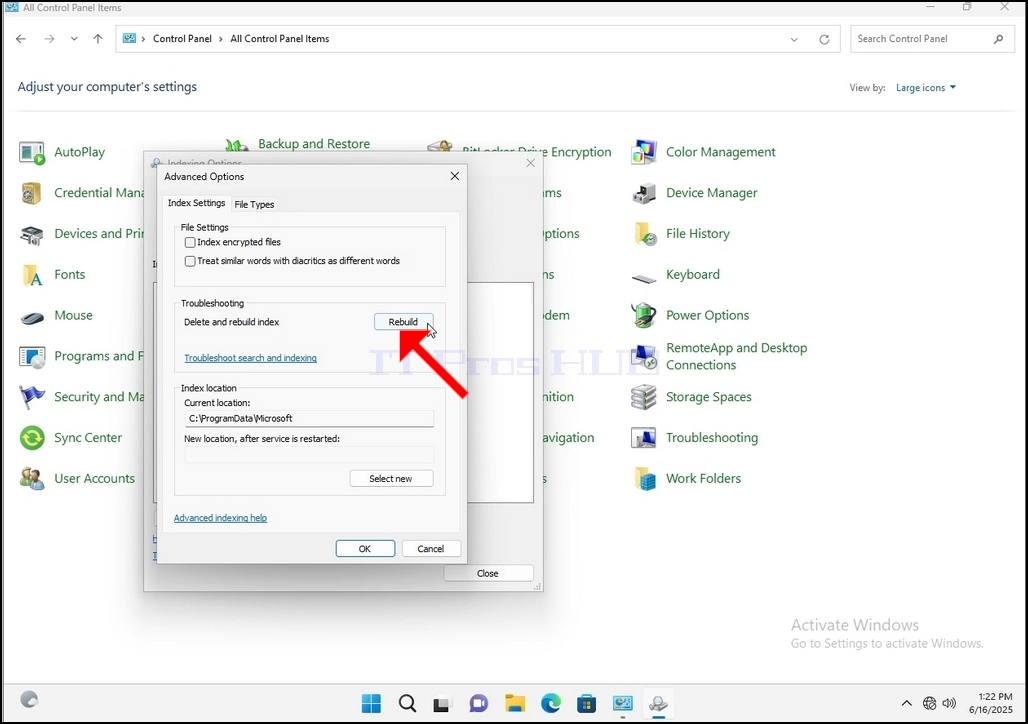
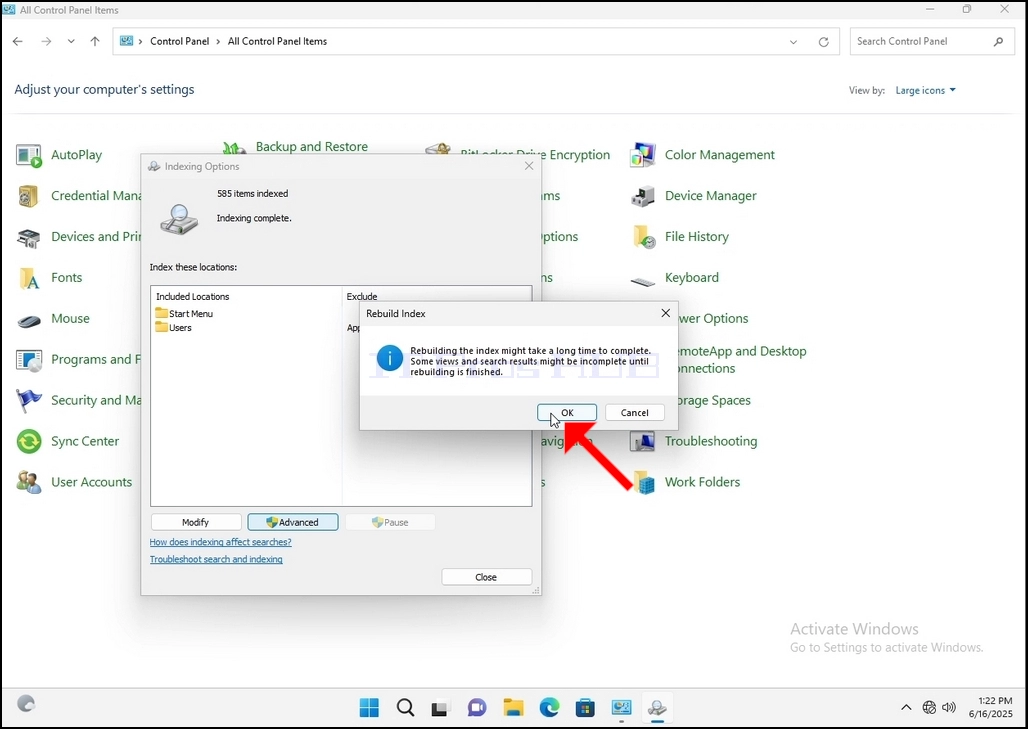
9. After clicking OK in the confirmation box, Windows will start rebuilding its index. It might take some time for the actual process to start, Wait patiently a few seconds to a few minutes. The moment the process starts, the "Indexing Complete" sentence will be replaced with "Indexing in progress. Search results might not be complete during this time."
In addition, the number of items indexed will be reset to 0 for a moment and then start to increase.
Note that All of the windows that are related to the Indexing process can now be closed and the rebuilding process would still be running the background.
Note that the Indexing process' speed might be reduced due to user activity on the computer. The more intense the activity the less the Indexing speed would be.
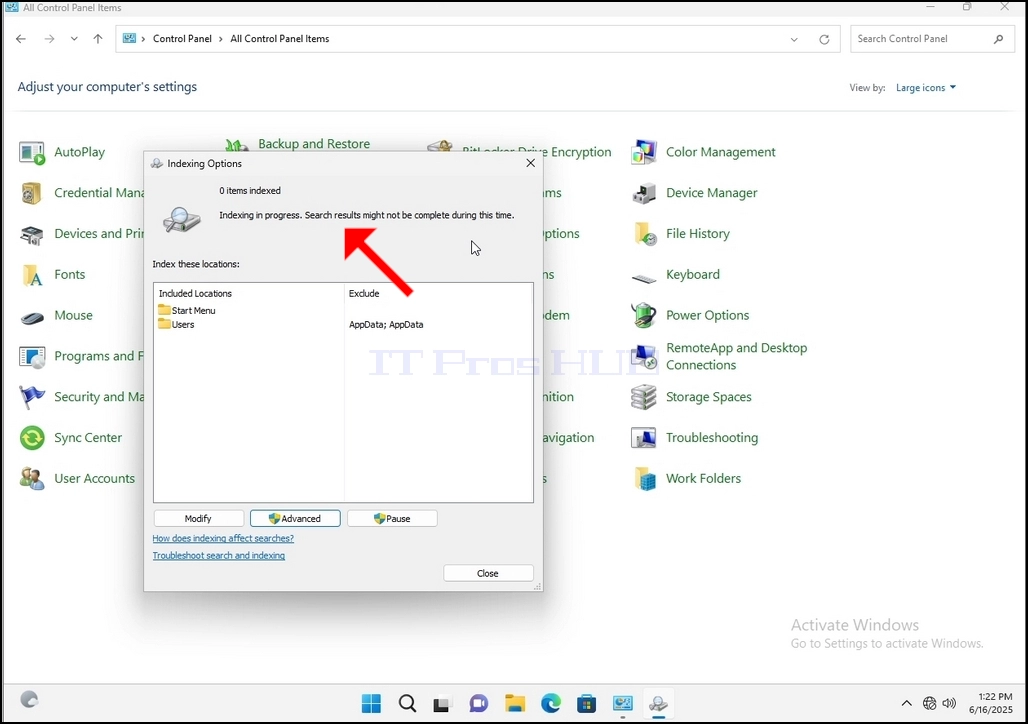
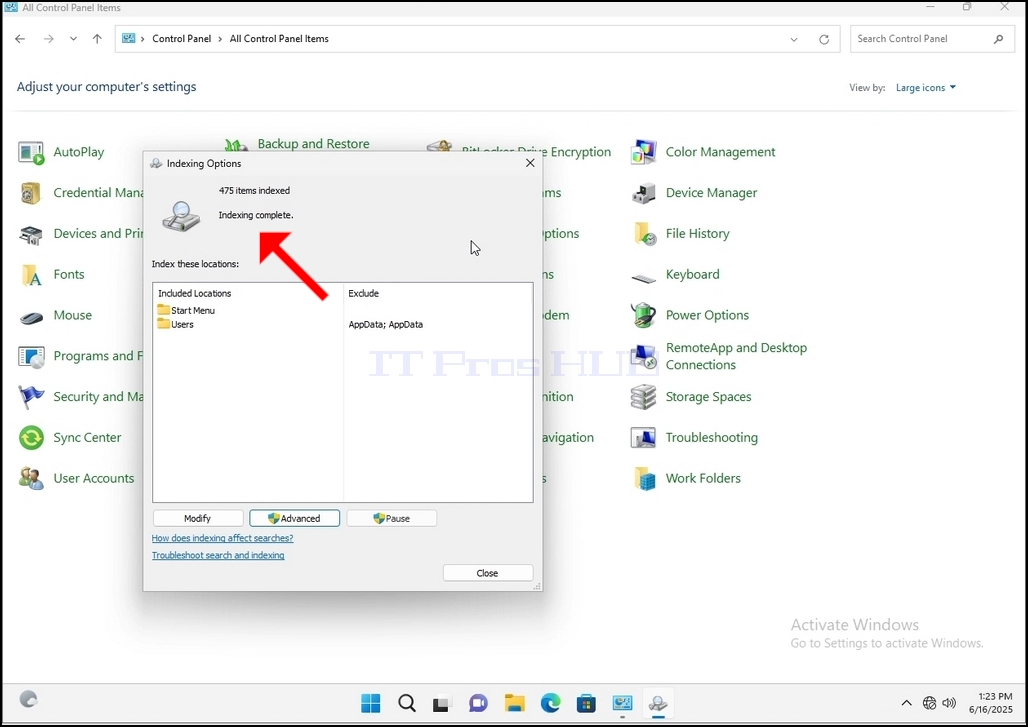
10. To check if the indexing process is done, go back to the Indexing Options through Control Panel as explained in the previous stages. If the process is complete, you would see the "Indexing Complete" sentence appears again.
Since Windows does not notify the user once this process is done, there is indeed a need to perform the latter mentioned. Depending on the number of files, folders, drivers and partitions marked for indexing, this process could take between a few minutes to a few hours.
- Tietoja
- Kirjoittanut: IT Pro
- Kategoria: How to Articles
- Osumat: 6251
1. Go to Windows Desktop
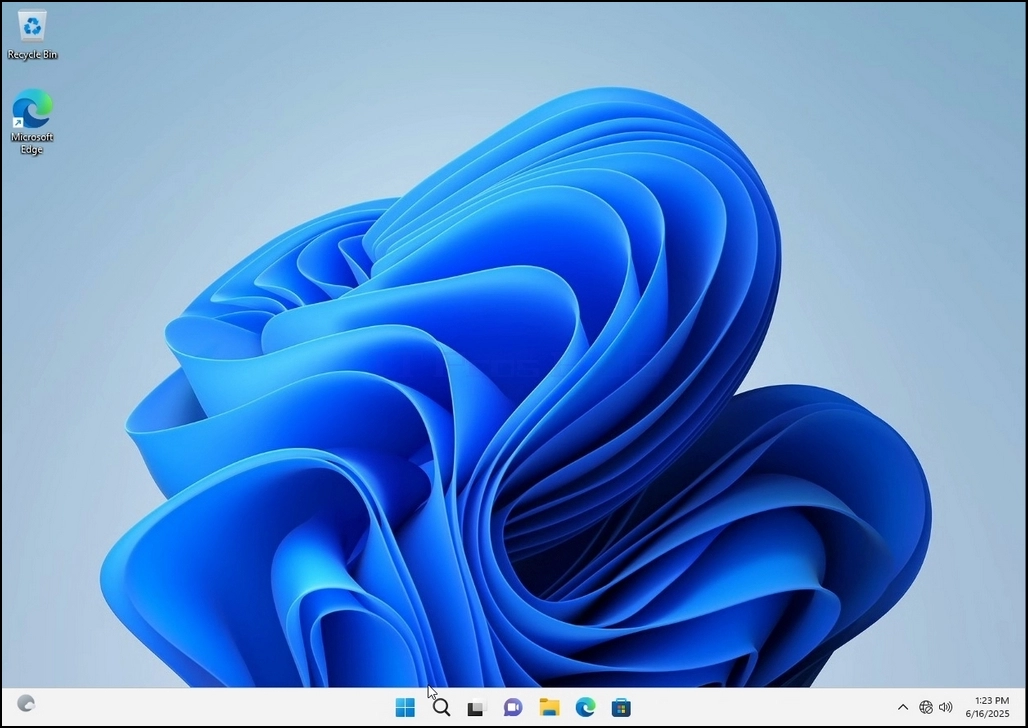
2. Click Start
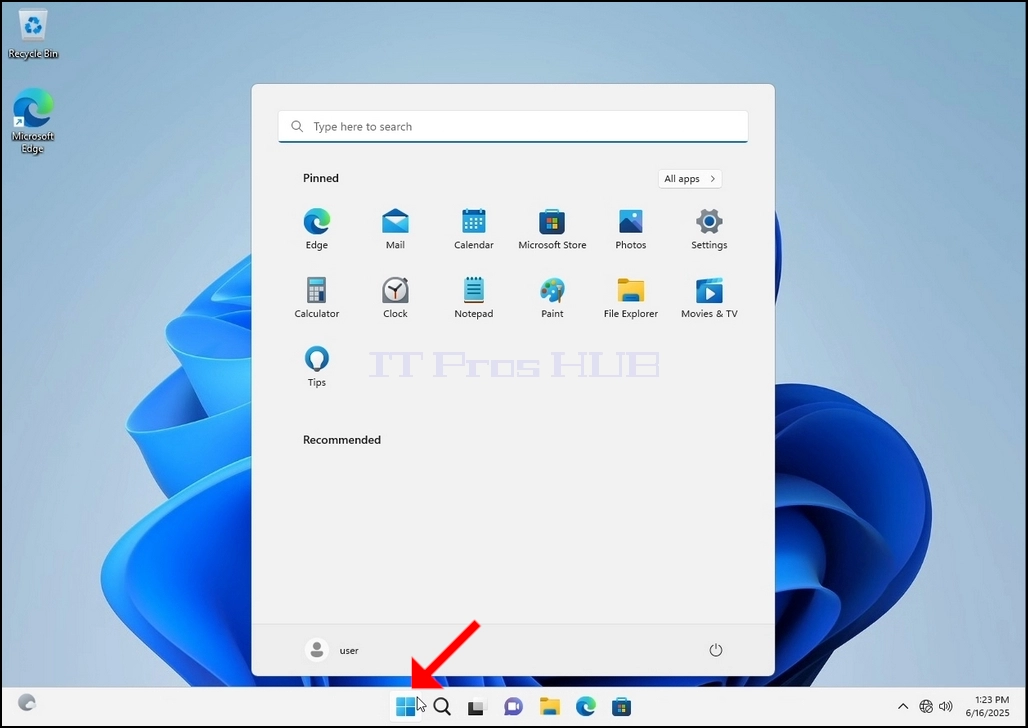
Once it finds it, click it and wait for the Control Panel window to appear.
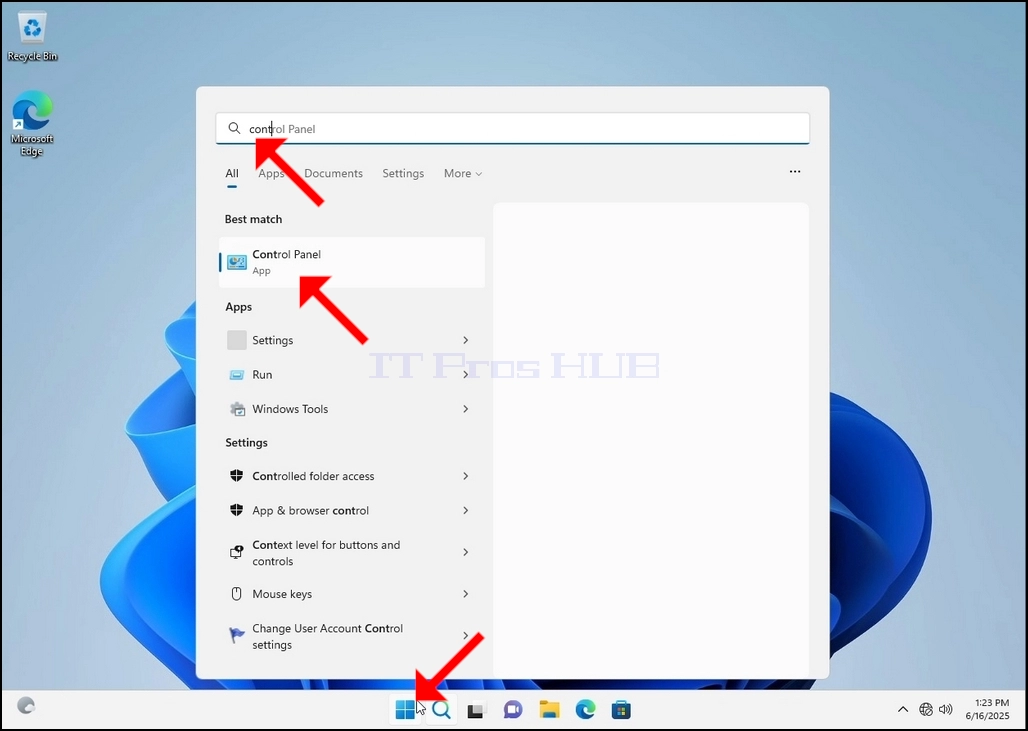
4. Once the Control Panel window is open, enlarge it by clicking the enlarging icon on the top right corner of that window.
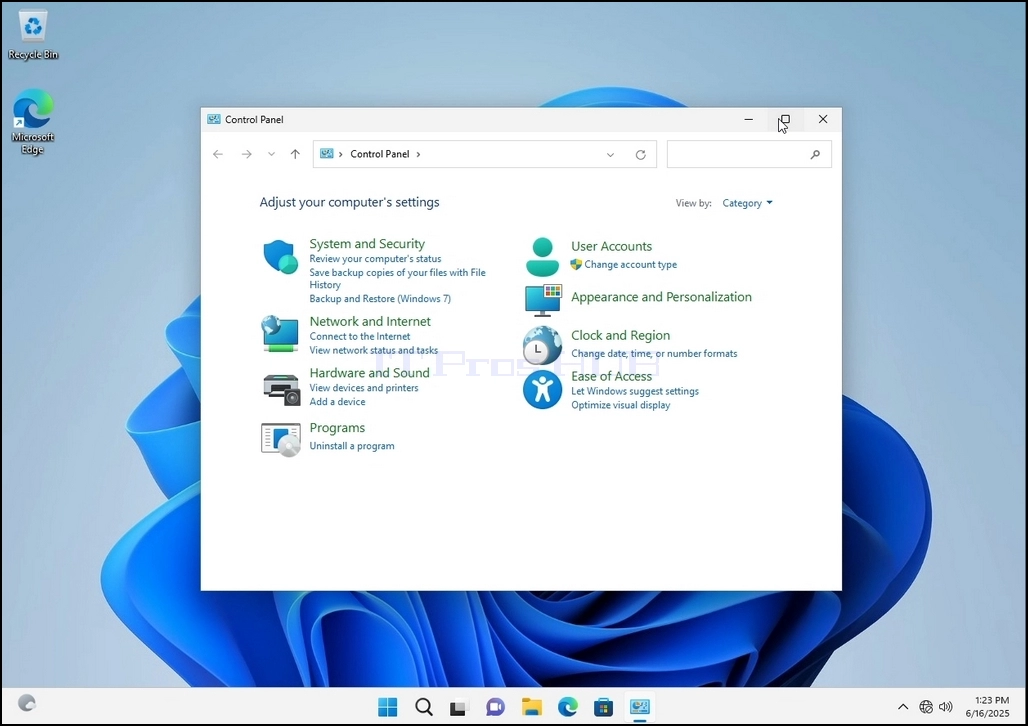
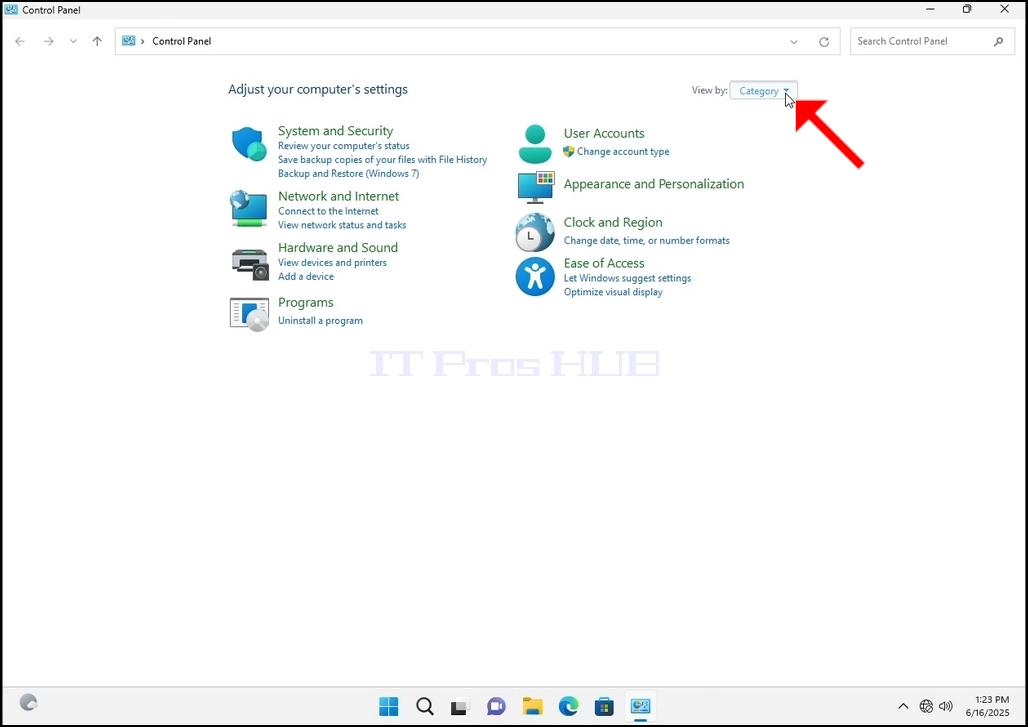
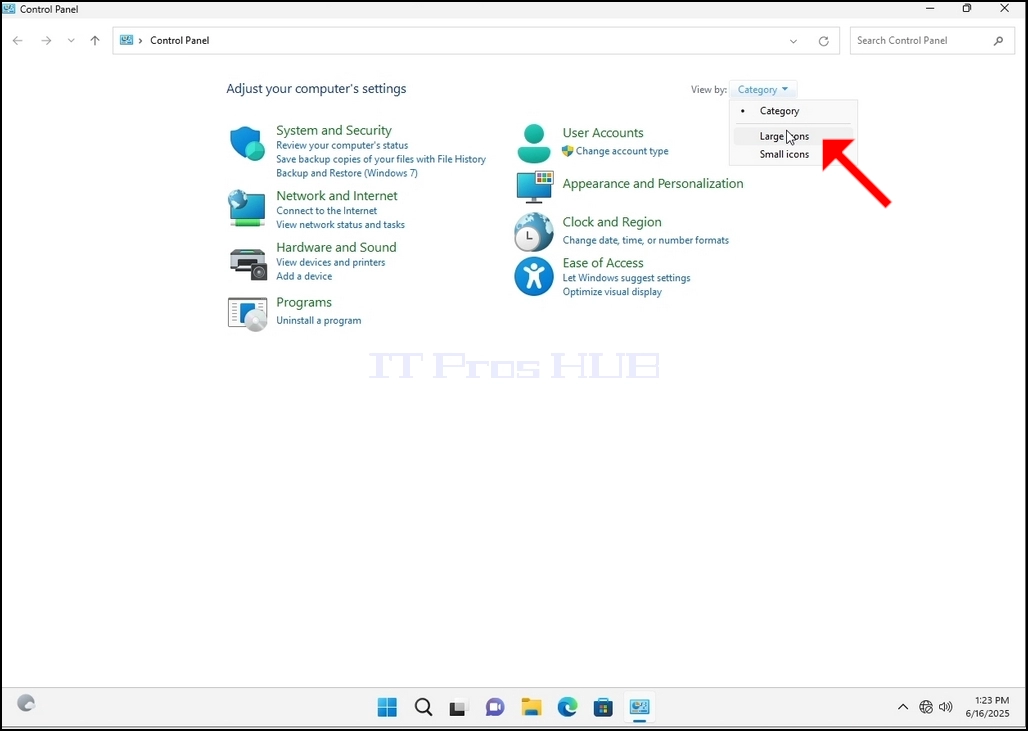
6. Look for the Indexing Options icon and click it. Wait for the Indexing Options window to appear.
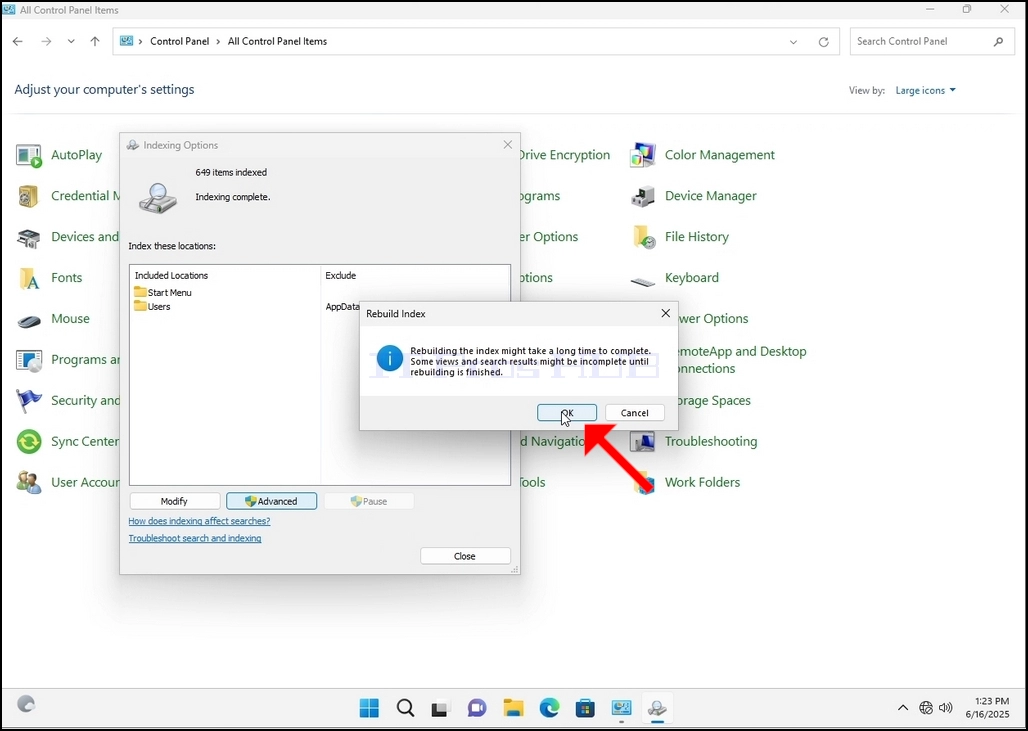
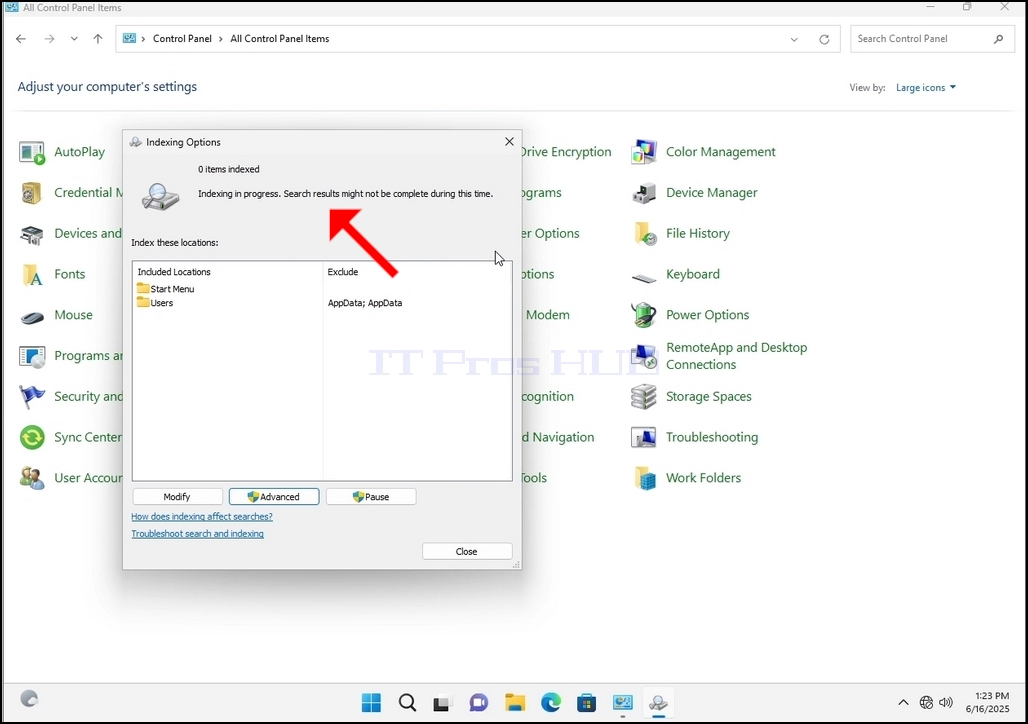
9. After clicking OK in the confirmation box, Windows will start rebuilding its index. It might take some time for the actual process to start, Wait patiently a few seconds to a few minutes. The moment the process starts, the "Indexing Complete" sentence will be replaced with "Indexing in progress. Search results might not be complete during this time."
In addition, the number of items indexed will be reset to 0 for a moment and then start to increase.
Note that All of the windows that are related to the Indexing process can now be closed and the rebuilding process would still be running the background.
Note that the Indexing process' speed might be reduced due to user activity on the computer. The more intense the activity the less the Indexing speed would be.
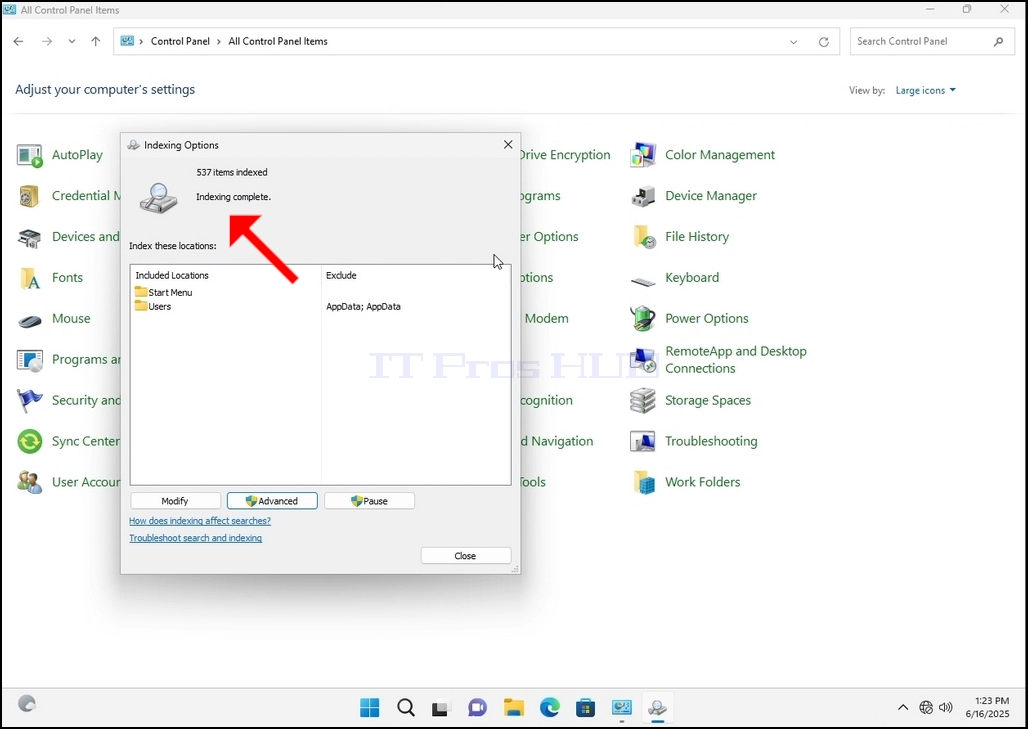
10. To check if the indexing process is done, go back to the Indexing Options through Control Panel as explained in the previous stages. If the process is complete, you would see the "Indexing Complete" sentence appears again.
Since Windows does not notify the user once this process is done, there is indeed a need to perform the latter mentioned. Depending on the number of files, folders, drivers and partitions marked for indexing, this process could take between a few minutes to a few hours.
- Tietoja
- Kirjoittanut: IT Pro
- Kategoria: How to Articles
- Osumat: 5229
1. Siirry Windowsin työpöydälle
2. Klikkaa Käynnistä
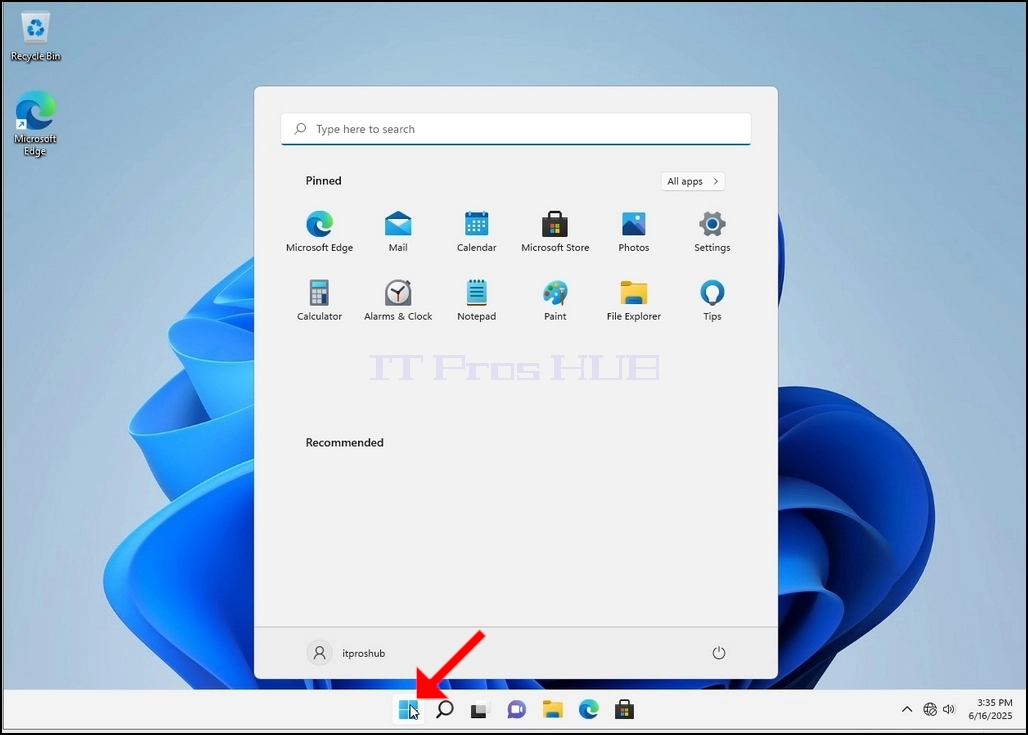
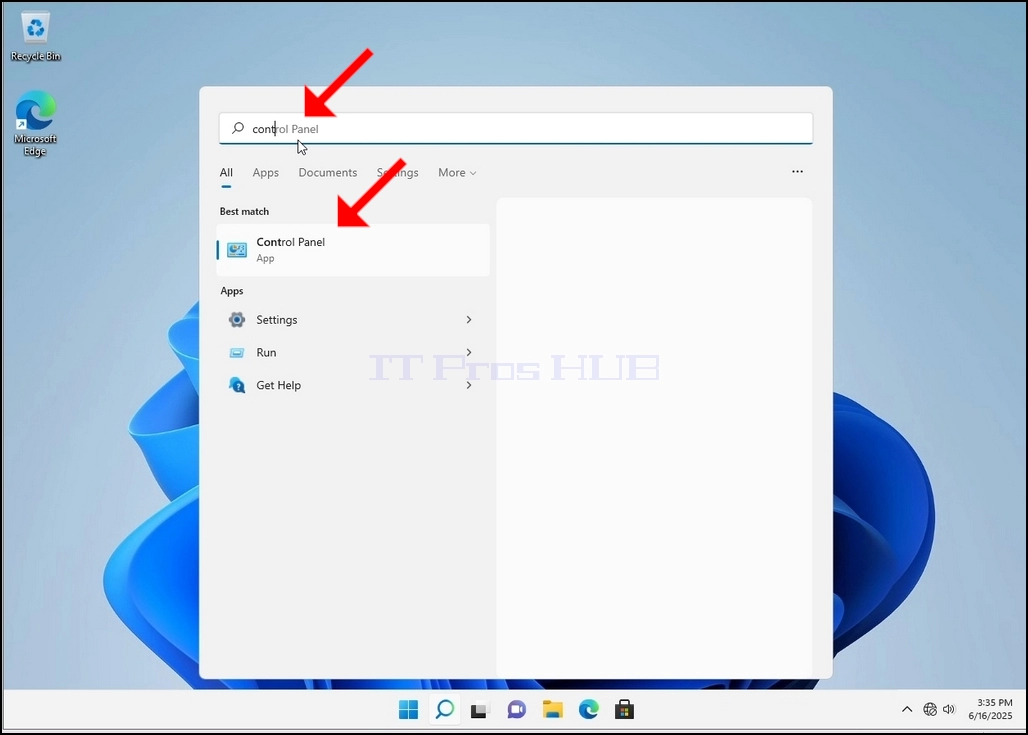
3. Kun aloitusvalikko avautuu, kirjoita "ohjauspaneeli" ja odota aloitusvalikon löytämistä ohjauspaneelin kuvakkeen. Huomaathan, että on mahdollista vain kirjoittaa "cont" ja useimmissa tapauksissa Start-valikko löytäisi edelleen ohjauspaneelin kuvakkeen.
Kun se löytää sen, napsauta sitä ja odota ohjauspaneelin ikkunan ilmestymistä.
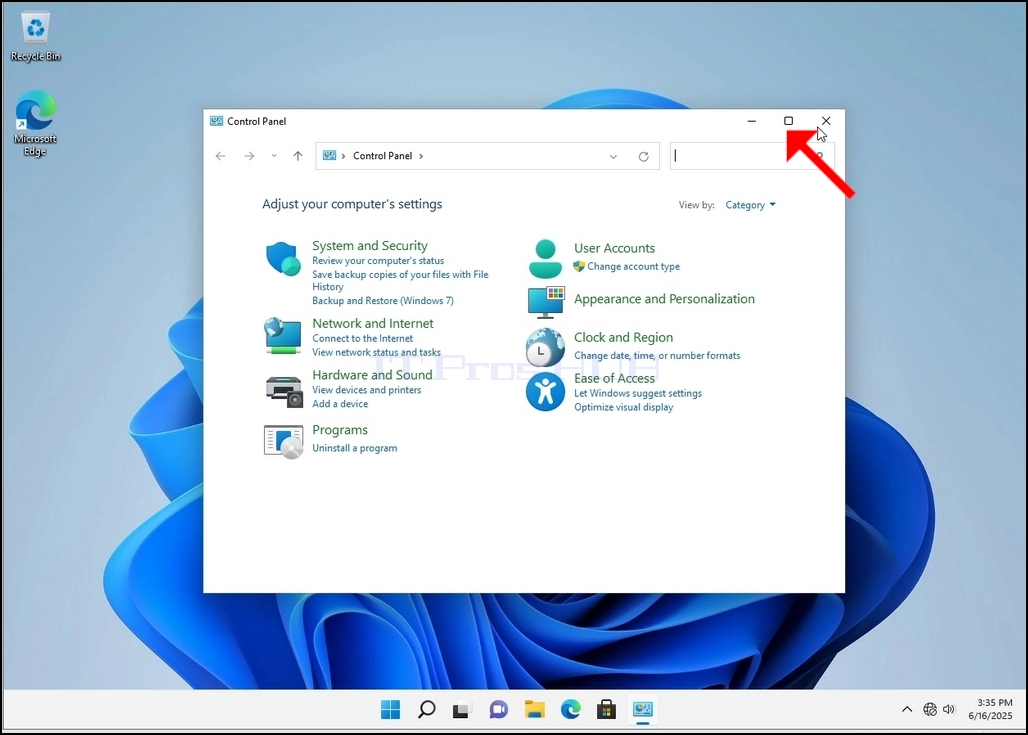
4. Kun ohjauspaneelin ikkuna on auki, suurenna sitä klikkaamalla ikkunan oikeassa yläkulmassa olevaa laajenevaa kuvaketta.
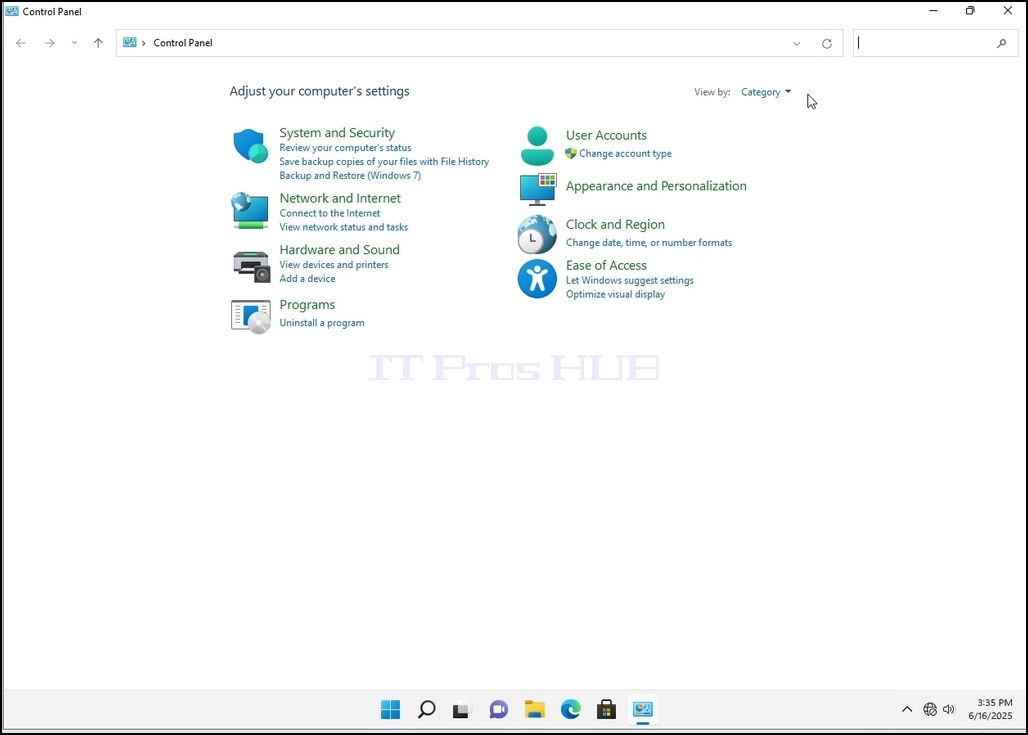
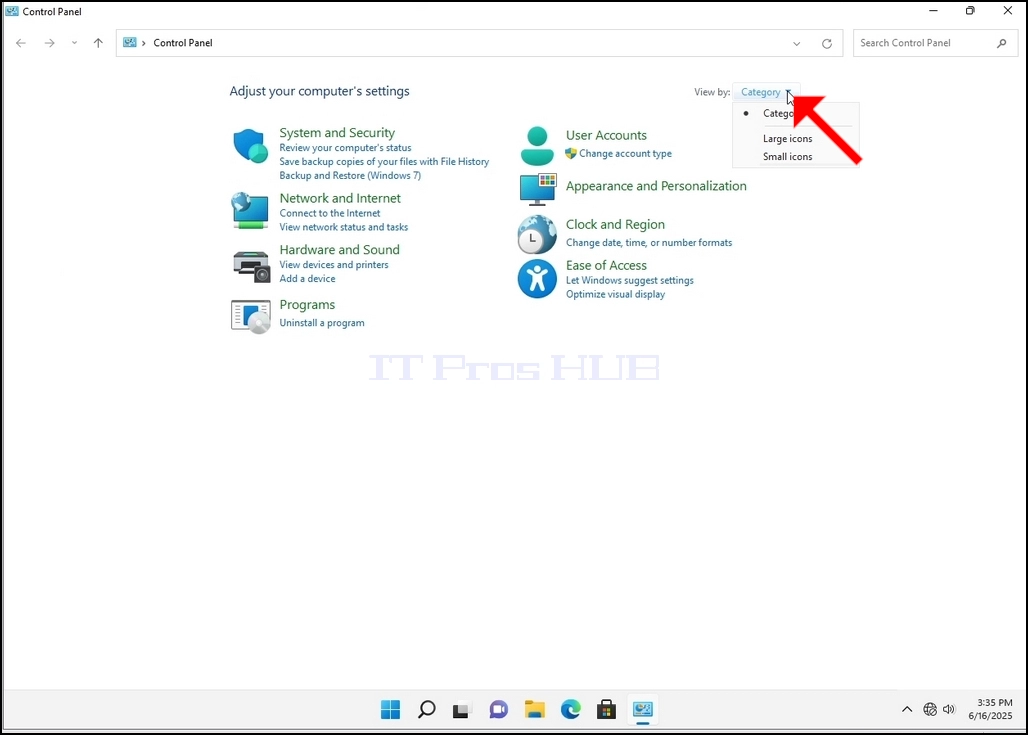
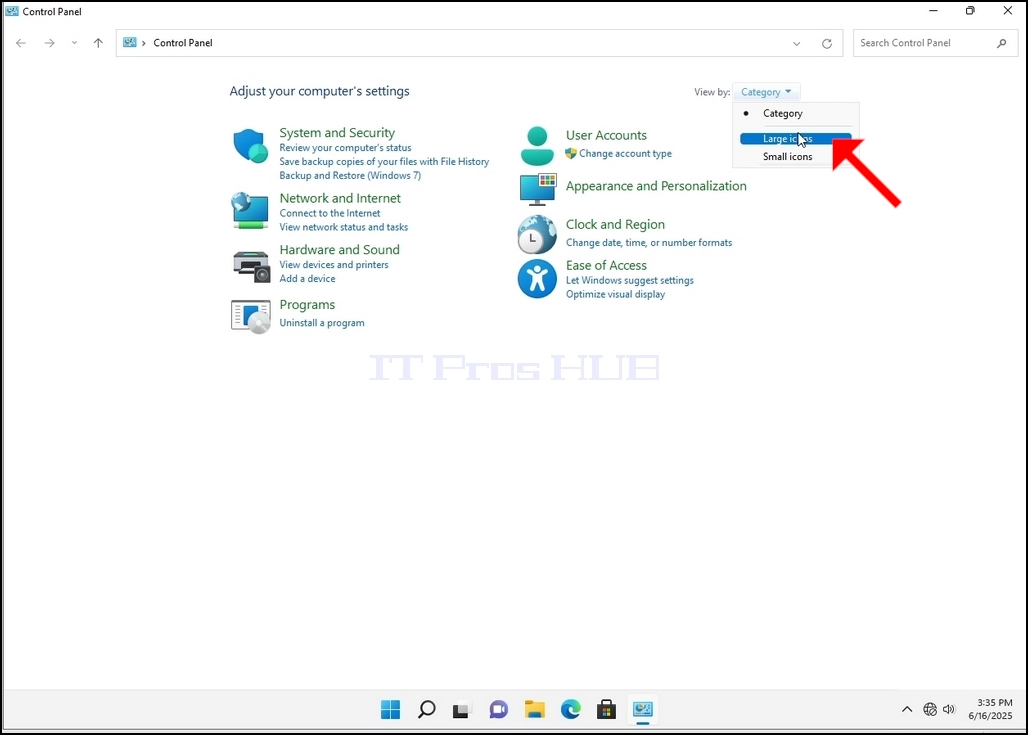
6. Etsi Indeksointi Valinnat kuvaketta ja klikkaa sitä. Odota, että indeksiasetukset-ikkuna ilmestyy.
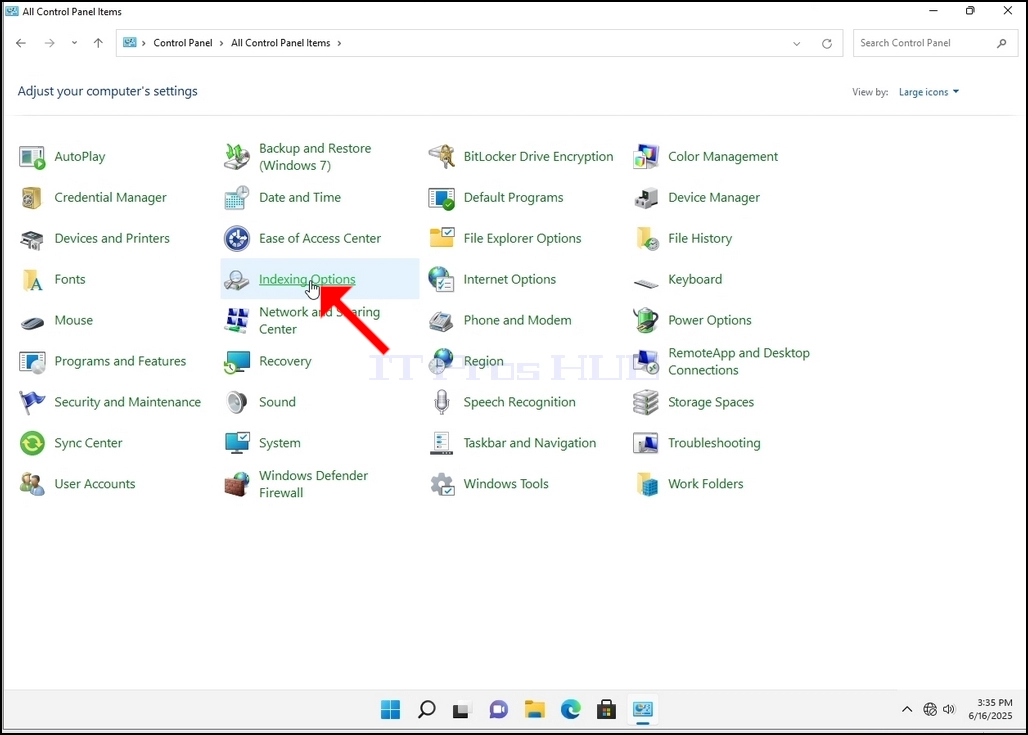
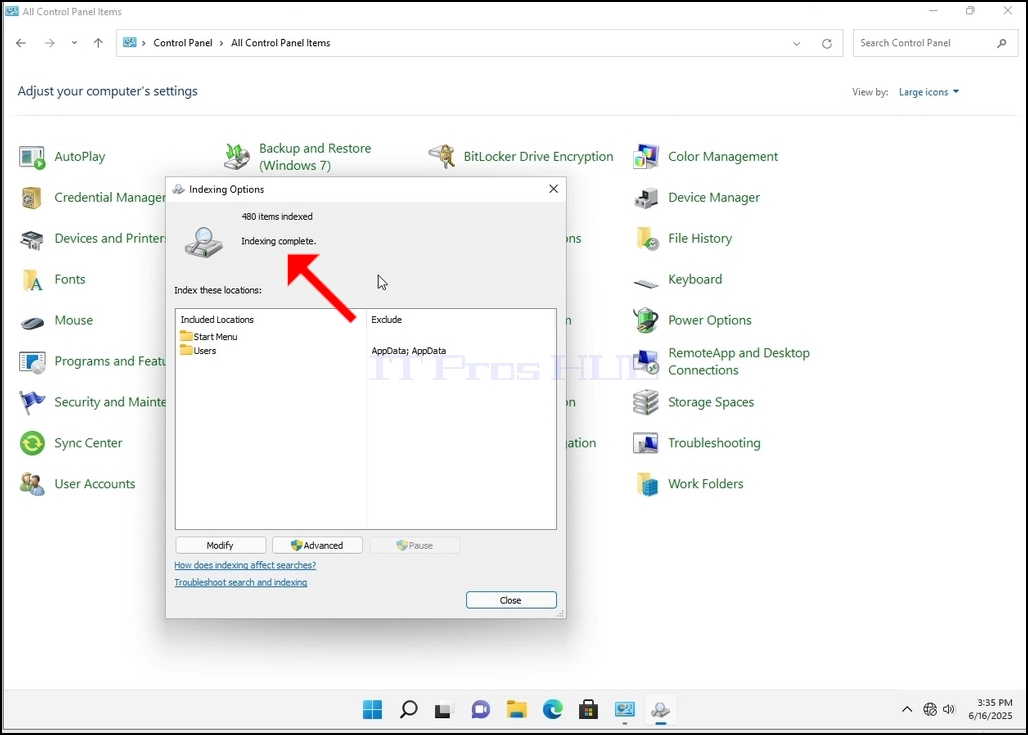
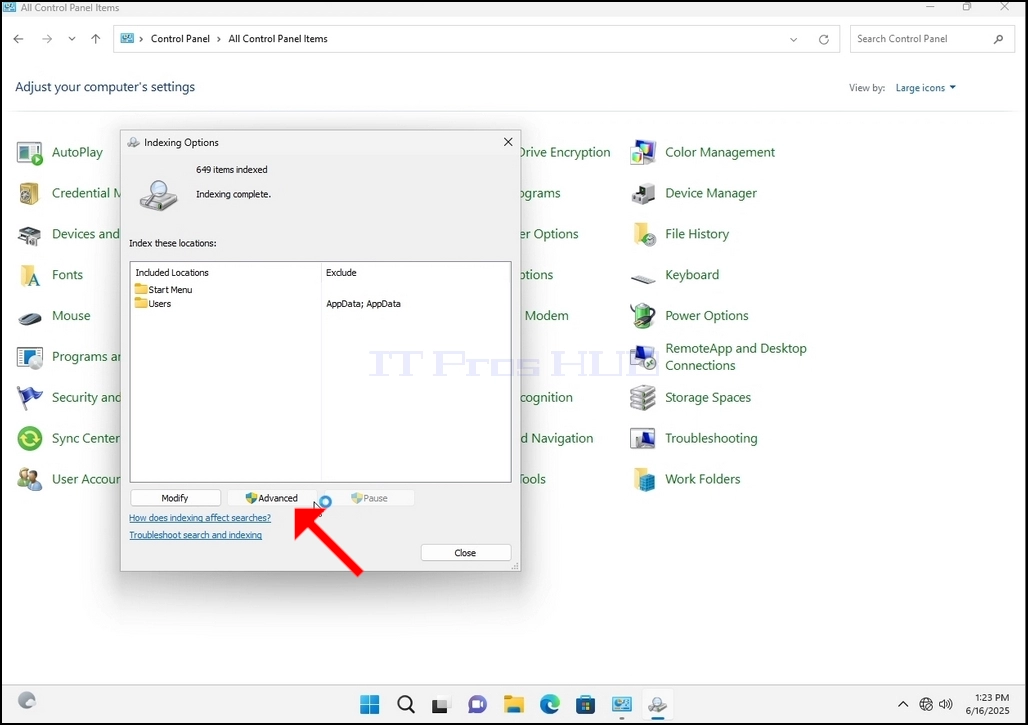
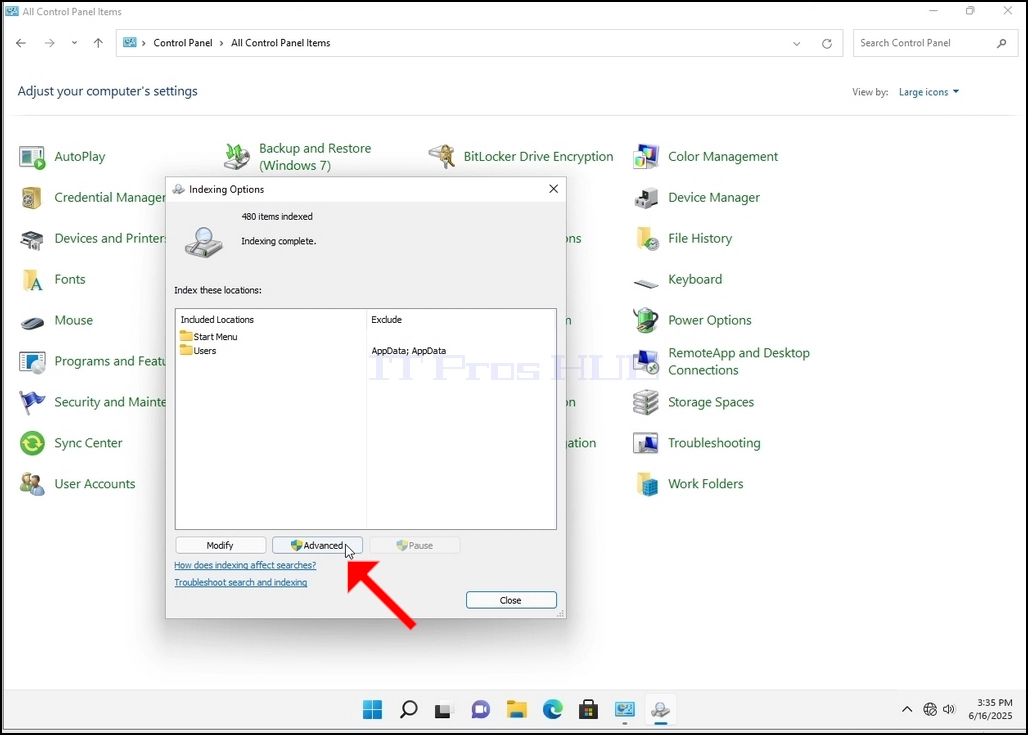
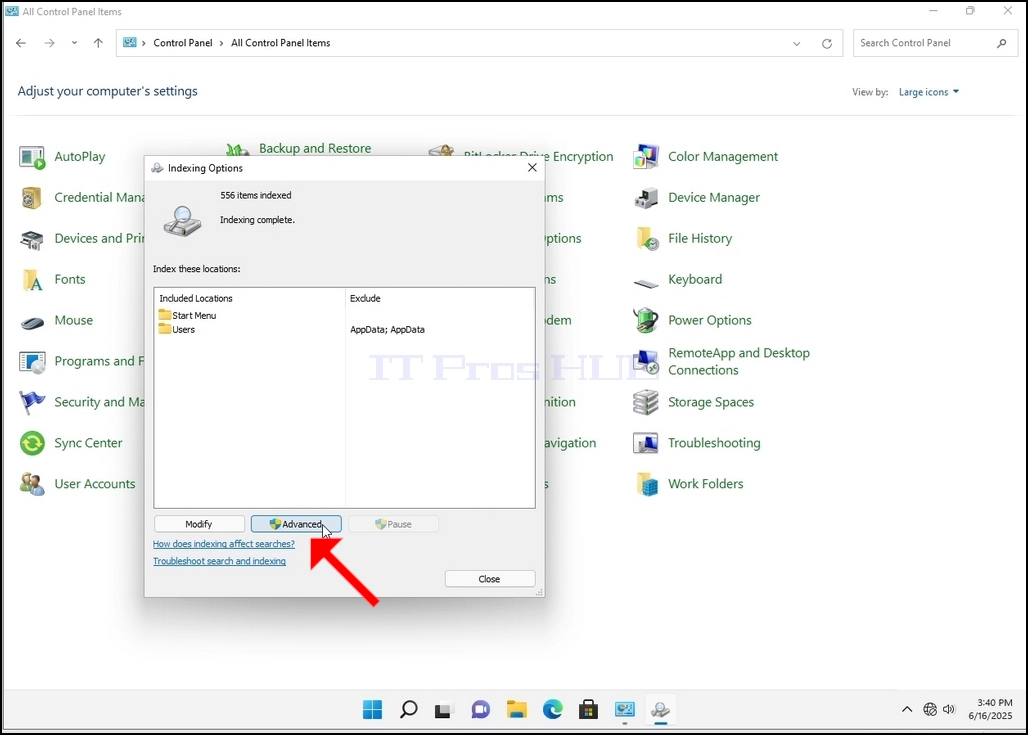
7. Kun Indeksointi Valinnat-ikkuna on auki, napsauta Advanced-painiketta ikkunan alareunassa.
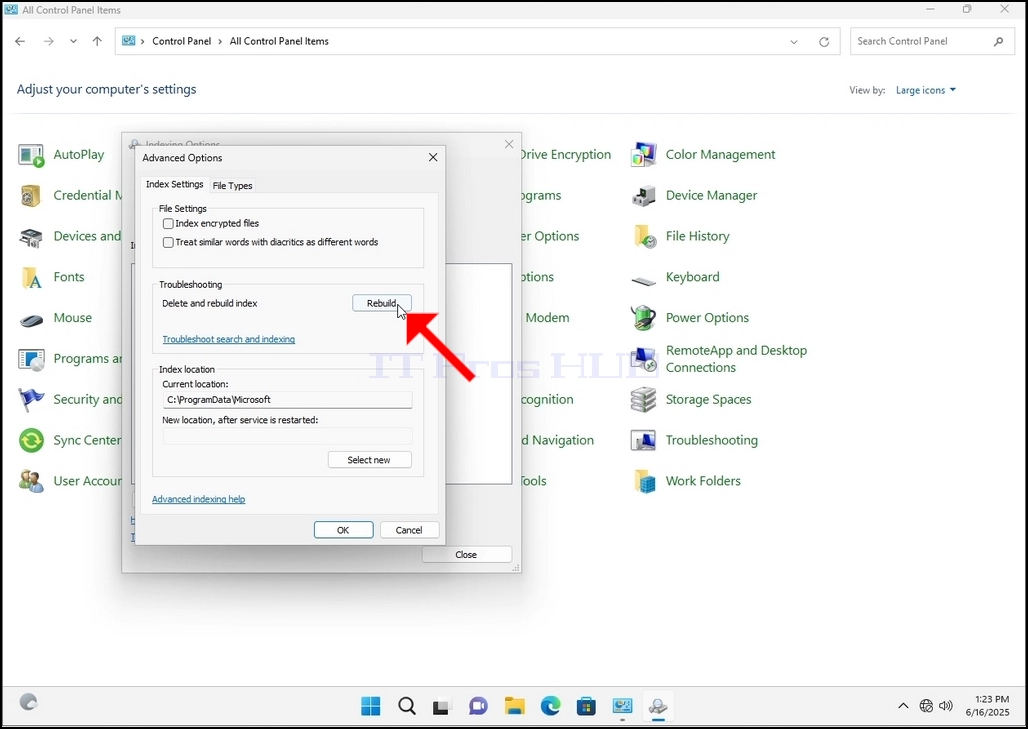
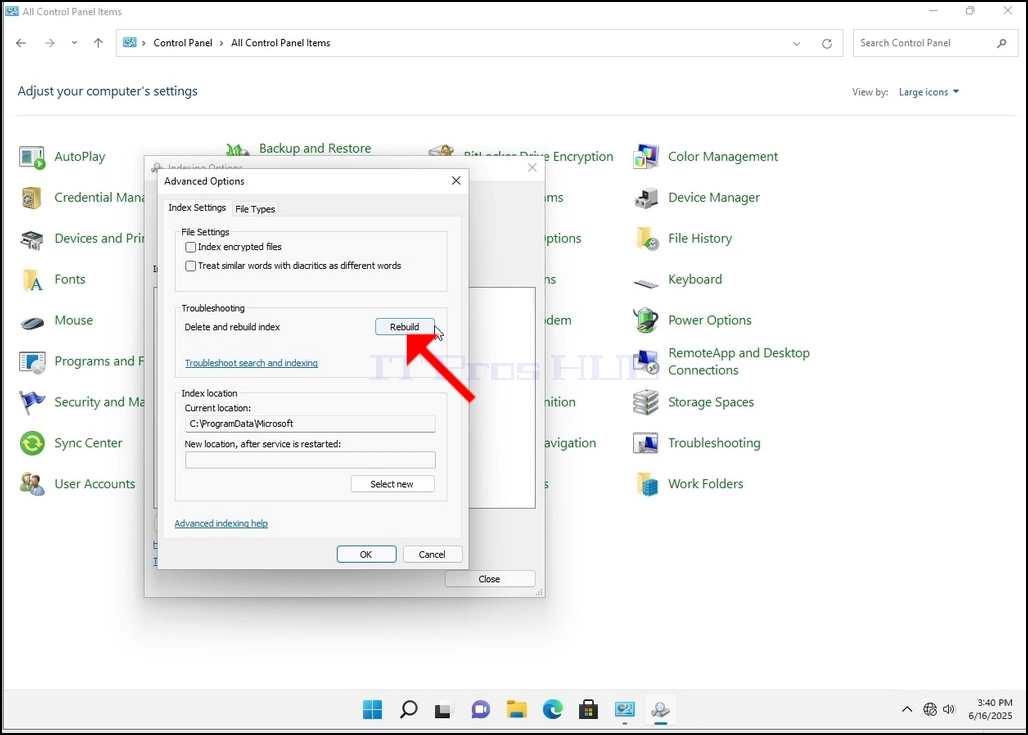
8. Uudessa ikkunassa, etsi Rebuild-painiketta ja klikkaa sitä. Sen jälkeen tulee vahvistuslaatikko. Napsauta OK-painiketta siinä aloittaaksesi indeksin uudelleenrakentamisen.
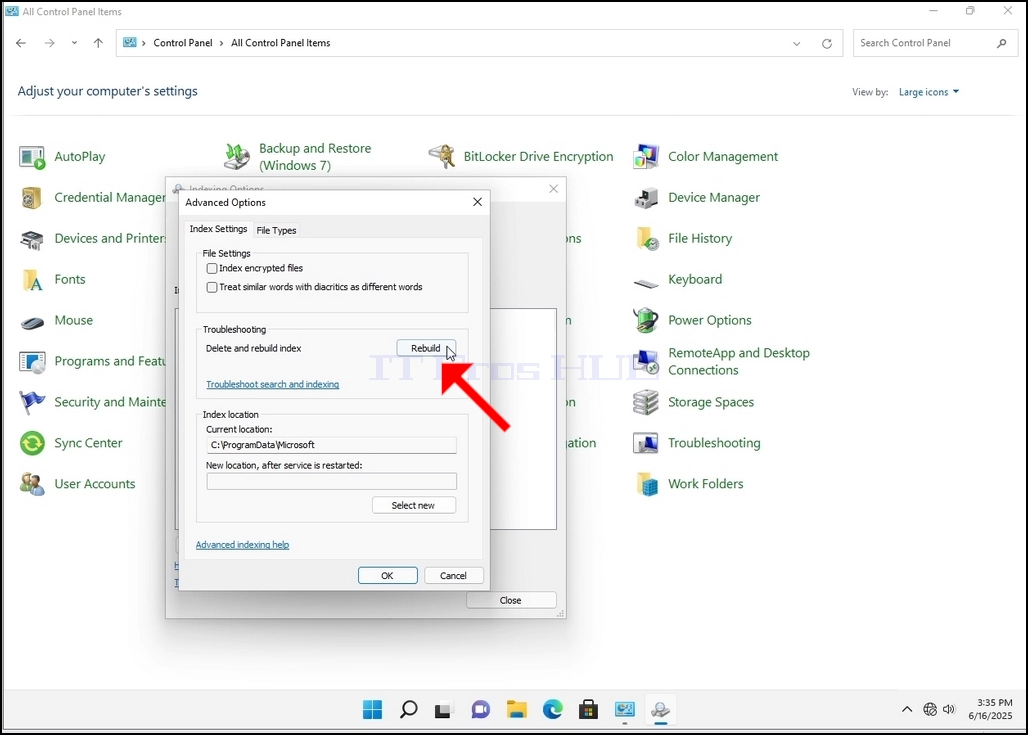
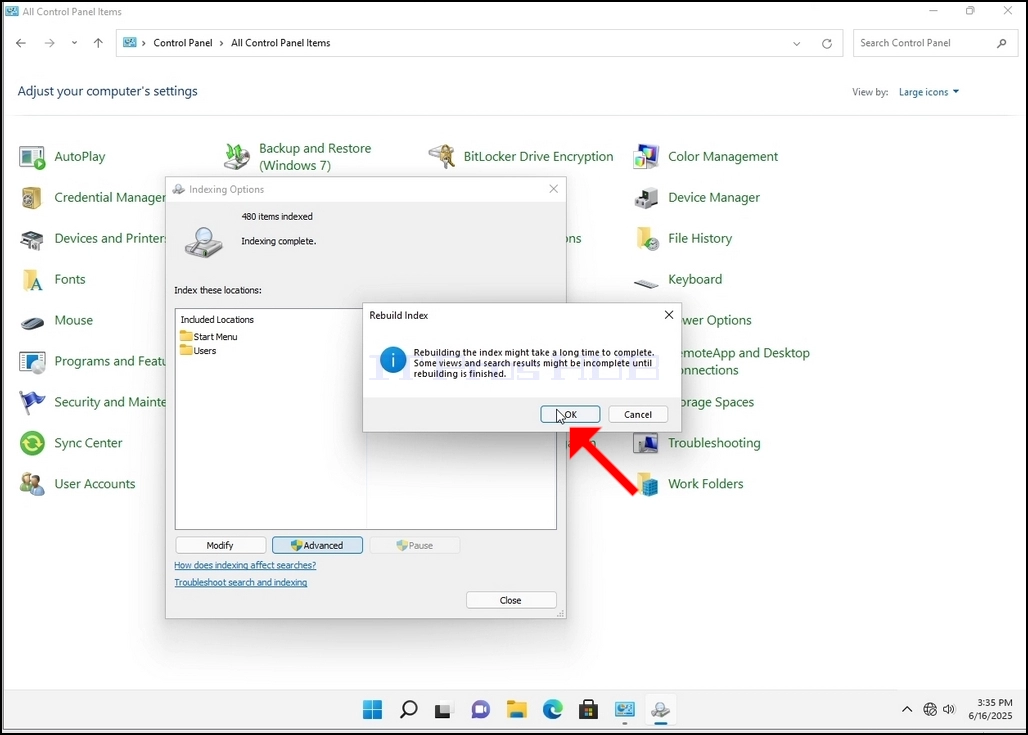
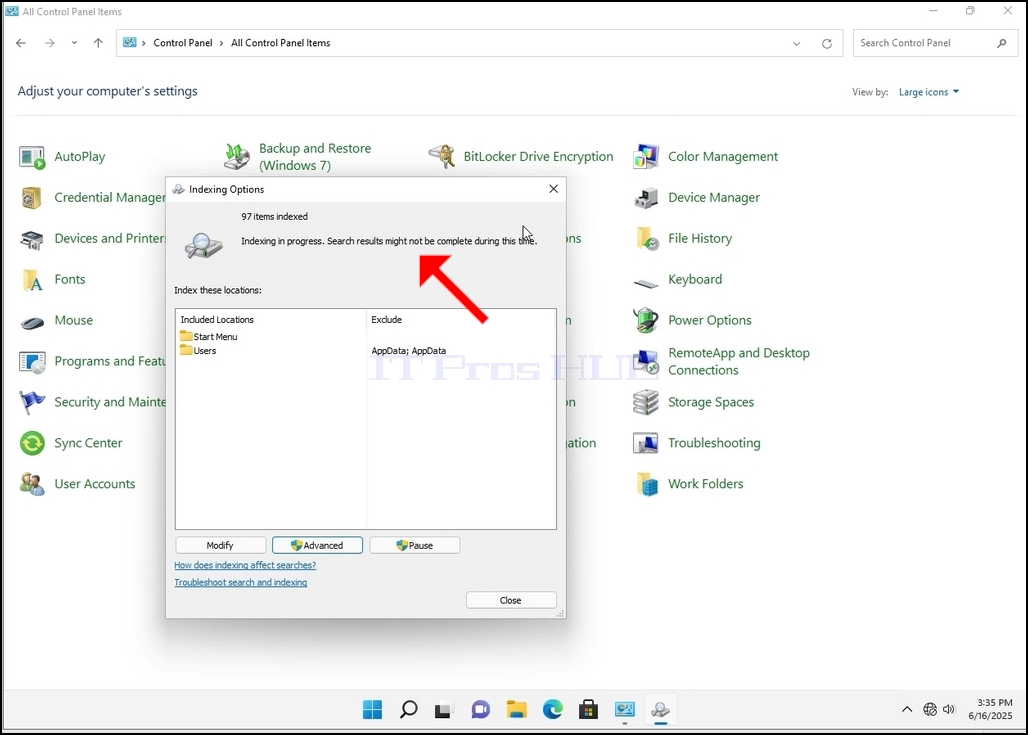
9. Kun klikkaat OK vahvistusruutuun, Windows alkaa jälleenrakentaa indeksi. Prosessin aloittaminen saattaa viedä aikaa. Odota kärsivällisesti muutamassa sekunnissa. Kun prosessi alkaa, "Indeksointi suoritettu" korvataan virke seuraavasti:Indeksointi käynnissä. Hakutulokset eivät ehkä ole täydellisiä tänä aikana."
Lisäksi indeksoitujen erien määrä nollataan hetkeksi nollaan ja alkaa sitten kasvaa.
Huomaa, että kaikki indeksiprosessiin liittyvät ikkunat voidaan nyt sulkea ja jälleenrakennusprosessi olisi edelleen käynnissä taustalla.
Huomaa, että Indeksointiprosessin nopeus saattaa vähentyä tietokoneen käyttäjän toiminnan vuoksi. Mitä intensiivisempi toiminta, sitä vähemmän Indeksointinopeus olisi.
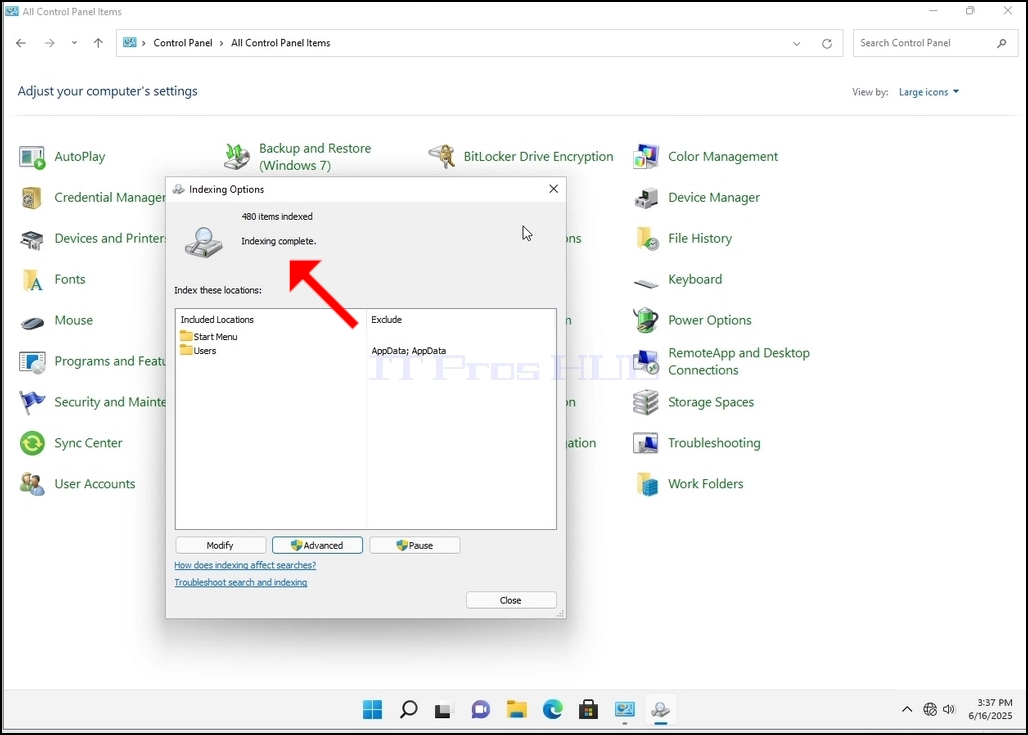
10. Voit tarkistaa, jos indeksointiprosessi on tehty, palata indeksointi vaihtoehtoja kautta ohjauspaneelin kuten edellisessä vaiheessa. Jos prosessi on valmis, näet "Indeksointi suoritettu"Kirja ilmestyy jälleen.
Koska Windows ei ilmoita käyttäjälle, kun tämä prosessi on tehty, on todellakin tarpeen suorittaa jälkimmäinen mainittu. Riippuen tiedostojen, kansioiden, ajurit ja osiot merkitty indeksointi, tämä prosessi voi kestää muutaman minuutin tai muutaman tunnin.
- Tietoja
- Kirjoittanut: IT Pro
- Kategoria: How to Articles
- Osumat: 5502
1. Siirry Windowsin työpöydälle
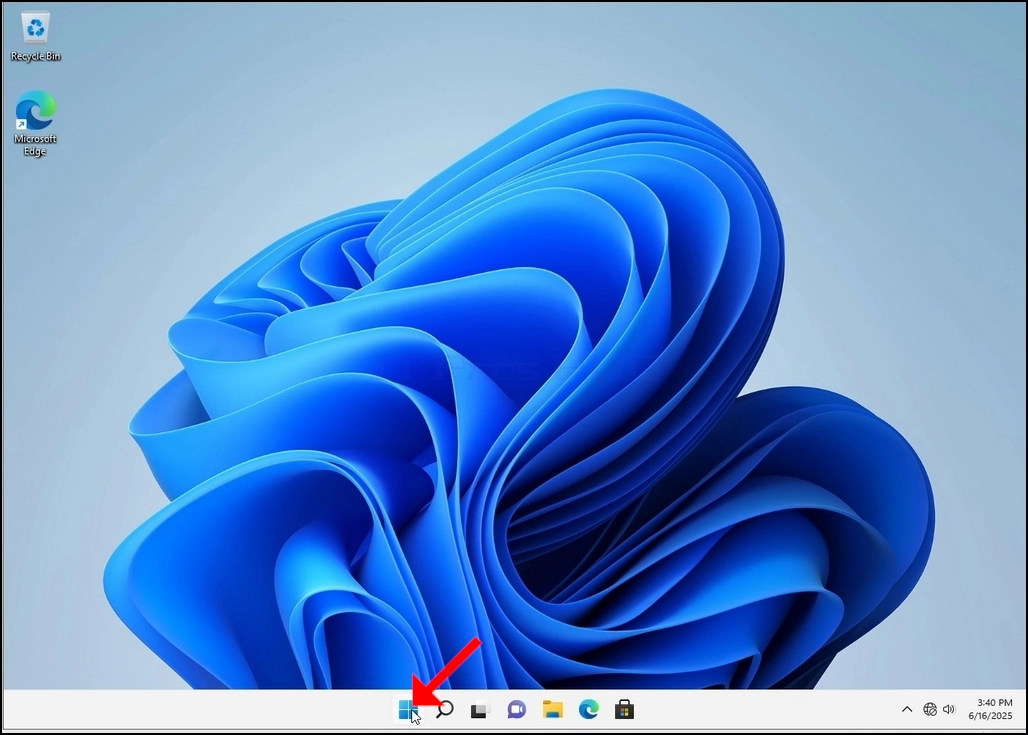
2. Klikkaa Käynnistä
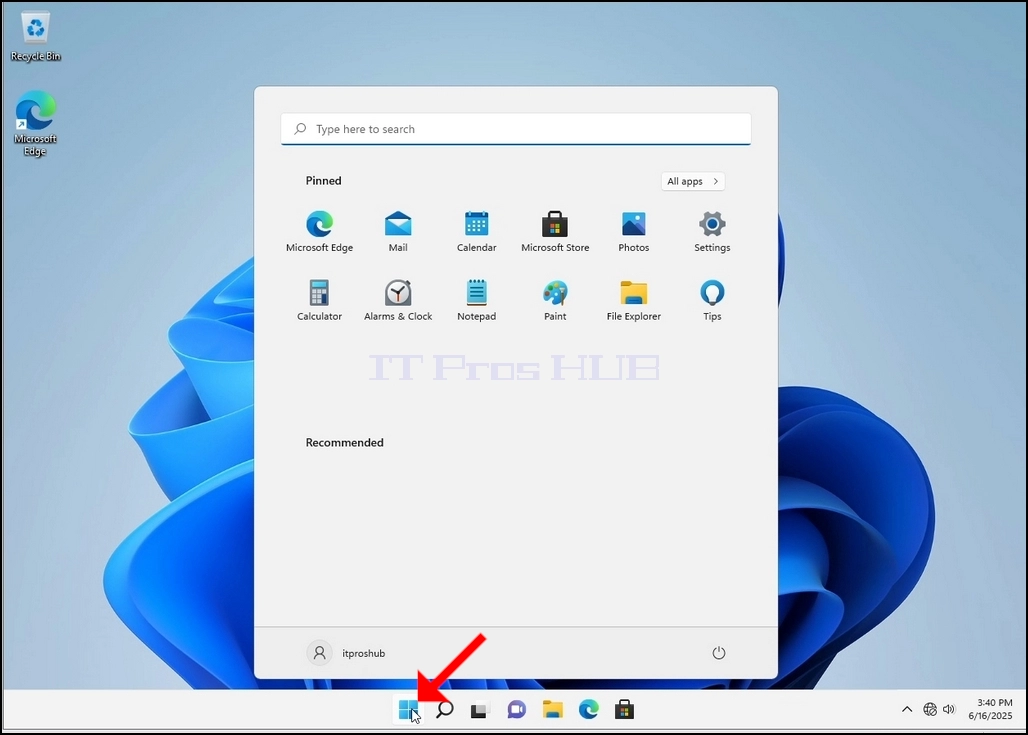
3. Kun aloitusvalikko avautuu, kirjoita "ohjauspaneeli" ja odota aloitusvalikon löytämistä ohjauspaneelin kuvakkeen. Huomaathan, että on mahdollista vain kirjoittaa "cont" ja useimmissa tapauksissa Start-valikko löytäisi edelleen ohjauspaneelin kuvakkeen.
Kun se löytää sen, napsauta sitä ja odota ohjauspaneelin ikkunan ilmestymistä.
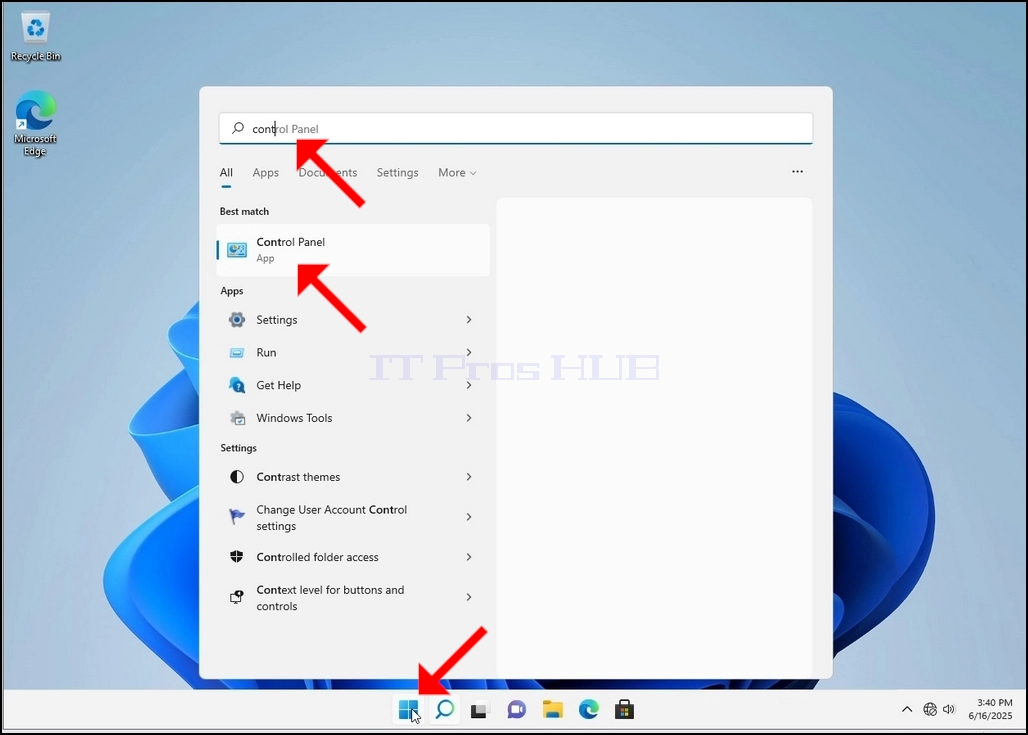
4. Kun ohjauspaneelin ikkuna on auki, suurenna sitä klikkaamalla ikkunan oikeassa yläkulmassa olevaa laajenevaa kuvaketta.
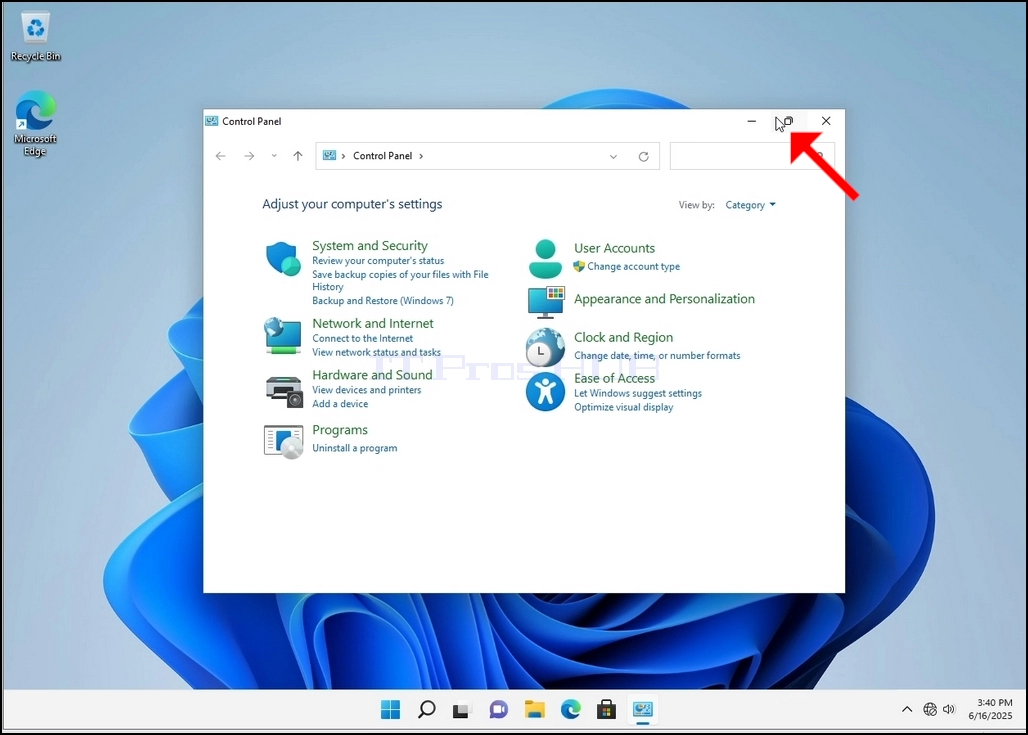
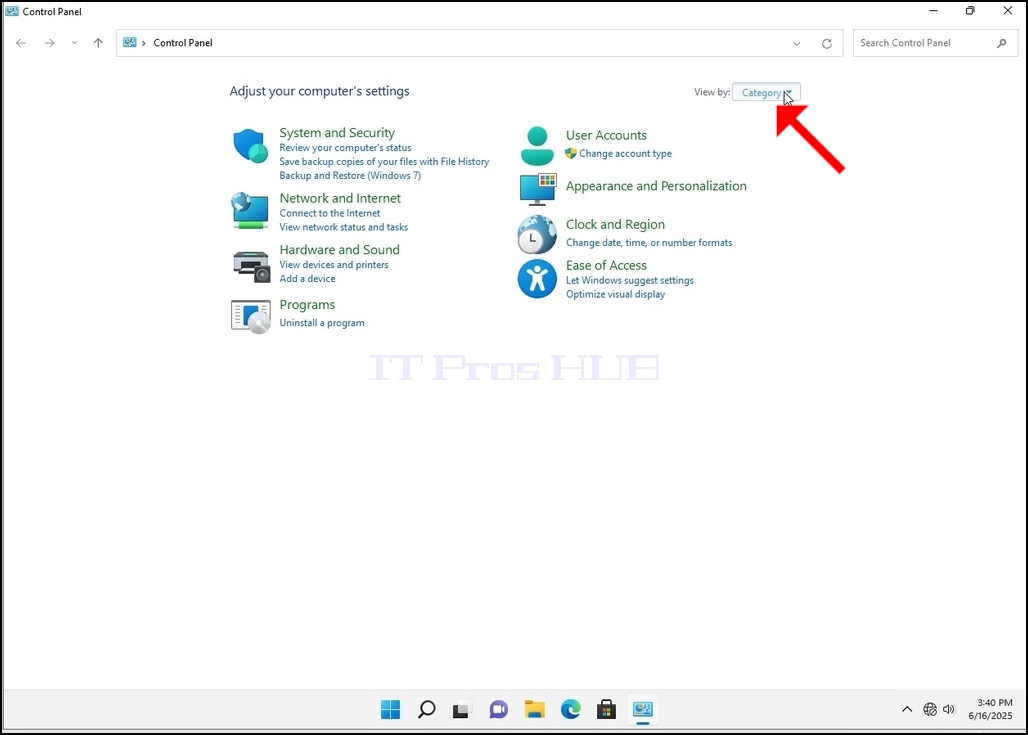
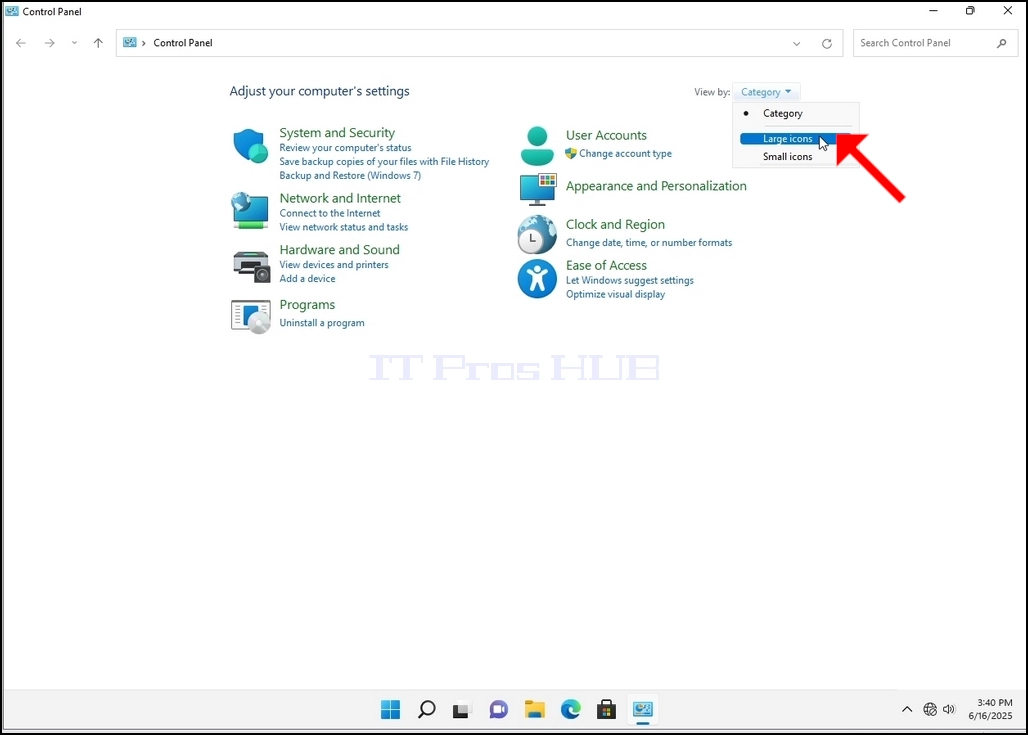
6. Etsi Indeksointi Valinnat kuvaketta ja klikkaa sitä. Odota, että indeksiasetukset-ikkuna ilmestyy.
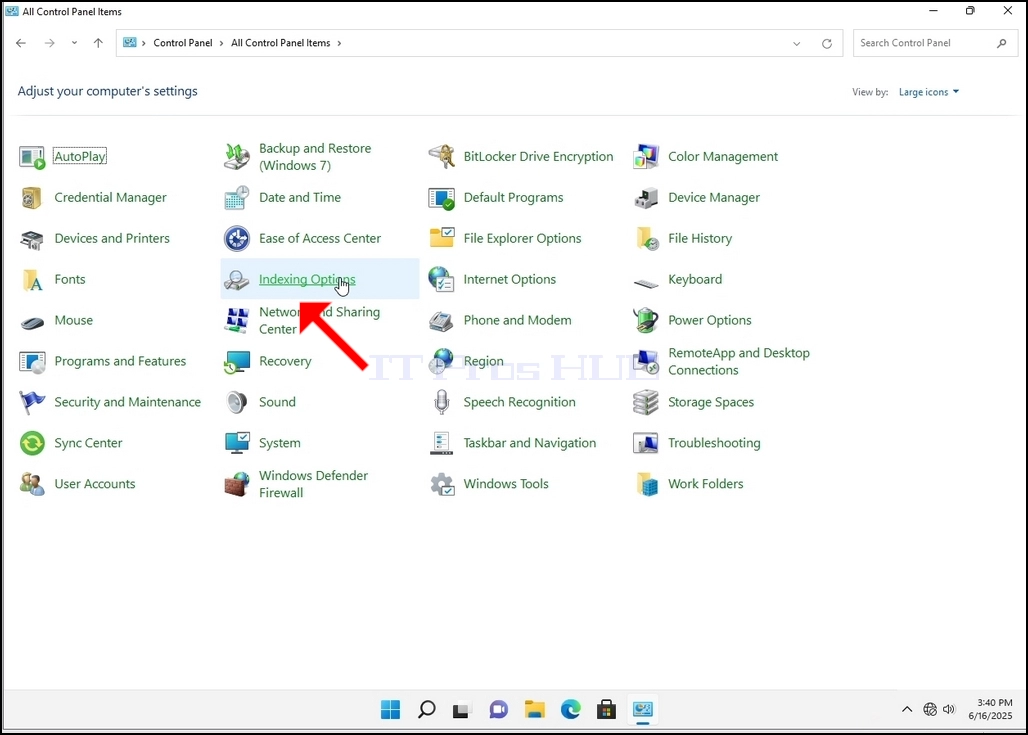
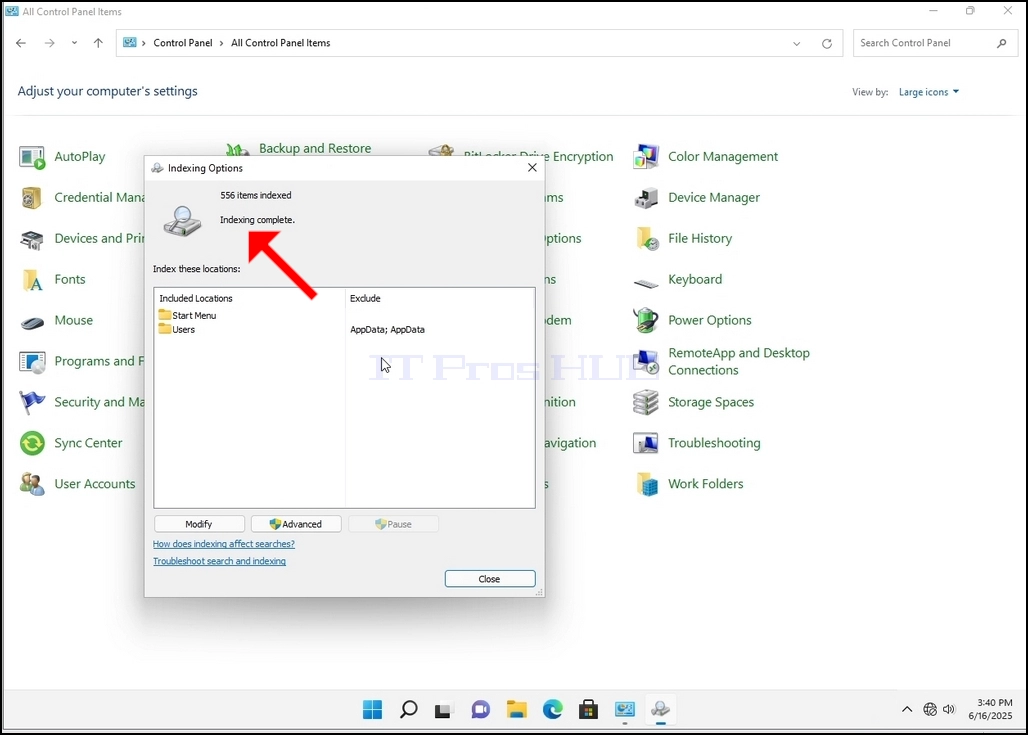
7. Kun Indeksointi Valinnat-ikkuna on auki, napsauta Advanced-painiketta ikkunan alareunassa.
8. Uudessa ikkunassa, etsi Rebuild-painiketta ja klikkaa sitä. Sen jälkeen tulee vahvistuslaatikko. Napsauta OK-painiketta siinä aloittaaksesi indeksin uudelleenrakentamisen.
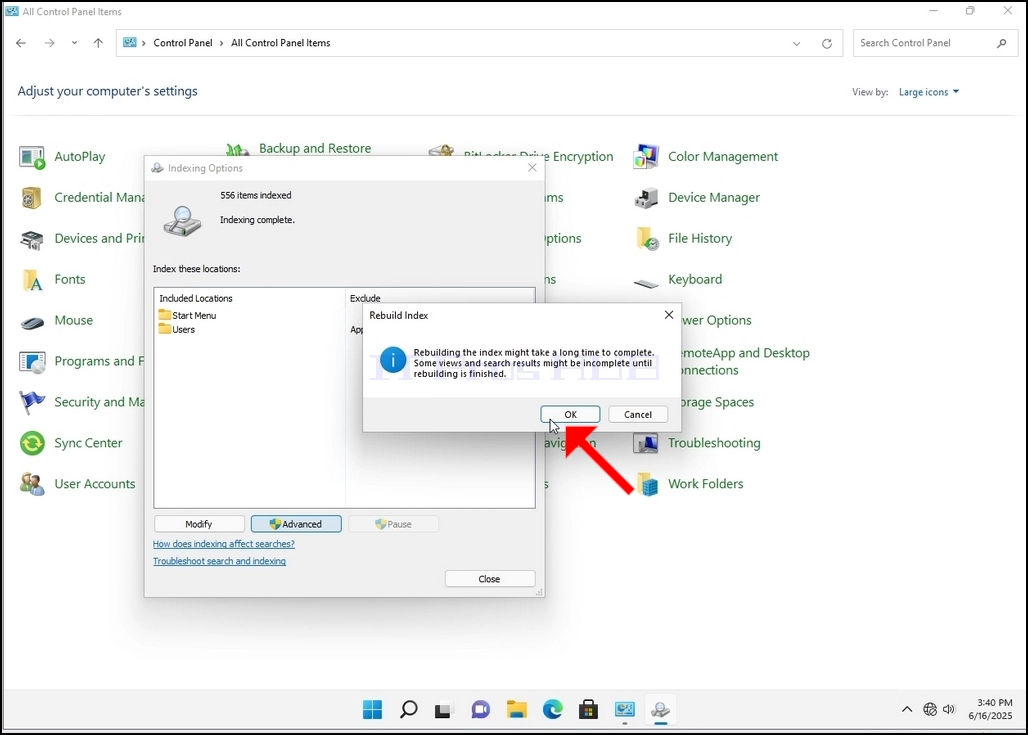
9. Kun klikkaat OK vahvistusruutuun, Windows alkaa jälleenrakentaa indeksi. Prosessin aloittaminen saattaa viedä aikaa. Odota kärsivällisesti muutamassa sekunnissa. Kun prosessi alkaa, "Indeksointi suoritettu" korvataan virke seuraavasti:Indeksointi käynnissä. Hakutulokset eivät ehkä ole täydellisiä tänä aikana."
Lisäksi indeksoitujen erien määrä nollataan hetkeksi nollaan ja alkaa sitten kasvaa.
Huomaa, että kaikki indeksiprosessiin liittyvät ikkunat voidaan nyt sulkea ja jälleenrakennusprosessi olisi edelleen käynnissä taustalla.
Huomaa, että Indeksointiprosessin nopeus saattaa vähentyä tietokoneen käyttäjän toiminnan vuoksi. Mitä intensiivisempi toiminta, sitä vähemmän Indeksointinopeus olisi.
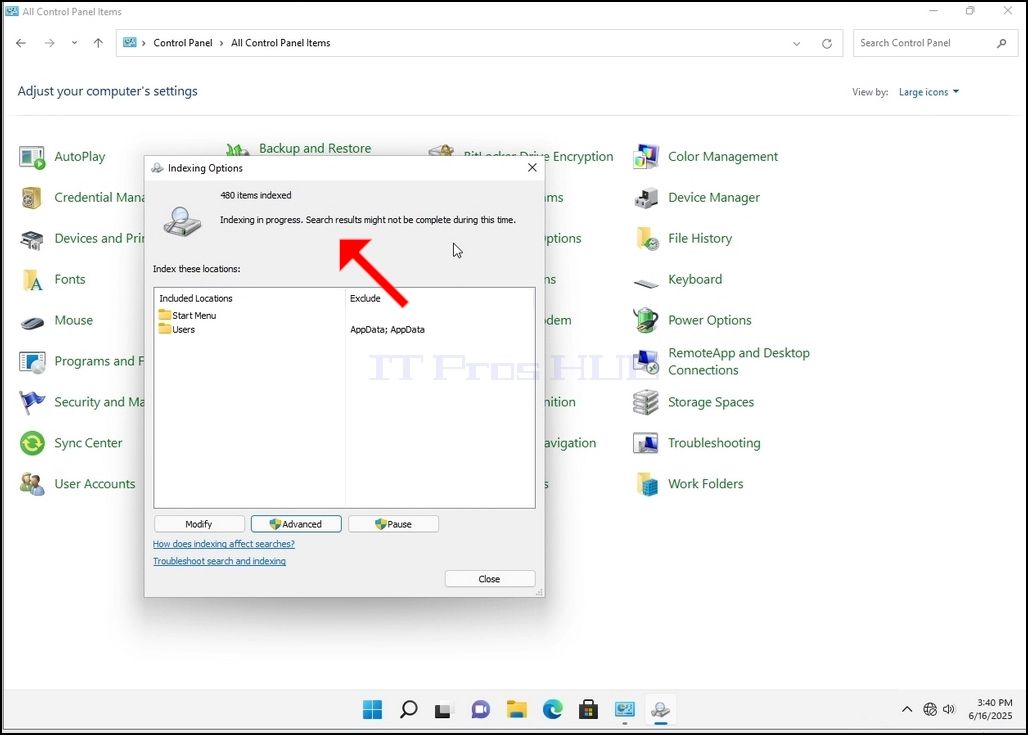
10. Voit tarkistaa, jos indeksointiprosessi on tehty, palata indeksointi vaihtoehtoja kautta ohjauspaneelin kuten edellisessä vaiheessa. Jos prosessi on valmis, näet "Indeksointi suoritettu"Kirja ilmestyy jälleen.
Koska Windows ei ilmoita käyttäjälle, kun tämä prosessi on tehty, on todellakin tarpeen suorittaa jälkimmäinen mainittu. Riippuen tiedostojen, kansioiden, ajurit ja osiot merkitty indeksointi, tämä prosessi voi kestää muutaman minuutin tai muutaman tunnin.
- Miten rakentaa Indeksointi Windows 11 21H2 x64 Pro työasemien rakentaa 22000.194
- Miten rakentaa uudelleen indeksointi Windows 11 21H2 x64 Pro Education N Rakentaa 22000.194
- Miten rakentaa uudelleen Indeksointi Windows 11 21H2 x64 Pro Education Rakentaminen 22000.194
- Miten rakentaa Indeksointi Windows 11 21H2 x64 Pro Build 22000.194