



- Details
- Geschrieben von: IT Pro
- Kategorie: How to Articles
- Zugriffe: 5358
1. Microsoft Word öffnen
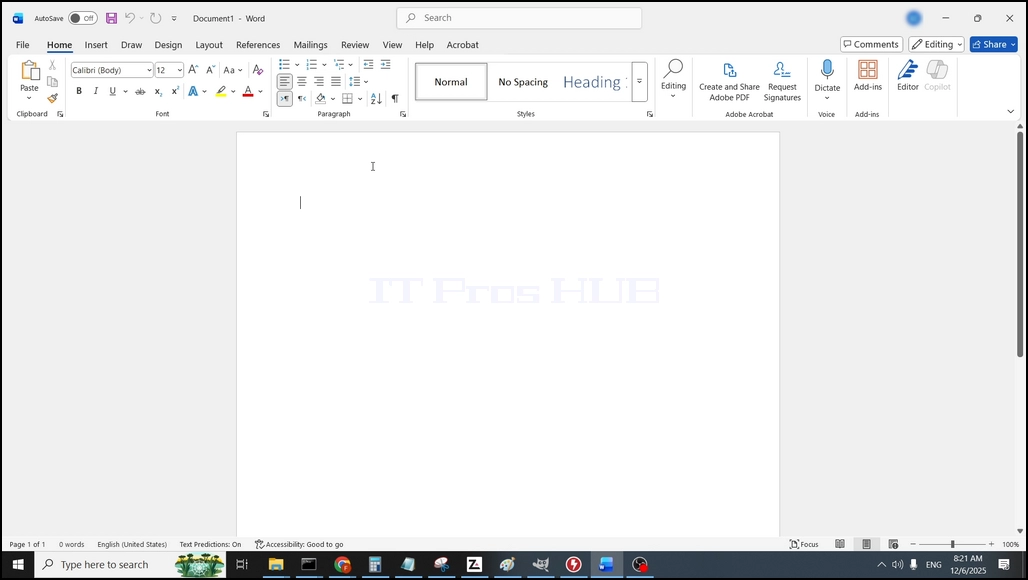
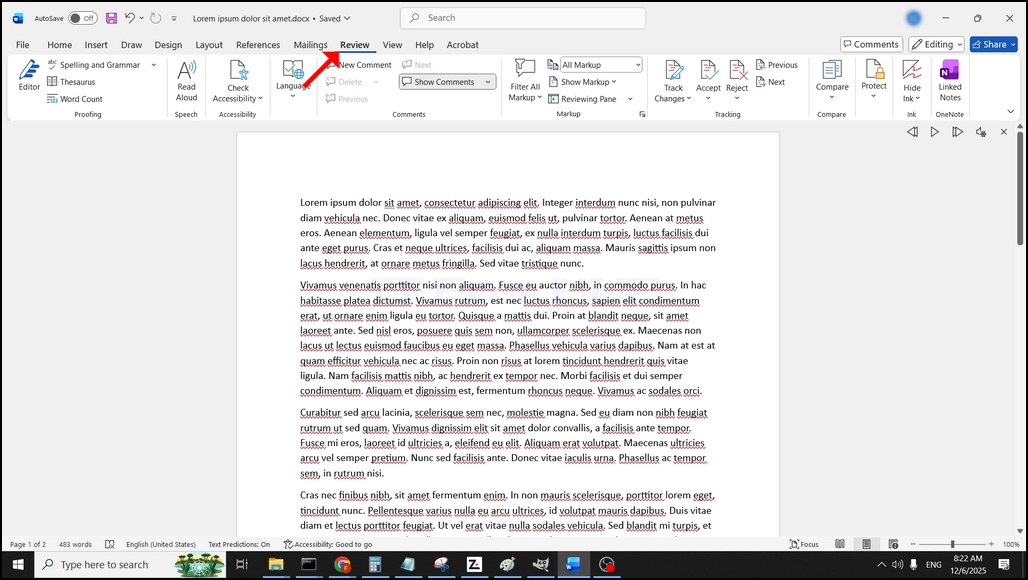
2. Gehen Sie in der oberen Menüleiste von Home zu Review:
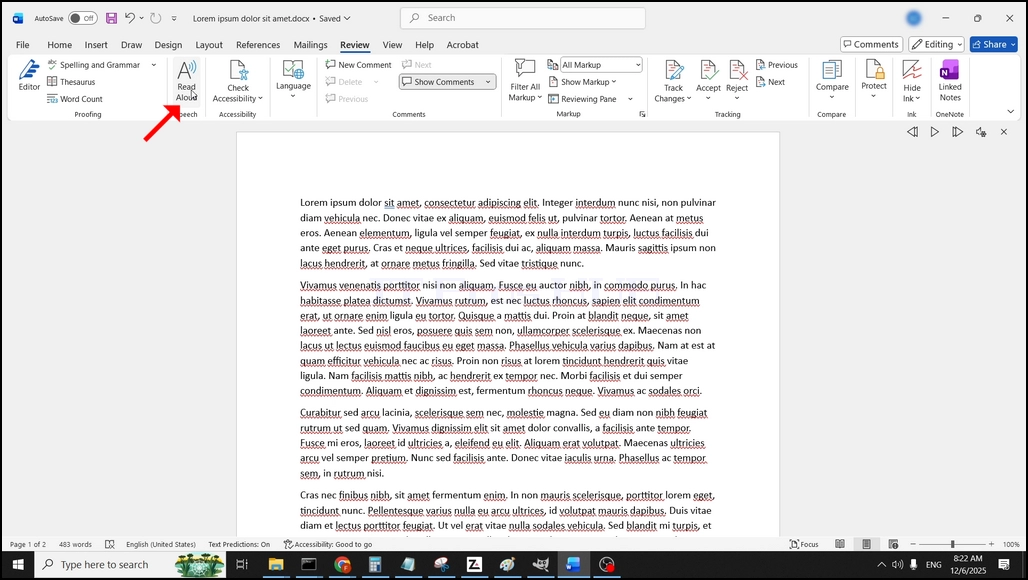
3. Unter Review, suchen Sie nach einem großen "A" Symbol, das sagt"Lesen Sie Aloud" und klicken Sie darauf, um die Text to Speech-Funktion von Word zu aktivieren:
- Details
- Geschrieben von: IT Pro
- Kategorie: How to Articles
- Zugriffe: 5742
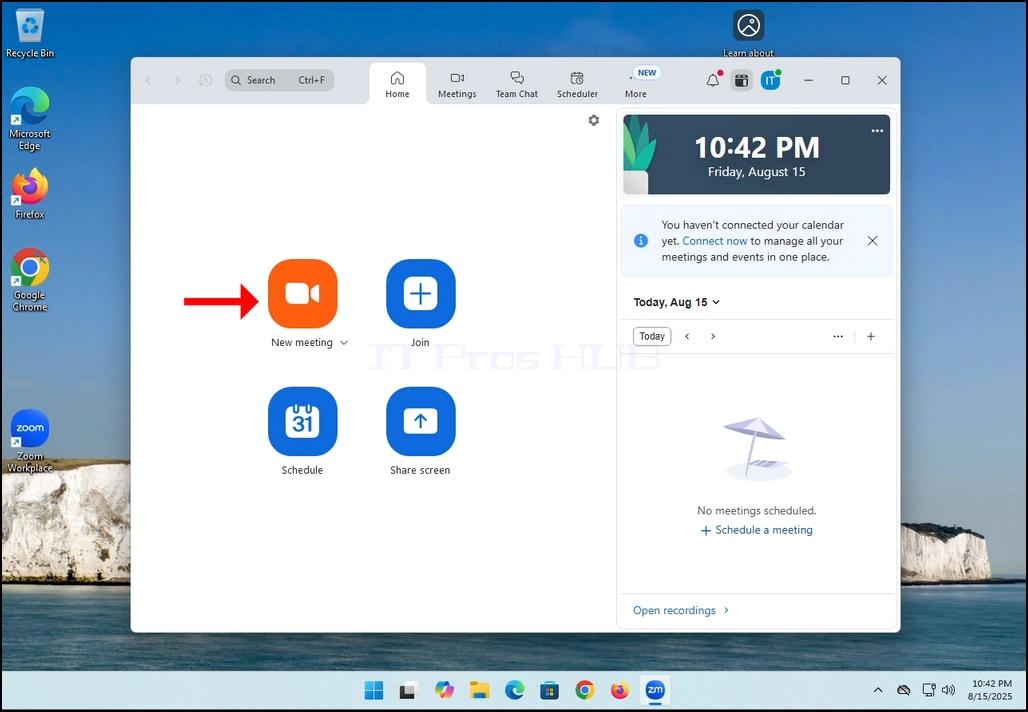
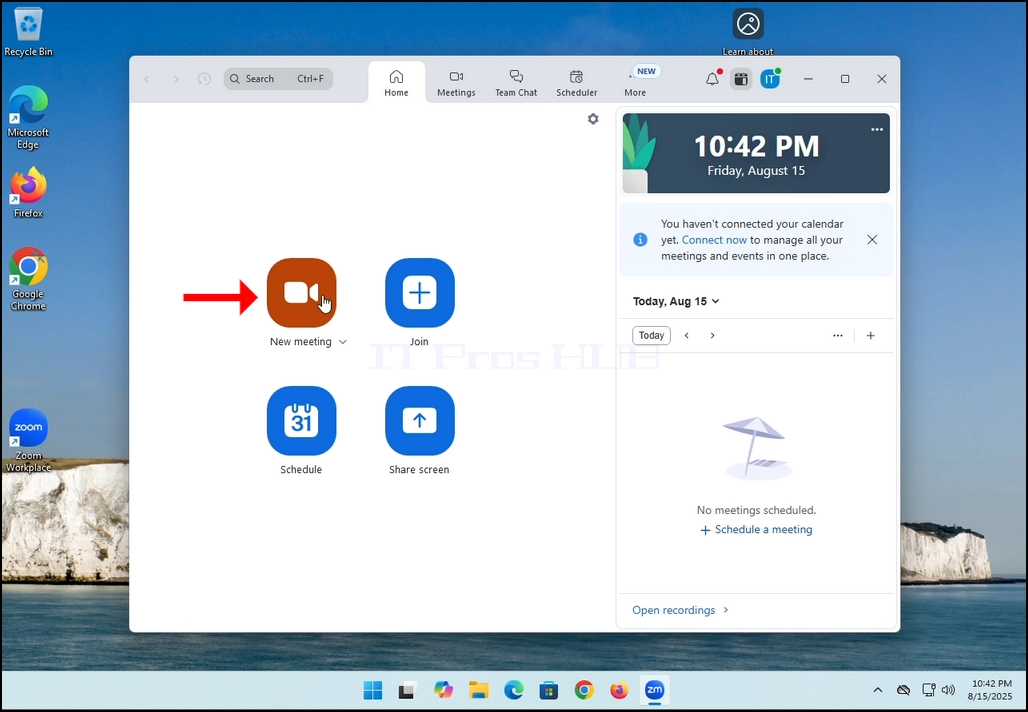
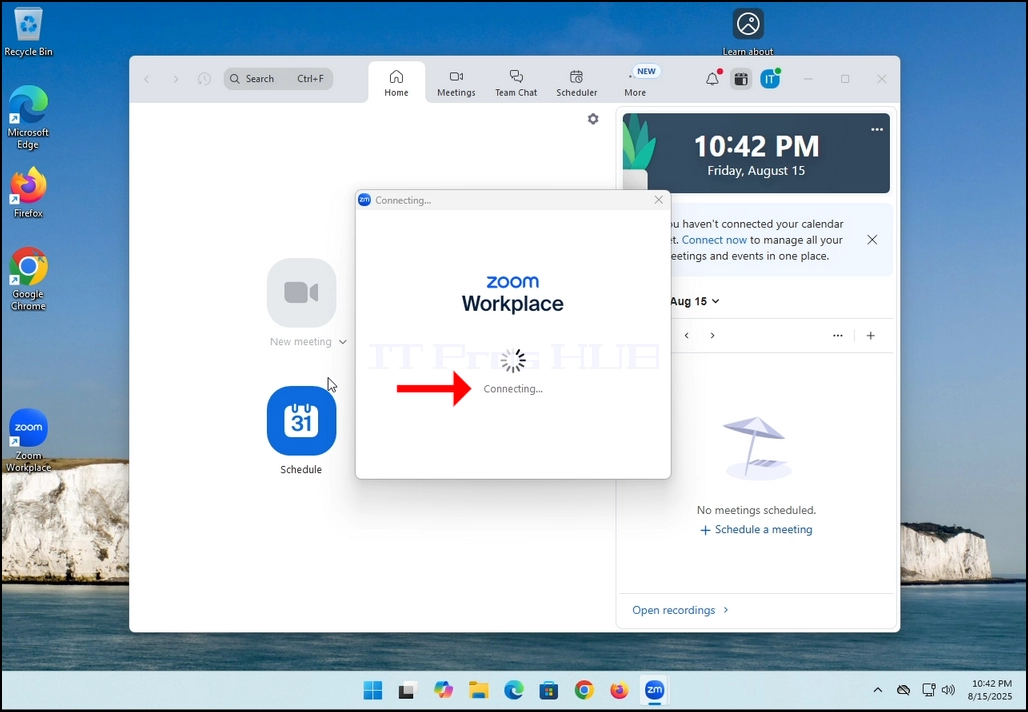
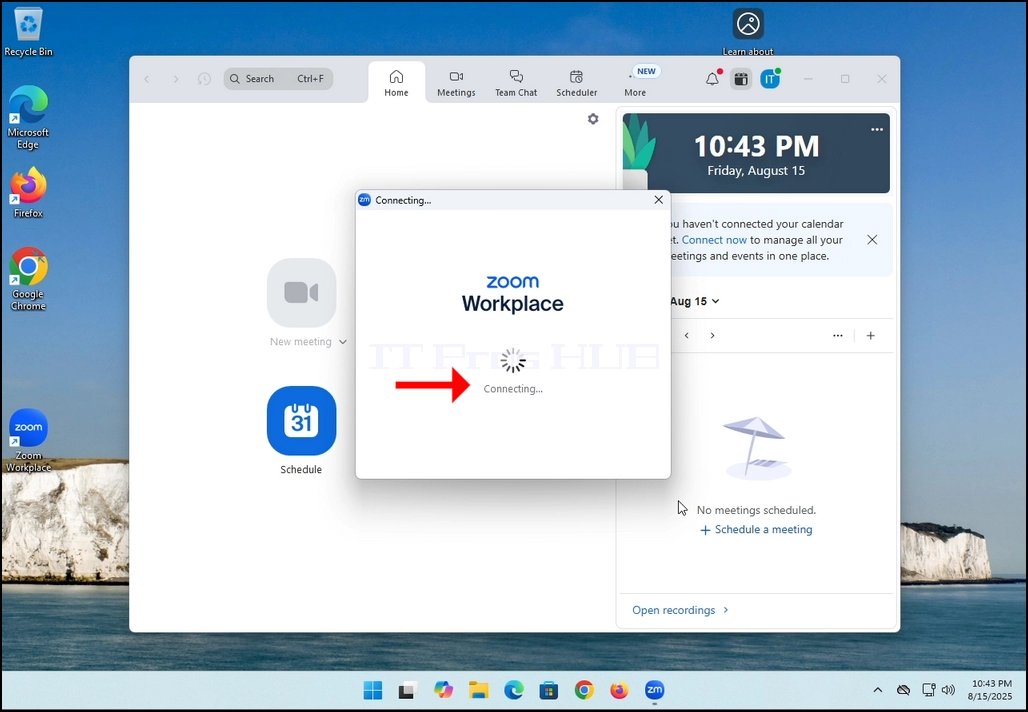
2. Once clicked, a new small window should appear. The window will show "connecting" and an animation progress circle.
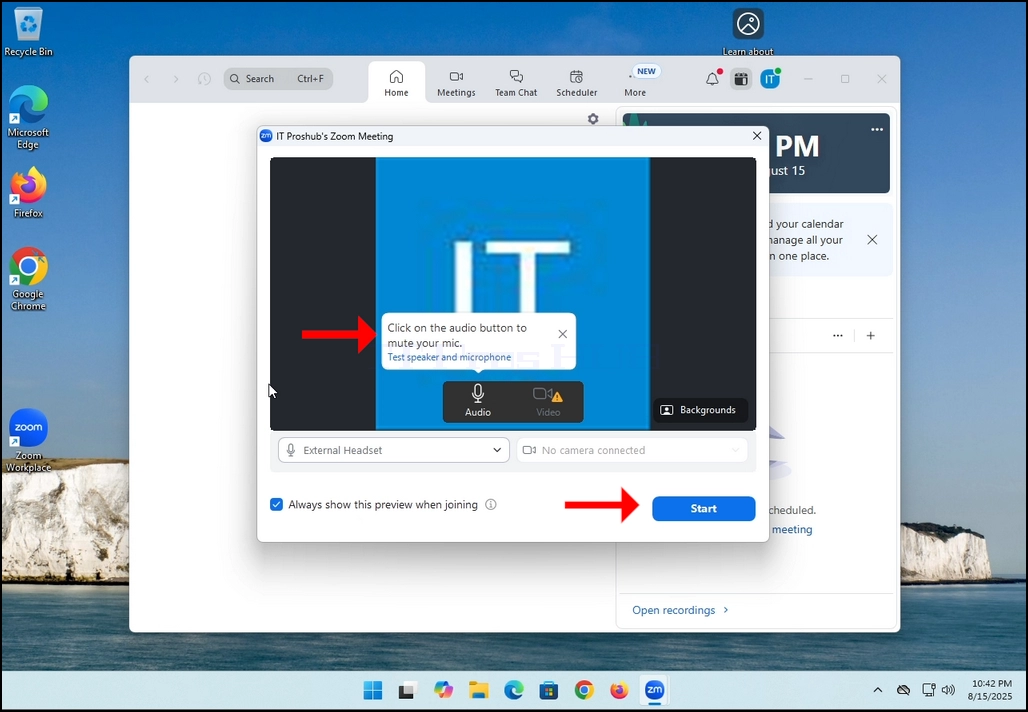
3. Once it's done loading, a new window will appear. Usually its title should say something along the lines of: "User's Zoom Meeting". In this article's case, it says "IT Proshub's Zoom Meeting" since the user that uses Zoom is called that way.
4. Here, you can mute your mic by clicking on the mic icon and you can also turn your camera off/on by clicking the Video icon.
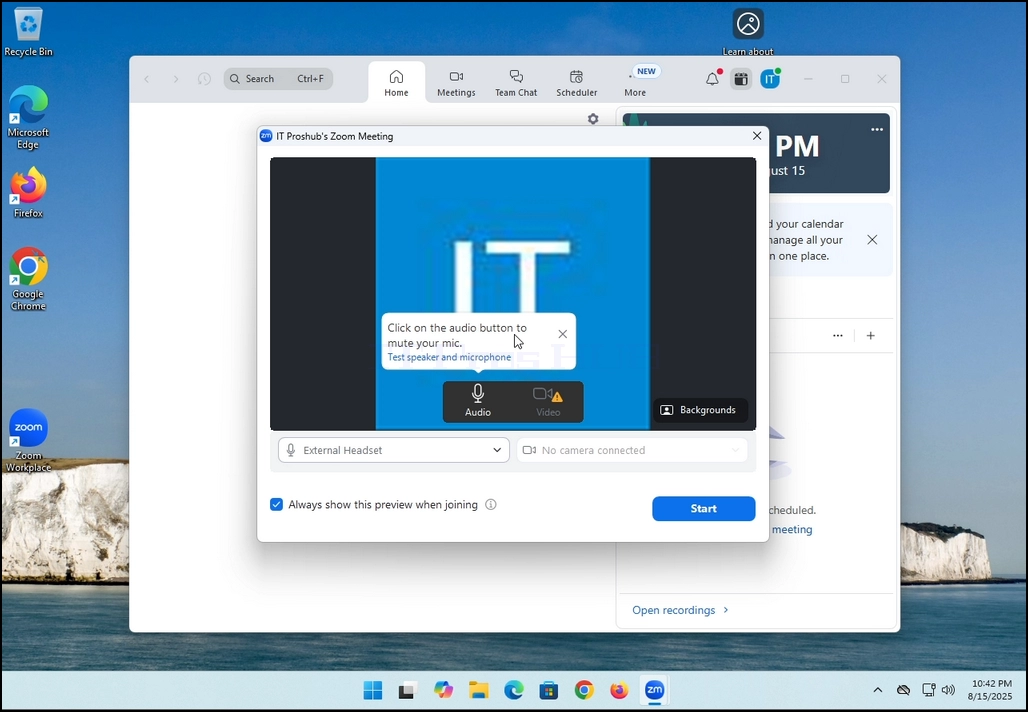
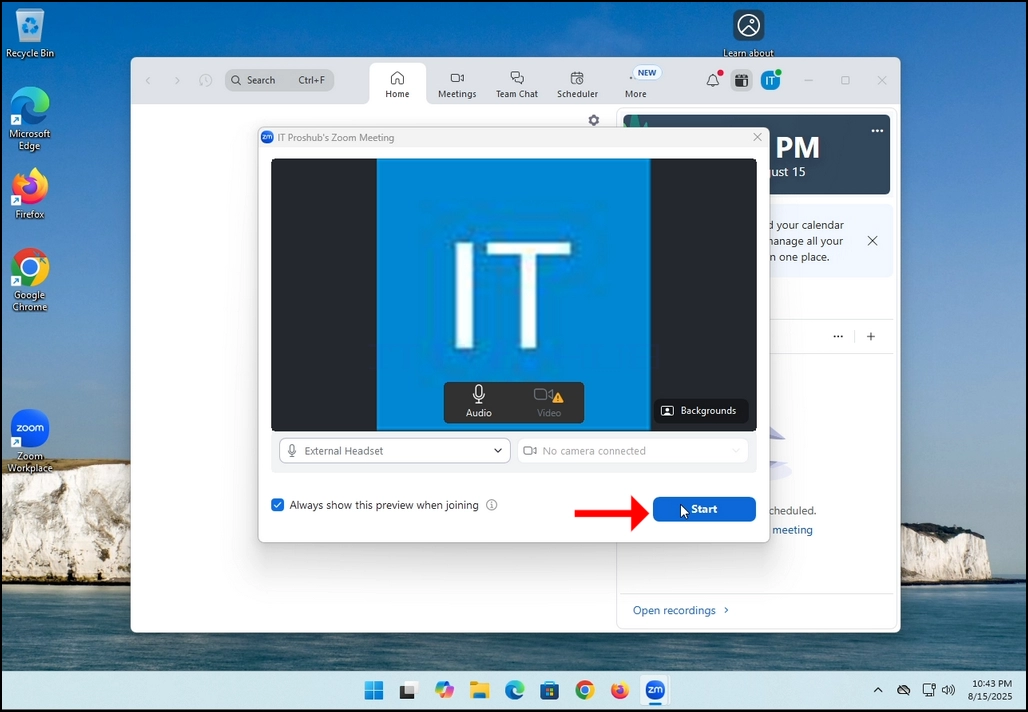
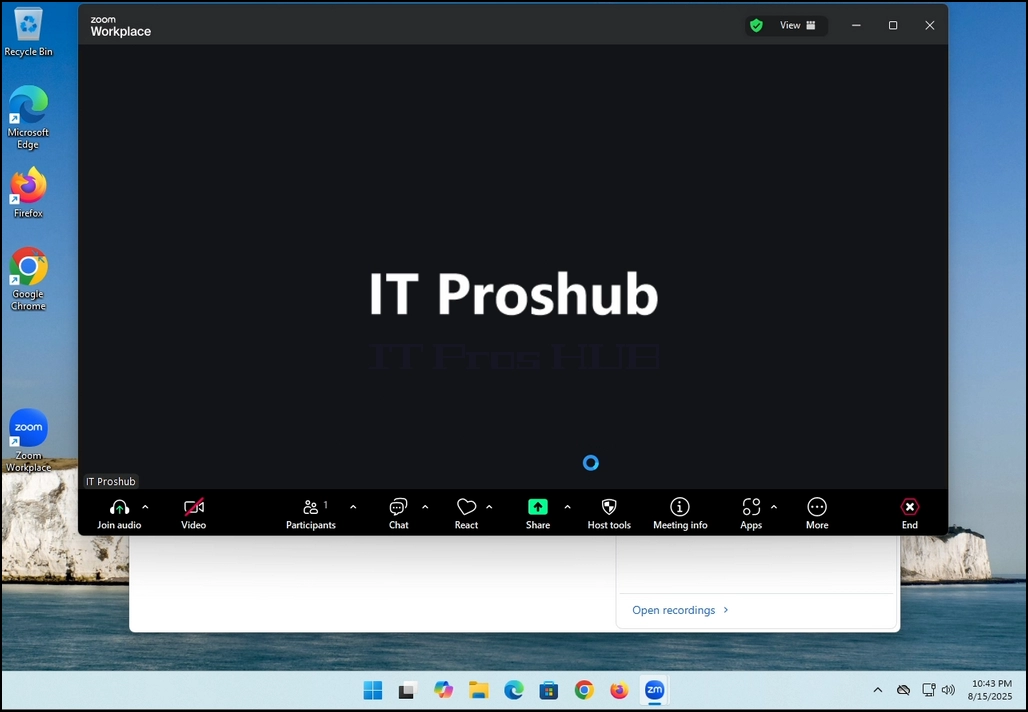
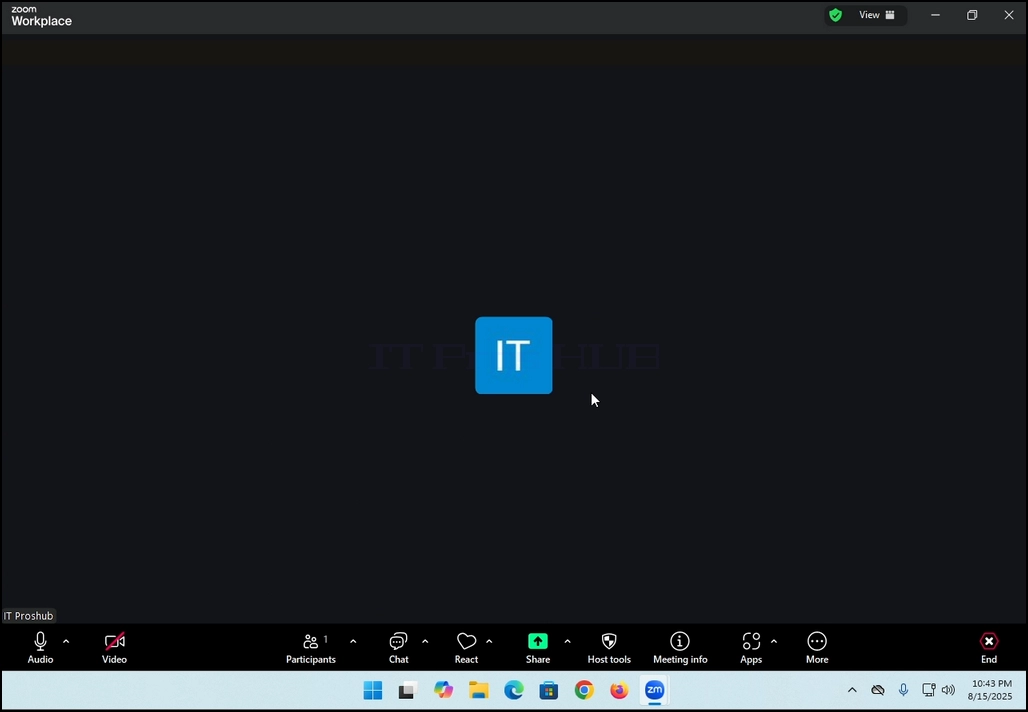
7. That's it! the new meeting is in progress. At this stage the meeting contains only the host which is IT Proshub in this article's case.
- Details
- Geschrieben von: IT Pro
- Kategorie: How to Articles
- Zugriffe: 5429
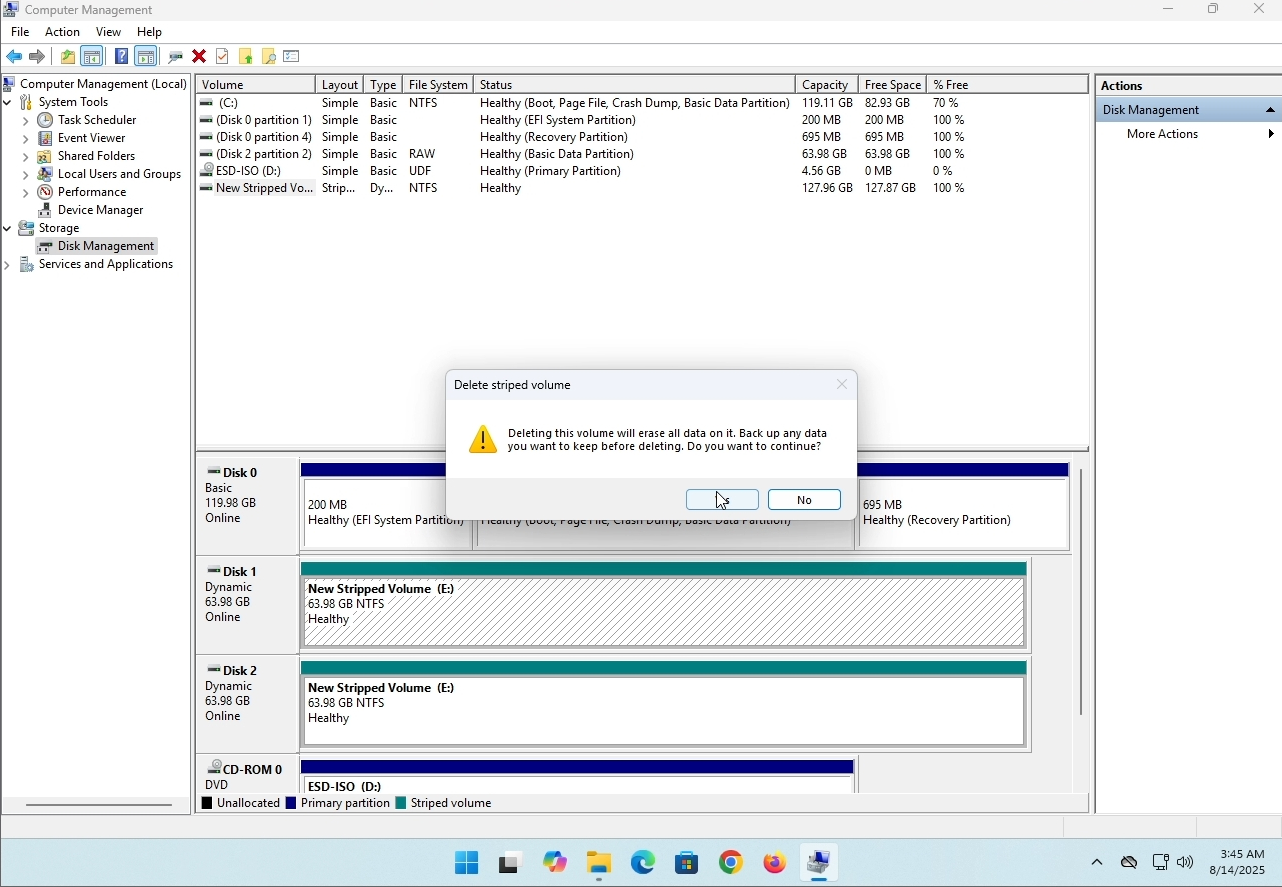
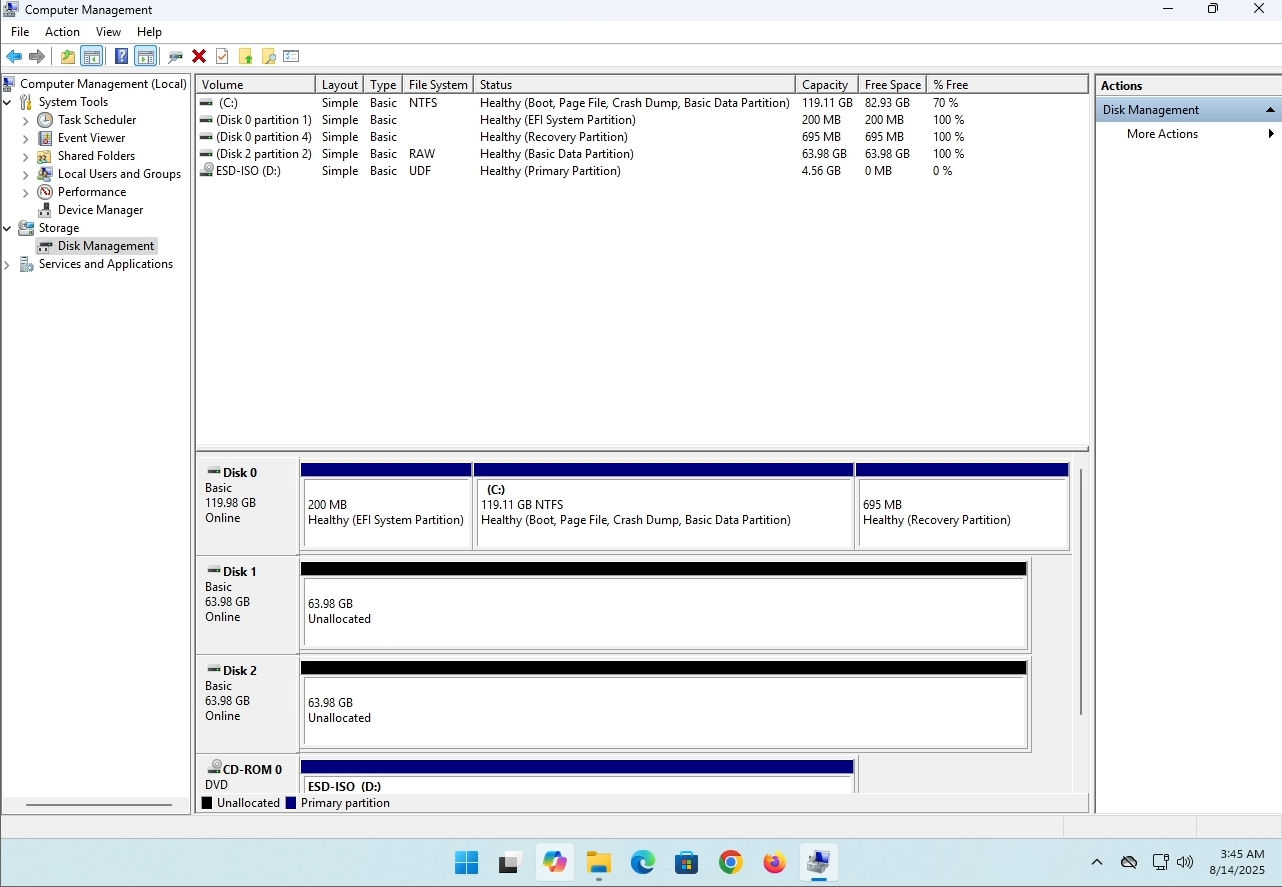
In this article we will demonstrate how to delete a stripped volume in Windows 11
1. Make sure what is the stripped volume's drive letter is. In this case the drive letter is (E:):
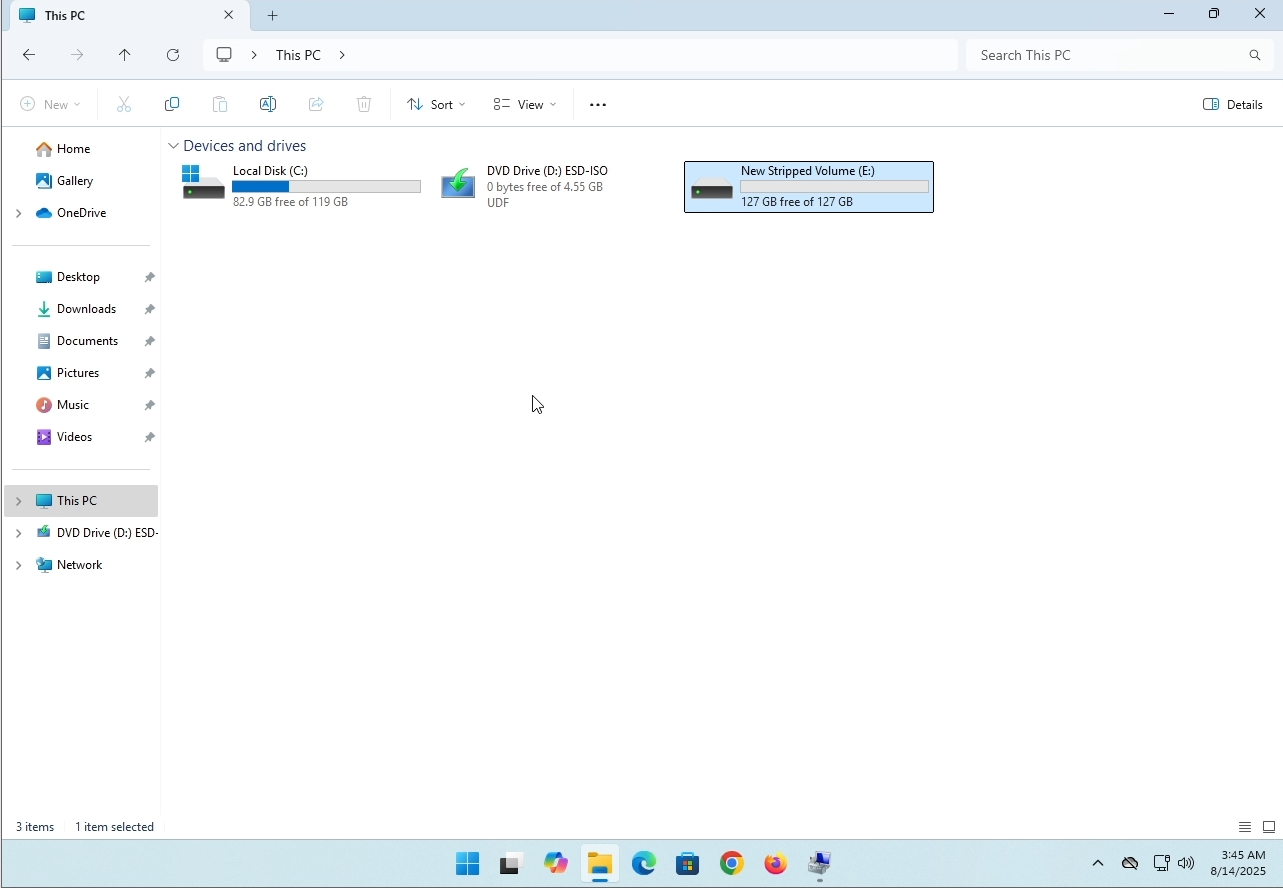
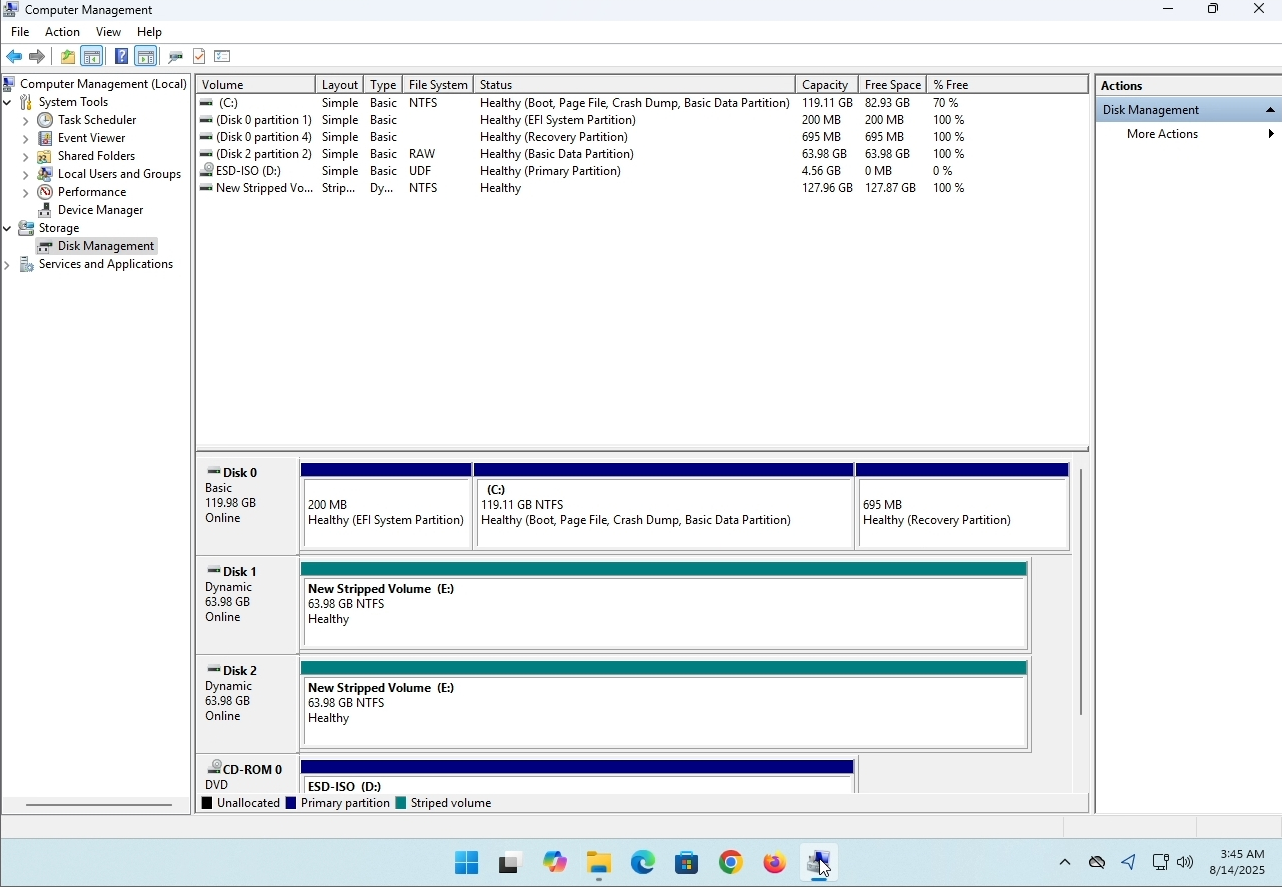
3. On the left pane. Look for Disk Management and click on it once.
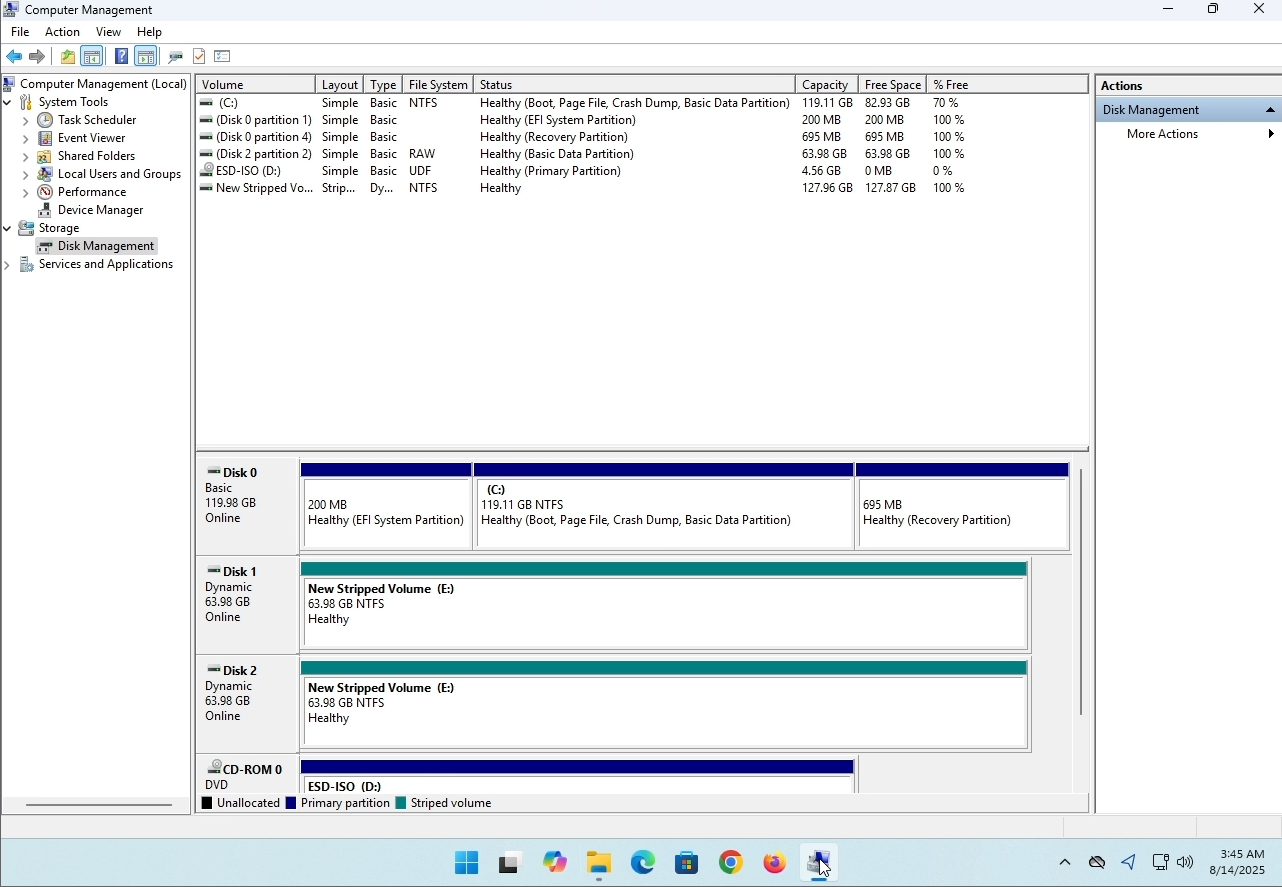
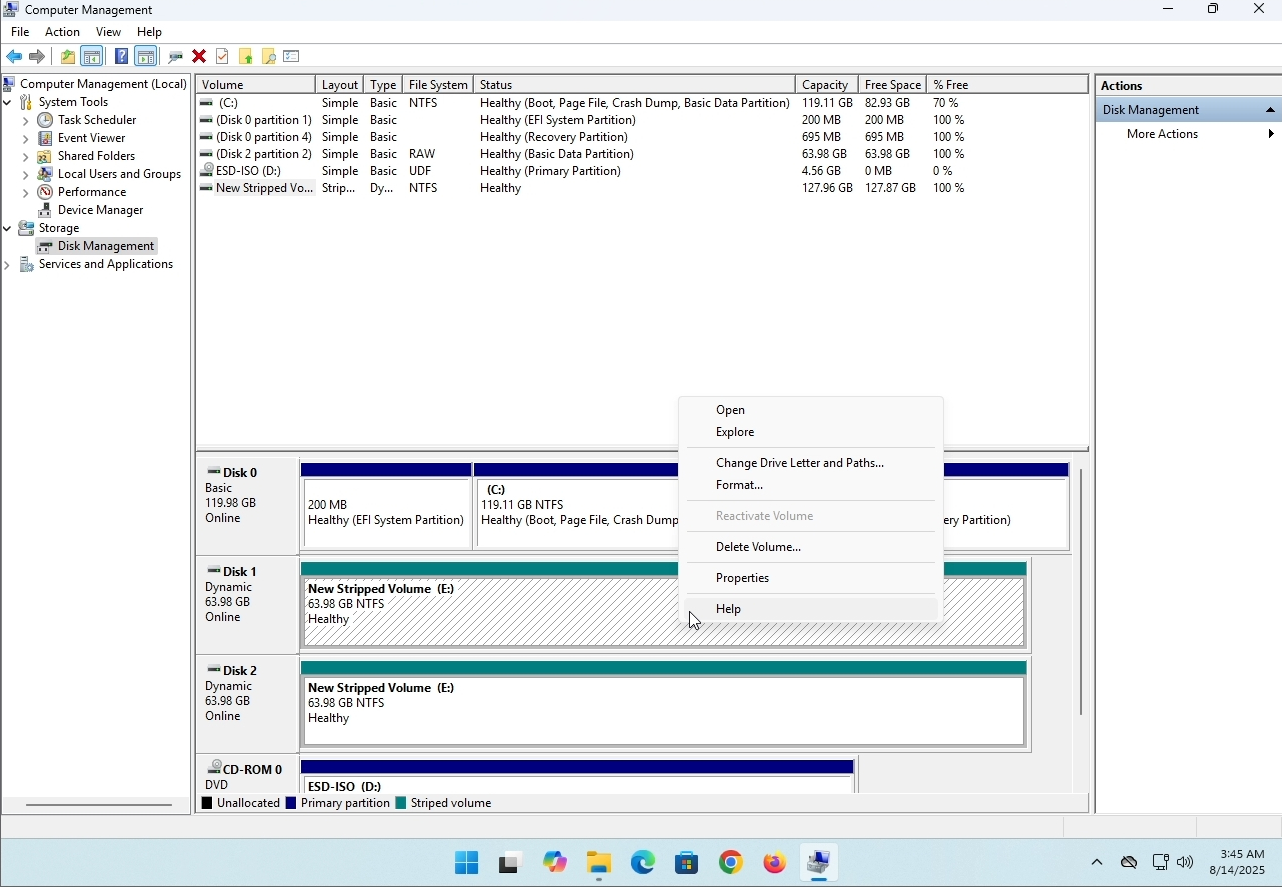
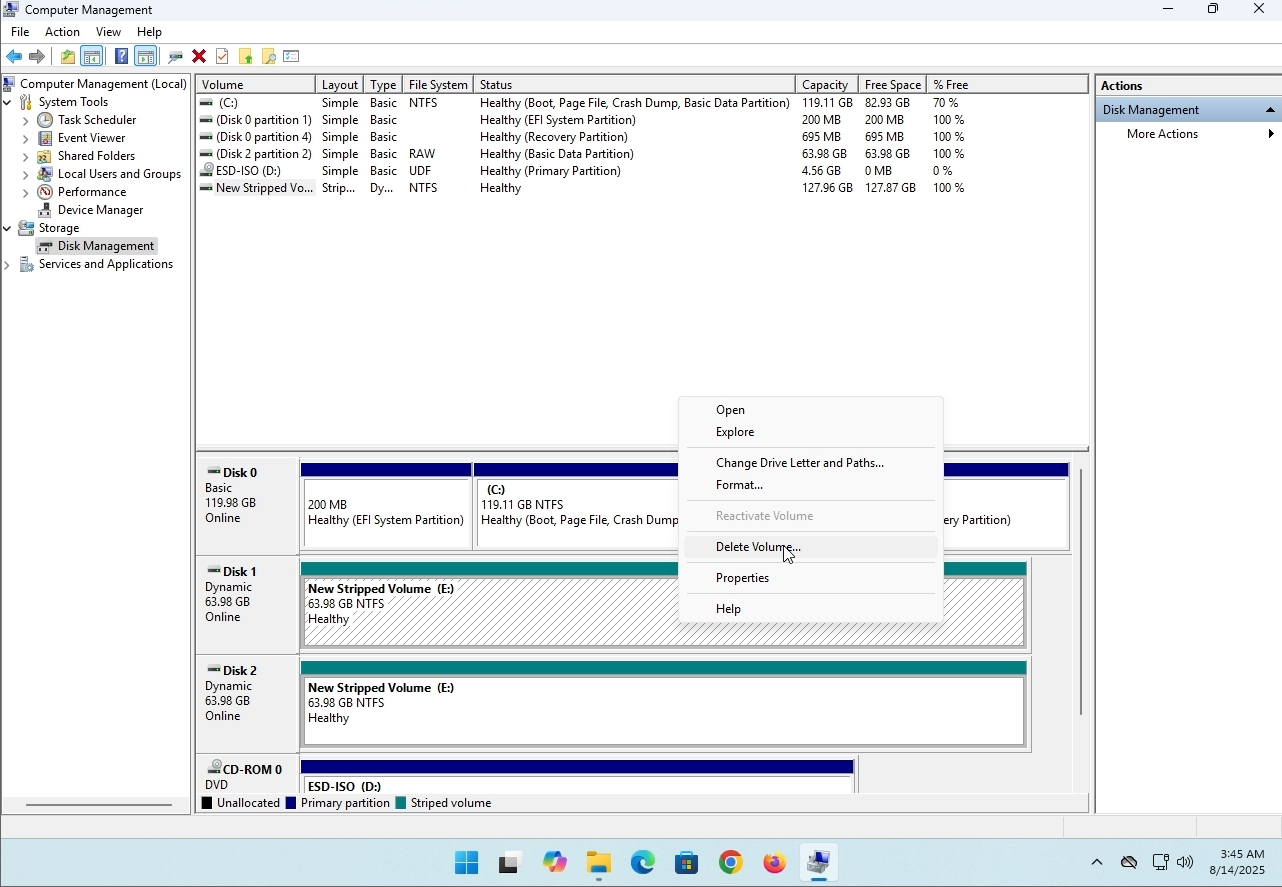
6. You will be shown a confirmation window. Click on Yes to confirm deleting the drive.
7. The drive is now deleted and the disks that were part of the stripped array are now unallocated.
- Details
- Geschrieben von: IT Pro
- Kategorie: How to Articles
- Zugriffe: 8224
Einleitung:
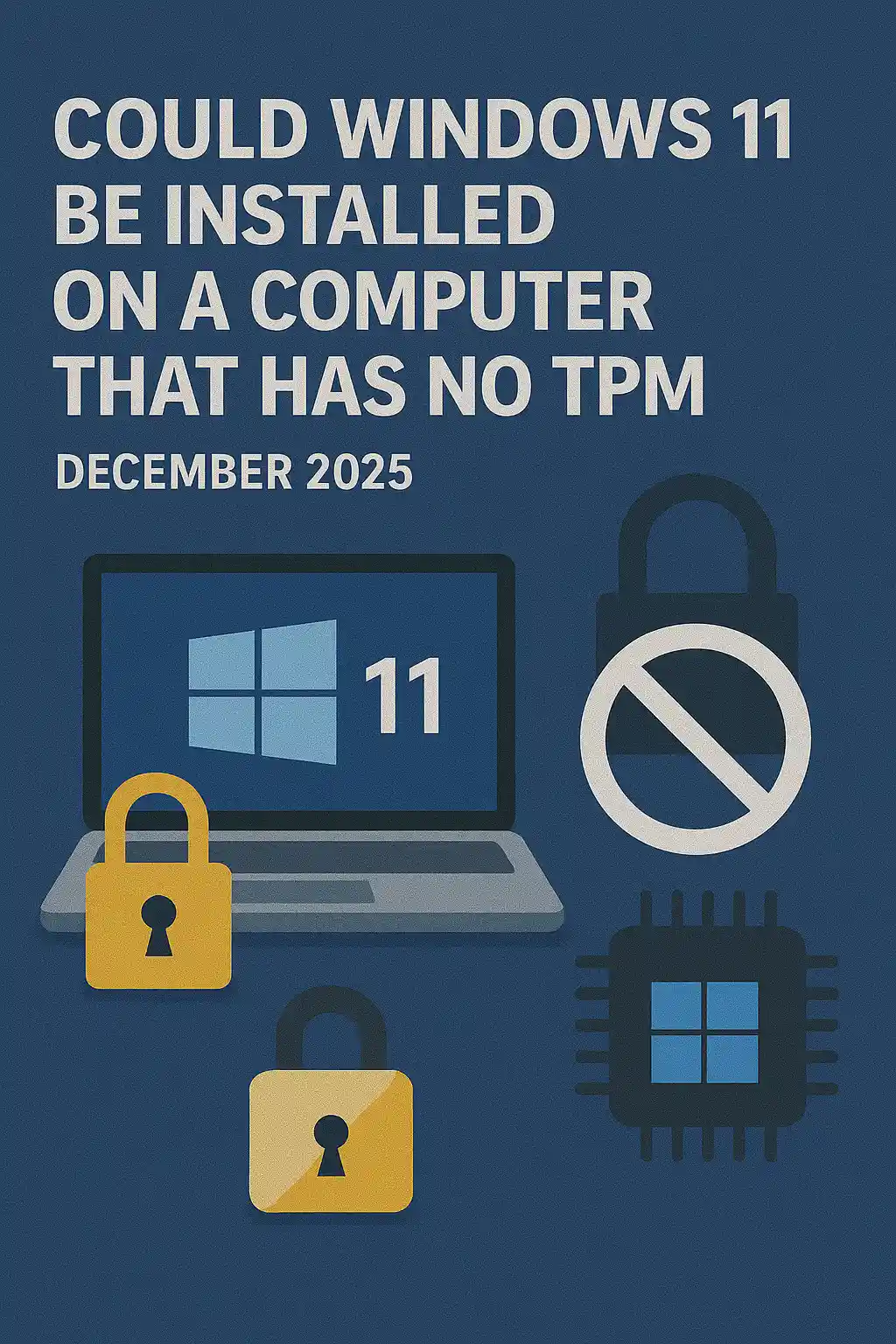
In diesem Artikel werden wir untersuchen, ob Windows 11 auf einem Computer installiert werden könnte, der keinen TPM-Chip hat.
Kurzum: NEIN.
Windows 11 kann nicht auf einem Computer ohne mindestens einen TPM Version 2.0 Chip installiert werden.
Das Folgende ist eine Illustration einer versuchten Installation von Windows 11 auf einem solchen Computer.
Die Windows-Version, die installiert werden sollte, war 24H2.
1. Booten in Windows-Installation


2. Sprache konfigurieren

3. Verfahren zur Konfiguration der Installation

4. Produktschlüsselstufe


5. Wählen Sie Windows 11 Pro


6. PC-Prüfung

7. Blocker <0xE2><0x98><0xB9>

Schlussfolgerung:
Nicht viel zu sagen hier. Wir mussten es selbst sehen. Es gibt einen großen Diskurs über dieses Thema, und es scheint in diesem Fall Wasser zu halten. Installationstechnisch - Windows 11 kann nicht auf einem Computer oder System ohne einen TPM Version 2.0 Chip installiert werden.
Das bedeutet nicht, dass Windows 11 auf diesem System nicht ausgeführt werden kann. Für mehr, besuchen Sie bitte unseren Artikel zu diesem Thema: https://itproshub.com/en/windows/can-windows-11-run-on-a-computer-that-has-no-tpm-chip-at-all-decembet-2025
- Details
- Geschrieben von: IT Pro
- Kategorie: How to Articles
- Zugriffe: 7279
1. Starten Sie die Installation von Thunderbird, indem Sie auf die Setup-Datei klicken
2. Klicken Sie im Begrüßungsbildschirm auf NEXT.
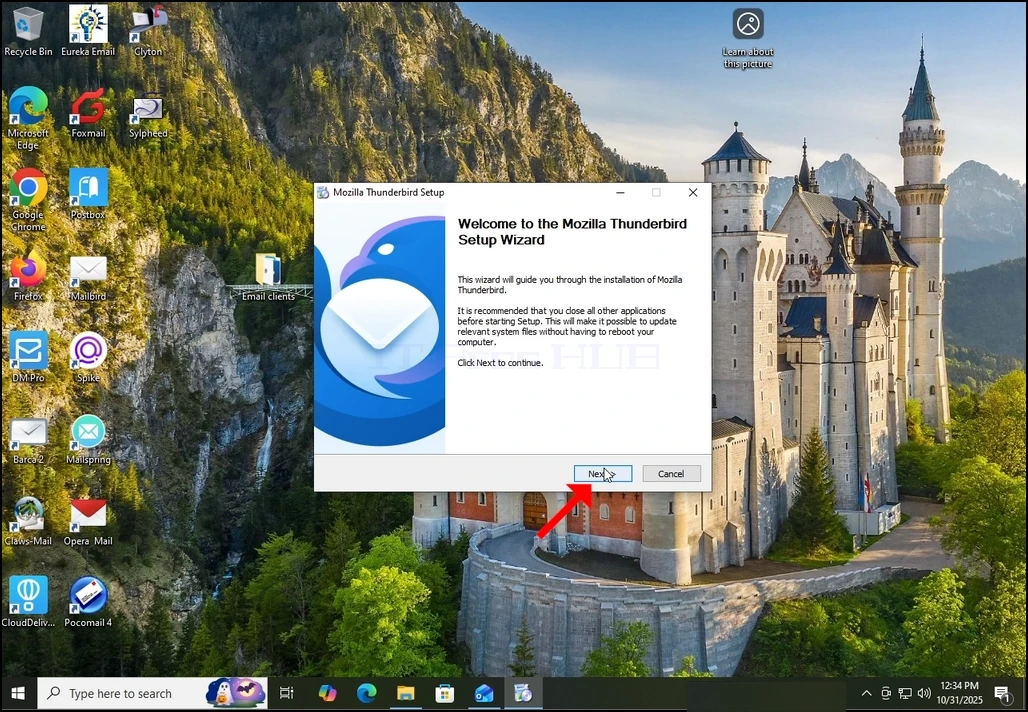
3. Wählen Sie die Option Standard und klicken Sie auf NEXT.
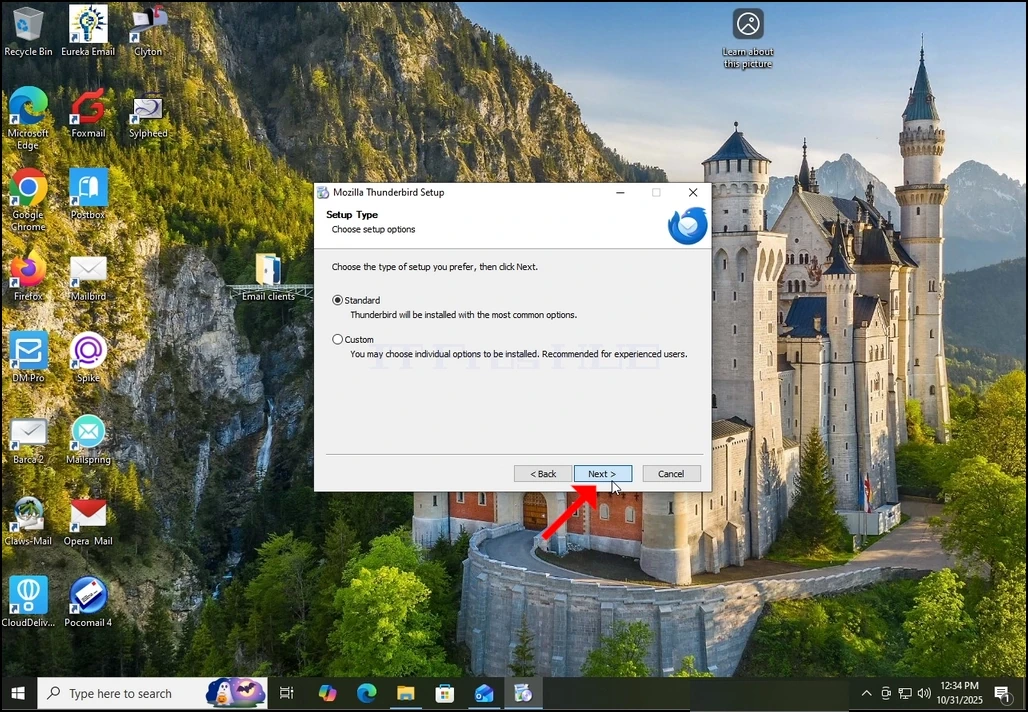
4. Klicken Sie auf die Schaltfläche Installieren.
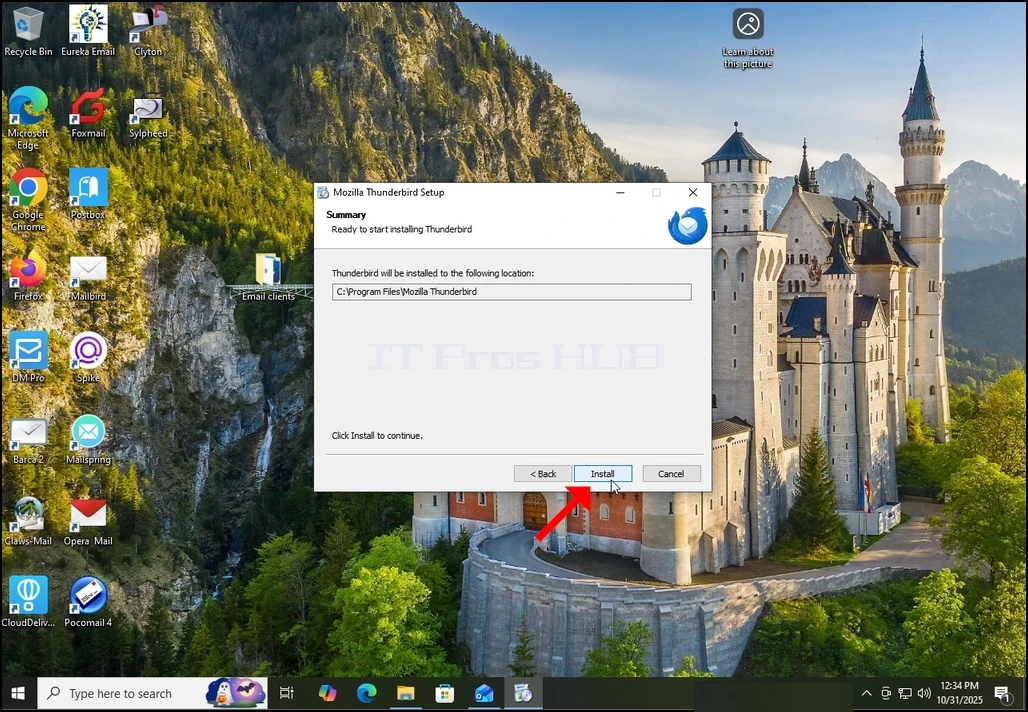
5. Warten Sie geduldig, bis der Installationsprozess abgeschlossen ist
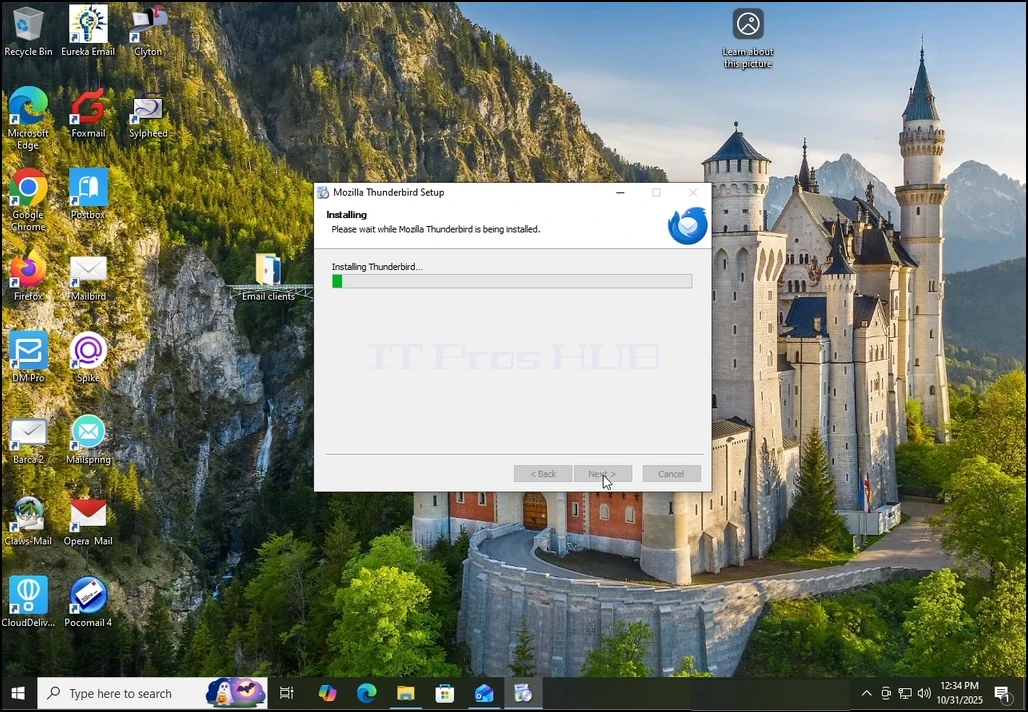
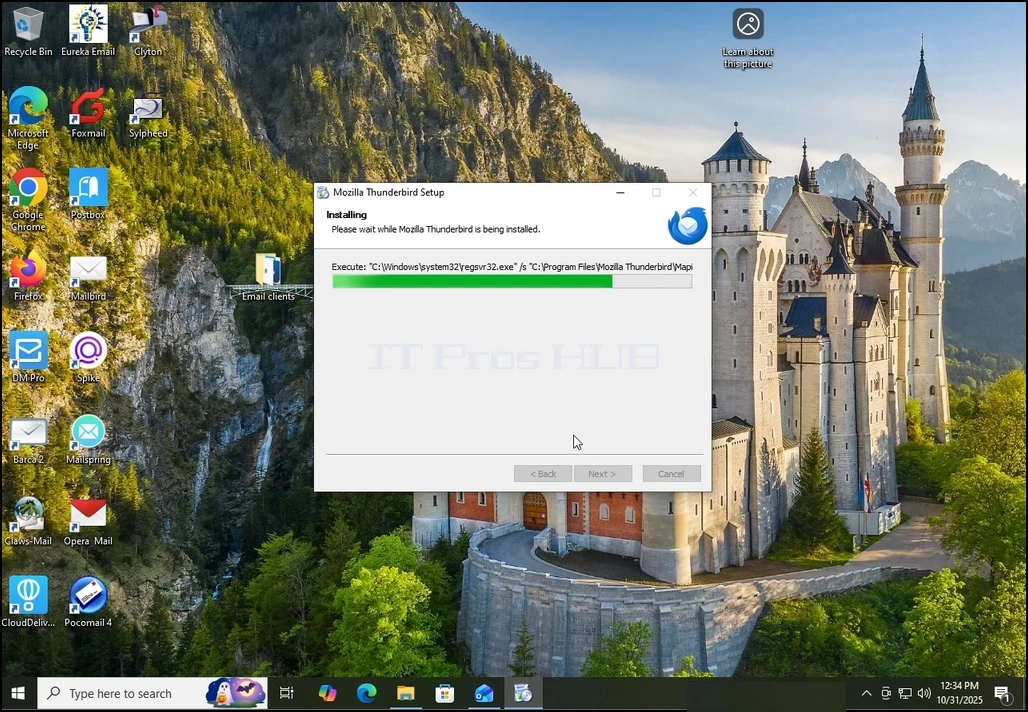
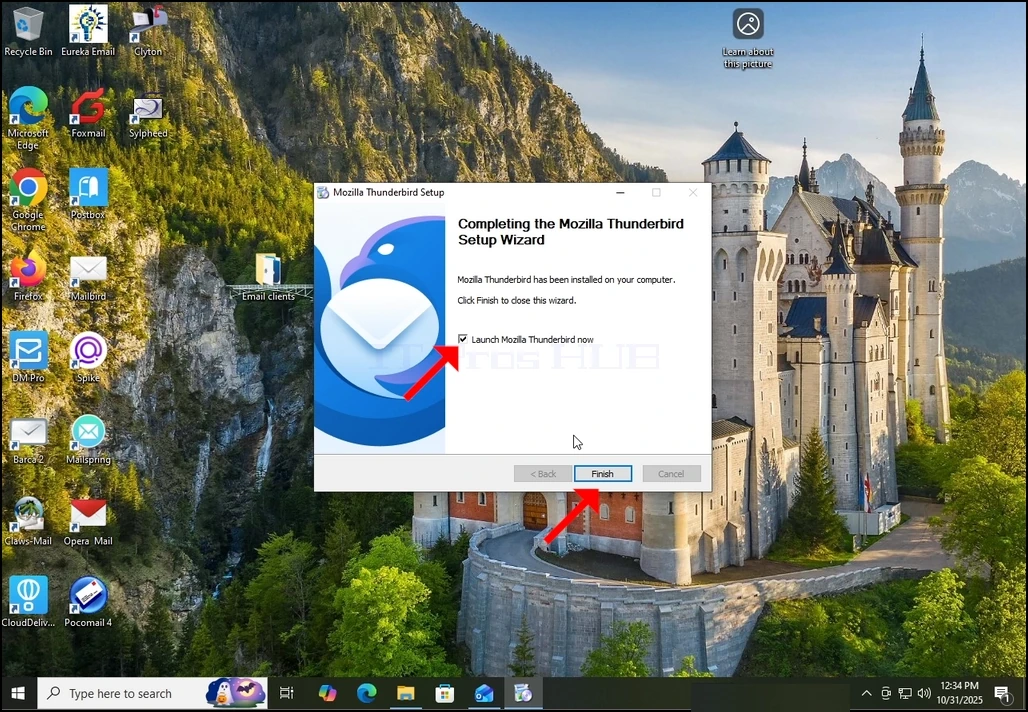
6. Aktivieren Sie die Option Mozilla Thunderbird jetzt starten und drücken Sie auf die Schaltfläche Ziel
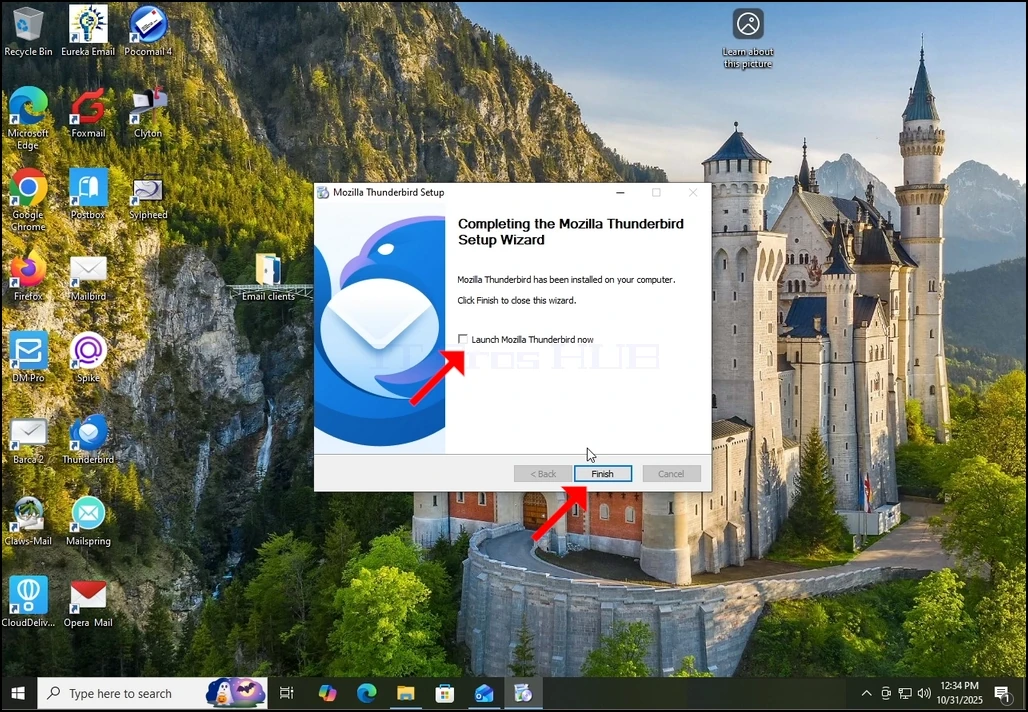
7. Mozilla Thunderbird ist jetzt installiert!