



Intro:
Recently, a lot of you have come across Microsoft yet another attempt to force its users and future users in this specific case, to open a Microsoft account. This time, through Windows 11 version 24H2 build 26100.4652.
In this article we will go through the different methods that can be used in order to install Windows 11 24H2 smoothly without the hassle of creating an unwanted Microsoft account.
Over we have discovered there are more than one way to install Windows 11 24H2 without creating a Microsoft account.
In Short:
For those who want the TLDR version, you would need to perform 2 actions in order to install Windows without creating a Microsoft account:
- Make sure the machine chosen to be installed with Windows 11 is NOT connected to the internet and then use the oobe\bypassnro CMD command – using this method skips the Personal use/work or School stage of the installation all together.
- A second method is to Set up that machine while CONNECTED to the internet. Choose personal use and then use the oobe\bypassnro CMD command OR set up that machine for Work or School WITHOUT the need for the latter command.
In both of these cases the installation was done using a USB flash drive which the computer booted from.
The Longer Version:
Installing Windows Without an Internet Connection:
- Make sure the machine is NOT connected to the internet
- Boot your computer to the Windows USB flash drive installation and Start the Windows 11 installation process normally as you would any other.
- Go through all of the following stages:
- Boot Windows Installation Media >> Select language >> Select Keyboard Setting >> Select Setup Option >> Product Key >> We are getting ready >> Select image >> Setting ready >> EULA >> Please wait >> Searching for disks >> Location >> Ready to install >> Installing windows 11 (blue screen) >> Installing (black screen) >> Country Choosing >> Keyboard layout >> Second keyboard layout >>
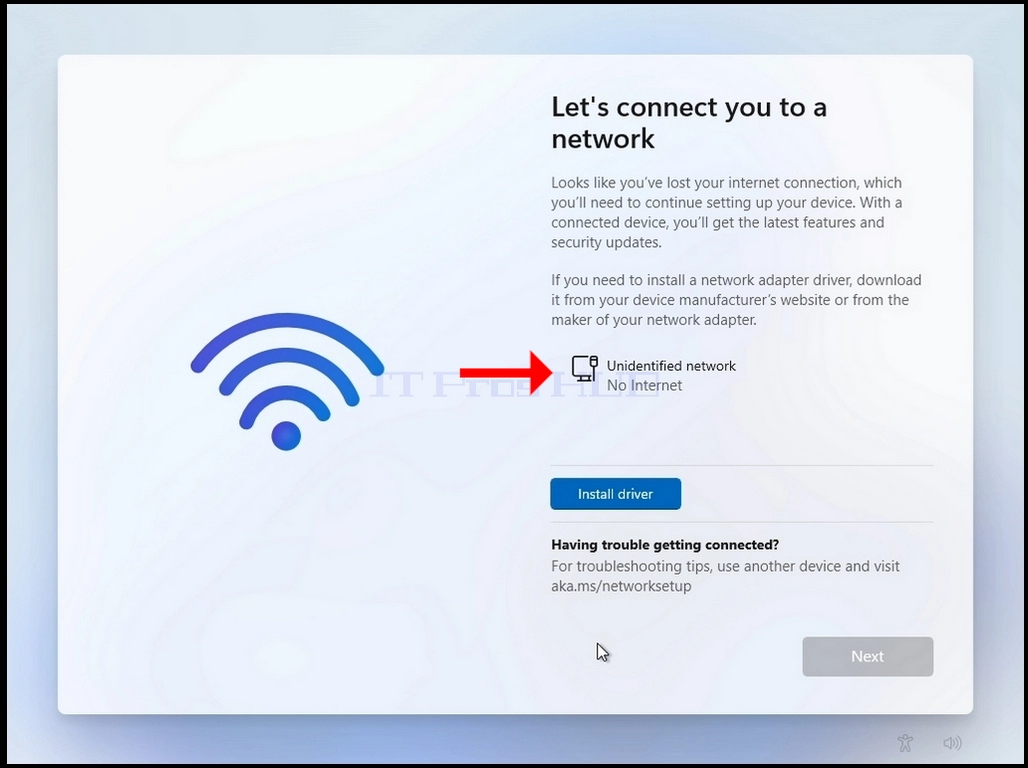
- Once all of the latter stages have been gone through, you will reach a stage called “Let’s connect you to a network”
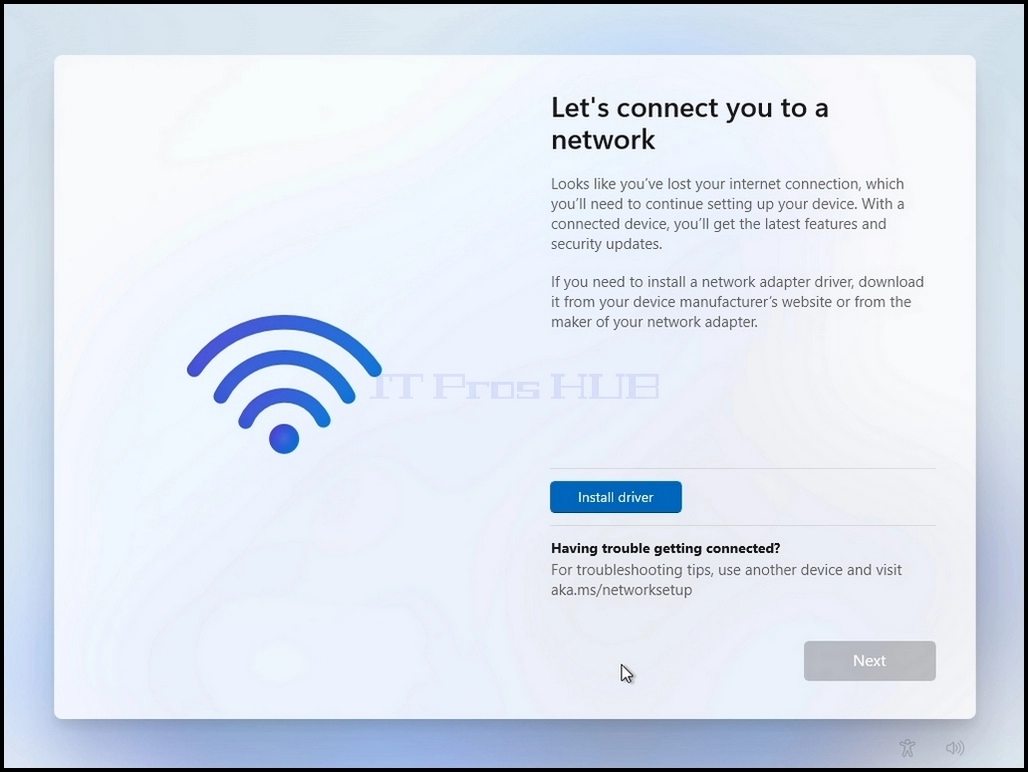
- Click and hold the CTRL key and click the F10 key momentarily. A CMD window will appear
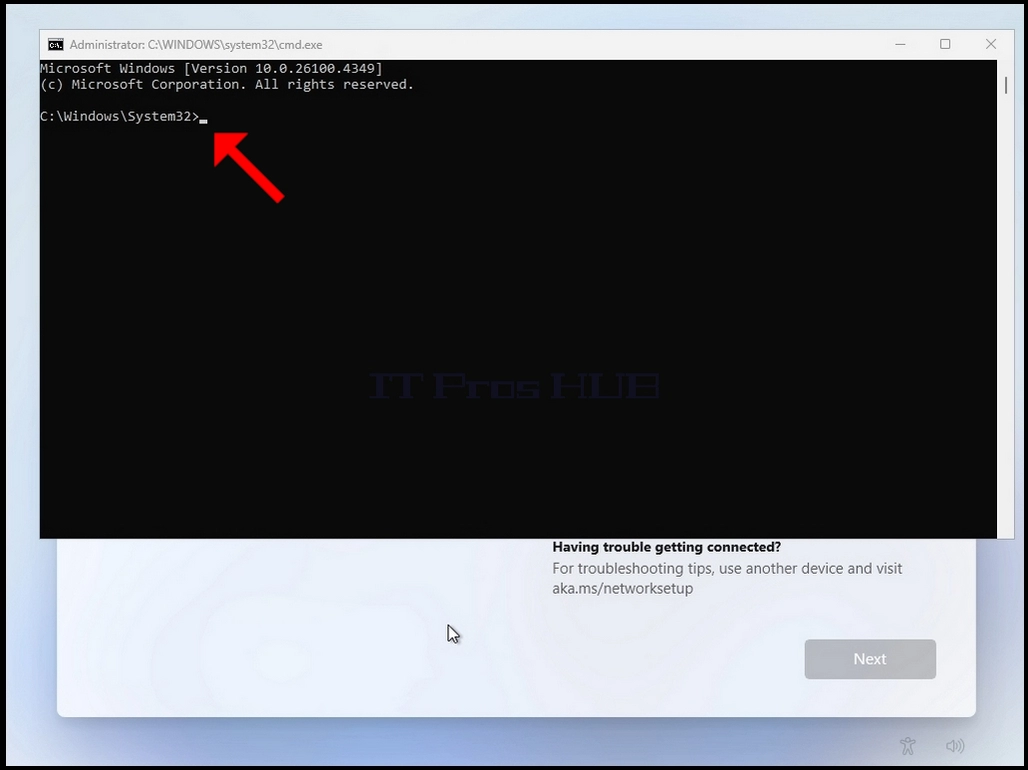
- In the CMD window, type the following:
- Oobe\bypassnro
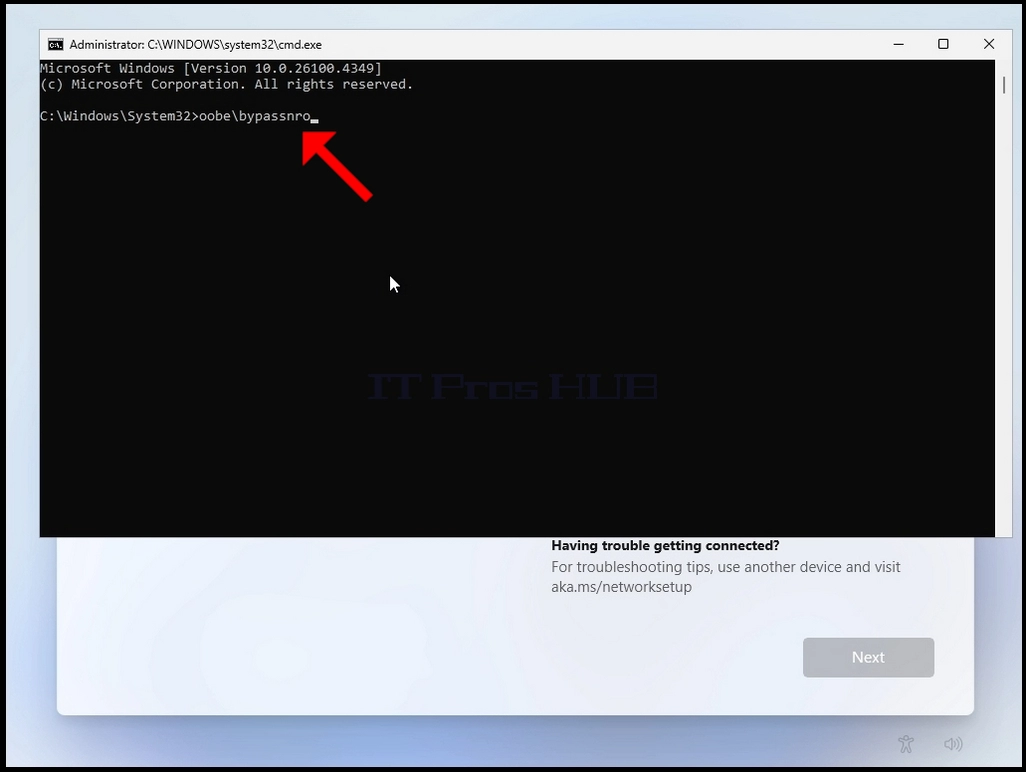
- Hit the enter key
- For a very brief moment you will see an output in the CMD window saying “The operation completed successfully” before the installation process restarts the computer
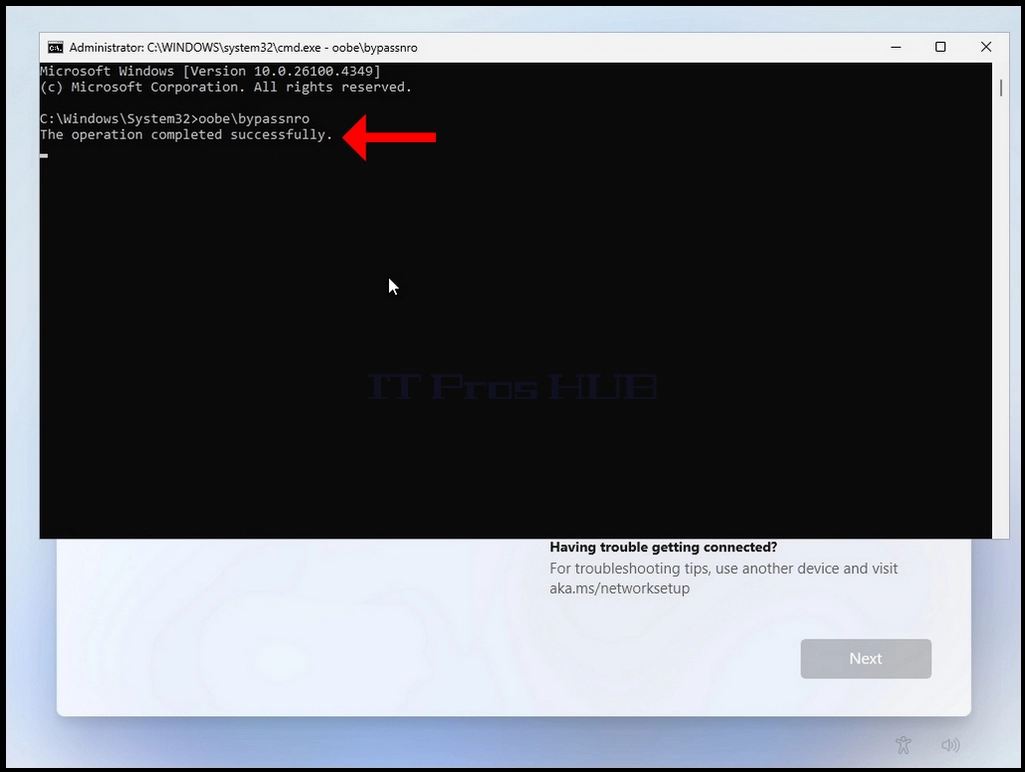
- Go through all of the following stages:
- Is this the right country or region? >> Is this the right keyboard layout or input method ? >> Second keyboard layout
- You will be presented with the same “Let’s connect you to a network” stage again
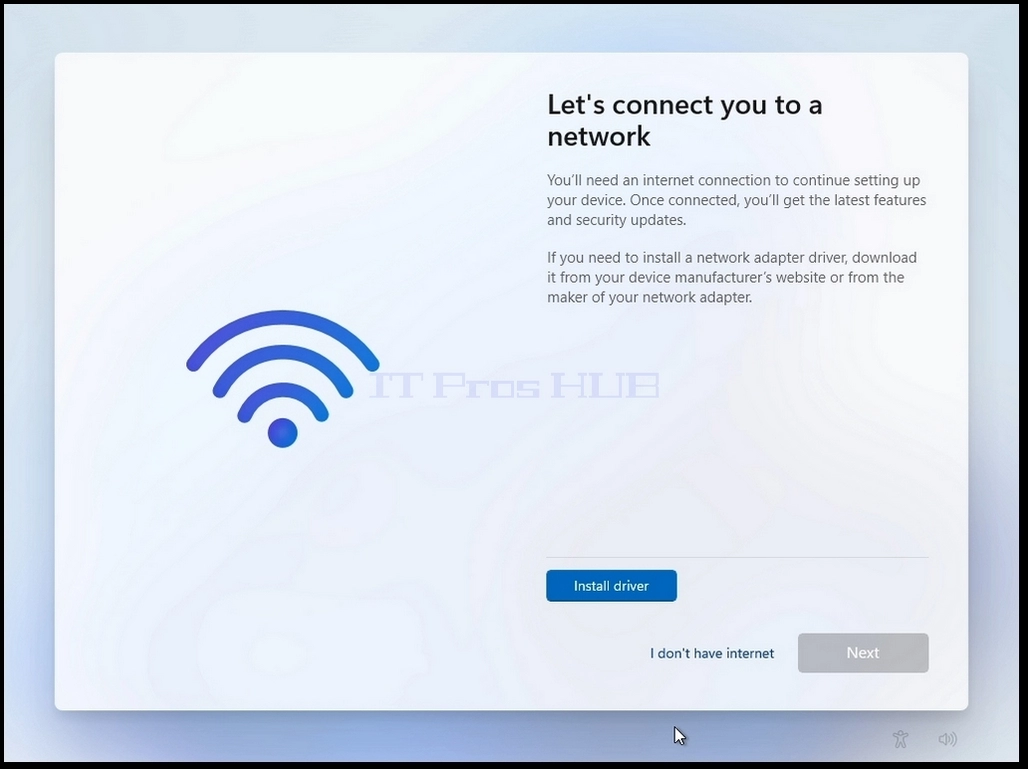
- Click on “I don’t have internet”
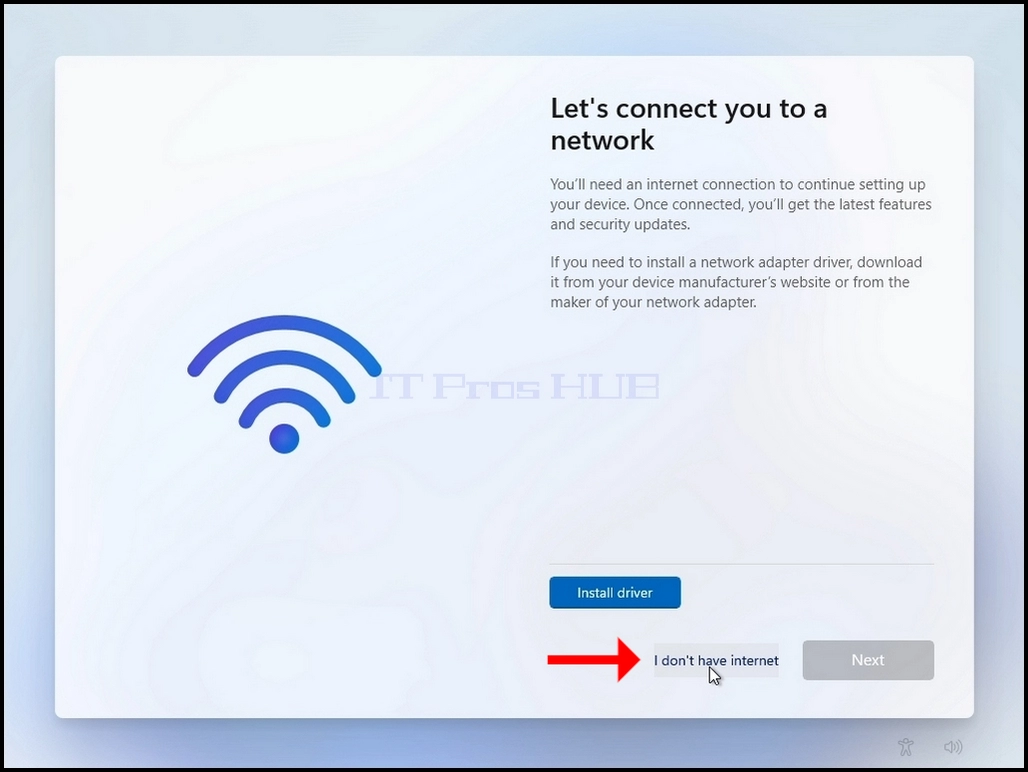
- Go through the following stages:
- who’s going to use this device ? >> password >> choose privacy settings for your device
- Windows should now start


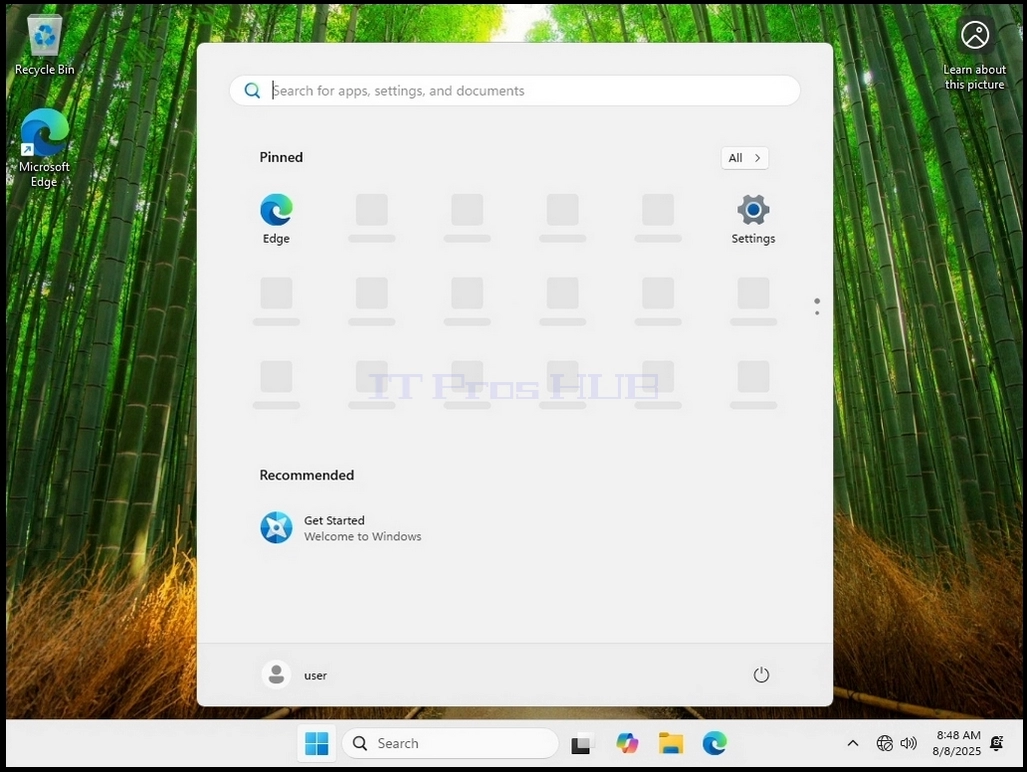
Installing Windows with an Internet Connection Present:
- Make sure the machine is connected to the internet
- Boot your computer to the Windows USB flash drive installation and Start the Windows 11 installation
- process normally as you would any other.
- Go through the following stages:
- Boot Windows Installation Media >> Select language >> Select Keyboard Setting >> Select Setup Option >> Product Key >> We are getting ready >> Select image >> Setting ready >> EULA >> Please wait >> Searching for disks >> Location >> Ready to install >> Installing windows 11 (blue screen) >> Installing (black screen) >> Country Choosing >> Keyboard layout >> Second keyboard layout >> Checking for updates >> Let’s name your device >> How would you like to set up this device >>
- Once all of the latter stages have been gone through, you will reach a stage called “How would you like to set up this device”
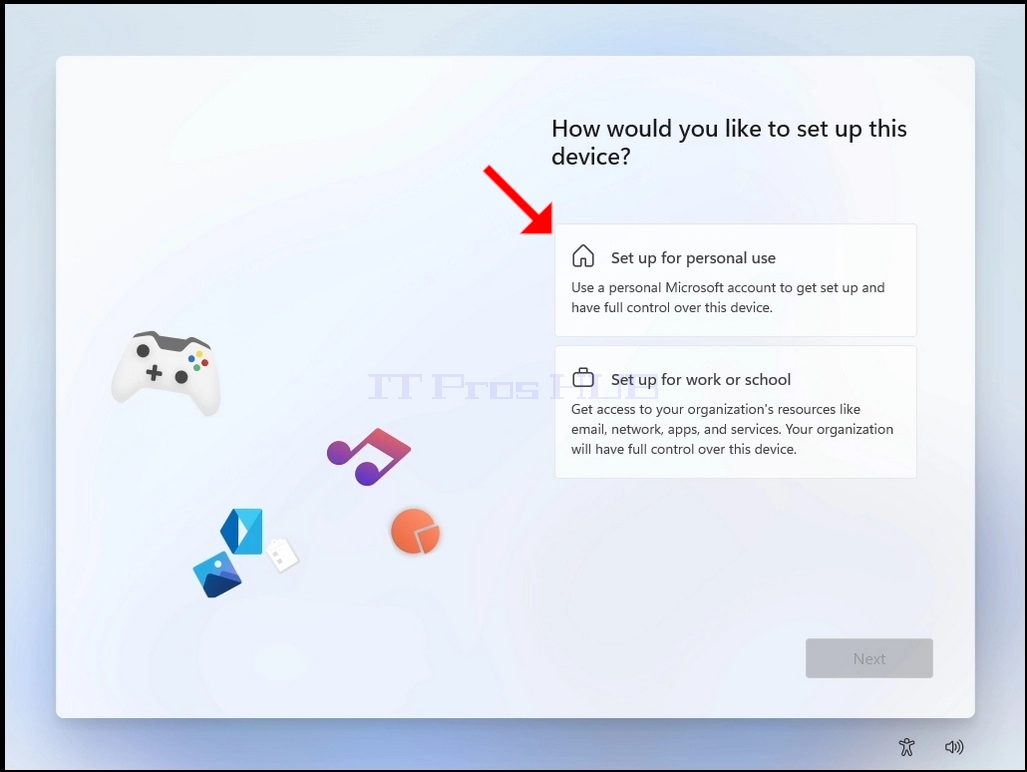
- You will be presented with 2 options:
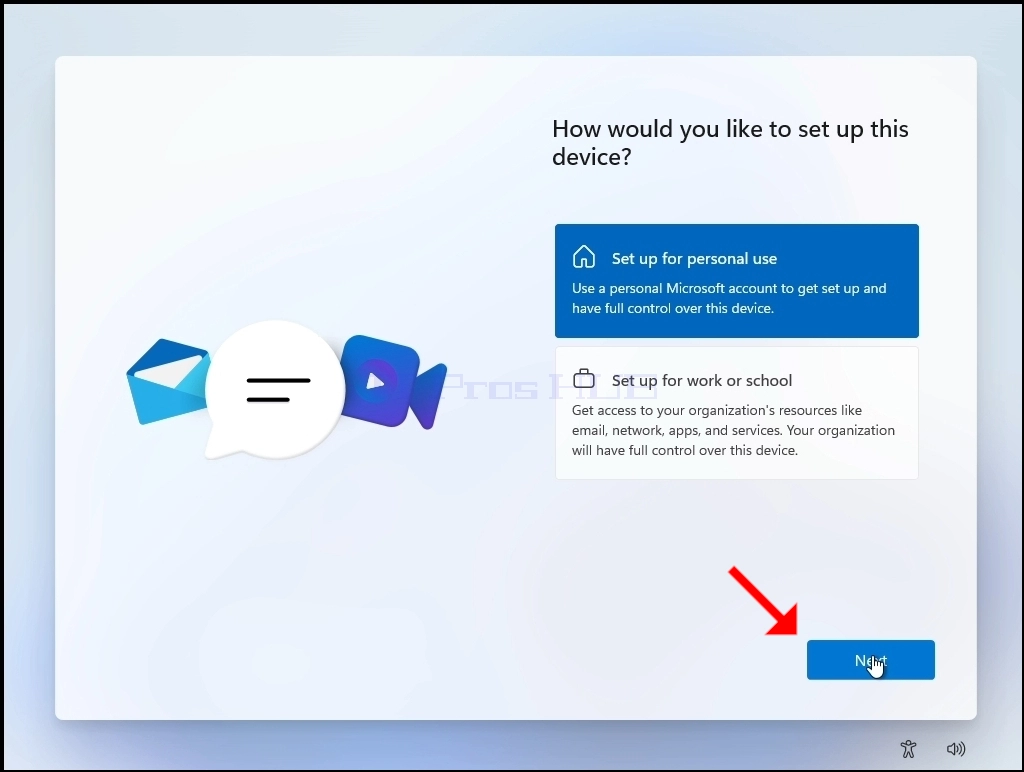
- Set up for personal use
- If you decide to choose this option, then disconnect the computer from the internet in order to move forward with the installation
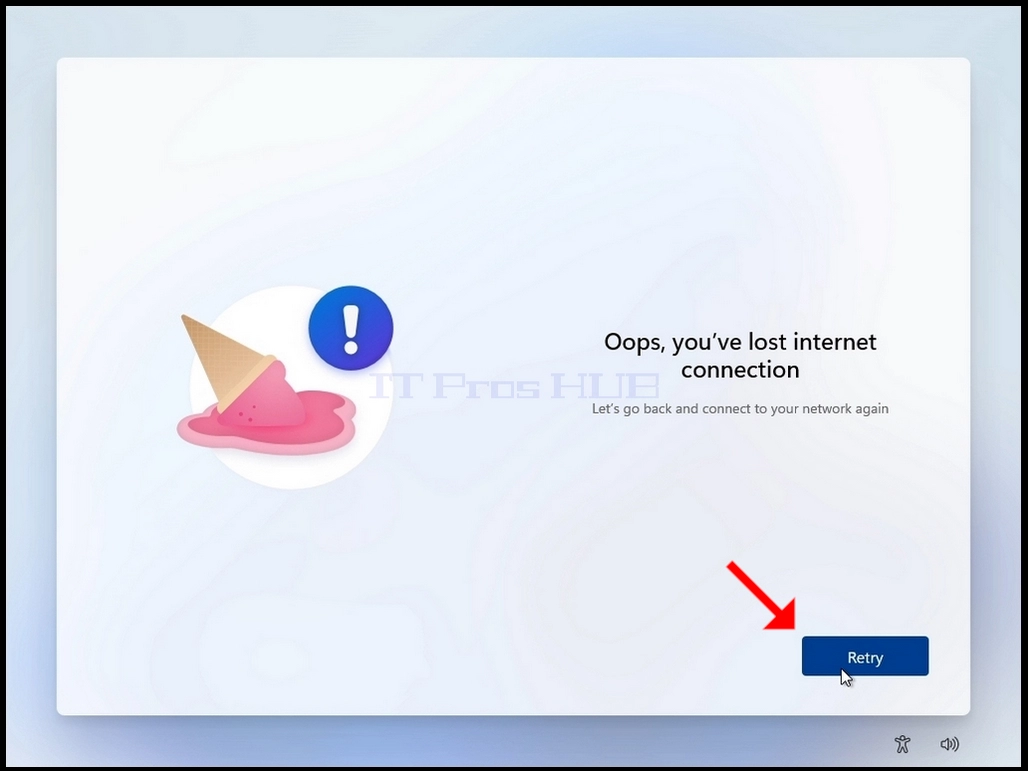
- Once the computer is disconnected from the internet, click the “Set up or personal use button” and wait util you are presented with the “Oops, you’ve lost internet connection” screen
- Set up for personal use
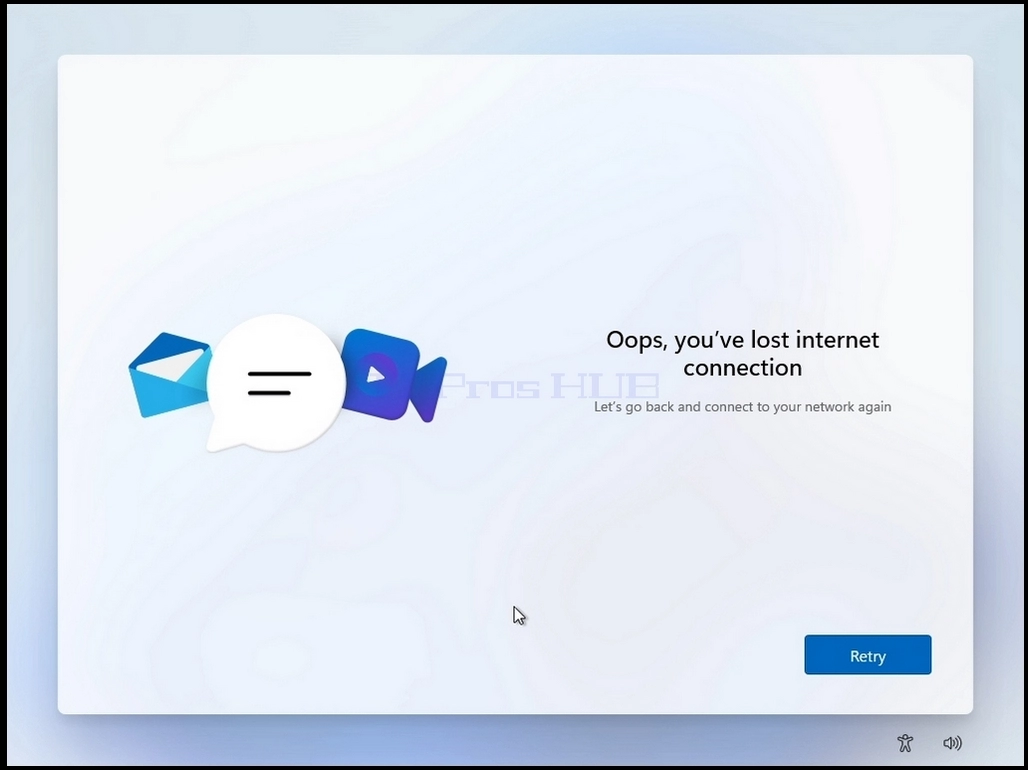
- Click the Retry button
- You will be presented with the “Let’s connect you to a network” screen. note the "no internet" status network interface card.
- Click and hold the CTRL key and click the F10 key momentarily. A CMD window will appear
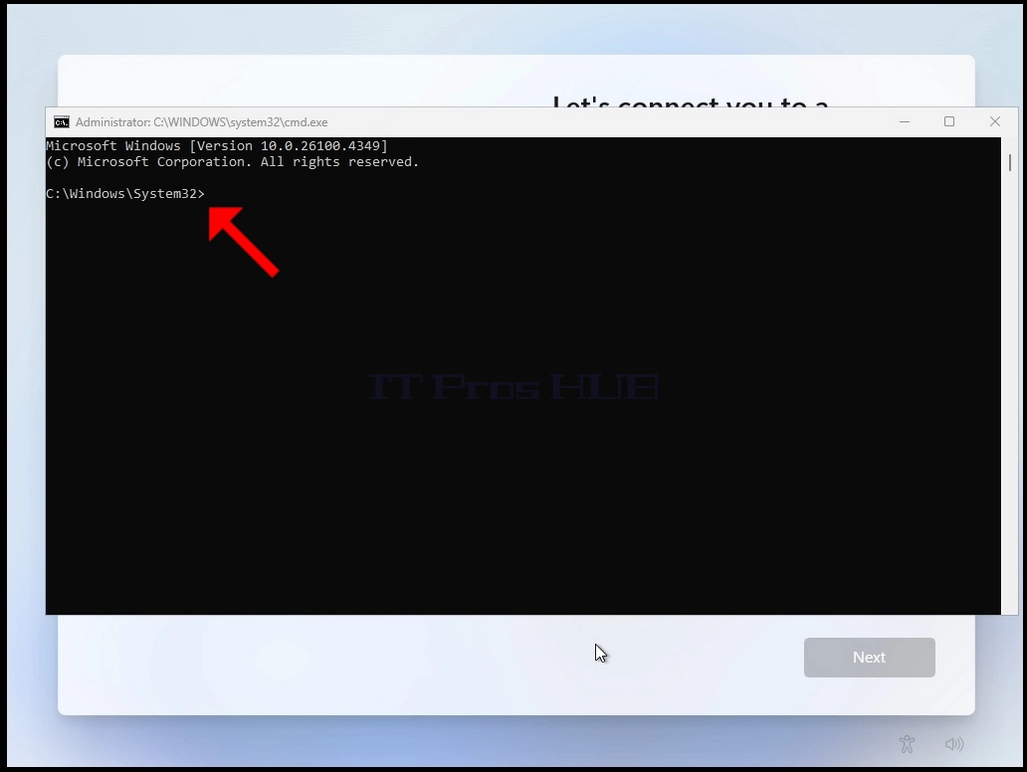
- In the CMD window, type the following :
- Oobe\bypassnro
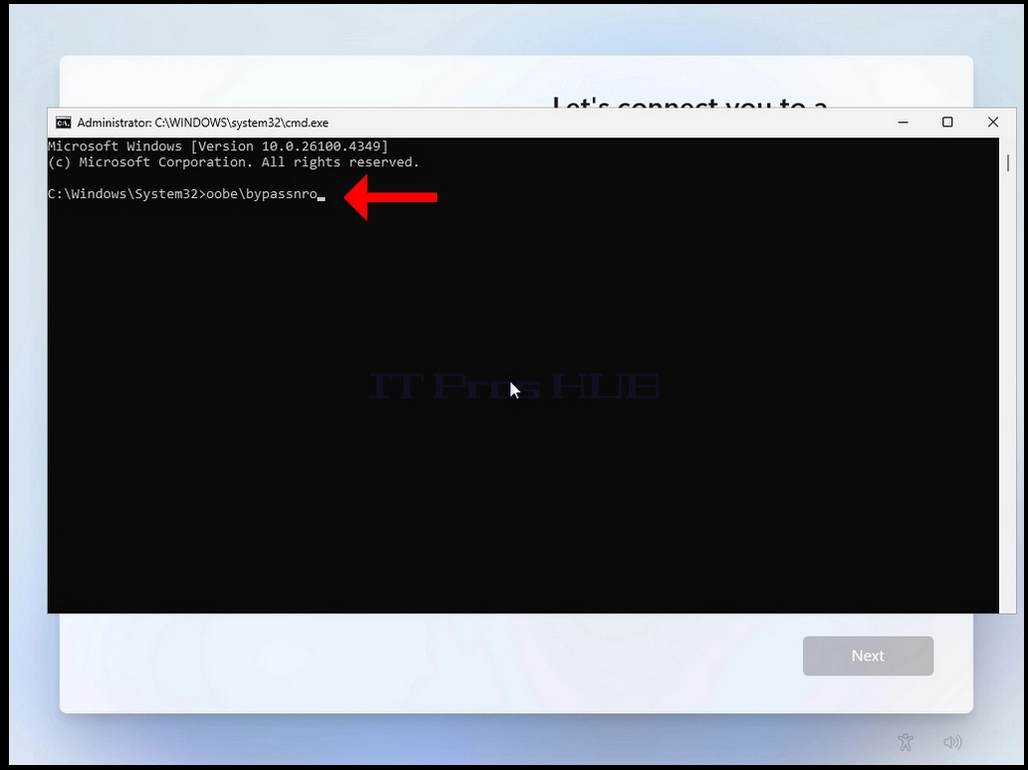
- Hit the enter key
- For a very brief moment you will see an output in the CMD window saying “The operation completed successfully” before the installation process restarts the computer

- Go through all of the following stages:
- Is this the right country or region? >> Is this the right keyboard layout or input method ? >> Second keyboard layout
- You will be presented with the same “Let’s connect you to a network” stage again
- Click on “I don’t have internet”
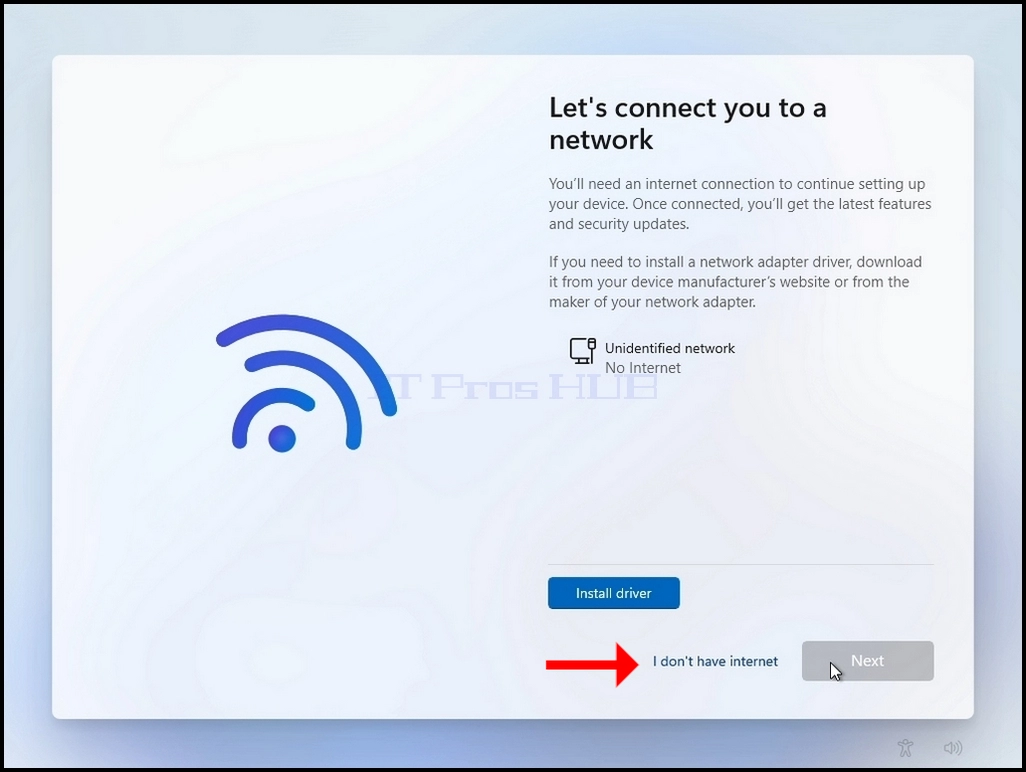
- Go through the following stages:
- who’s going to use this device ? >> password >> choose privacy settings for your device
- Windows should now start
- Set up for work or school
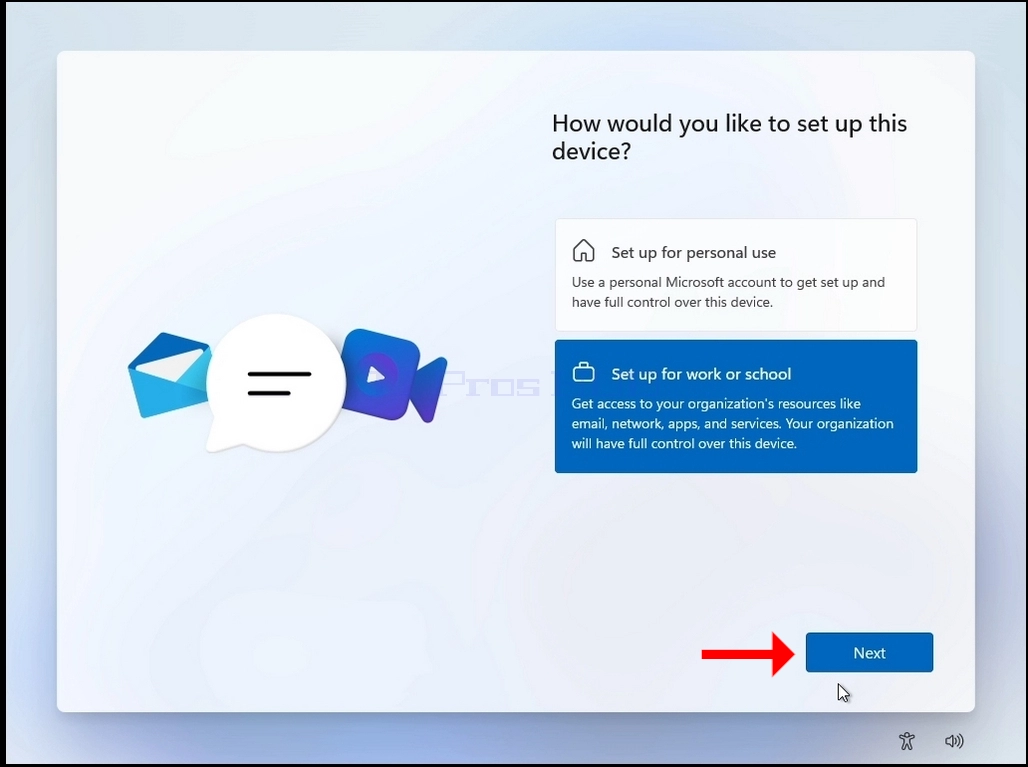
- If you decide to choose this option, then go through the following stages:
- >>Let’s set things up for your work or school >> Sign-in options >>
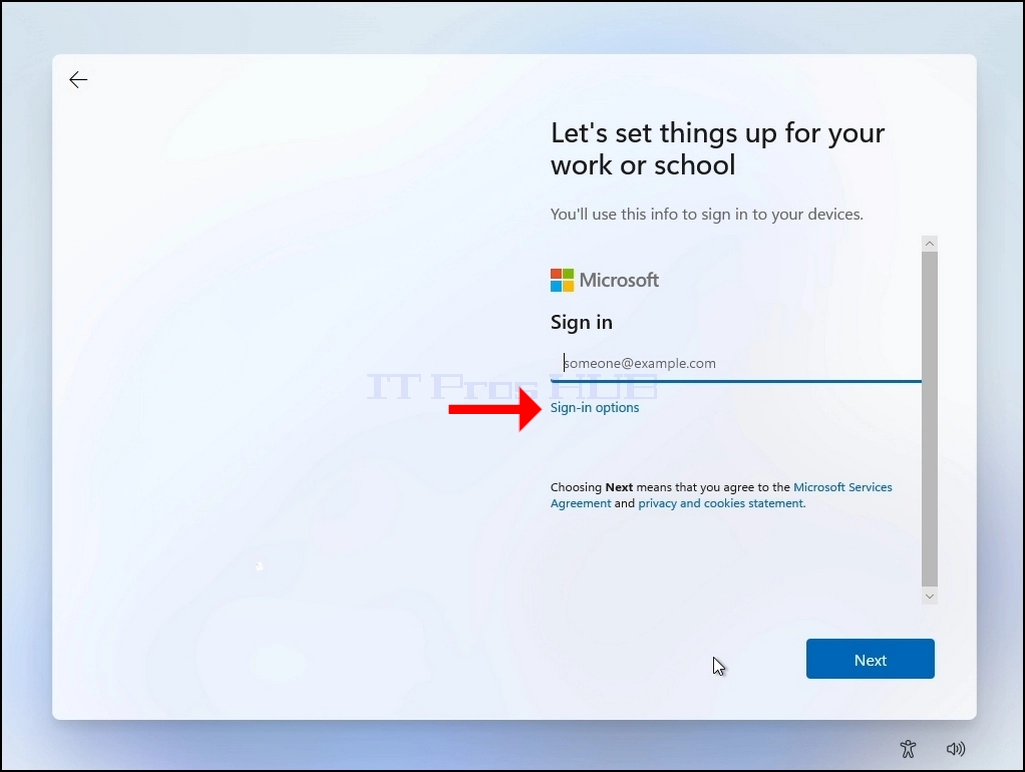
- Choose one of the following 2 options:
- Face, fingerprint, PIN or security key (use your device to sign in with a passkey)
- Domain join instead
- In this example we will choose the “Domain join instead” option
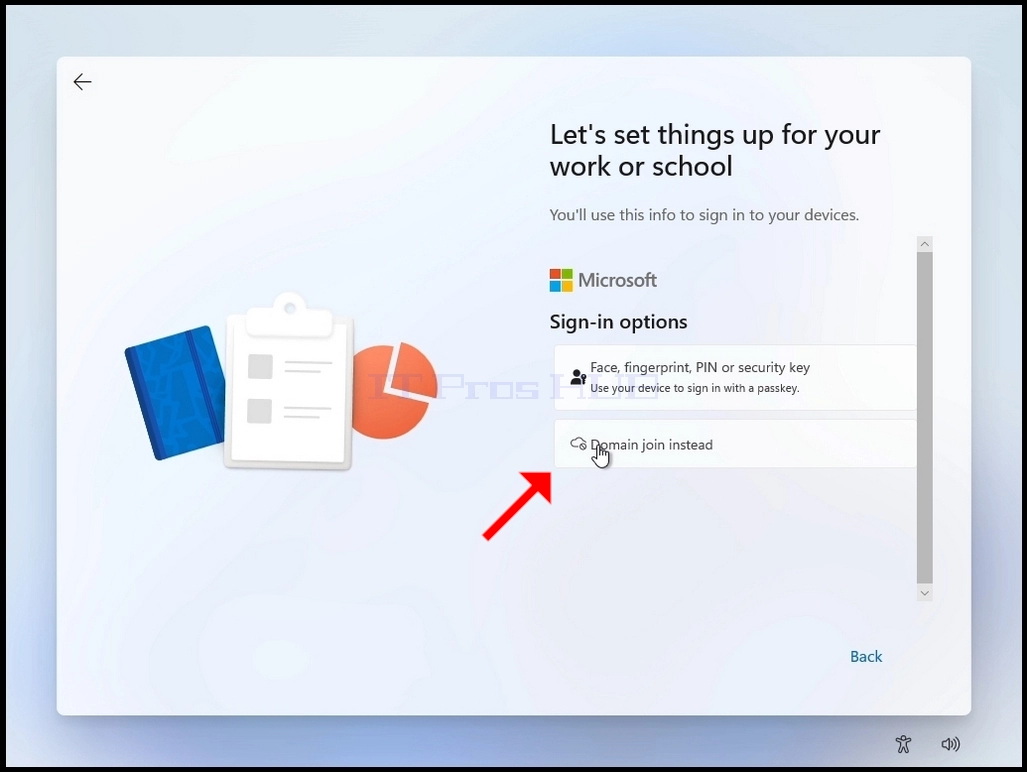
- Go through the following stages:
- Who’s going to use this device >> Password >> choose privacy settings for your device
- After the latter stages, Windows will once again check for updates
- Once the updates check is done, Windows will download these updates and then start to install itself.
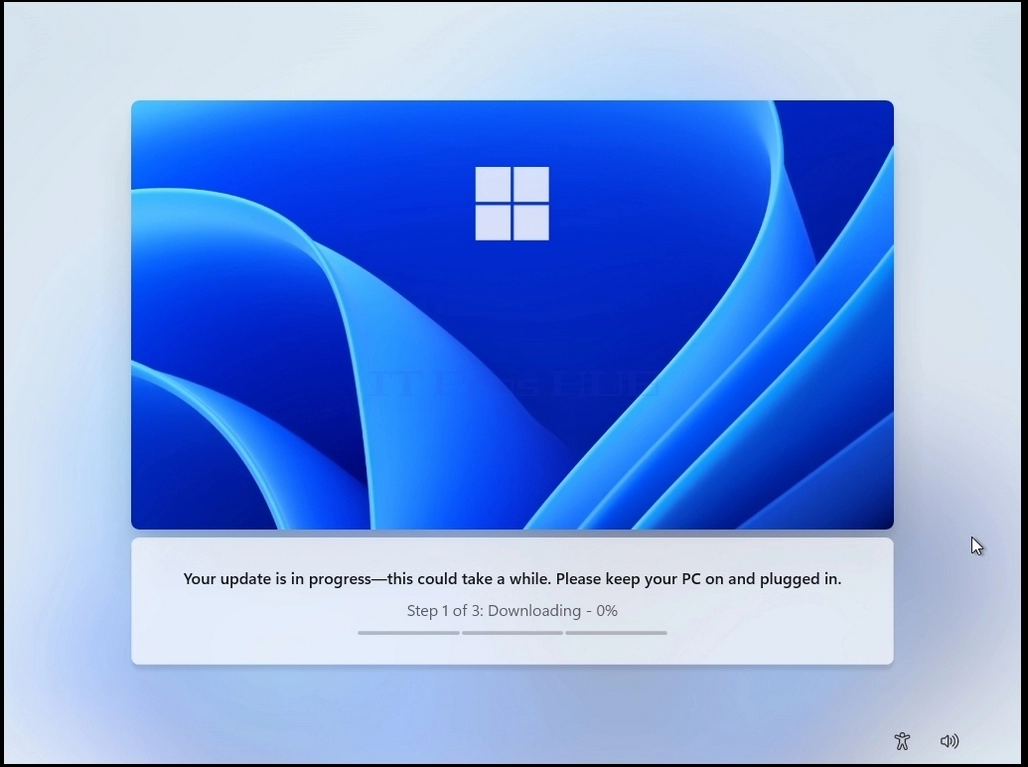
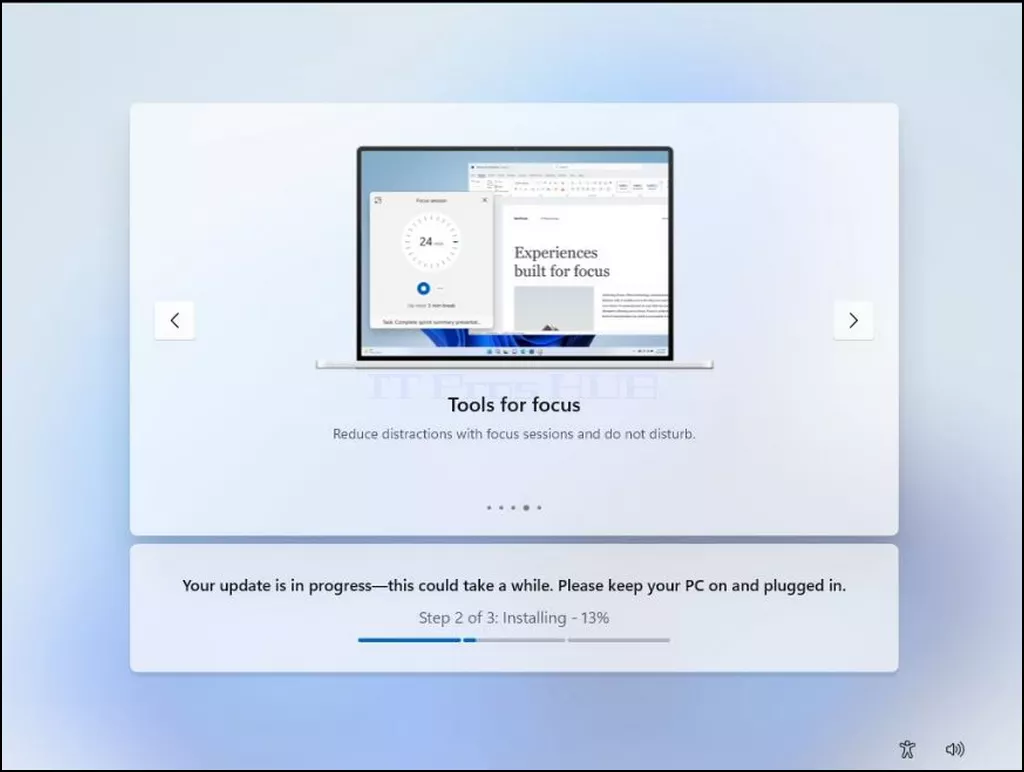
- Windows should start up
Summary:
Overall, the process is very simple but could be very tricky and confusing at the same time since there are multiple possible routes to install this version of Windows 11 yet installing each one requires a specific set of actions to perform. Failure to do so correctly could cause, as had caused us, going into endless restart loops in the installation process.
Admittedly, for us, the process was a bit confusing and frustrating as well at first, but we managed to map it nevertheless.
Regarding keeping the computer connected to the internet, the only advantage we could see when installing Windows 11 while the computer connected to the internet is the update stage earlier on during the installation.
We hope this article will be beneficial and will assist you in installing Windows 11 24H2 like previous versions.