



- Détails
- Écrit par : IT Pro
- Catégorie : How to Articles
- Clics : 6775
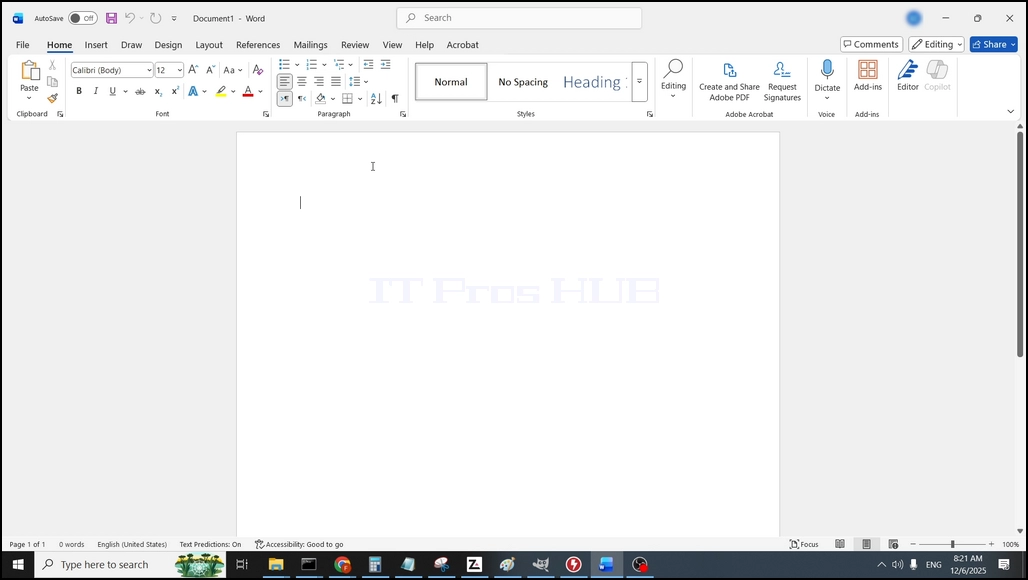
1. Ouvrez Microsoft Word
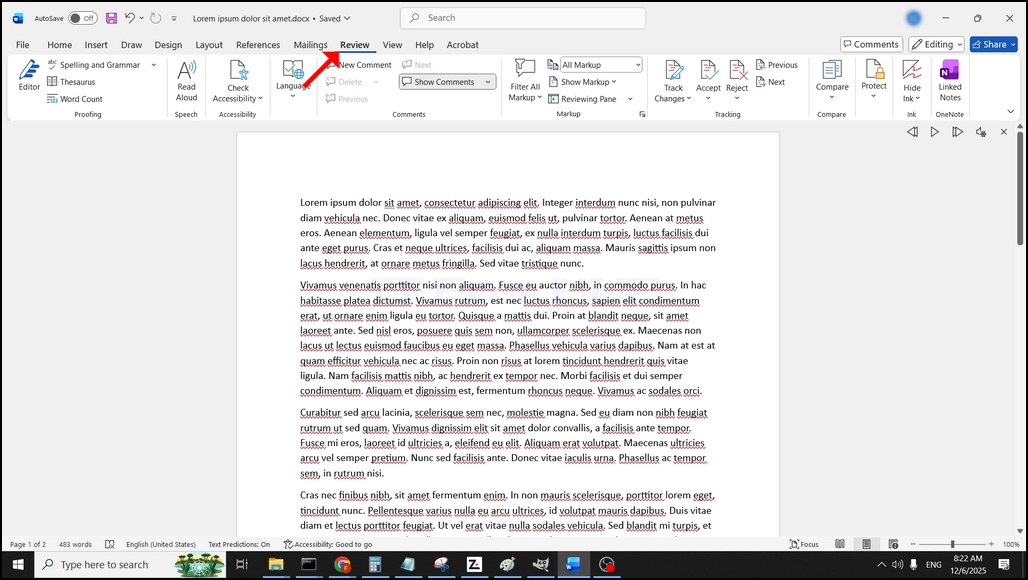
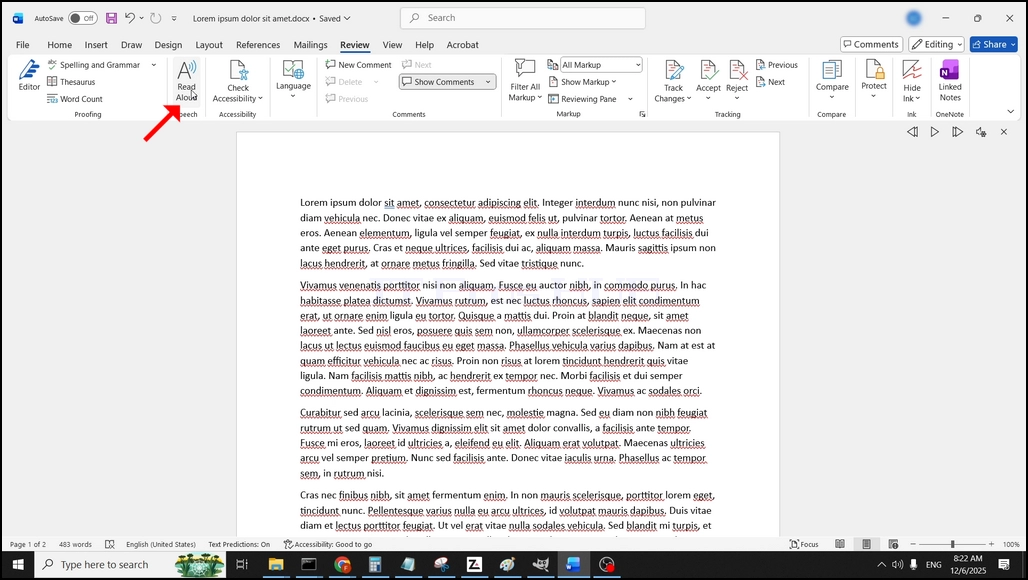
3. Sous examen, cherchez un grand "A" icône qui dit "Lire à haute voix"et cliquez dessus pour activer la fonction Texte à la parole de Word:
- Détails
- Écrit par : IT Pro
- Catégorie : How to Articles
- Clics : 5894
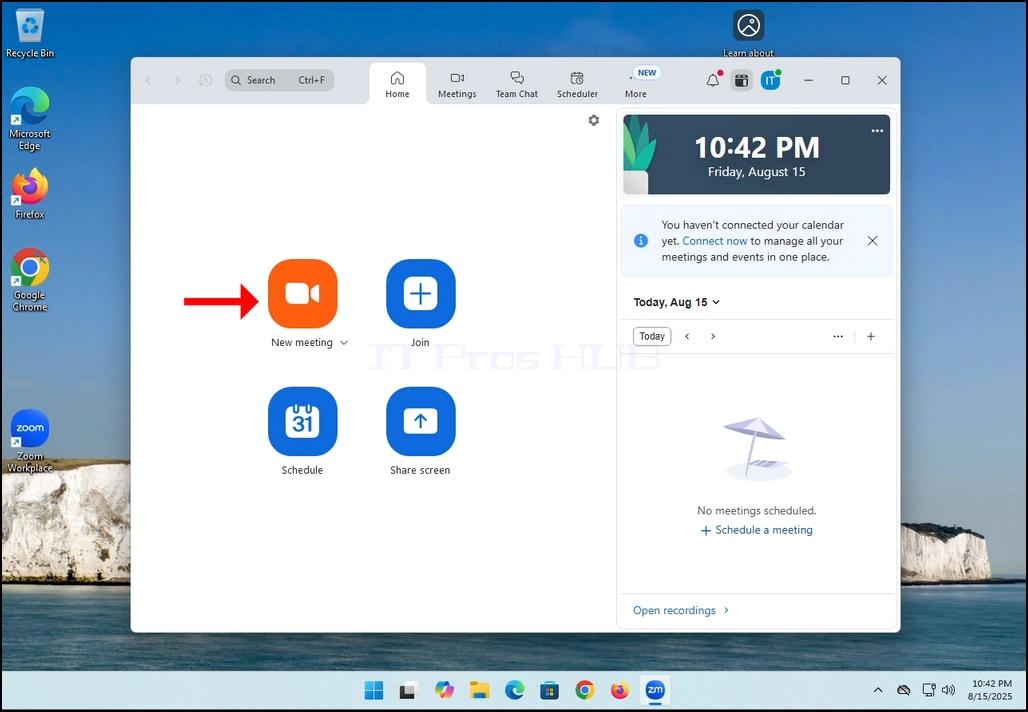
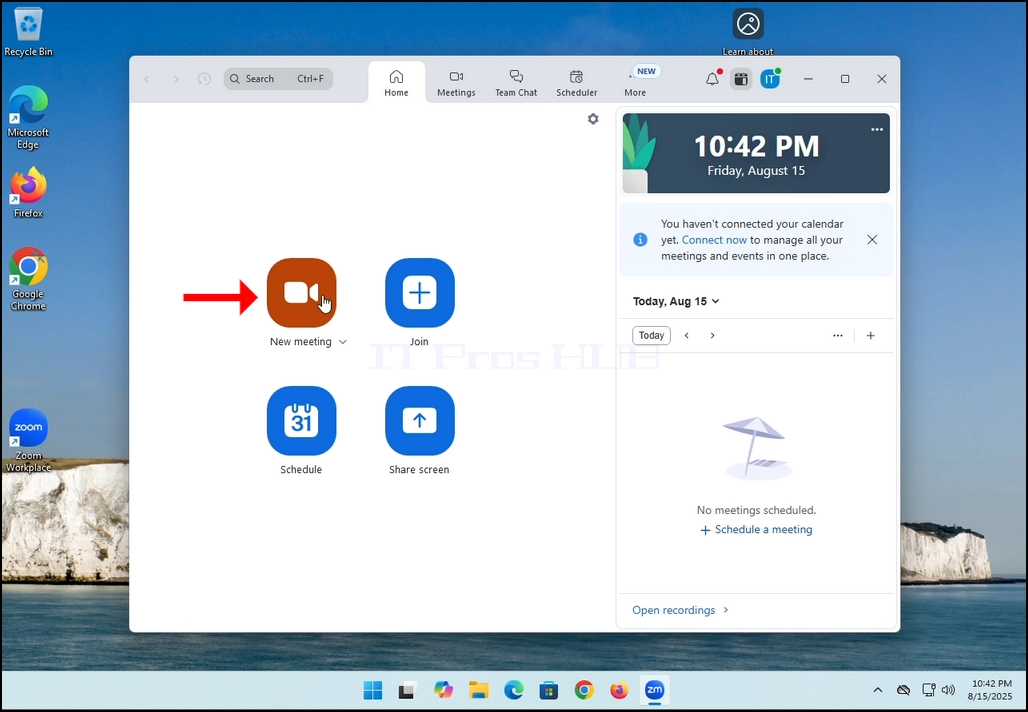
1. Début Zoom. Recherchez le bouton orange qui dit Nouvelle réunion et cliquez dessus une fois.
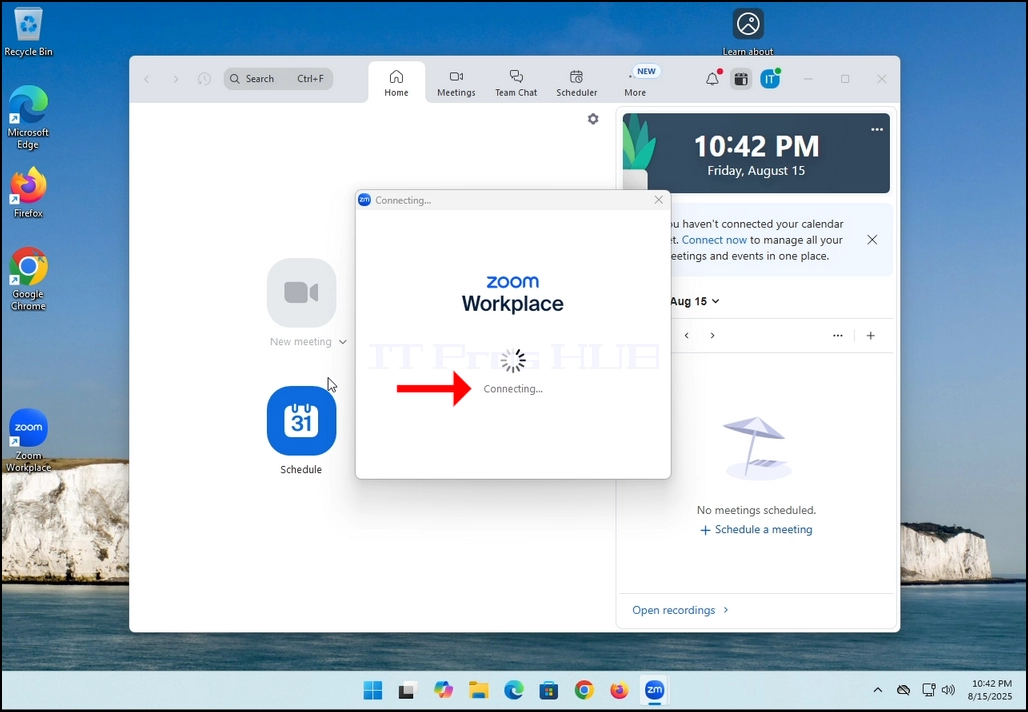
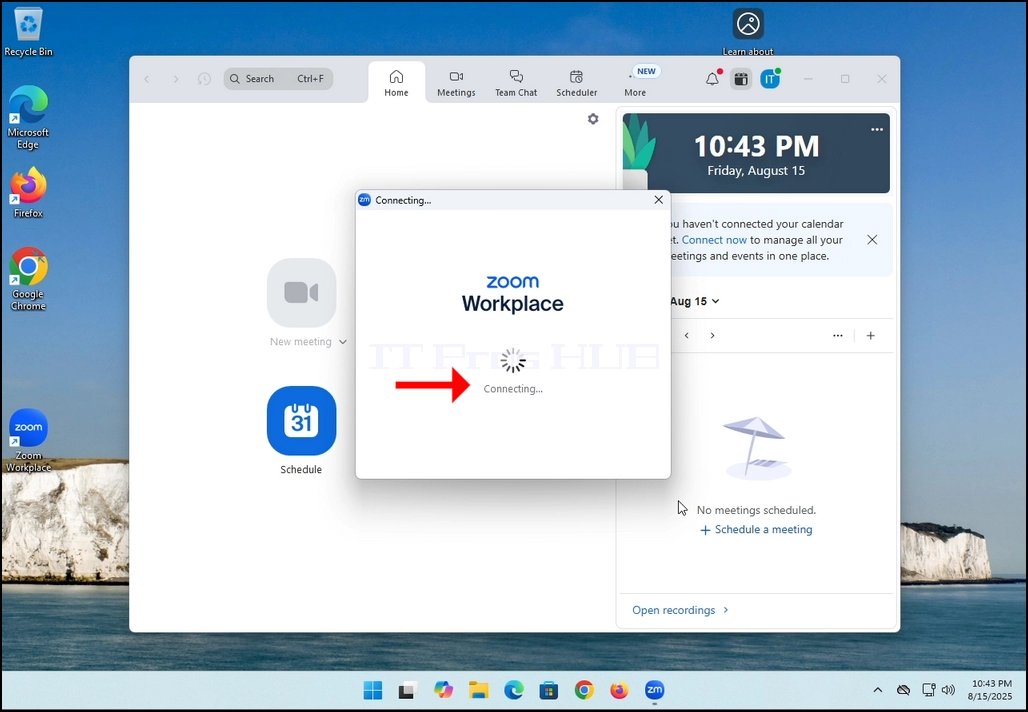
2. Une fois cliqué, une nouvelle petite fenêtre devrait apparaître. La fenêtre montrera "connexion"et un cercle de progression d'animation.
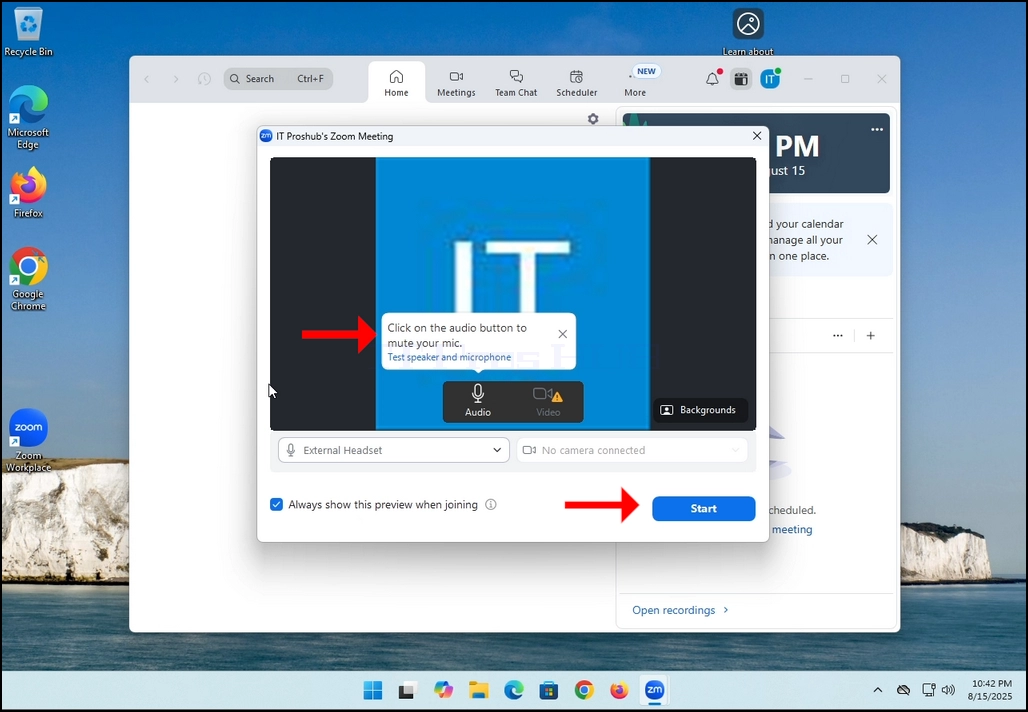
3. Une fois le chargement terminé, une nouvelle fenêtre apparaîtra. D'habitude son titre devrait dire quelque chose comme: "Réunion Zoom de l'utilisateur". Dans le cas de cet article, il est dit "Réunion de Zoom de Proshub IT" puisque l'utilisateur qui utilise Zoom s'appelle ainsi.
4. Ici, vous pouvez muter votre micro en cliquant sur le icône micro et vous pouvez également éteindre votre appareil photo en cliquant sur Icône vidéo.
5. Cliquez sur le début bouton pour commencer la réunion.
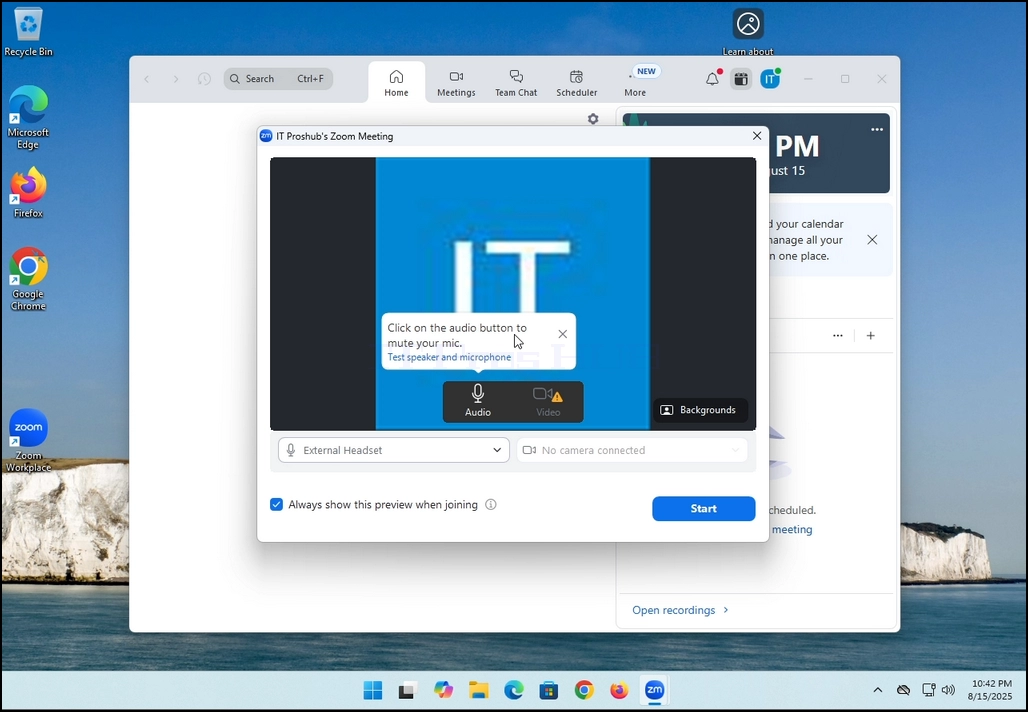
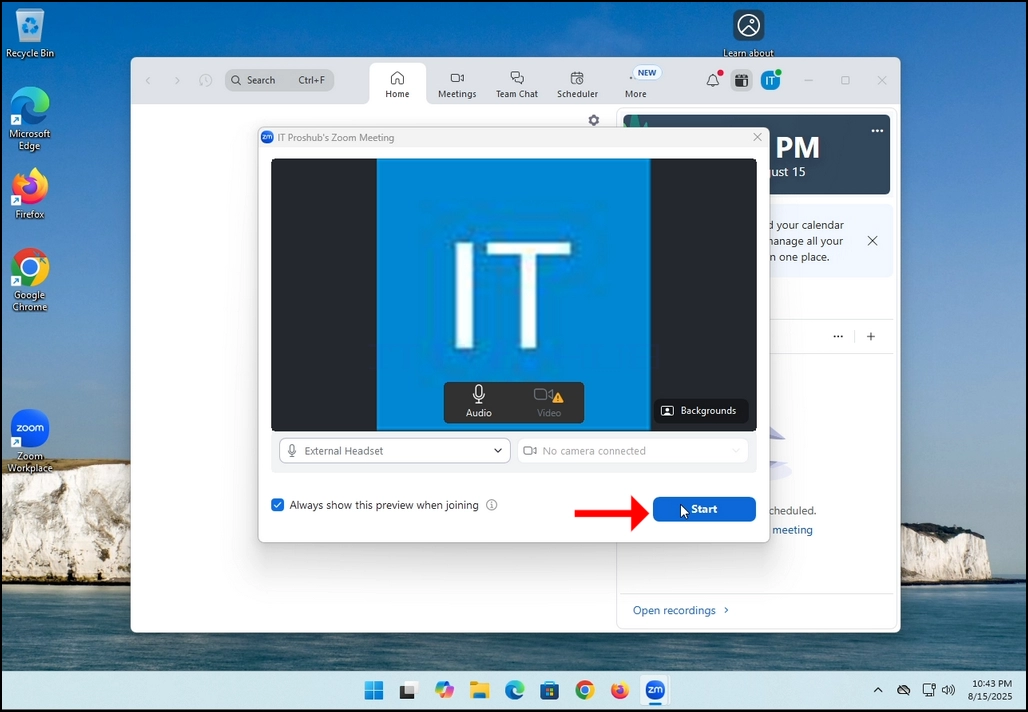
6. Une fois début bouton est cliqué, Zoom va commencer une réunion. La fenêtre précédente disparaîtra et la fenêtre de chargement que nous avons déjà vue reviendra.
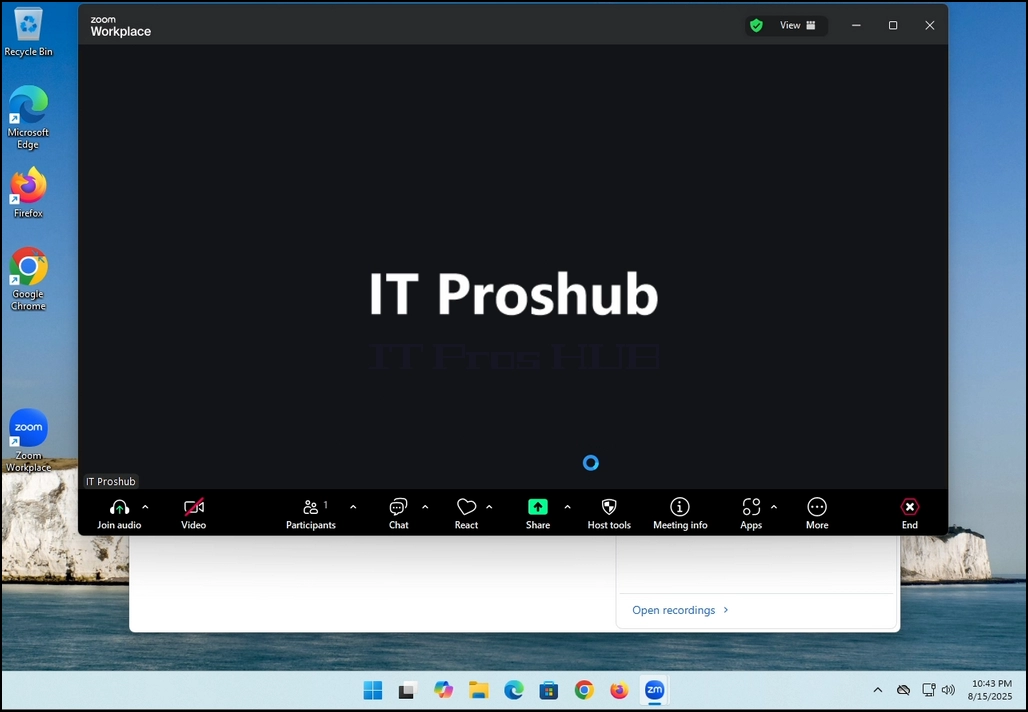
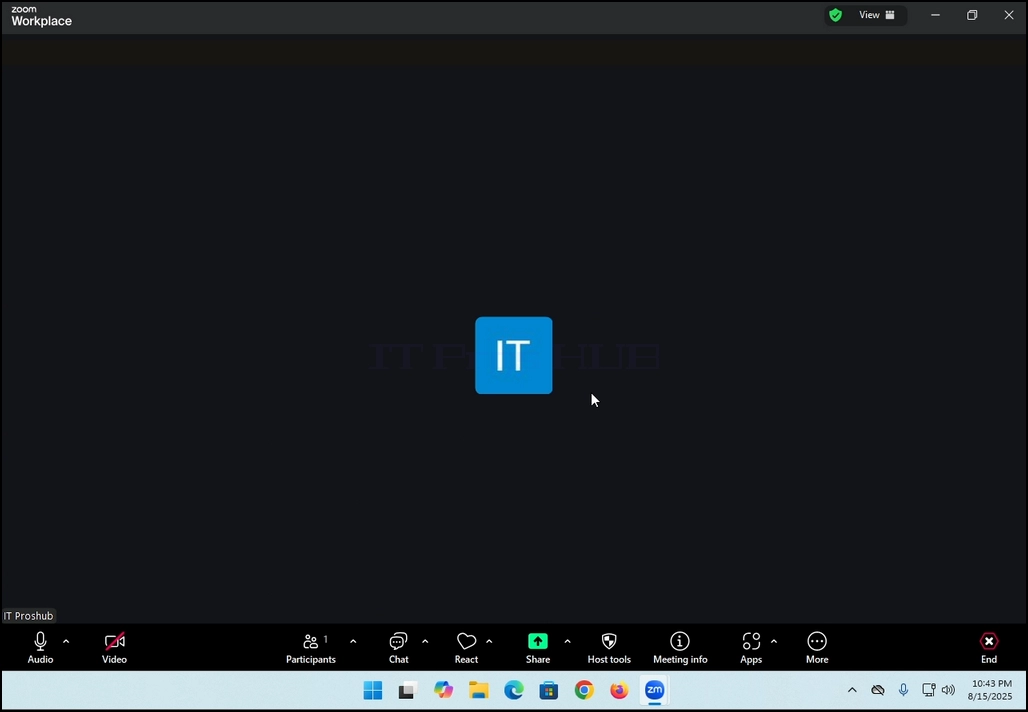
7. C'est ça ! la nouvelle réunion est en cours. A ce stade, la réunion ne contient que l'hôte qui est IT Proshub dans le cas de cet article.
- Détails
- Écrit par : IT Pro
- Catégorie : How to Articles
- Clics : 5507
In this article we will demonstrate how to delete a stripped volume in Windows 11
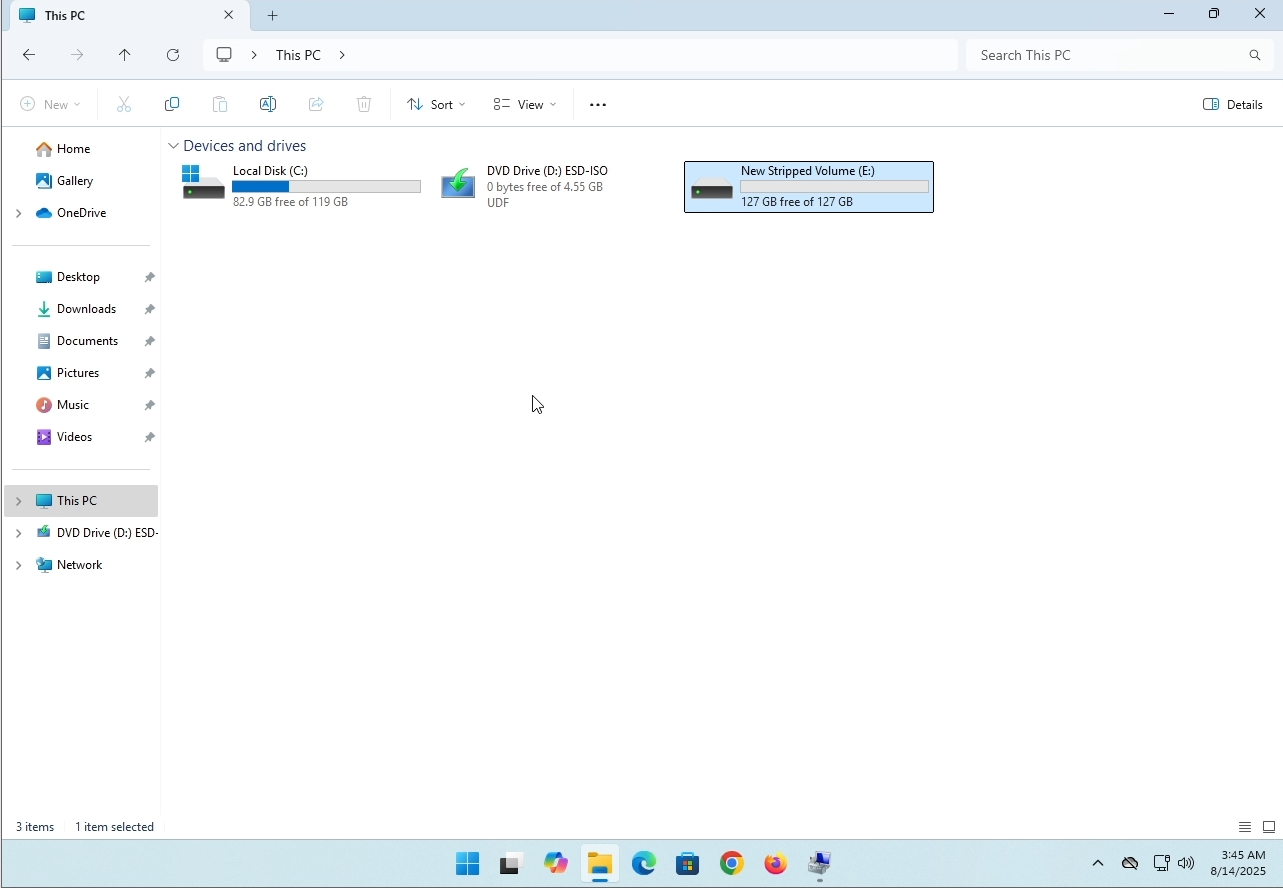
1. Make sure what is the stripped volume's drive letter is. In this case the drive letter is (E:):
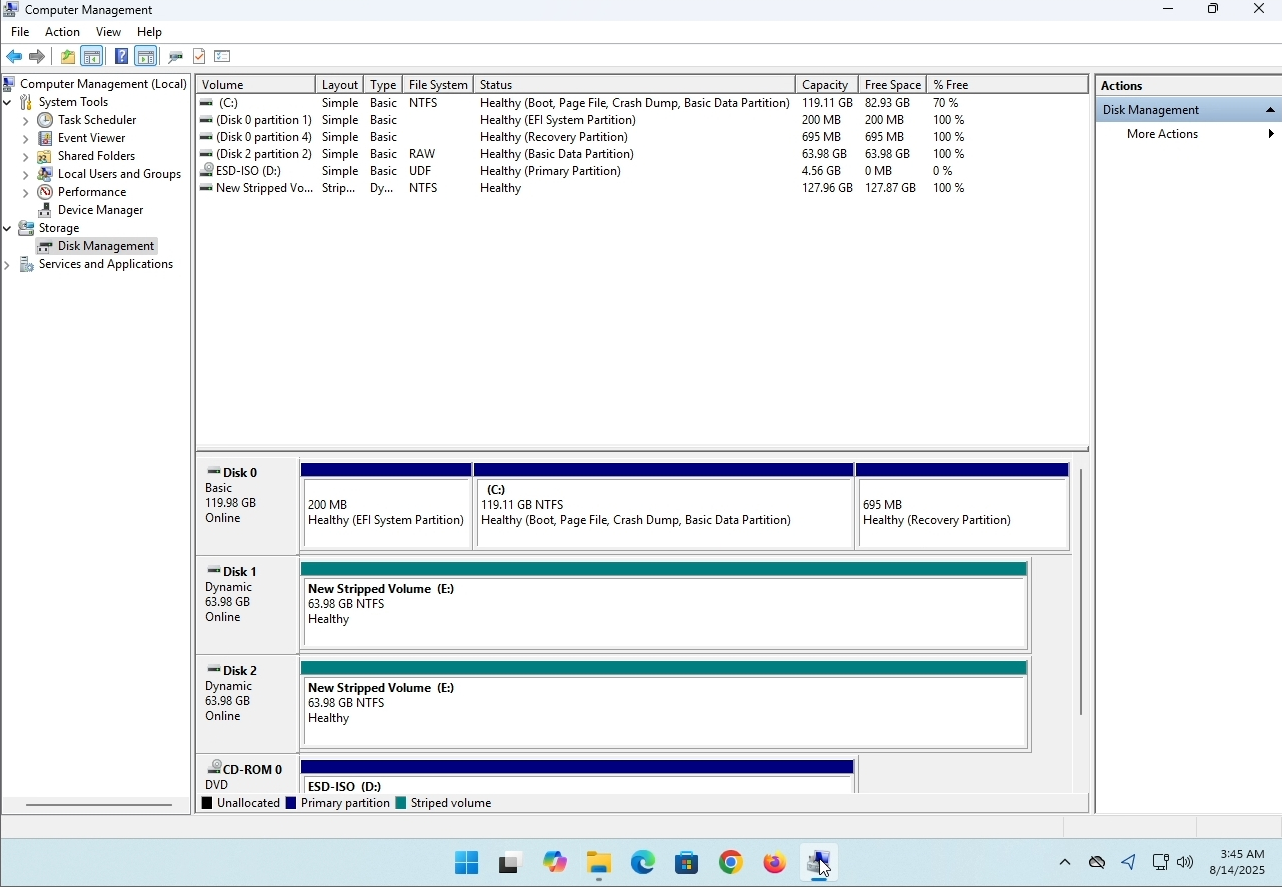
3. On the left pane. Look for Disk Management and click on it once.
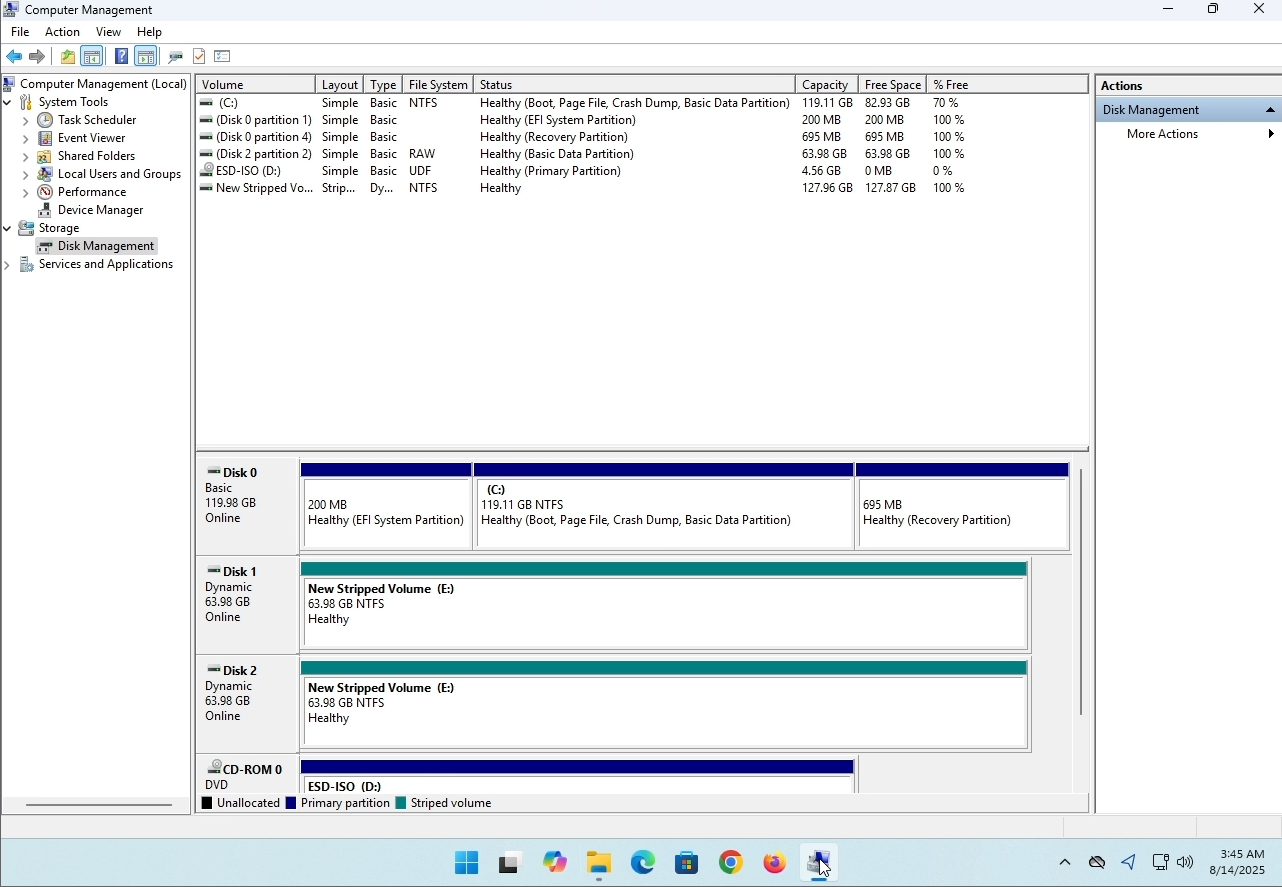
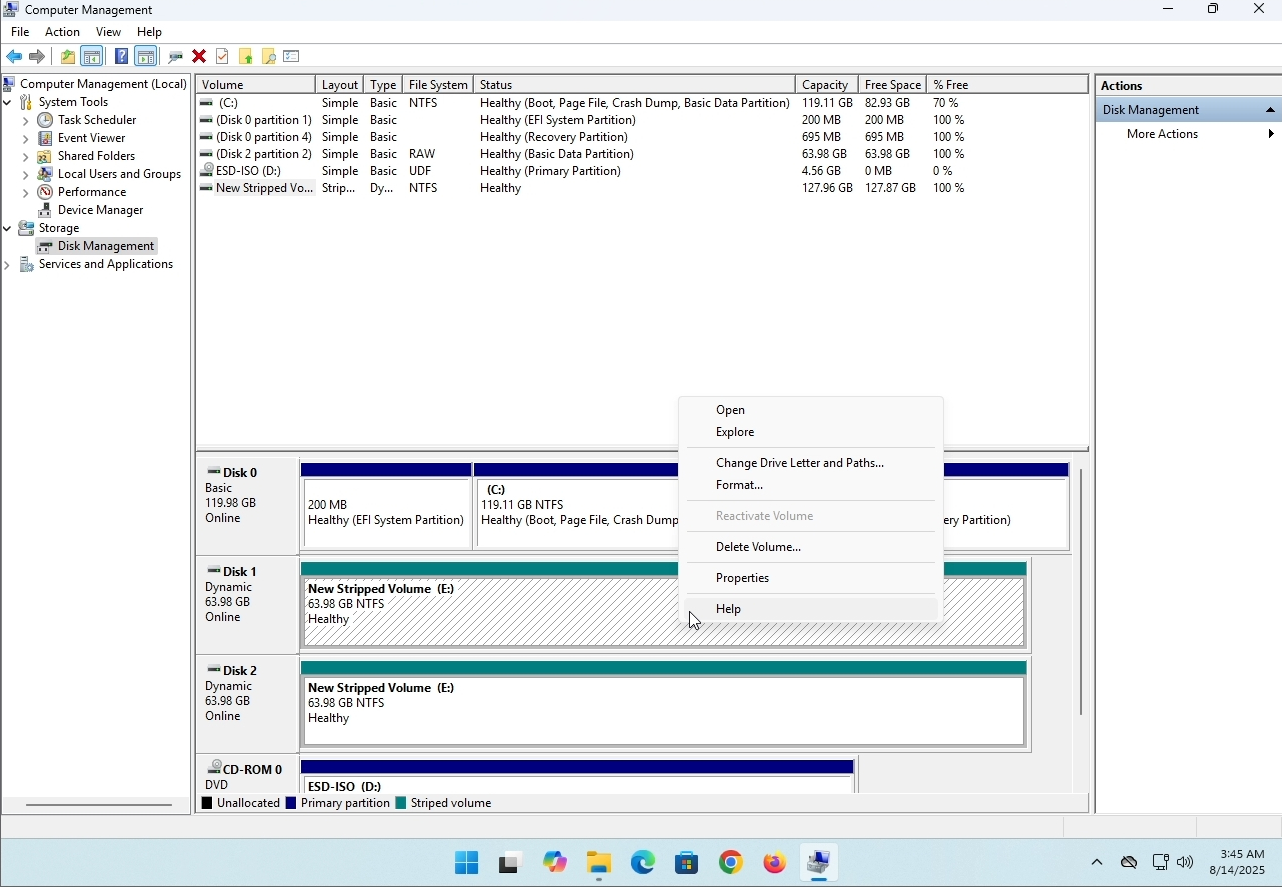
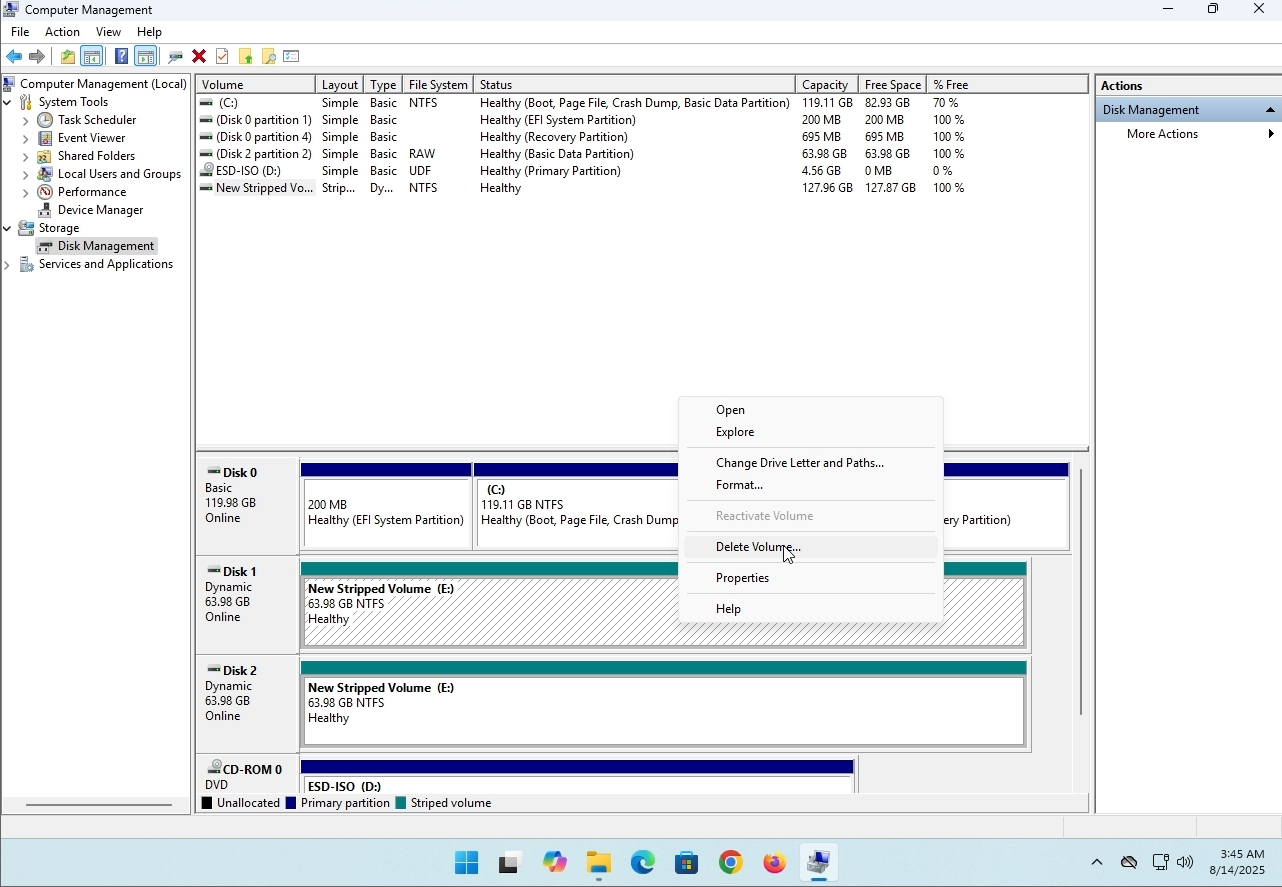
6. You will be shown a confirmation window. Click on Yes to confirm deleting the drive.
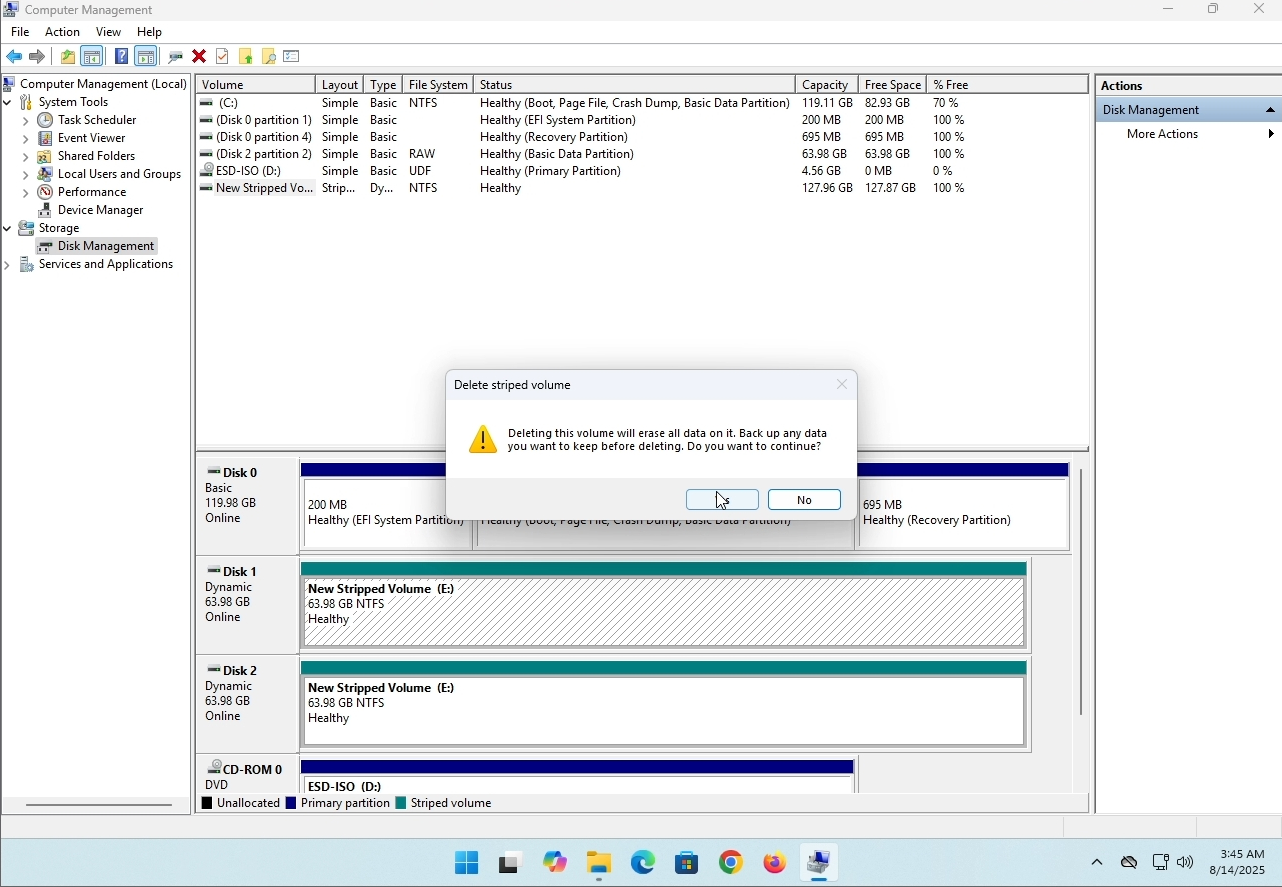
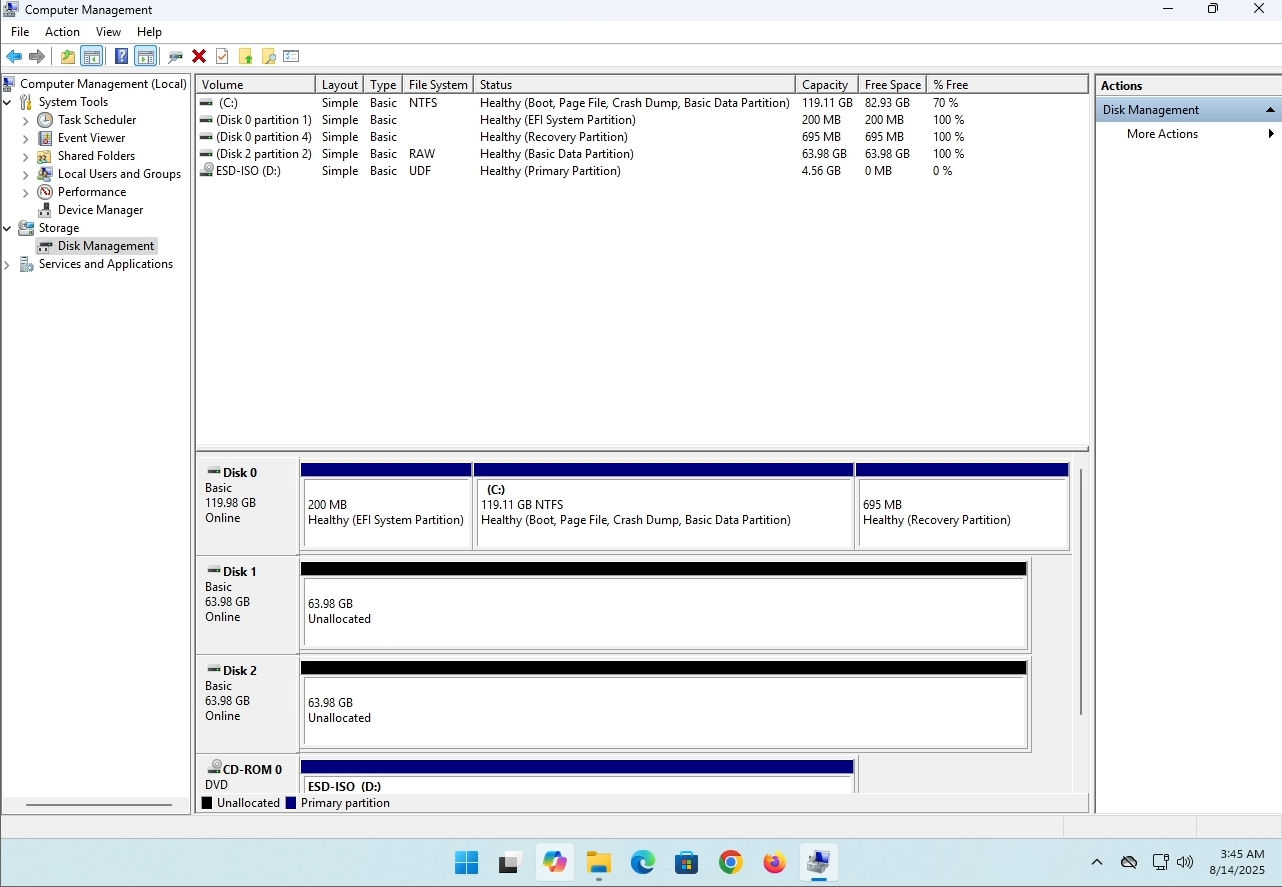
7. The drive is now deleted and the disks that were part of the stripped array are now unallocated.
- Détails
- Écrit par : IT Pro
- Catégorie : How to Articles
- Clics : 8831
Introduction:
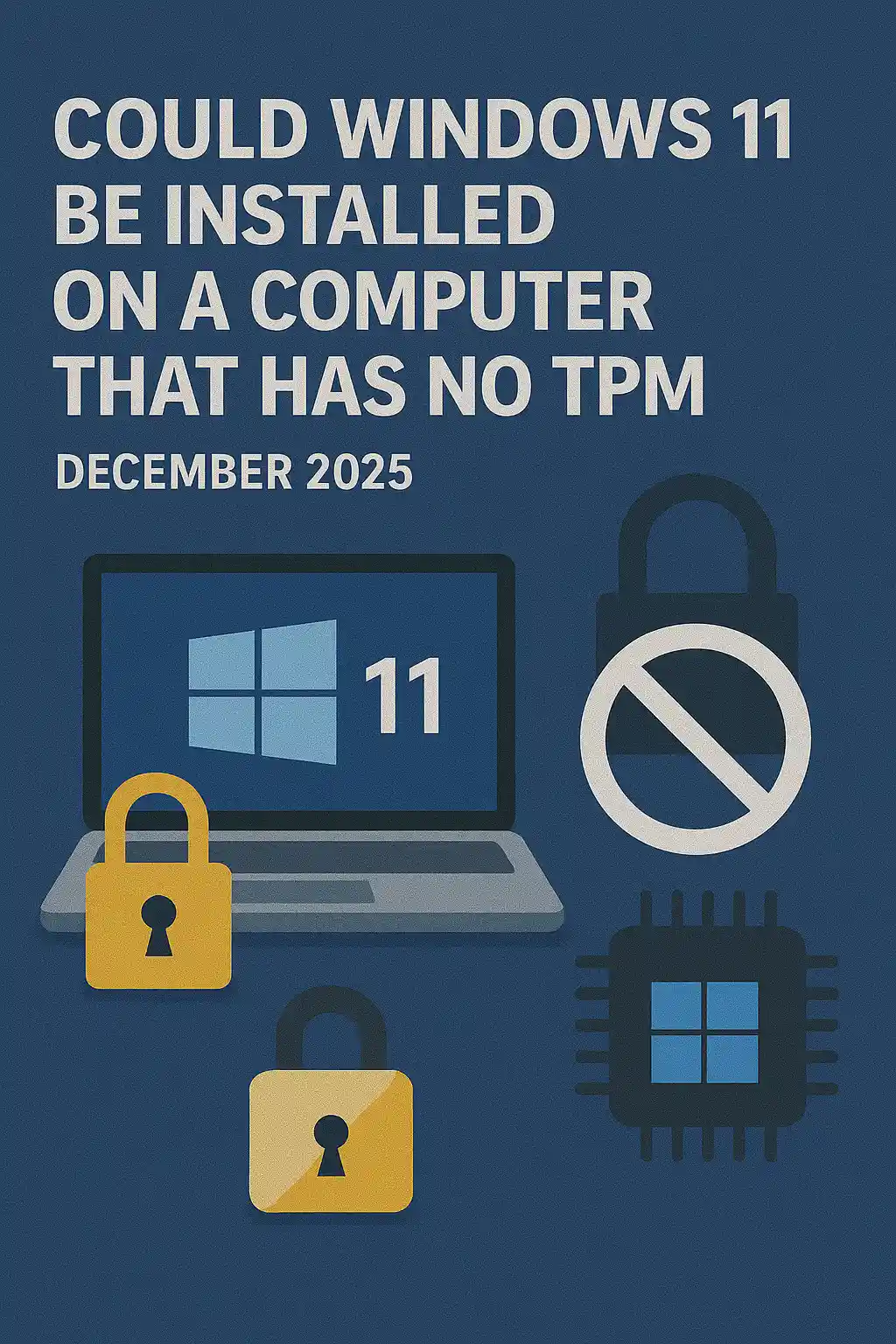
In this article we will examine whether Windows 11 could be installed on a computer that has no TPM chip.
In short: NO.
Windows 11 cannot be installed on a computer without a minimum of a TPM version 2.0 chip.
The following is an illustration of an attempted installation of Windows 11 on such a computer.
The Windows version that was attempted to be installed was 24H2.
1. Booting into Windows installation


2. Configuring language

3. Configuring installation method

4. Product key stage


5. Choosing Windows 11 Pro


6. Checking PC stage

7. Blocker ☹

Conclusion:
Not much to say here. We had to see it for ourselves. There is a big discourse about this subject, and it seems to hold water in this case. Installation-wise – Windows 11 cannot be installed on a computer or a system without a TPM version 2.0 chip.
That does not mean Windows 11 cannot be RUN on said system. For more , please visit our article about this subject: https://itproshub.com/en/windows/can-windows-11-run-on-a-computer-that-has-no-tpm-chip-at-all-decembet-2025
- Détails
- Écrit par : IT Pro
- Catégorie : How to Articles
- Clics : 7502
1. Start the installation of Thunderbird by clicking its setup file
2. In the welcome screen, click NEXT.
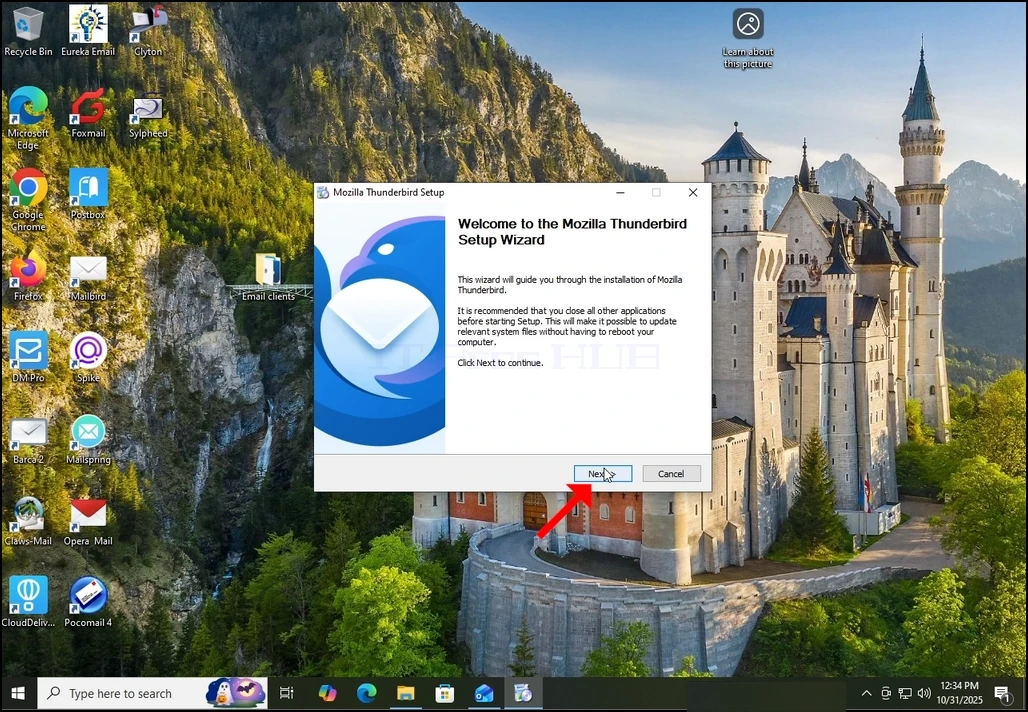
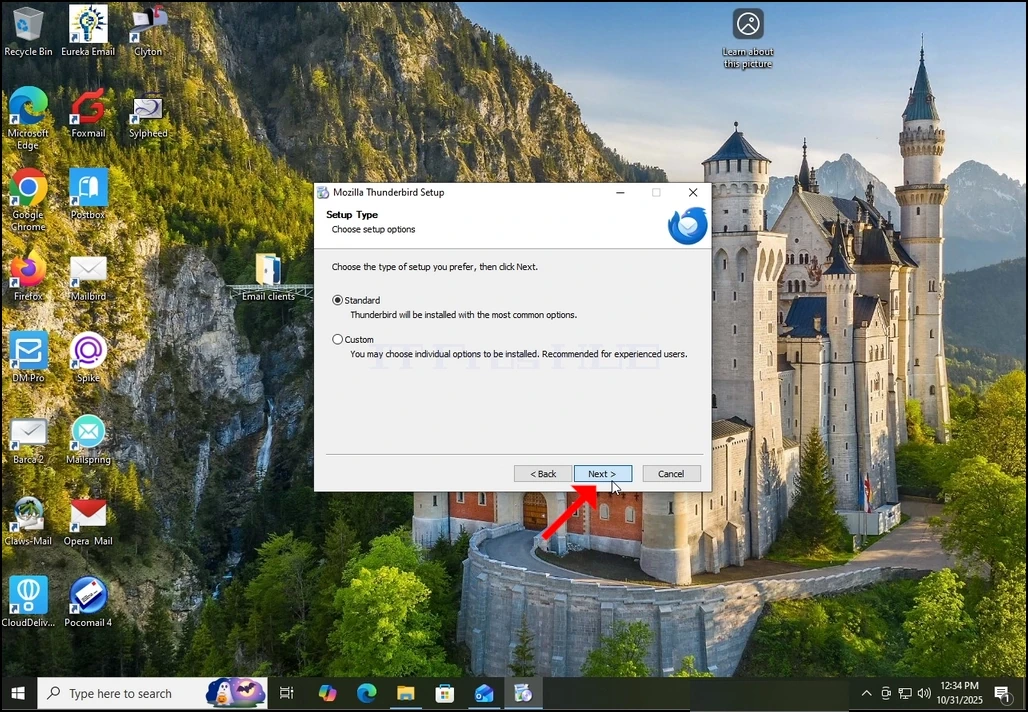
3. Choose the Standard option and click NEXT.
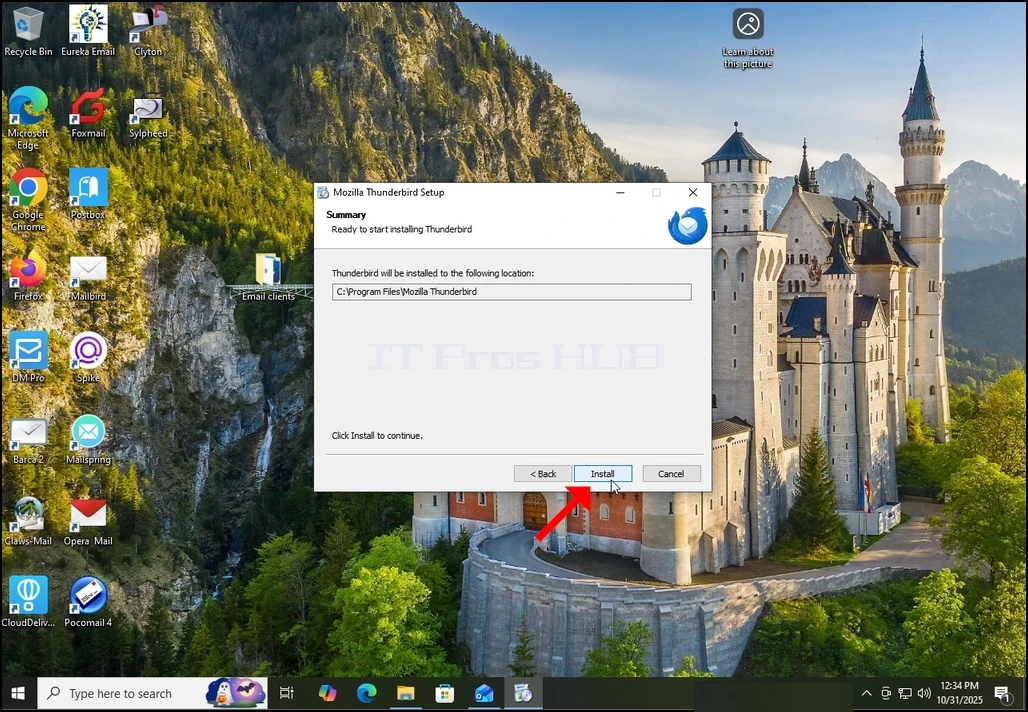
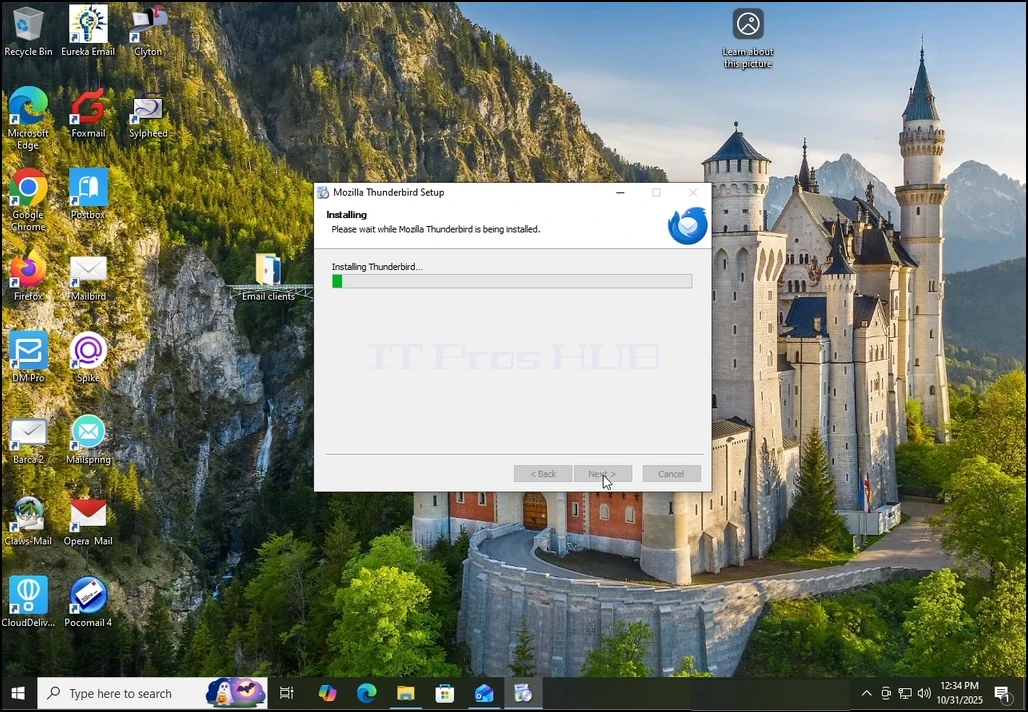
5. Wait patiently for the installation process to finish
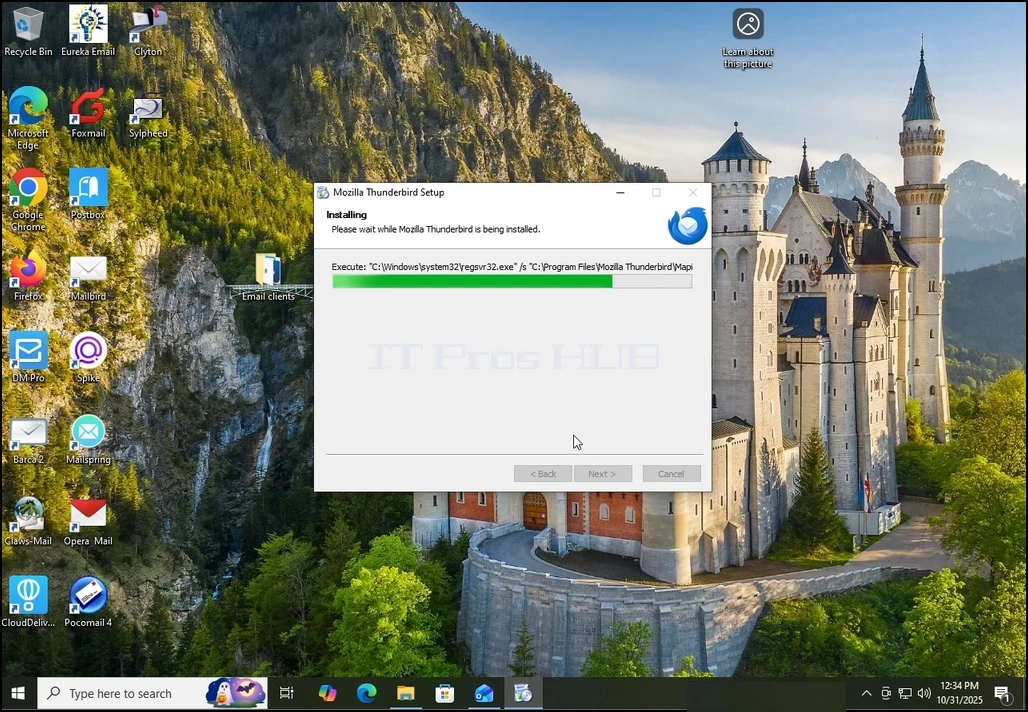
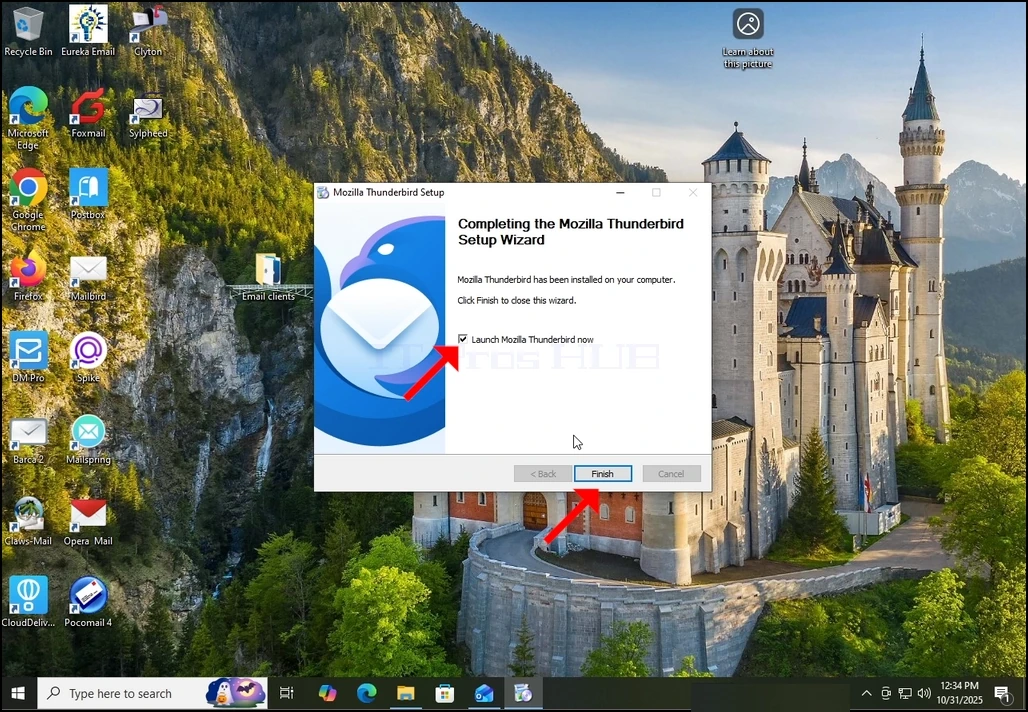
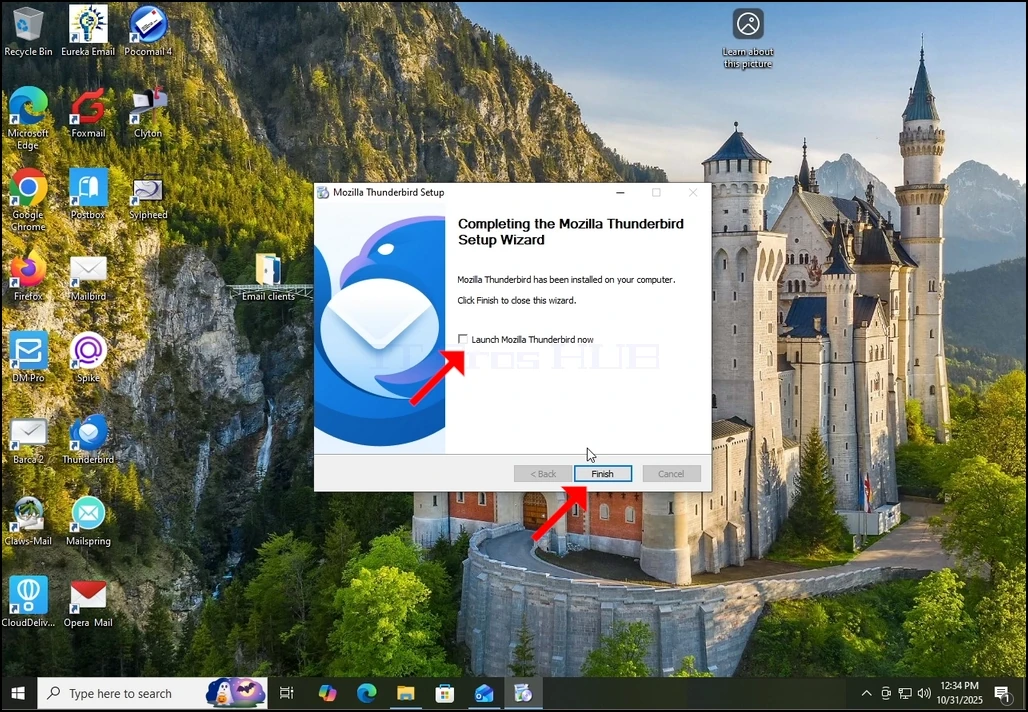
7. Mozilla Thunderbird is now installed!
- Comment trouver des informations sur votre ordinateur sous Windows 10 - Novembre 2025
- Comment entrer dans les paramètres de démarrage dans Windows 11 (à partir du mode de récupération)
- Comment accéder au mode de récupération dans Windows 11
- Comment réinitialiser un PC Windows 11 depuis Windows 11 - Novembre 2025