Online: 779 online | Members: 0 | Guests: 779
Samedi, Juin 13, 2026
Page Minimap
Reading time: 3 min read
Tagline:CommenttéléchargeretinstallerSlackdansWindows11

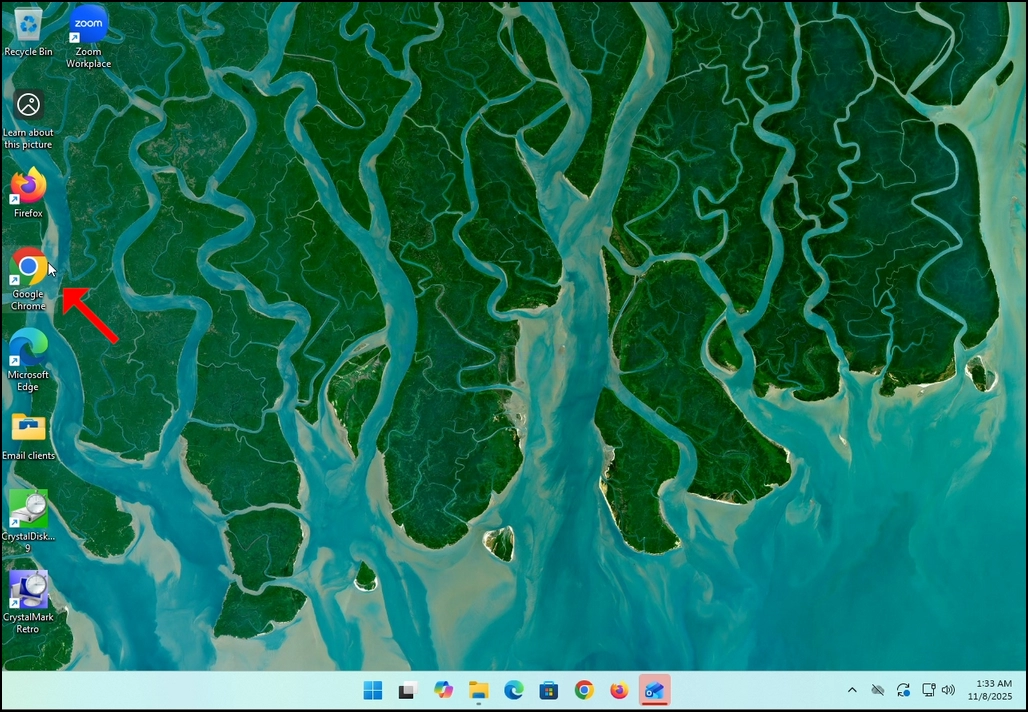
1. Allez dans votre navigateur Internet. Dans cet article, nous utiliserons Chrome.
how-to-download-and-install-slack-in-windows-11-11.webp

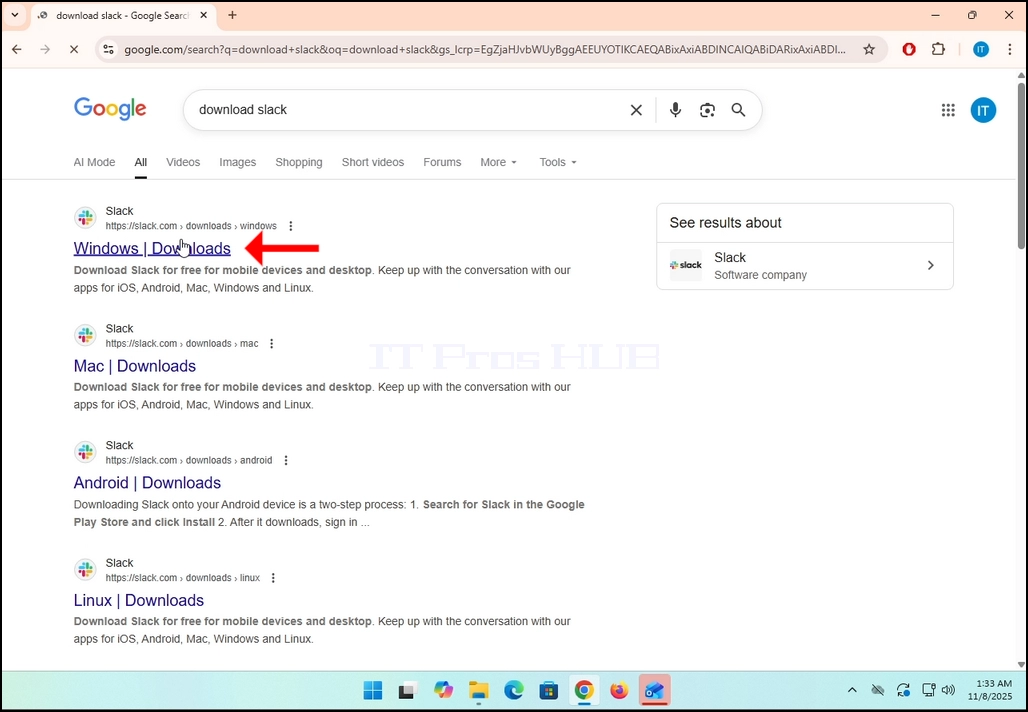
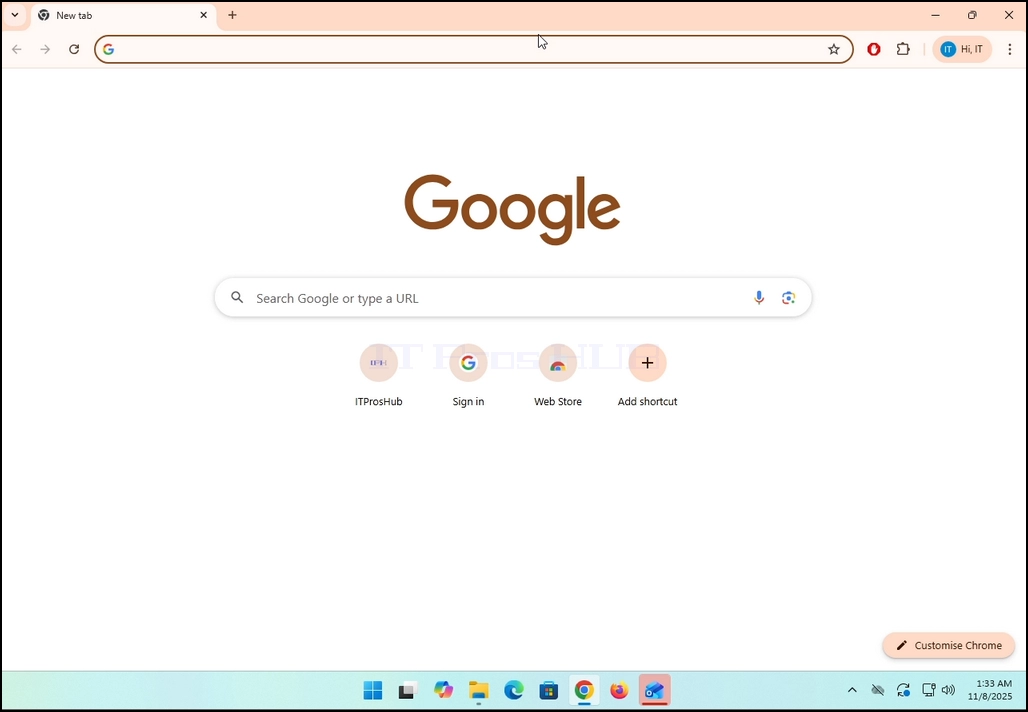
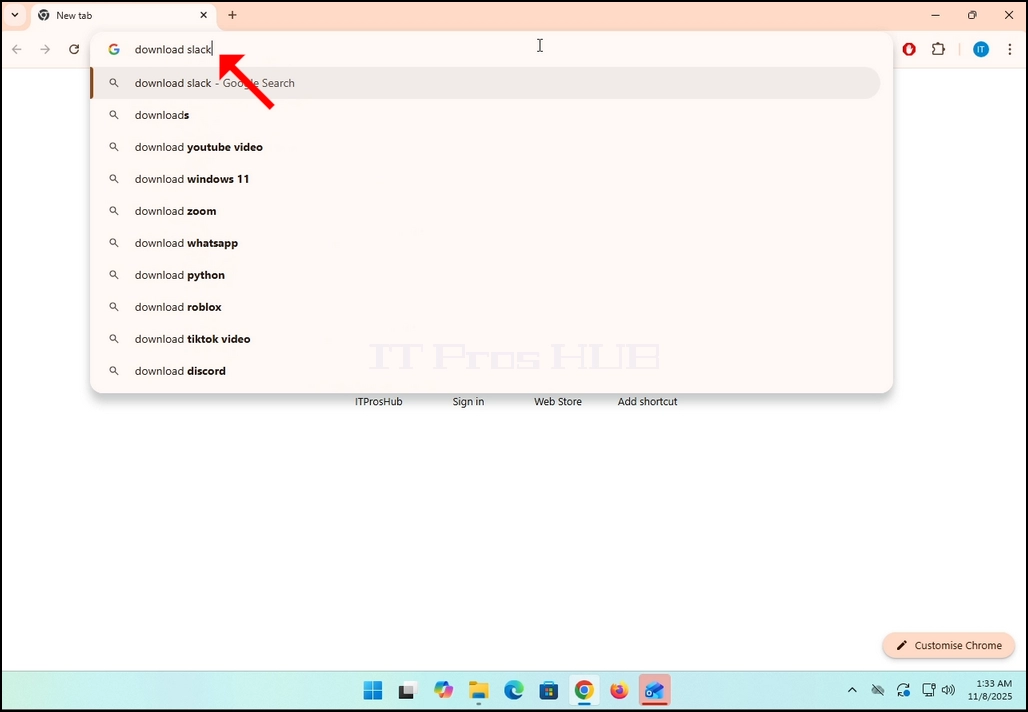
2. Allez dans Google et tapez Télécharger Slack dans la barre de recherche. Appuyez sur Entrez clé après. Attendez que les résultats de recherche apparaissent.
how-to-download-and-install-slack-in-windows-11-12.webp

how-to-download-and-install-slack-in-windows-11-13.webp

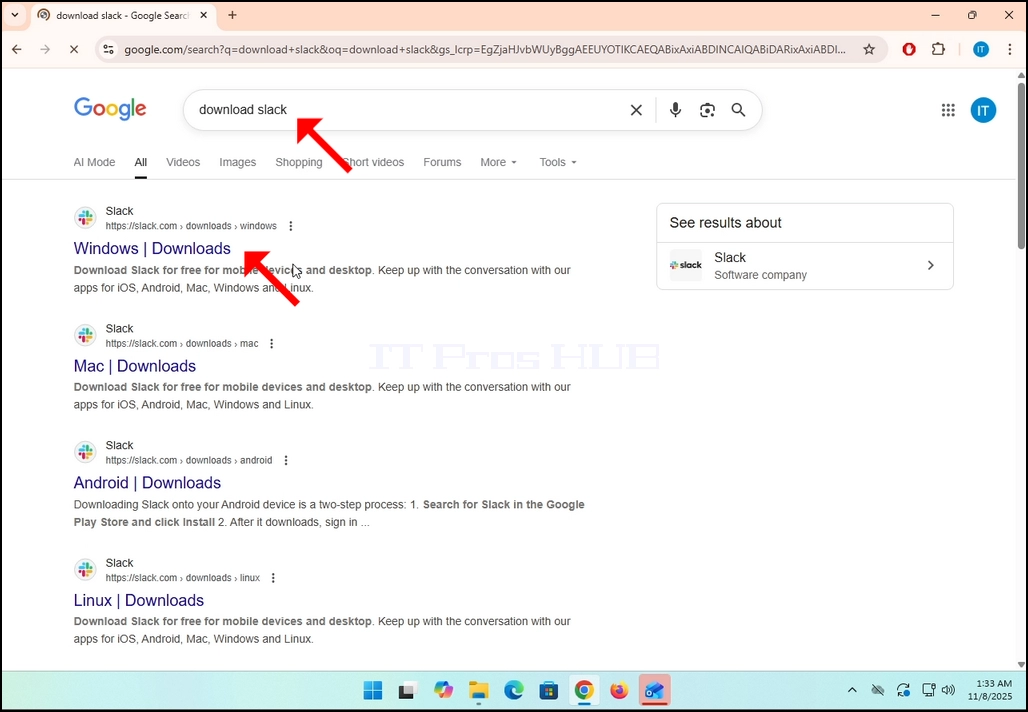
3. Dans les résultats de recherche, recherchez un résultat qui est intitulé comme Téléchargements et cliquez dessus. Attendez un nouveau

page à charger.
how-to-download-and-install-slack-in-windows-11-14.webphow-to-download-and-install-slack-in-windows-11-15.webp

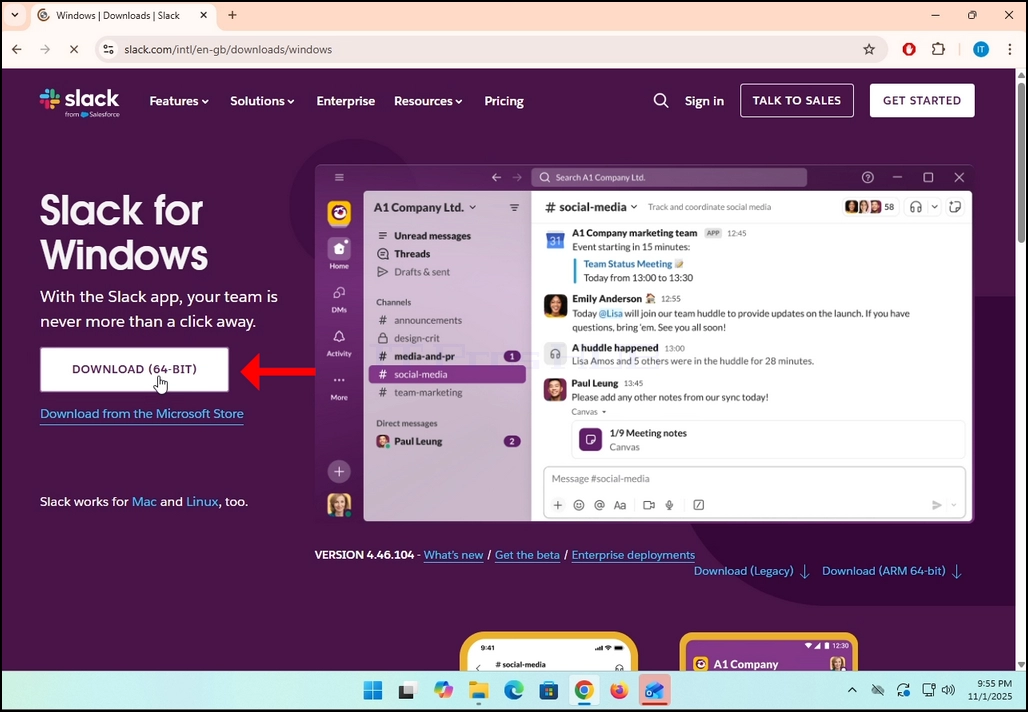
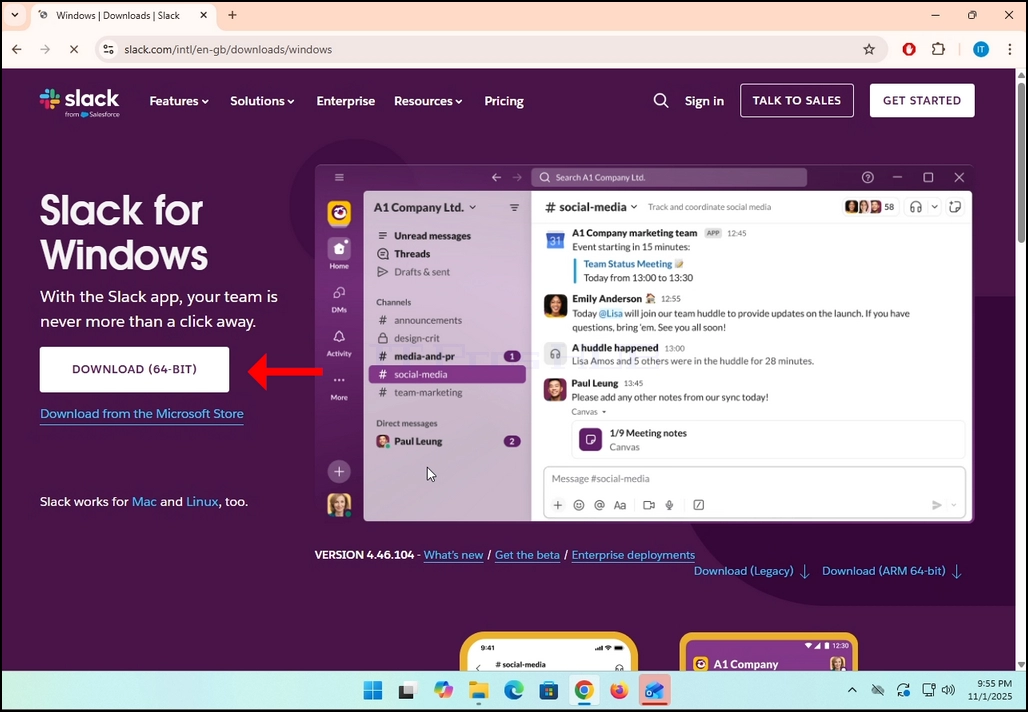
4. La page nouvellement chargée sera sous le domaine Slack.com. Rechercher un Téléchargement (64-BIT) bouton sur le côté gauche de la page. Cliquez sur ce bouton pour commencer le processus de téléchargement du fichier d'installation Slack.how-to-download-and-install-slack-in-windows-11-16.webphow-to-download-and-install-slack-in-windows-11-17.webp
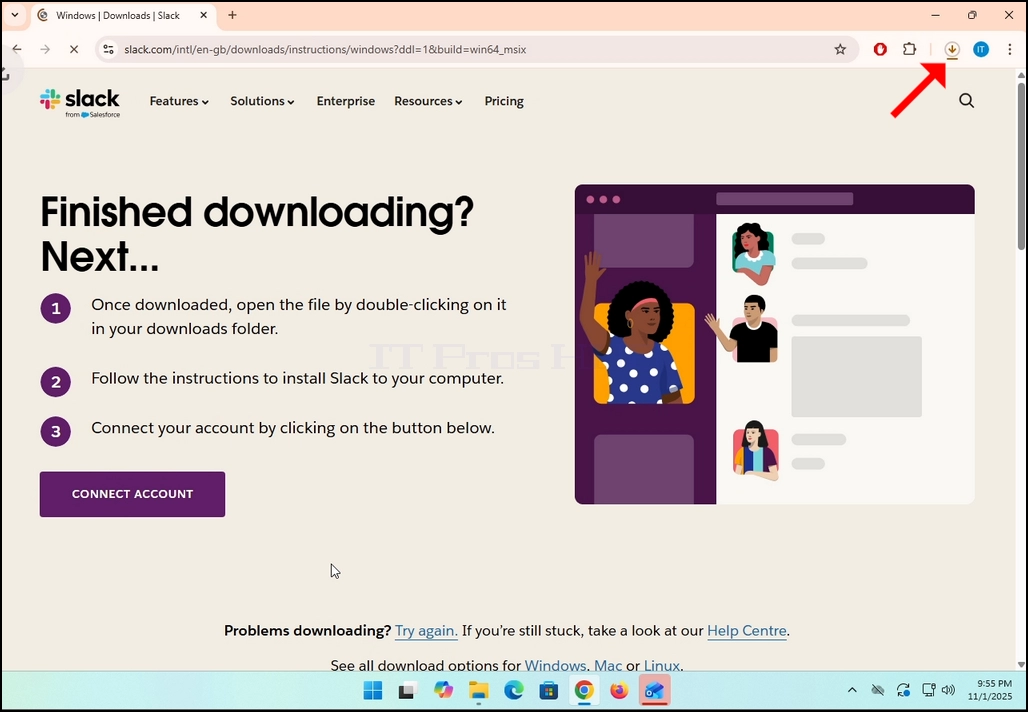
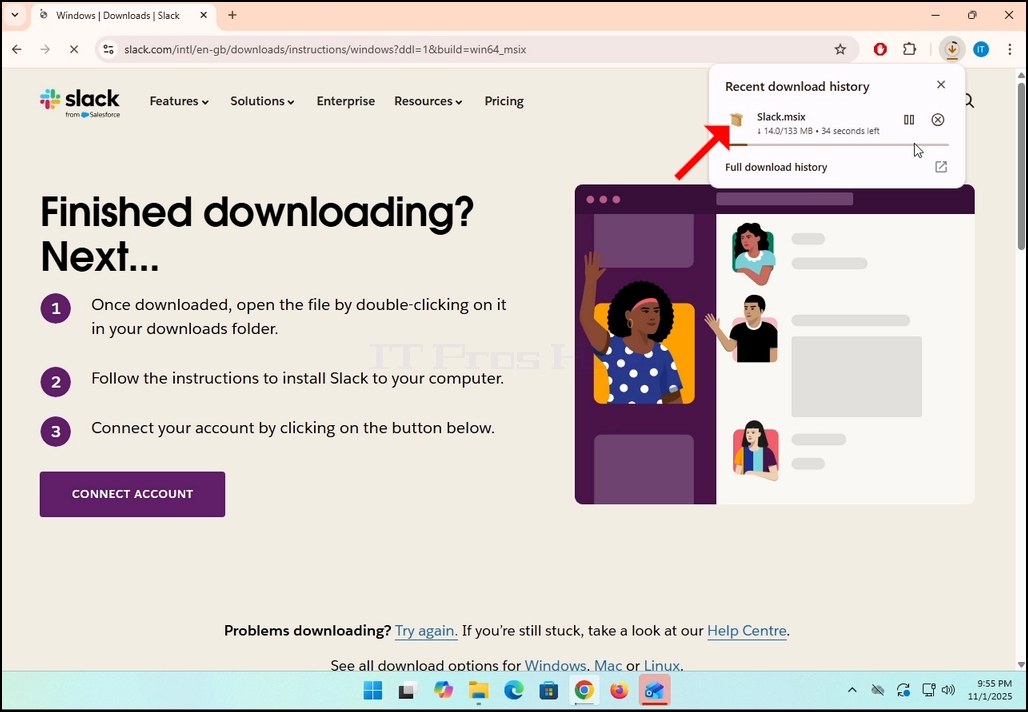
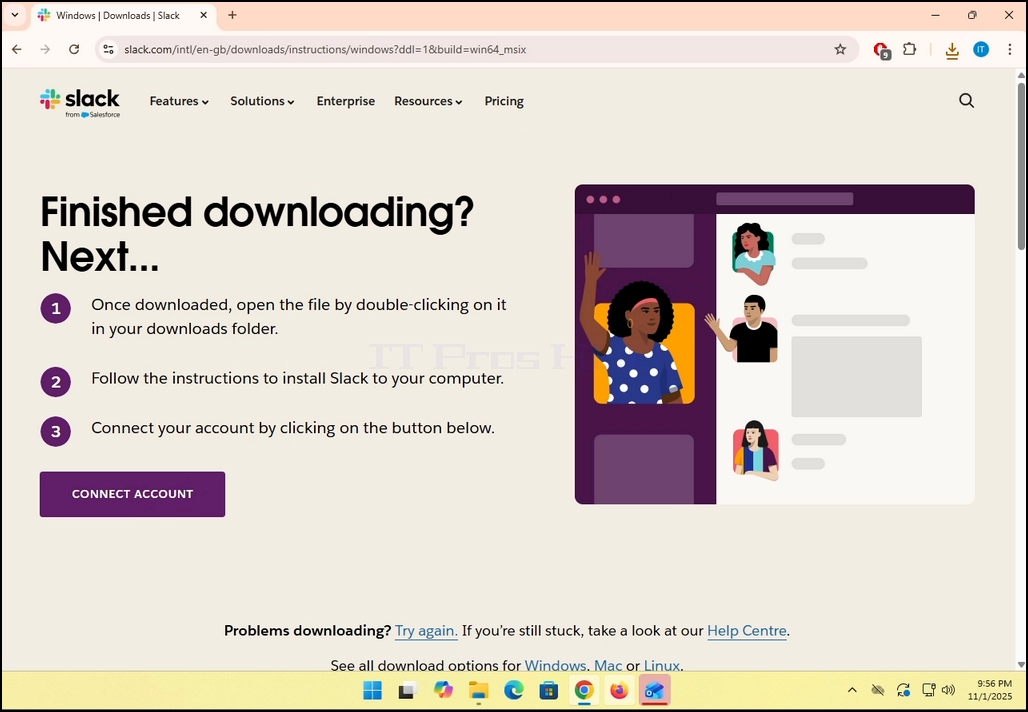
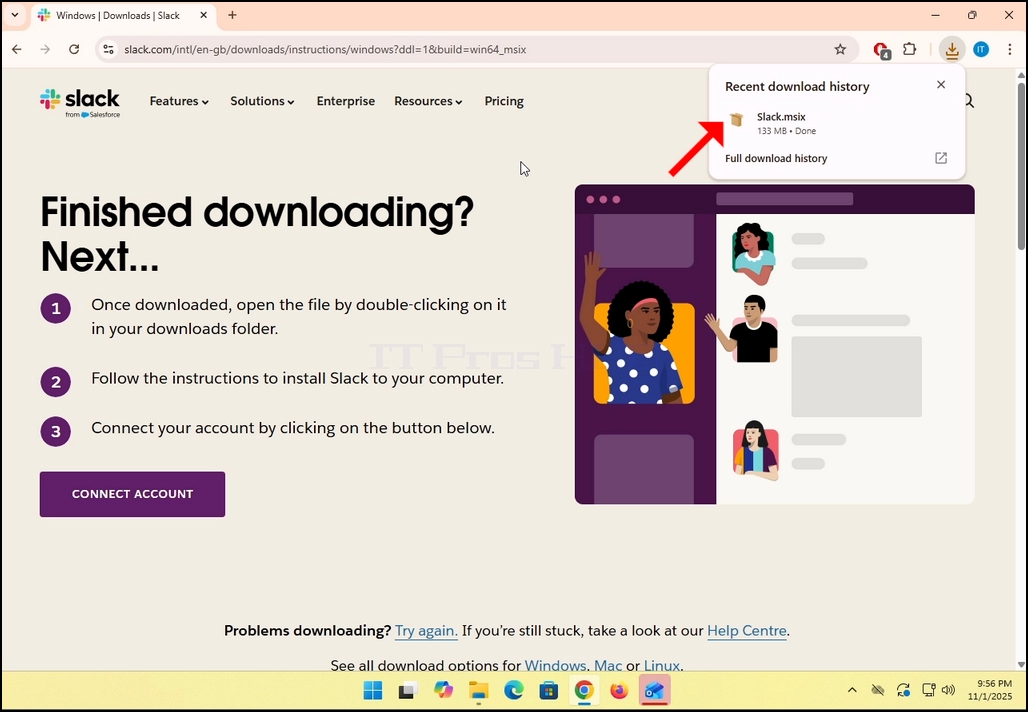
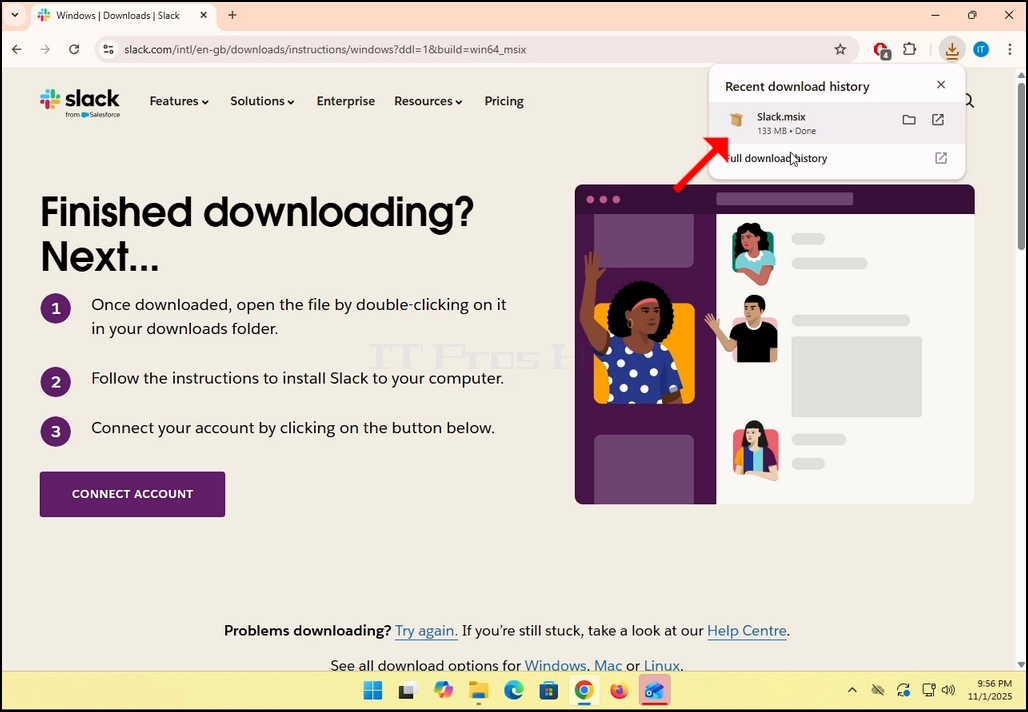
5. Une fois cliqué, vous verrez le processus d'installation en cours dans votre navigateur. Assurez-vous que le fichier téléchargé s'appelle 6 ans Et rien d'autre.

how-to-download-and-install-slack-in-windows-11-18.webphow-to-download-and-install-slack-in-windows-11-19.webp

6. Une fois terminé, cliquez sur le 6 ans fichier pour ouvrir le fichier et commencer le processus d'installation.
how-to-download-and-install-slack-in-windows-11-20.webphow-to-download-and-install-slack-in-windows-11-21.webp

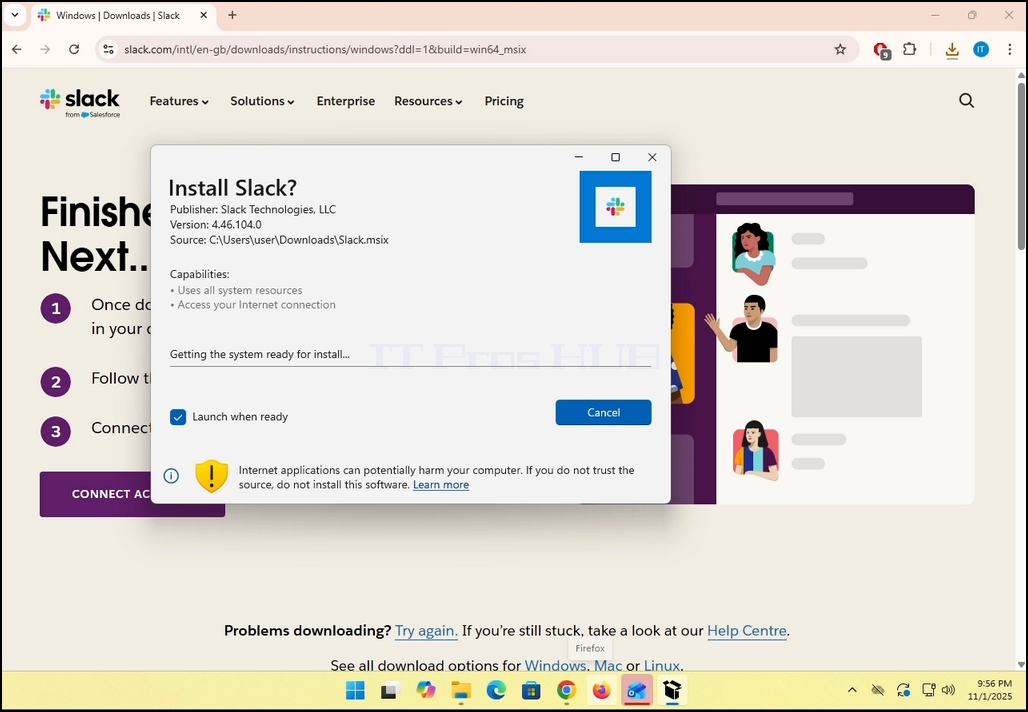
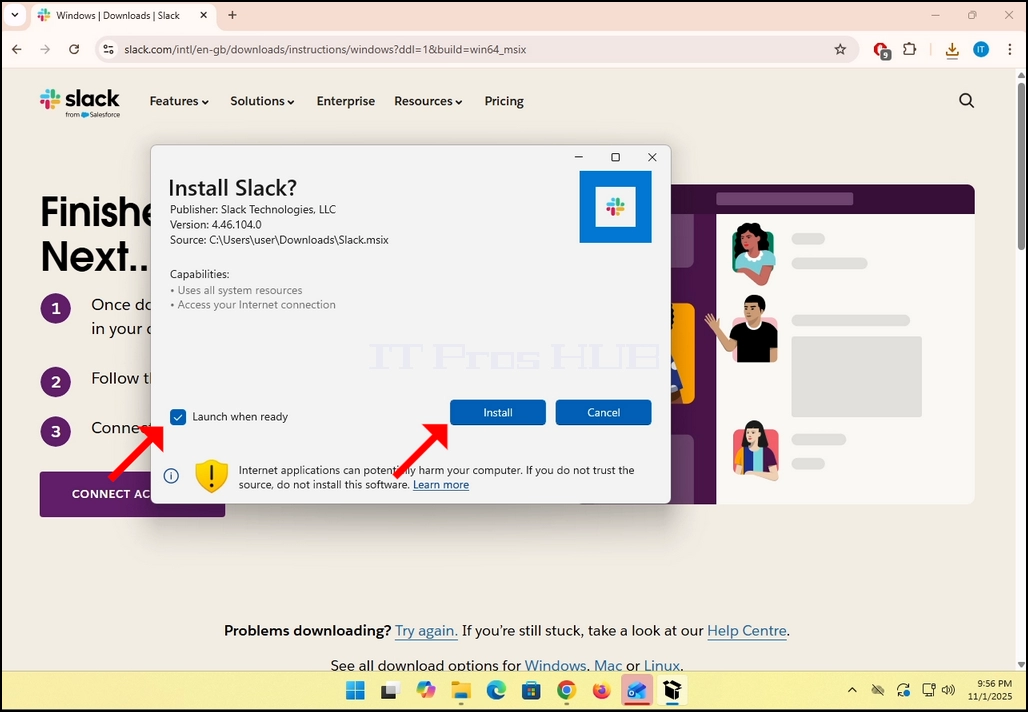
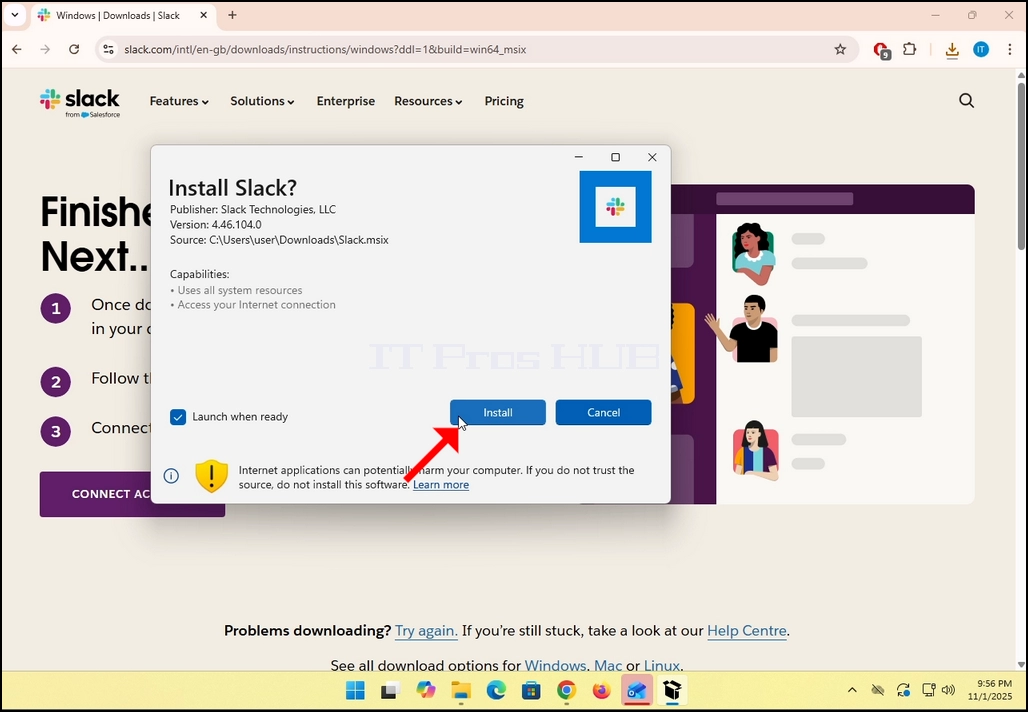
7. Une fois cliqué, Windows Store vous demandera si vous souhaitez installer lel. Cliquez sur le bleu INSTALLATION bouton.
how-to-download-and-install-slack-in-windows-11-22.webphow-to-download-and-install-slack-in-windows-11-23.webphow-to-download-and-install-slack-in-windows-11-24.webphow-to-download-and-install-slack-in-windows-11-25.webp

8. Une fois que le processus d'installation est terminé, vous serez informé par Windows Store avec le messageSlack est prêtCliquez sur le bleu Lancement bouton pour démarrer Slack.how-to-download-and-install-slack-in-windows-11-26.webp
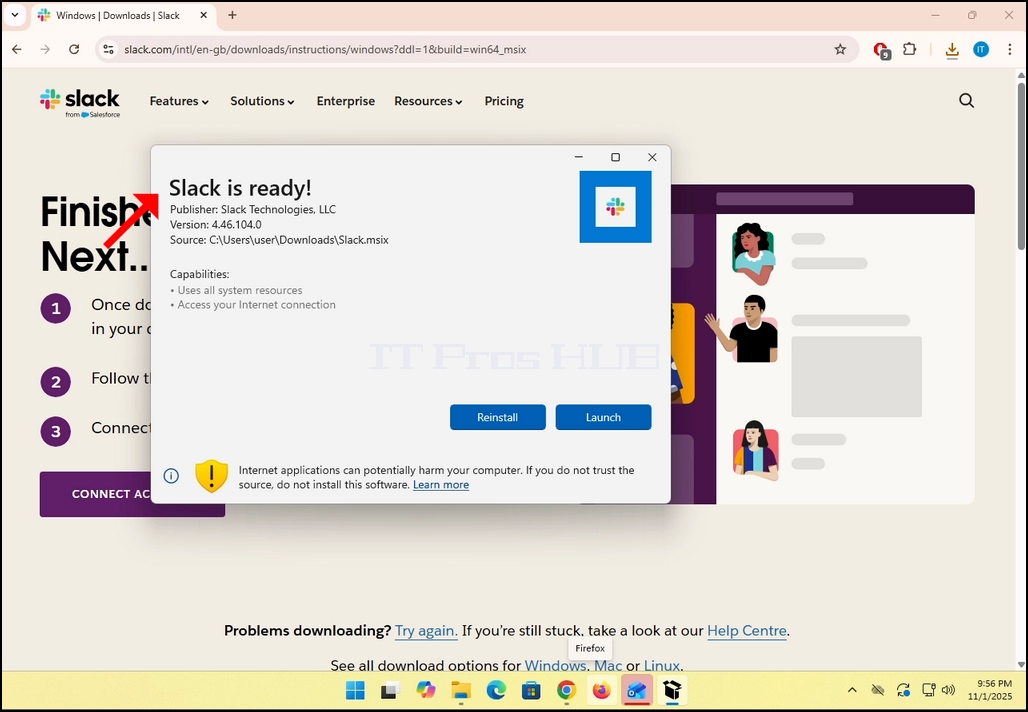
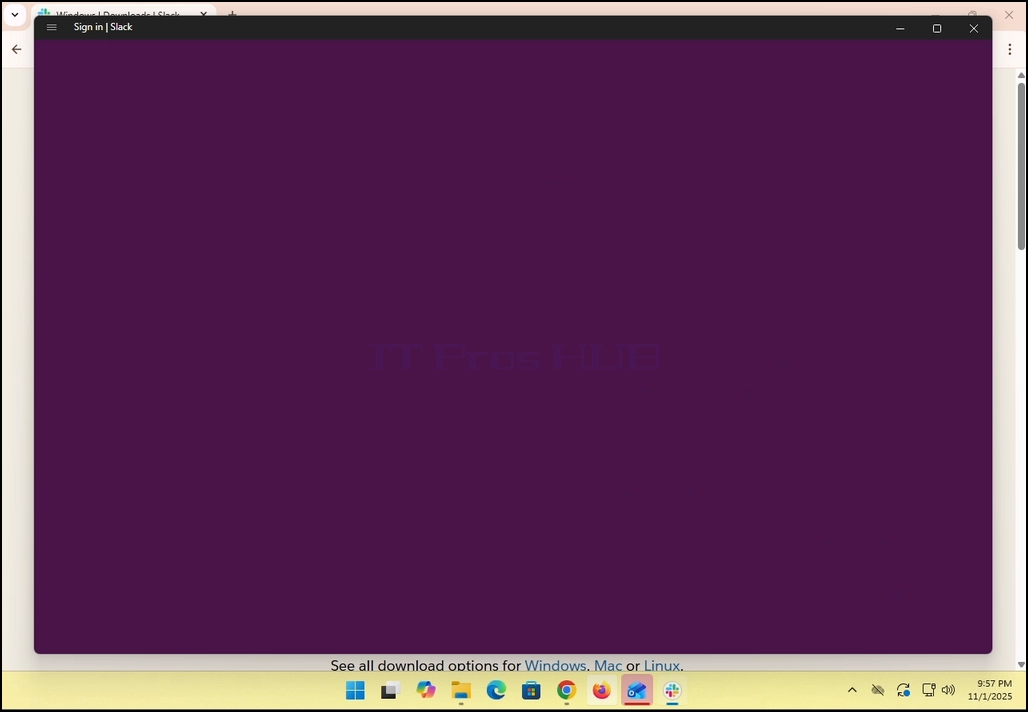
9. Vous avez fini! Slack est maintenant installé dans Windows.
how-to-download-and-install-slack-in-windows-11-27.webphow-to-download-and-install-slack-in-windows-11-28.webp