



- Részletek
- Írta: IT Pro
- Kategória: How to Articles
- Találatok: 5915
1. Go to Windows Desktop
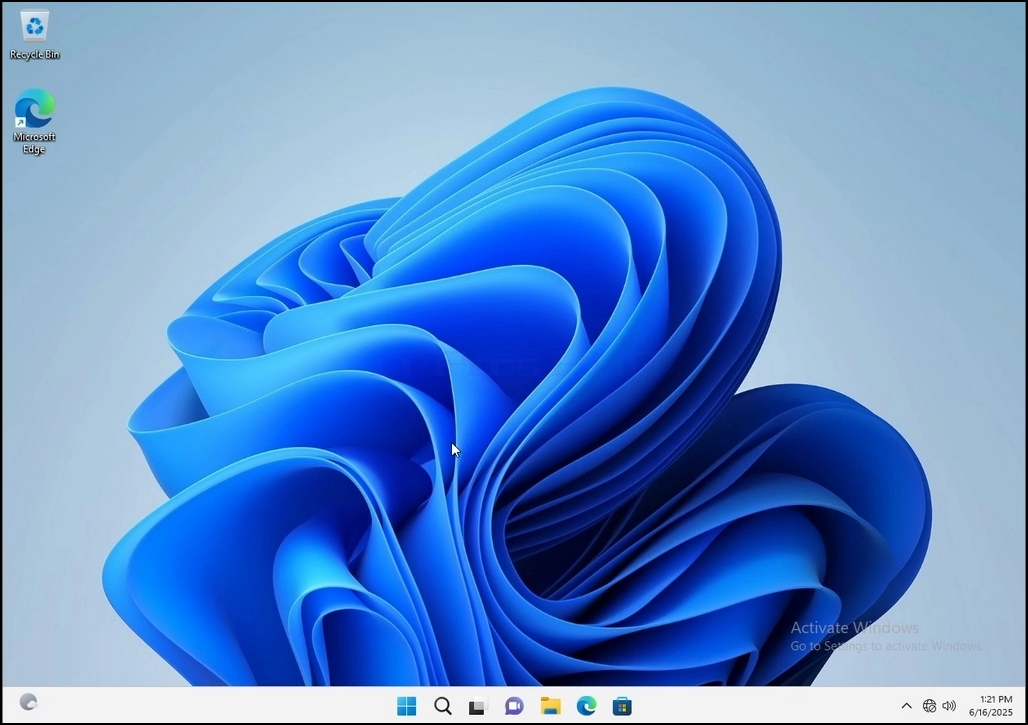
2. Click Start

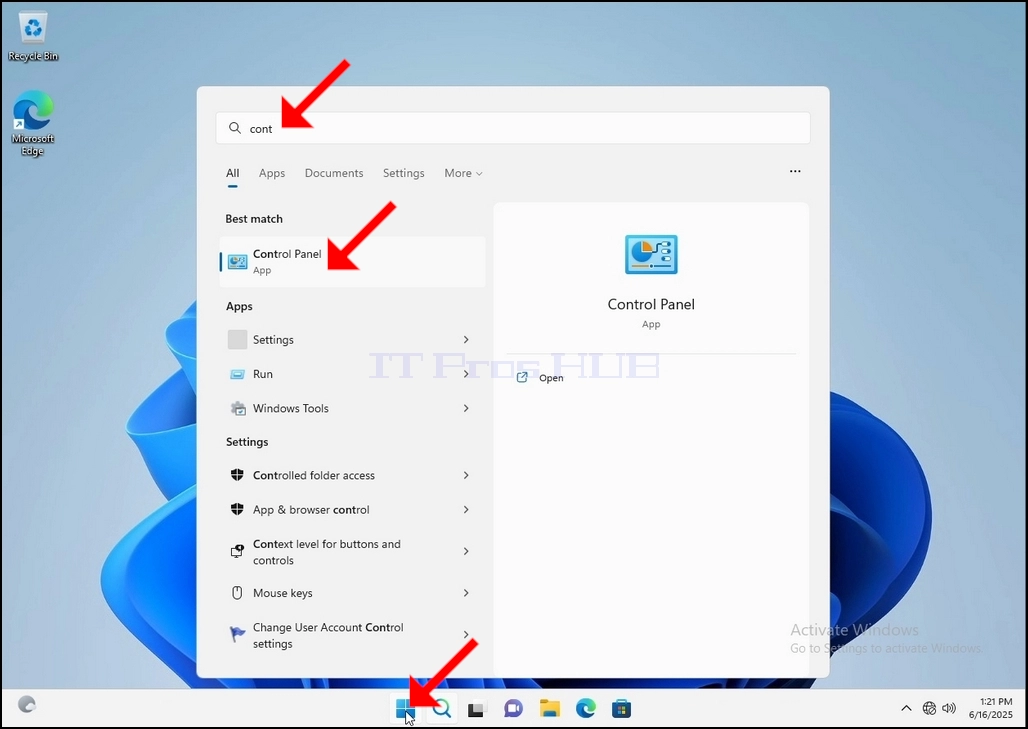
Once it finds it, click it and wait for the Control Panel window to appear.
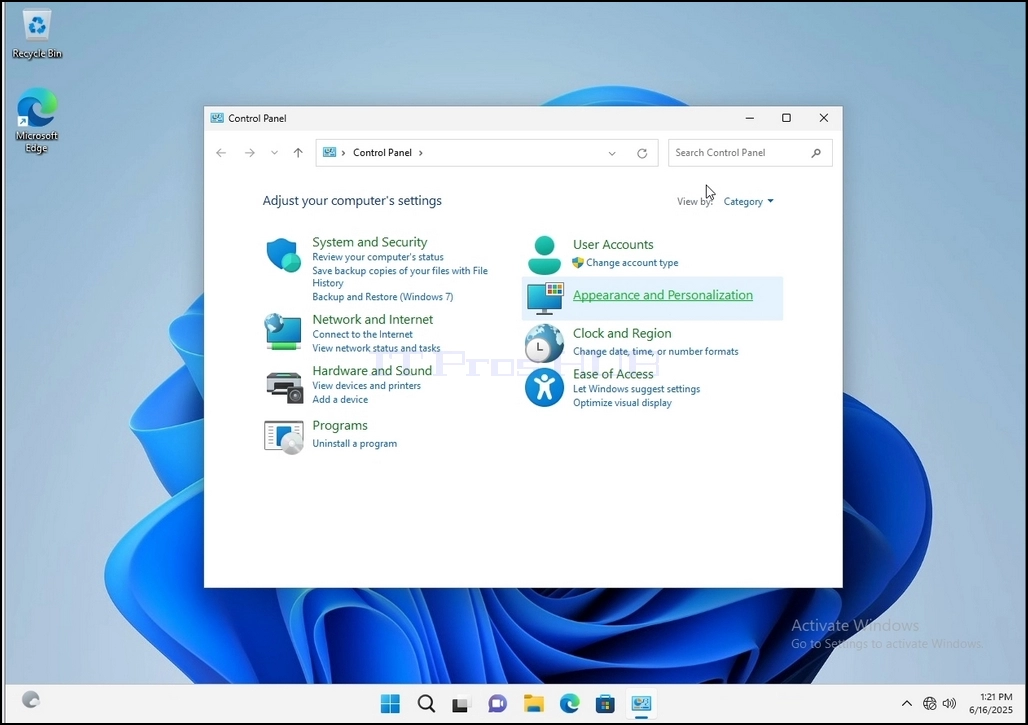
4. Once the Control Panel window is open, enlarge it by clicking the enlarging icon on the top right corner of that window.
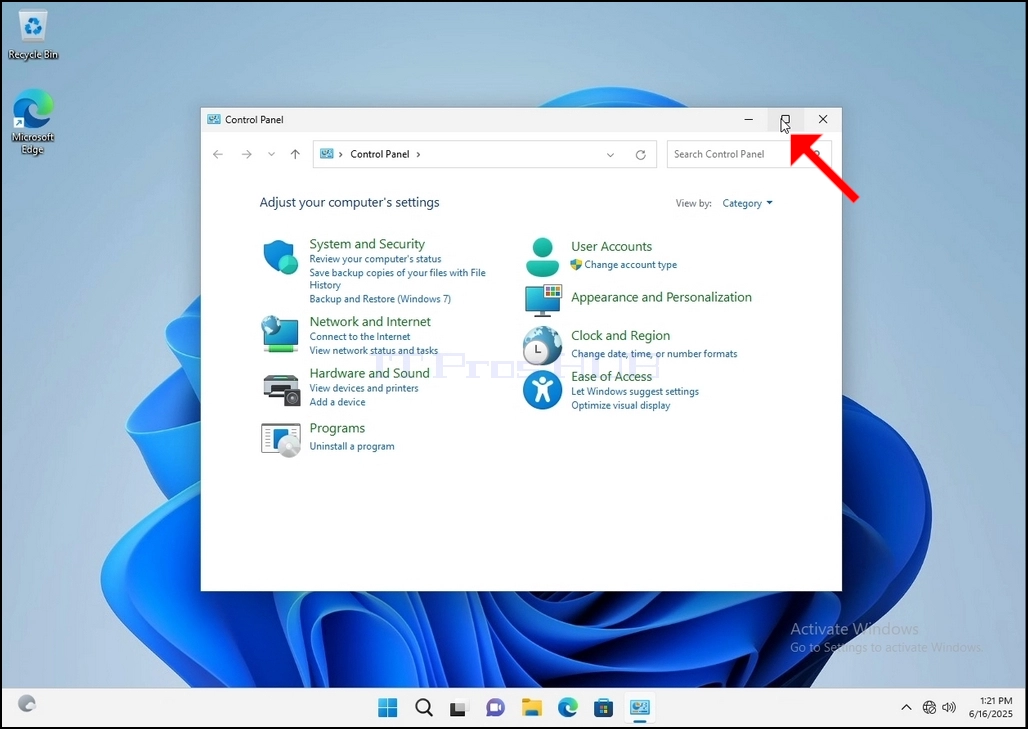
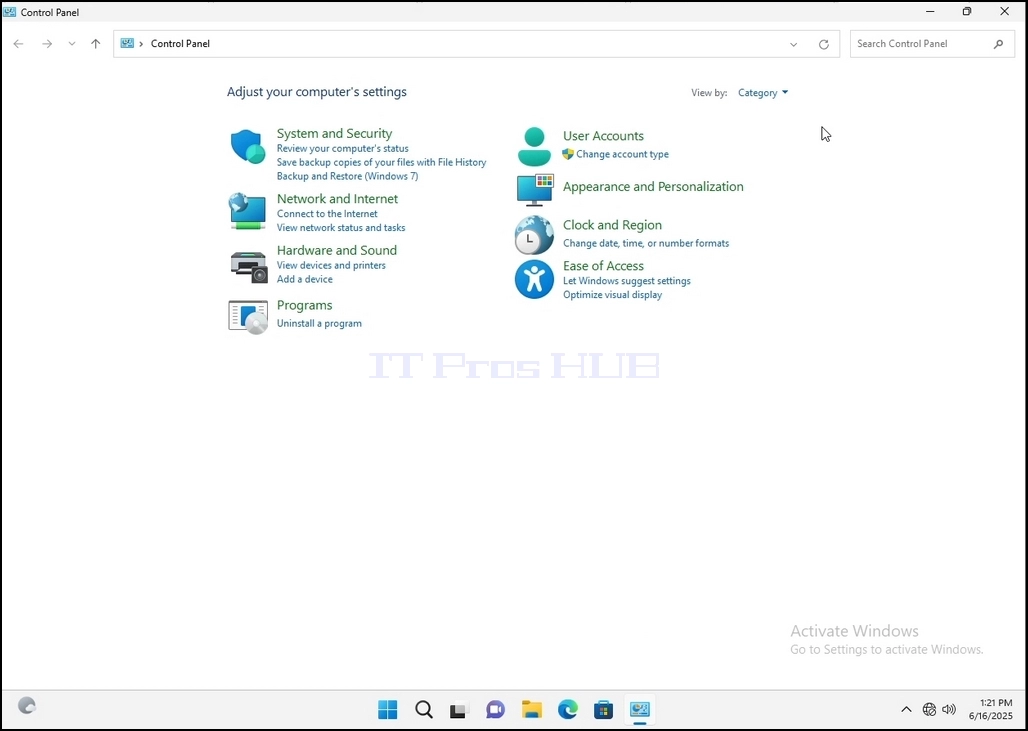
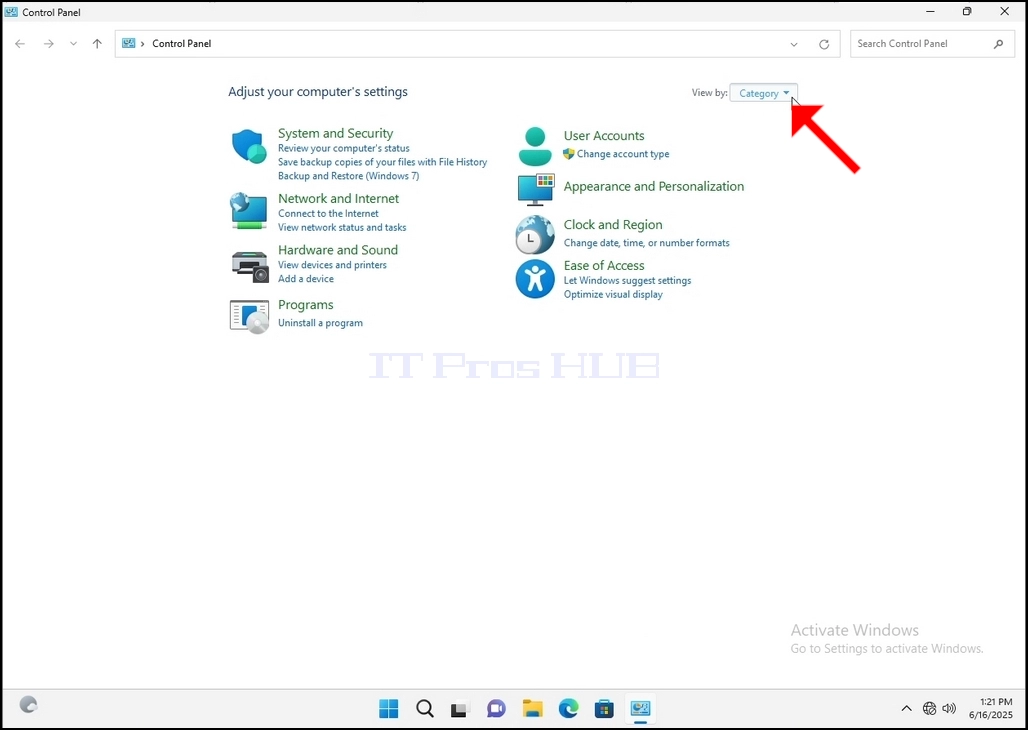
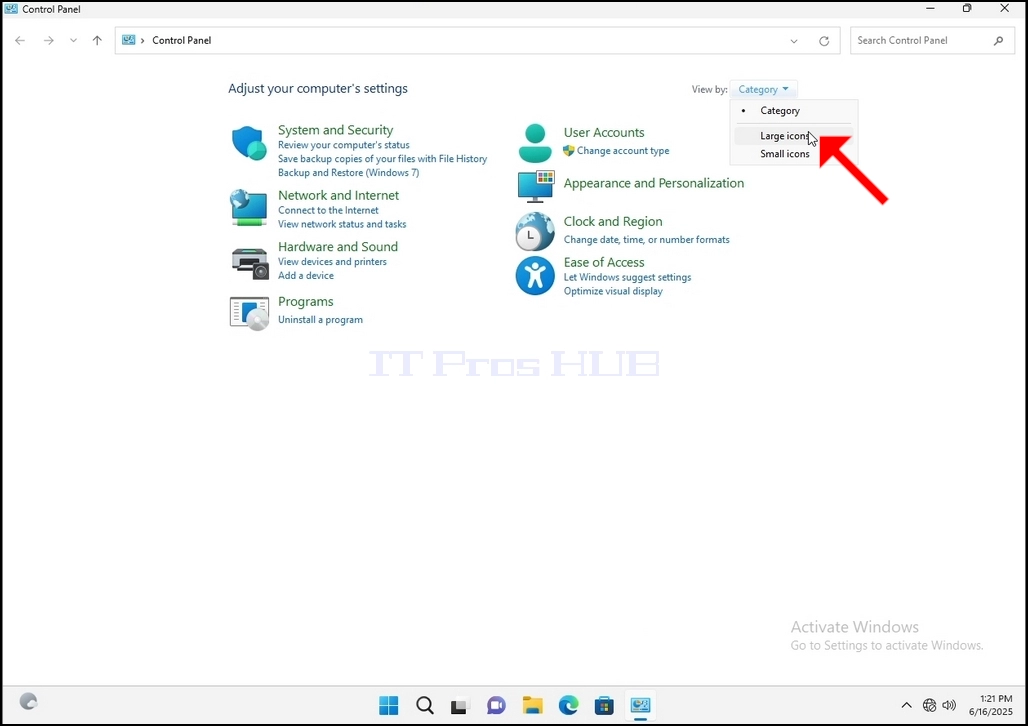
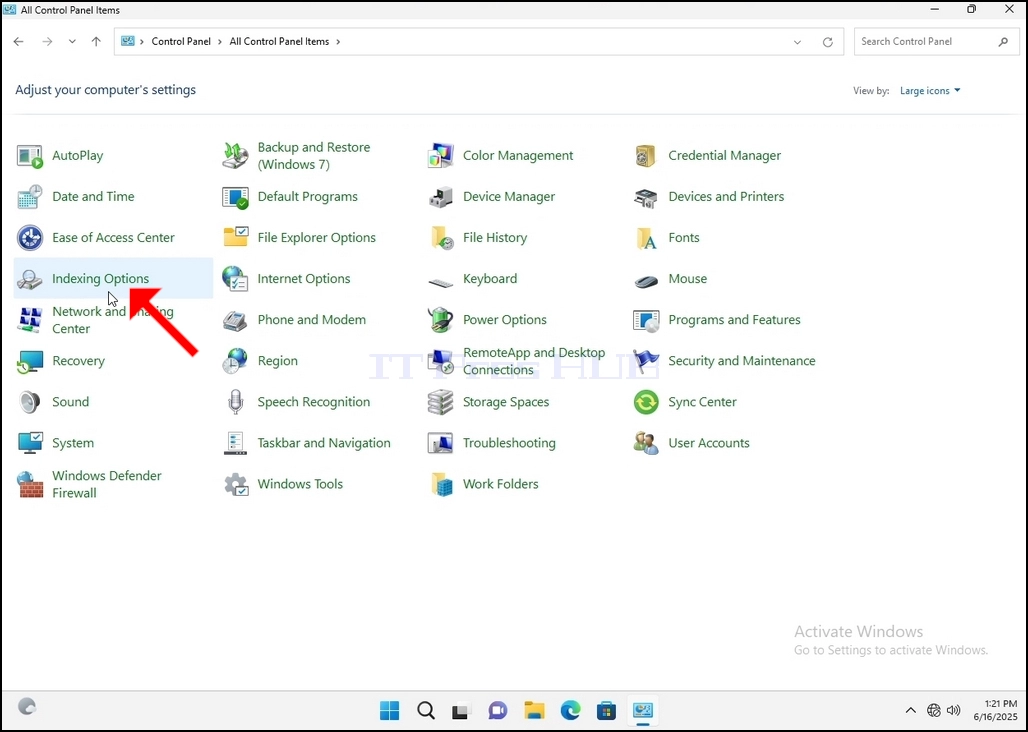
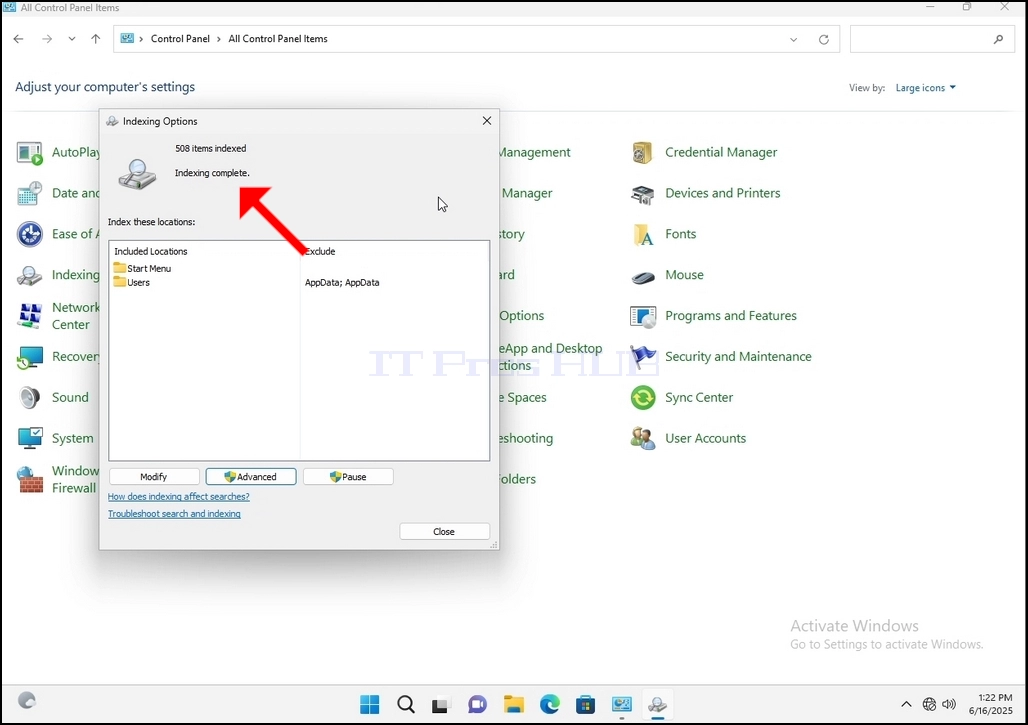
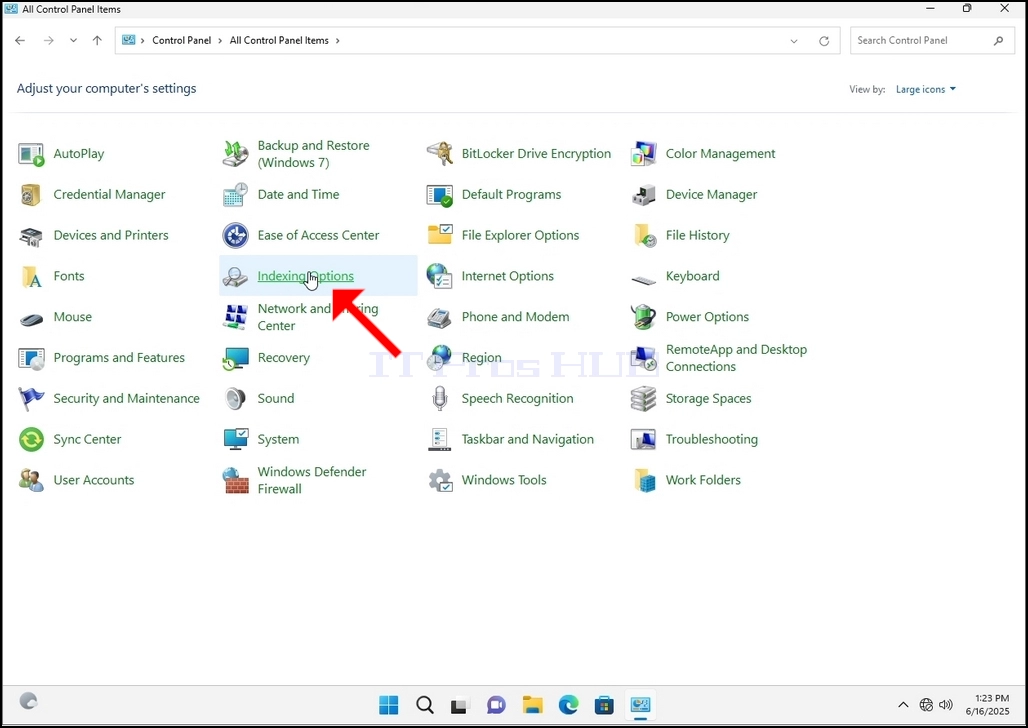
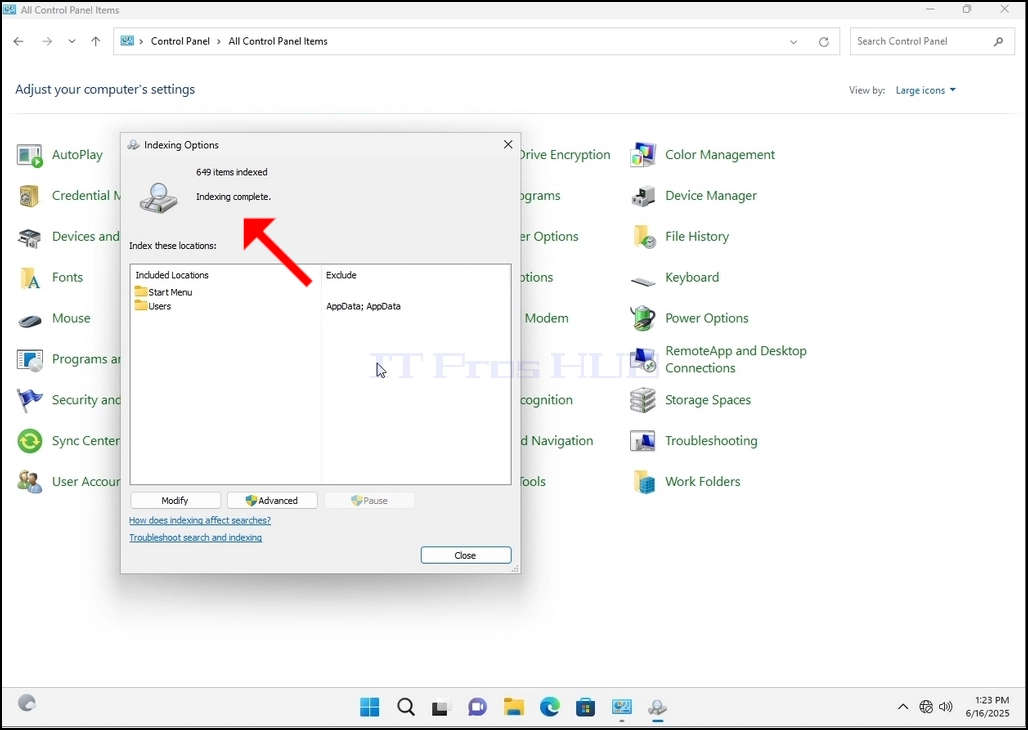
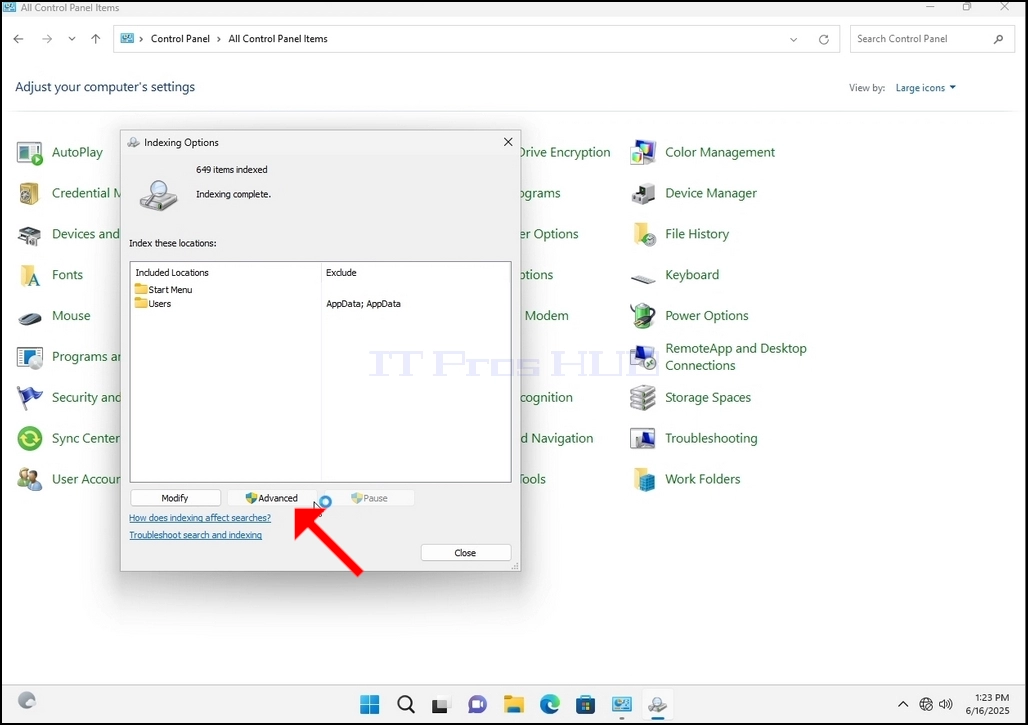
6. Look for the Indexing Options icon and click it. Wait for the Indexing Options window to appear.
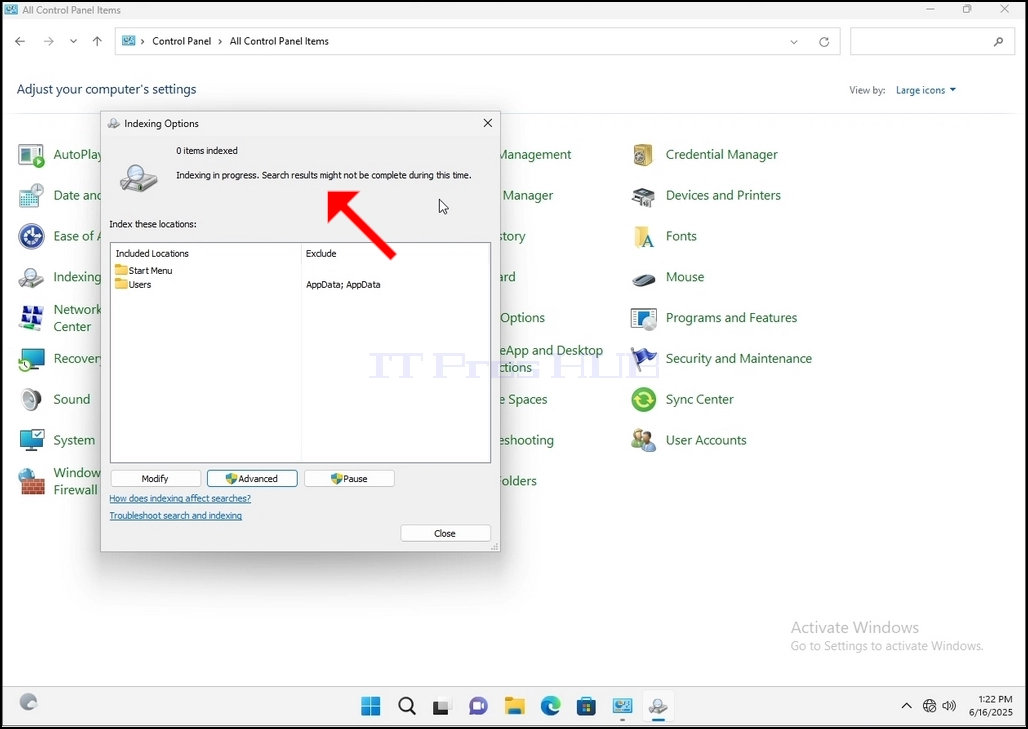
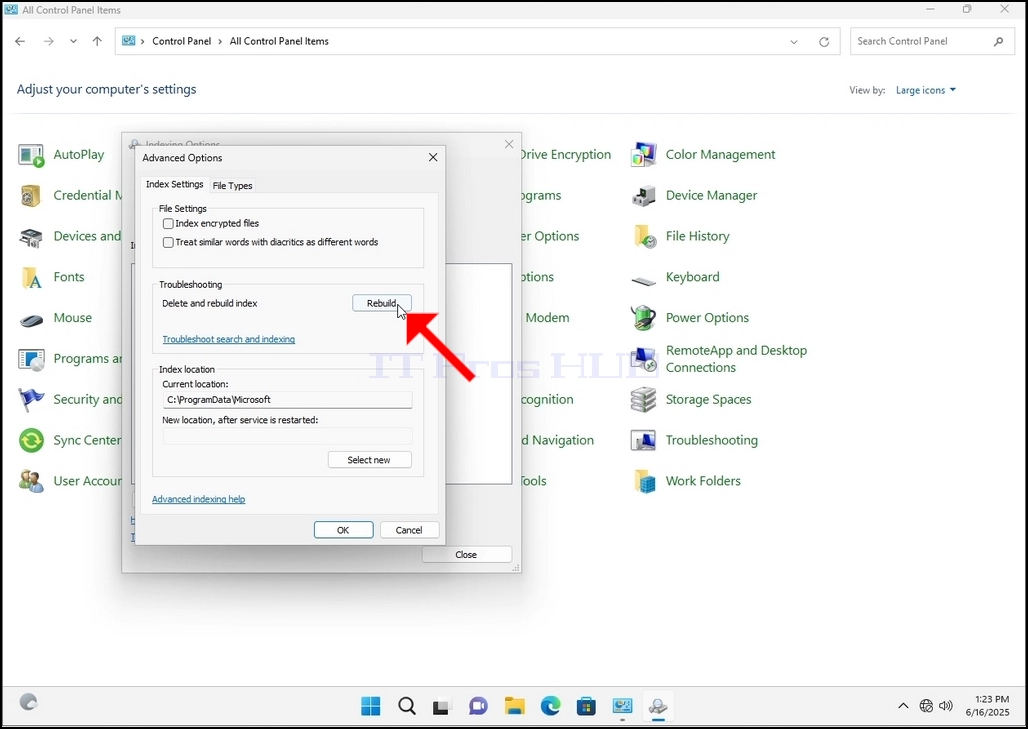
9. After clicking OK in the confirmation box, Windows will start rebuilding its index. It might take some time for the actual process to start, Wait patiently a few seconds to a few minutes. The moment the process starts, the "Indexing Complete" sentence will be replaced with "Indexing in progress. Search results might not be complete during this time."
In addition, the number of items indexed will be reset to 0 for a moment and then start to increase.
Note that All of the windows that are related to the Indexing process can now be closed and the rebuilding process would still be running the background.
Note that the Indexing process' speed might be reduced due to user activity on the computer. The more intense the activity the less the Indexing speed would be.
10. To check if the indexing process is done, go back to the Indexing Options through Control Panel as explained in the previous stages. If the process is complete, you would see the "Indexing Complete" sentence appears again.
Since Windows does not notify the user once this process is done, there is indeed a need to perform the latter mentioned. Depending on the number of files, folders, drivers and partitions marked for indexing, this process could take between a few minutes to a few hours.
- Részletek
- Írta: IT Pro
- Kategória: How to Articles
- Találatok: 6304
1. Go to Windows Desktop
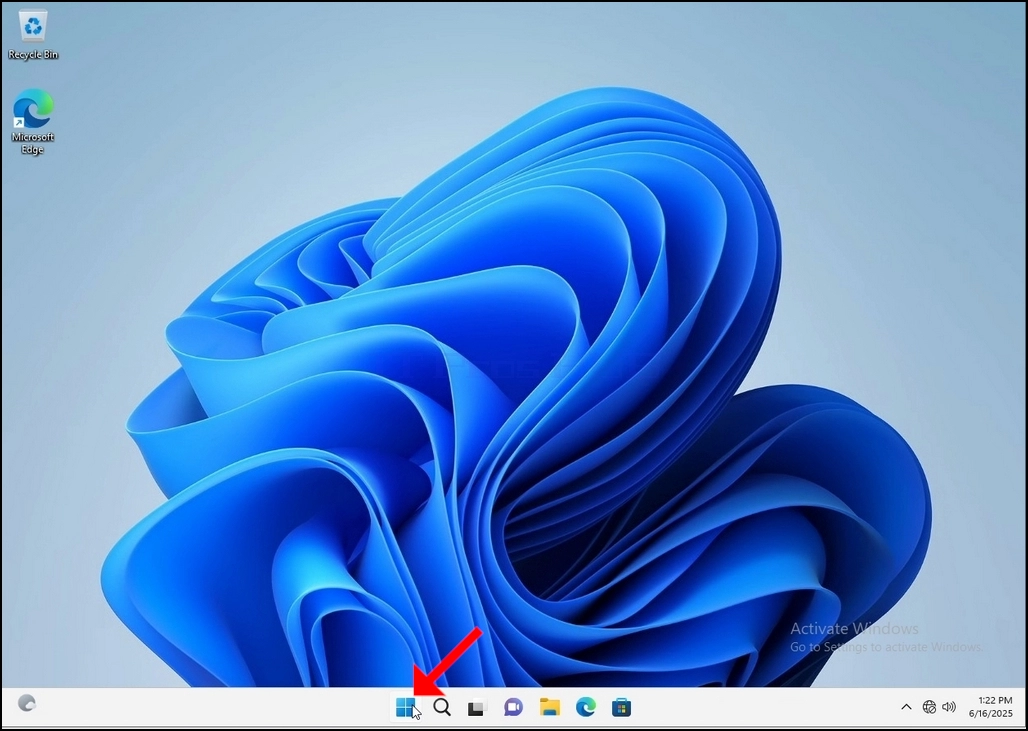
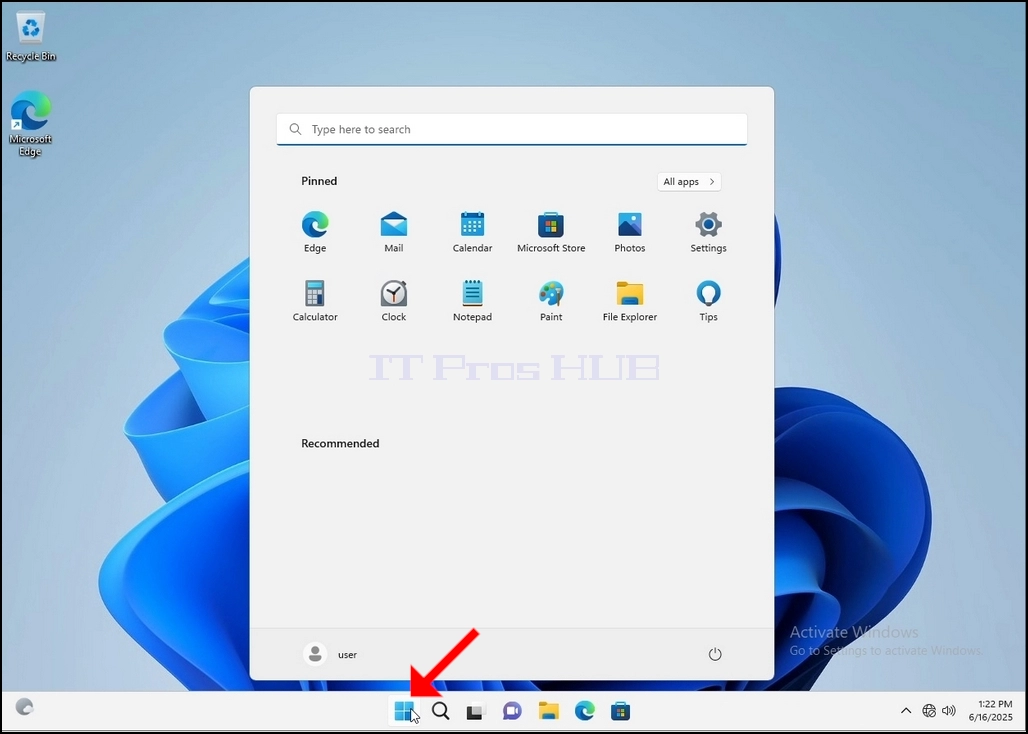
2. Click Start
Once it finds it, click it and wait for the Control Panel window to appear.
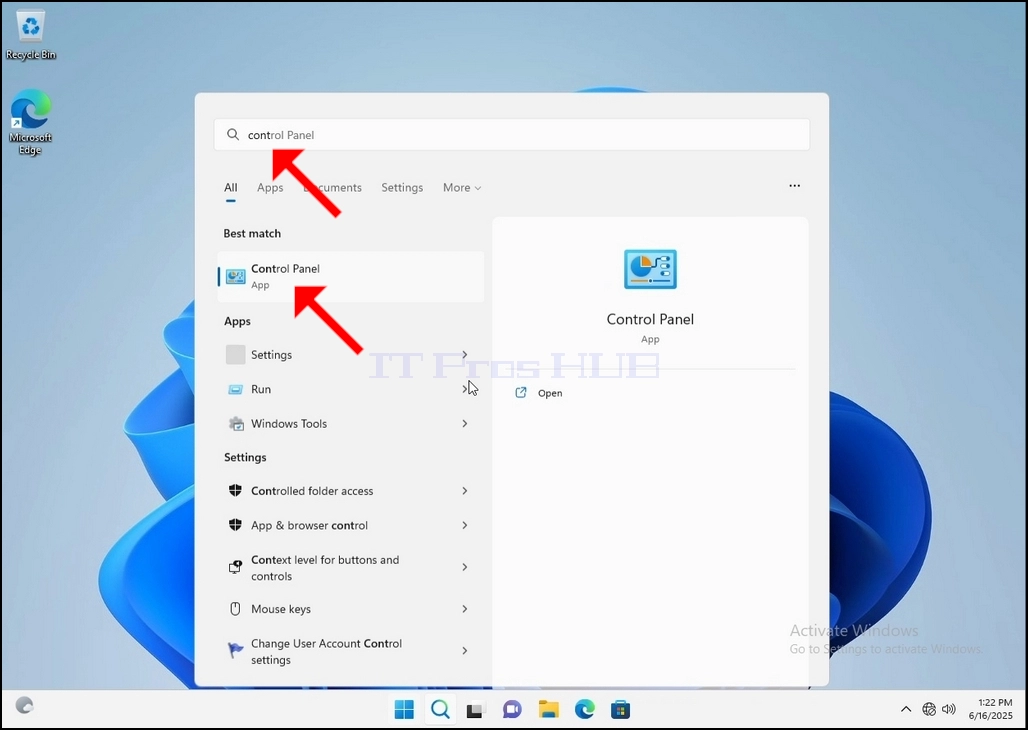
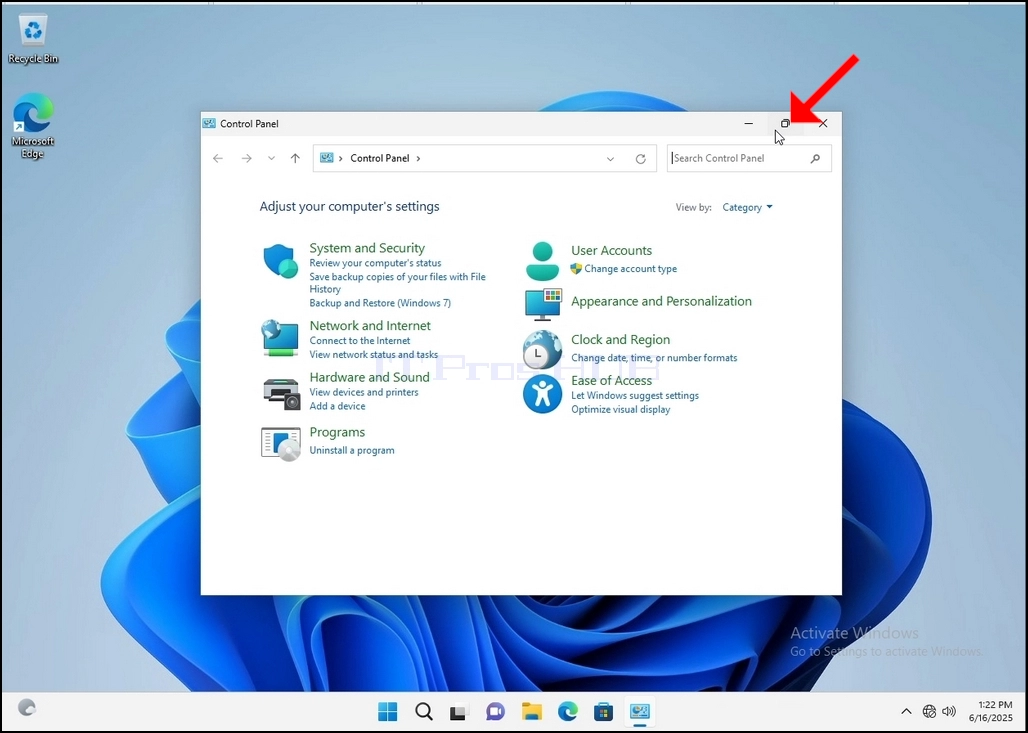
4. Once the Control Panel window is open, enlarge it by clicking the enlarging icon on the top right corner of that window.
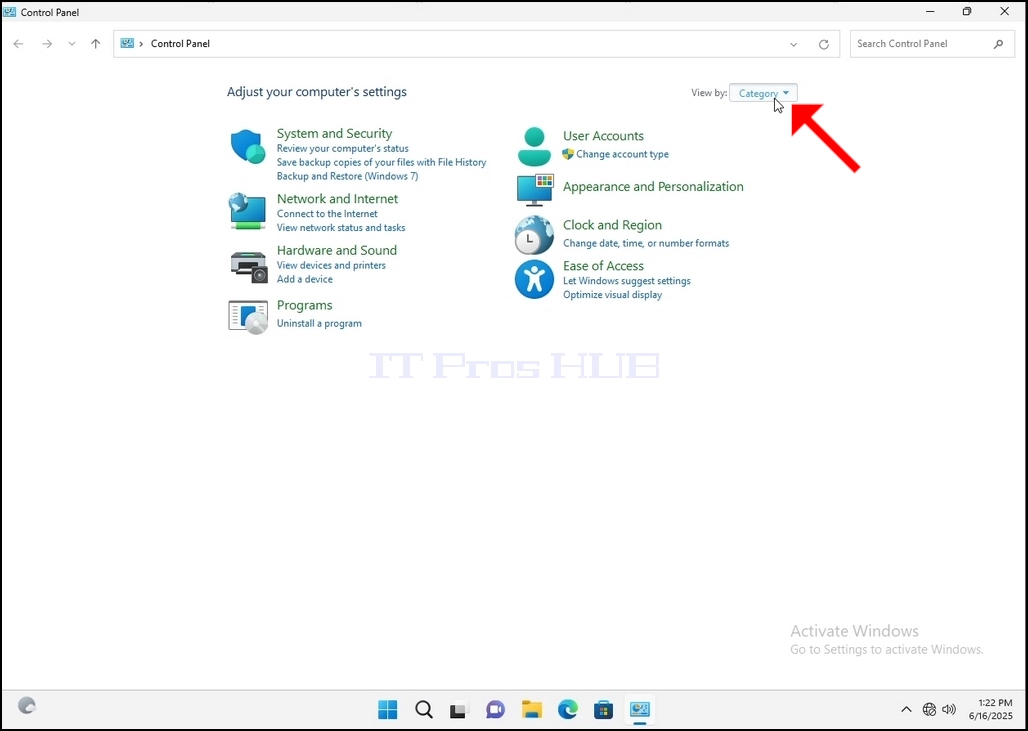
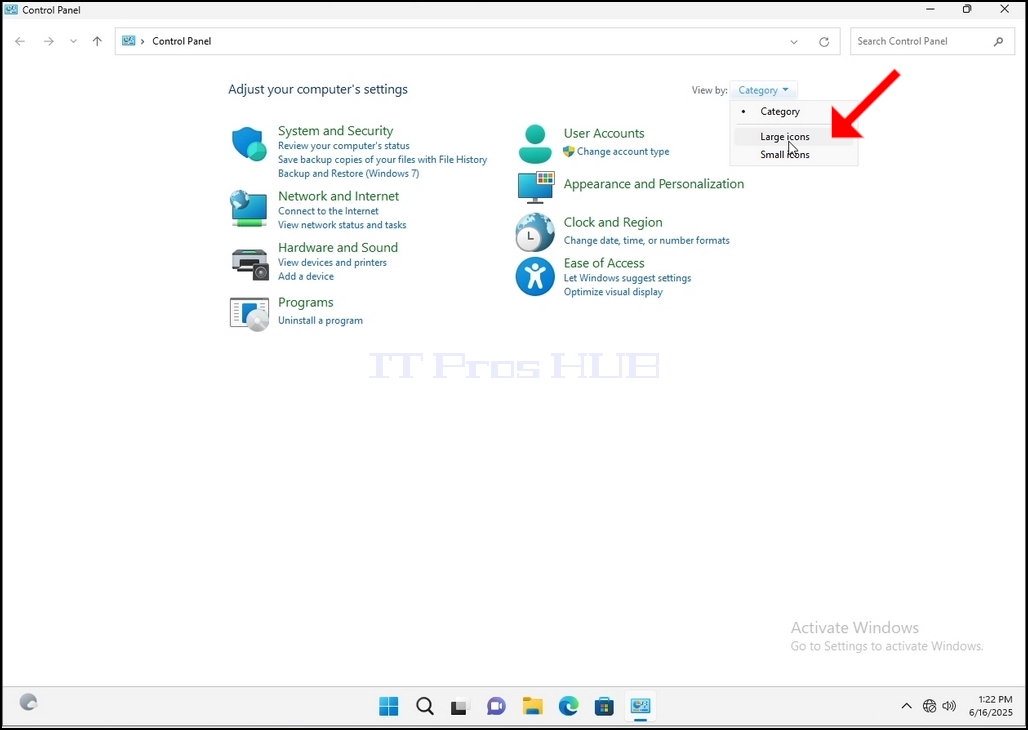
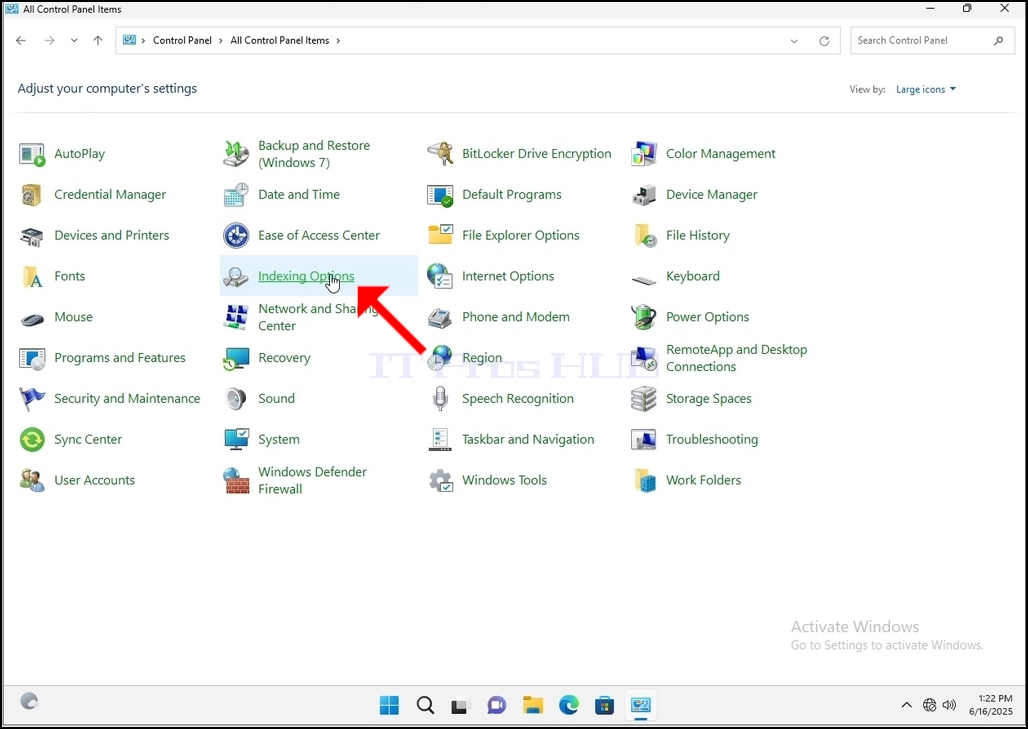
6. Look for the Indexing Options icon and click it. Wait for the Indexing Options window to appear.
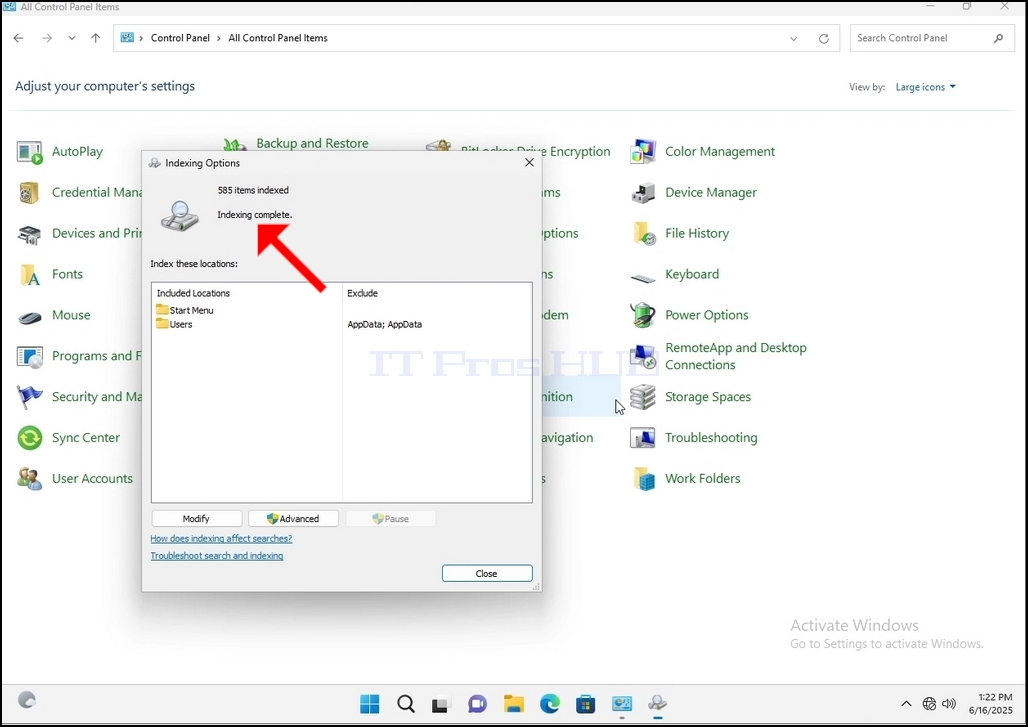
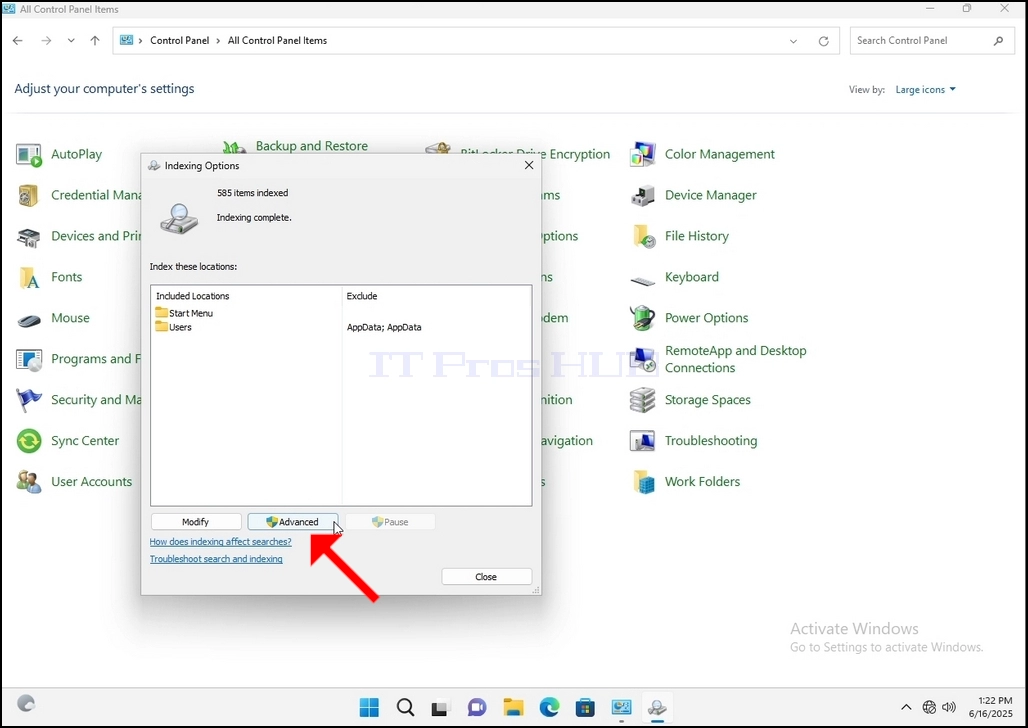
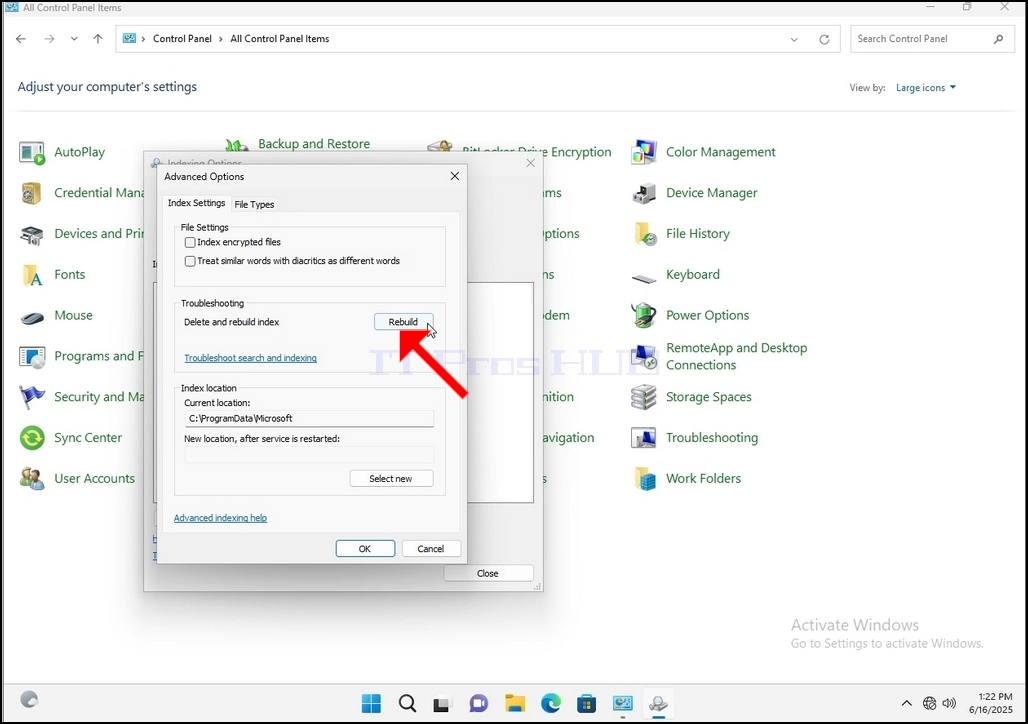
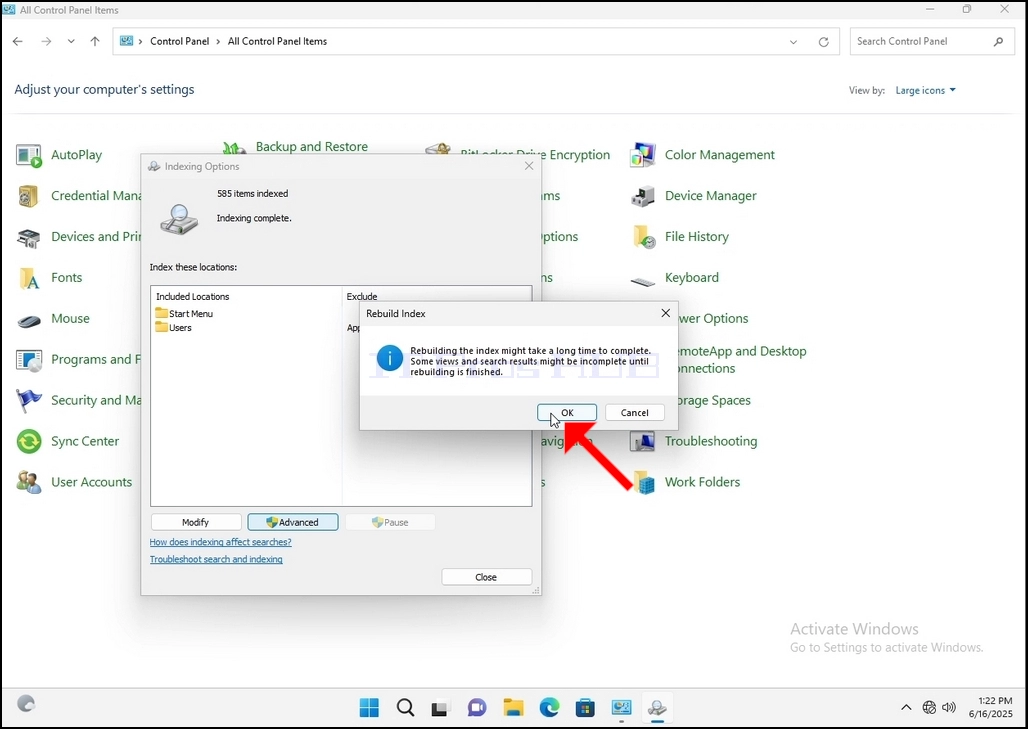
9. After clicking OK in the confirmation box, Windows will start rebuilding its index. It might take some time for the actual process to start, Wait patiently a few seconds to a few minutes. The moment the process starts, the "Indexing Complete" sentence will be replaced with "Indexing in progress. Search results might not be complete during this time."
In addition, the number of items indexed will be reset to 0 for a moment and then start to increase.
Note that All of the windows that are related to the Indexing process can now be closed and the rebuilding process would still be running the background.
Note that the Indexing process' speed might be reduced due to user activity on the computer. The more intense the activity the less the Indexing speed would be.
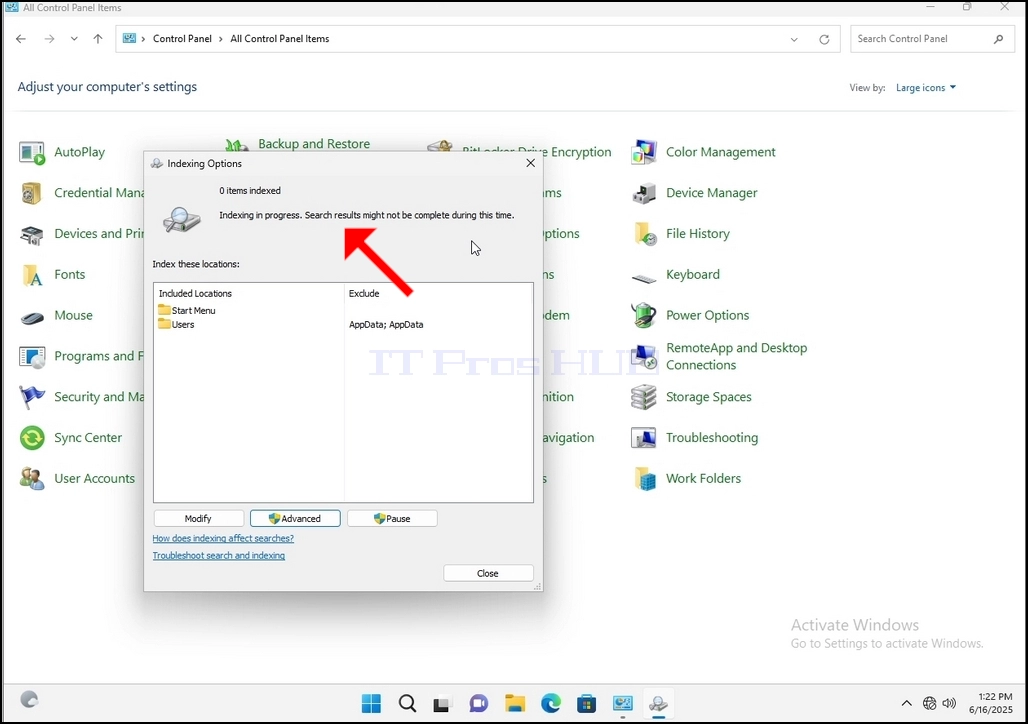
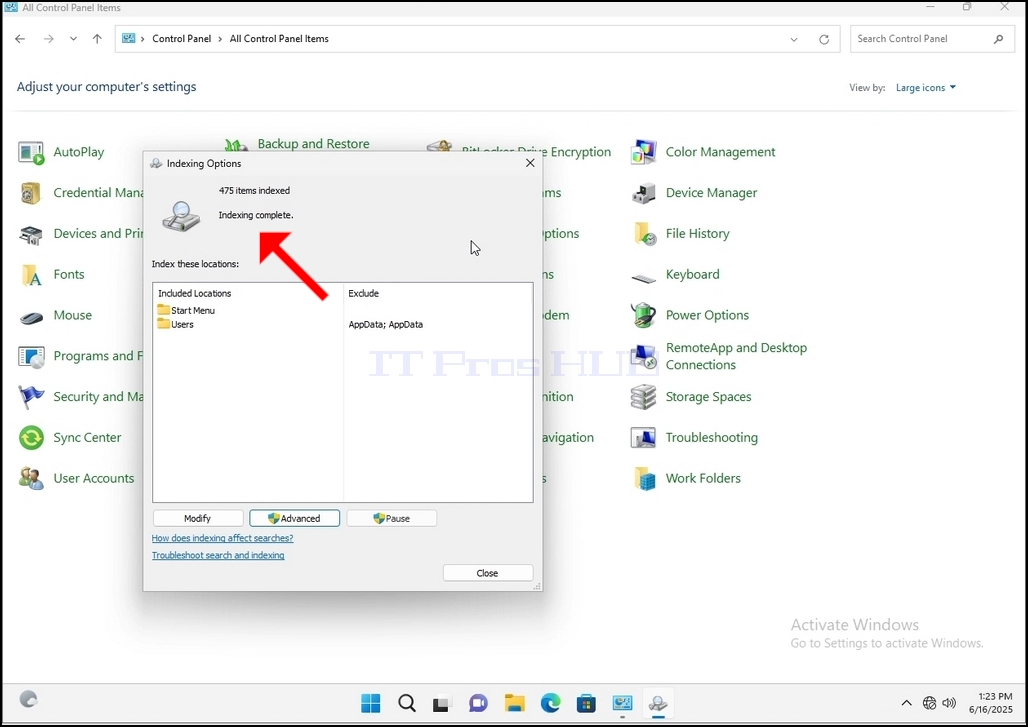
10. To check if the indexing process is done, go back to the Indexing Options through Control Panel as explained in the previous stages. If the process is complete, you would see the "Indexing Complete" sentence appears again.
Since Windows does not notify the user once this process is done, there is indeed a need to perform the latter mentioned. Depending on the number of files, folders, drivers and partitions marked for indexing, this process could take between a few minutes to a few hours.
- Részletek
- Írta: IT Pro
- Kategória: How to Articles
- Találatok: 6242
1. Go to Windows Desktop
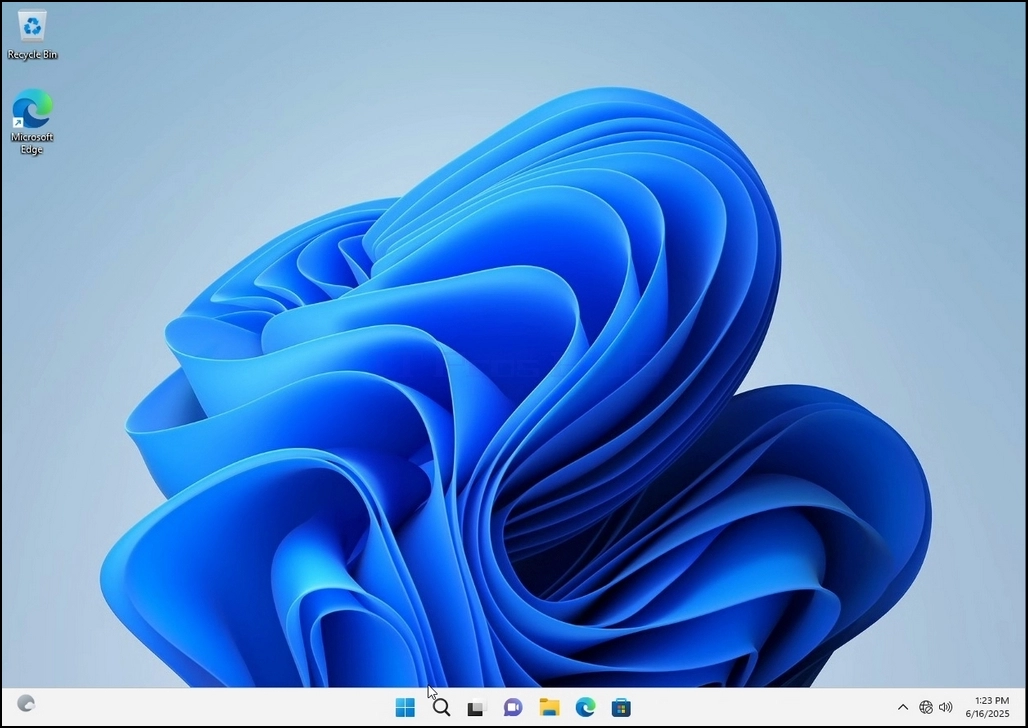
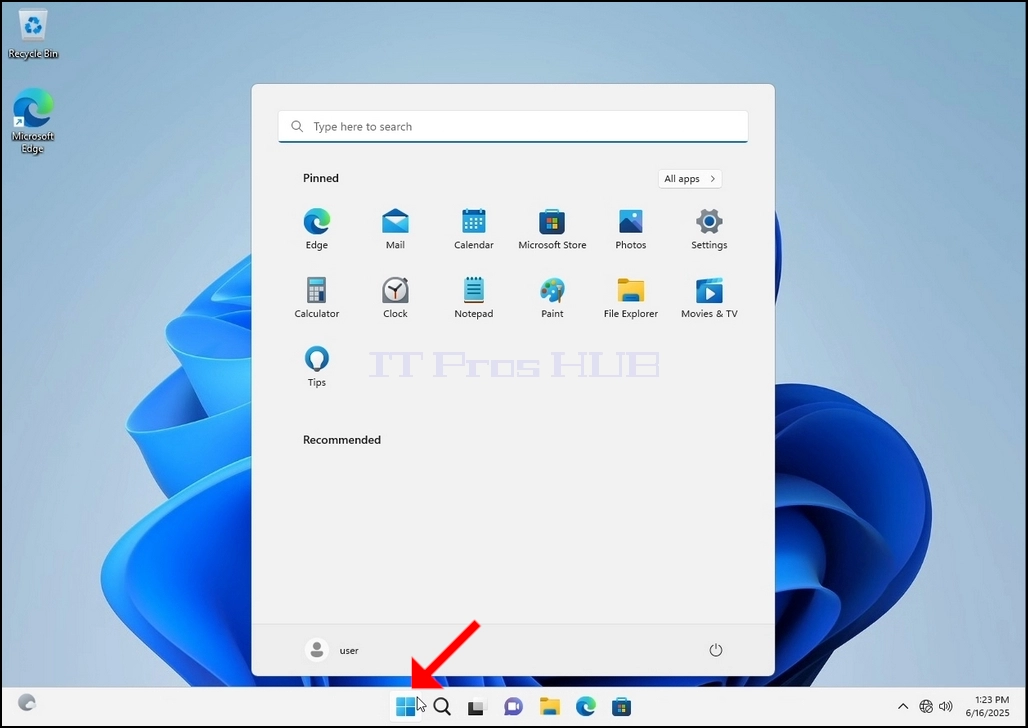
2. Click Start
Once it finds it, click it and wait for the Control Panel window to appear.
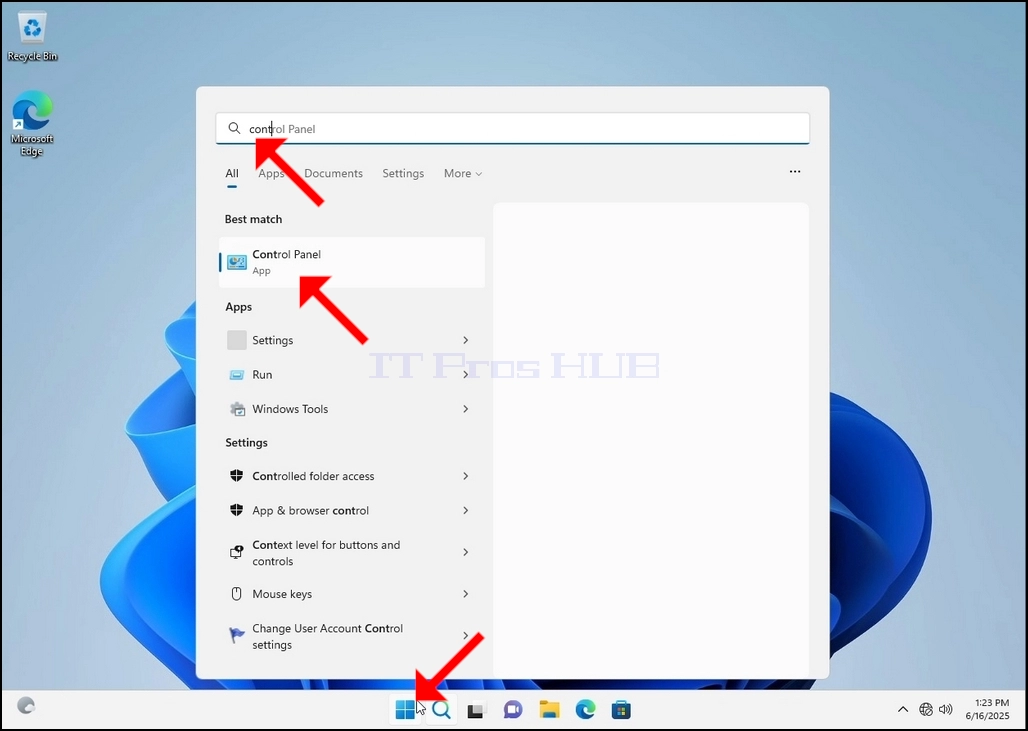
4. Once the Control Panel window is open, enlarge it by clicking the enlarging icon on the top right corner of that window.
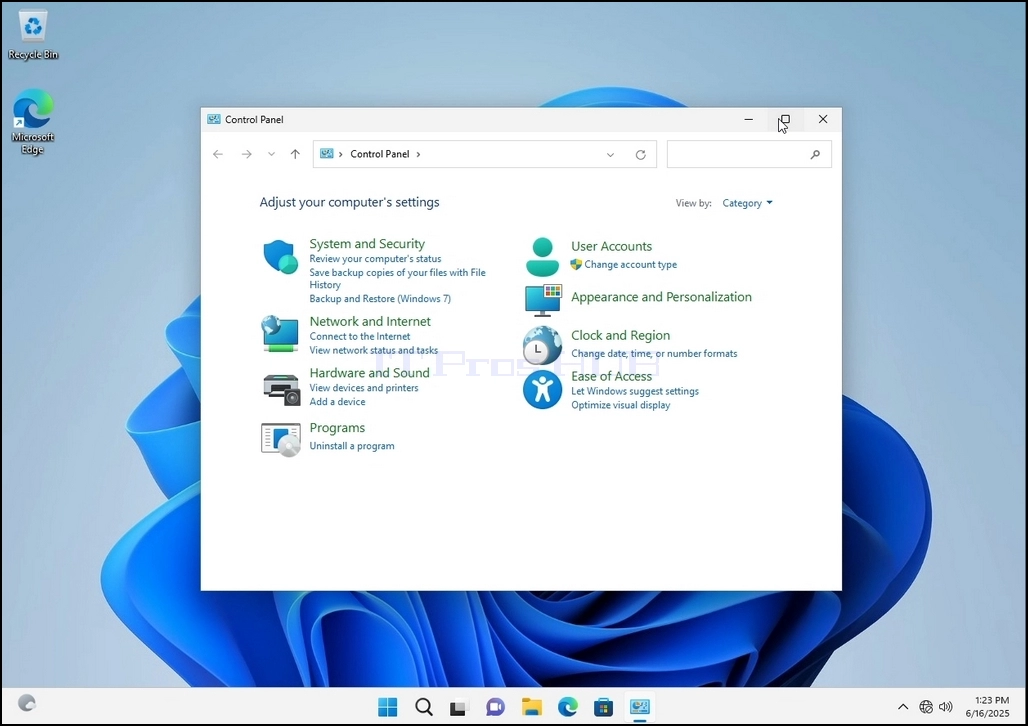
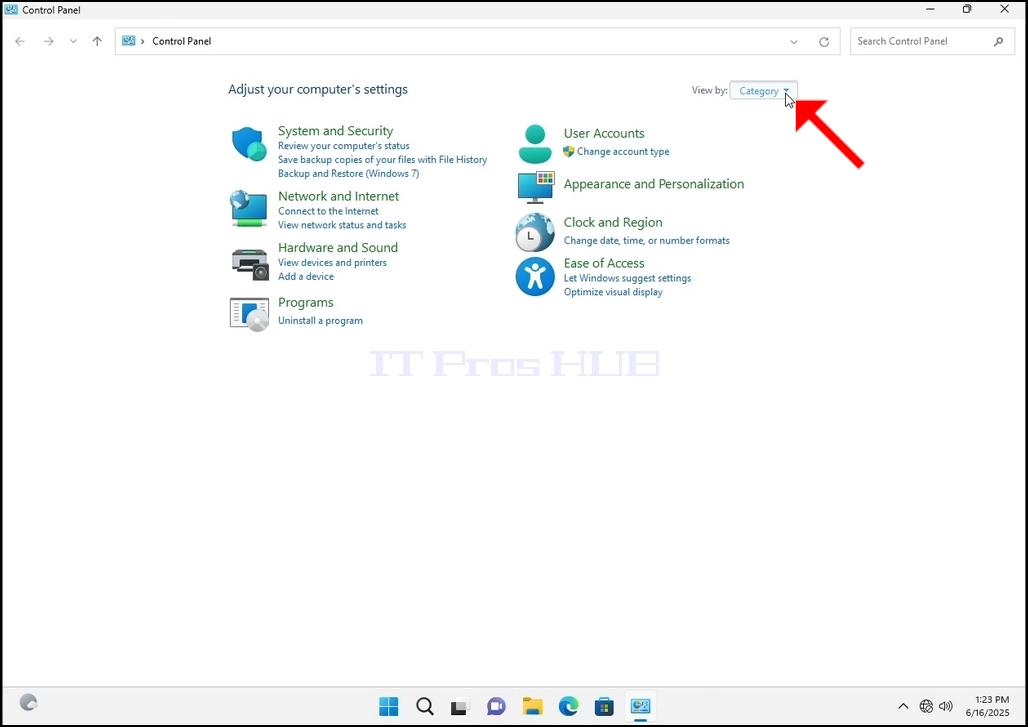
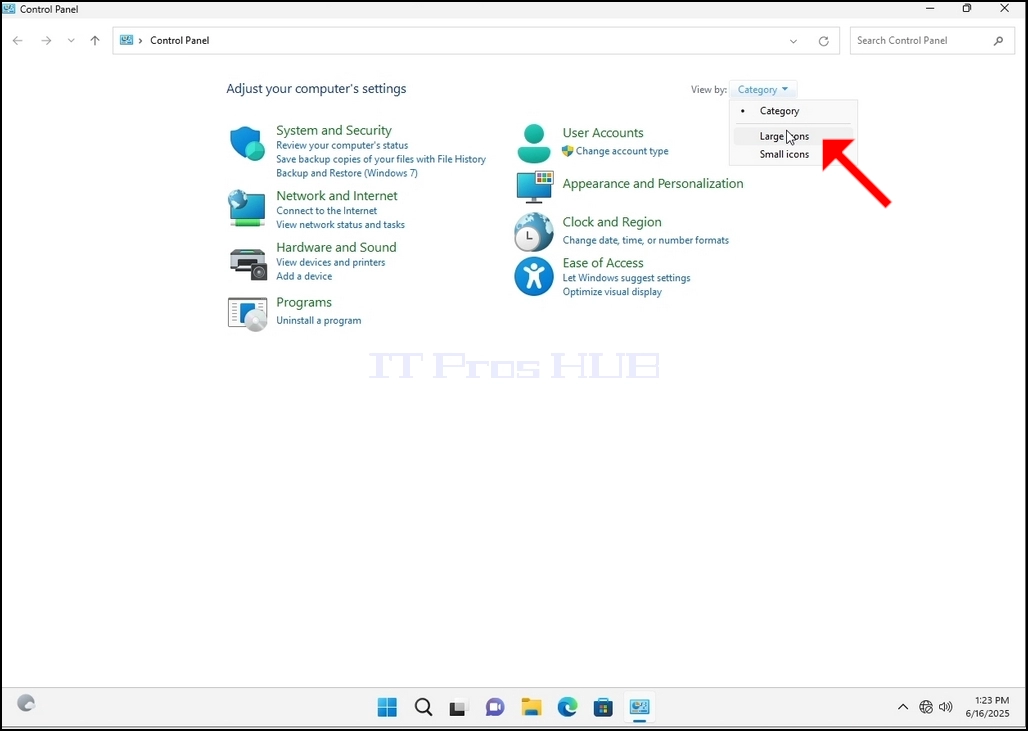
6. Look for the Indexing Options icon and click it. Wait for the Indexing Options window to appear.
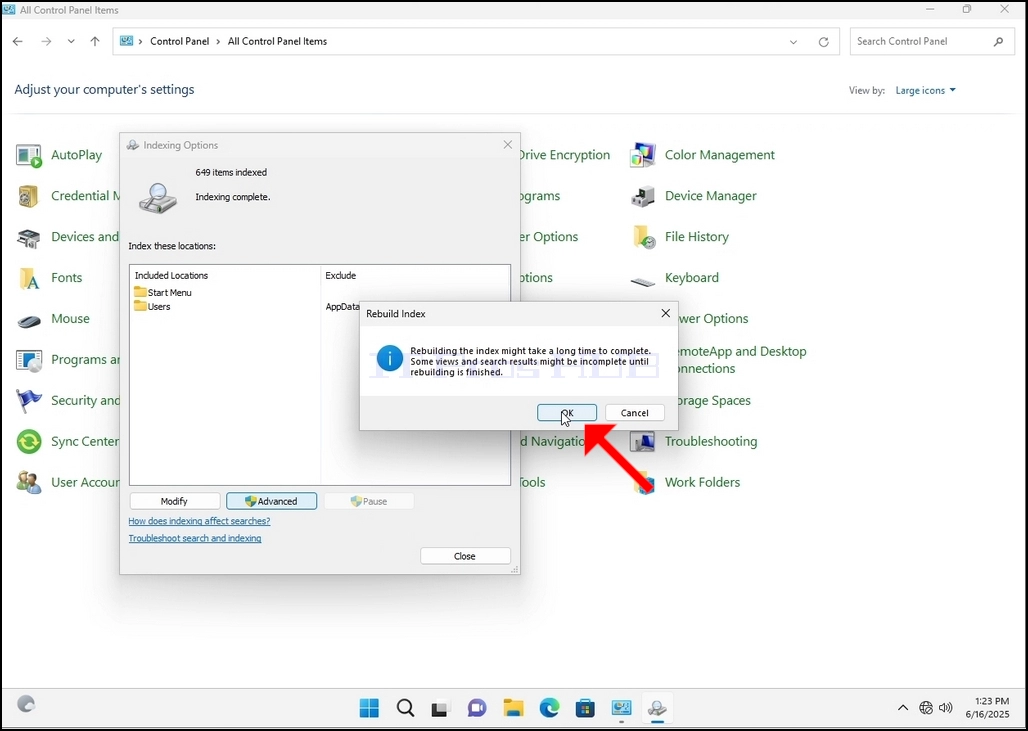
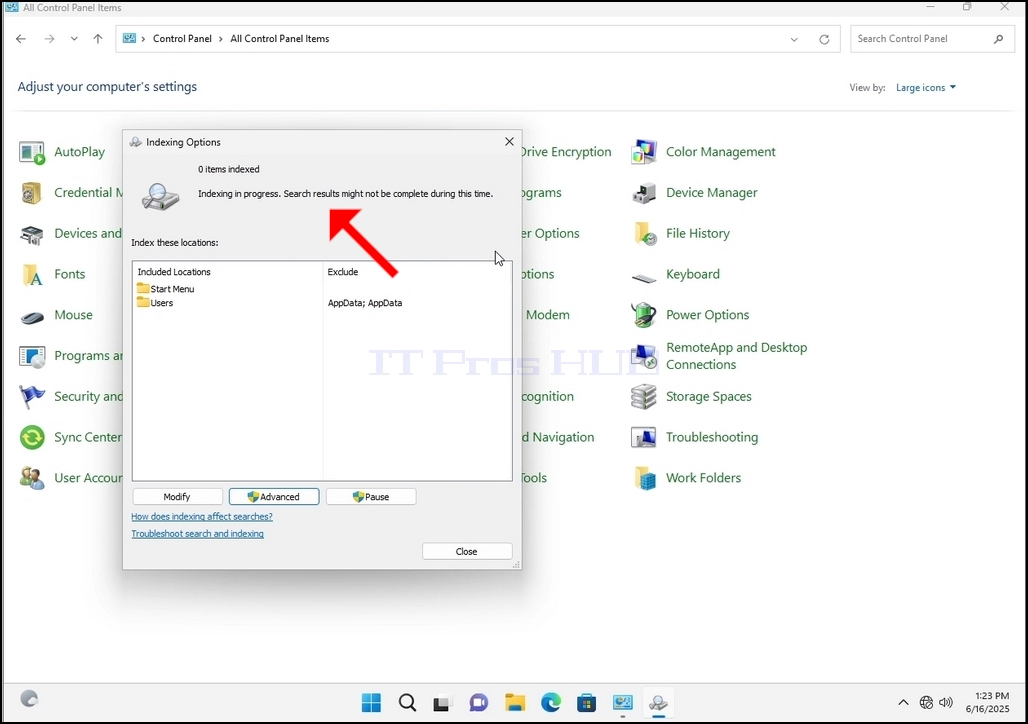
9. After clicking OK in the confirmation box, Windows will start rebuilding its index. It might take some time for the actual process to start, Wait patiently a few seconds to a few minutes. The moment the process starts, the "Indexing Complete" sentence will be replaced with "Indexing in progress. Search results might not be complete during this time."
In addition, the number of items indexed will be reset to 0 for a moment and then start to increase.
Note that All of the windows that are related to the Indexing process can now be closed and the rebuilding process would still be running the background.
Note that the Indexing process' speed might be reduced due to user activity on the computer. The more intense the activity the less the Indexing speed would be.
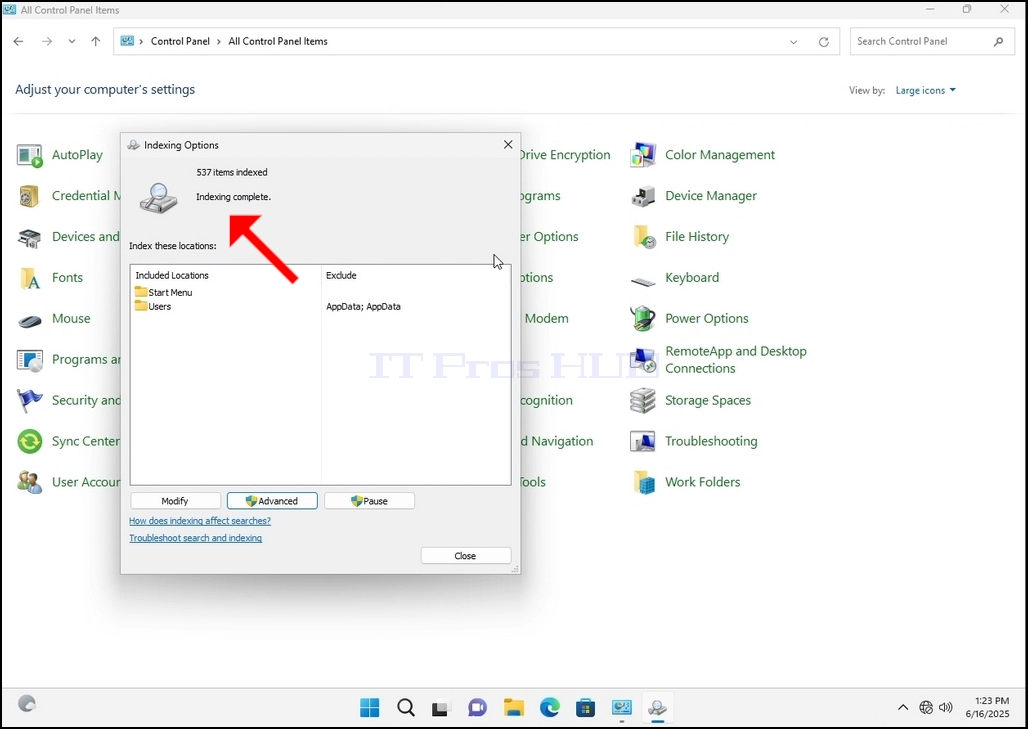
10. To check if the indexing process is done, go back to the Indexing Options through Control Panel as explained in the previous stages. If the process is complete, you would see the "Indexing Complete" sentence appears again.
Since Windows does not notify the user once this process is done, there is indeed a need to perform the latter mentioned. Depending on the number of files, folders, drivers and partitions marked for indexing, this process could take between a few minutes to a few hours.
- Részletek
- Írta: IT Pro
- Kategória: How to Articles
- Találatok: 5227
1. Go to Windows Desktop
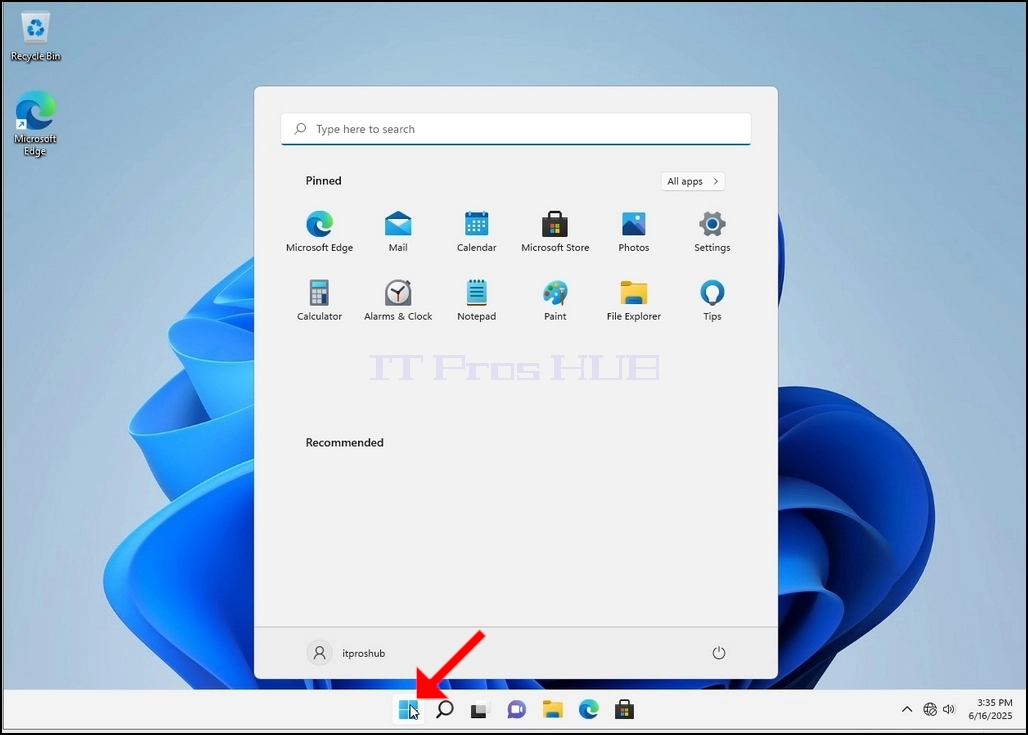
2. Click Start
Once it finds it, click it and wait for the Control Panel window to appear.
4. Once the Control Panel window is open, enlarge it by clicking the enlarging icon on the top right corner of that window.
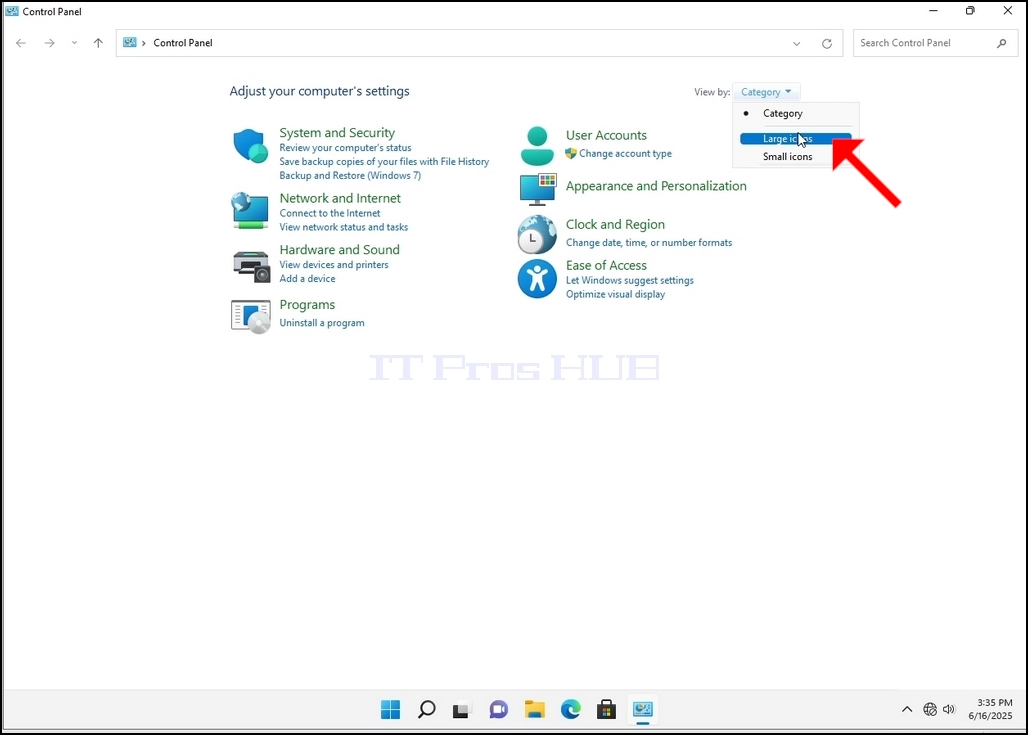
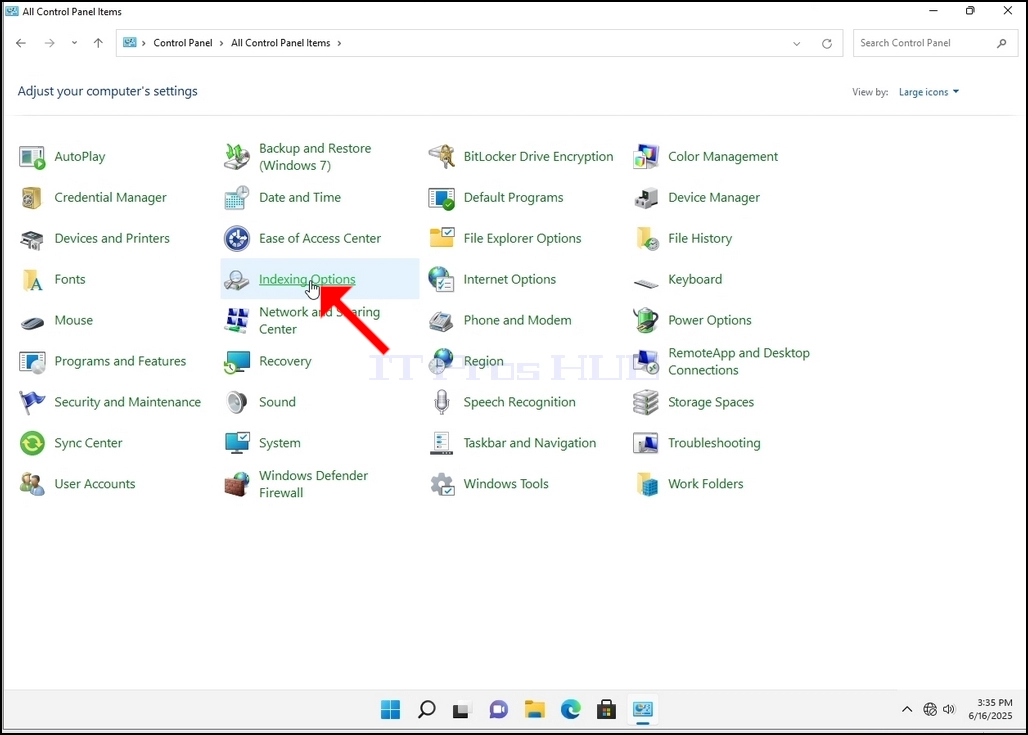
6. Look for the Indexing Options icon and click it. Wait for the Indexing Options window to appear.
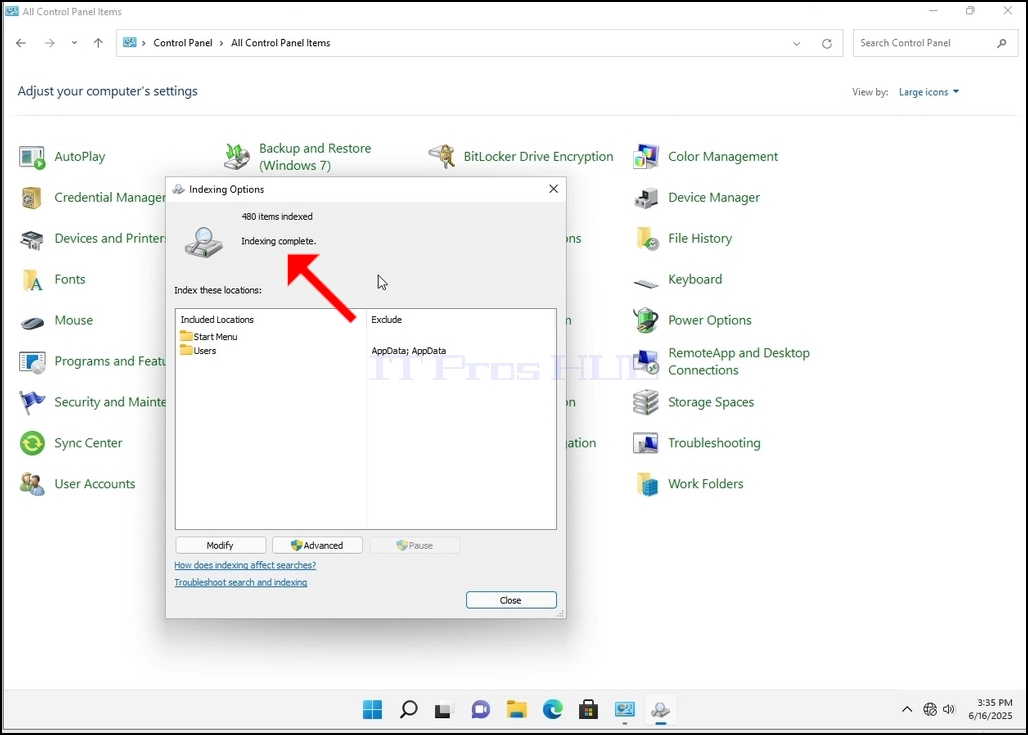
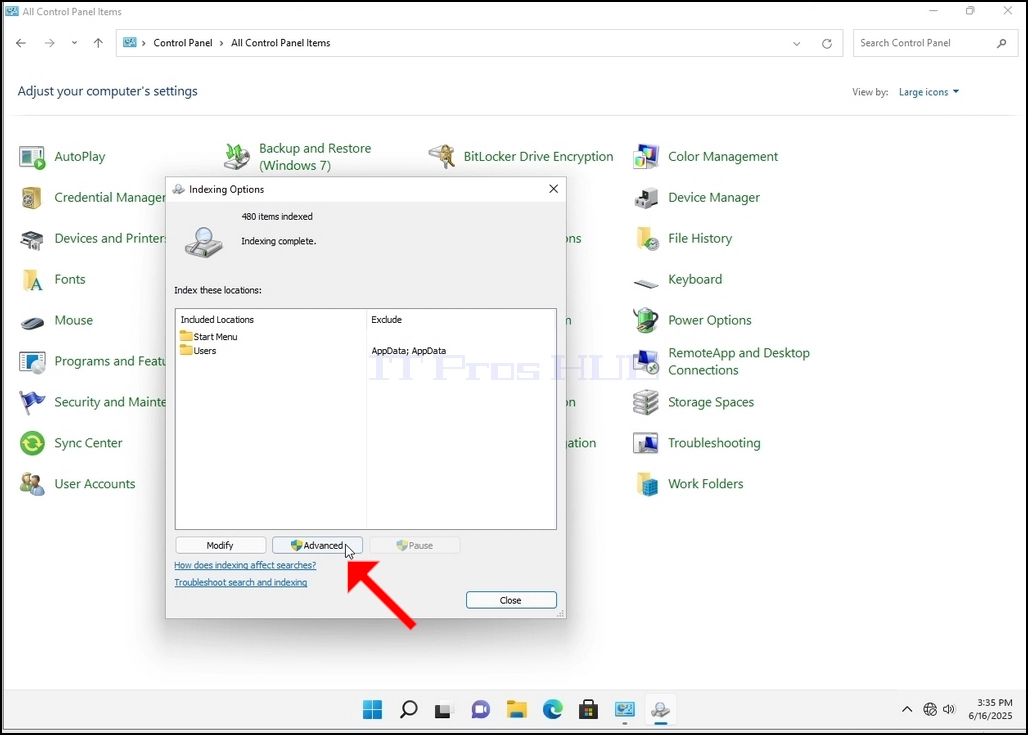
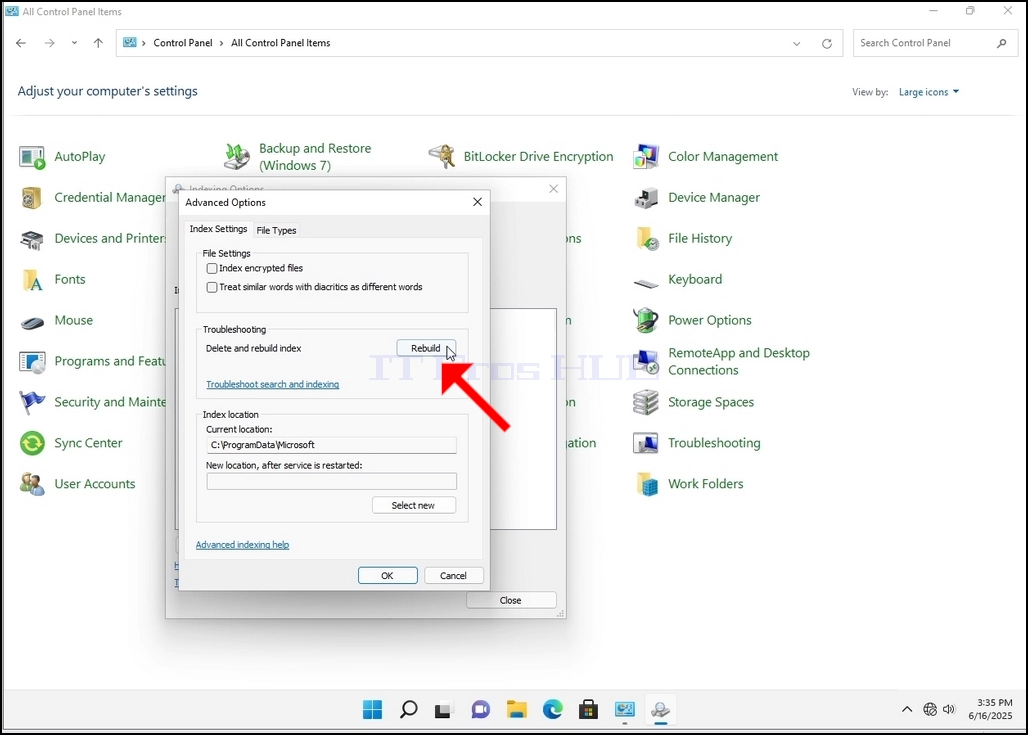
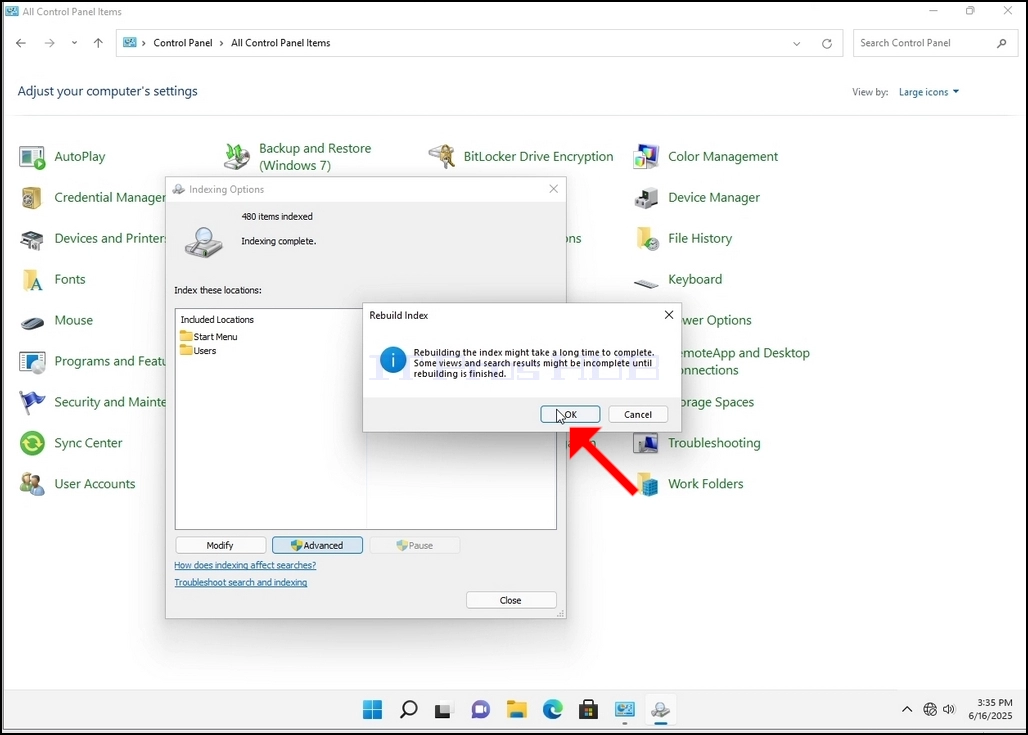
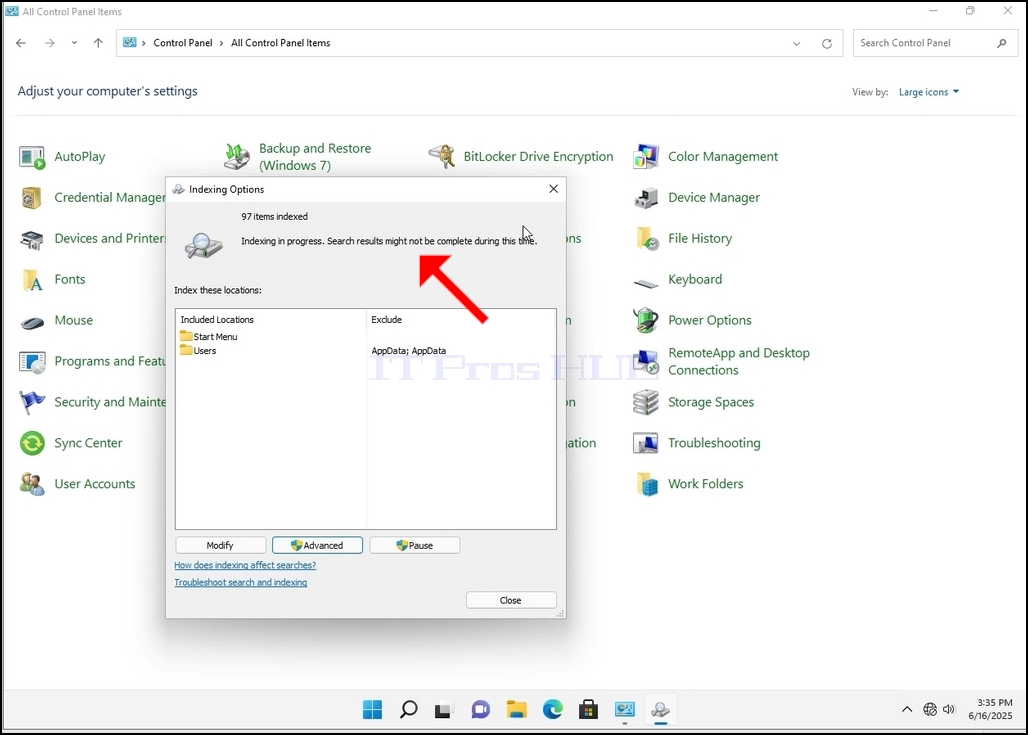
9. After clicking OK in the confirmation box, Windows will start rebuilding its index. It might take some time for the actual process to start, Wait patiently a few seconds to a few minutes. The moment the process starts, the "Indexing Complete" sentence will be replaced with "Indexing in progress. Search results might not be complete during this time."
In addition, the number of items indexed will be reset to 0 for a moment and then start to increase.
Note that All of the windows that are related to the Indexing process can now be closed and the rebuilding process would still be running the background.
Note that the Indexing process' speed might be reduced due to user activity on the computer. The more intense the activity the less the Indexing speed would be.
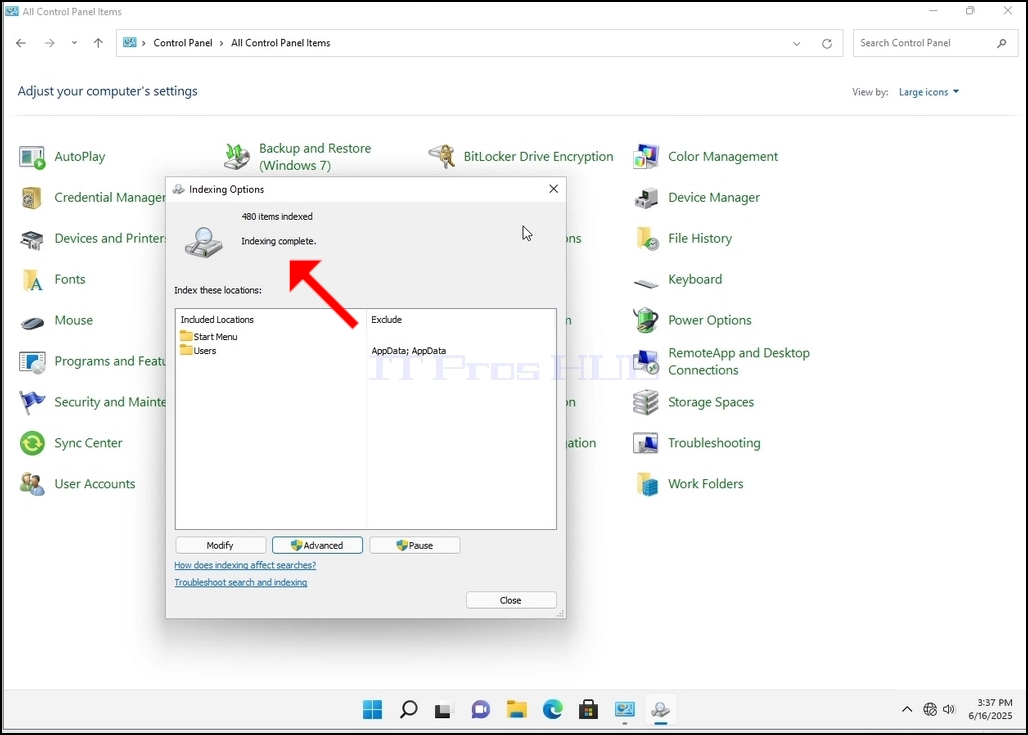
10. To check if the indexing process is done, go back to the Indexing Options through Control Panel as explained in the previous stages. If the process is complete, you would see the "Indexing Complete" sentence appears again.
Since Windows does not notify the user once this process is done, there is indeed a need to perform the latter mentioned. Depending on the number of files, folders, drivers and partitions marked for indexing, this process could take between a few minutes to a few hours.
- Részletek
- Írta: IT Pro
- Kategória: How to Articles
- Találatok: 5499
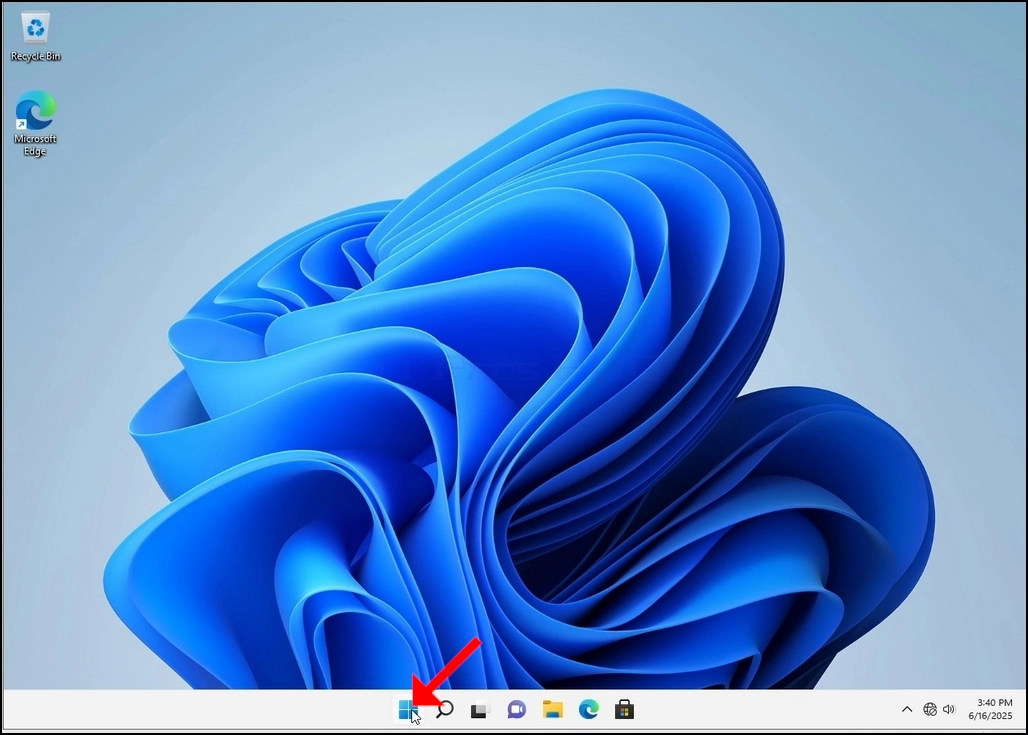
1. Ugrás a Windows Asztalra
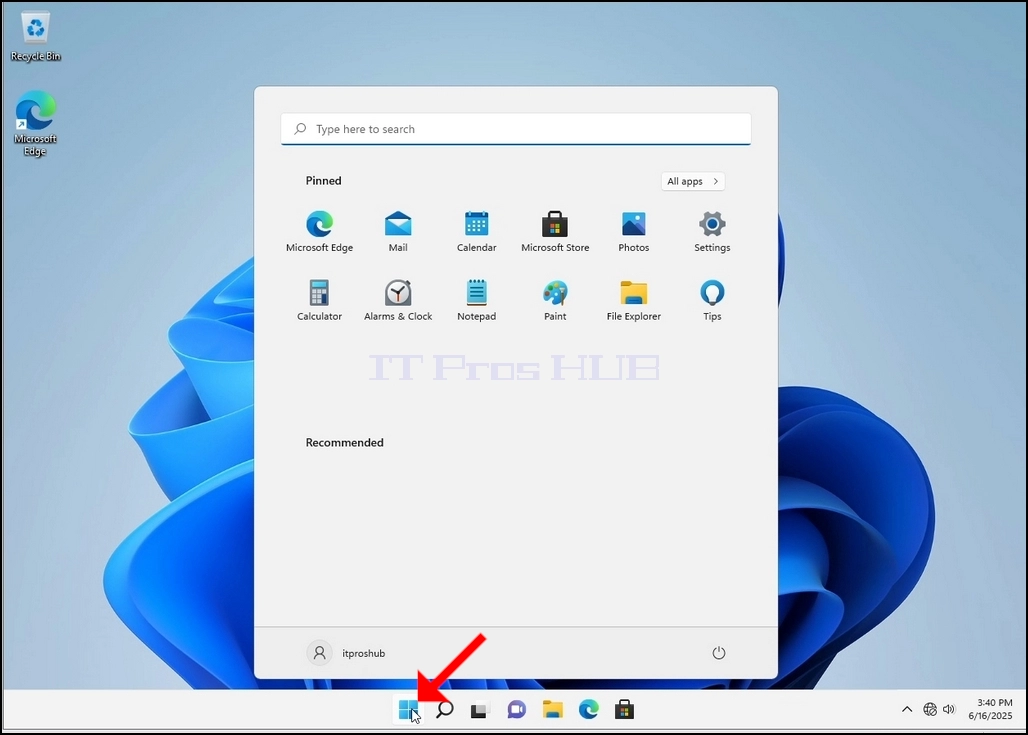
2. Kattintson a start gombra
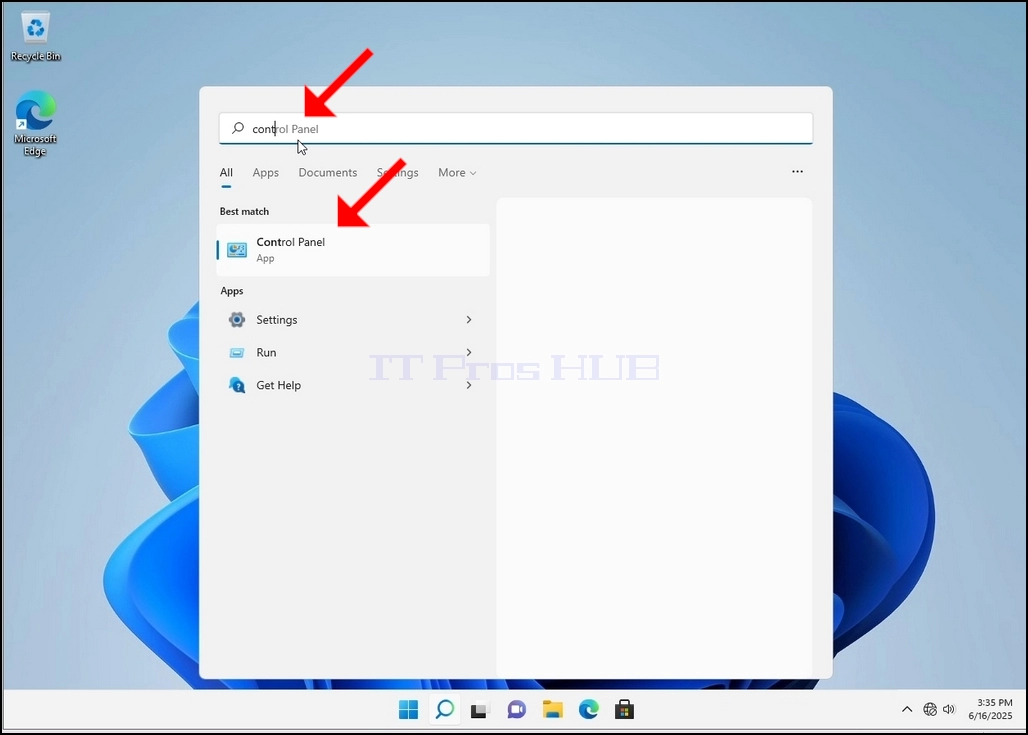
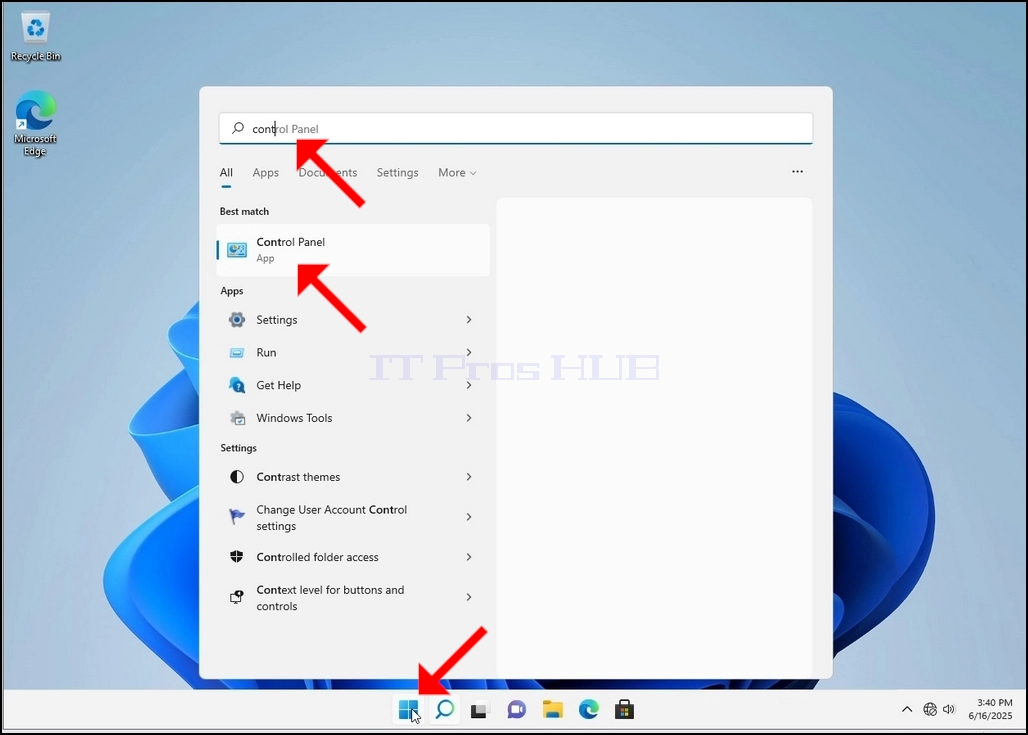
3. Miután a start menü megnyílik, írja be a "vezérlőpanelt" és várja meg a Start menüt, hogy megtalálja a Vezérlőpanel ikont. Kérjük, vegye figyelembe, hogy lehetséges a "cont" beírása, és a legtöbb esetben a Start menü még mindig megtalálja a Vezérlőtábla ikonját.
Amint megtalálja, kattintson rá, és várja meg, amíg a vezérlőpanel ablak megjelenik.
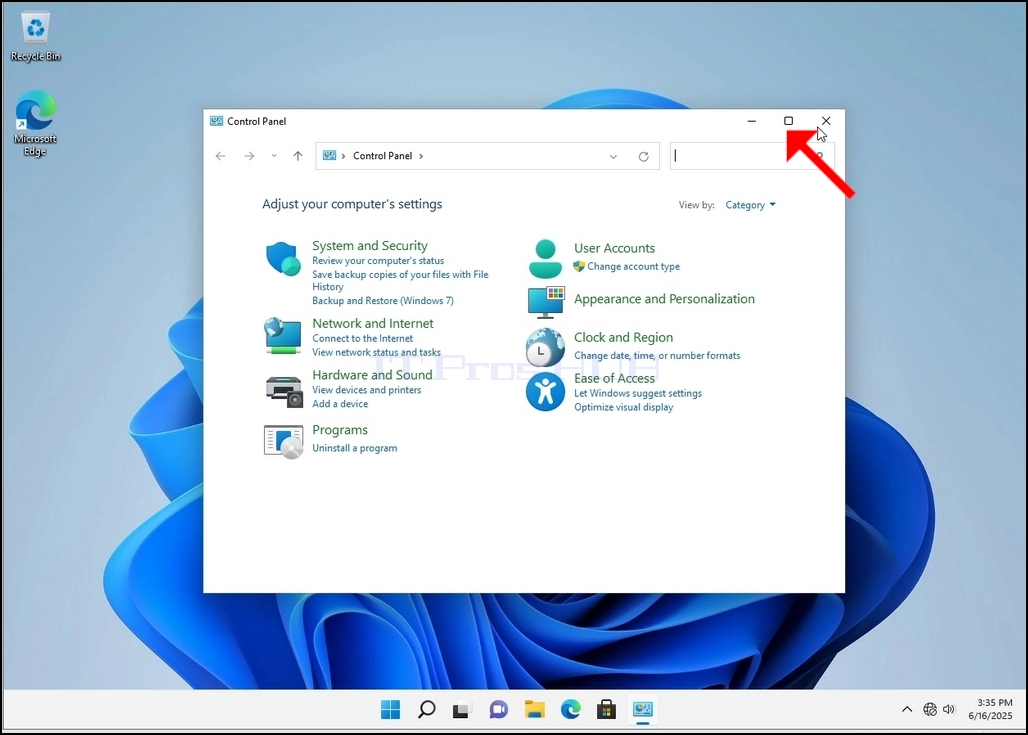
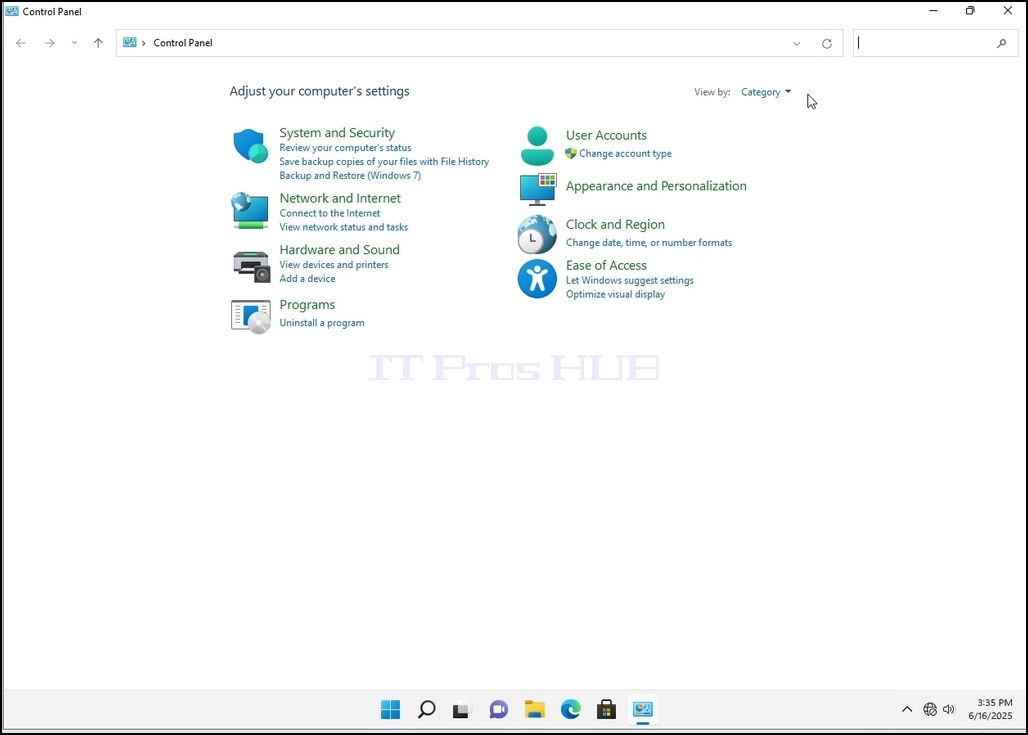
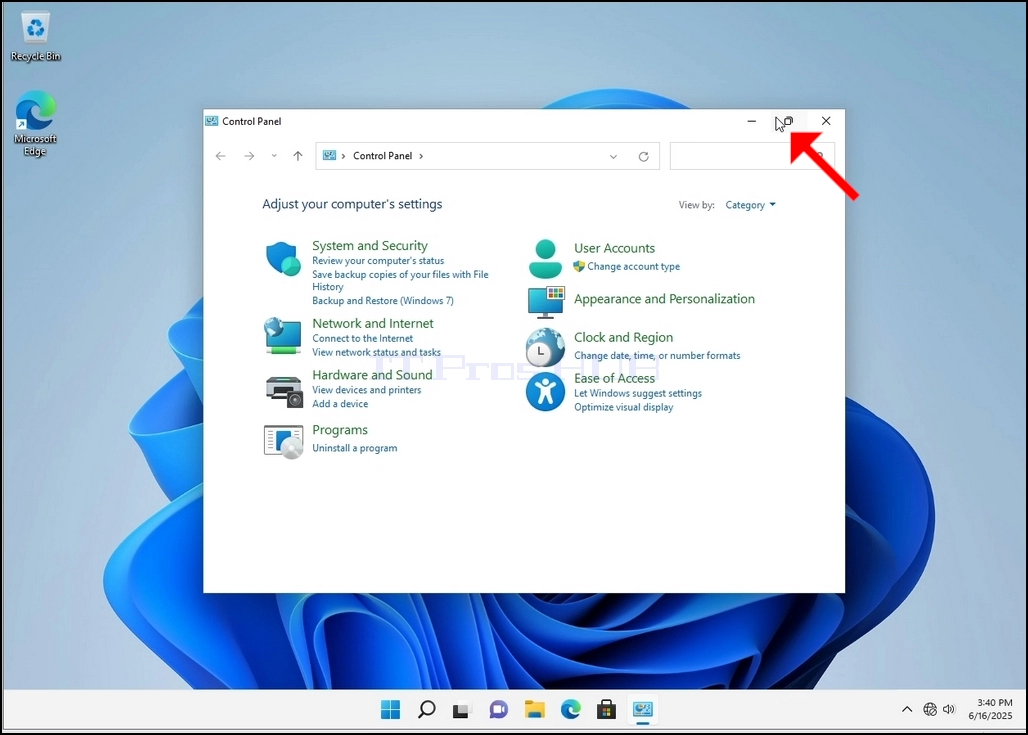
4. Miután a Vezérlőtábla ablaka nyitva van, nagyítsa ki az ablak jobb felső sarkában lévő nagyító ikonra kattintva.
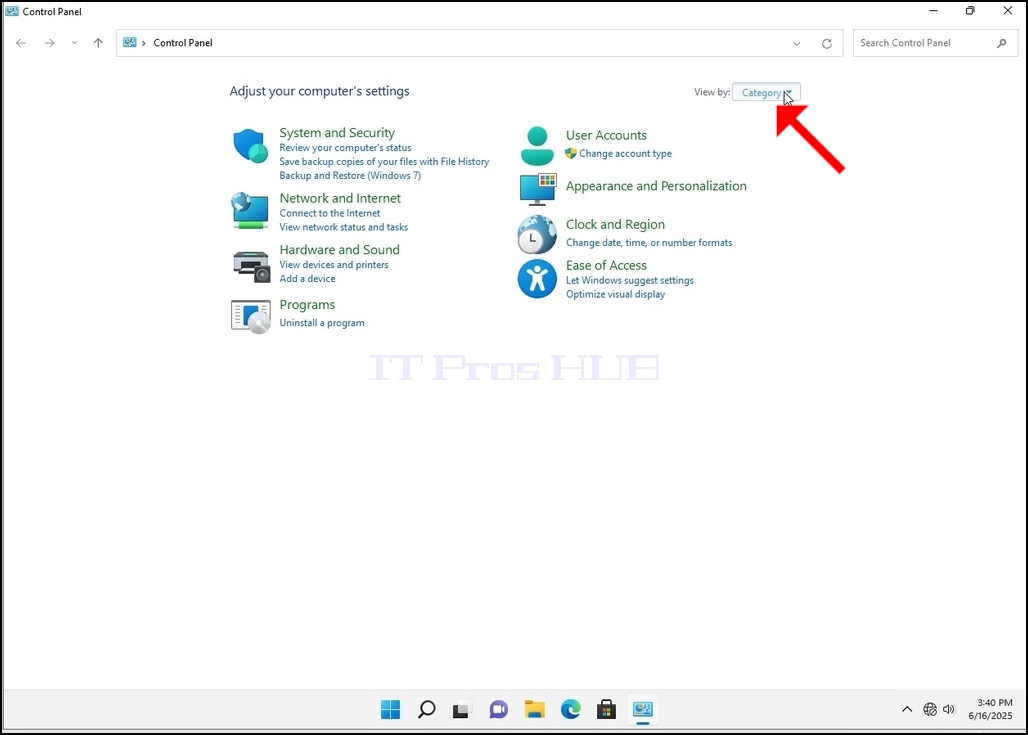
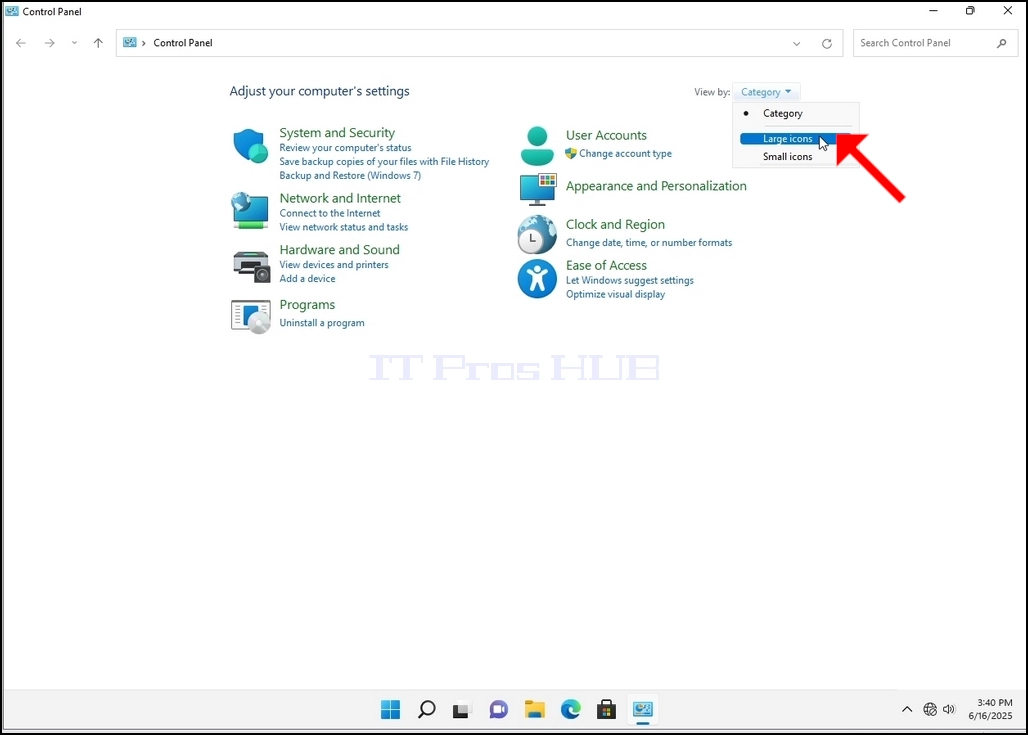
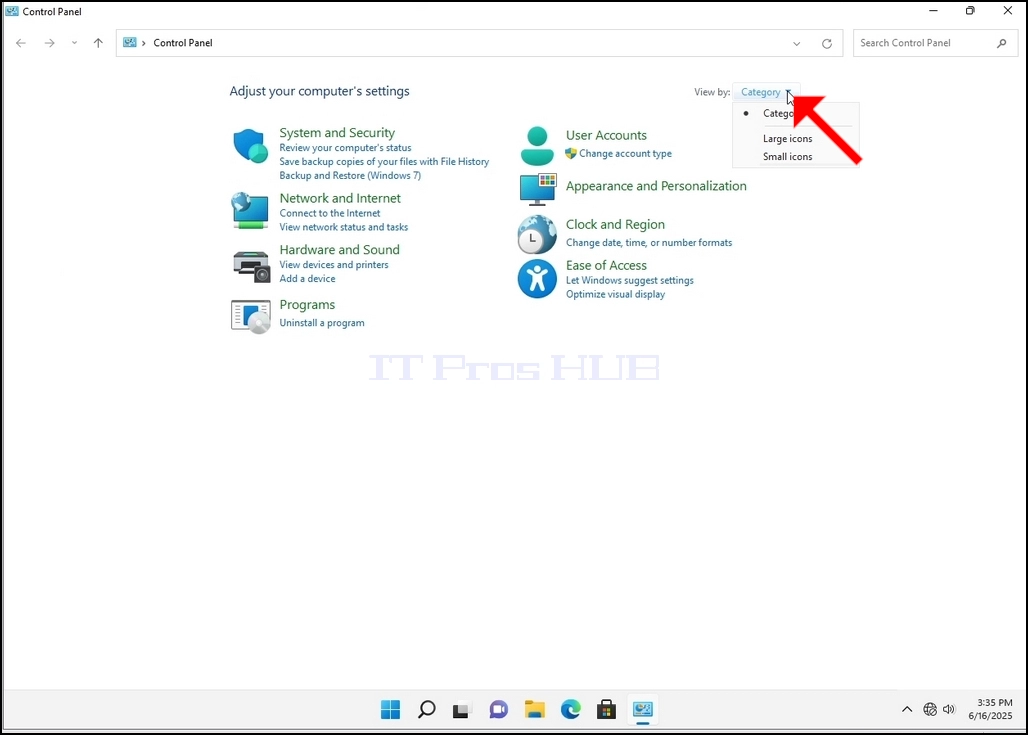
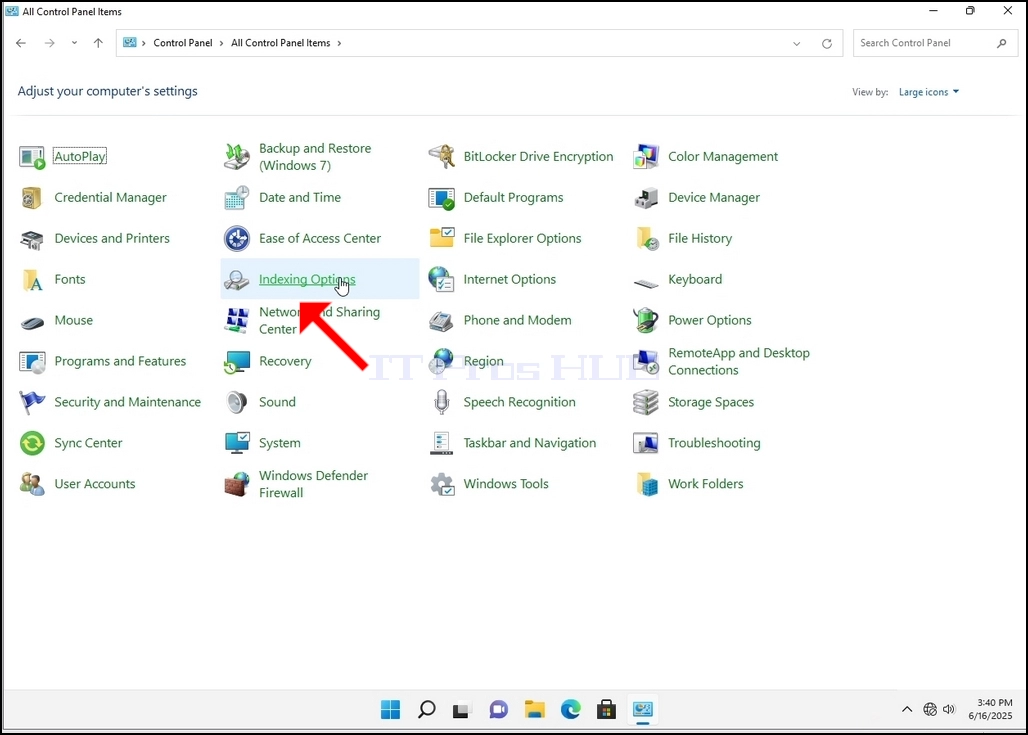
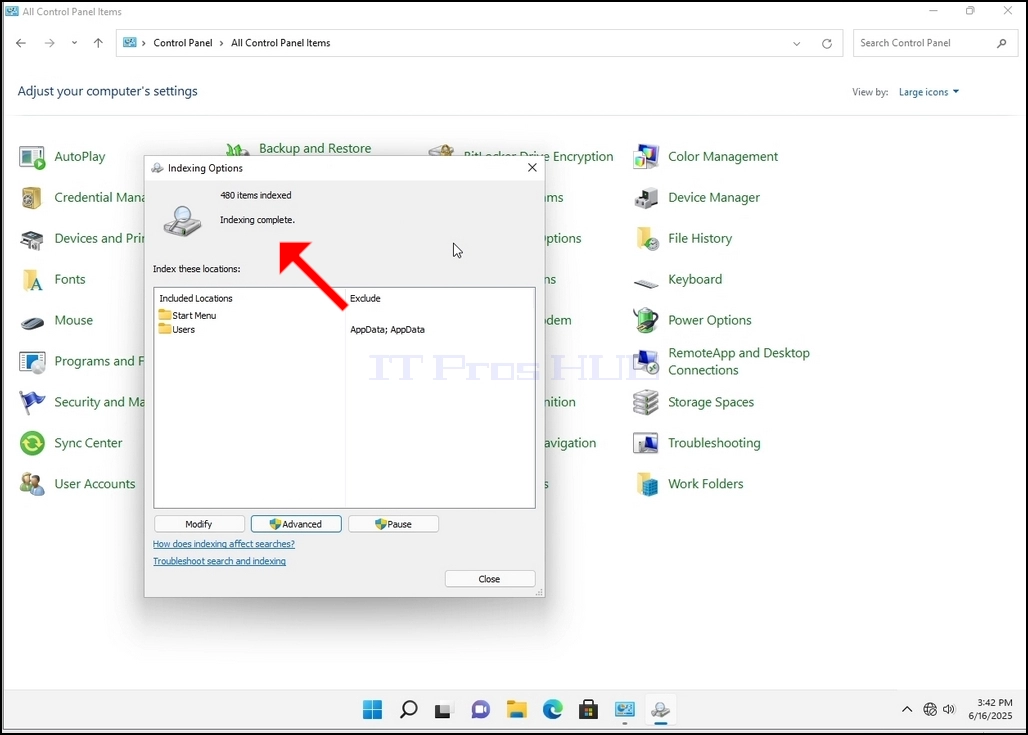
6. Keresse meg az Indexing Opciók ikont és kattintson rá. Várja meg, amíg az Indexing Beállítások ablak megjelenik.
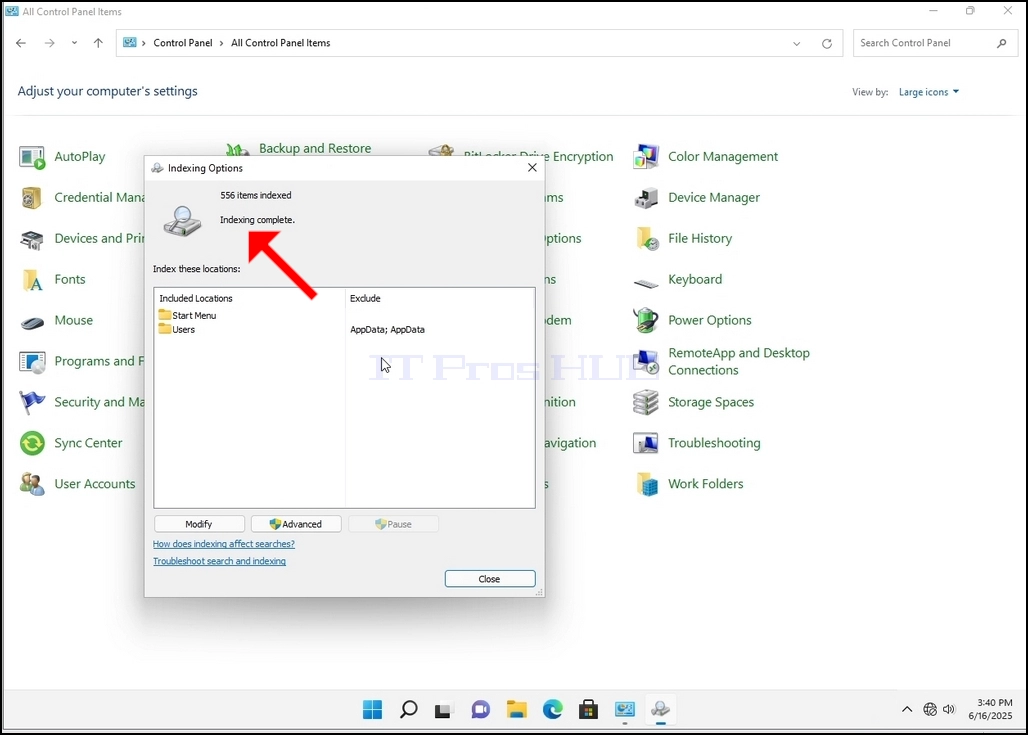
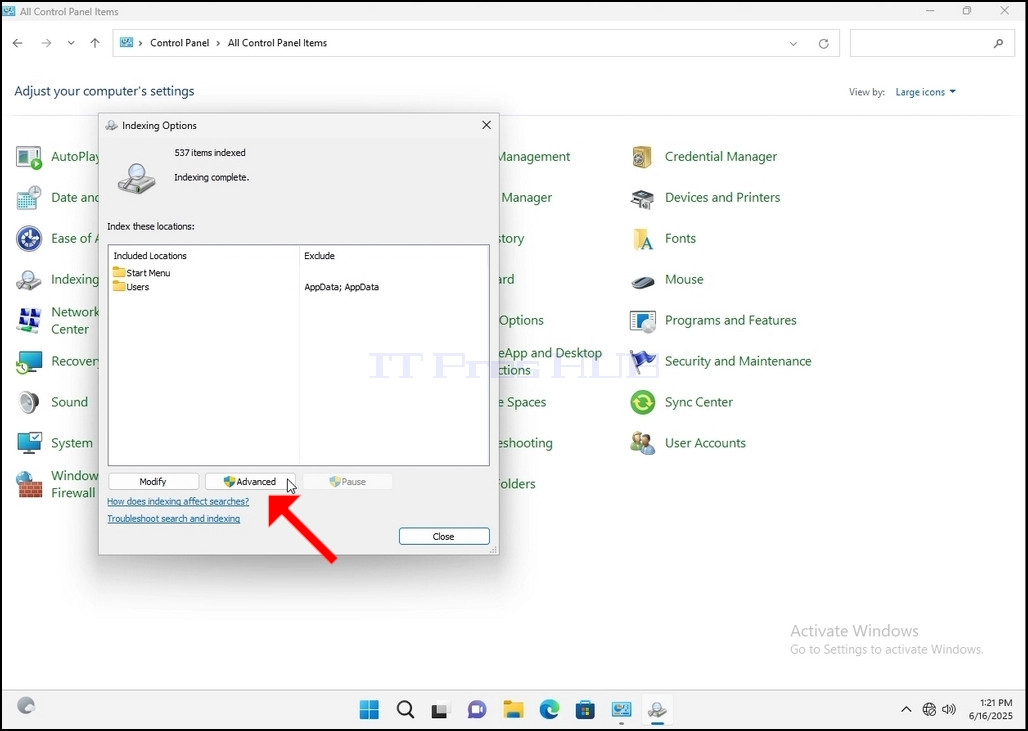
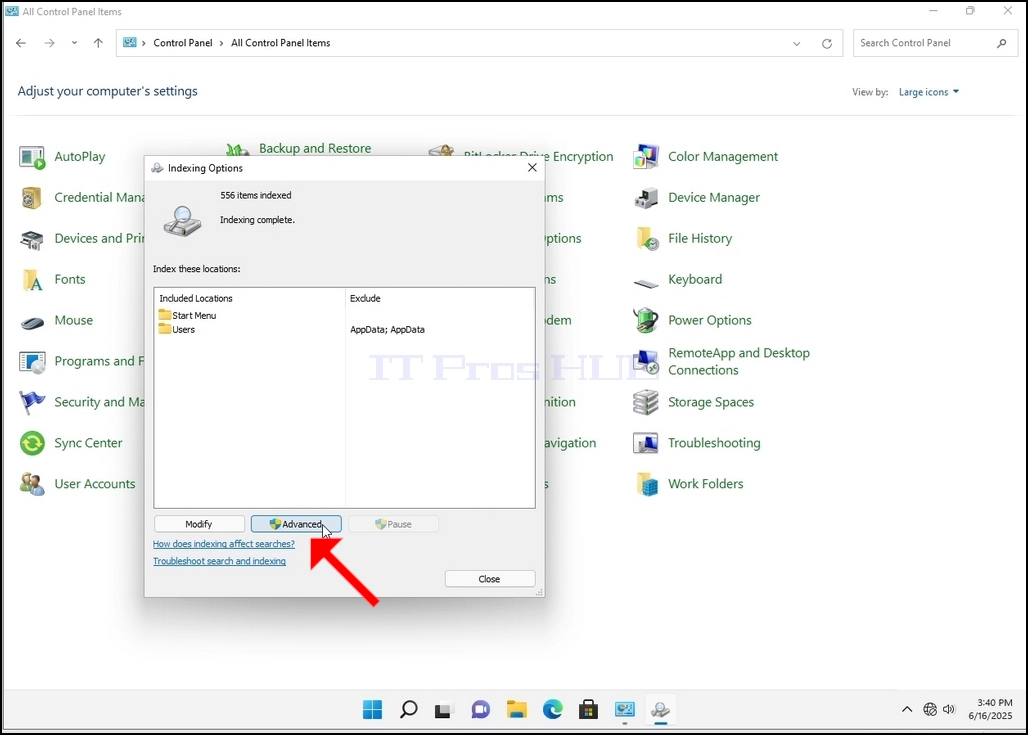
7. Miután az Indexing Beállítások ablak nyitva van, kattintson az Advanced gombra az ablak alján.
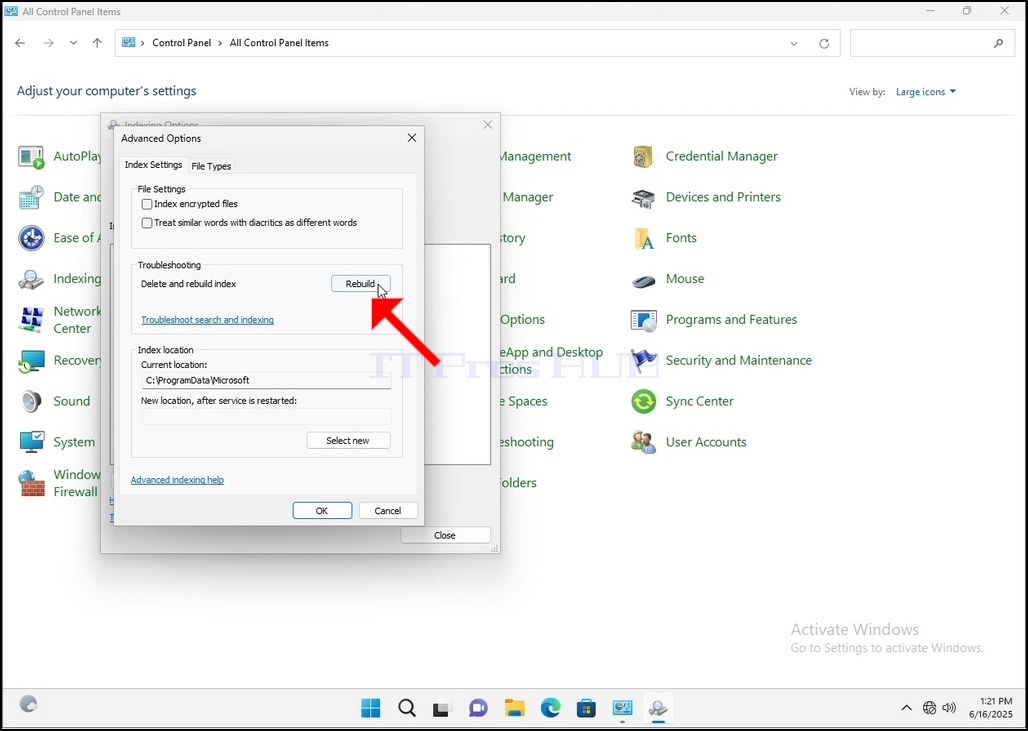
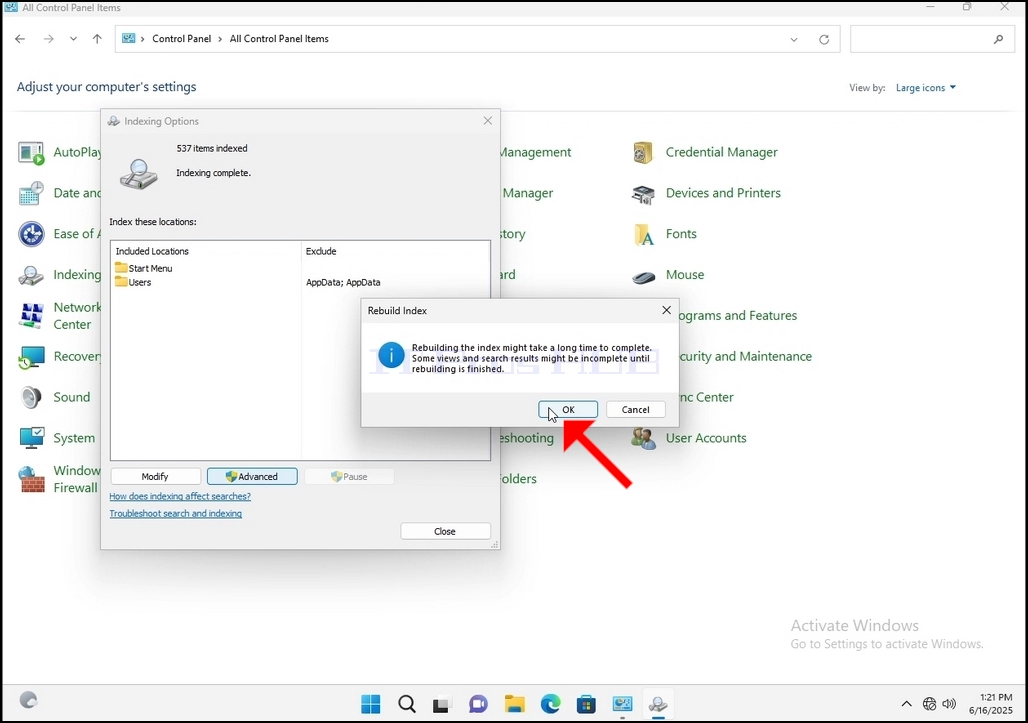
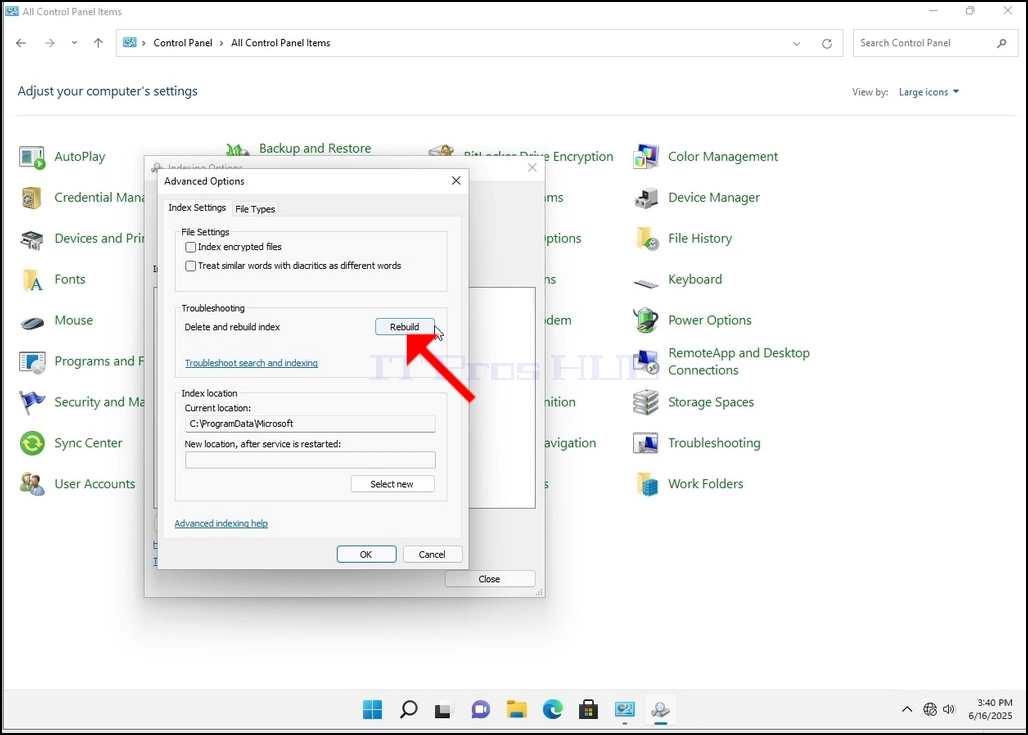
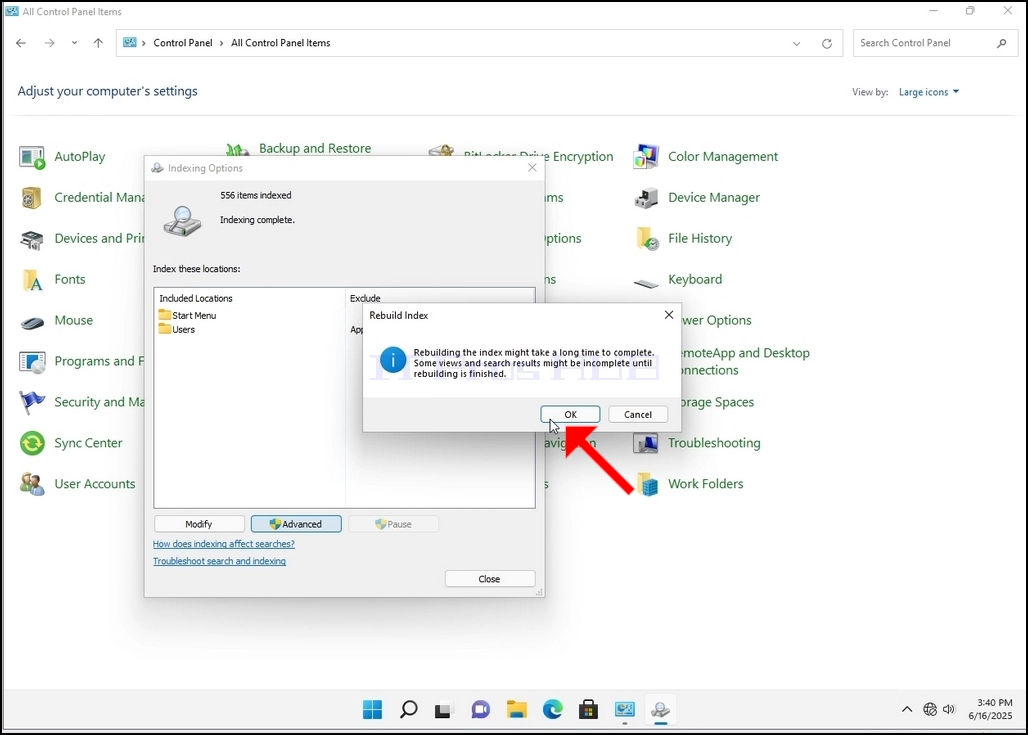
8. Az új ablakban keresse meg az Újjáépítés gombot, és kattintson rá. Utána megjelenik egy visszaigazoló doboz. Kattintson az OK gombra, ha újra akarja építeni az indexet.
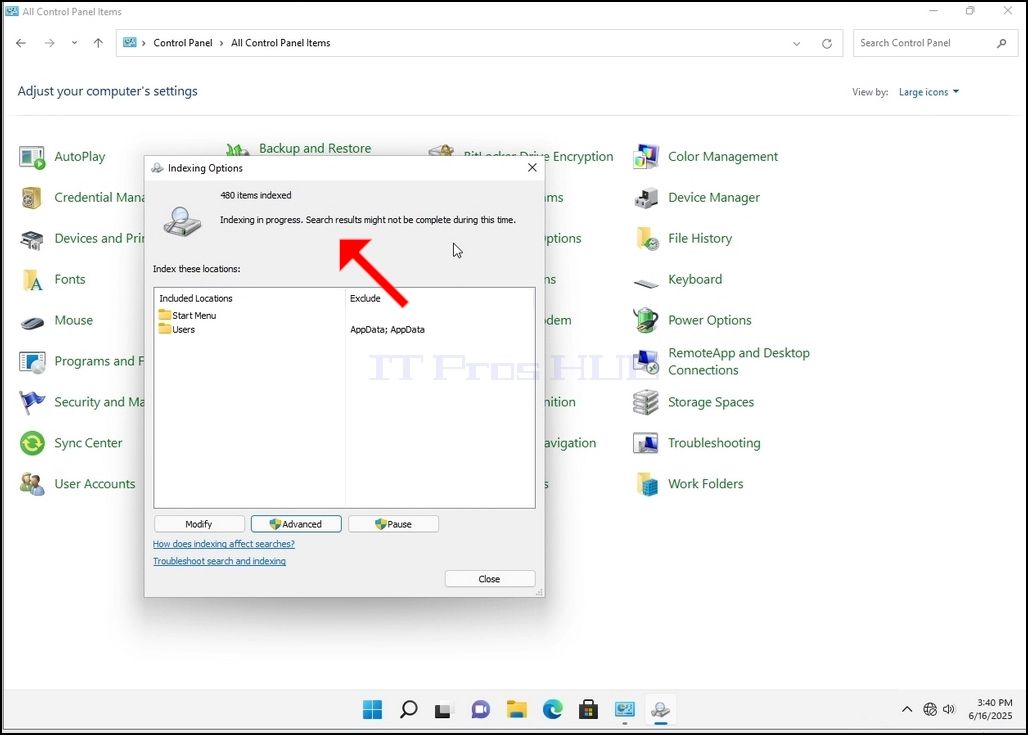
9. Miután rákattint az OK gombra a visszaigazoló mezőben, a Windows elkezdi újraépíteni az indexét. Eltarthat egy ideig, amíg elkezdődik a folyamat, és türelmesen várunk néhány másodpercet vagy pár percet. Amint elkezdődik a folyamat, a "Indexing teljes"a mondat helyébe"Indexálunk. Lehet, hogy a keresési eredmények nem lesznek teljesek ebben az időszakban".
Ezen túlmenően az indexált tételek száma egy pillanatra visszaáll 0-ra, majd elkezd növekedni.
Megjegyzendő, hogy az összes ablak, amely kapcsolódik az Indexing folyamat most már lezárható, és az újjáépítési folyamat még mindig fut a háttérben.
Megjegyzés: az Indexing folyamat sebessége csökkenhet a számítógép felhasználói aktivitása miatt. Minél intenzívebb az aktivitás, annál kevesebb az Indexing sebesség.
10. Annak ellenőrzése érdekében, hogy az indexálási folyamat befejeződött, menj vissza az Indexing Opciók Control Panel, ahogy azt az előző szakaszokban kifejtettük. Ha a folyamat befejeződött, látni fogja a "Indexing teljes"a mondat újra megjelenik.
Mivel a Windows nem értesíti a felhasználót, ha ez a folyamat befejeződött, valóban szükség van az említett. Az indexelésre kijelölt fájlok, mappák, járművezetők és válaszfalak számától függően ez a folyamat akár néhány perc vagy néhány óra is eltarthat.
- Hogyan lehet újjáépíteni Indexing a Windows 11 21H2 x64 Pro munkaállomások Build 2200.194
- Hogyan lehet újjáépíteni Indexing Windows 11 21H2 x64 Pro Education N Build 2200.194
- Hogyan lehet újjáépíteni Indexing Windows 11 21H2 x64 Pro Education Build 2200.194
- Hogyan kell újjáépíteni Indexing Windows 11 21H2 x64 Pro Build 2200.194