- 詳細
- 作成者:IT Pro
- カテゴリー: How to Articles
- 参照数: 6352
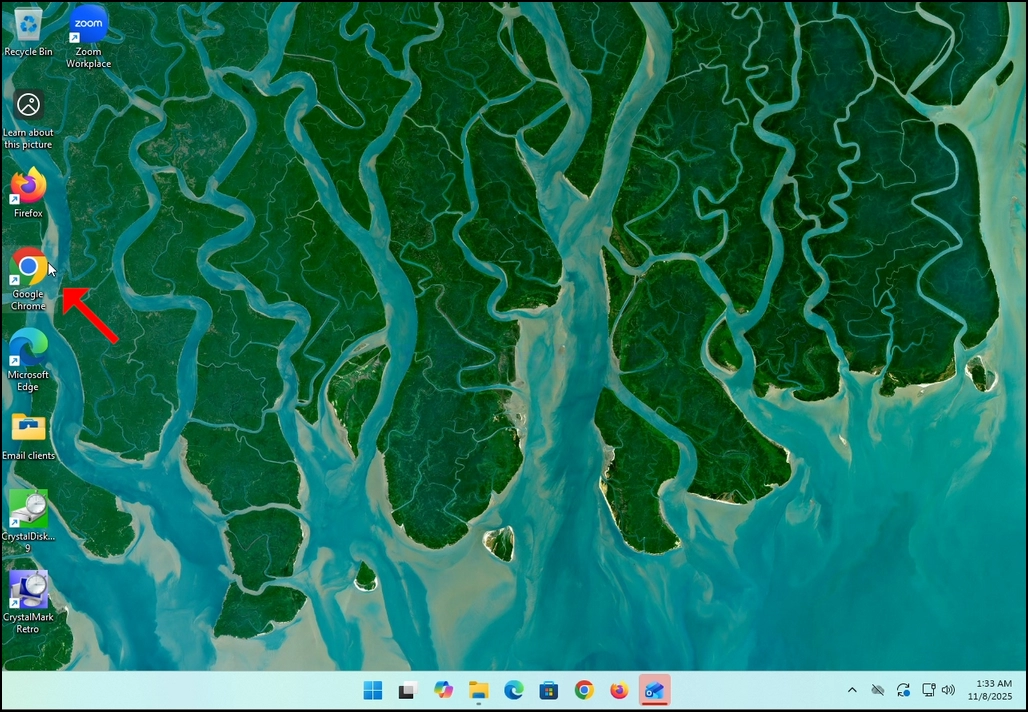
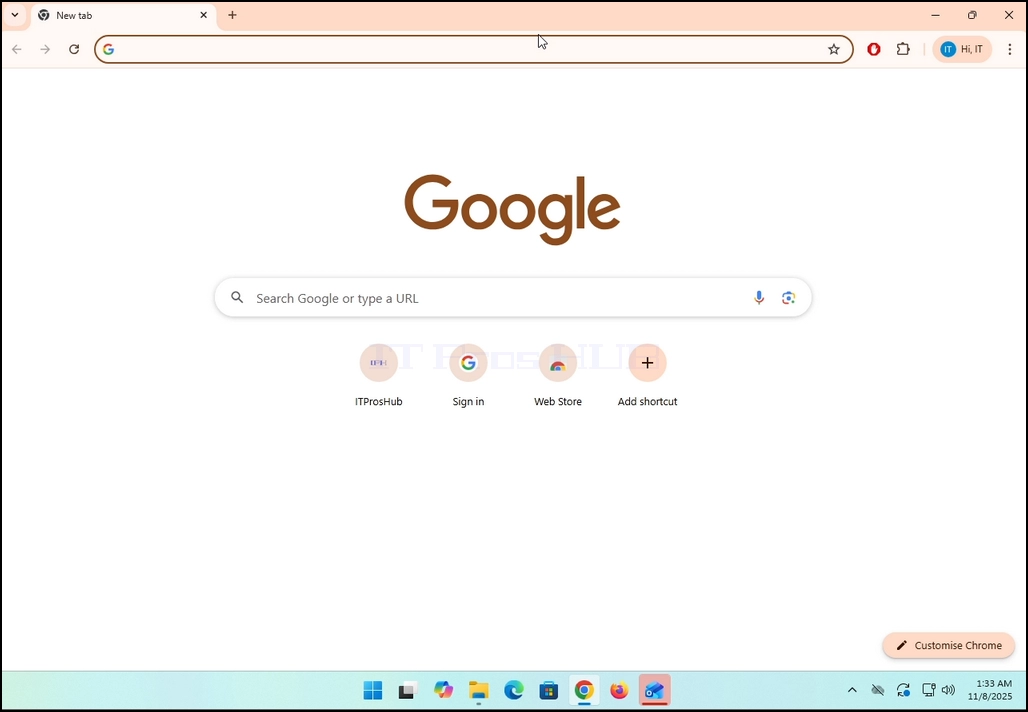
1. Go to your internet browser. In this article’s case we will use Chrome.
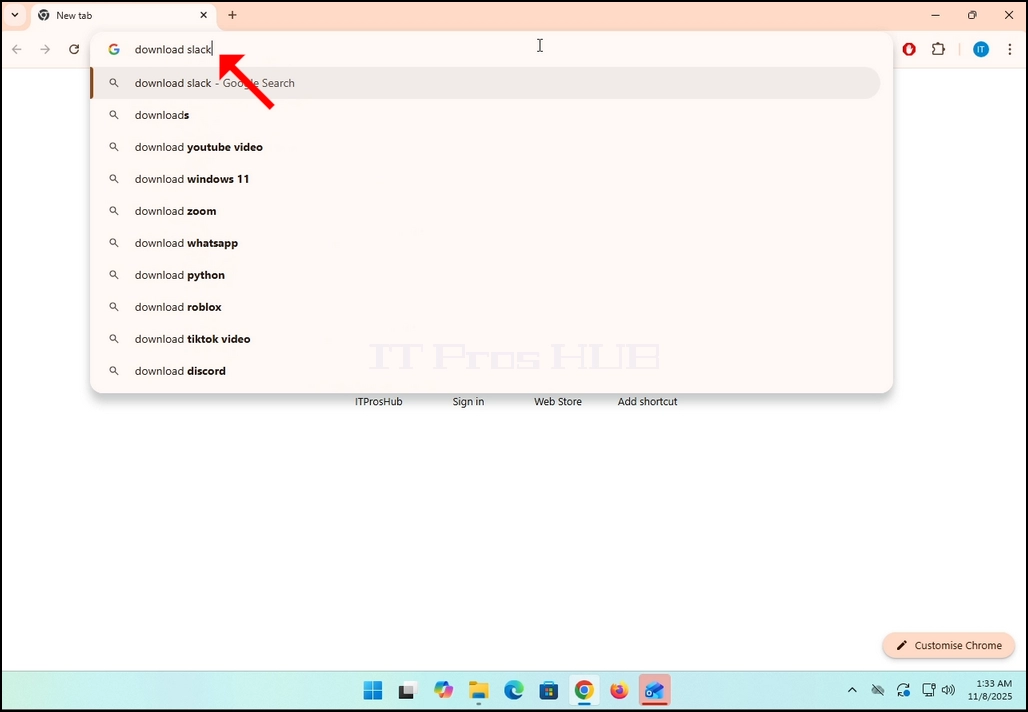
2. Go to Google and type Download Slack in the search bar. Hit the Enter key afterwards. Wait for the search results to appear.
3. In the search results, look for a result that is titled as “Windows | Downloads” and click on it. Wait for a new
page to load.
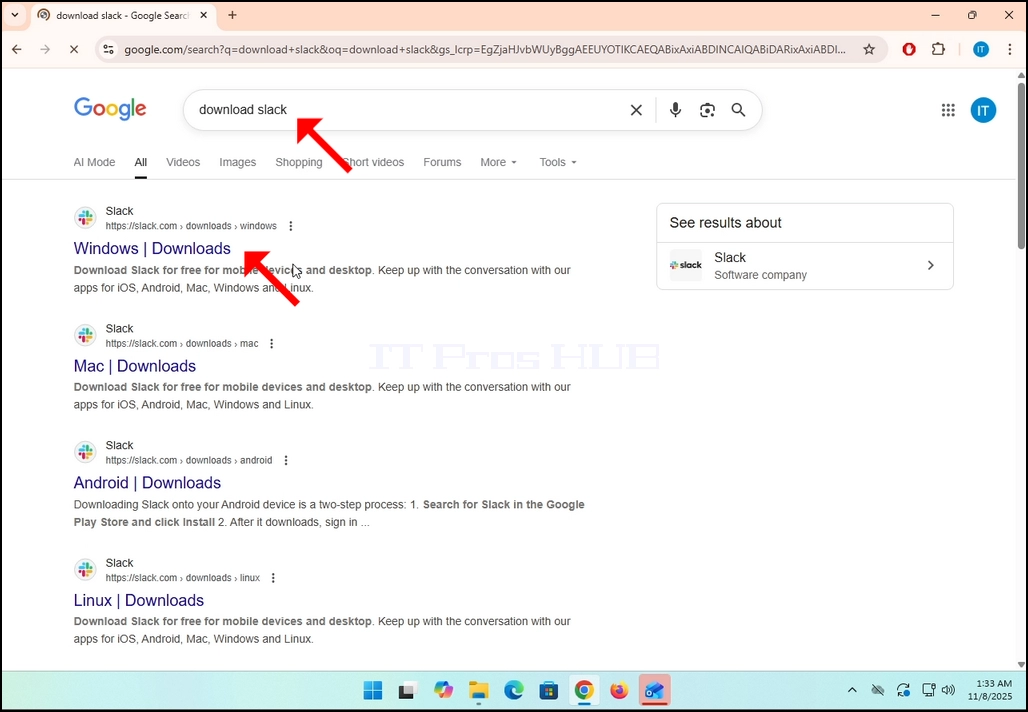
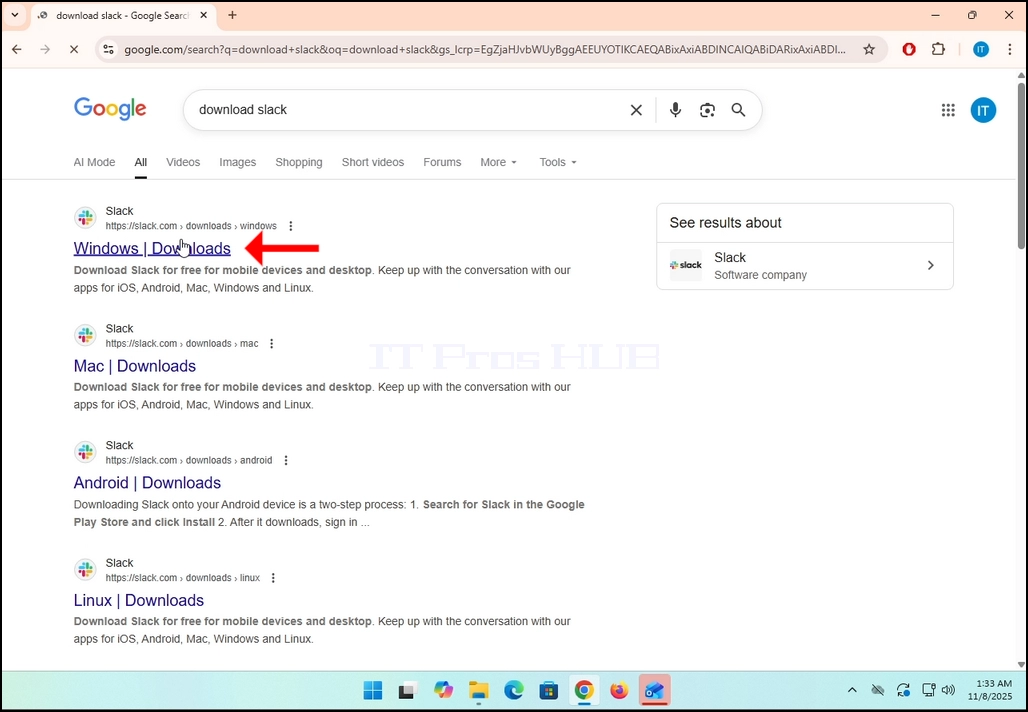
4. The newly loaded page will be under Slack’s domain (slack.com). look for a Download (64-BIT) button on the left side of the page. Click on that button to begin the downloading process of Slack’s installation file.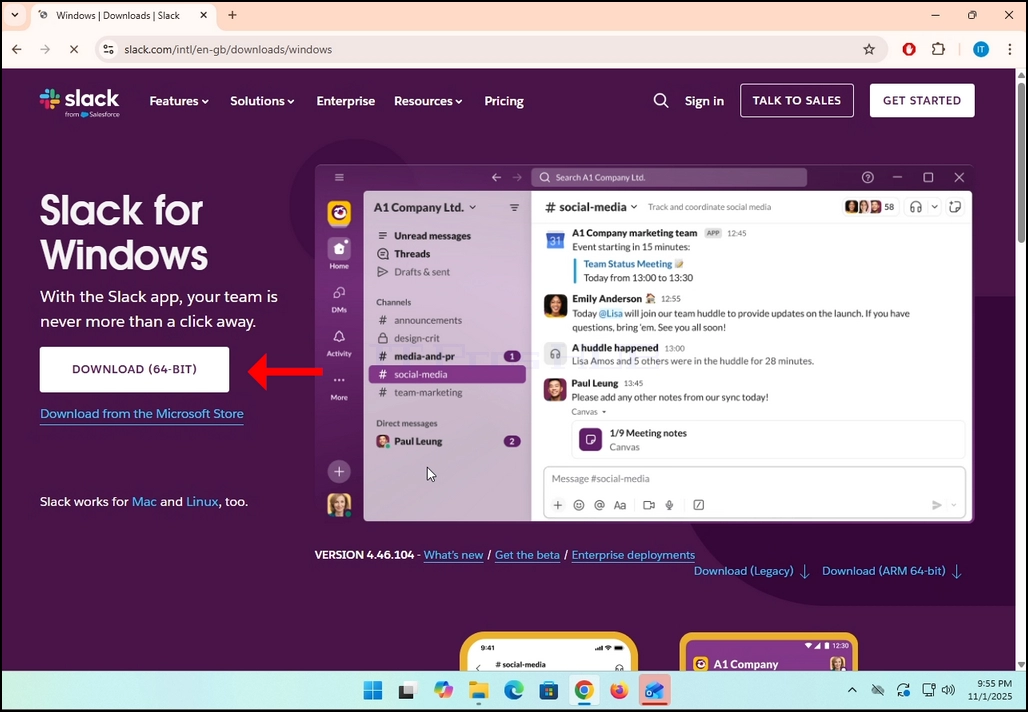
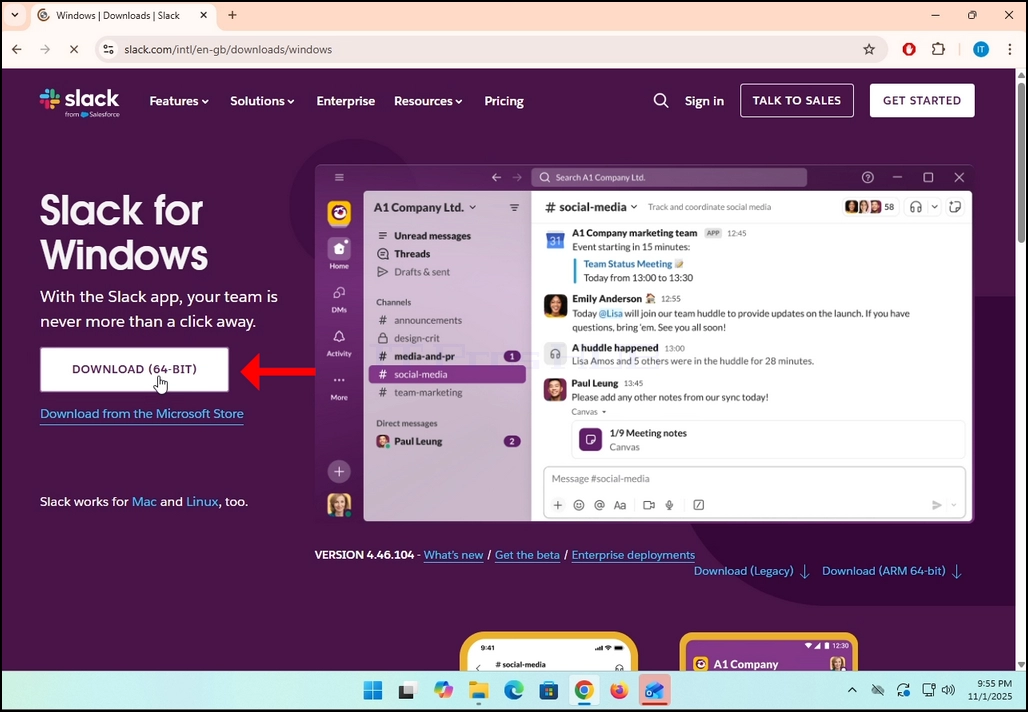
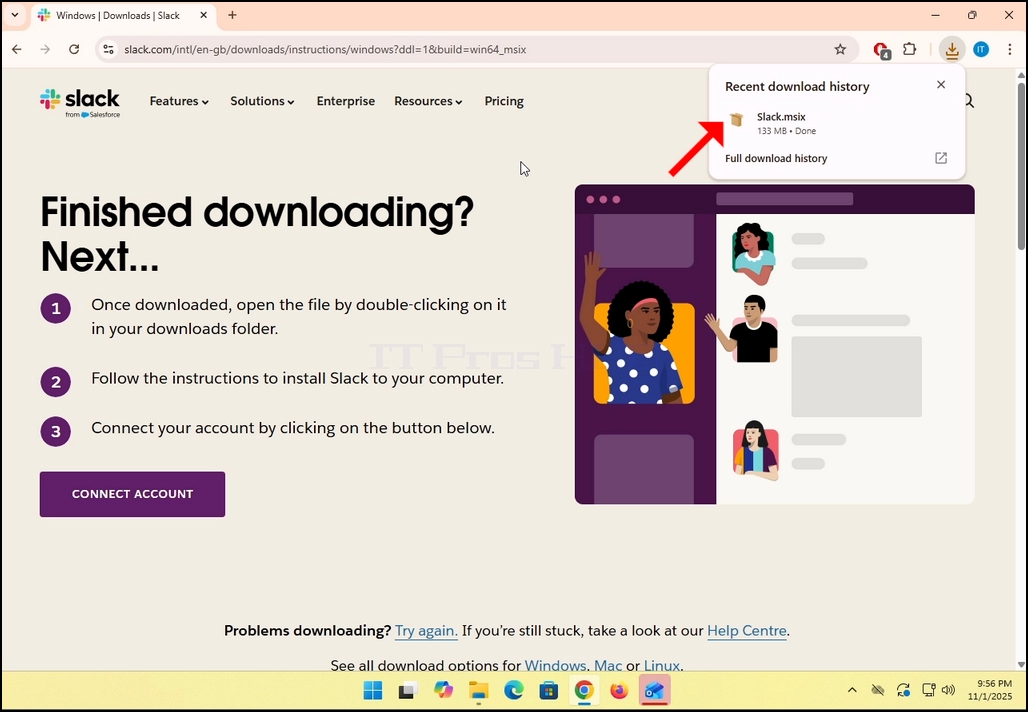
5. Once clicked, you will see the installation process being done in your browser. Make sure that the file being downloaded is called Slack.msix and not anything else.
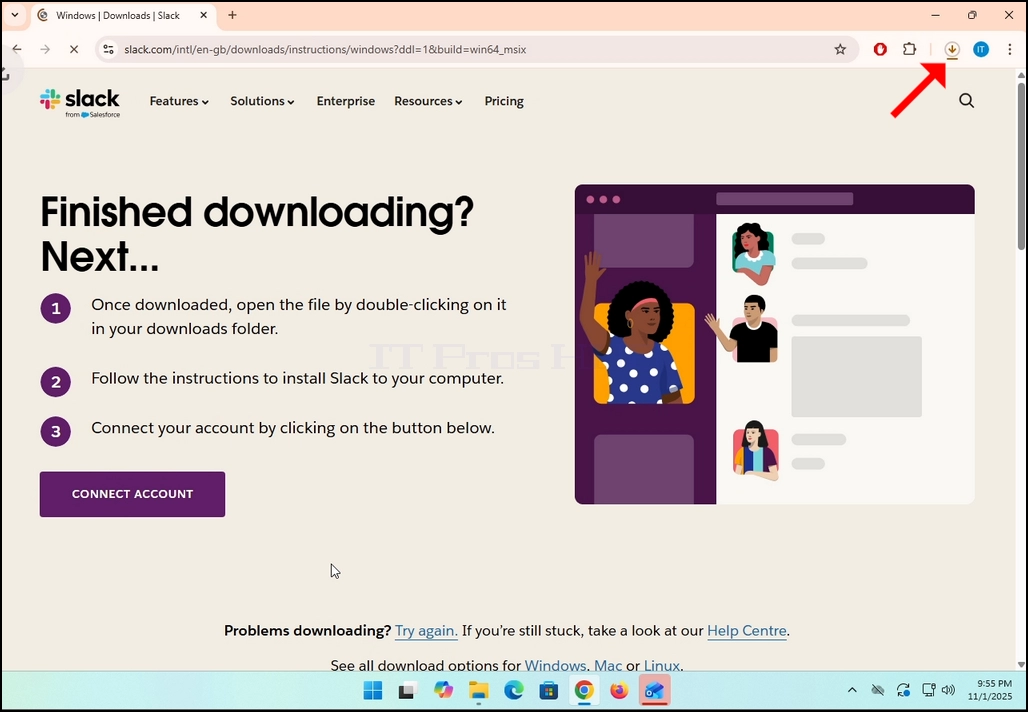
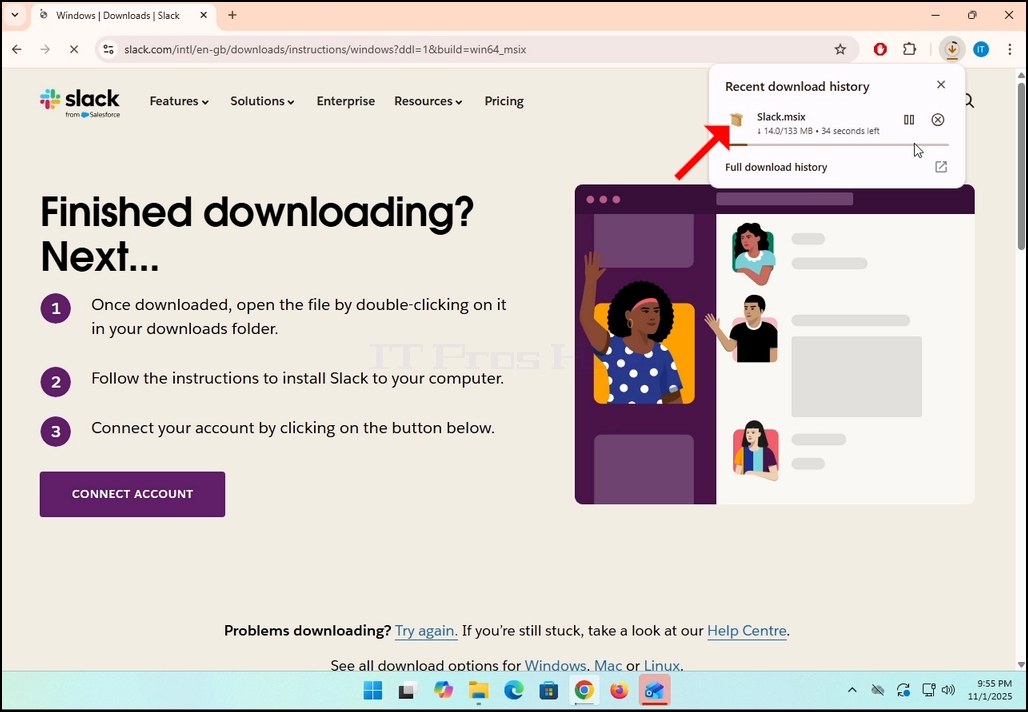
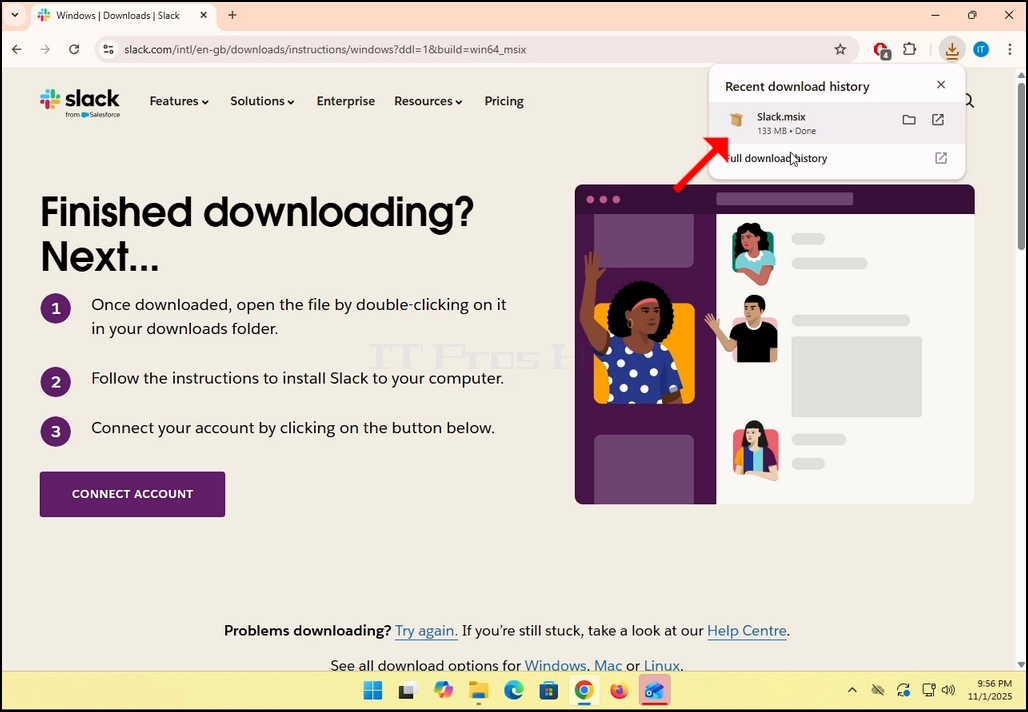
6. Once done, click on the Slack.msix file to open the file and begin the installation process.
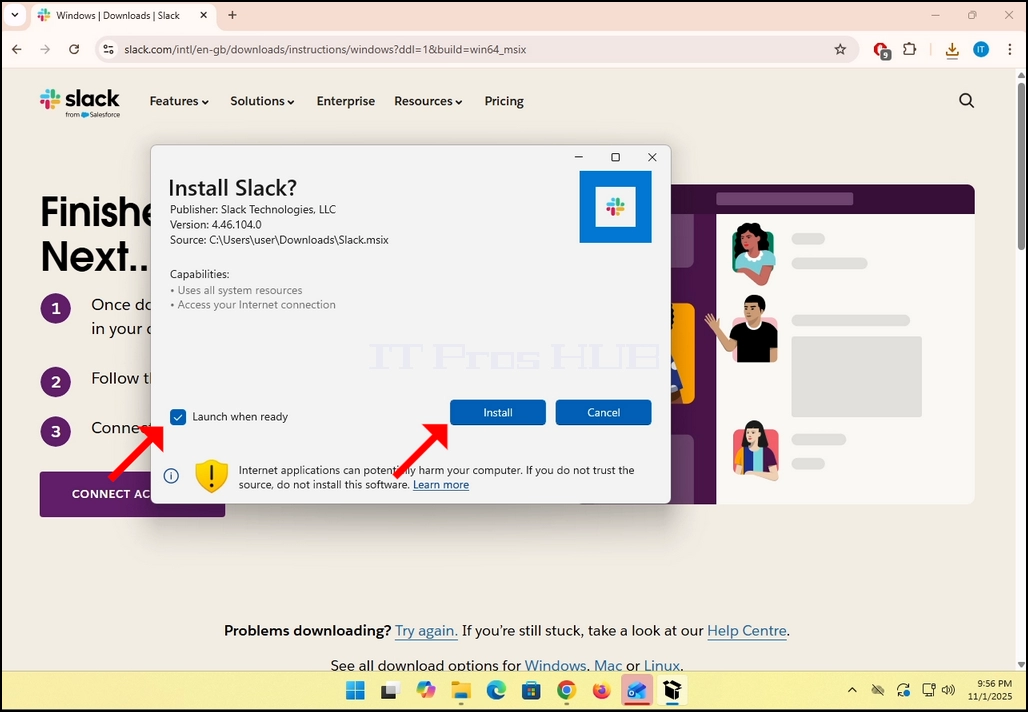
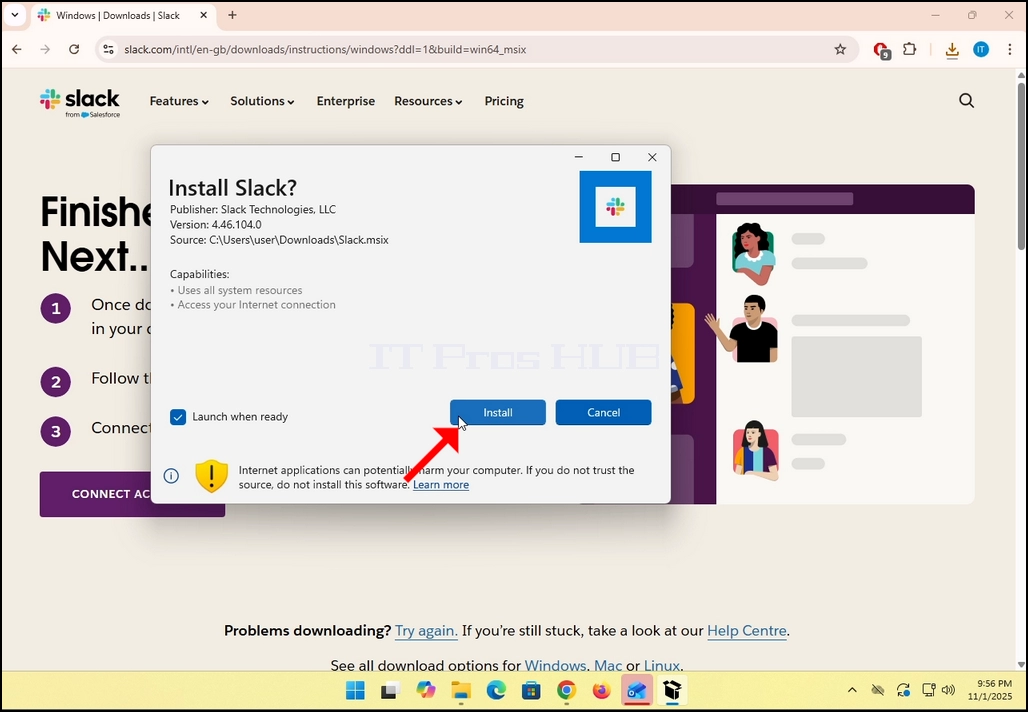
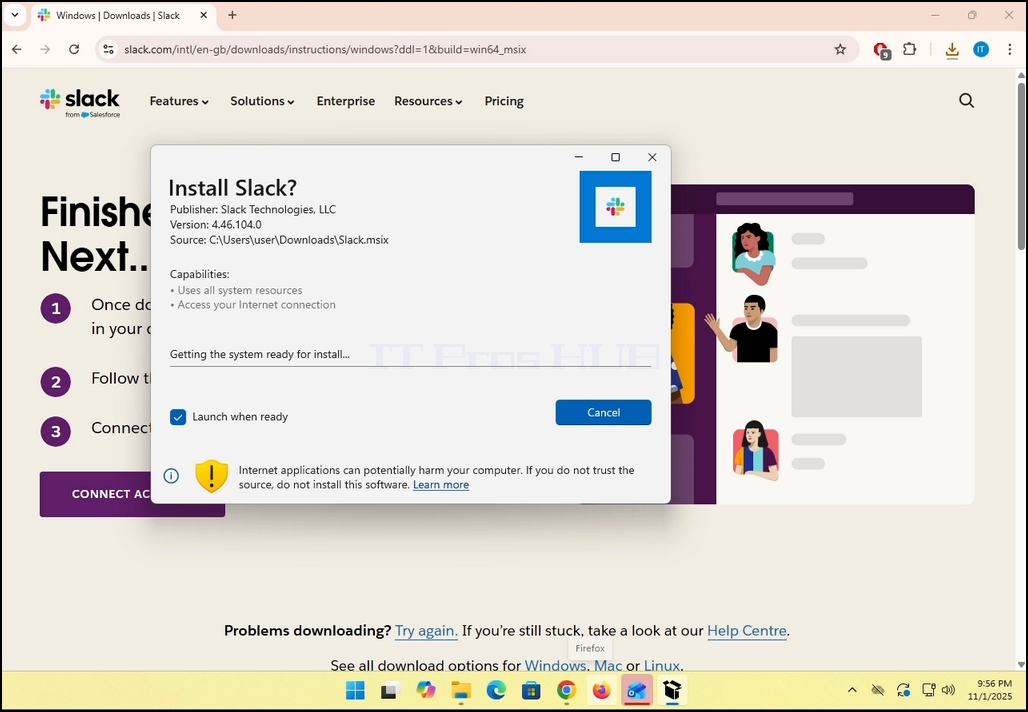
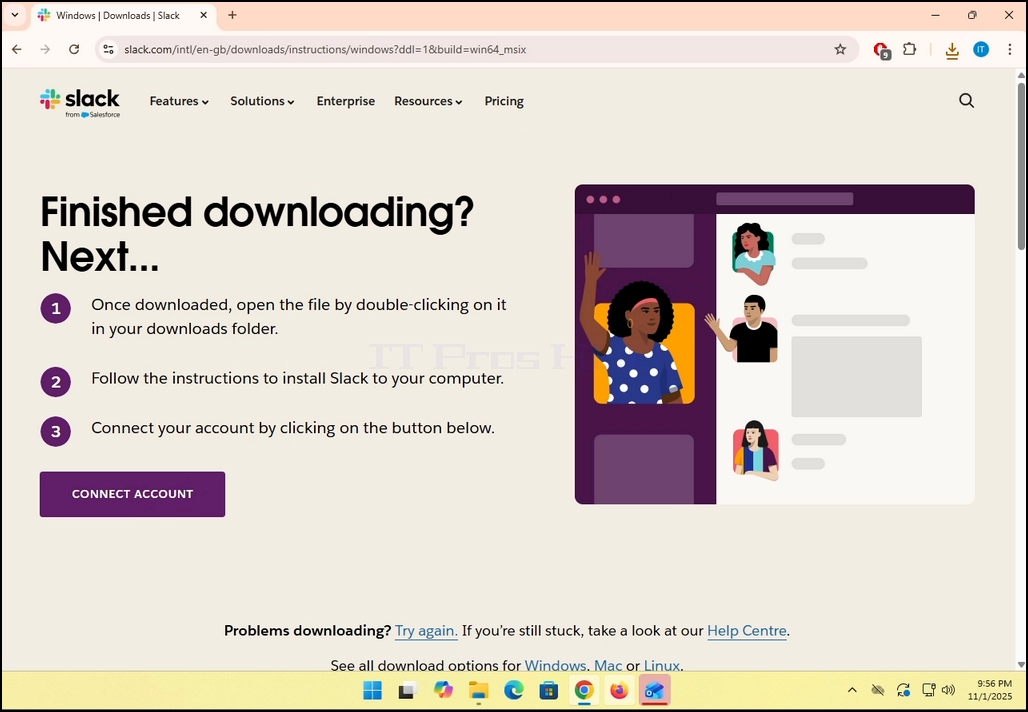
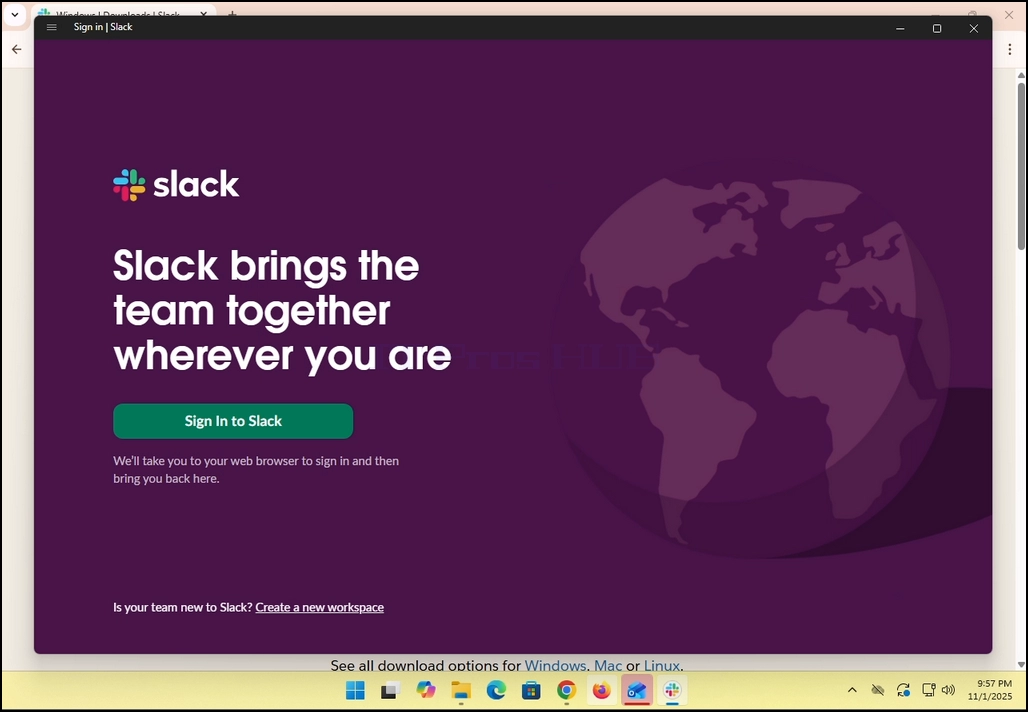
8. Once the installation process is complete, you will be notified by Windows Store with the message “Slack is Ready”. Click the blue Launch button to start Slack.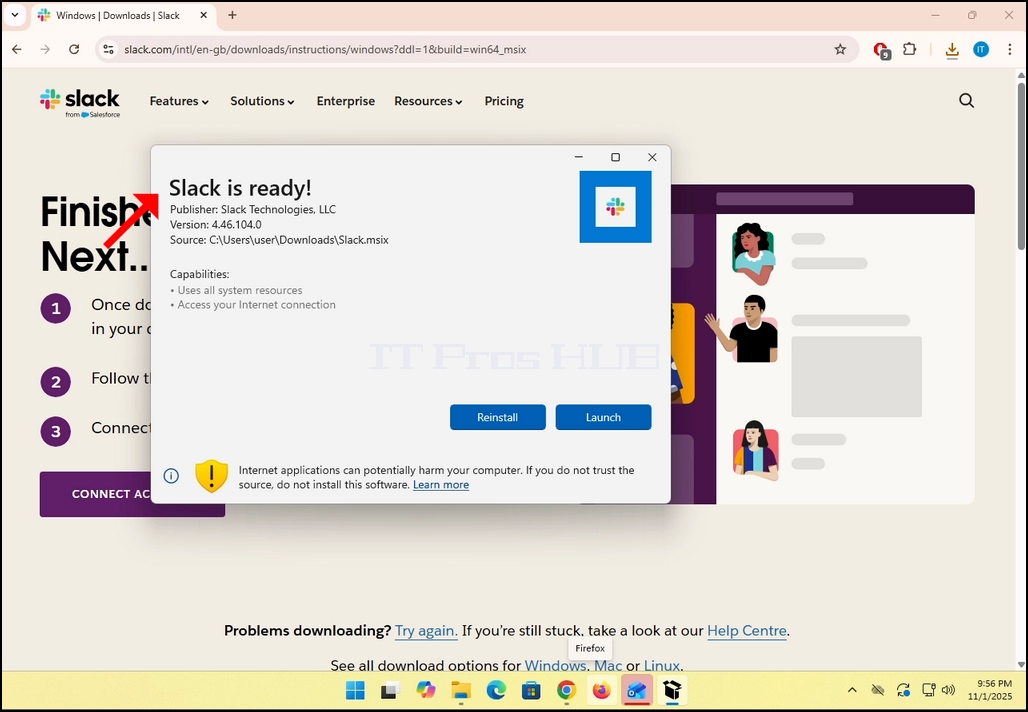
9. You are done! Slack is now installed in Windows.
- 詳細
- 作成者:IT Pro
- カテゴリー: How to Articles
- 参照数: 6710
1. バットクライアントをダウンロードし、ダウンロードしたファイルをクリックします。 インストールウィザードを開始するのを待ってください。 お問い合わせ メニュー データ保護ウィンドウが表示されます。
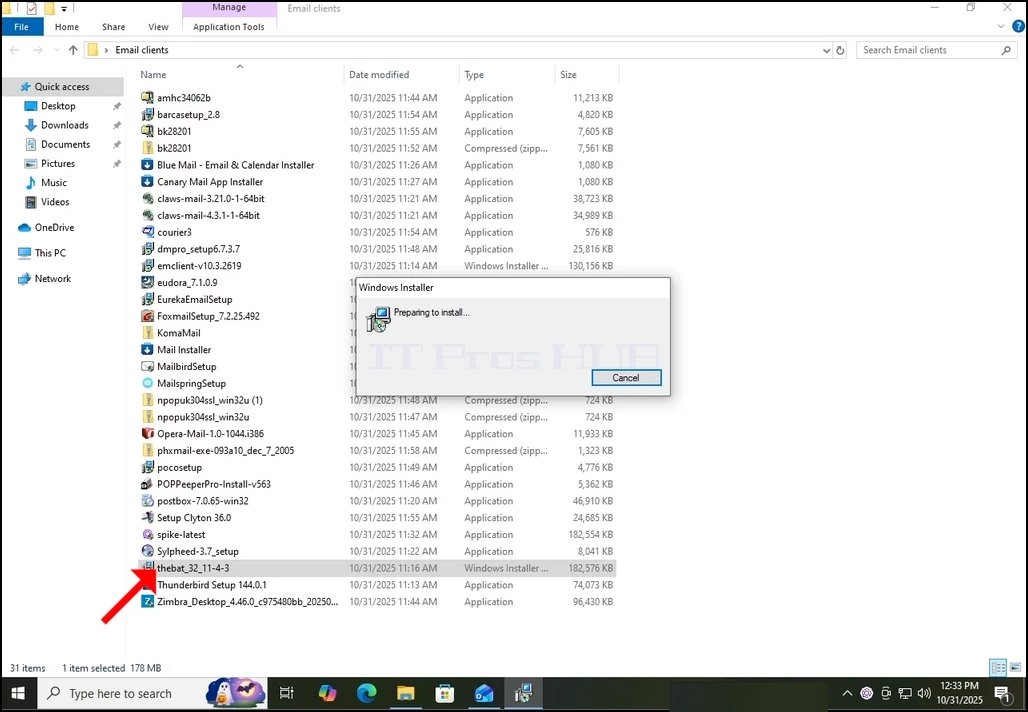
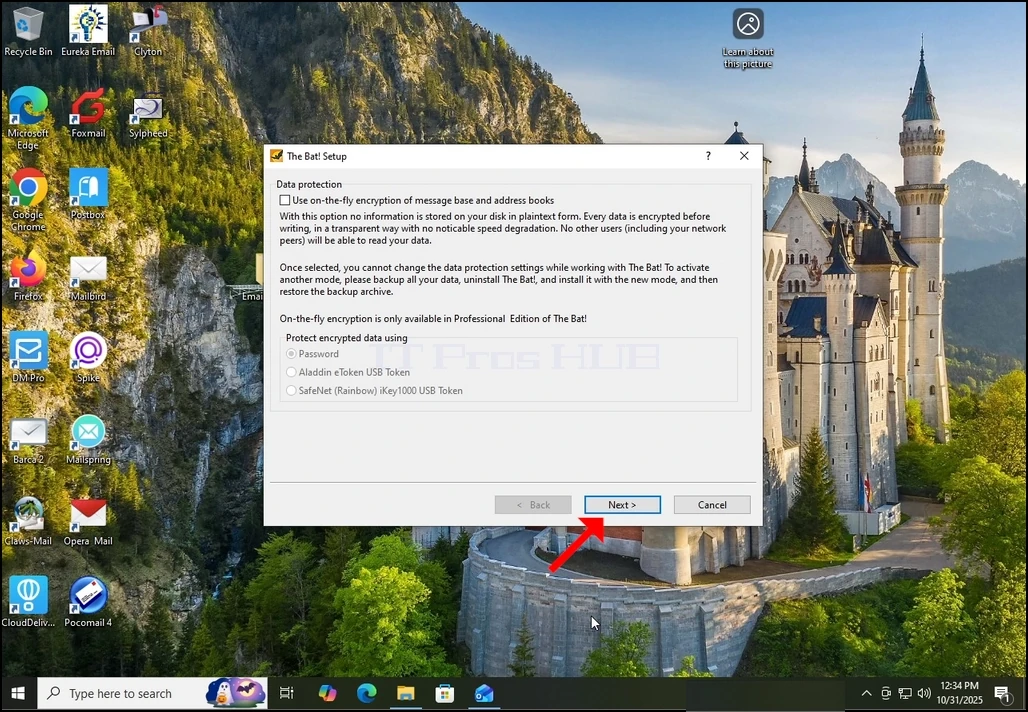
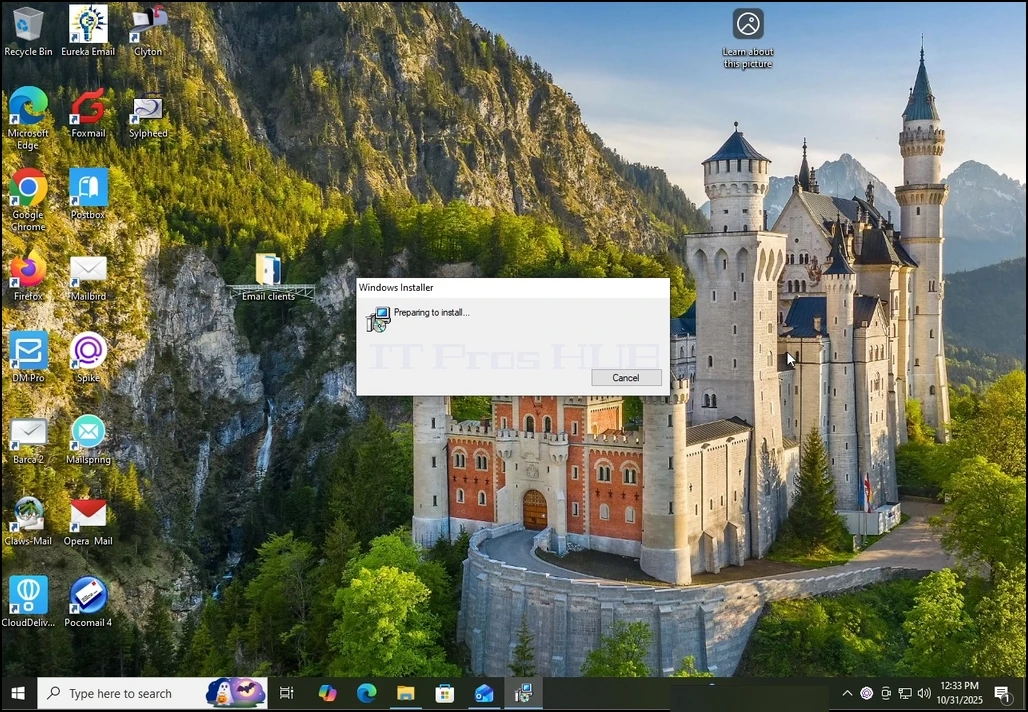
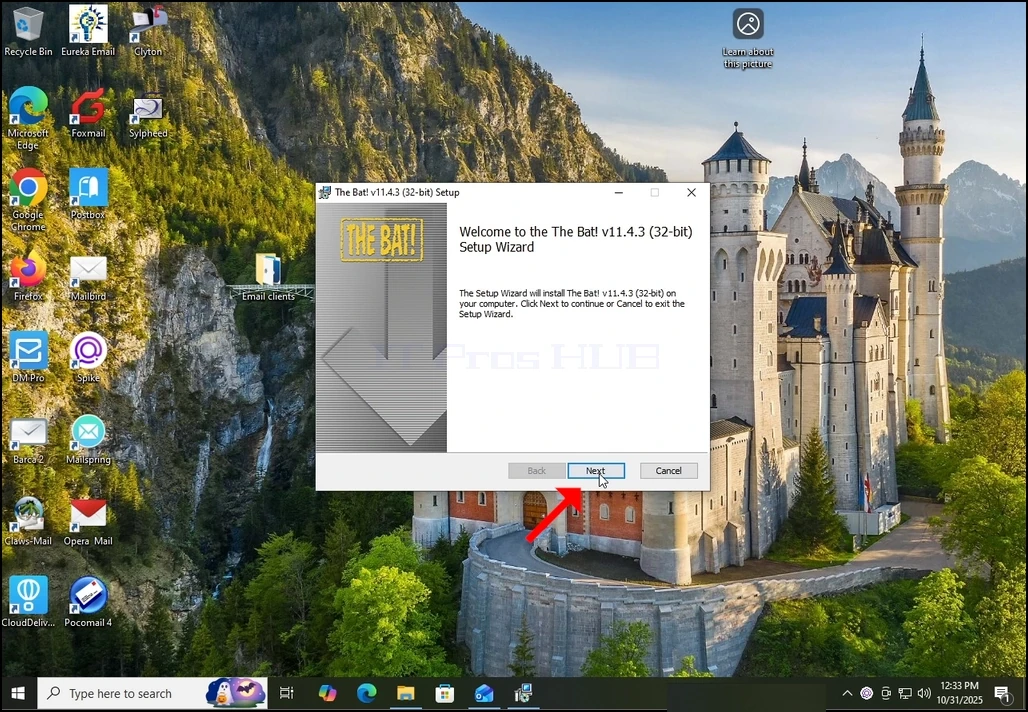
2. インストールウィザードが開くと、クリックします メニューボタン。
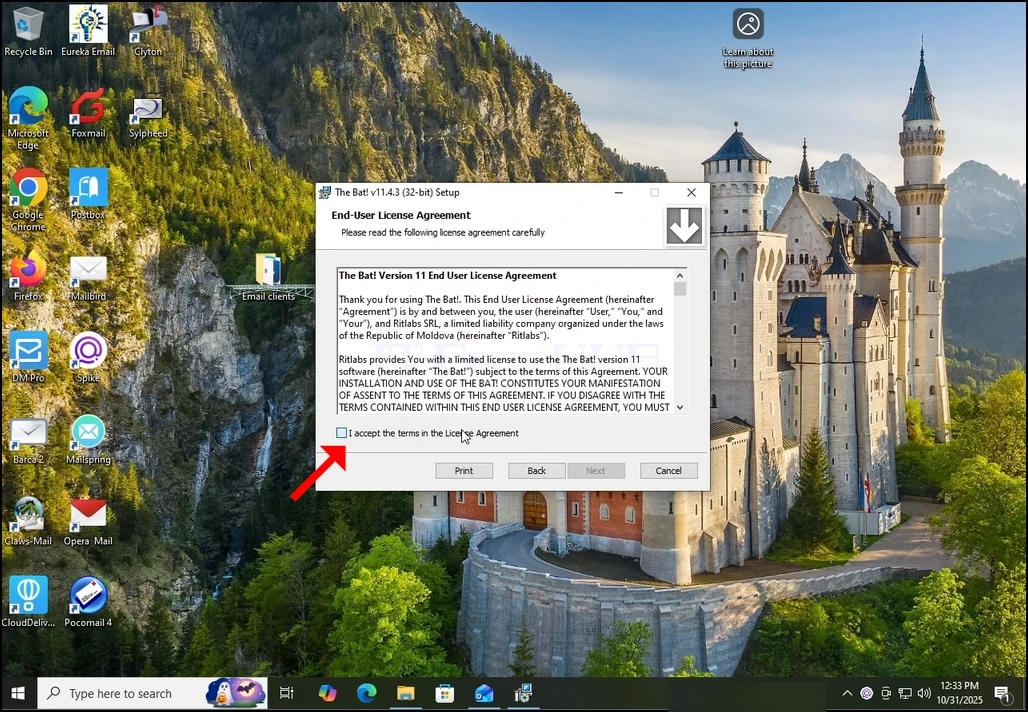
3. 右上のボックスをマークし、NEXTボタンをもう一度クリックすることにより、ライセンスに同意します。
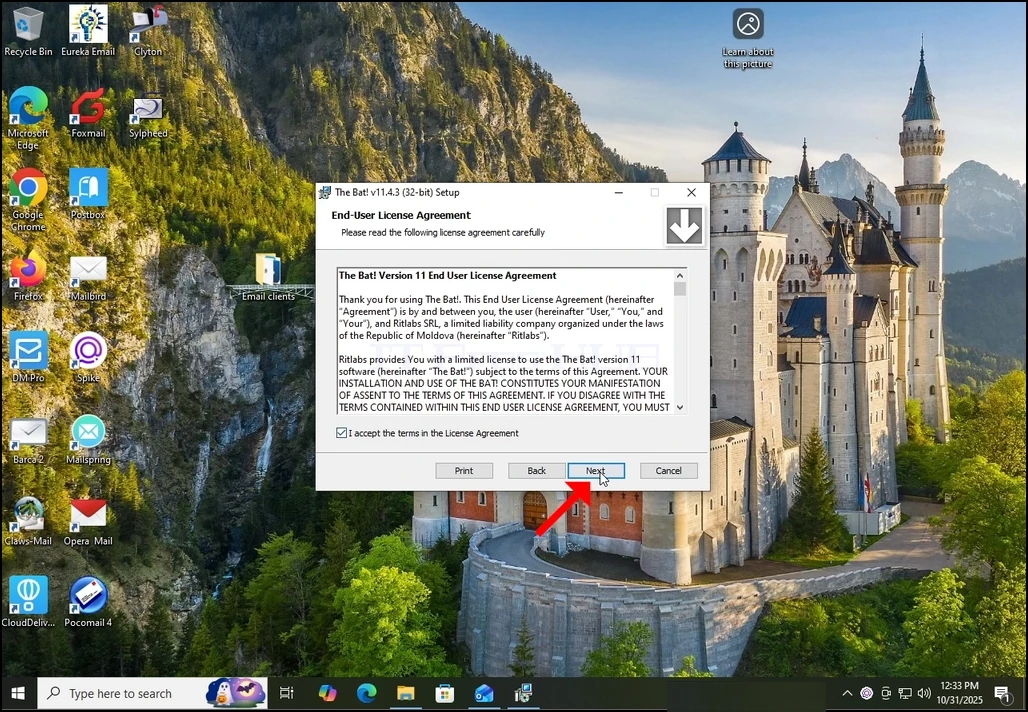
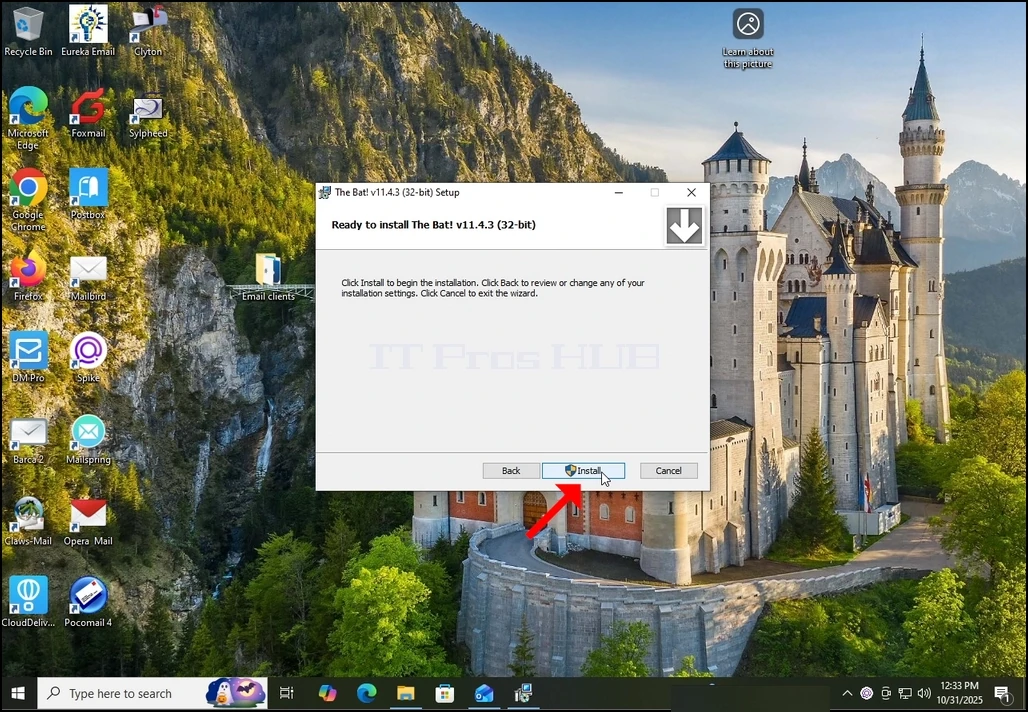
4. クリック インストール ボタン。 ご注意 ウィンドウズUAC インストールプロセスを開始するために管理者の承認を要求するかもしれません(そのボタン内のUAC記号です。
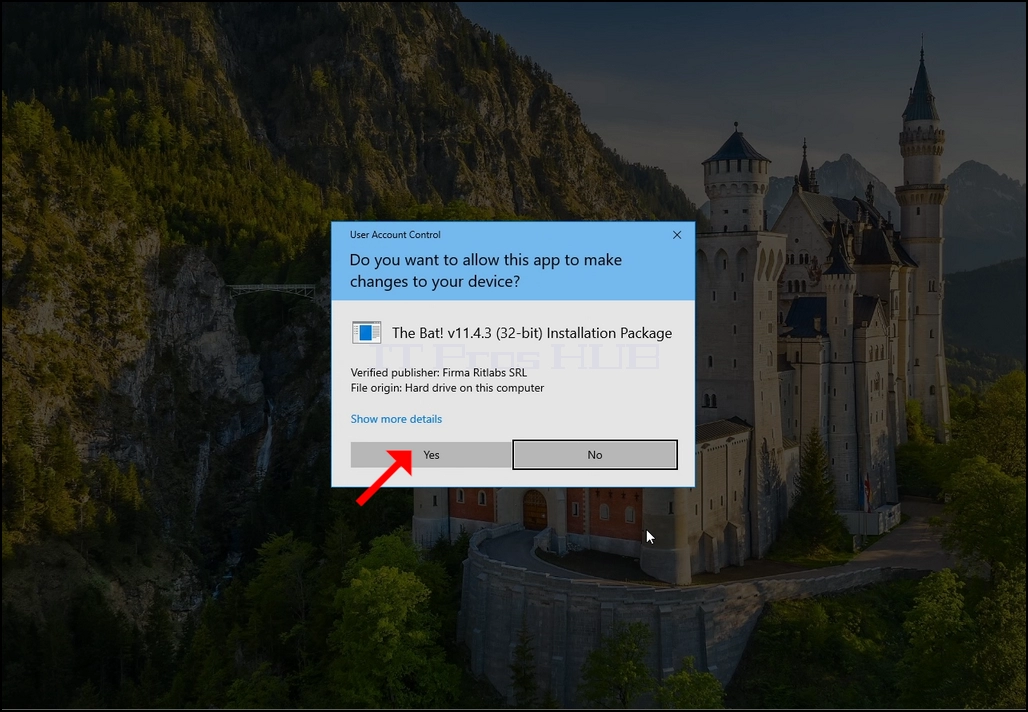
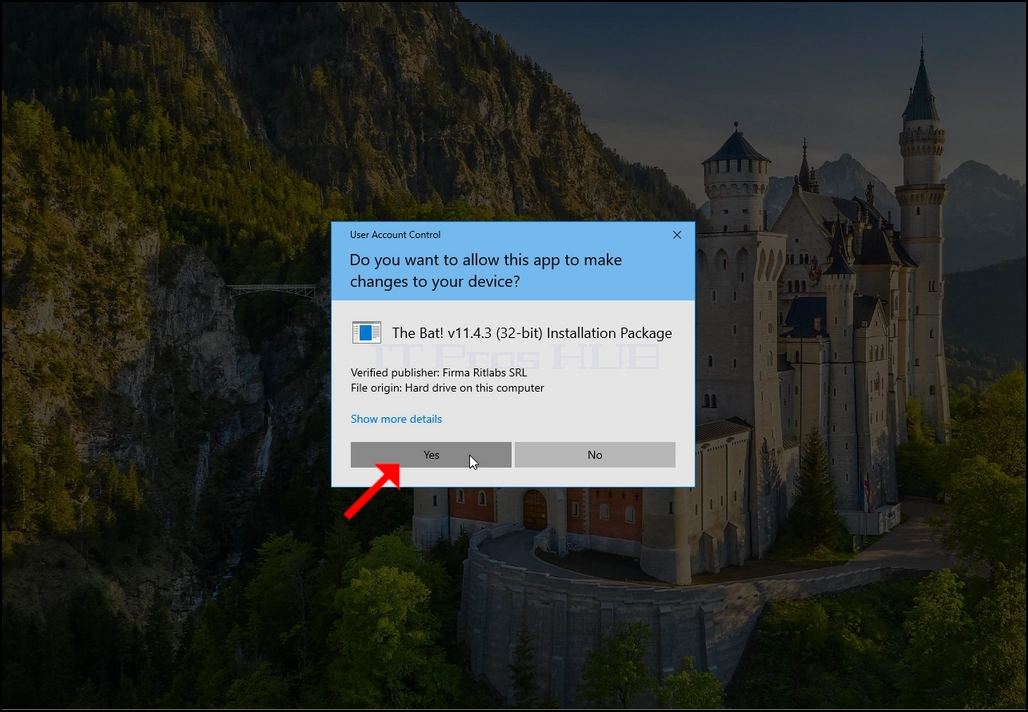
5. UACが管理者の承認を要求したら、クリックして下さい お問い合わせ ボタン。 次のウィンドウが表示されます。 一度に お問い合わせ ボタンをクリックすると、インストールプロセスが開始されます。
6. プロセスが完了するまで待ちます。
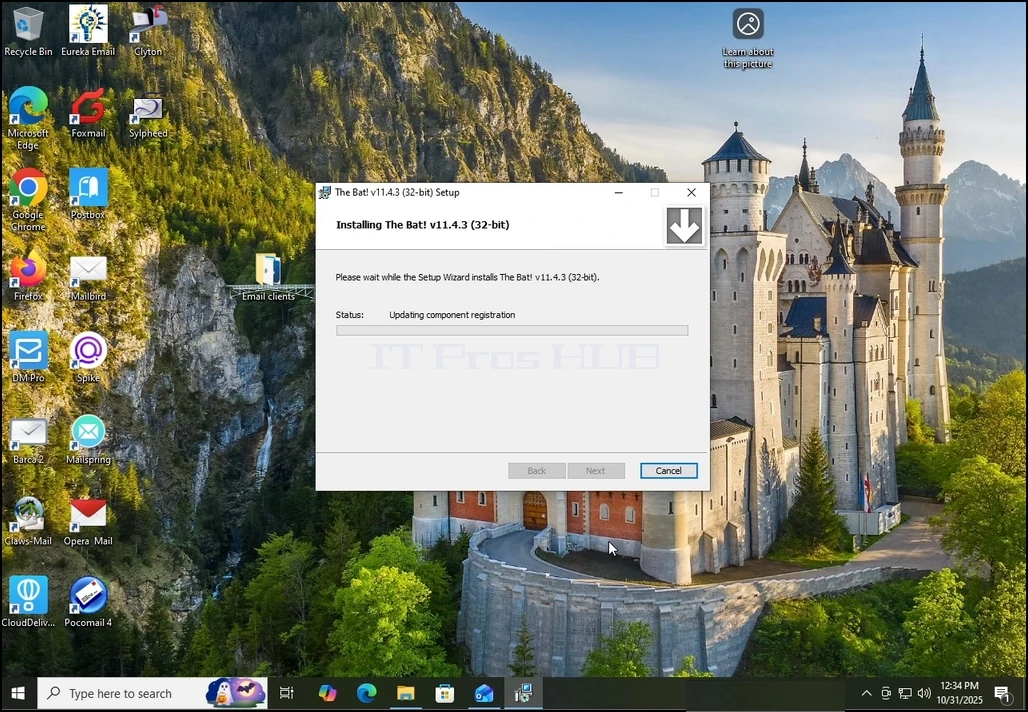
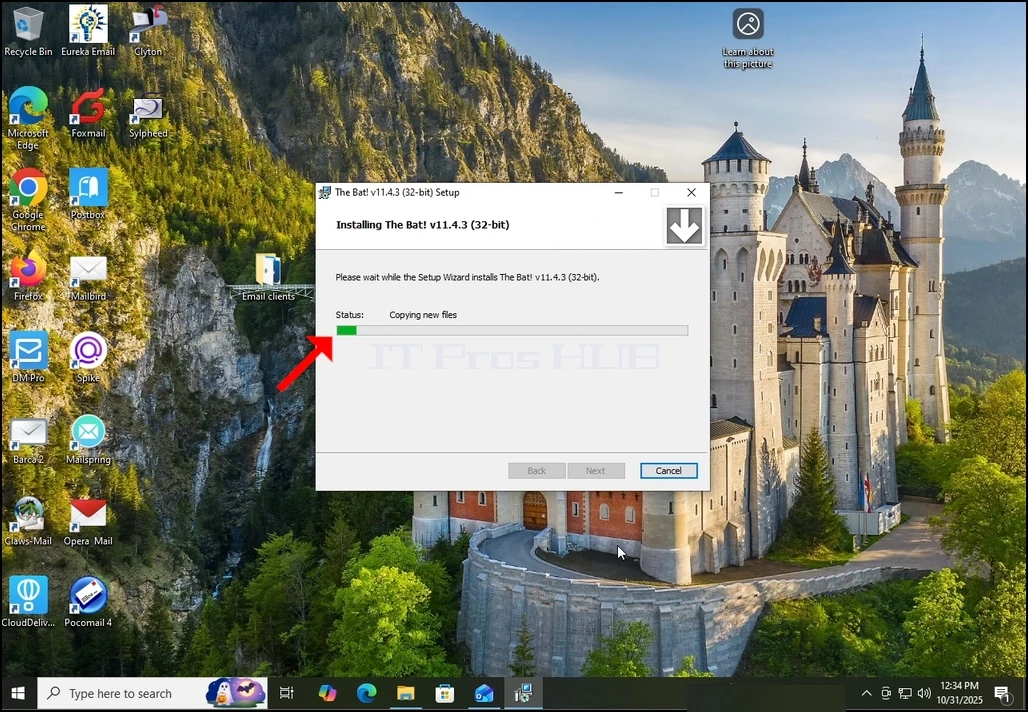
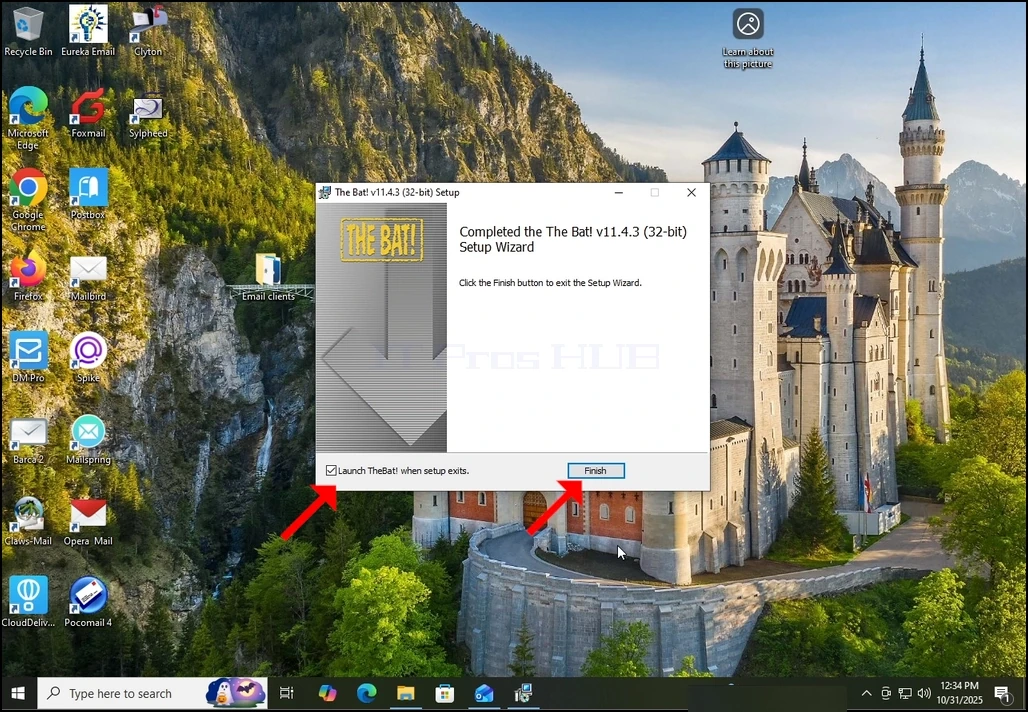
7. プロセスが完了すると、 "セットアップ時にTheBat!を起動" オプションをクリックし、 フィンランド ボタン。 ザボット! 電子メールクライアントがインストールされました。
8。
- 詳細
- 作成者:IT Pro
- カテゴリー: How to Articles
- 参照数: 7172
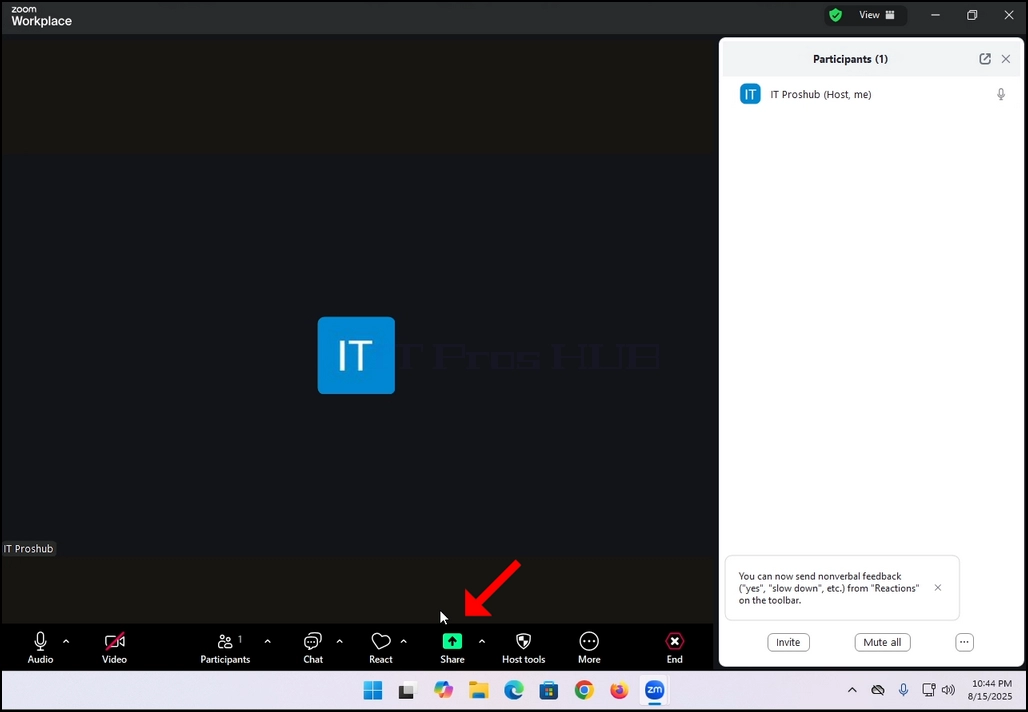
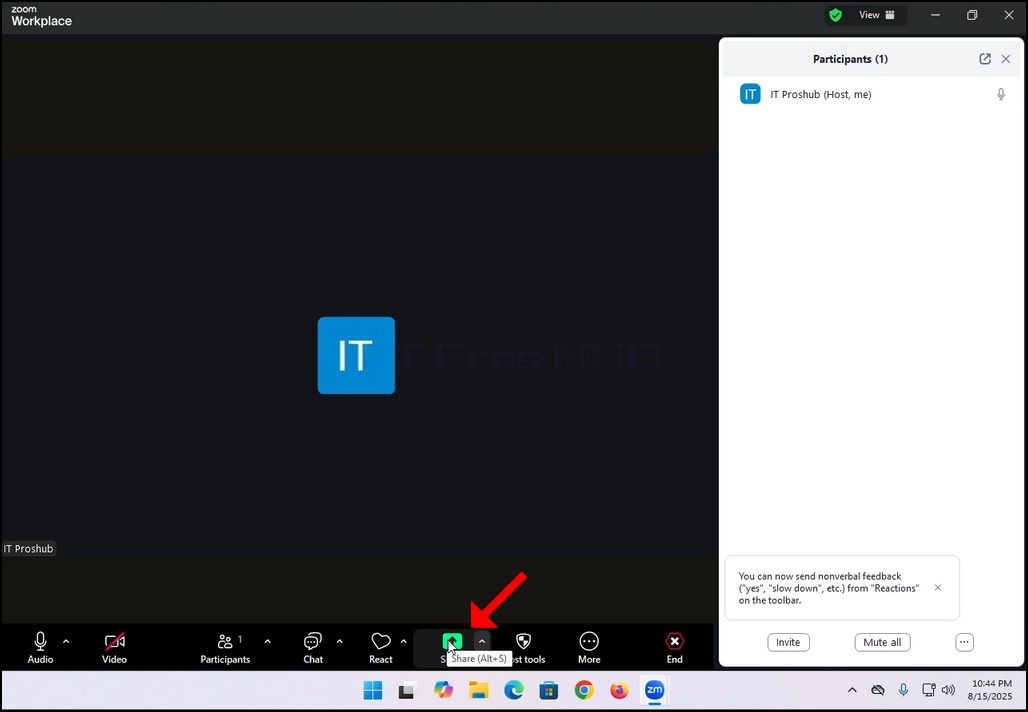
2. Note that there is an arrow next to that icon. If you click that arrow you can direct Zoom to either allow one participant to share a screen at a time or to allow multiple participants to share simultaneously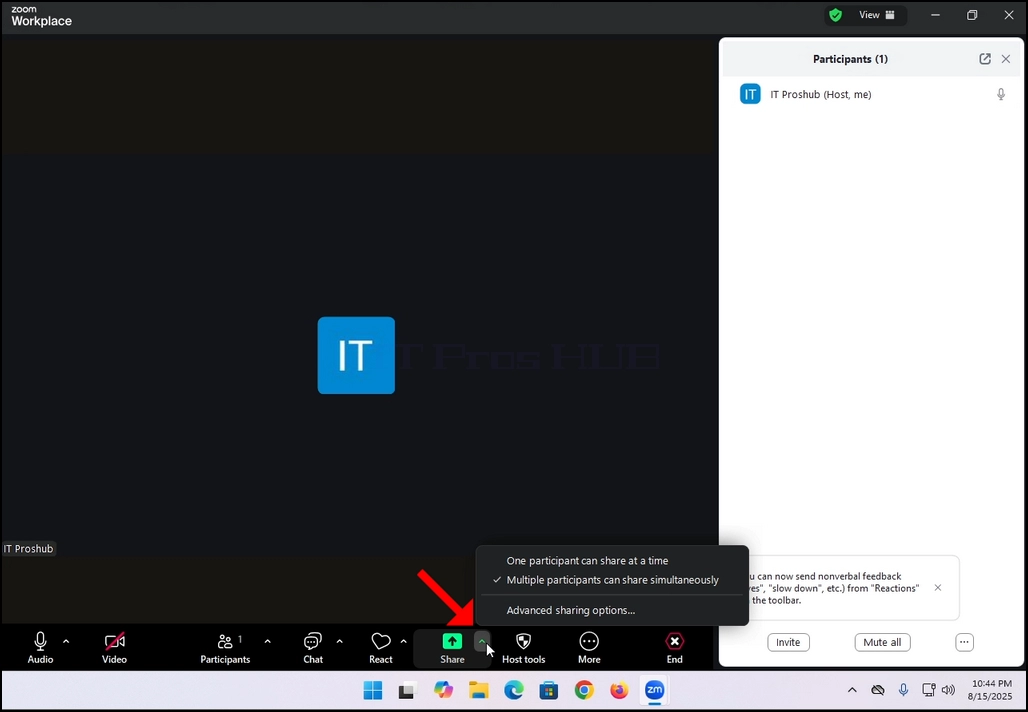
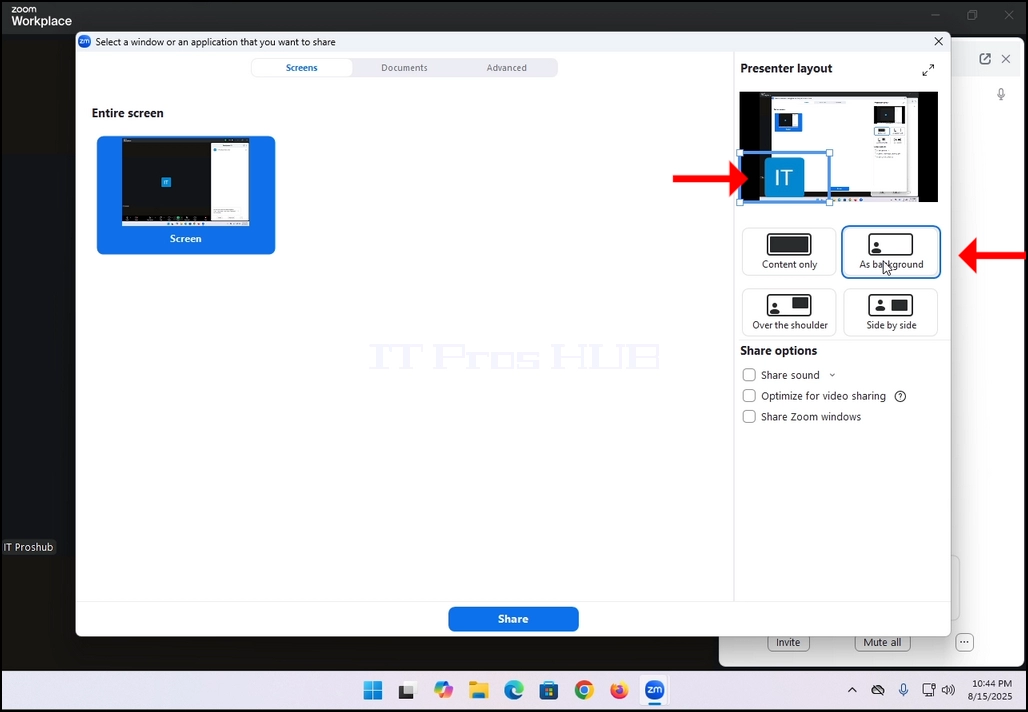
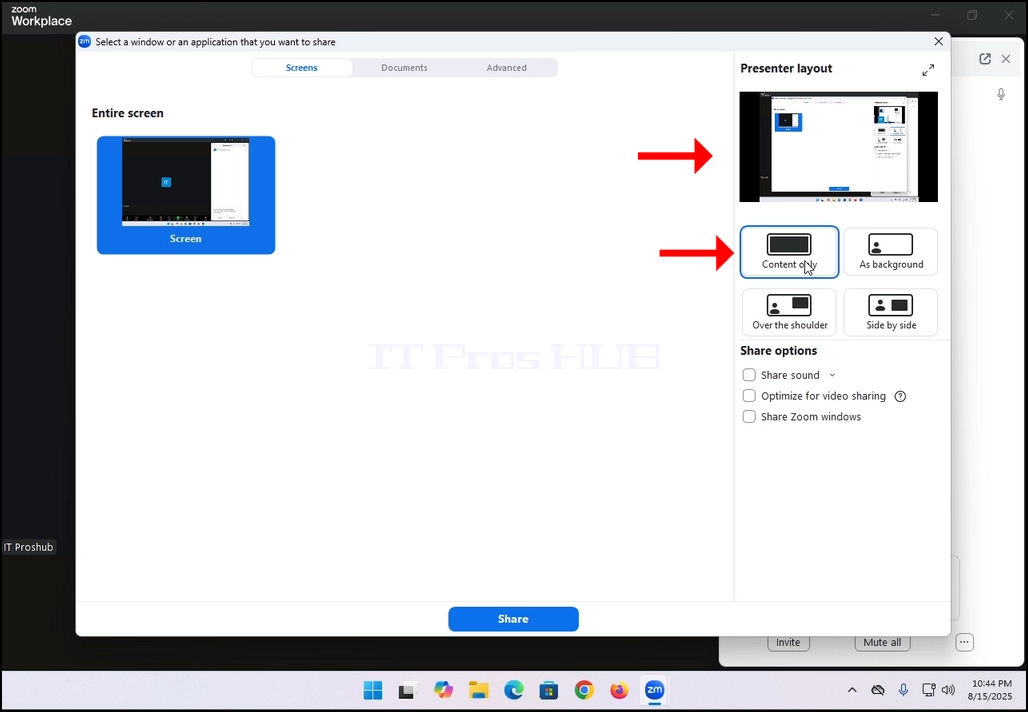
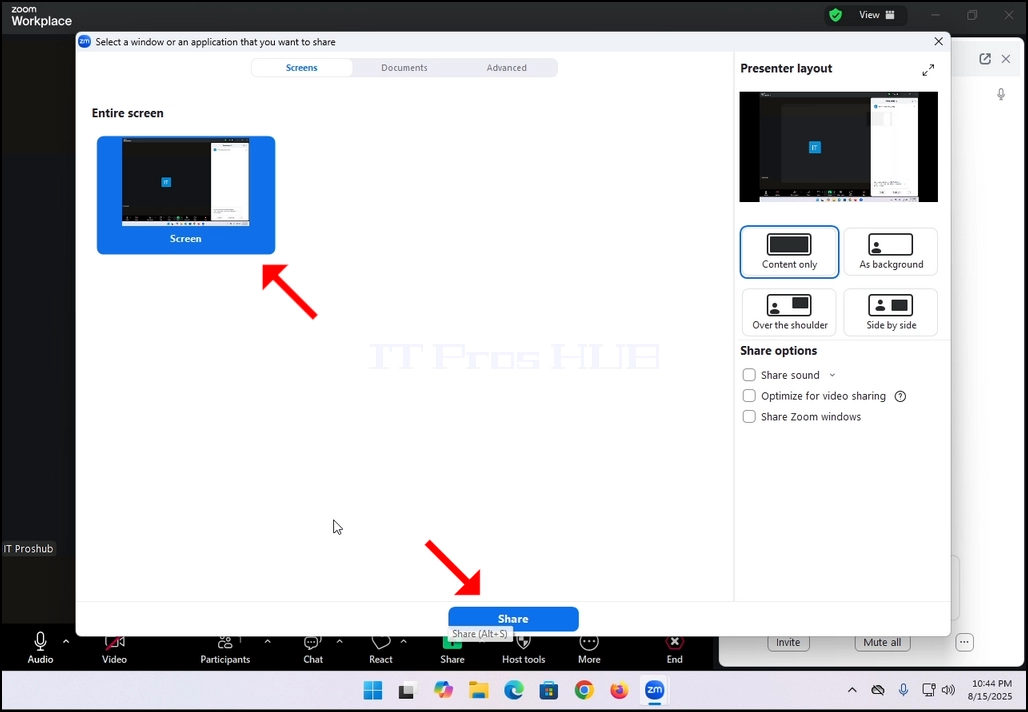 5. On the right side of the window there are the Presenter Layout options. These options allow the presenter to change how the screen and the presenter are laid during the meeting.
- Content only – only the content that is shared is visible to the participants
- As a background – the content is shared as a background and the presenter’s camera video feed is presented in the foreground
- Over the shoulder – the screen that is shared is shown on top of the “shoulder” of the participant. Basically, it is shown off their side to the top.
- Side by Side – the presenter and the screen that is shared are shown side by side to the participants
6. Additional options include:
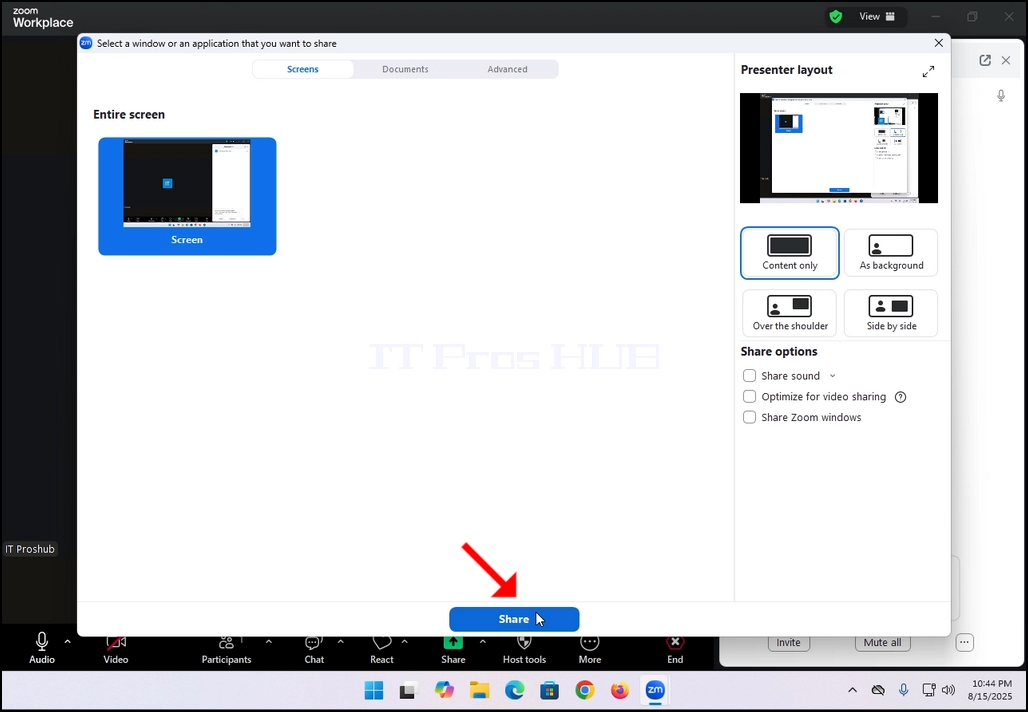
- Sound sharing – the presenter shares the sounds omitting from its computer
- Optimize for video sharing – Zoom would optimize itself to share video over the screen that is shared
- Share Zoom windows - It controls whether your own Zoom interface (the Zoom app windows) can be shared when you screen share.
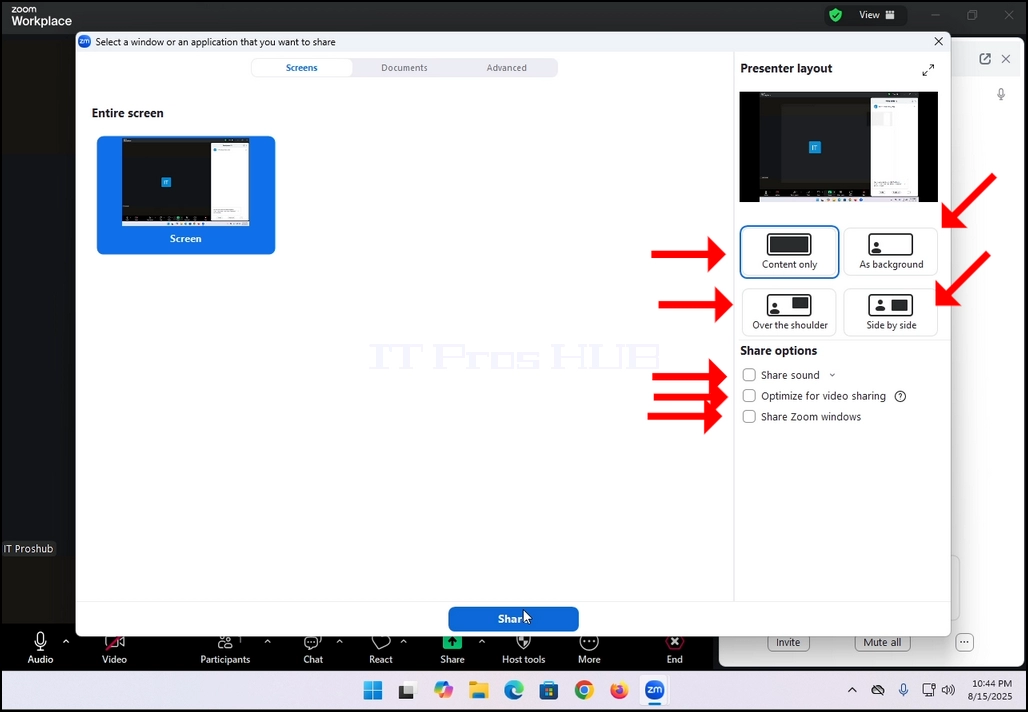
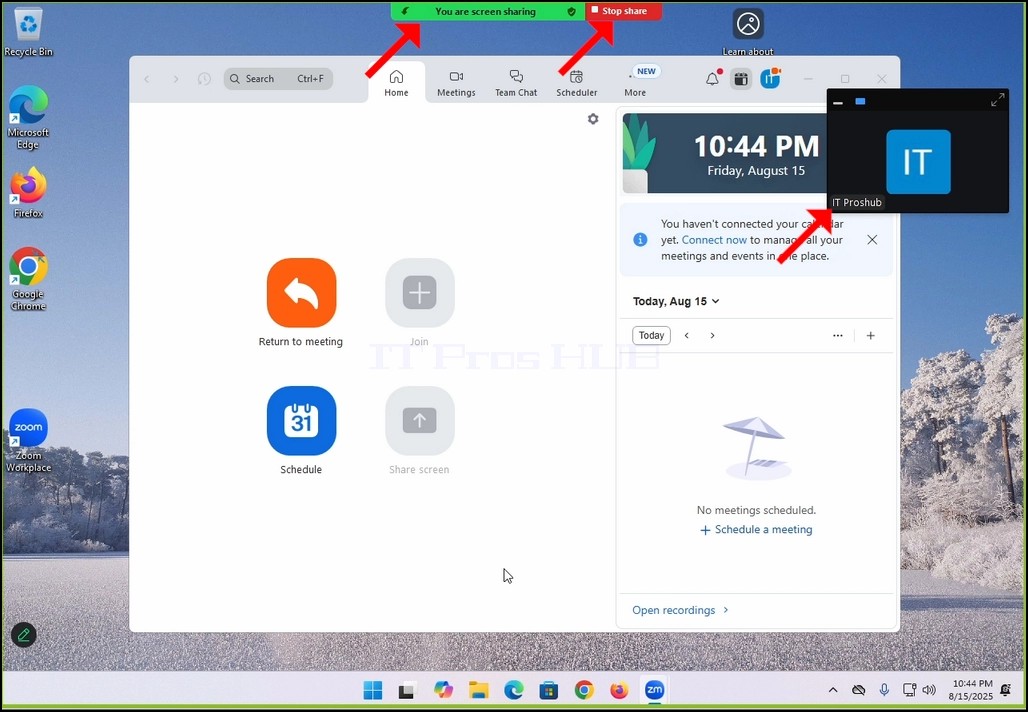
8. Note that your own camera video feed will be shown in a small box as well as can be seen in the image below:

- 詳細
- 作成者:IT Pro
- カテゴリー: How to Articles
- 参照数: 6999
- マイクロソフトの端を開けて下さい
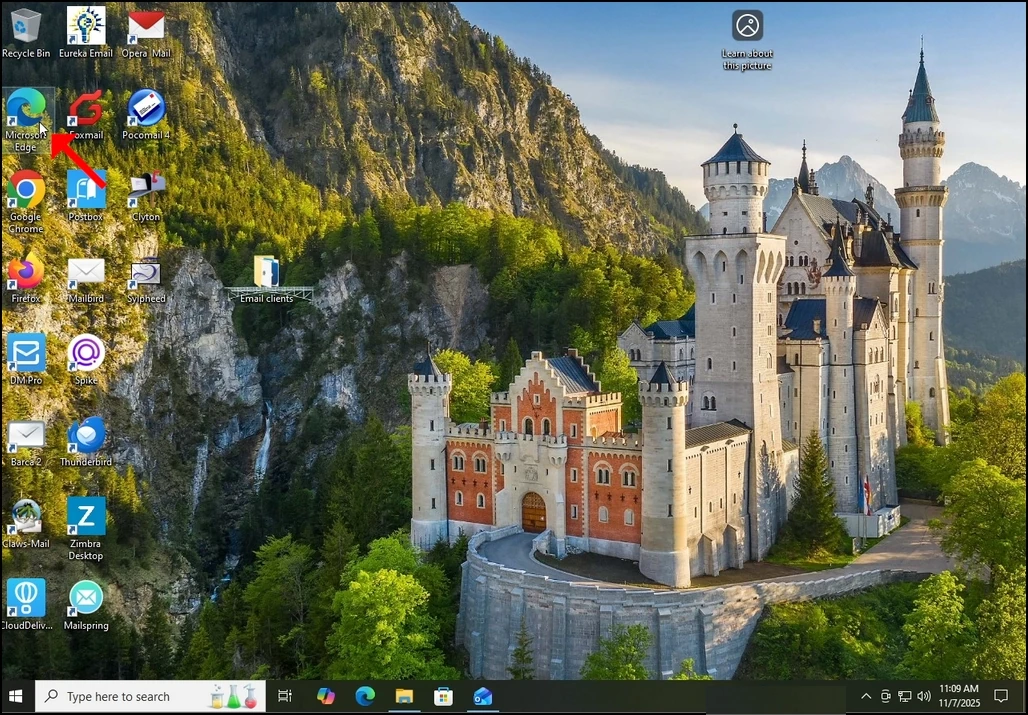
2。 ブラウザの右上隅にある3つの点のアイコンを見て、一度クリックしてください。 サイドメニューが表示されます。
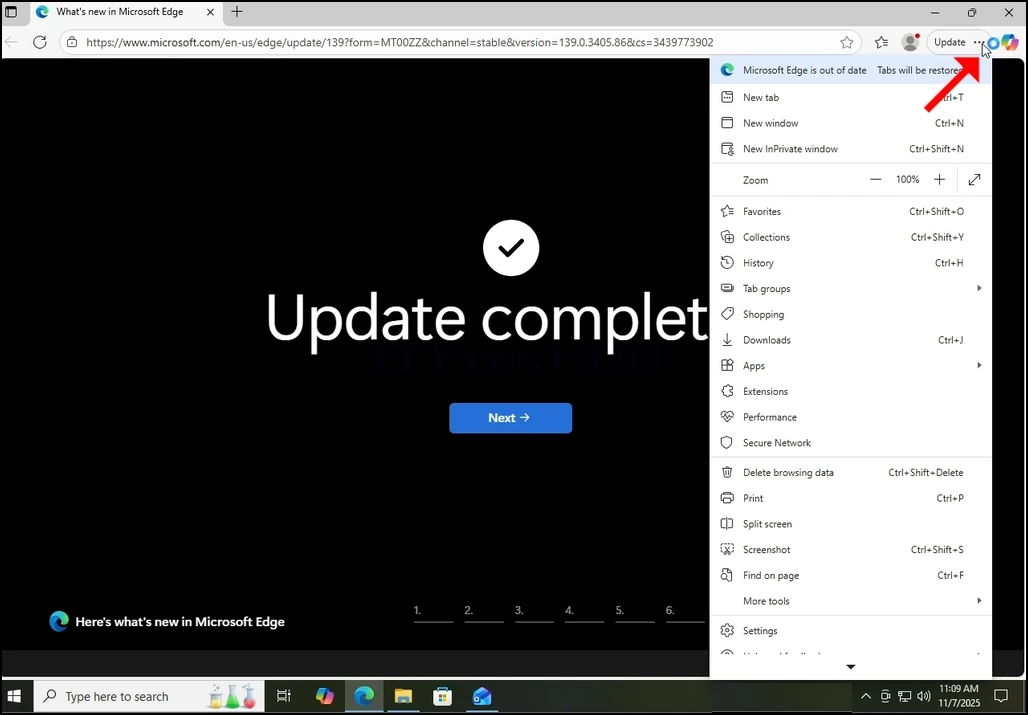
3. そのサイドメニューで、そこに最後のオプションの直前にあるヘルプとフィードバックオプションに移動します。 メニュー拡張子が表示されるまでマウスをマウスオーバーします。 そうでない場合は、その拡張子が表示されるまで一度クリックしてください。
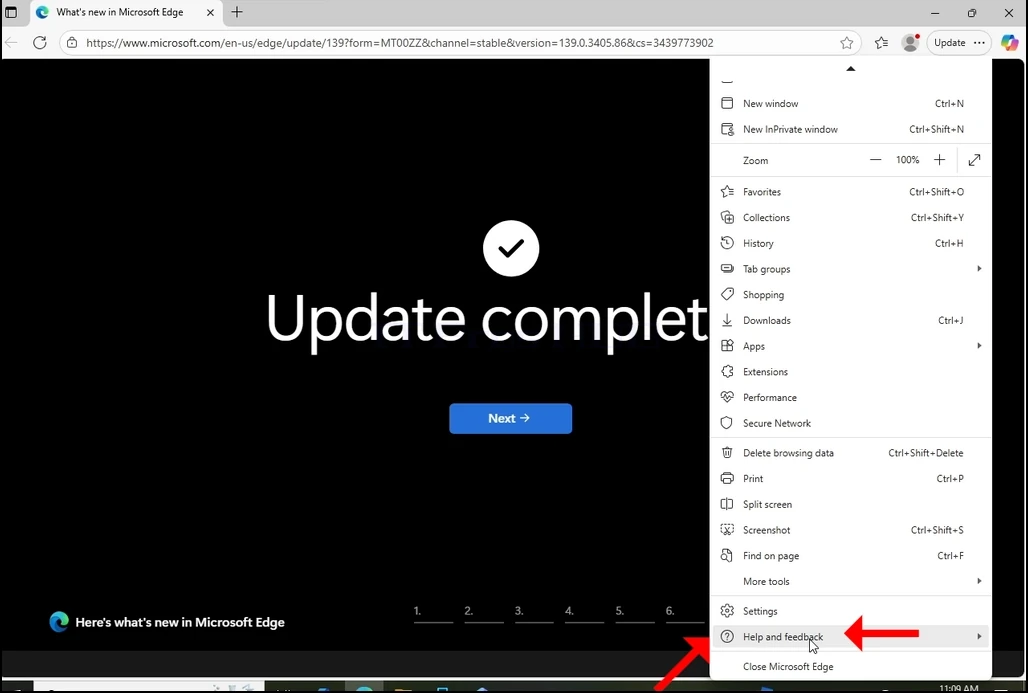
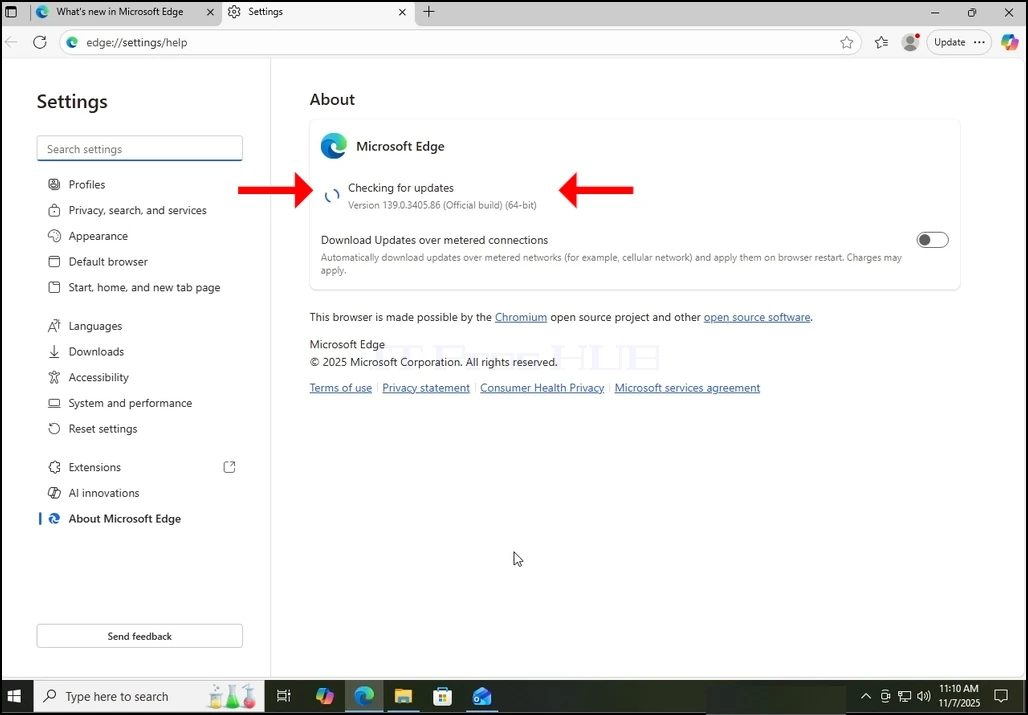
4. その延長で、見て下さい マイクロソフトエッジについて 文を一度クリックして、クリックしてください。 [About]ウィンドウが表示されるのを待つ
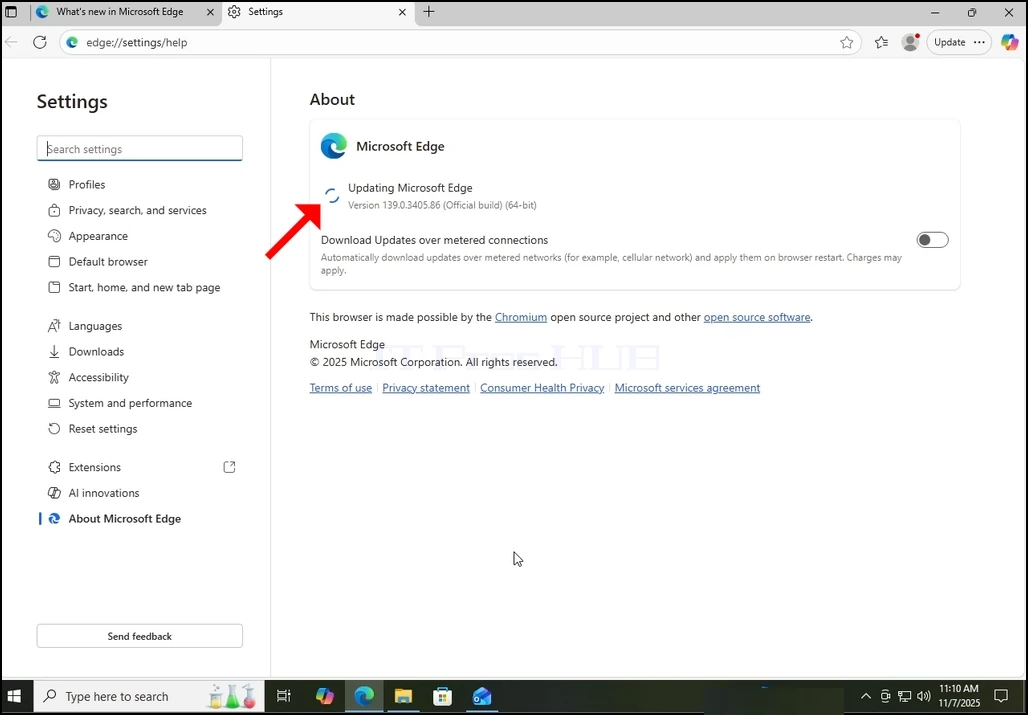
5. [About] ウィンドウが表示されたら、Edge ブラウザーはすぐに更新を探し始めます。 「見てみると」アップデートの確認「小さなアニメーションアイコンで横たわる文章」
6. Edge ブラウザーの現在のバージョンは、その文の下に表示されます。
7. Edge ブラウザーで更新が見つかった場合、「アップデートの確認” 文は “Microsoft Edgの更新Eメールお問い合わせ
8. メーターで計られた関係の重要なノート:
お問い合わせ モバイルホットスポットやLTE接続などのメーター接続を使用し、Edgeを更新したい場合は、必ずマークしてください メーター接続上の更新をダウンロード ウィンドウについて非常に存在するオプション。
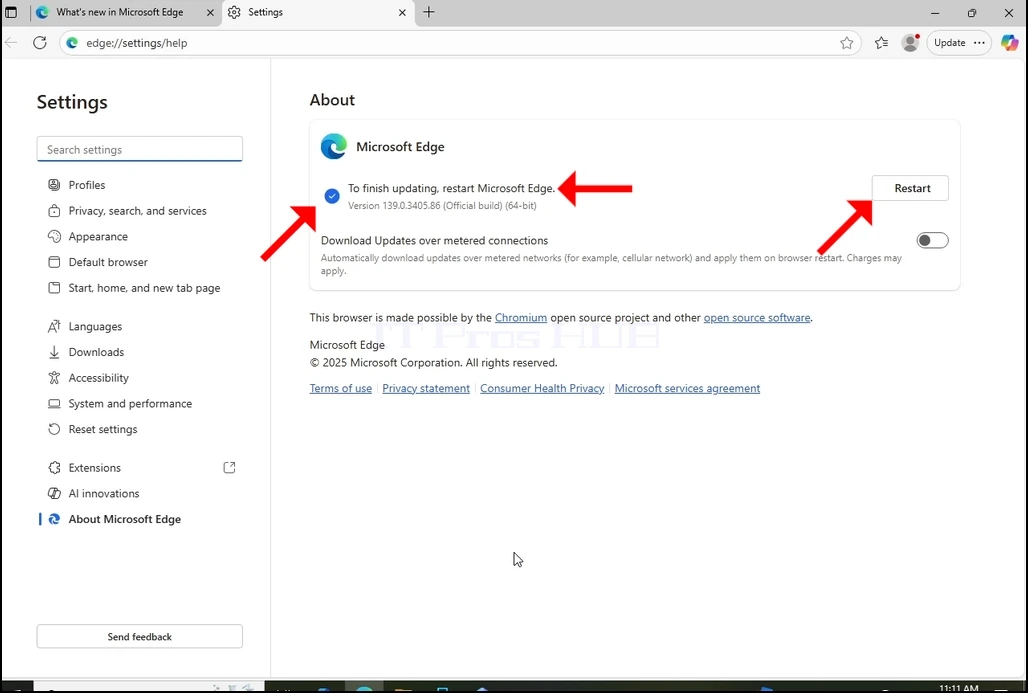
9. Edge が更新のダウンロードが完了すると、通知されます “Microsoft Edge の再起動を完了するには下の画像でご覧いただけます。
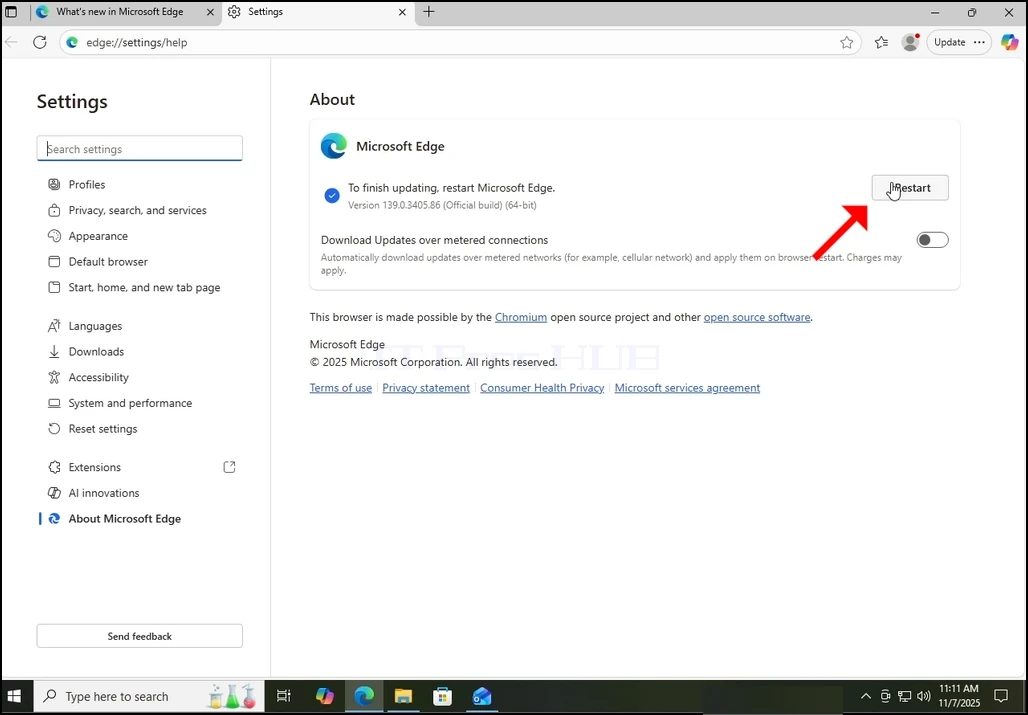
10. A リスタート ボタンはウィンドウの右側に表示されます。 クリックして、Microsoft Edge を再起動し、更新プロセスを終了します。
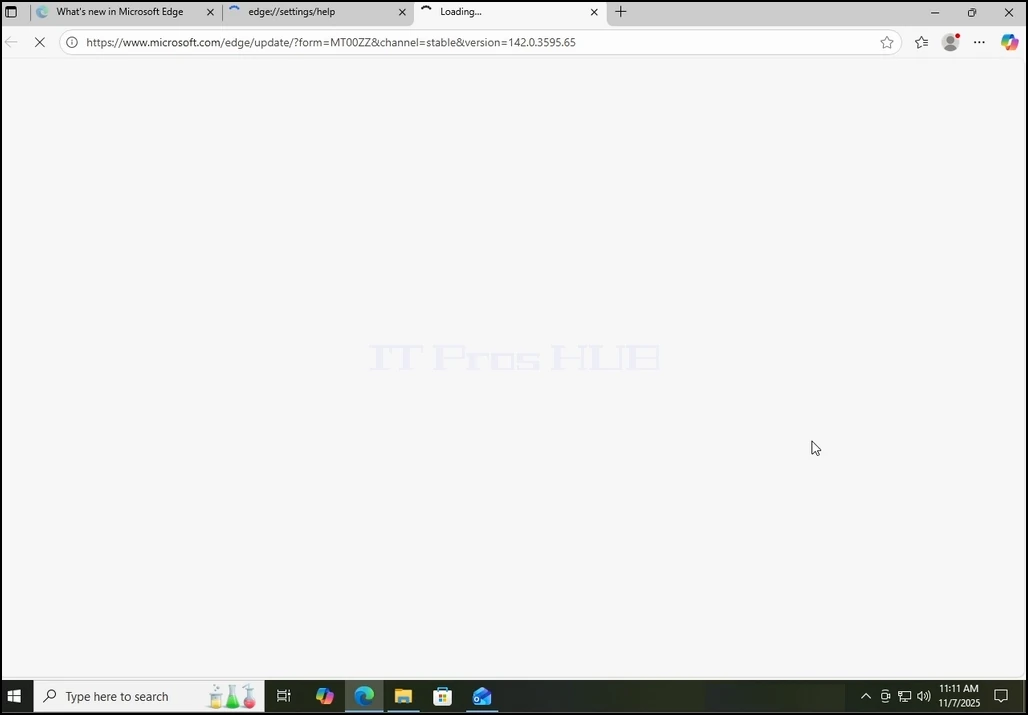
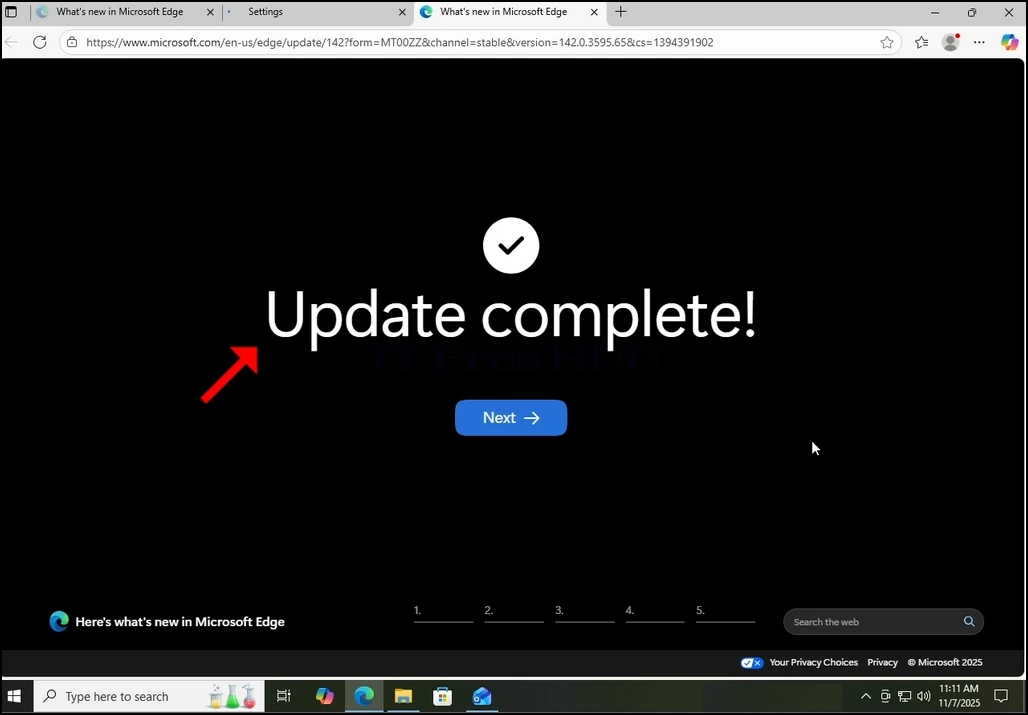
11. Edge がそれ自体を再起動した後、それを提示し始めるべきです 更新完了 新しいタブのメッセージ。 そのタブを閉じます。 戻る お問い合わせ ブラウザのバージョンが更新プロセスが開始される前には異なります。
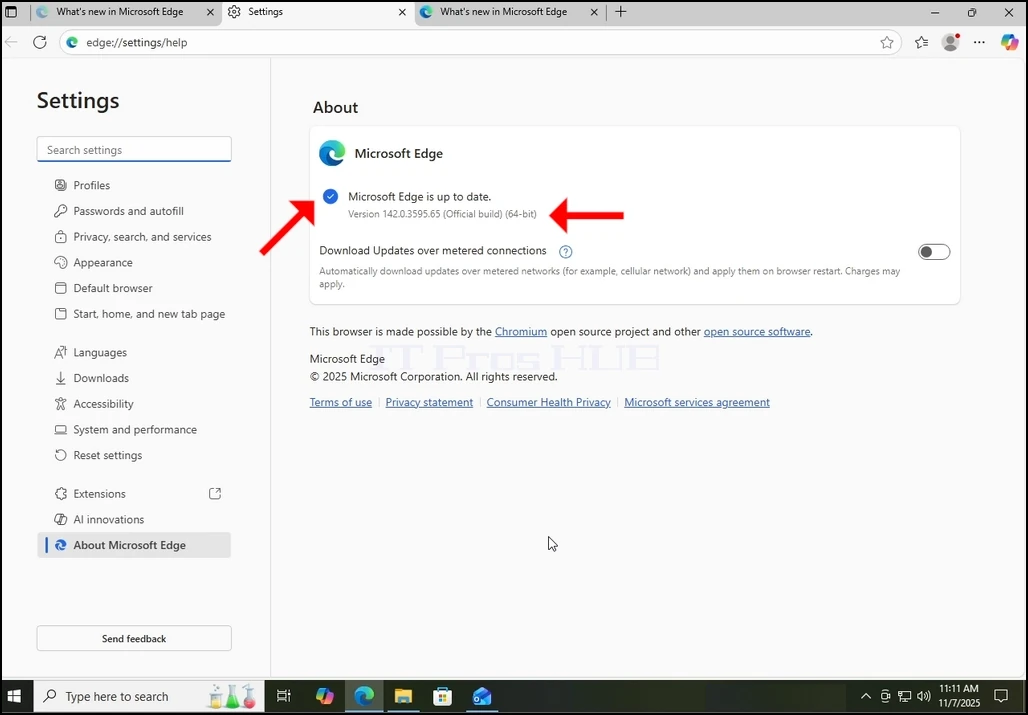
12. また、Aboutウィンドウに戻ると、より多くの保留更新があるかどうかを確認することができます. ご覧のとおり、メッセージで提示されているので、これ以上の更新はありません マイクロソフトの端は最新ですお問い合わせ
- 詳細
- 作成者:IT Pro
- カテゴリー: How to Articles
- 参照数: 6709
1。 Windowsデスクトップに移動します。
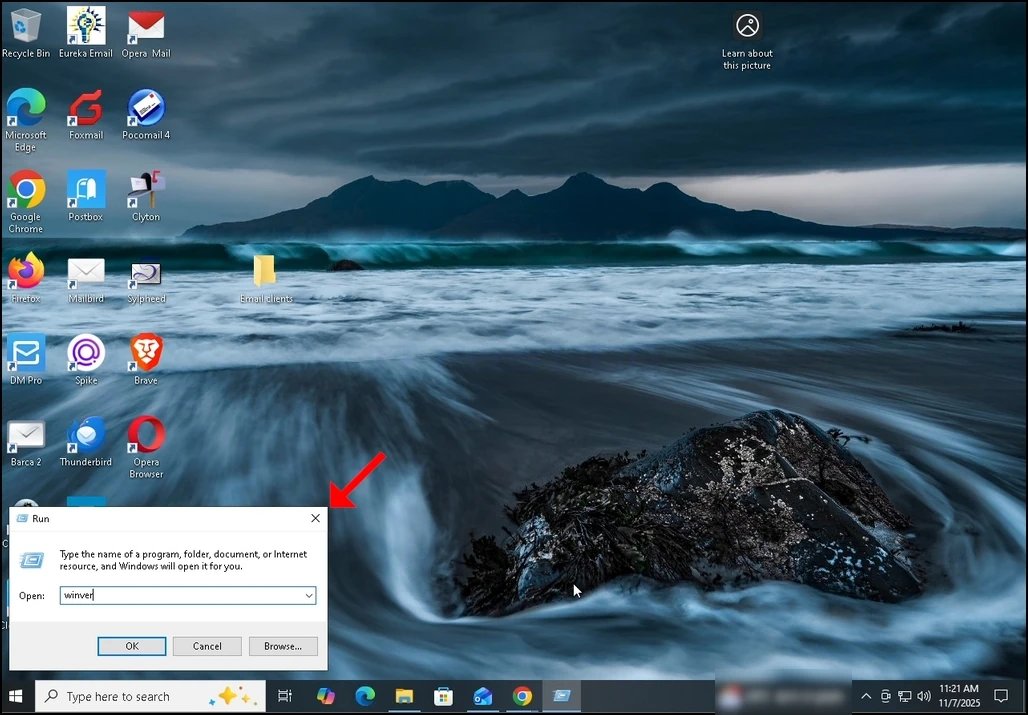
2. キーボードで、かちりと言う音 ウィンドウズ+ R 鍵の組み合わせと実行ボックスが表示されるのを待ちます。
3. ランボックスが表示されたら、タイプ ウィンバー テキスト ボックスで Enter キーを押すか、OK ボタンをクリックし、Windows ウィンドウについてポップアップを待ちます
4。 Windowsウィンドウについて、第二の文では、Windowsのバージョンとビルドは明らかになります。
5. オペレーティング システムのタイプは第2段落で見ることができます。
6. この記事では、例えば、Windowsの版はあります 22H2 ビルドは 19045.6159の オペレーティングシステムの種類は Windowsプロお問い合わせ