- Išsami informacija
- Parašė: IT Pro
- Kategorija: How to Articles
- Peržiūros: 5914
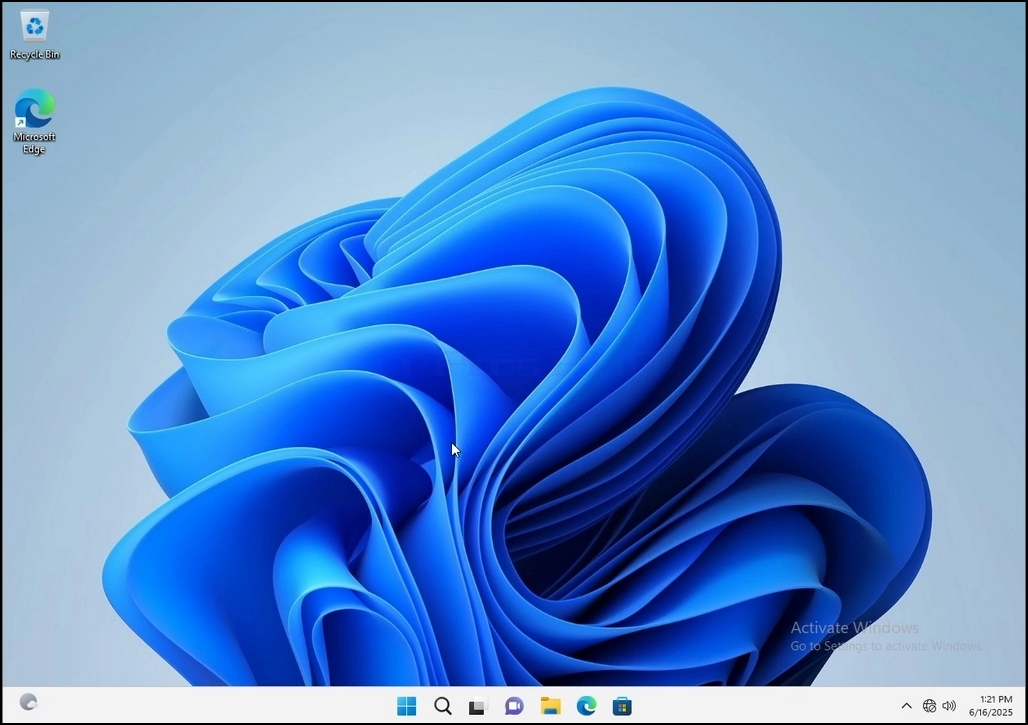
1. Go to Windows Desktop
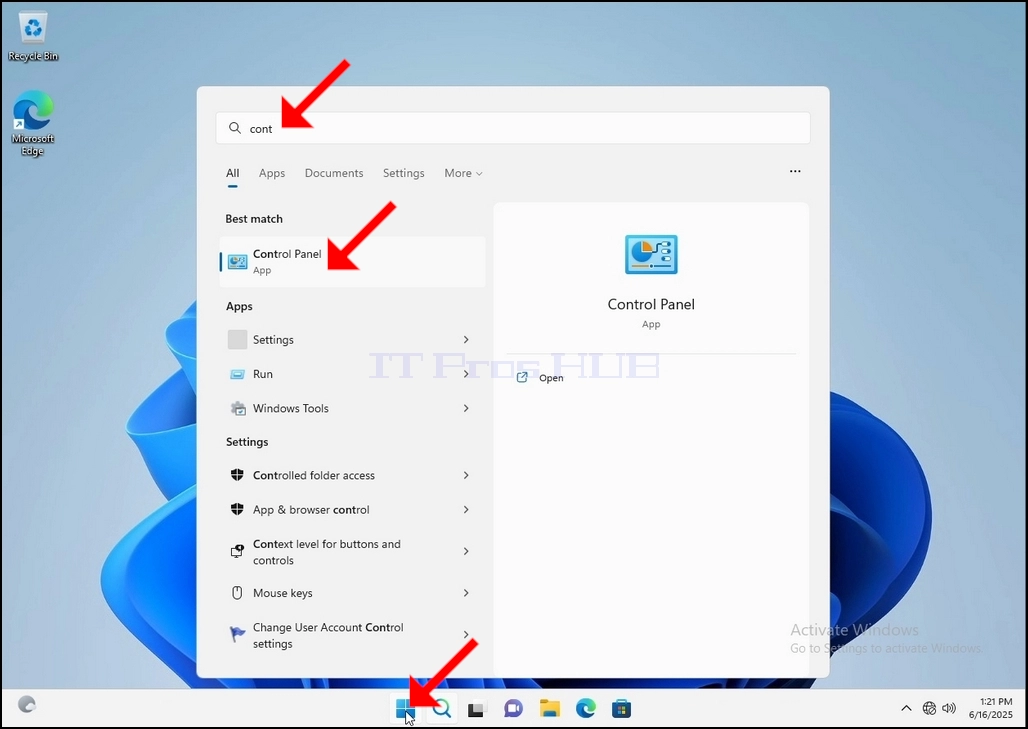
2. Click Start

Once it finds it, click it and wait for the Control Panel window to appear.
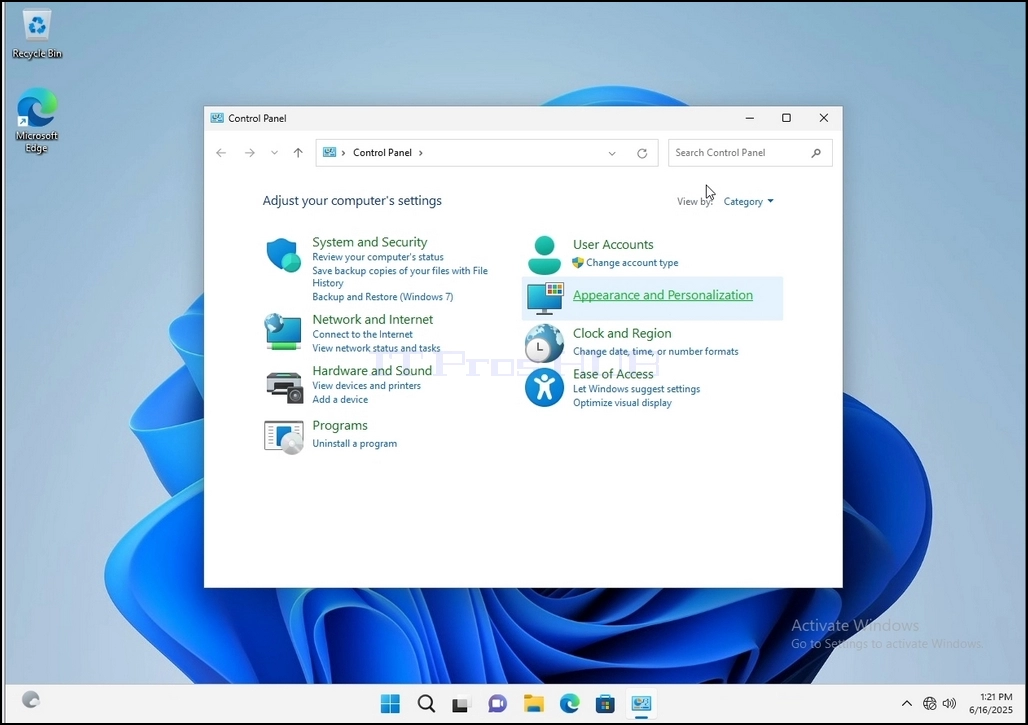
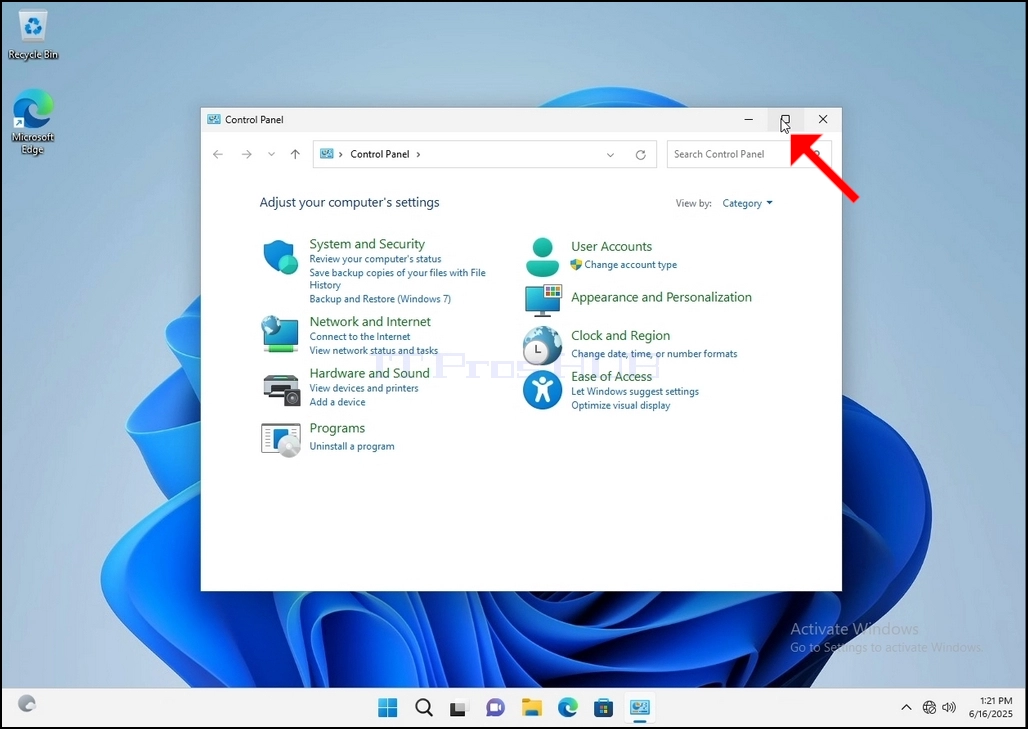
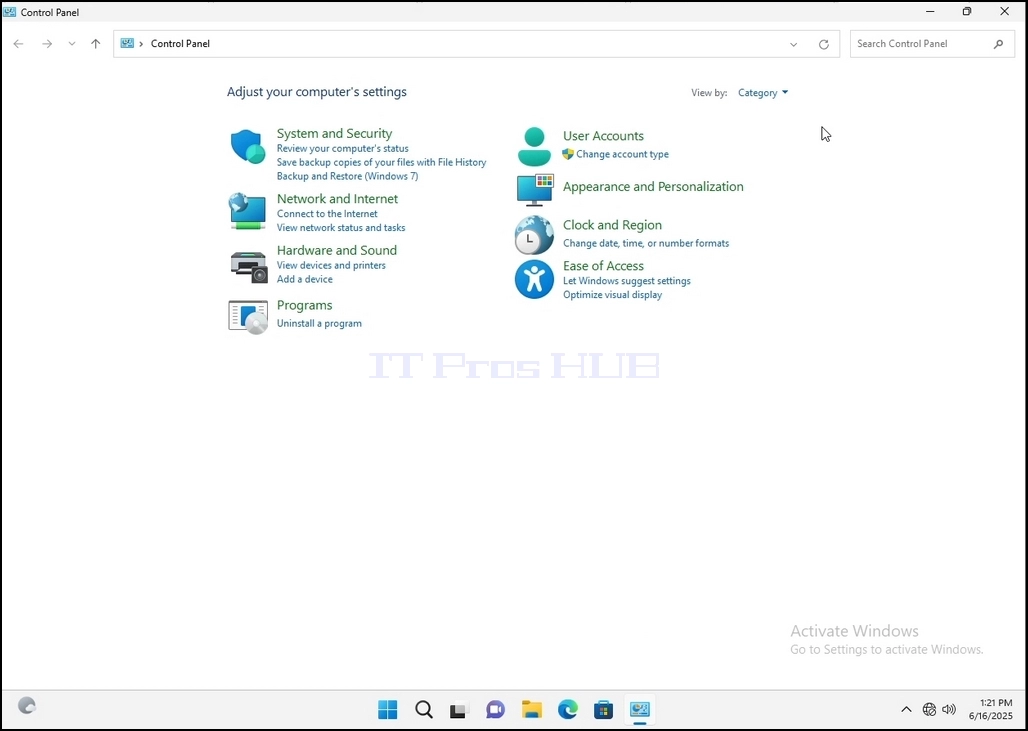
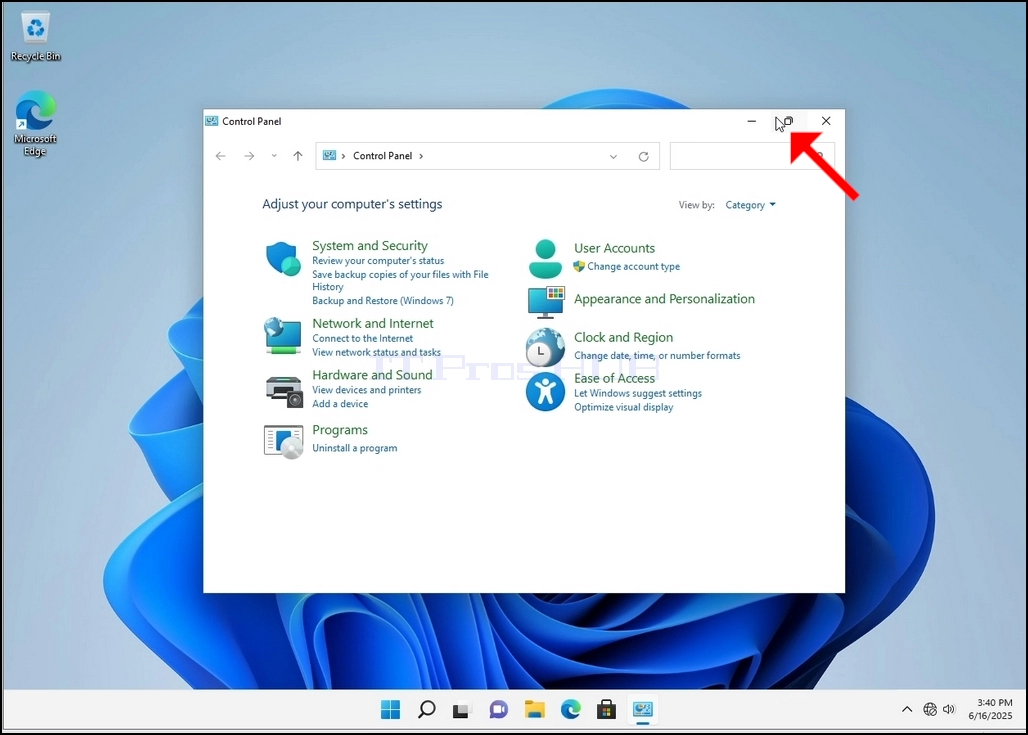
4. Once the Control Panel window is open, enlarge it by clicking the enlarging icon on the top right corner of that window.
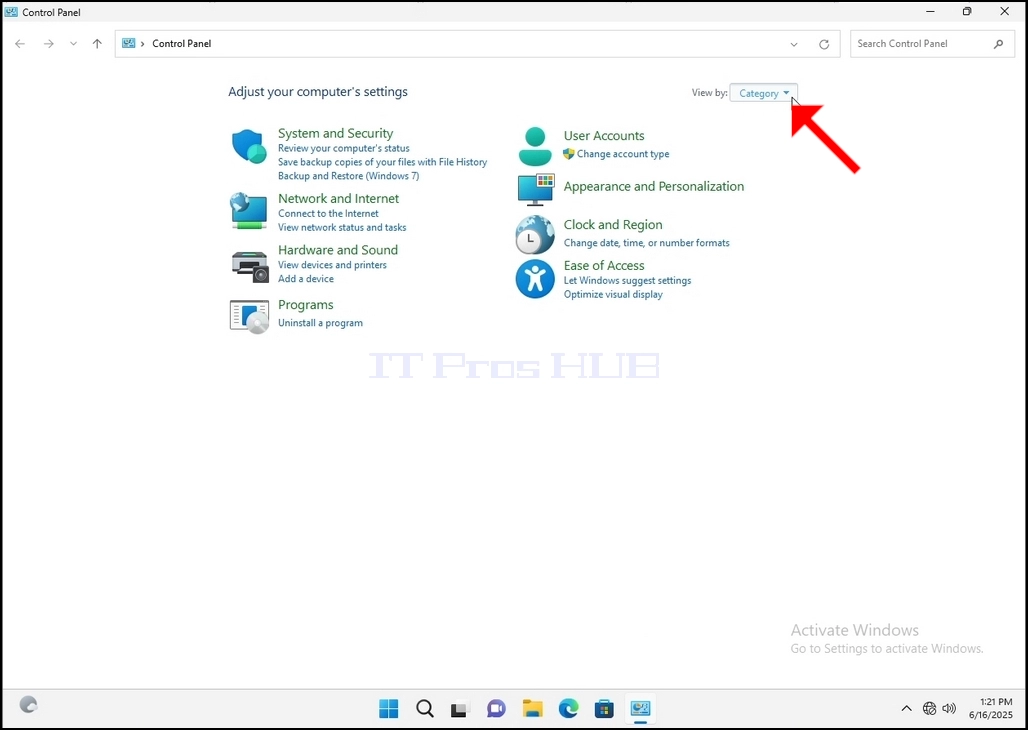
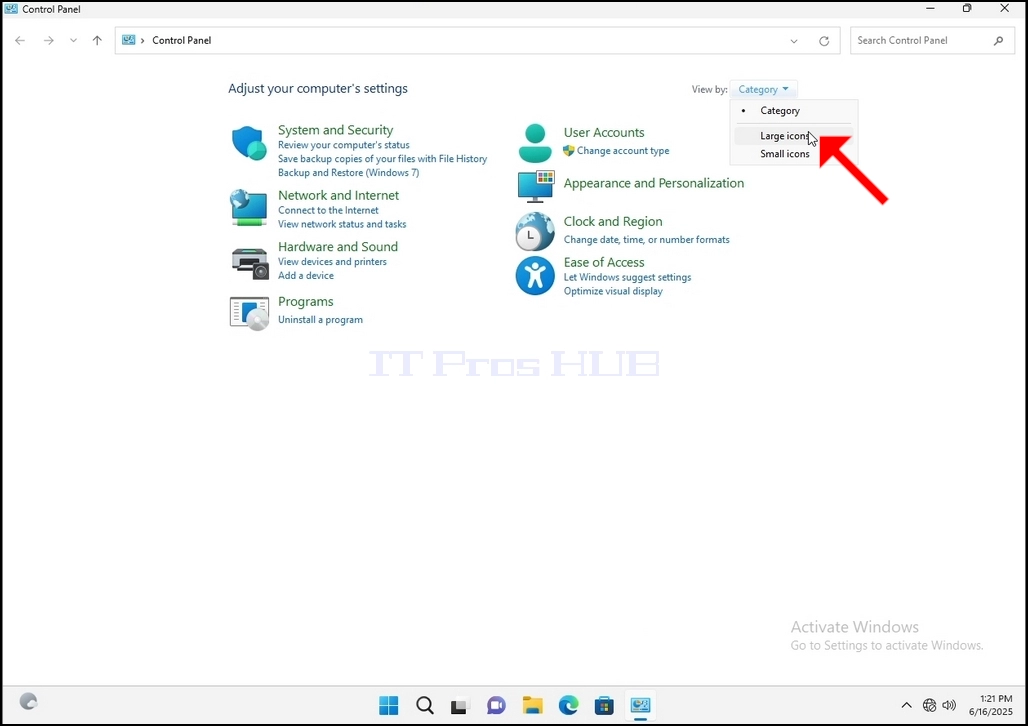
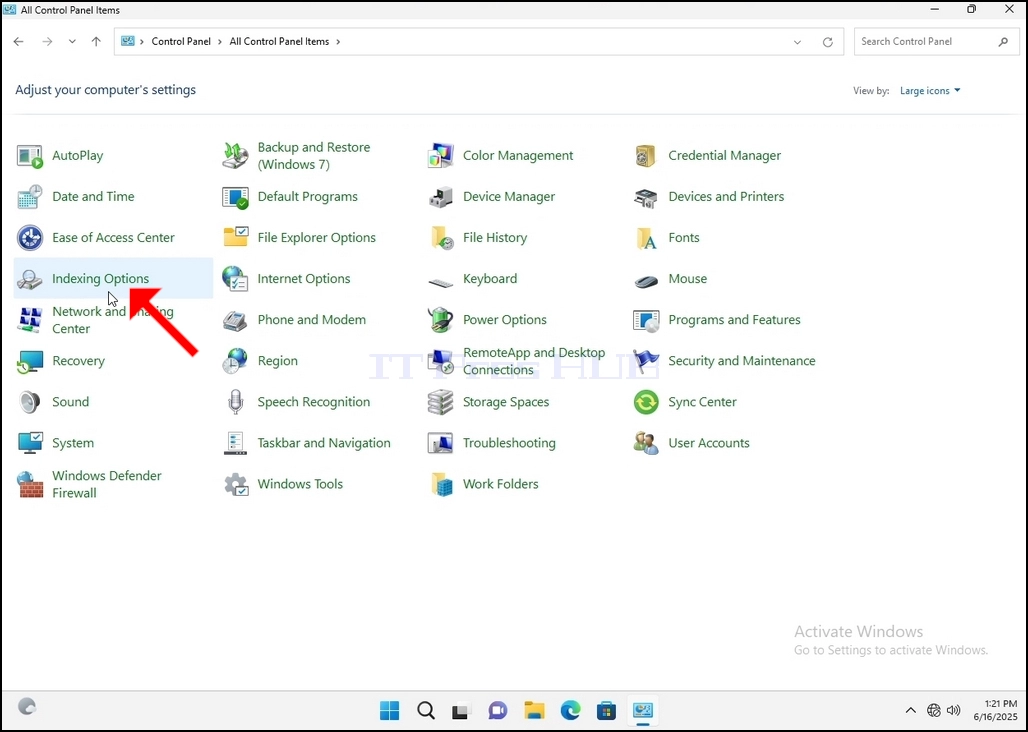
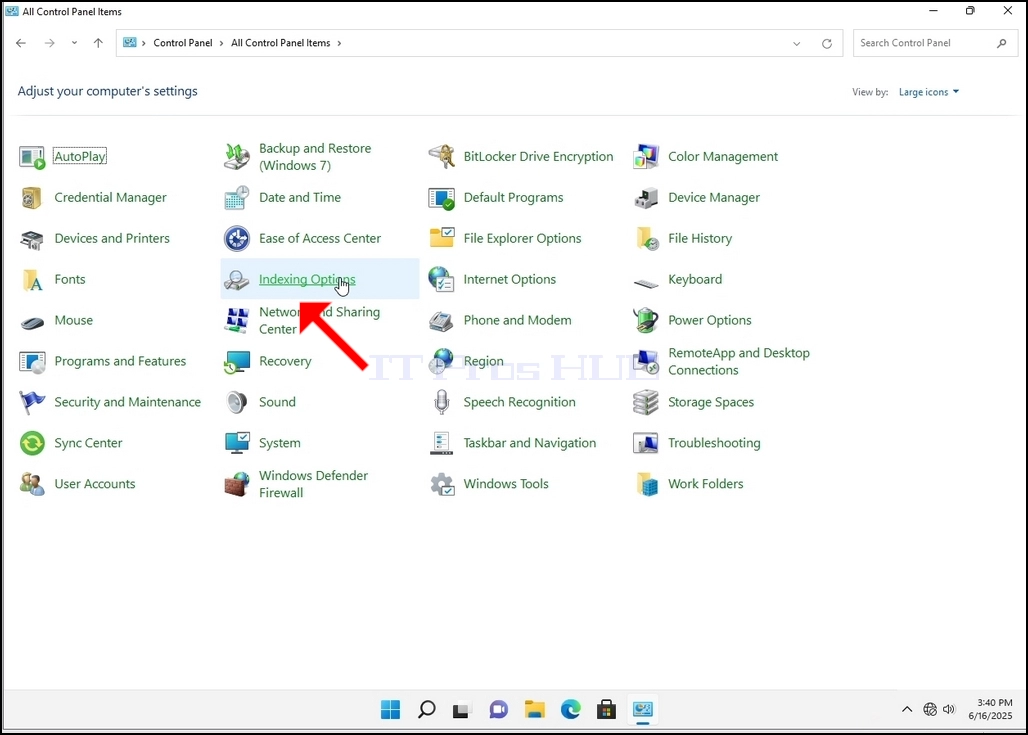
6. Look for the Indexing Options icon and click it. Wait for the Indexing Options window to appear.
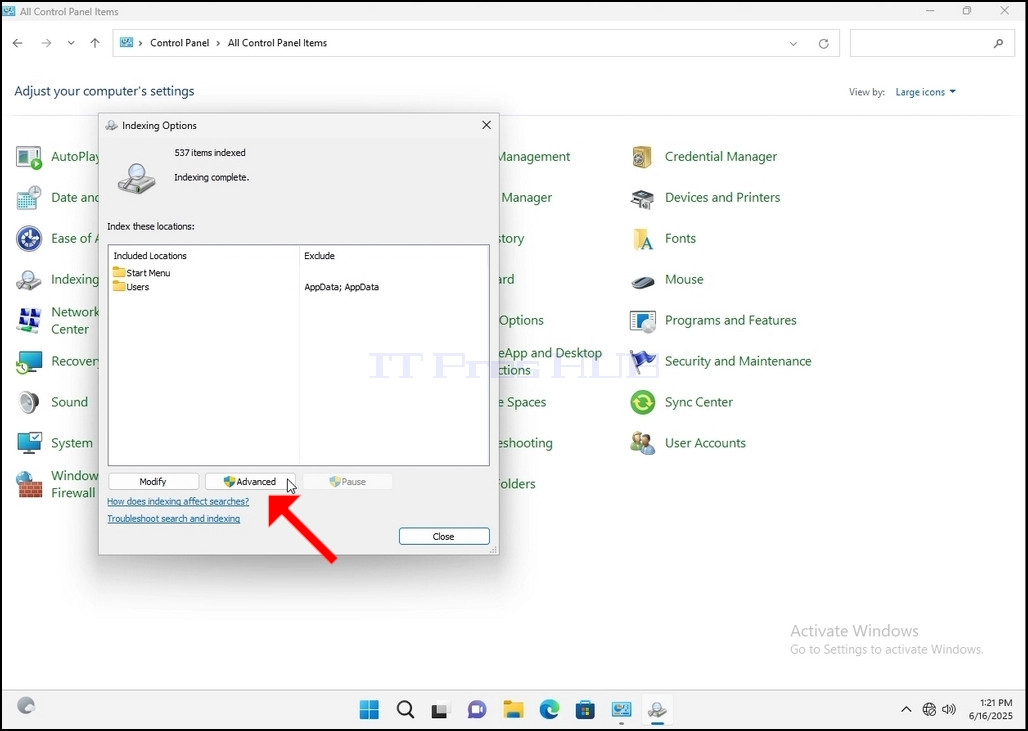
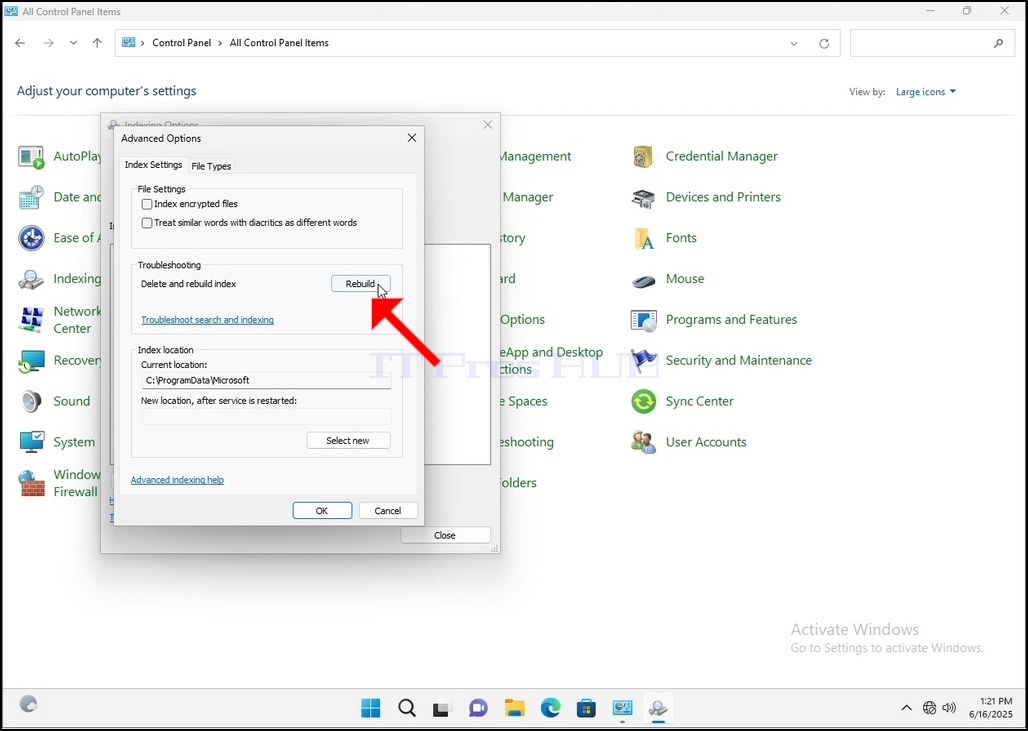
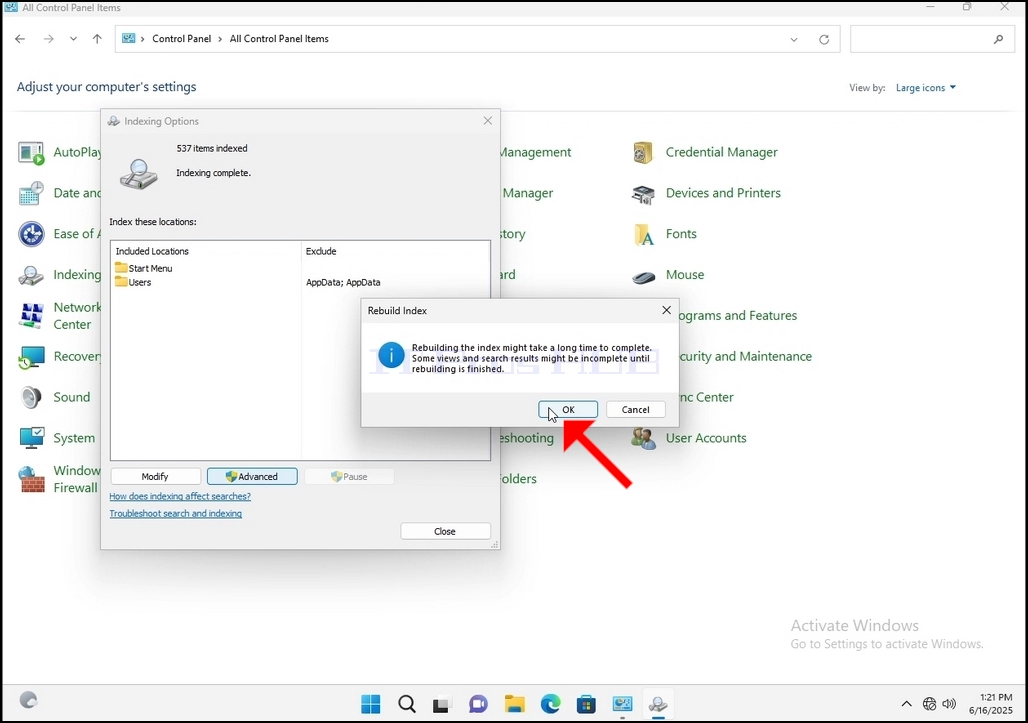
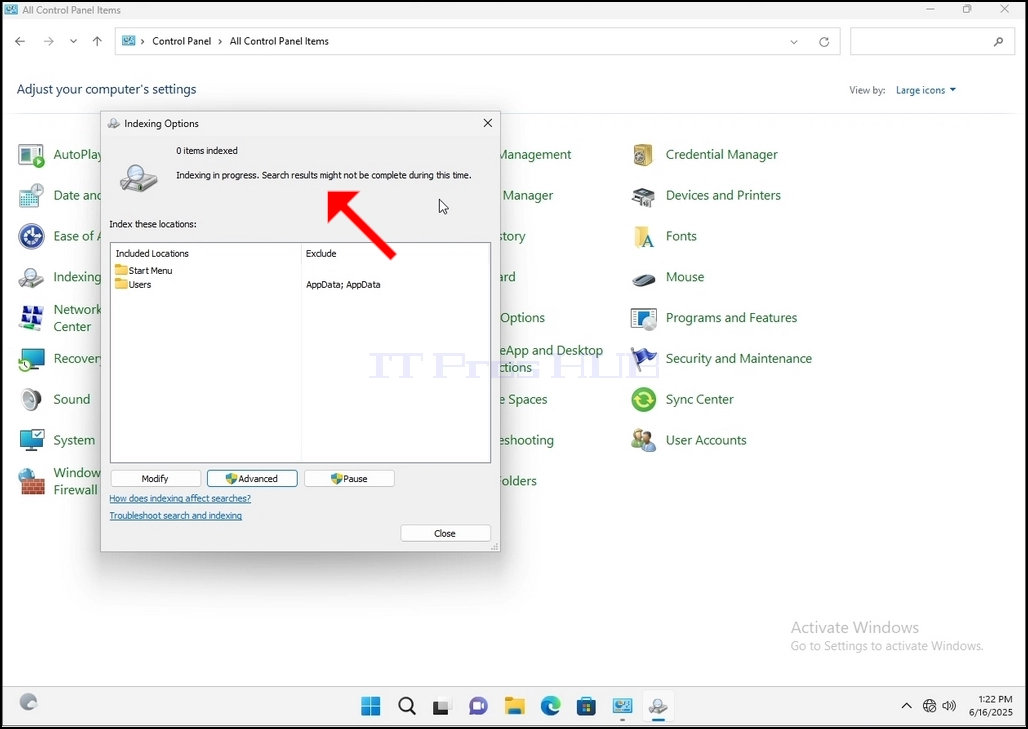
9. After clicking OK in the confirmation box, Windows will start rebuilding its index. It might take some time for the actual process to start, Wait patiently a few seconds to a few minutes. The moment the process starts, the "Indexing Complete" sentence will be replaced with "Indexing in progress. Search results might not be complete during this time."
In addition, the number of items indexed will be reset to 0 for a moment and then start to increase.
Note that All of the windows that are related to the Indexing process can now be closed and the rebuilding process would still be running the background.
Note that the Indexing process' speed might be reduced due to user activity on the computer. The more intense the activity the less the Indexing speed would be.
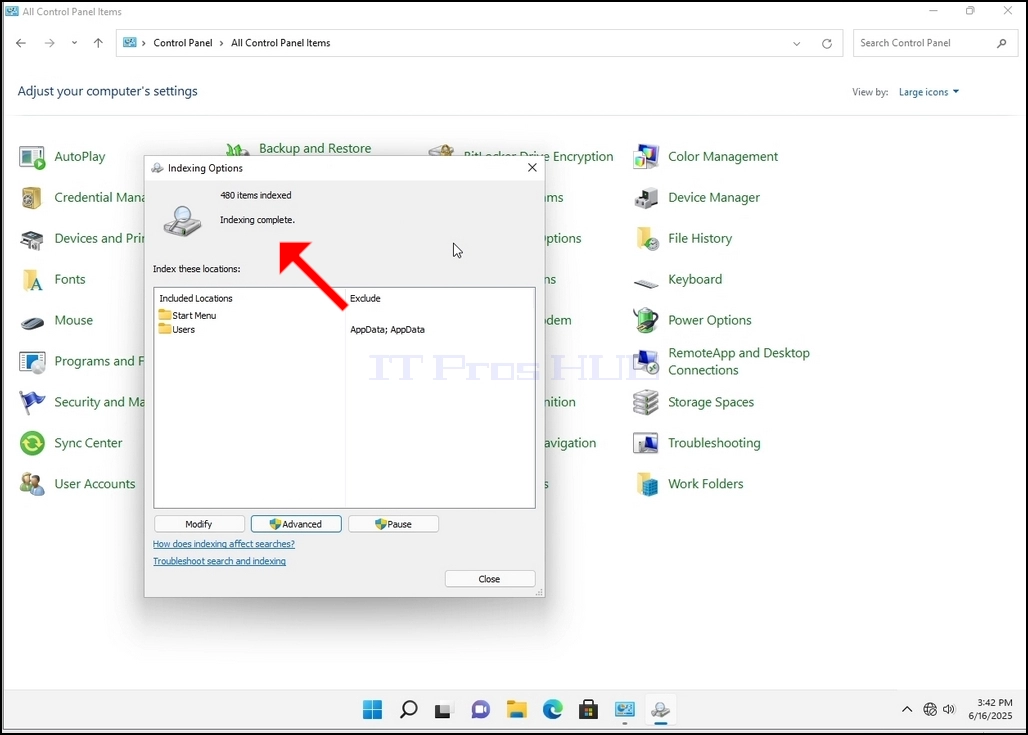
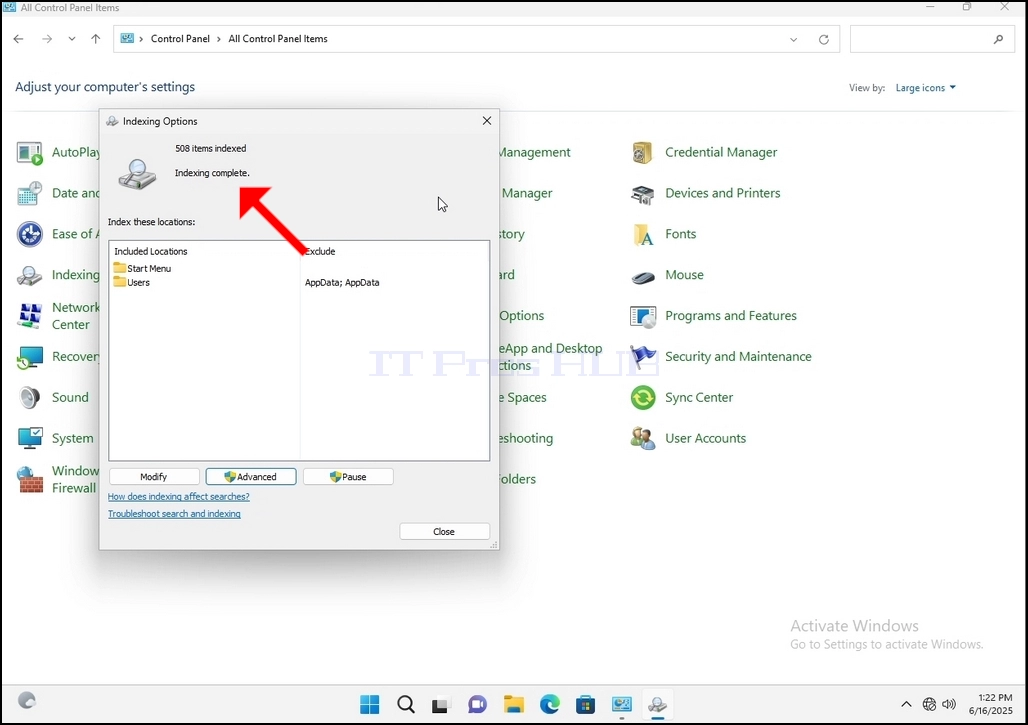
10. To check if the indexing process is done, go back to the Indexing Options through Control Panel as explained in the previous stages. If the process is complete, you would see the "Indexing Complete" sentence appears again.
Since Windows does not notify the user once this process is done, there is indeed a need to perform the latter mentioned. Depending on the number of files, folders, drivers and partitions marked for indexing, this process could take between a few minutes to a few hours.
- Išsami informacija
- Parašė: IT Pro
- Kategorija: How to Articles
- Peržiūros: 6285
1. Go to Windows Desktop
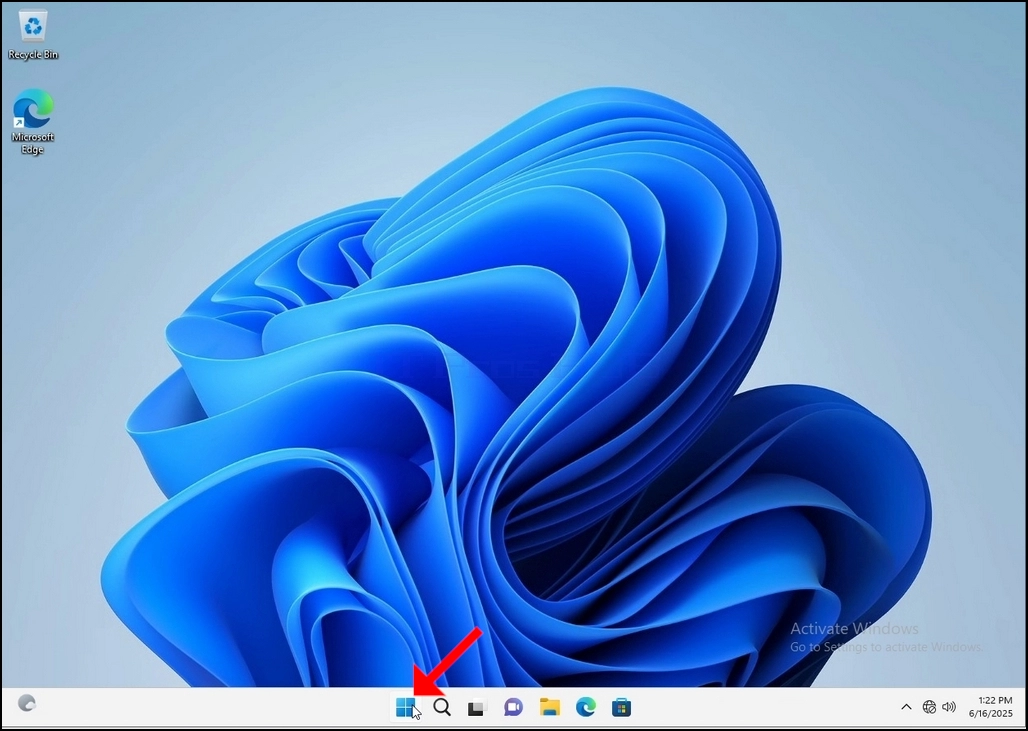
2. Click Start
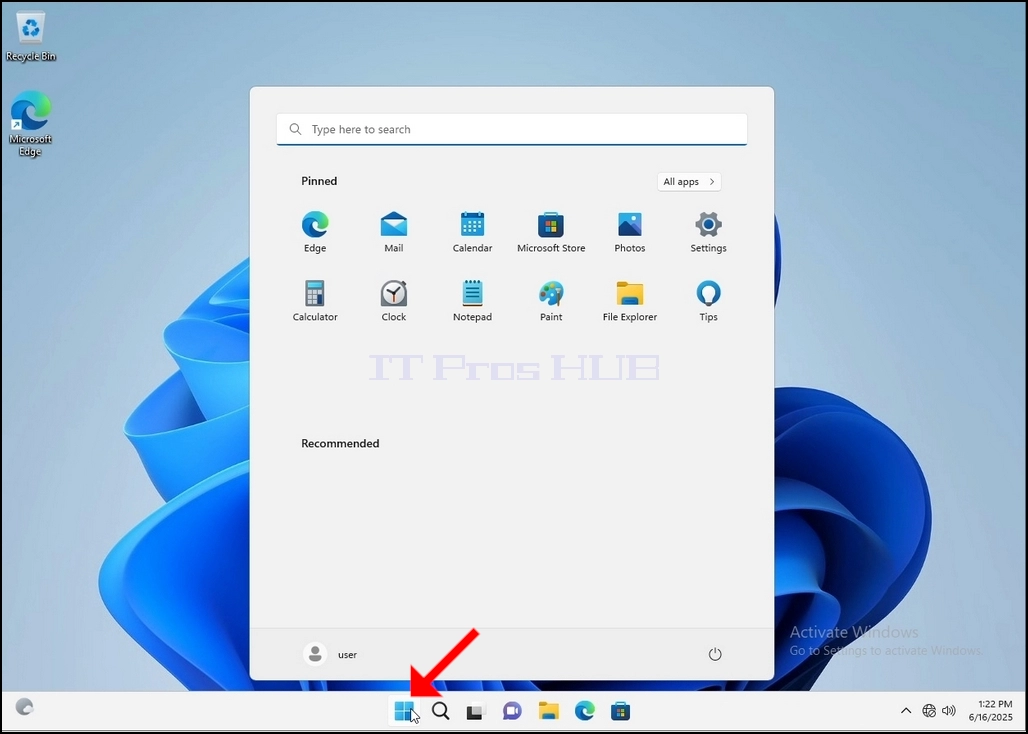
Once it finds it, click it and wait for the Control Panel window to appear.
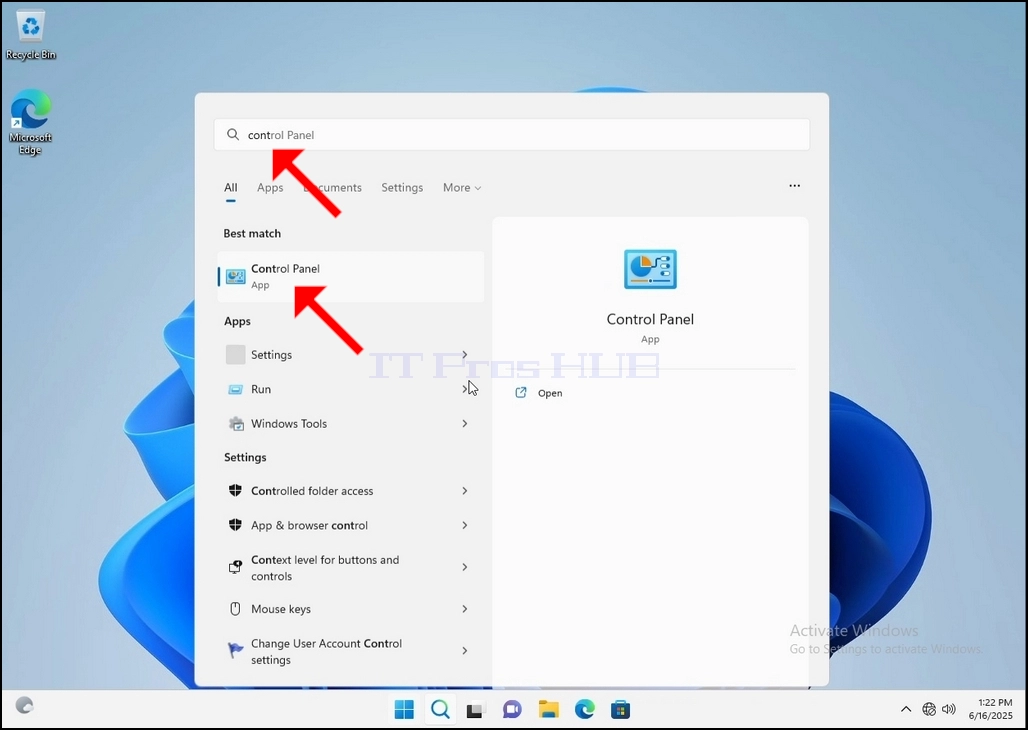
4. Once the Control Panel window is open, enlarge it by clicking the enlarging icon on the top right corner of that window.
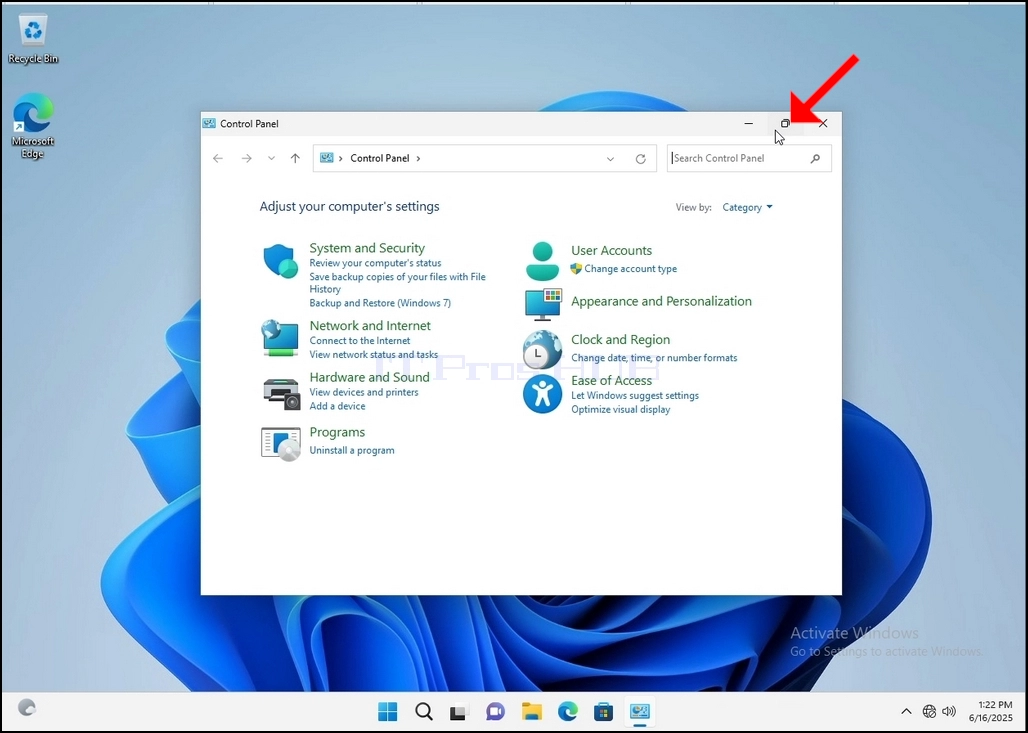
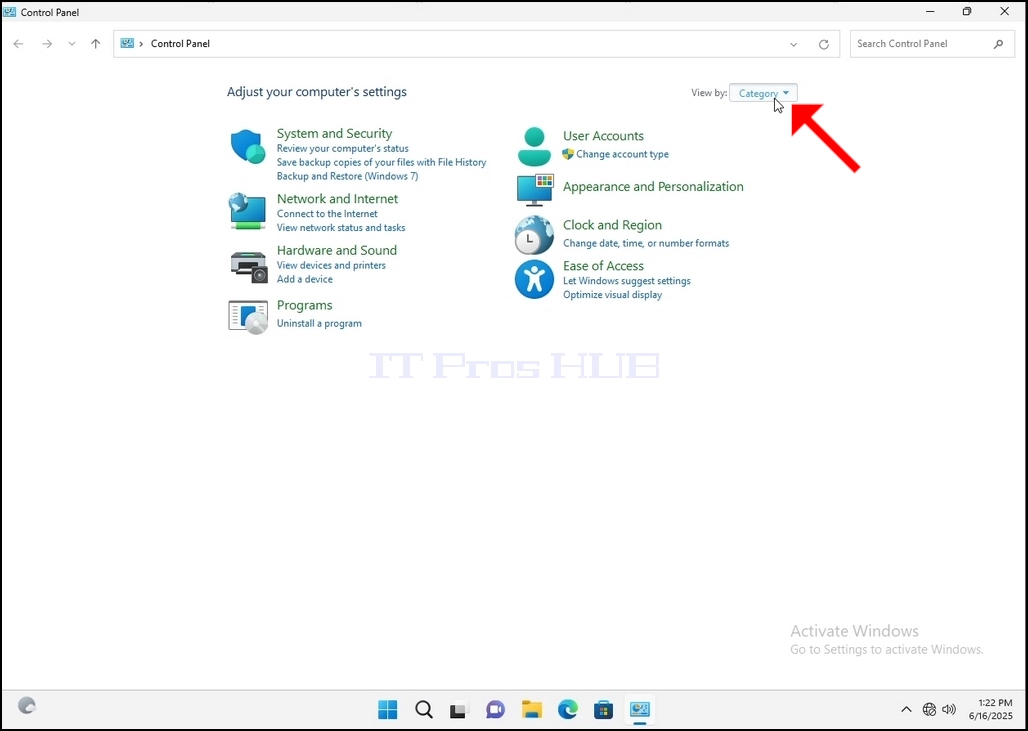
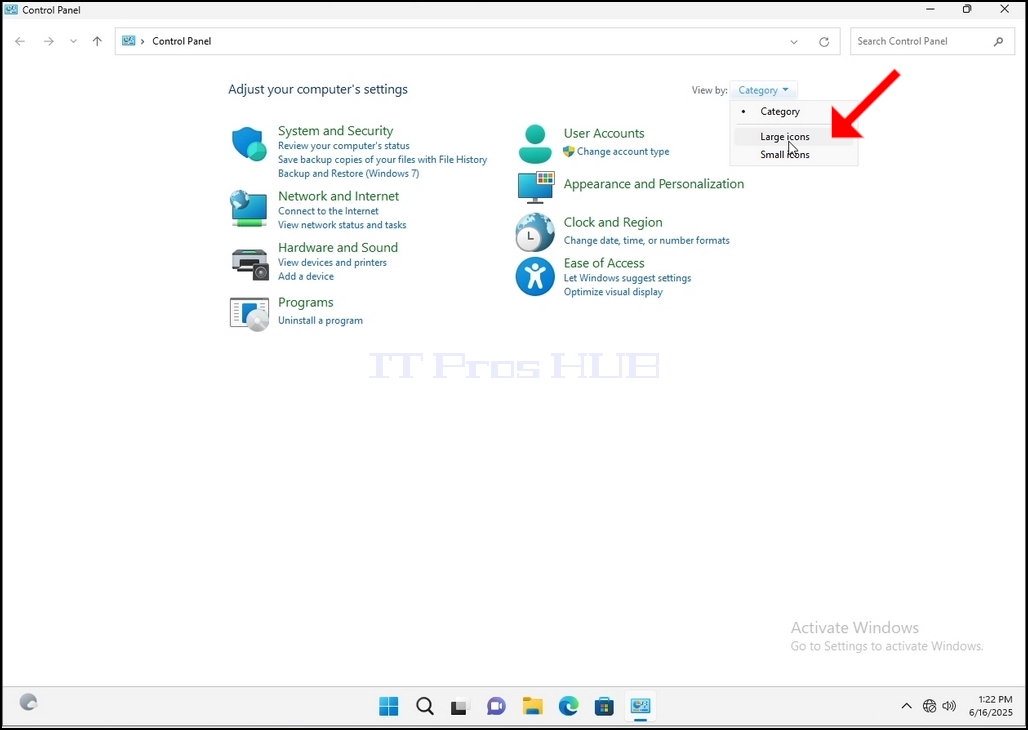
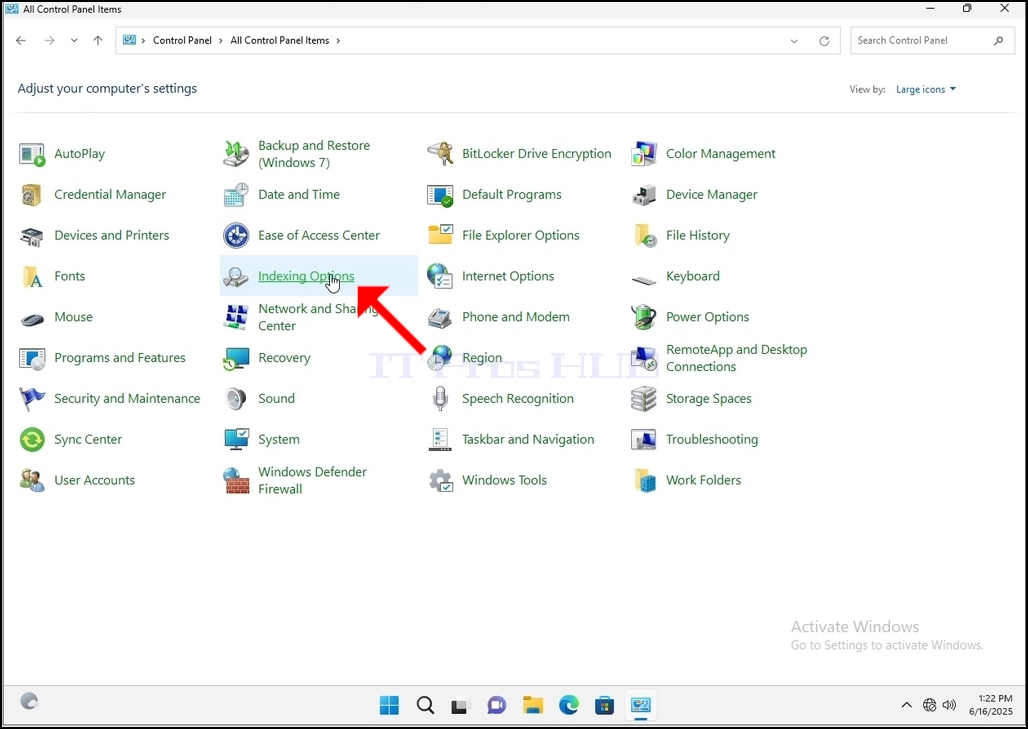
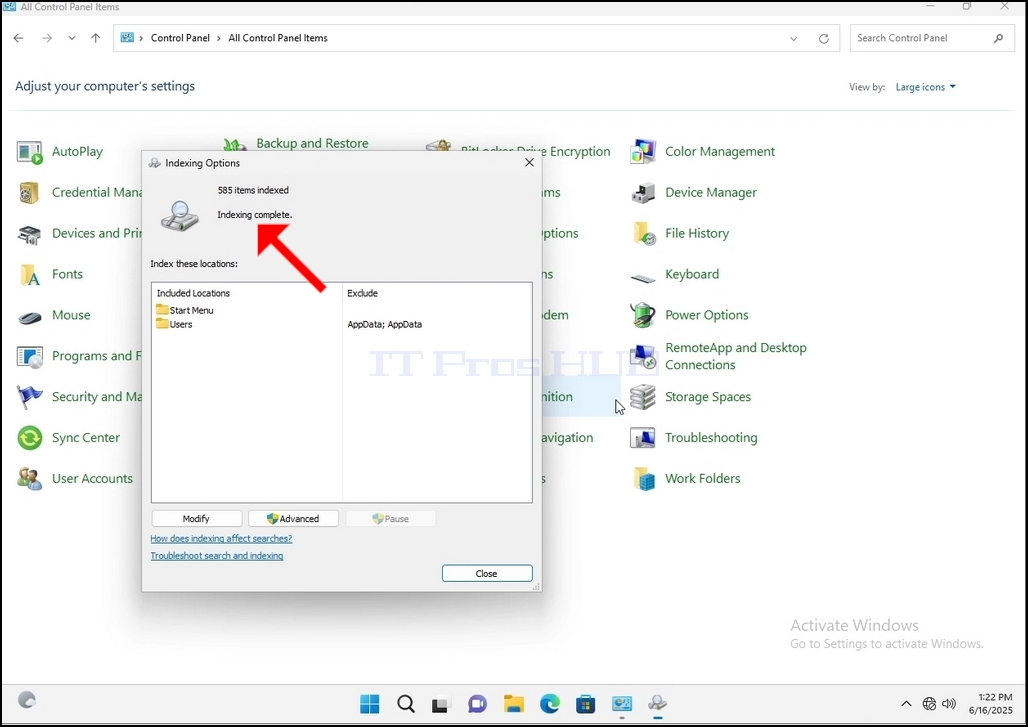
6. Look for the Indexing Options icon and click it. Wait for the Indexing Options window to appear.
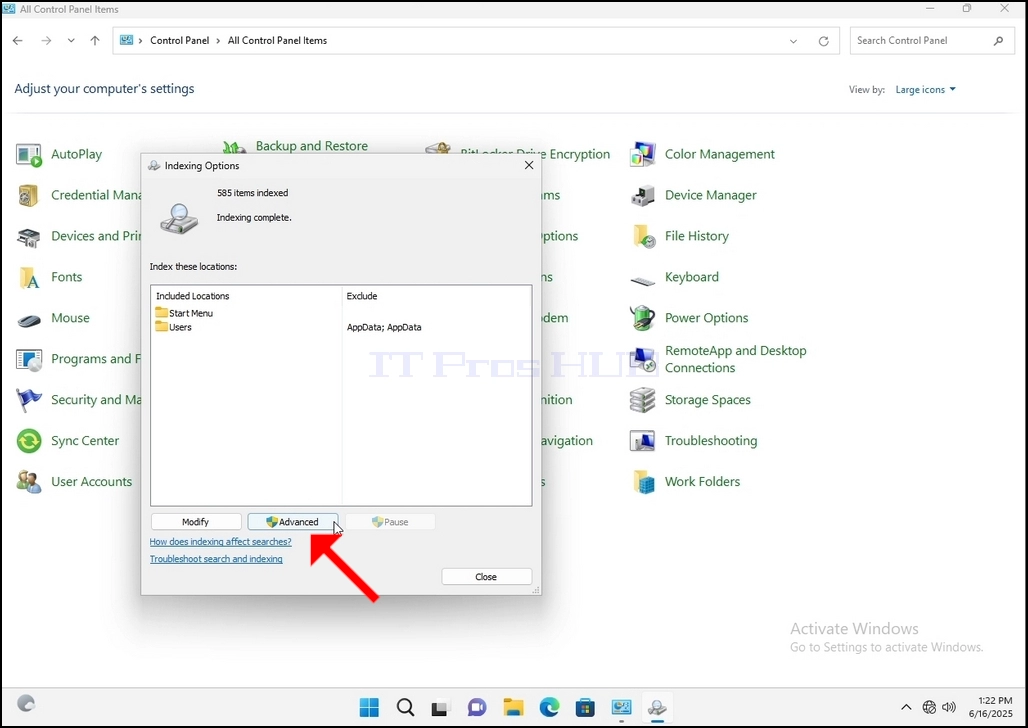
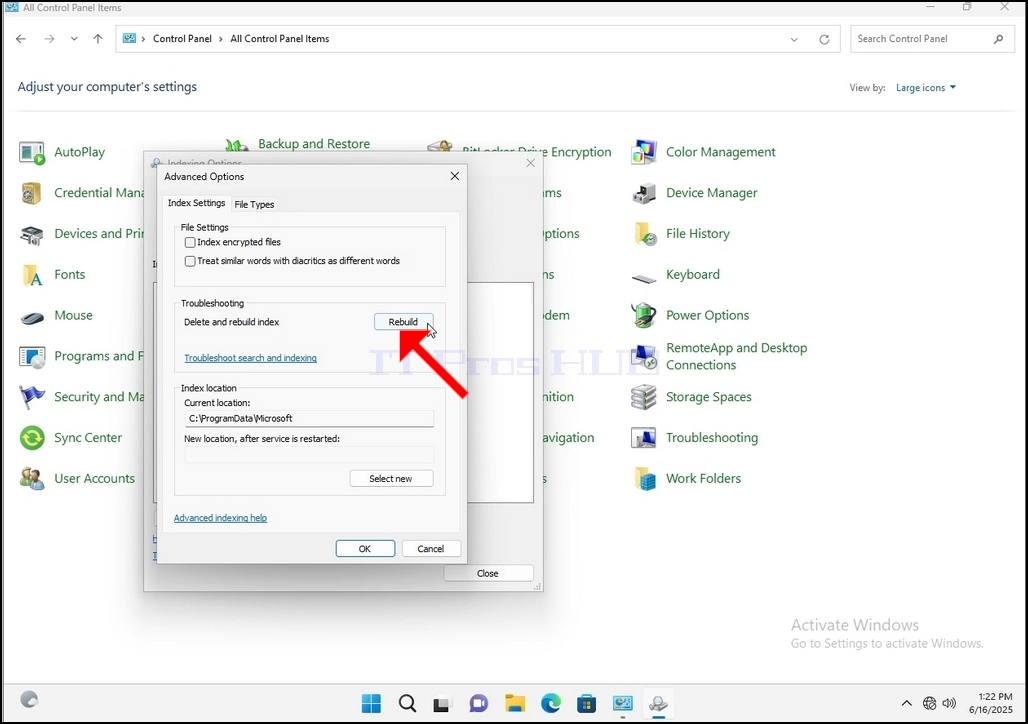
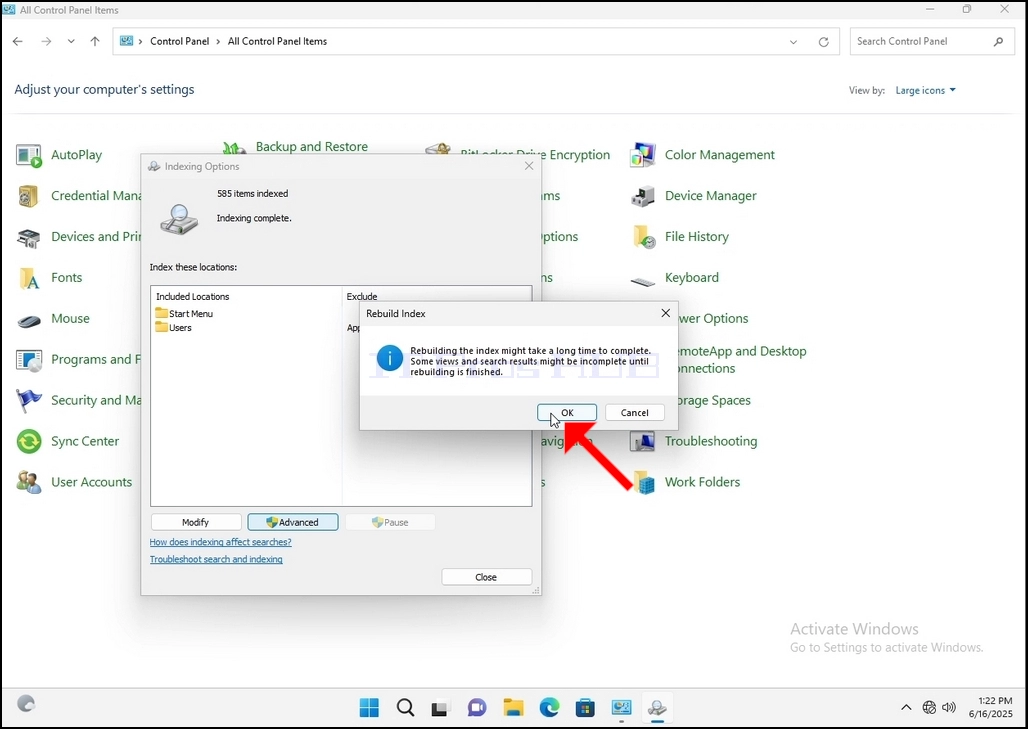
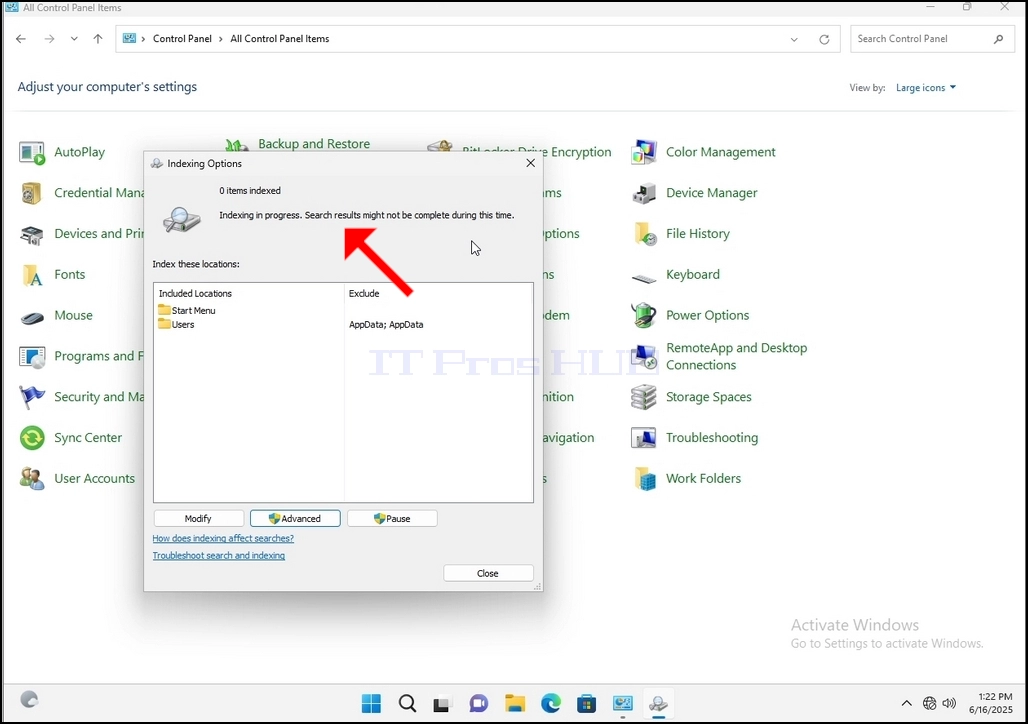
9. After clicking OK in the confirmation box, Windows will start rebuilding its index. It might take some time for the actual process to start, Wait patiently a few seconds to a few minutes. The moment the process starts, the "Indexing Complete" sentence will be replaced with "Indexing in progress. Search results might not be complete during this time."
In addition, the number of items indexed will be reset to 0 for a moment and then start to increase.
Note that All of the windows that are related to the Indexing process can now be closed and the rebuilding process would still be running the background.
Note that the Indexing process' speed might be reduced due to user activity on the computer. The more intense the activity the less the Indexing speed would be.
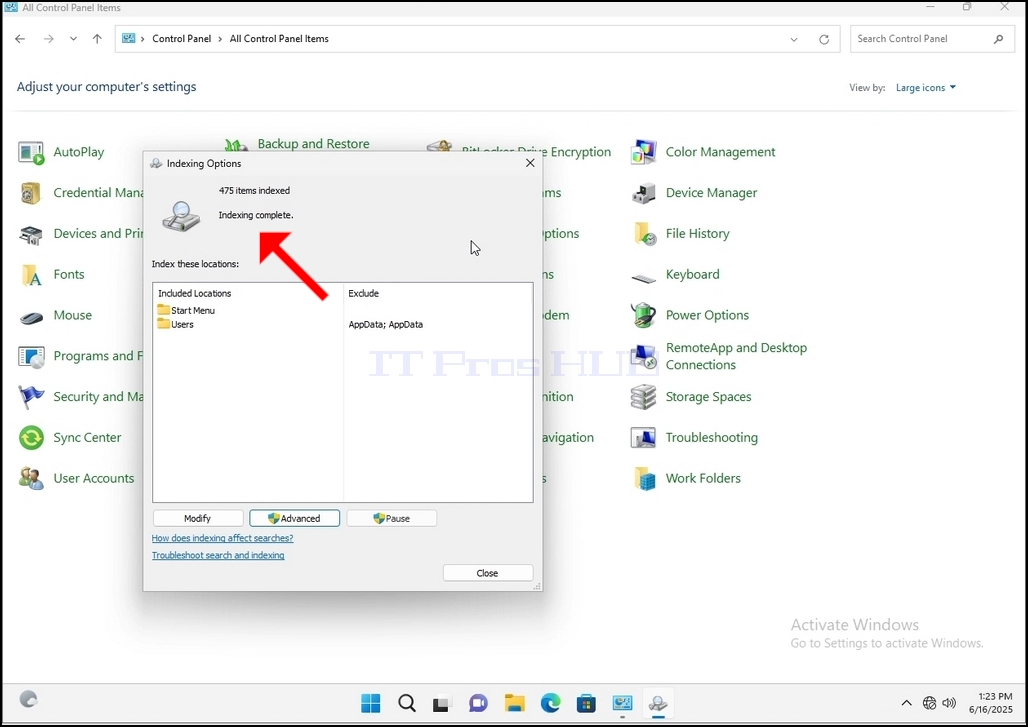
10. To check if the indexing process is done, go back to the Indexing Options through Control Panel as explained in the previous stages. If the process is complete, you would see the "Indexing Complete" sentence appears again.
Since Windows does not notify the user once this process is done, there is indeed a need to perform the latter mentioned. Depending on the number of files, folders, drivers and partitions marked for indexing, this process could take between a few minutes to a few hours.
- Išsami informacija
- Parašė: IT Pro
- Kategorija: How to Articles
- Peržiūros: 6220
1. Go to Windows Desktop
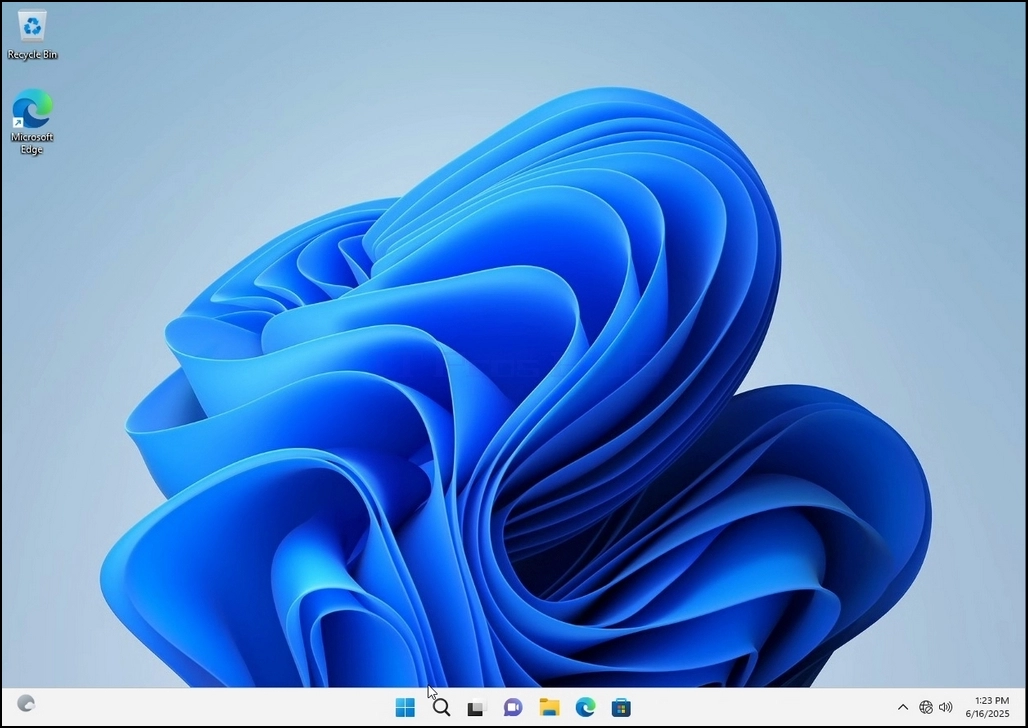
2. Click Start
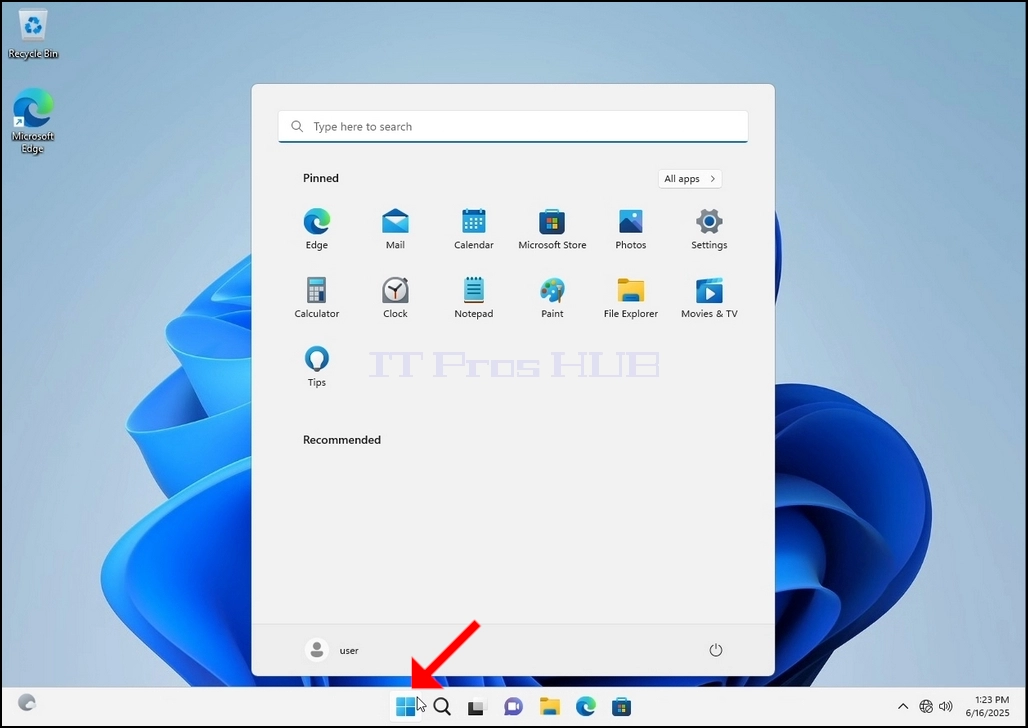
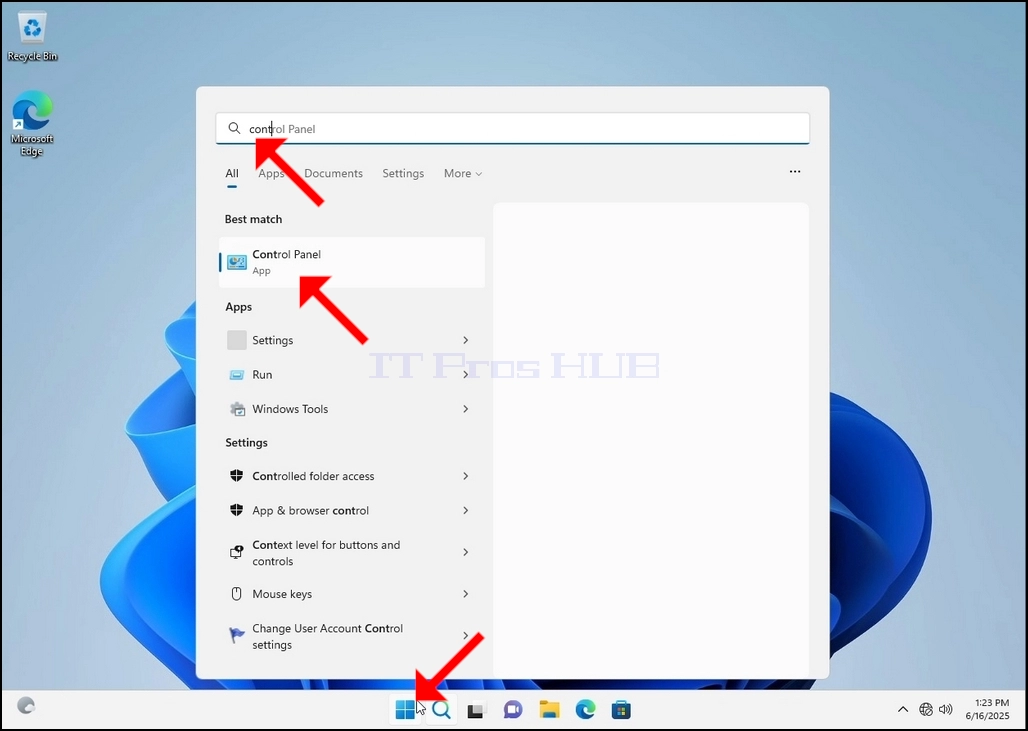
Once it finds it, click it and wait for the Control Panel window to appear.
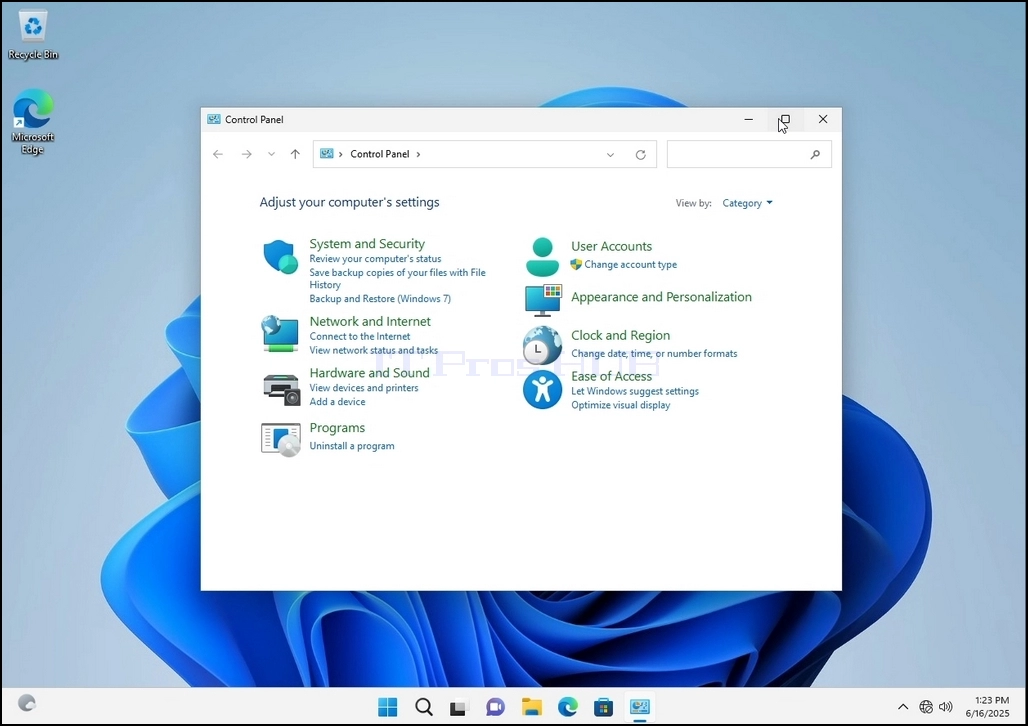
4. Once the Control Panel window is open, enlarge it by clicking the enlarging icon on the top right corner of that window.
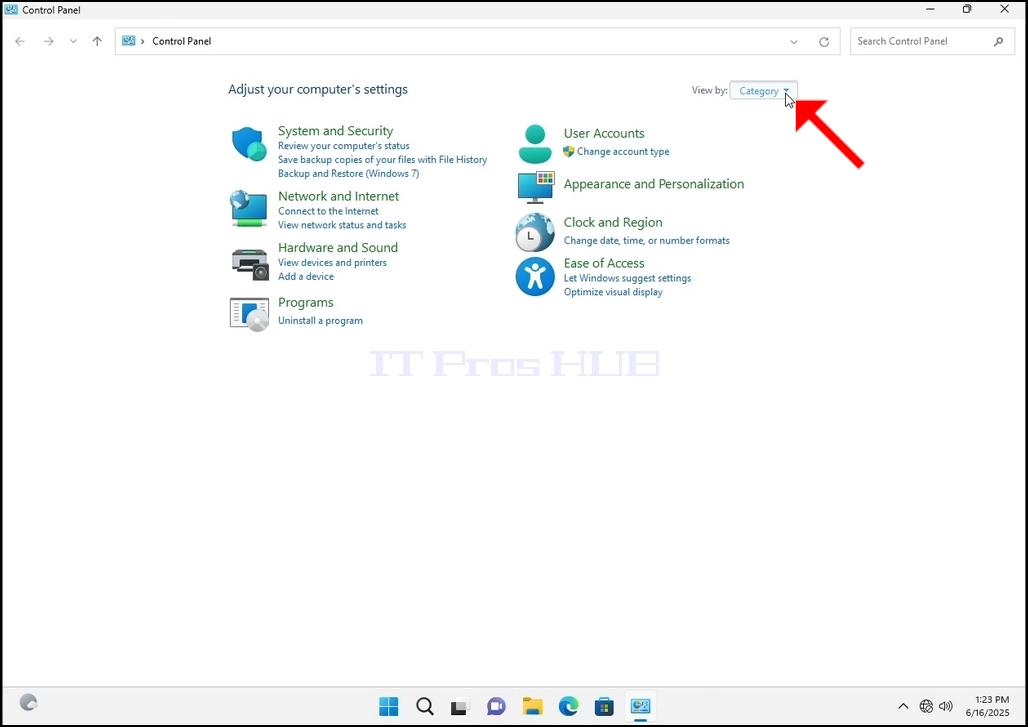
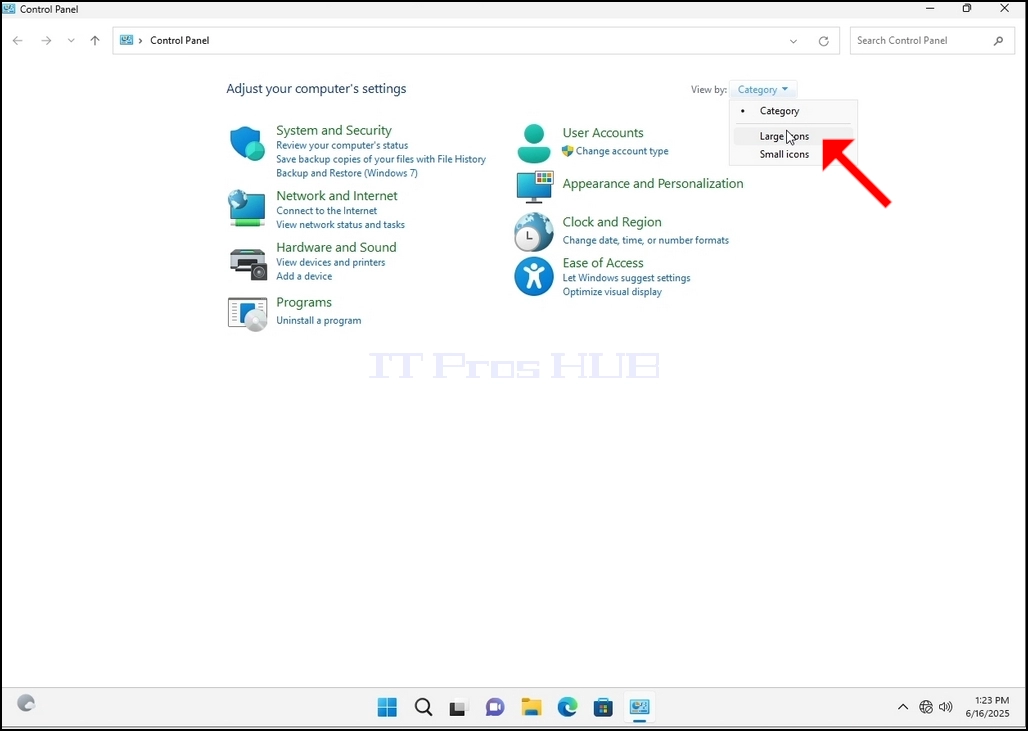
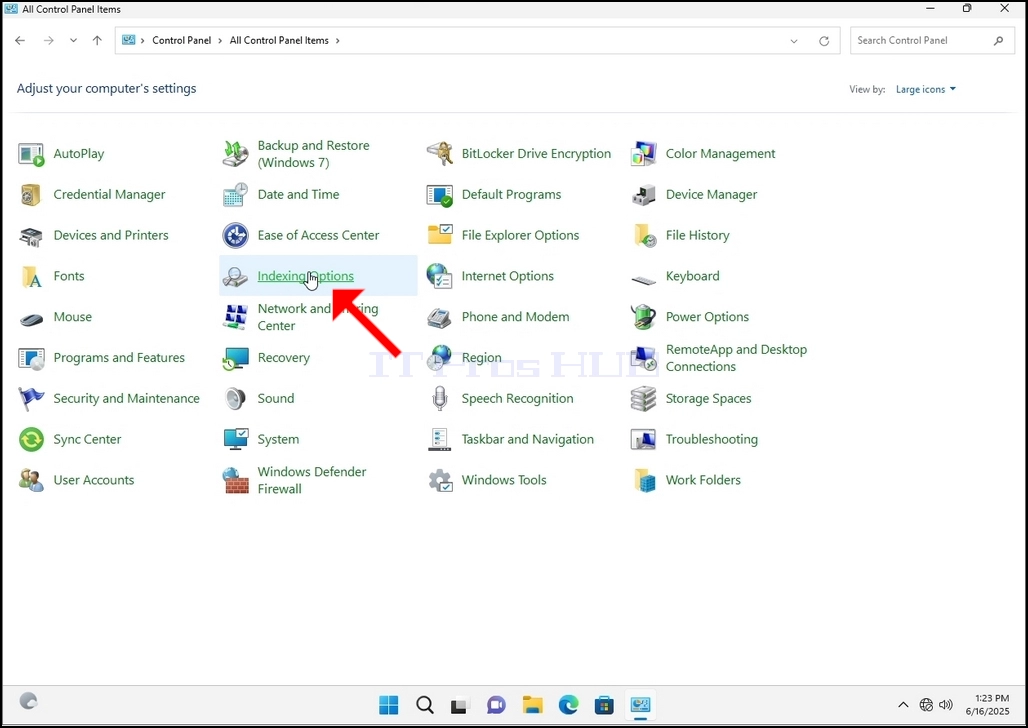
6. Look for the Indexing Options icon and click it. Wait for the Indexing Options window to appear.
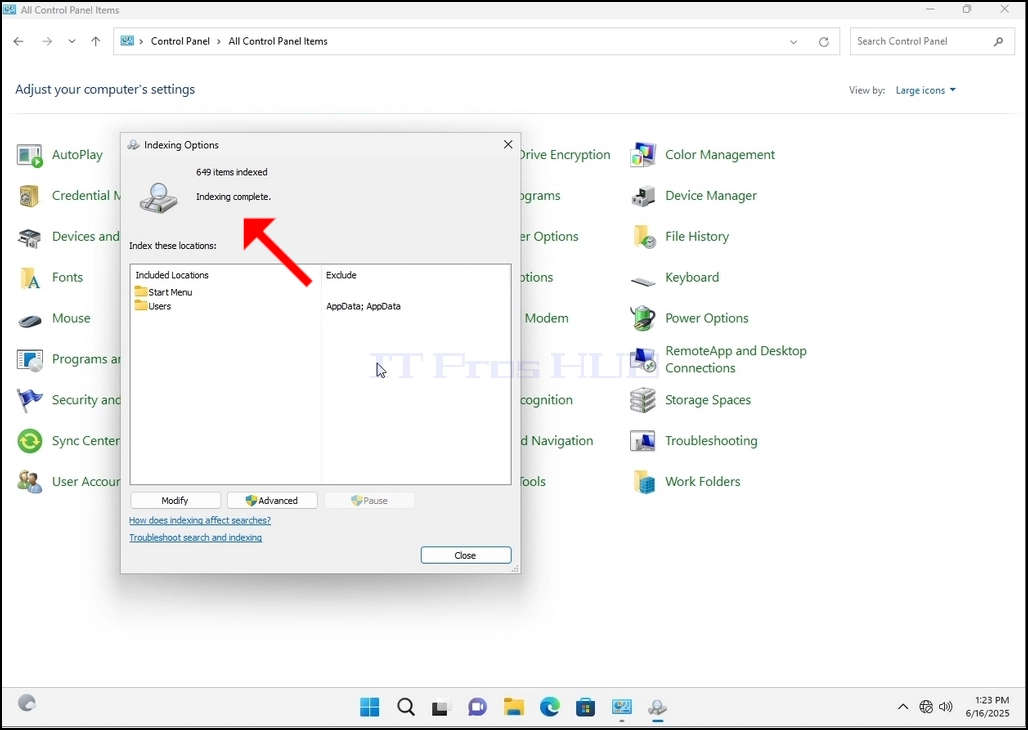
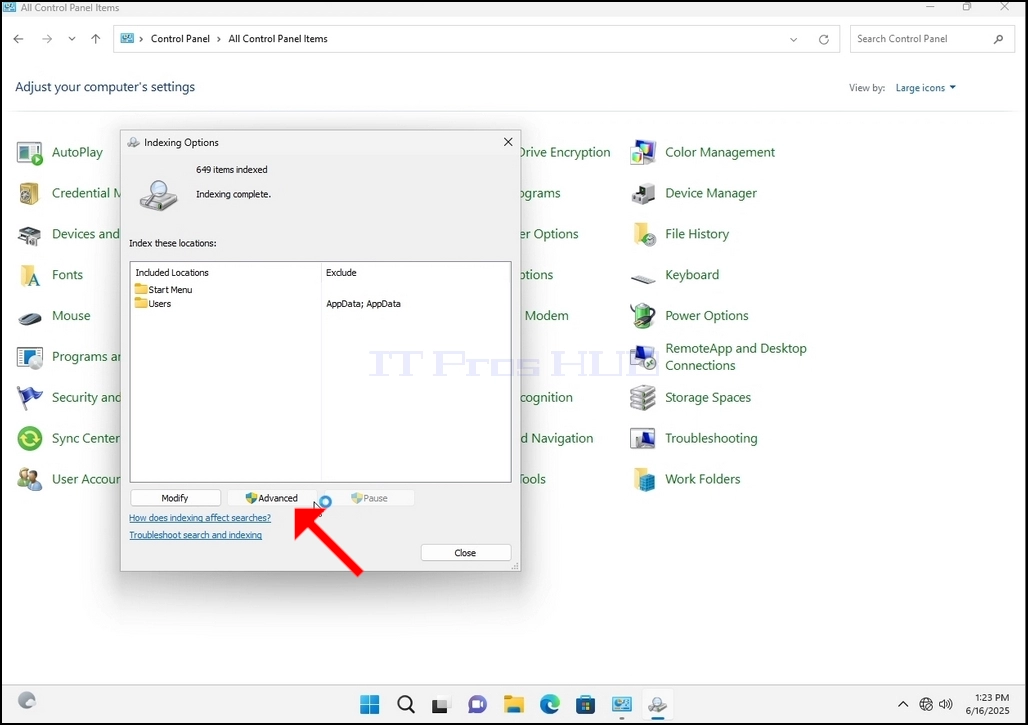
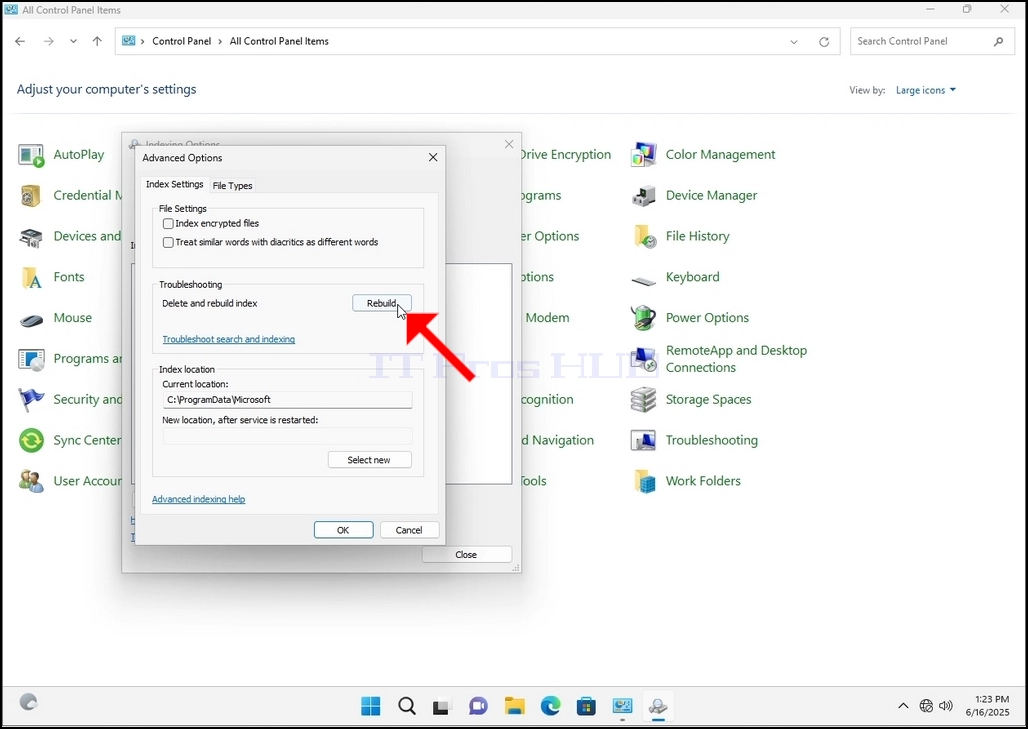
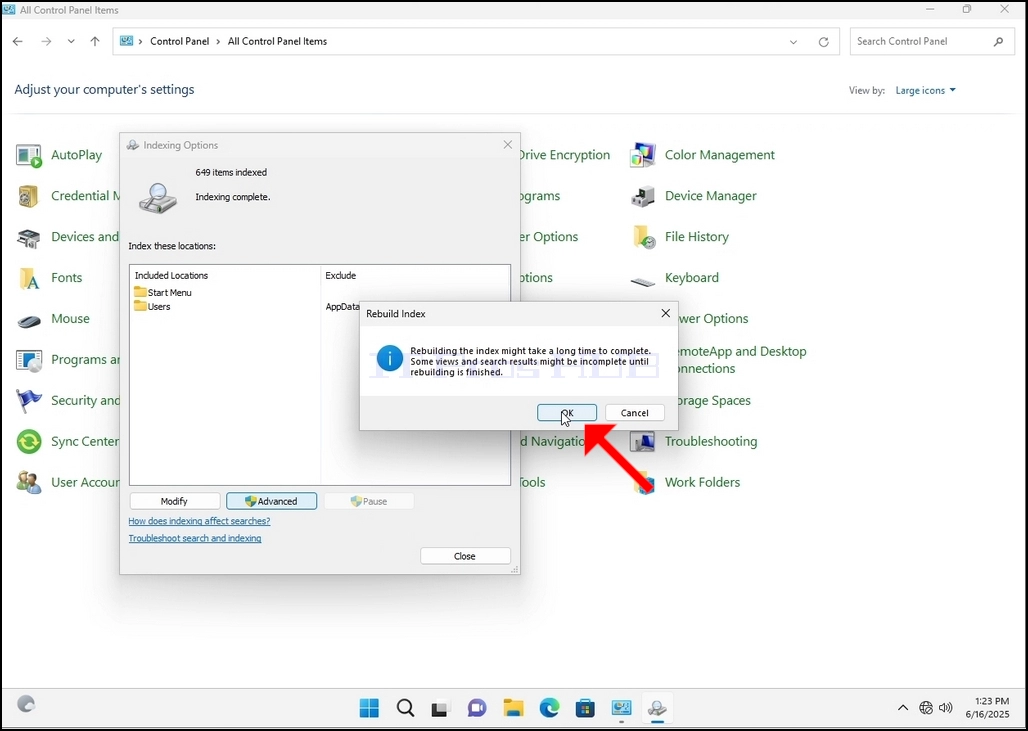
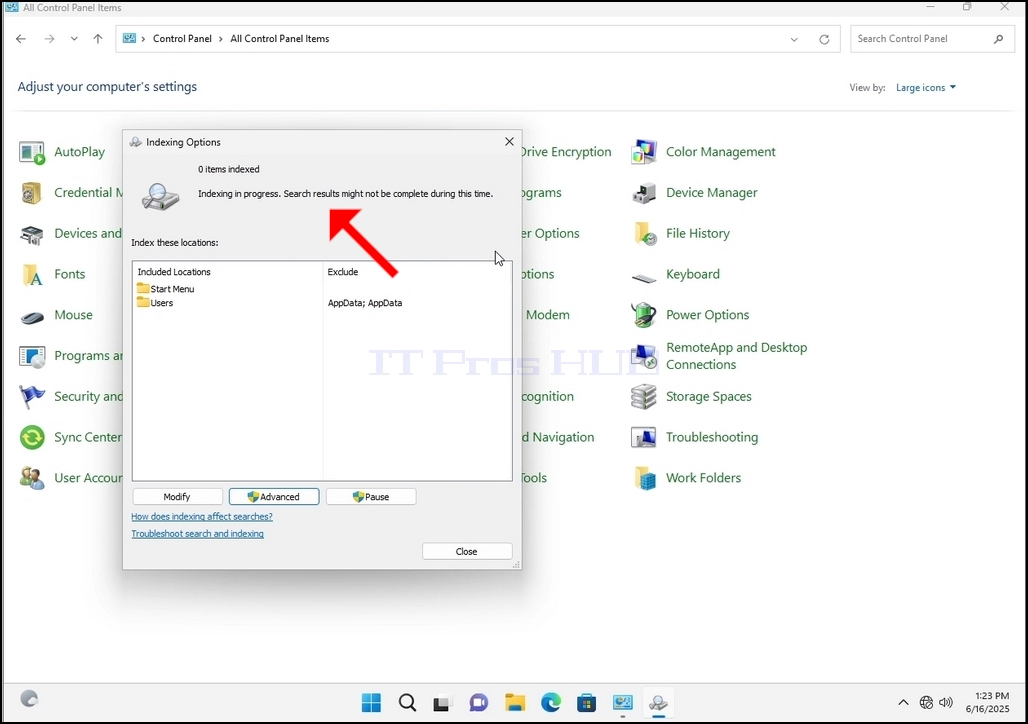
9. After clicking OK in the confirmation box, Windows will start rebuilding its index. It might take some time for the actual process to start, Wait patiently a few seconds to a few minutes. The moment the process starts, the "Indexing Complete" sentence will be replaced with "Indexing in progress. Search results might not be complete during this time."
In addition, the number of items indexed will be reset to 0 for a moment and then start to increase.
Note that All of the windows that are related to the Indexing process can now be closed and the rebuilding process would still be running the background.
Note that the Indexing process' speed might be reduced due to user activity on the computer. The more intense the activity the less the Indexing speed would be.
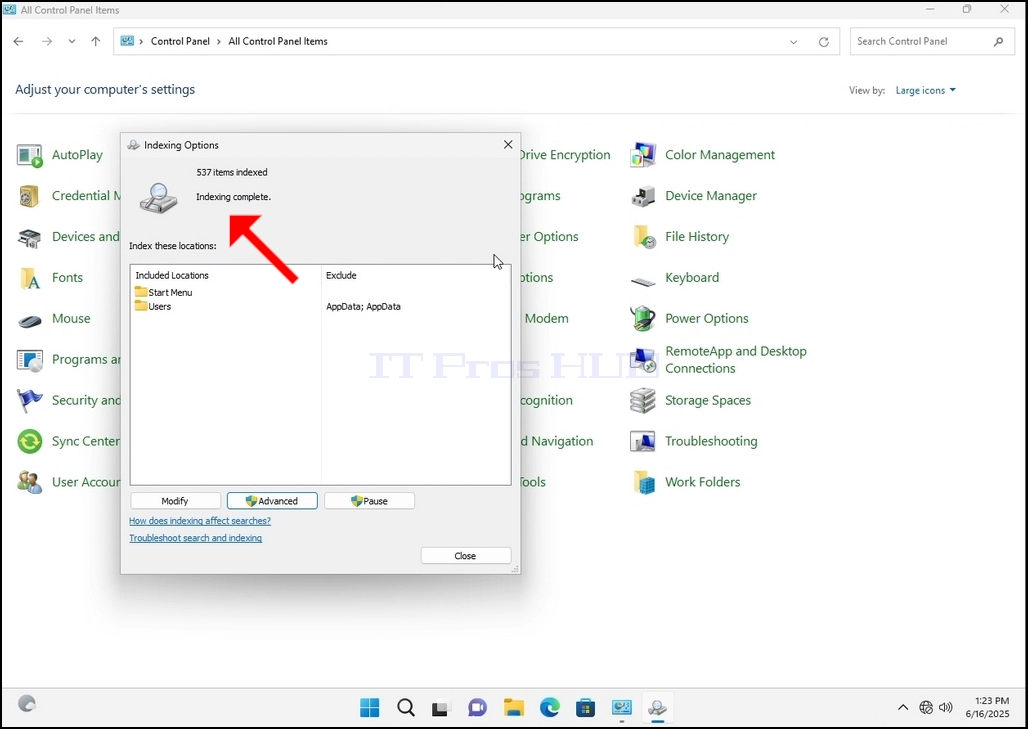
10. To check if the indexing process is done, go back to the Indexing Options through Control Panel as explained in the previous stages. If the process is complete, you would see the "Indexing Complete" sentence appears again.
Since Windows does not notify the user once this process is done, there is indeed a need to perform the latter mentioned. Depending on the number of files, folders, drivers and partitions marked for indexing, this process could take between a few minutes to a few hours.
- Išsami informacija
- Parašė: IT Pro
- Kategorija: How to Articles
- Peržiūros: 5196
1. Go to Windows Desktop
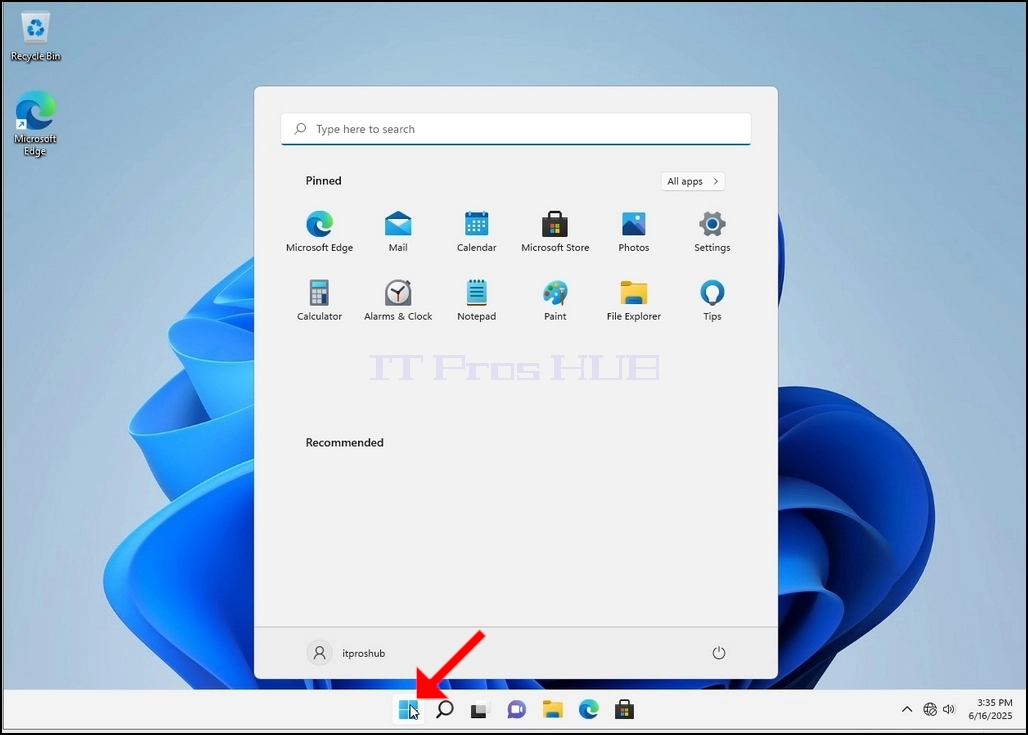
2. Click Start
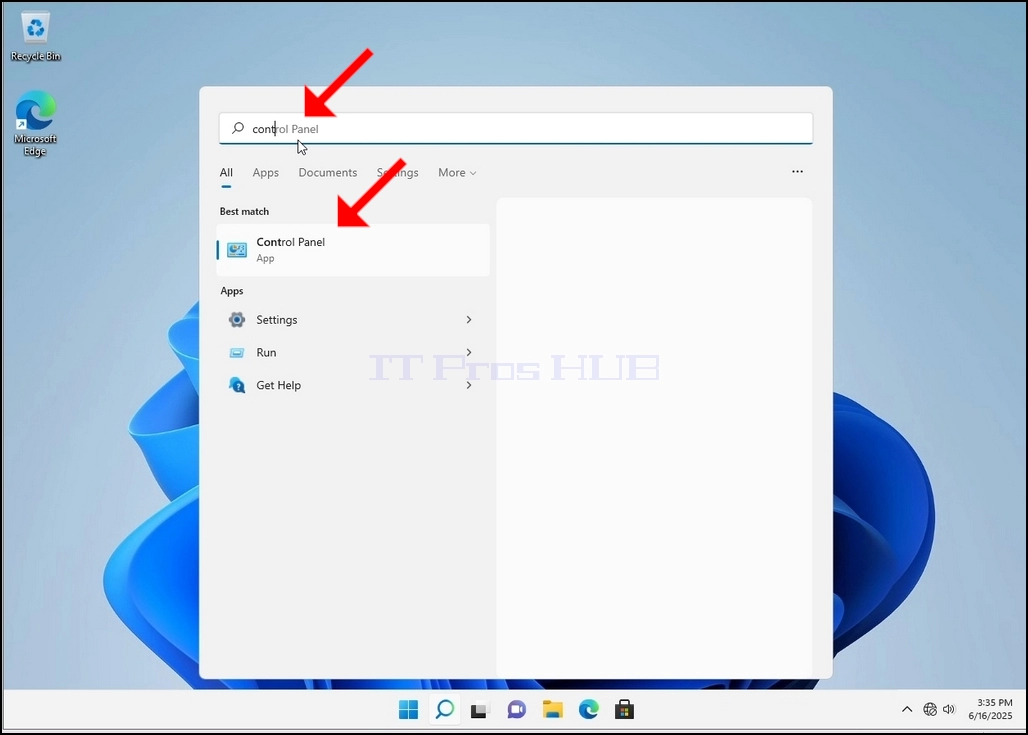
Once it finds it, click it and wait for the Control Panel window to appear.
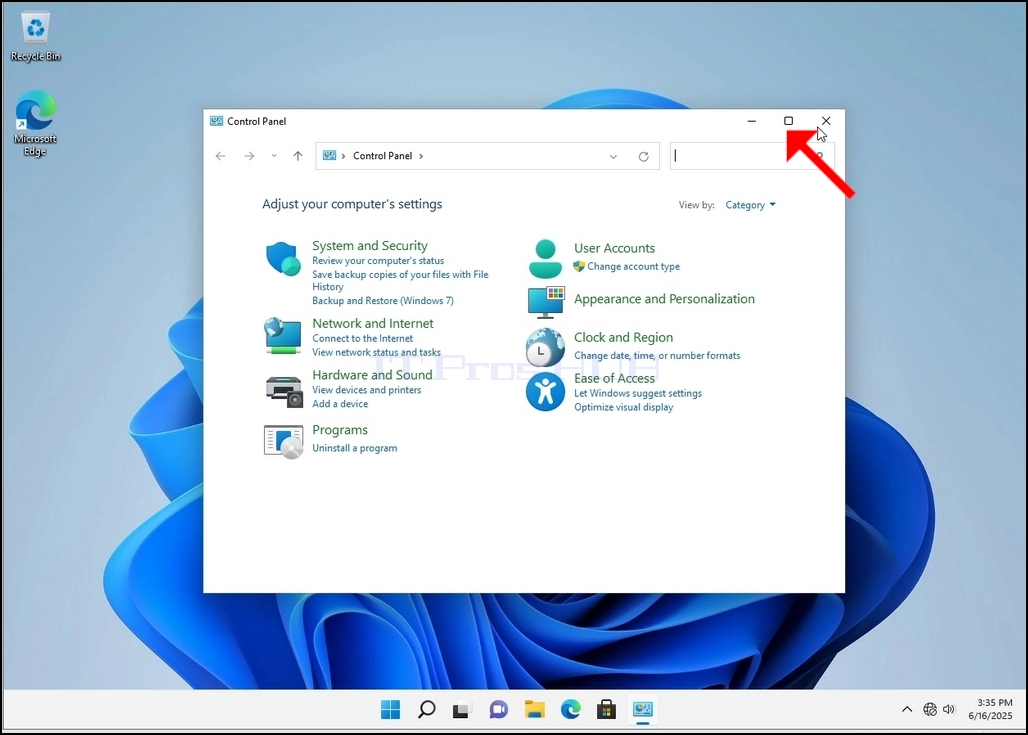
4. Once the Control Panel window is open, enlarge it by clicking the enlarging icon on the top right corner of that window.
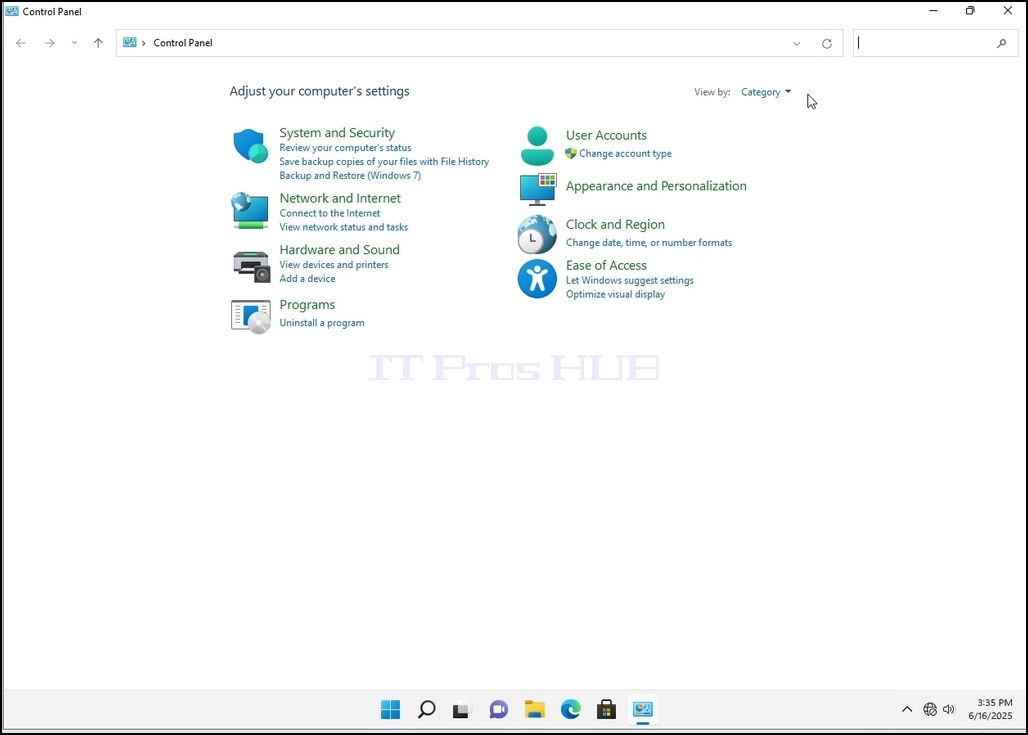
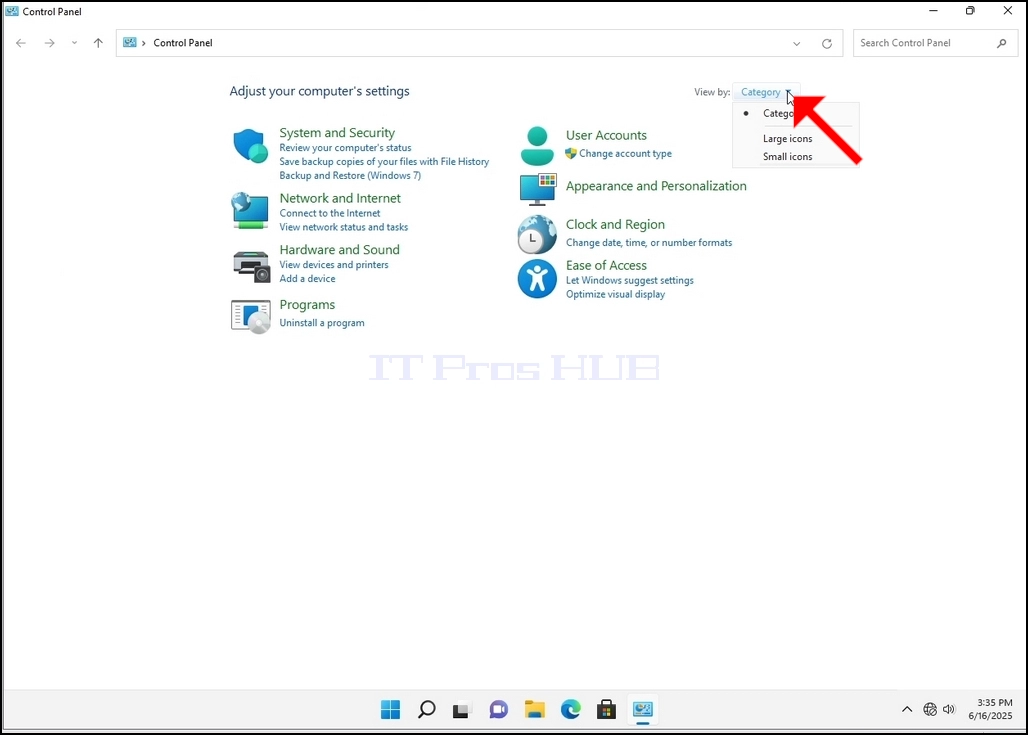
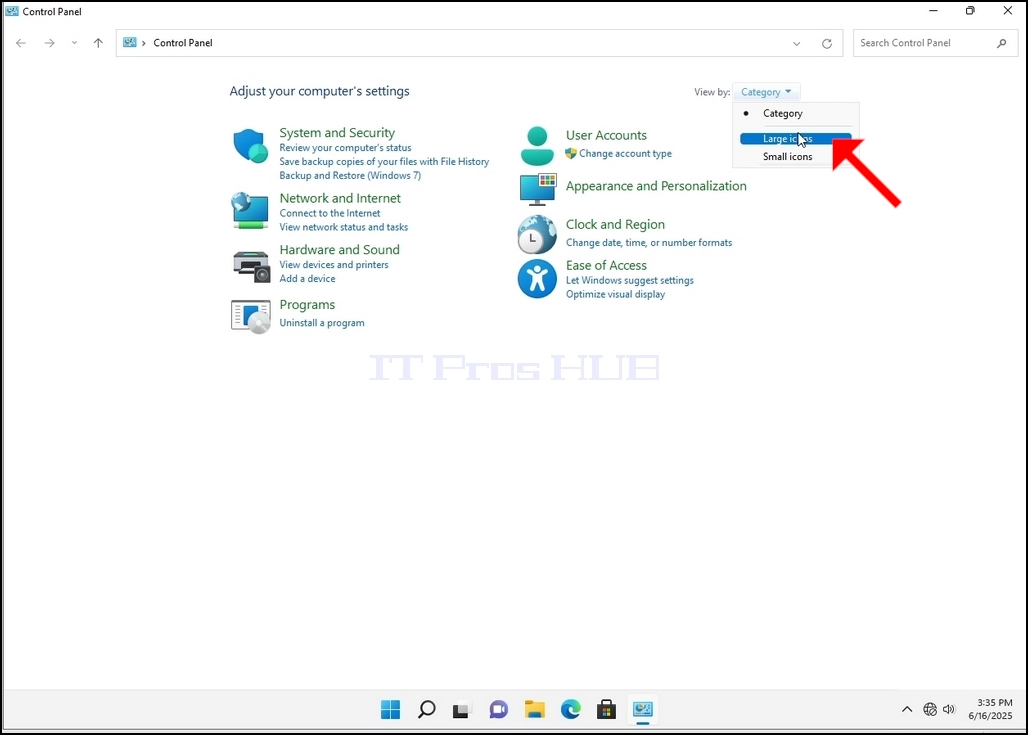
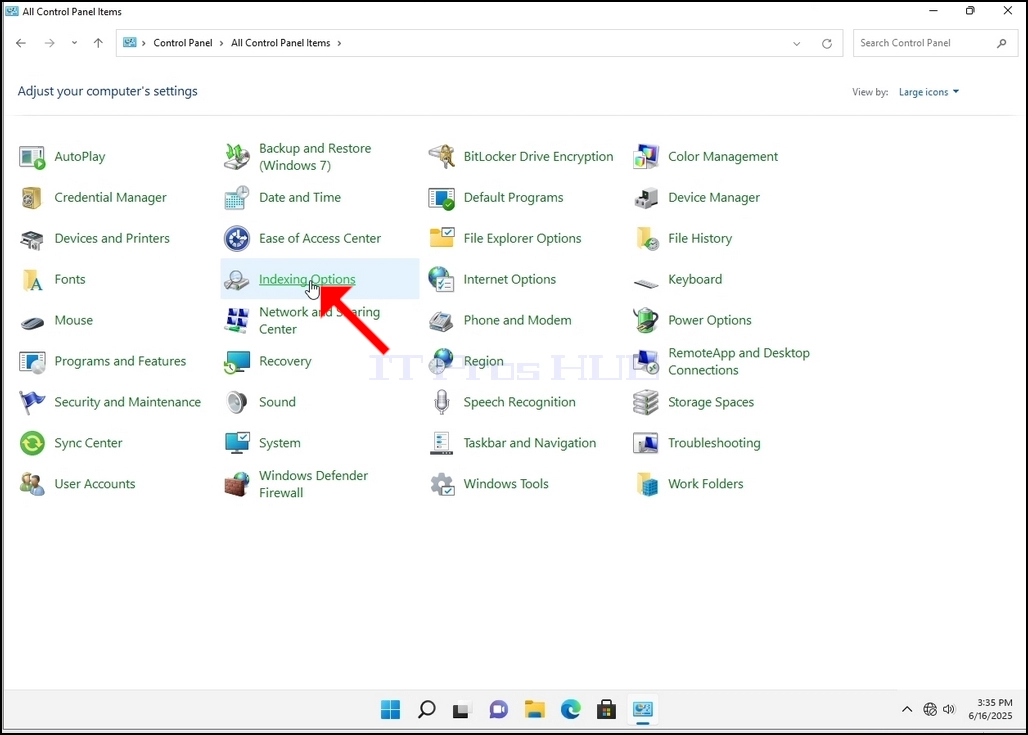
6. Look for the Indexing Options icon and click it. Wait for the Indexing Options window to appear.
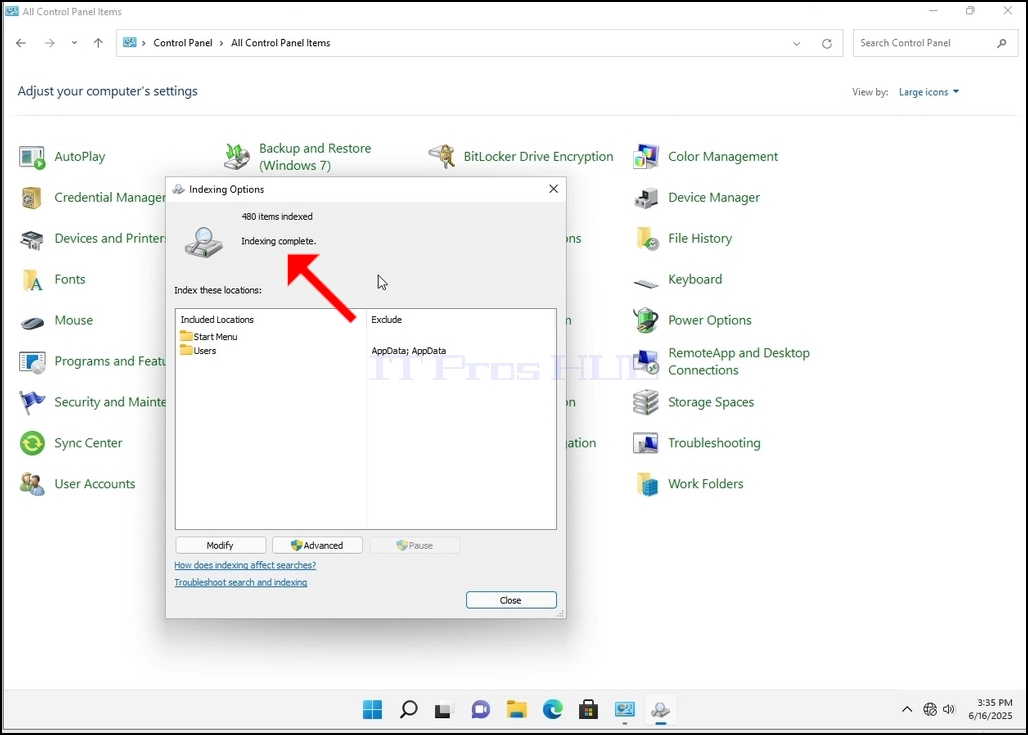
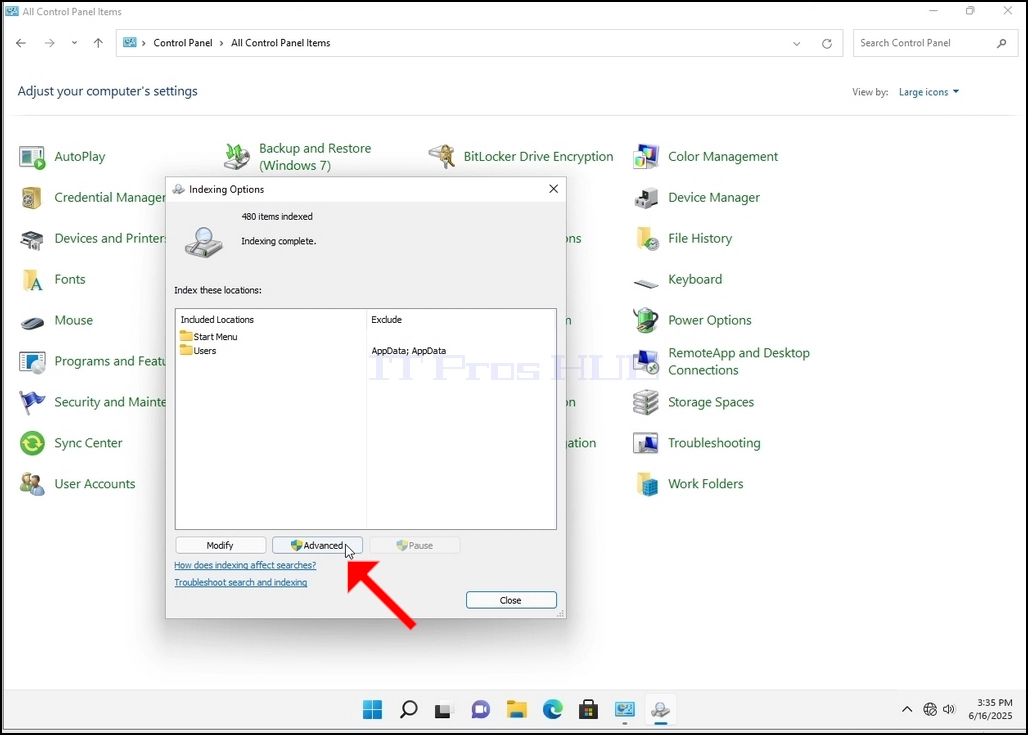
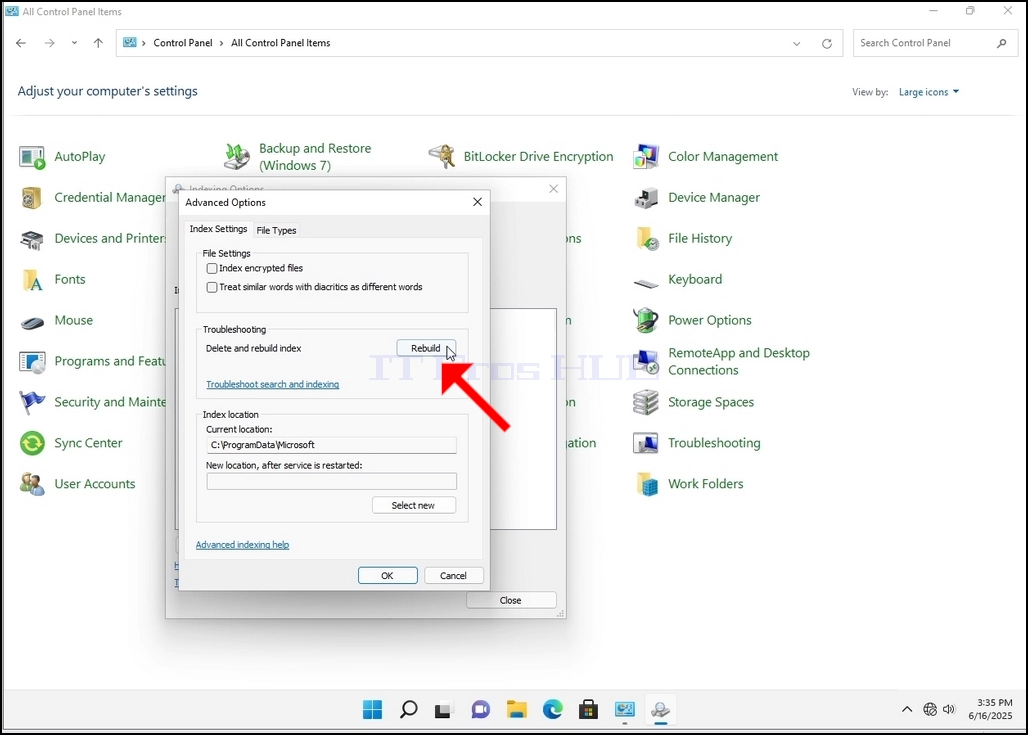
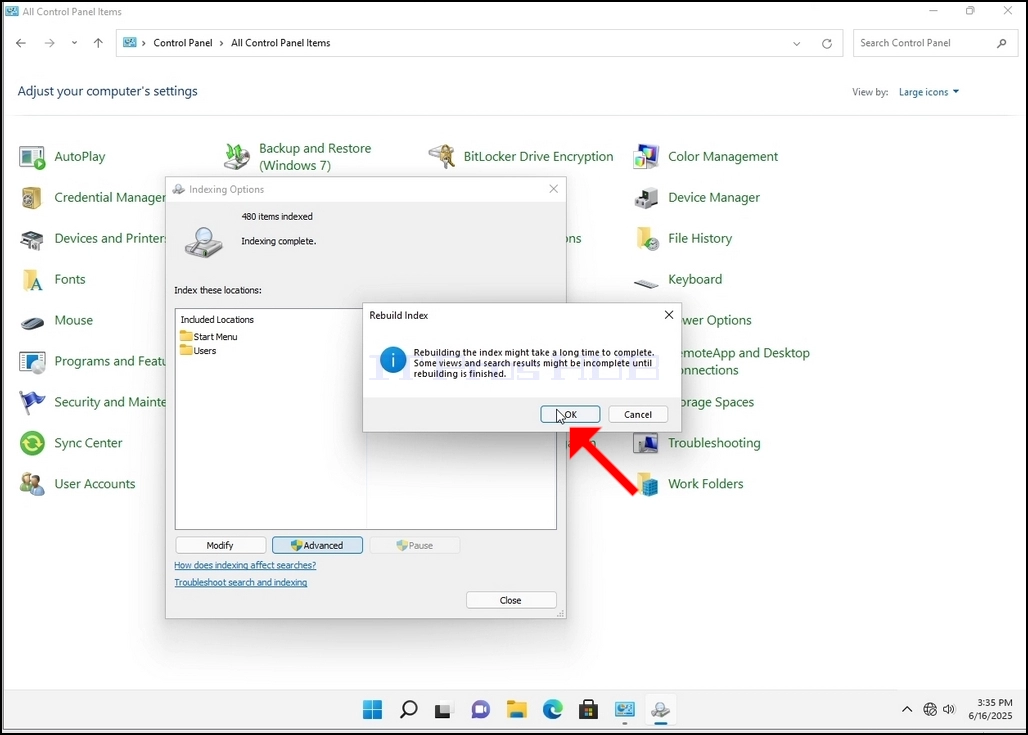
9. After clicking OK in the confirmation box, Windows will start rebuilding its index. It might take some time for the actual process to start, Wait patiently a few seconds to a few minutes. The moment the process starts, the "Indexing Complete" sentence will be replaced with "Indexing in progress. Search results might not be complete during this time."
In addition, the number of items indexed will be reset to 0 for a moment and then start to increase.
Note that All of the windows that are related to the Indexing process can now be closed and the rebuilding process would still be running the background.
Note that the Indexing process' speed might be reduced due to user activity on the computer. The more intense the activity the less the Indexing speed would be.
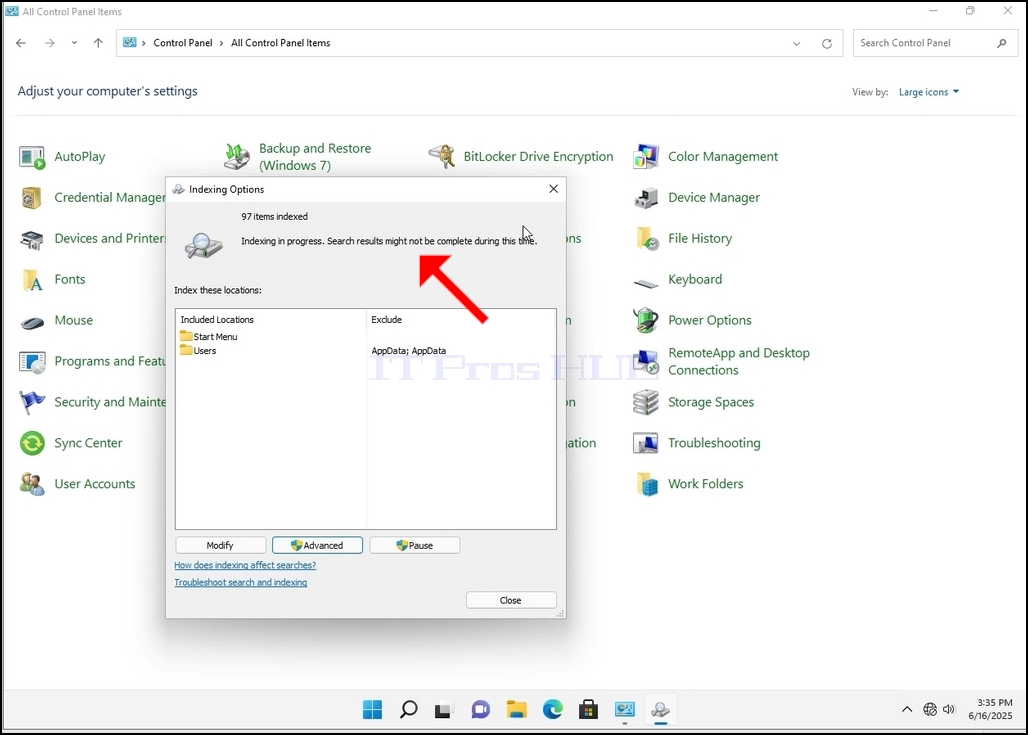
10. To check if the indexing process is done, go back to the Indexing Options through Control Panel as explained in the previous stages. If the process is complete, you would see the "Indexing Complete" sentence appears again.
Since Windows does not notify the user once this process is done, there is indeed a need to perform the latter mentioned. Depending on the number of files, folders, drivers and partitions marked for indexing, this process could take between a few minutes to a few hours.
- Išsami informacija
- Parašė: IT Pro
- Kategorija: How to Articles
- Peržiūros: 5499
1. Pereikite prie Windows darbastalio
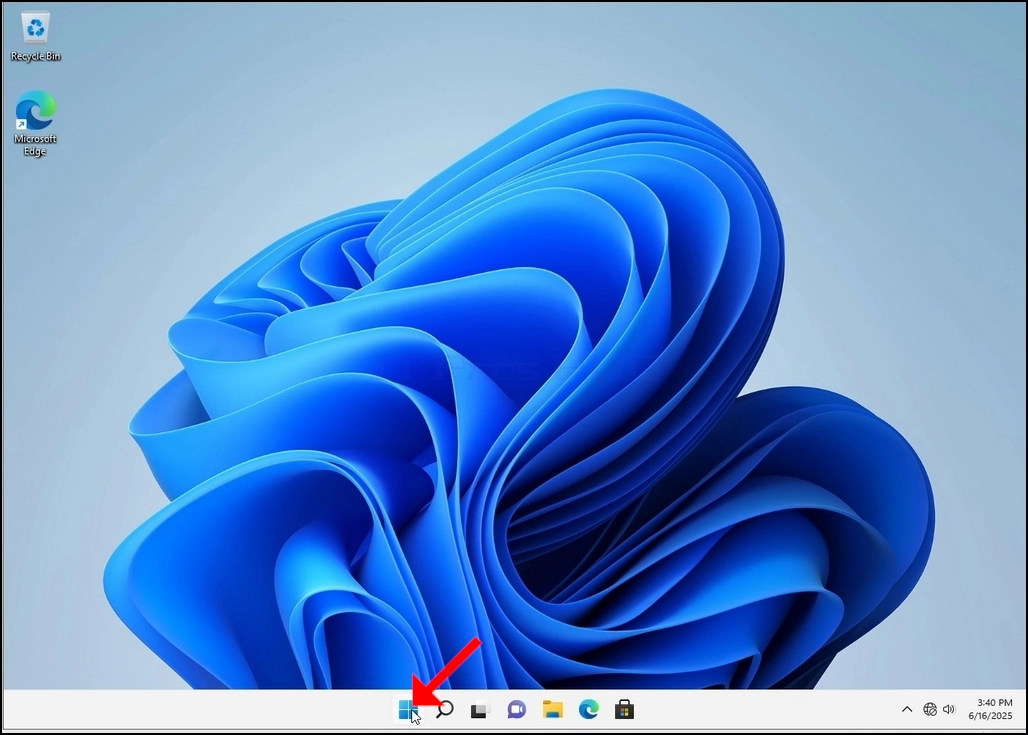
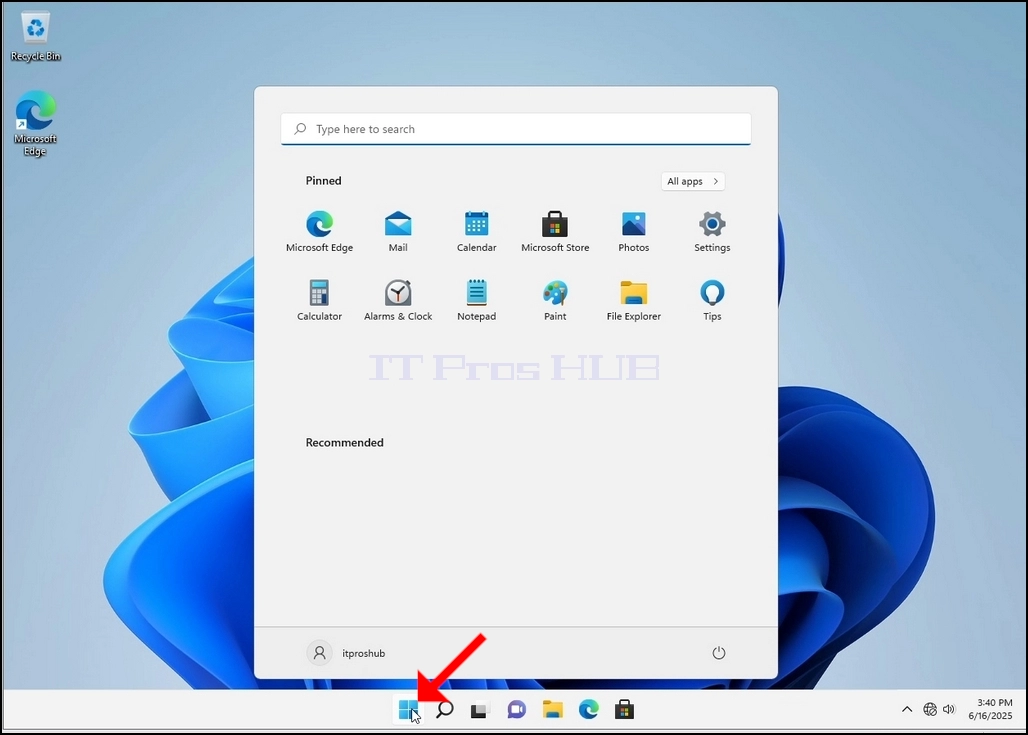
2. Spauskite pradžią
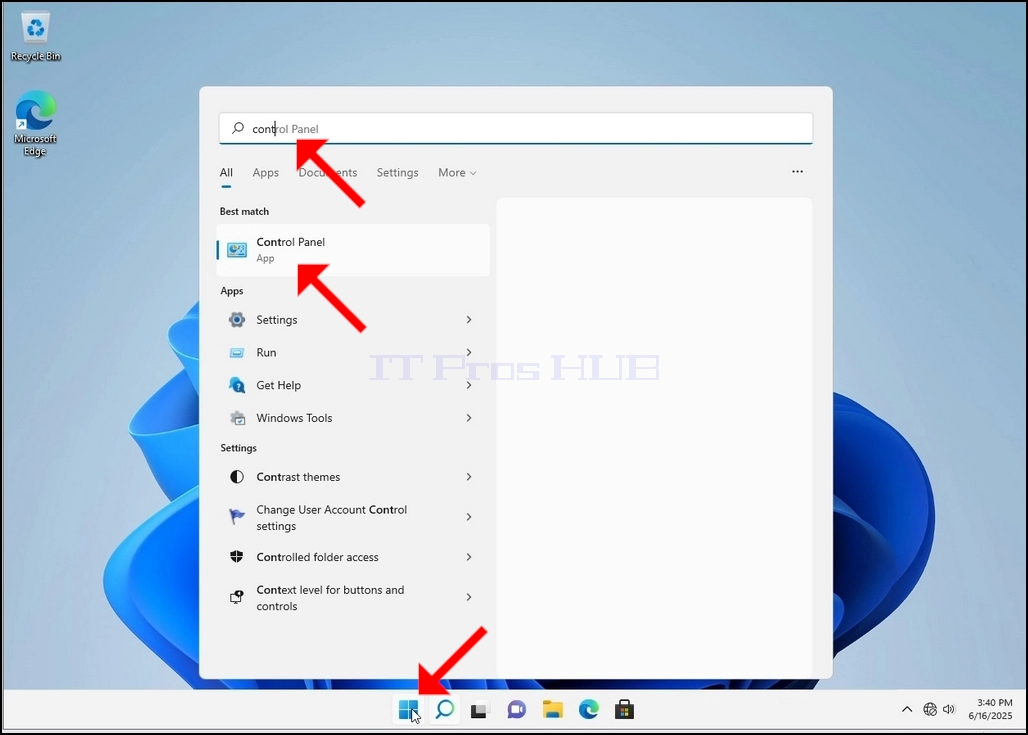
3. Atsidarius pradžios meniu, įveskite "valdymo skydelį" ir palaukite pradžios meniu, kad rastumėte valdymo skydelį. Prašome atkreipti dėmesį, kad tai yra įmanoma tik įveskite "cont" ir daugeliu atvejų pradžios meniu vis dar rasti valdymo skydo piktogramą.
Radę, spustelėkite jį ir palaukite, kol pasirodys valdymo skydelis.
4. Vos tik valdymo skydo langas yra atidarytas, padidinkite jį, spausdami didinamą piktogramą viršutiniame dešiniajame lango kampe.
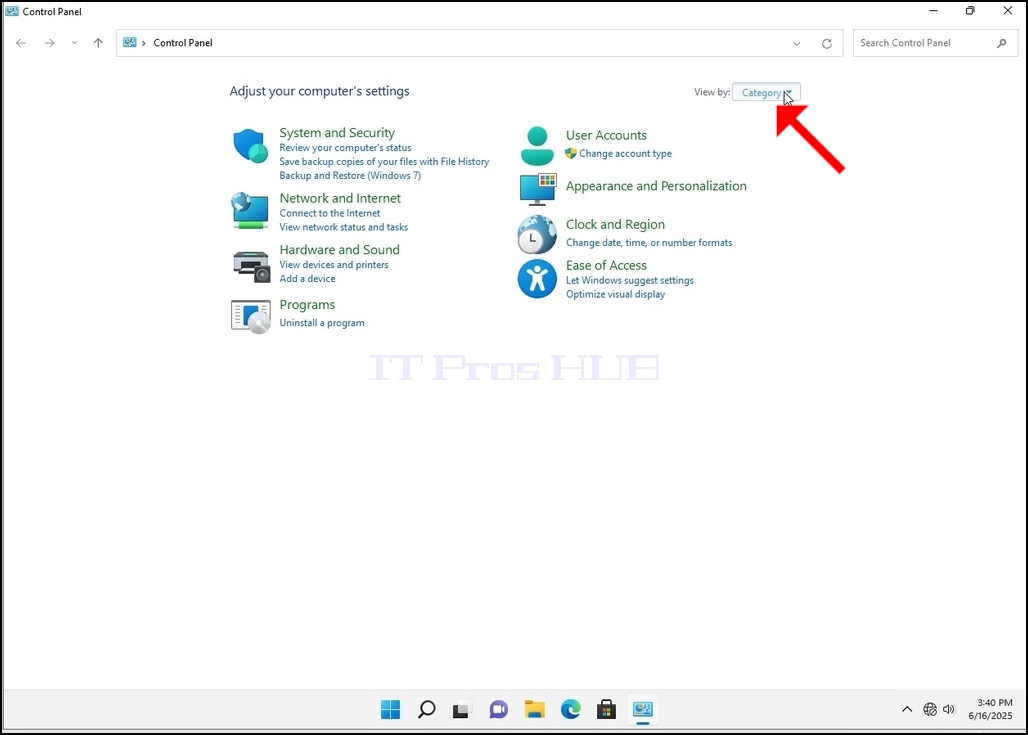
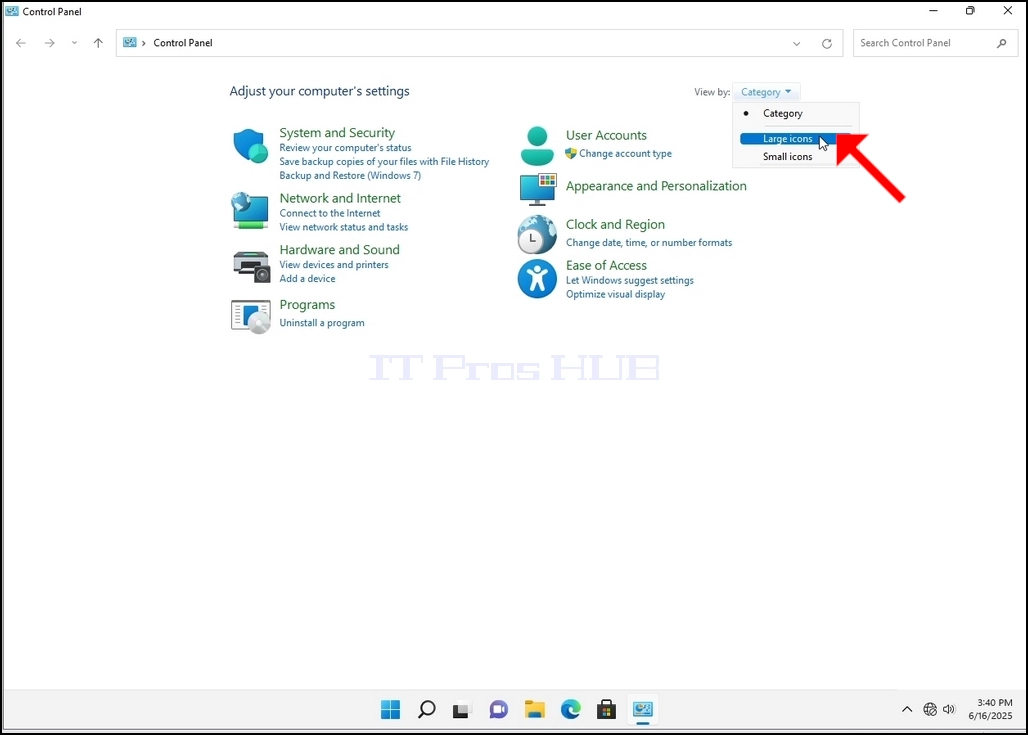
5. Laivybai palengvinti, spustelėkite Kategorija viršuje dešinėje valdymo skydo lango pusėje ir pasirinkti "Dideli ženkliukai"iš mažo naujo meniu, kuris pasirodo.
6. Ieškoti indeksavimo parinkčių piktogramos ir spustelėkite ją. Laukti, kol pasirodys indeksavimo parinktys.
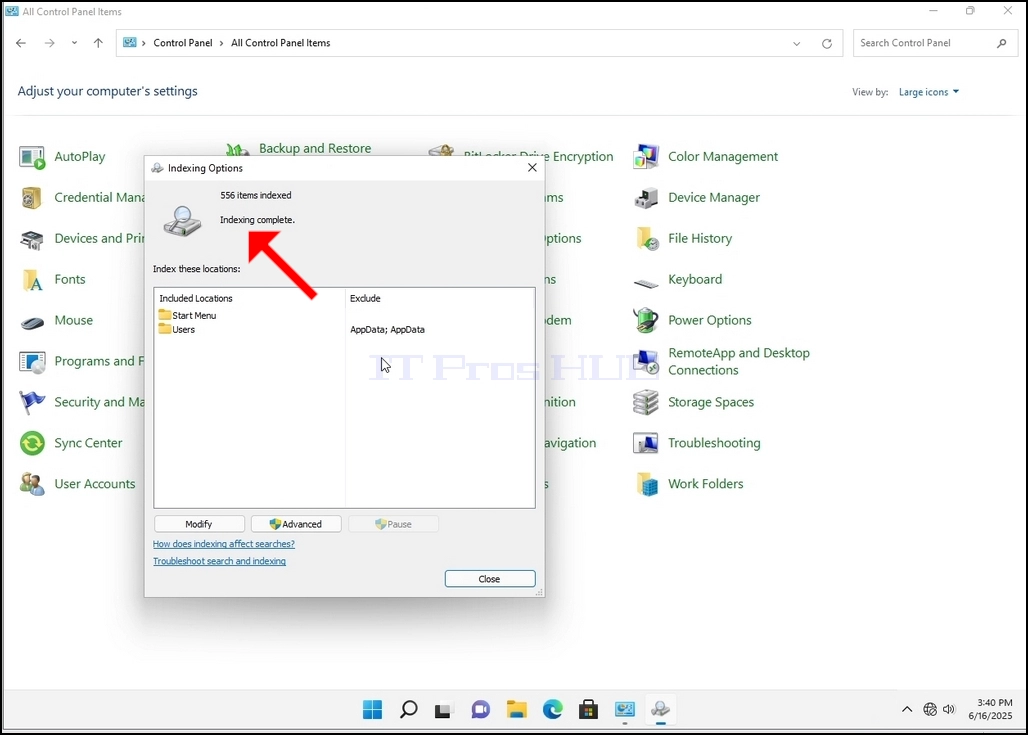
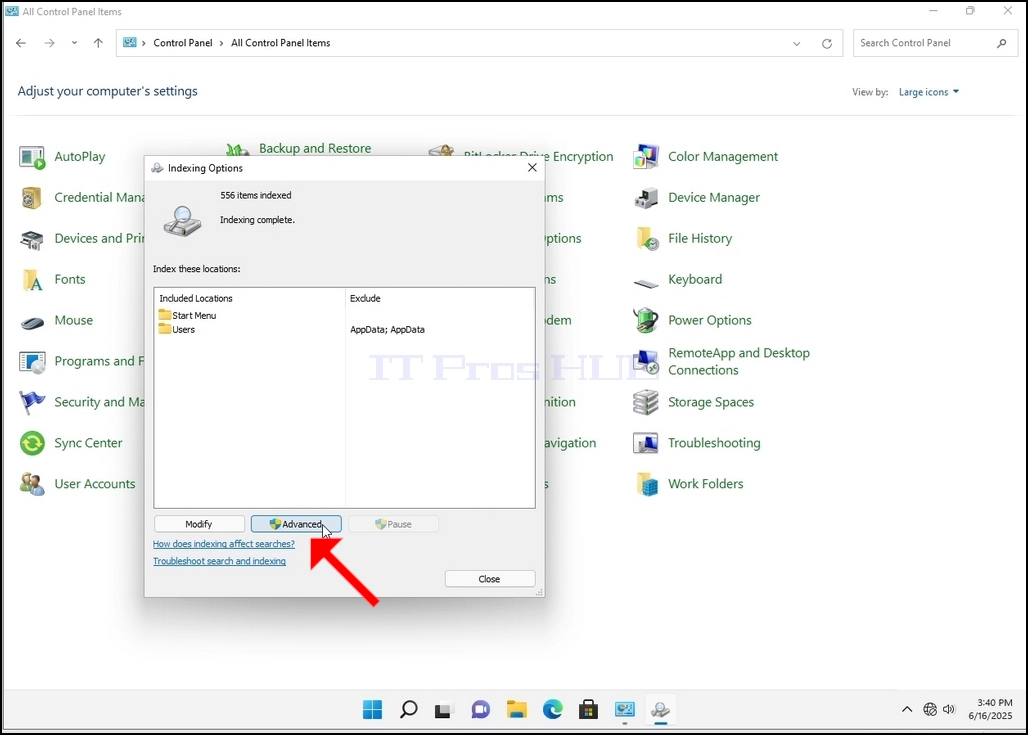
7. Atsidaręs indeksavimo parinkčių langas, spustelėkite išplėstinį mygtuką šio lango apačioje.
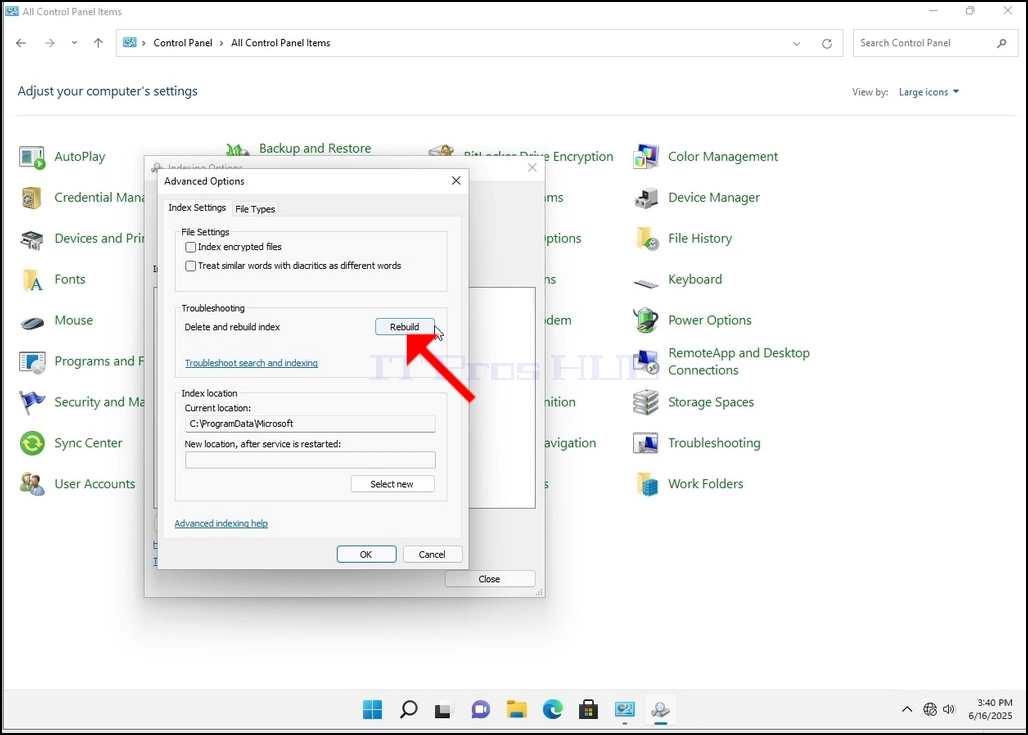
8. Naujame lange ieškokite mygtuko "Trinti" ir spustelėkite jį. Tapęs patvirtinimo lauku, jis pakils. Spauskite mygtuką OK, kad pradėtumėte atkurti indeksą.
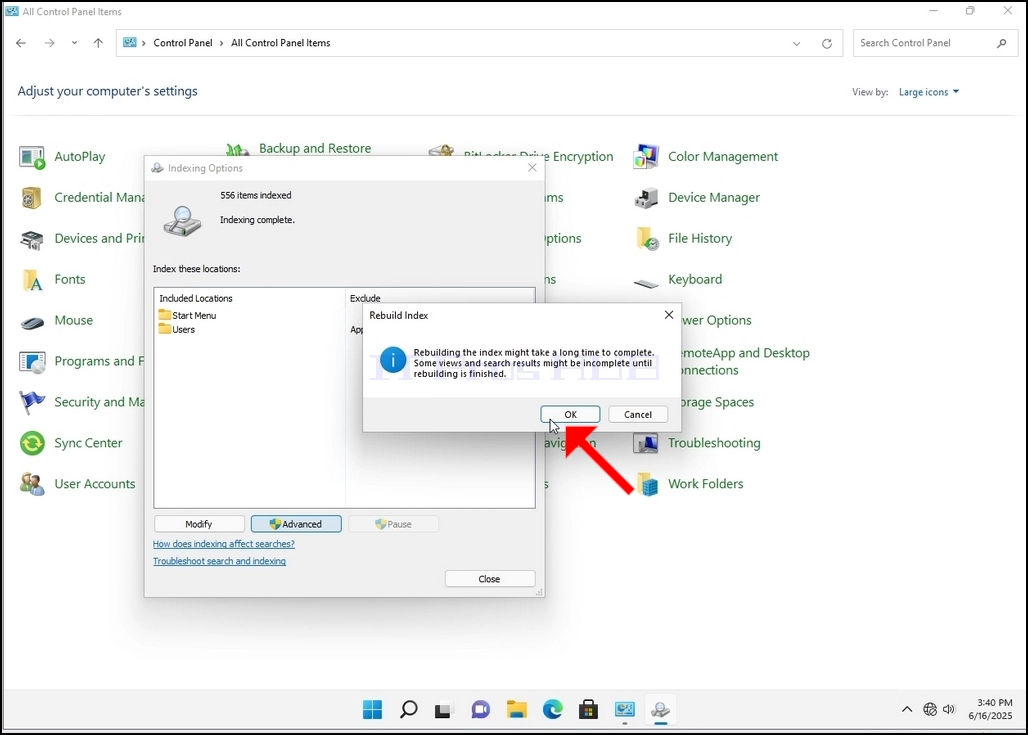
9. Paspaudus OK patvirtinimo langelyje, "Windows" pradės kurti savo indeksą. Gal prireiks šiek tiek laiko, kol prasidės tikrasis procesas, kantriai palaukite kelias sekundes iki kelių minučių. Vos tik prasideda procesas, "indeksavimas baigtassakinys pakeičiamas taip:indeksuojama. Paieškos rezultatai šiuo metu gali būti neišsamūs".
Beto, indeksuotų straipsnių skaičius bus iš naujo nustatytas 0 akimirkai, ir tada pradėti didėti.
Atkreipkite dėmesį, kad visi langai, kurie yra susiję su indeksavimo procesą, dabar gali būti uždaryti ir atkūrimo procesas vis dar veikia fone.
Pastaba: indeksavimo proceso greitis gali būti sumažintas dėl vartotojo veiklos kompiuteryje. Kuo intensyvesnė veikla, tuo mažesnis indeksavimo greitis.
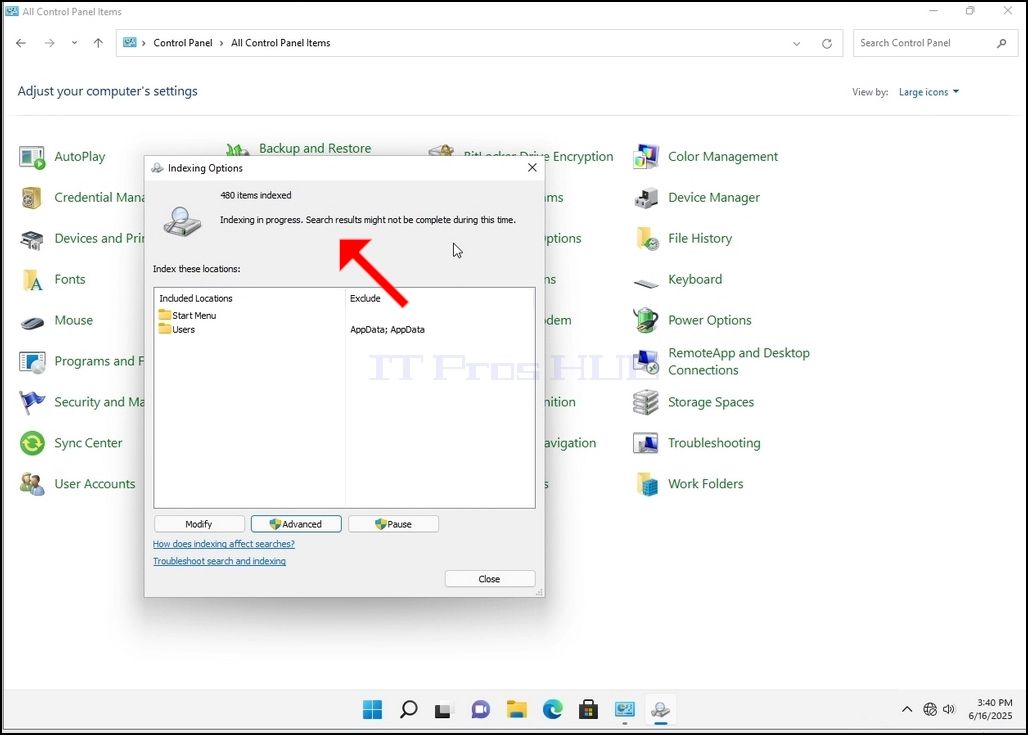
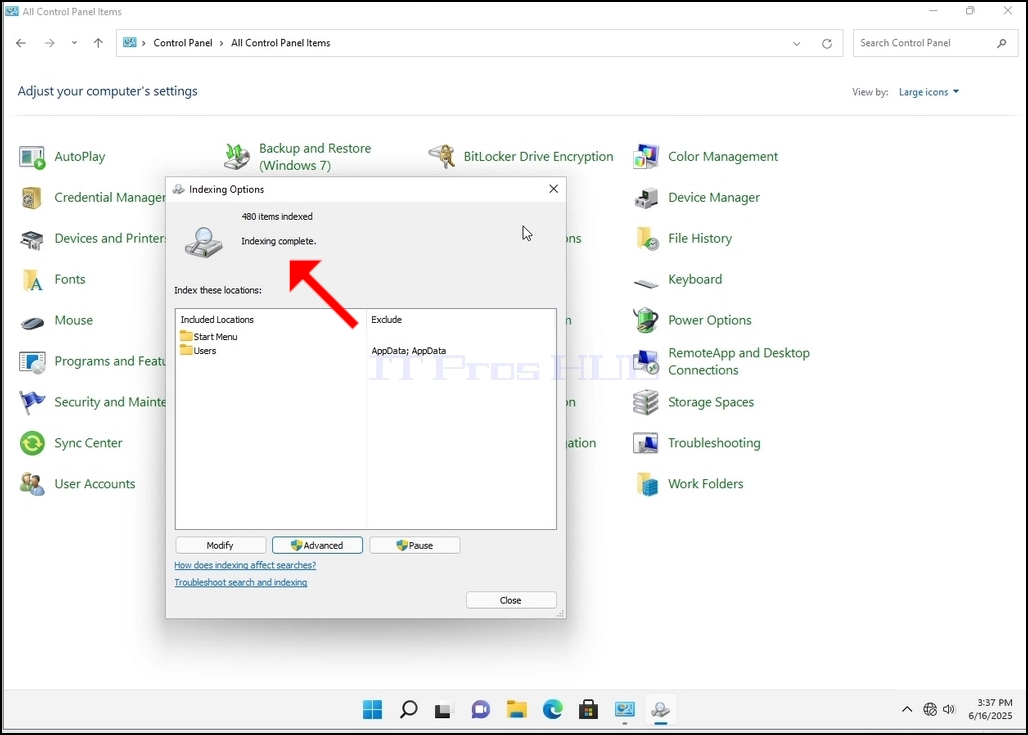
10. Patikrinkite, ar indeksavimo procesas yra padaryta, grįžti į indeksavimo galimybes per kontrolės skydelį, kaip paaiškinta ankstesniuose etapuose. @ info: whatsthisindeksavimas baigtas"sakinys vėl pasirodo.
Windows nepraneša vartotojui, kai šis procesas bus baigtas, todėl reikia atlikti pastarąjį. Priklausomai nuo failų, aplankų, vairuotojų ir skaidinių, pažymėtų indeksavimui, skaičiaus, šis procesas gali užtrukti nuo kelių minučių iki kelių valandų.