



- Uppgifter
- Skriven av IT Pro
- Kategori: How to Articles
- Träffar: 6979
1. Gå till Utforskaren och därifrån går du till den vänstra rutan i fönstret och letar efter Den här datorn. Klicka på den en gång och vänta tills sidan laddas.


2. När den här datorn har laddats bör du se dina diskar och partitioner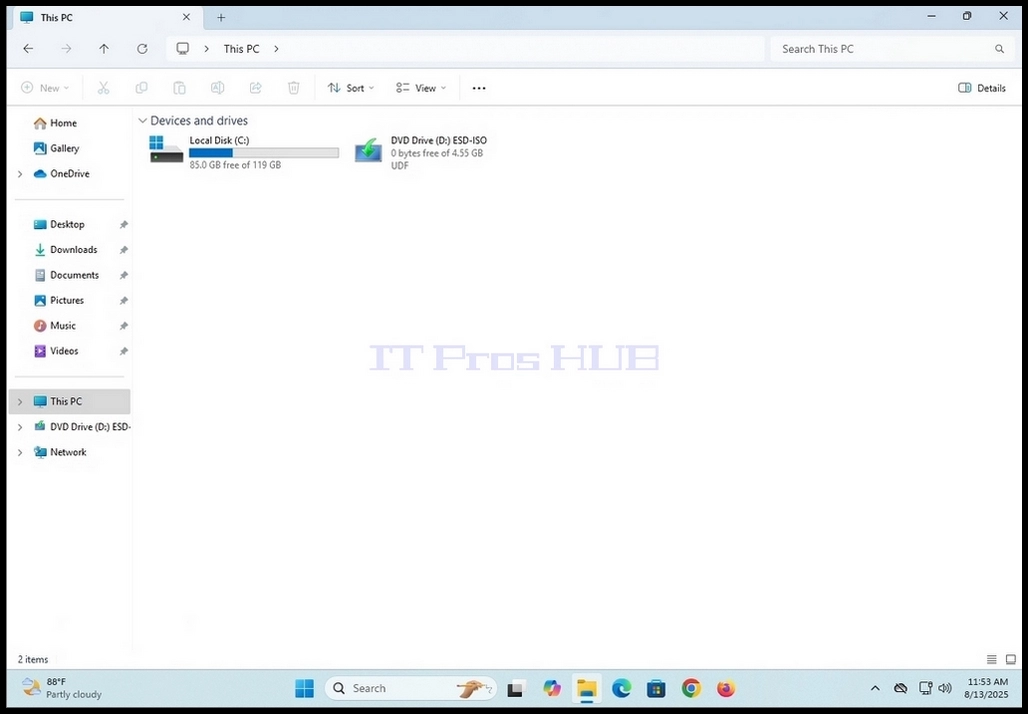
3. Välj den partition/disk du vill komprimera genom att markera den en gång genom att vänsterklicka på den.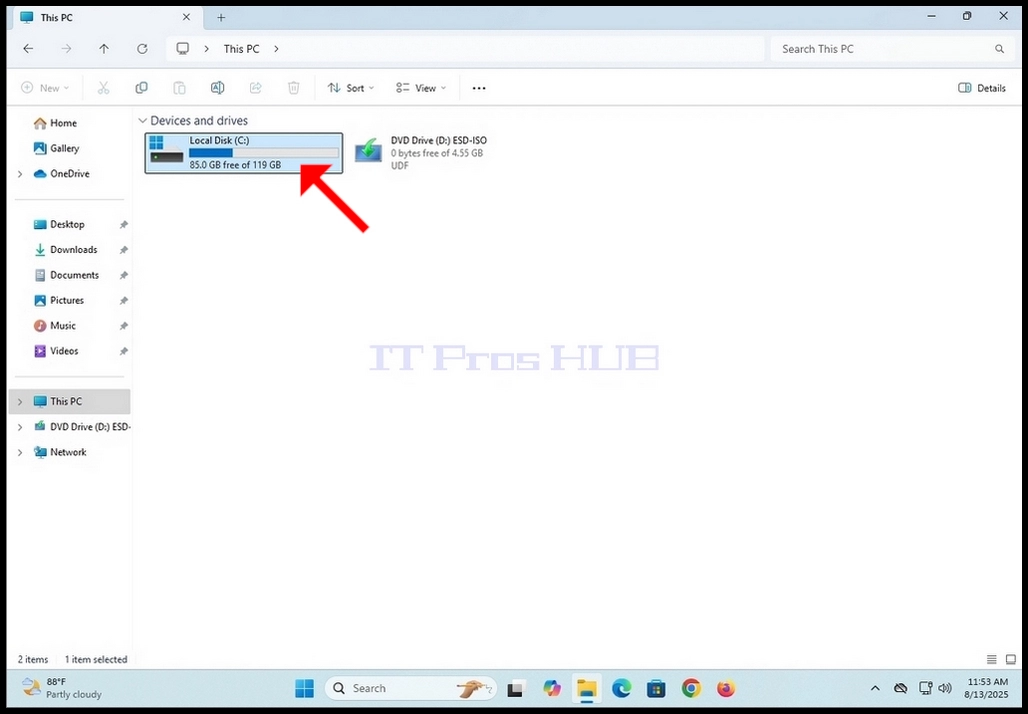
4. Högerklicka på den för att öppna en sidomeny.
5. I den nyöppnade sidomenyn letar du efter Egenskaper och klickar på den en gång. Vänta tills Egenskaperfönstret laddas.
6. Egenskapsfönstret bör laddas med fliken Allmänt vald. Om den inte är vald, vänligen välj den genom att klicka på den en gång.
7. På fliken Allmänt, längst ner, leta efter meningen Komprimera enheten för att spara diskutrymme. Tagga det alternativet genom att klicka en gång på taggningsrutan till vänster om det. När det är taggat bör du se ett blått B-tecken i rutan. />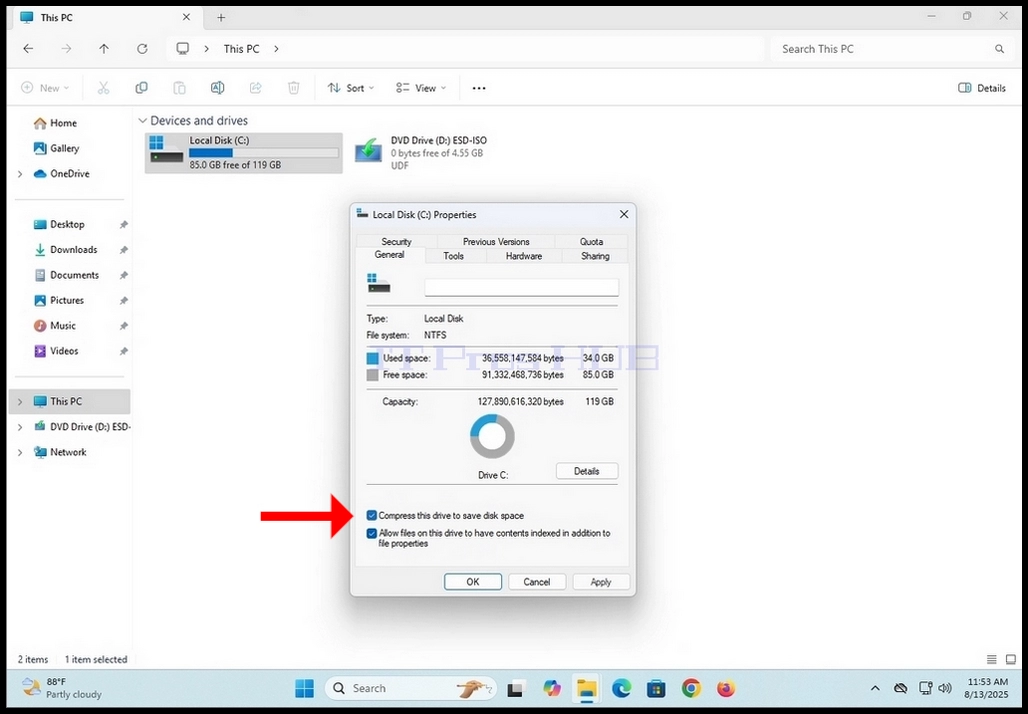
8. Klicka på knappen Verkställ för att tillämpa ändringen
9. När du klickat visas ett popup-fönster med titeln Bekräfta attributändringar.
10. I bekräftelsefönstret bör det finnas två alternativ:
a. Tillämpa ändringarna endast på enhet C:\
b. Tillämpa ändringarna
- Uppgifter
- Skriven av IT Pro
- Kategori: How to Articles
- Träffar: 7117
1.Gå till Windows Desktop
2. Klicka på Börja knappen knapp

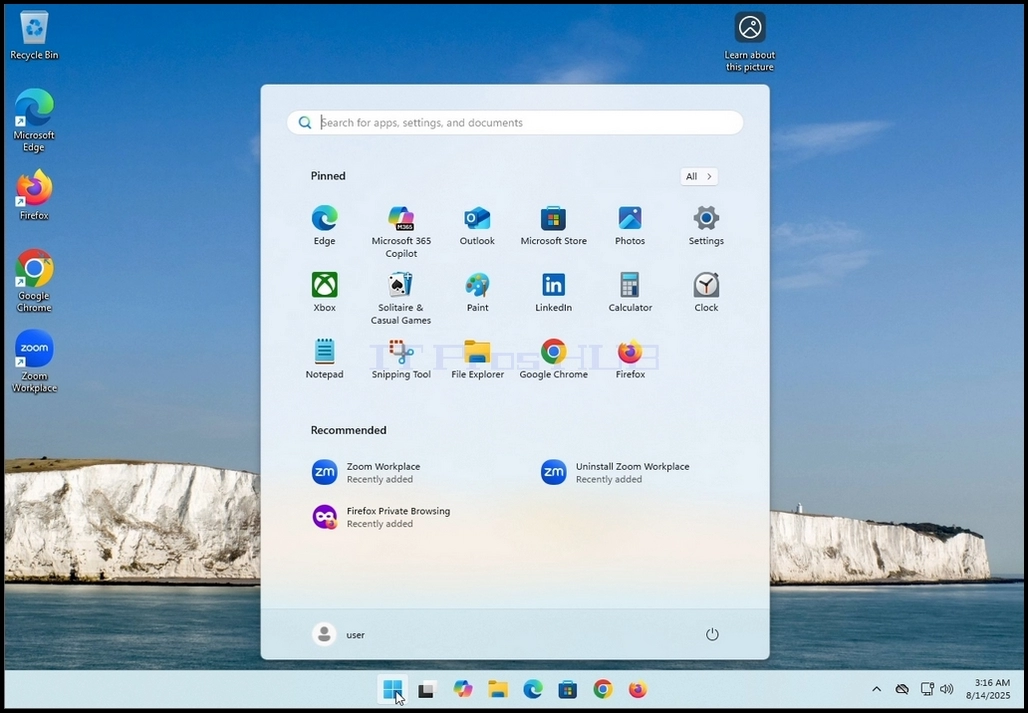
3. i den Börja meny, typ CMD och vänta på Kommando Prompt ikon att dyka upp.
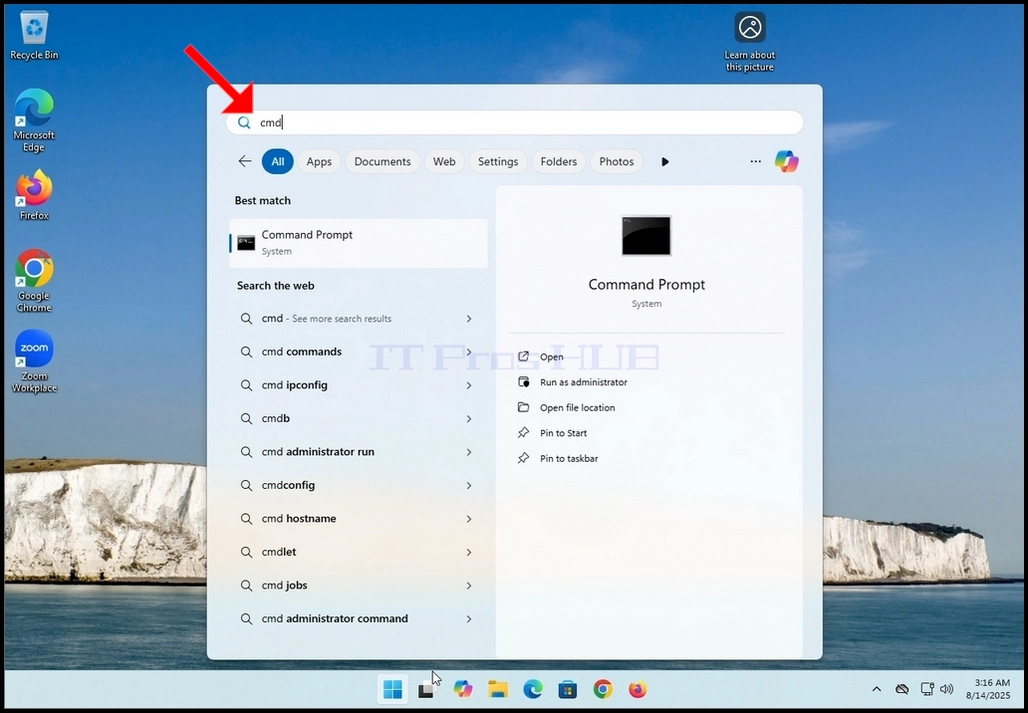
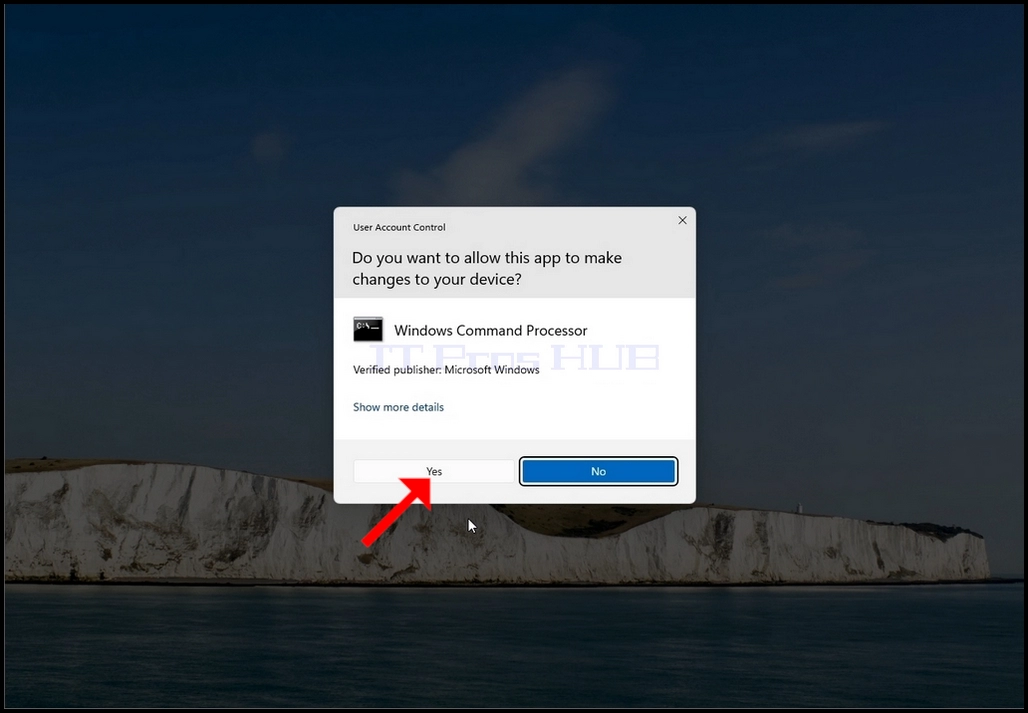
4. i Börja meny, titta på rätt ruta på menyn och sök efter Kör som administratör mening. Klicka på meningen och vänta på Windows UAC Snabbt att visas.

5. Klicka på Ja, ja knappen in Windows UAC meny och vänta på Kommando Prompt att ladda.
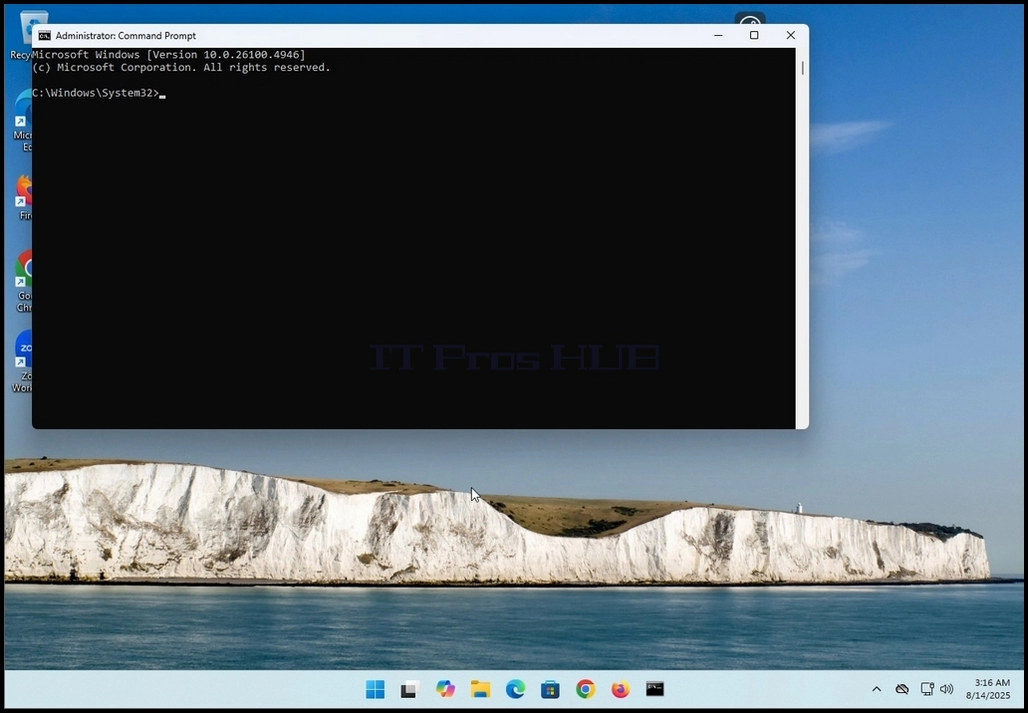
6. i Command Prompt fönstertyp: Sfc / Scannow”Och slå på ENTER Nyckeln.
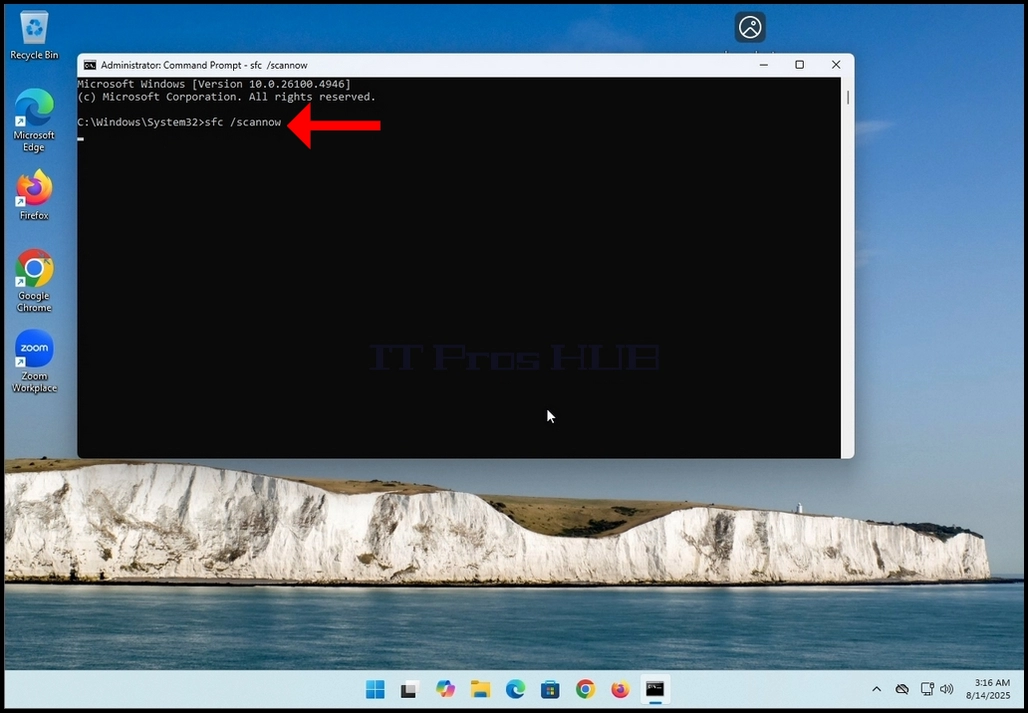
7. efter att ha träffat ENTER Nyckel en mening kommer att visas i raden nedan. Domen skulle säga: ”Börja systemet skanna. Denna process kommer att ta lite tid.”
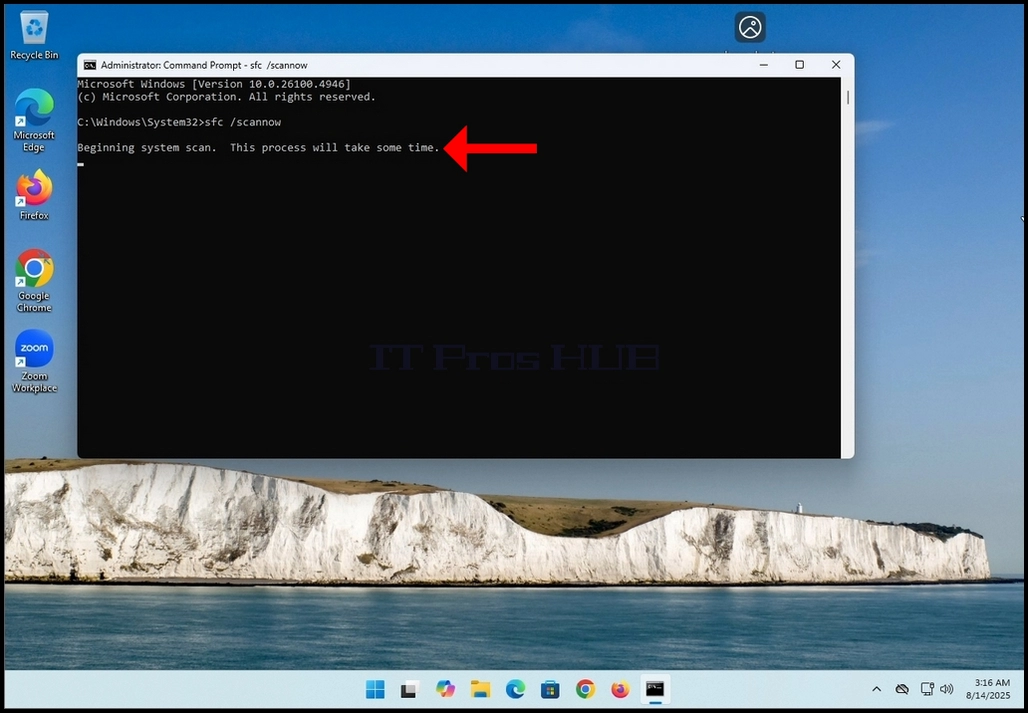
Några sekunder efter att den senare meningen dyker upp, bör en framstegsindikator visas lika bra och säga:Verifiering 1% komplett”.
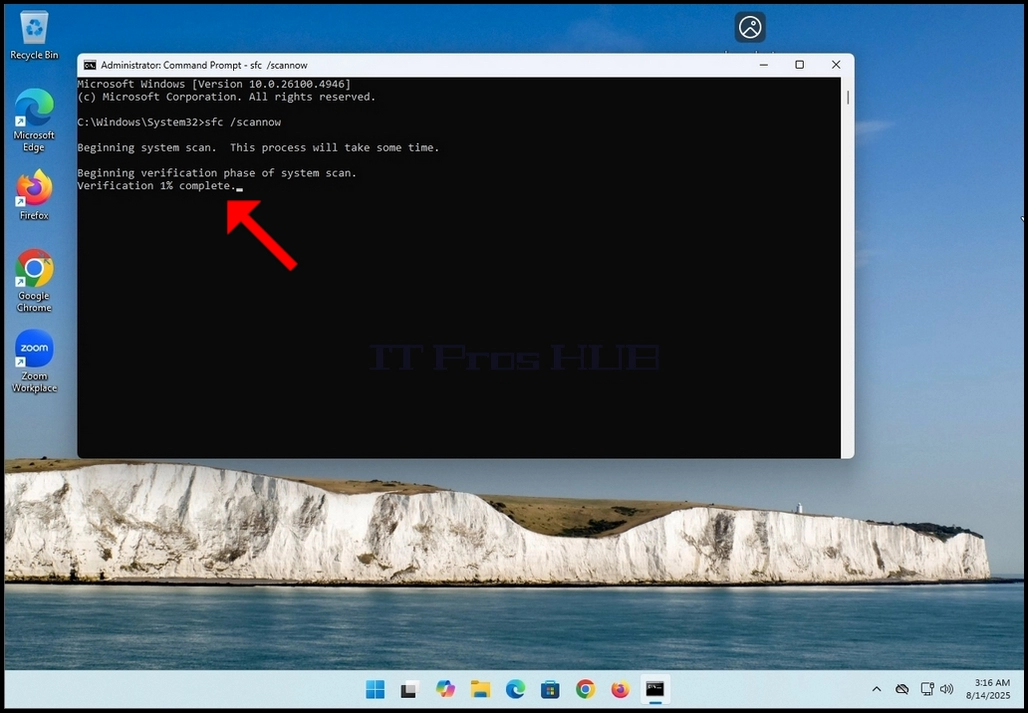
Vänta tills procenten når 100 100 100 100 100.
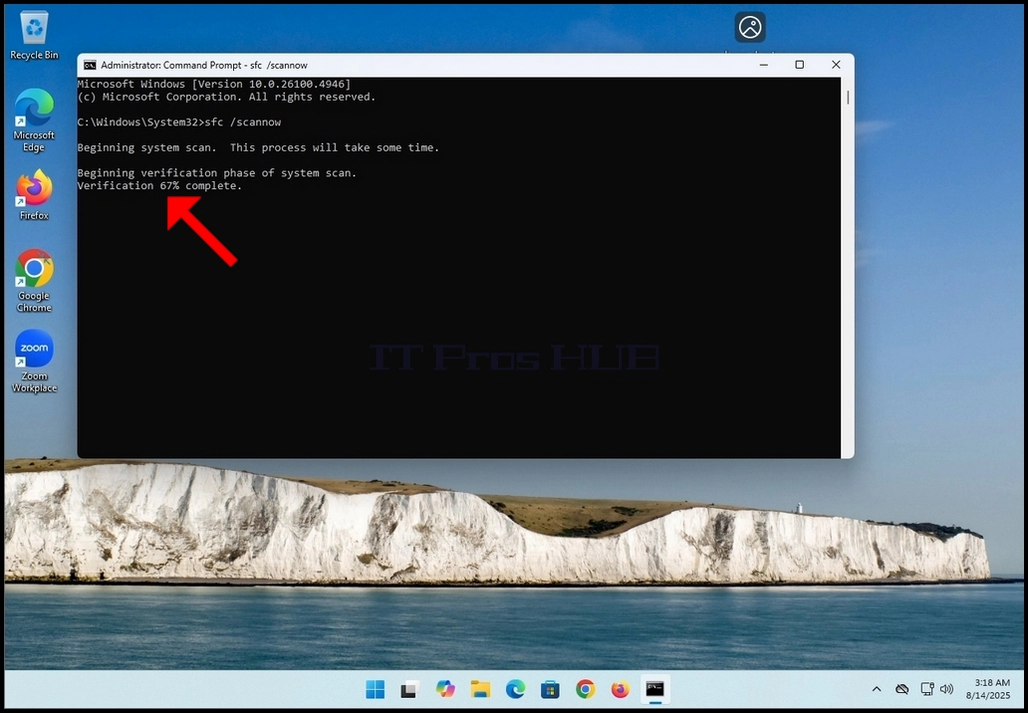
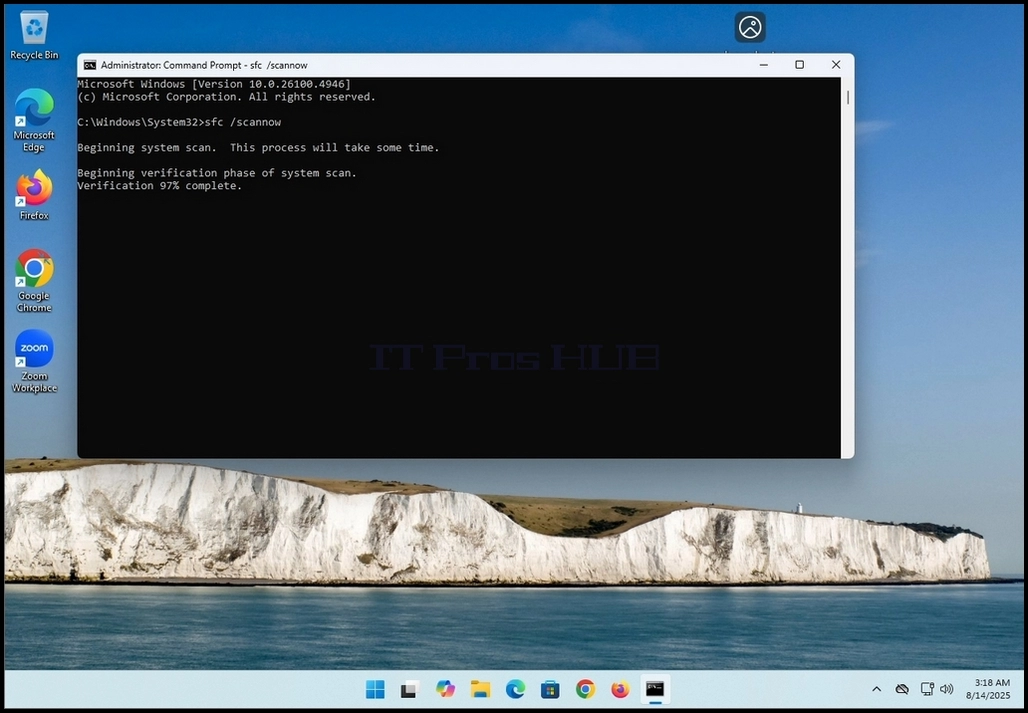
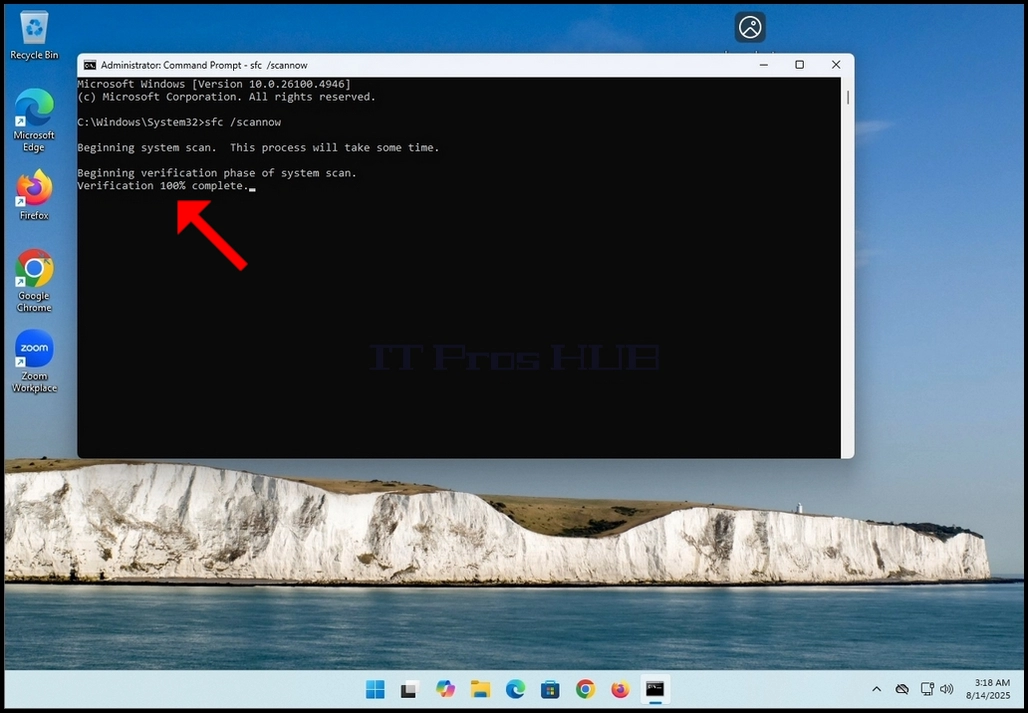
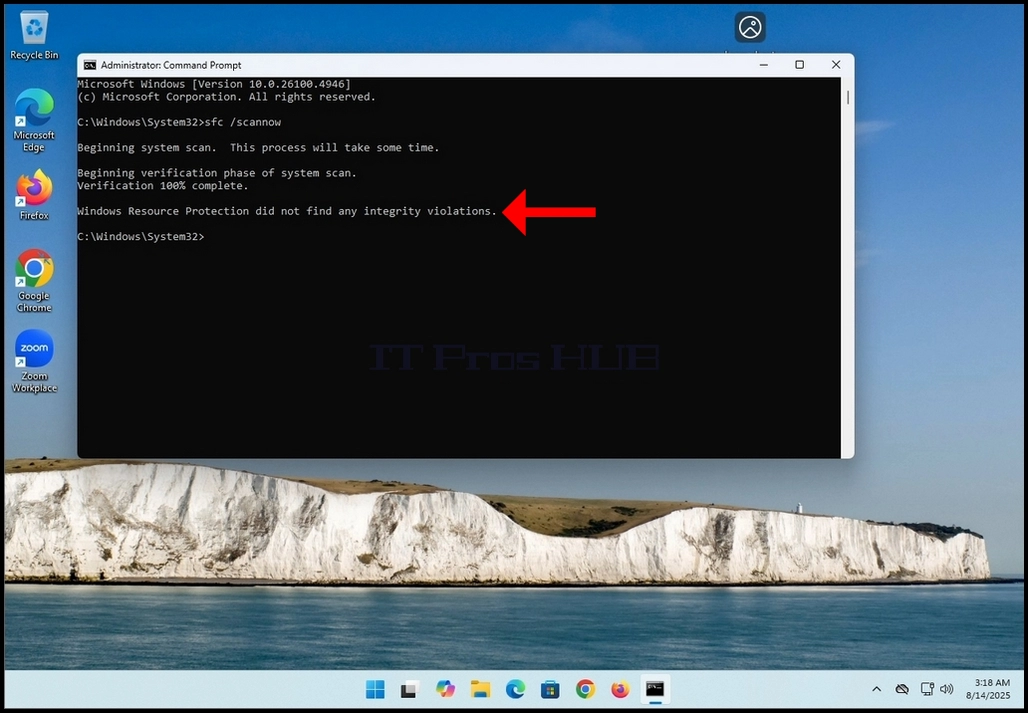
Efter framstegsindikatorn visar 100% en ny mening i raden nedan kommer att visas säger antingen:
a. Windows Resource Protection hittade inga brott mot integriteten Det betyder att det inte fanns några fel i systemet.
b. Windows Resource Protection hittade korrupta filer och reparerade dem framgångsrikt – Det betyder att vissa filer skadades men fixerades.
c. c. Windows Resource Protection hittade korrupta filer men kunde inte fixa några av dem – Det betyder att korruptionen upptäcktes men inte repareras.
d. d. Windows Resource Protection kan inte utföra den begärda operationen Detta innebär att Scan inte kunde slutföra (offline reparation eller filsystemproblem).
- Uppgifter
- Skriven av IT Pro
- Kategori: How to Articles
- Träffar: 8775
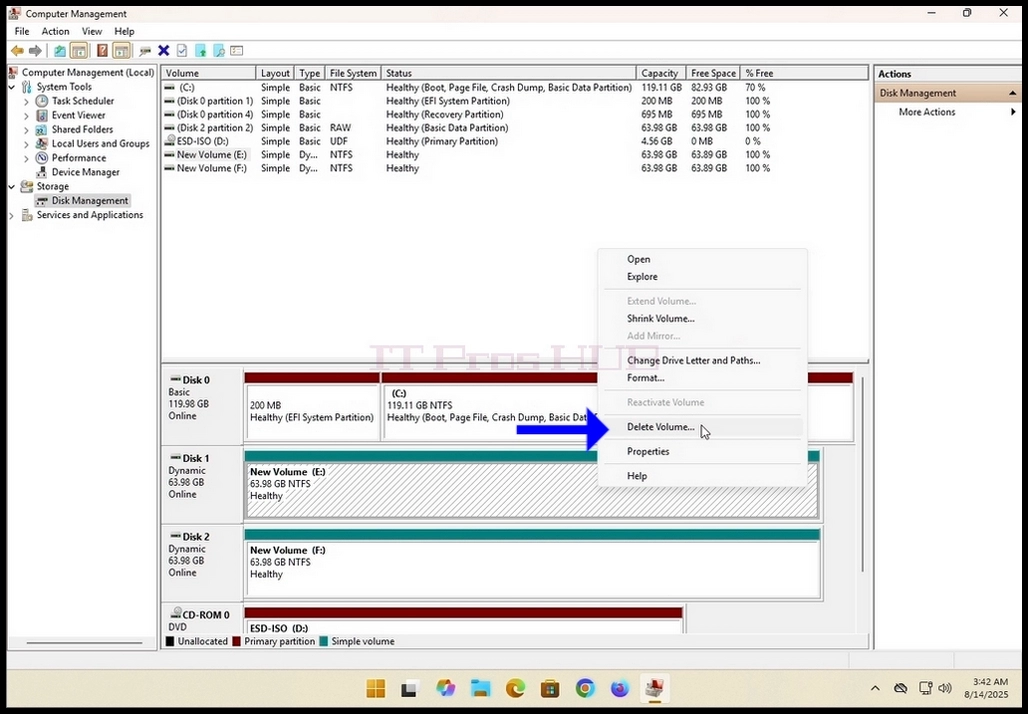
2. In Comuputer Management, on the left pane, look for Disk Management and click on it once.
3. Look for one of the disks you would like to be a part of the spanned volume and
right click on it. Wait for a side menu to appear.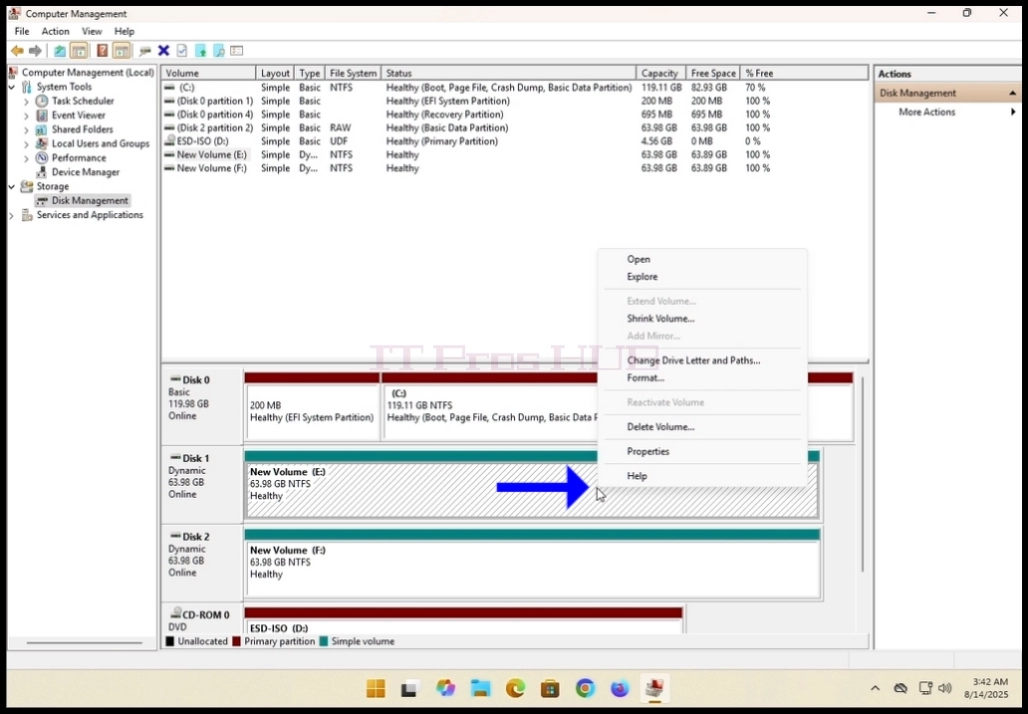
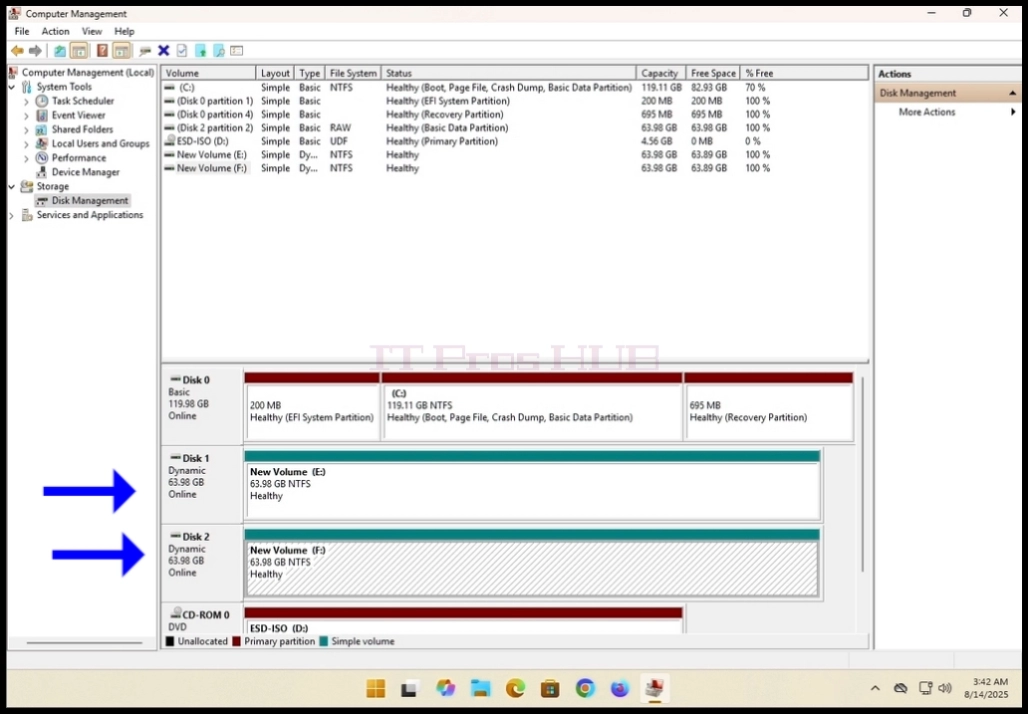
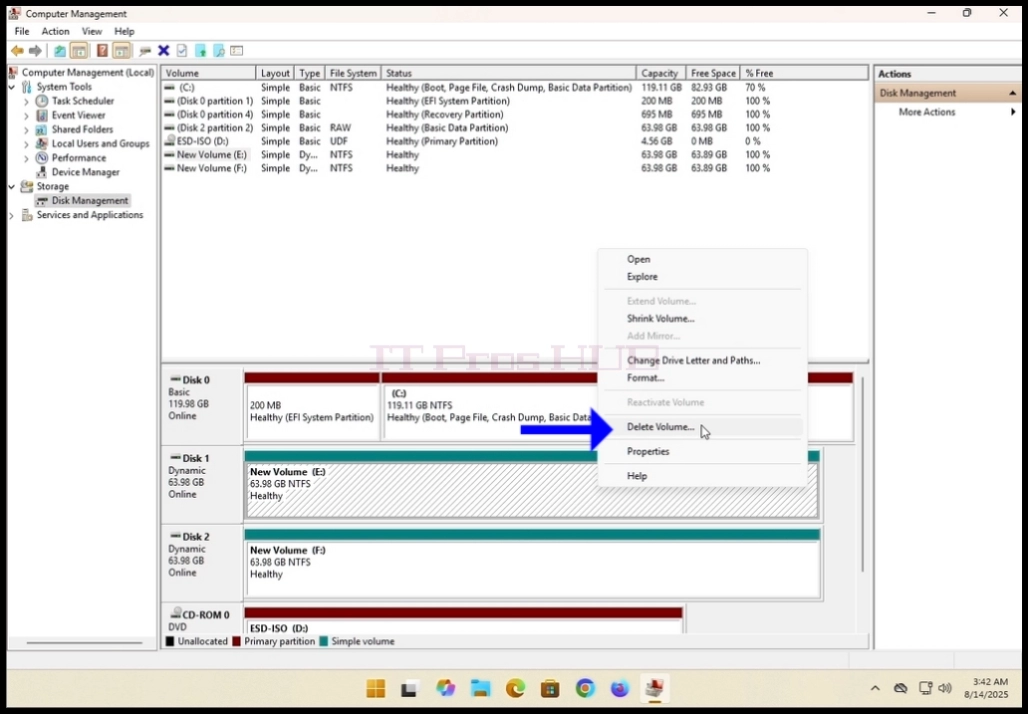
4. In the case of this article we will delete existing volumes out of the disks
we want to use in our spanned volume. As you can see, though
they are both dynamic, Disk 1 and Disk 2 are currently configured as something other than a spanned volume.
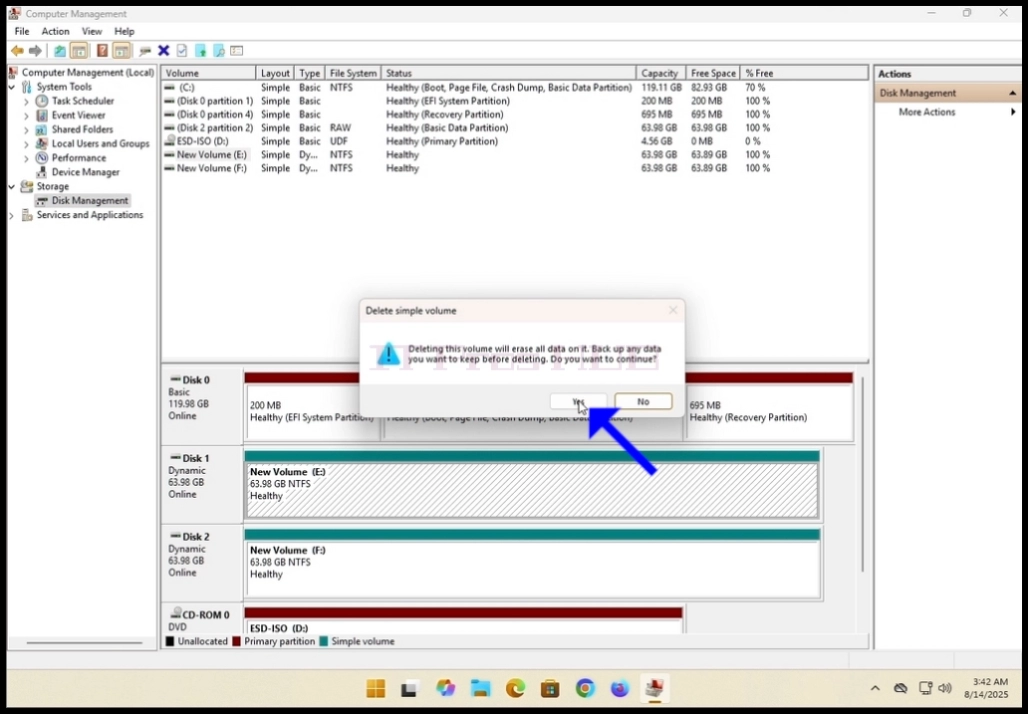
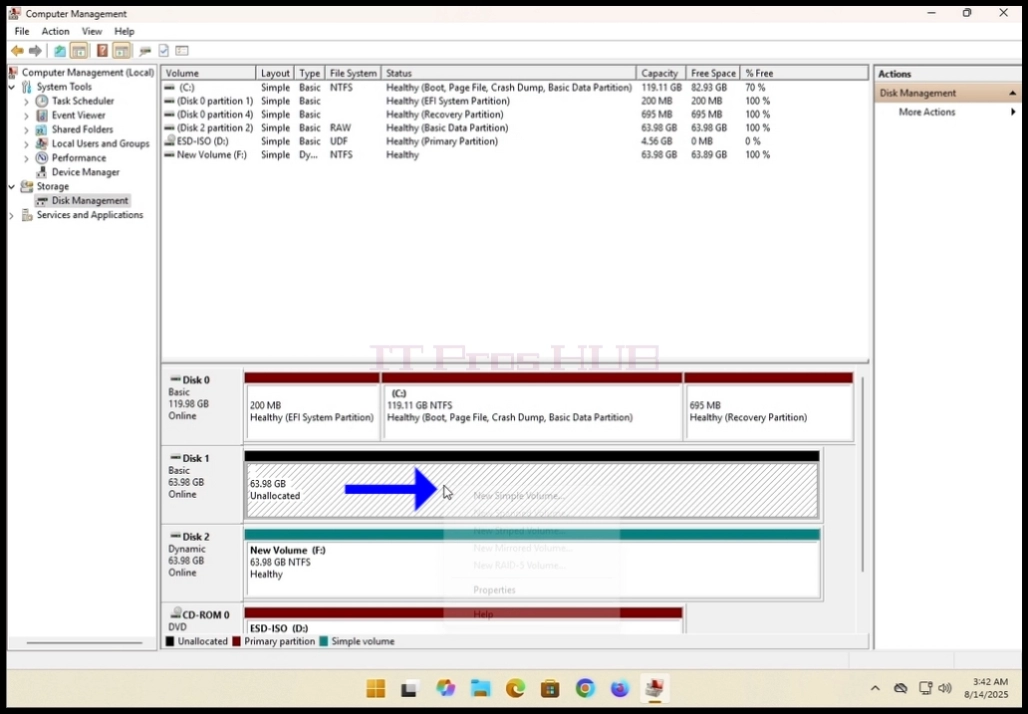
7. Perform the same action to the second disk in the array.
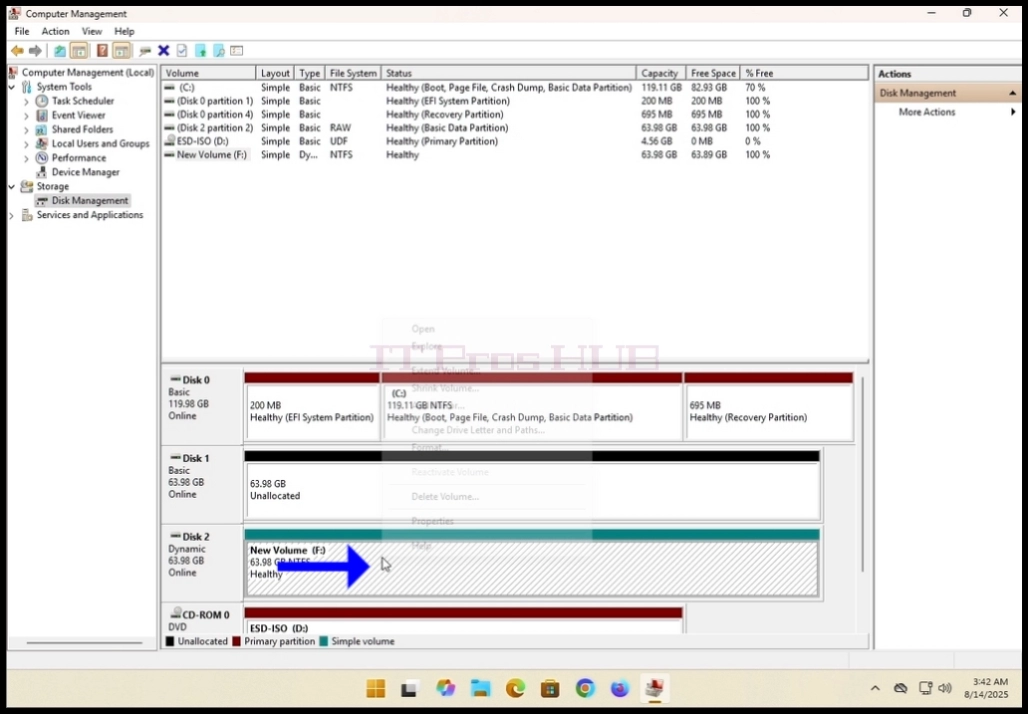
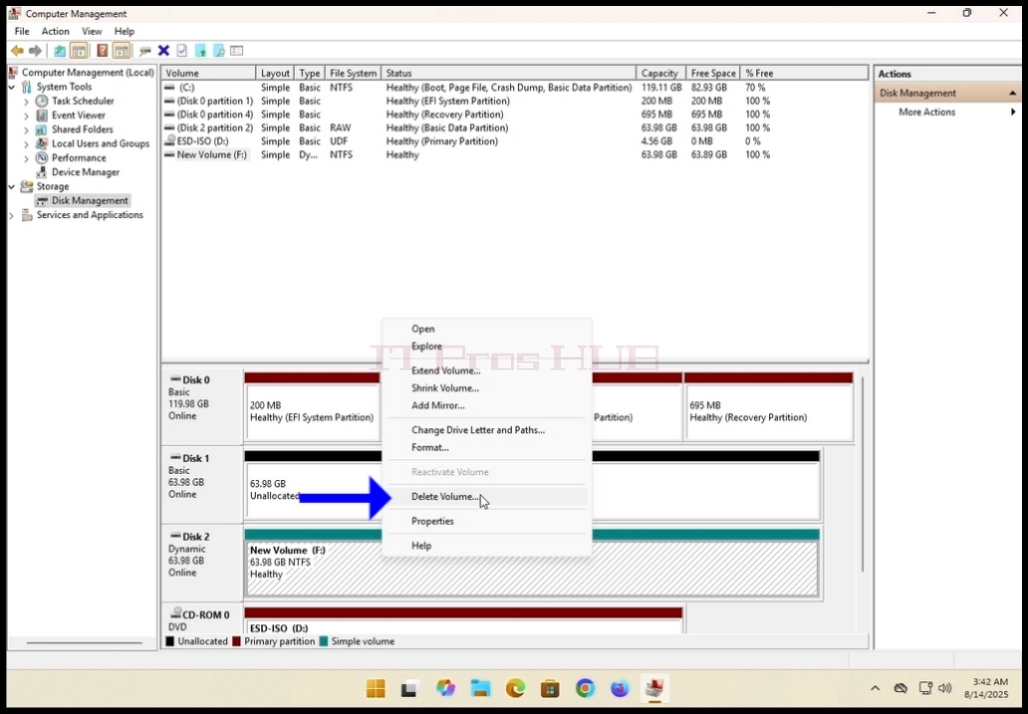
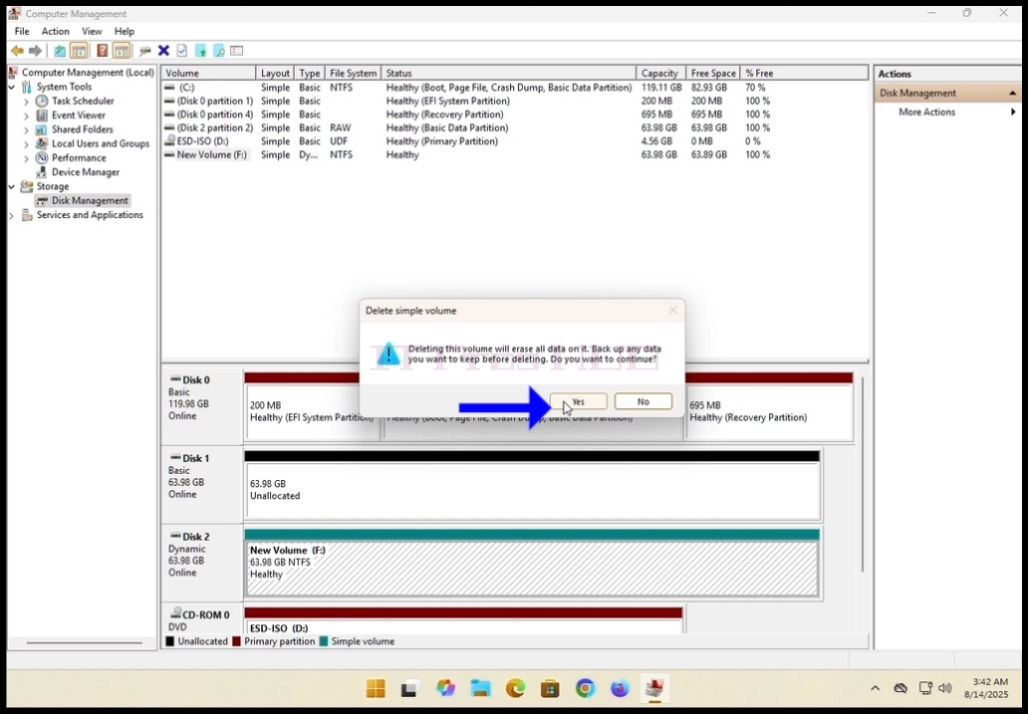
8. Make sure both disks have only unallocated volumes.
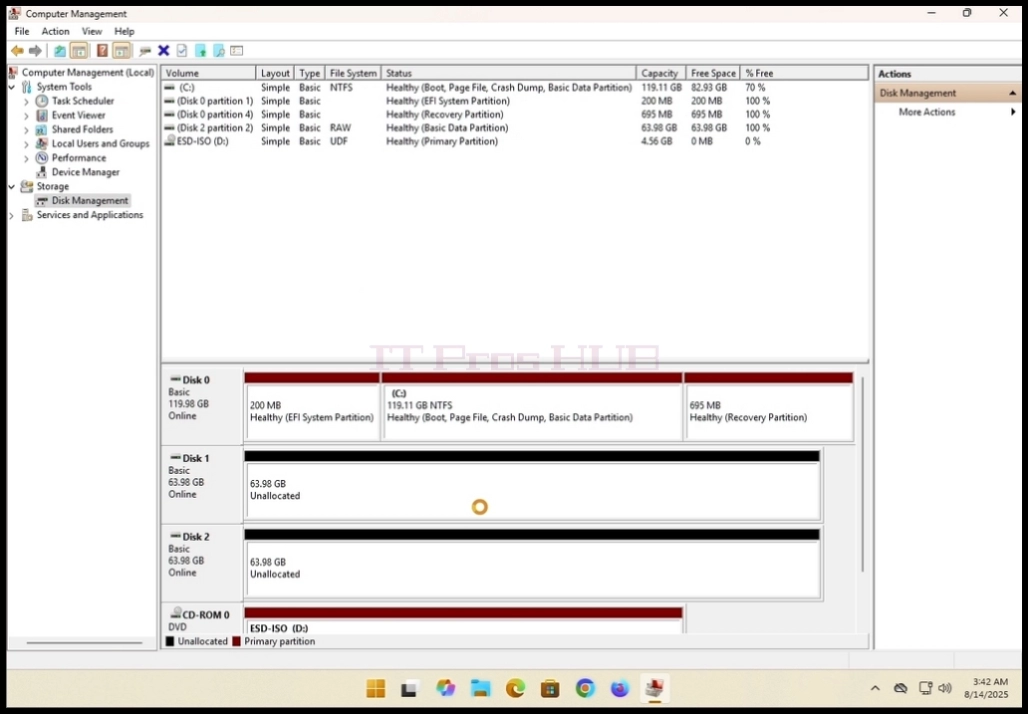
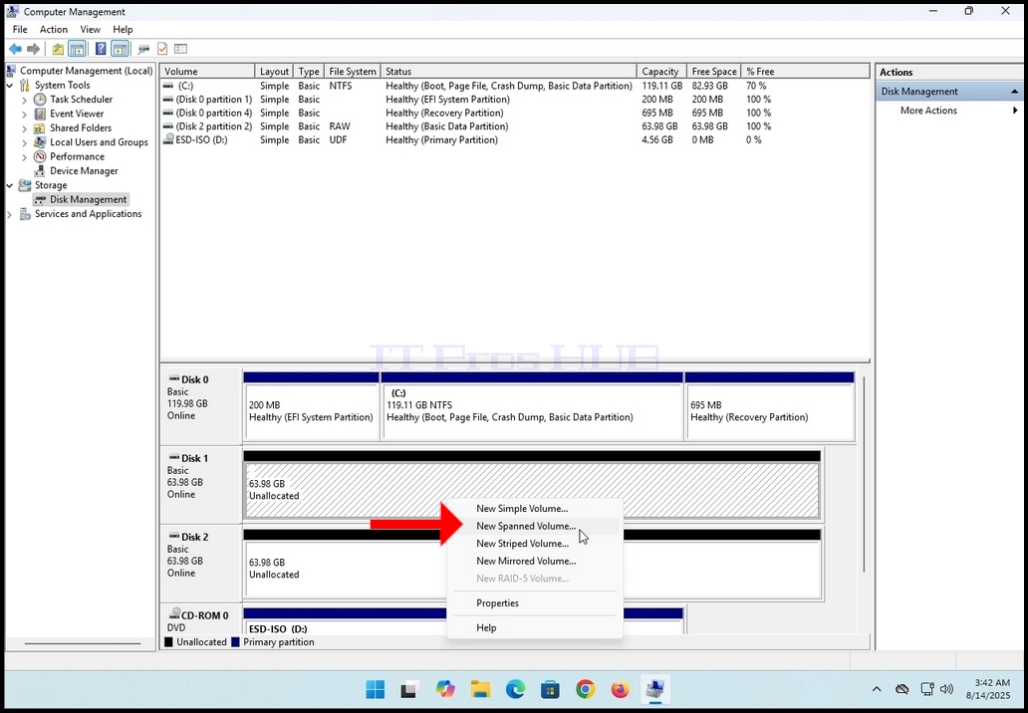
10. Click NEXT.
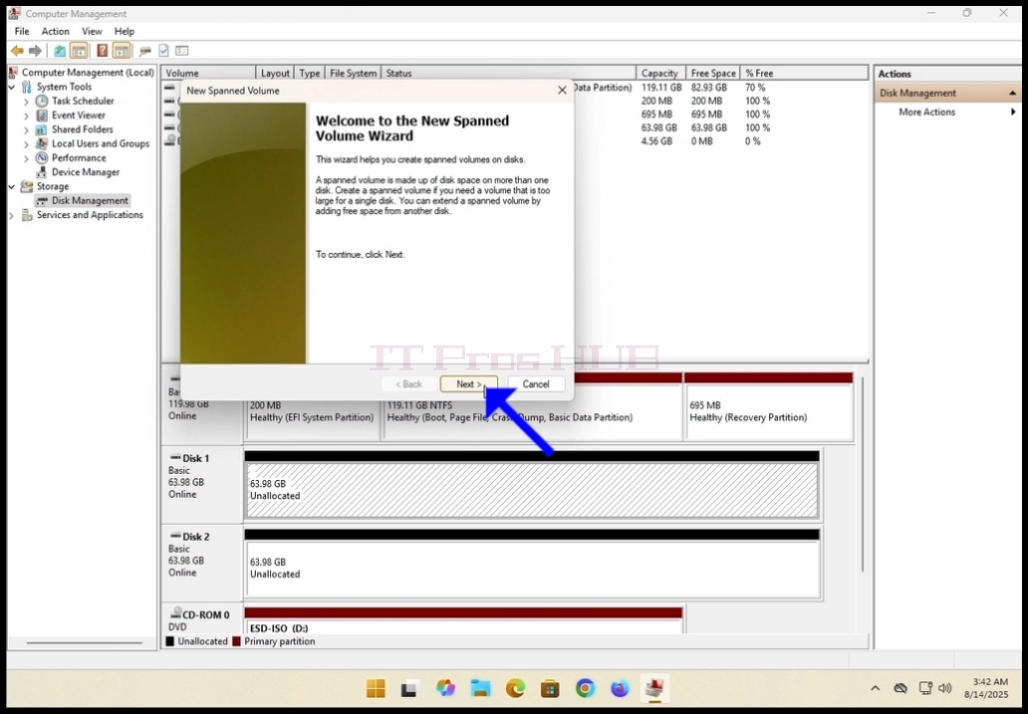
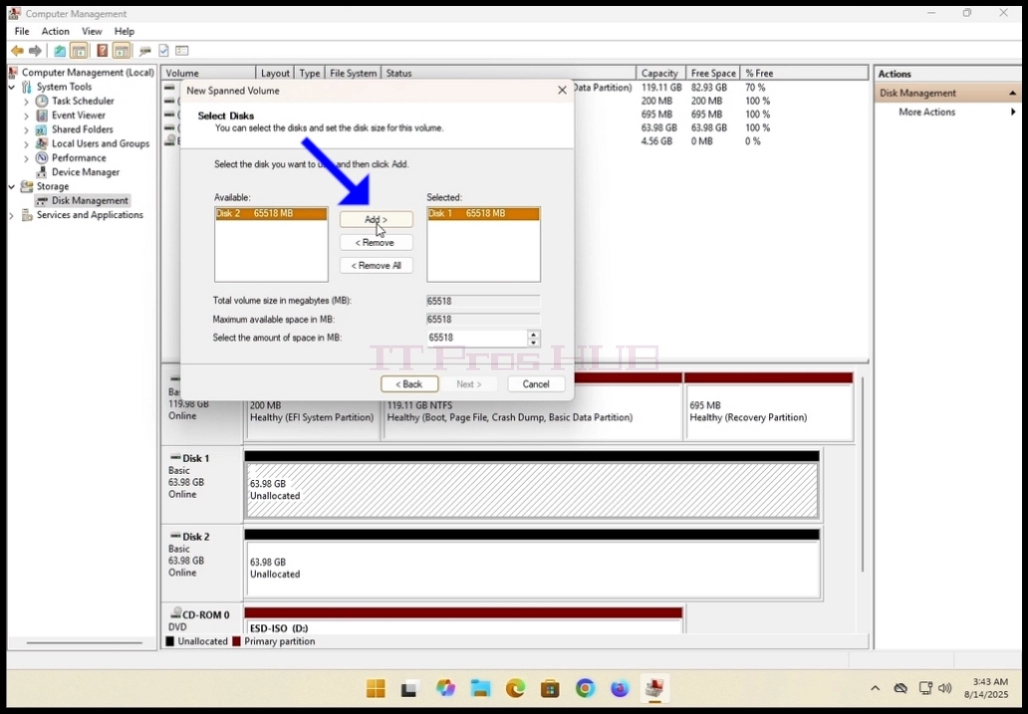
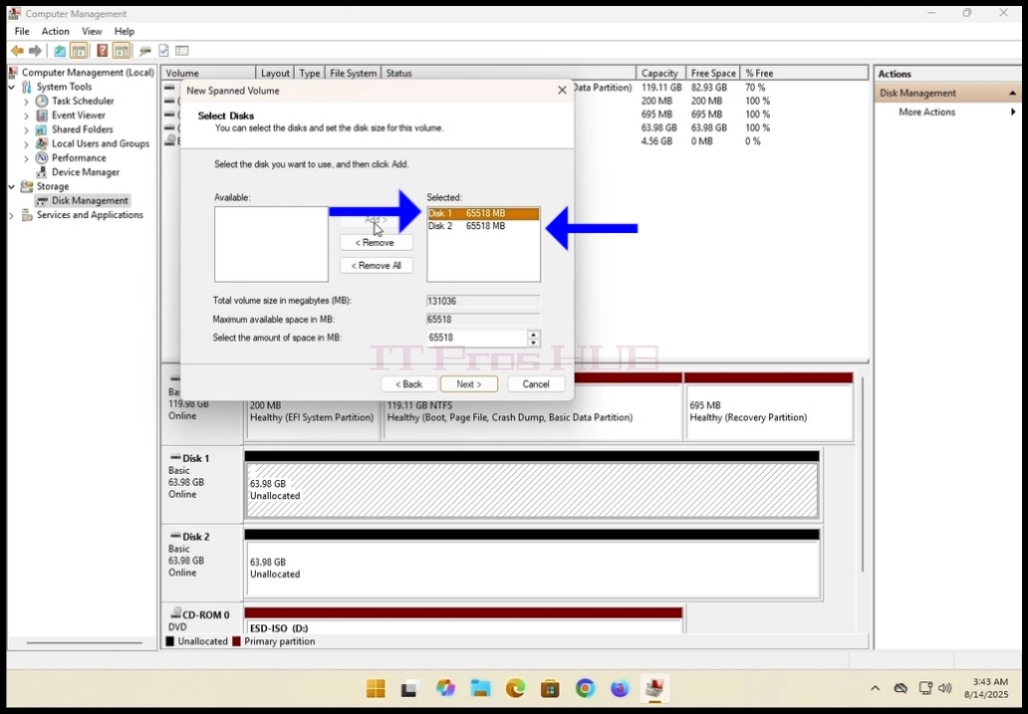
11. In the current Select Disks window, notice the 2 boxes. The box on the right contains
the disk previously right clicked on and the left boxf contains all of the available
disks to add to the spanned volume array.
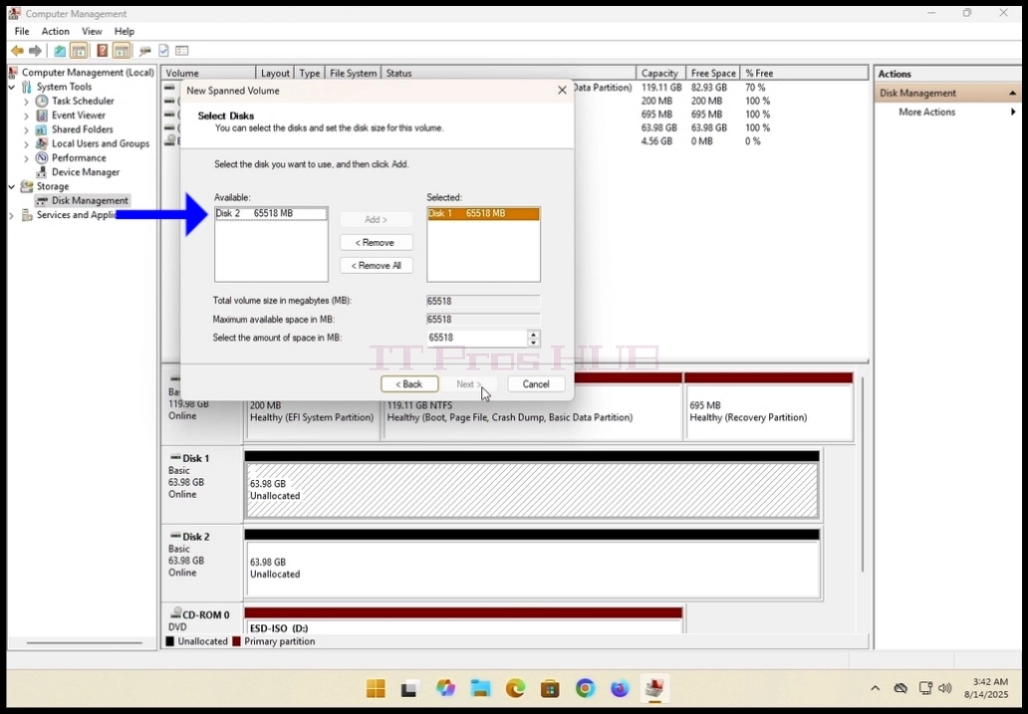
12. In the case of this article and as metioned before, we will use disks 1 and 2.
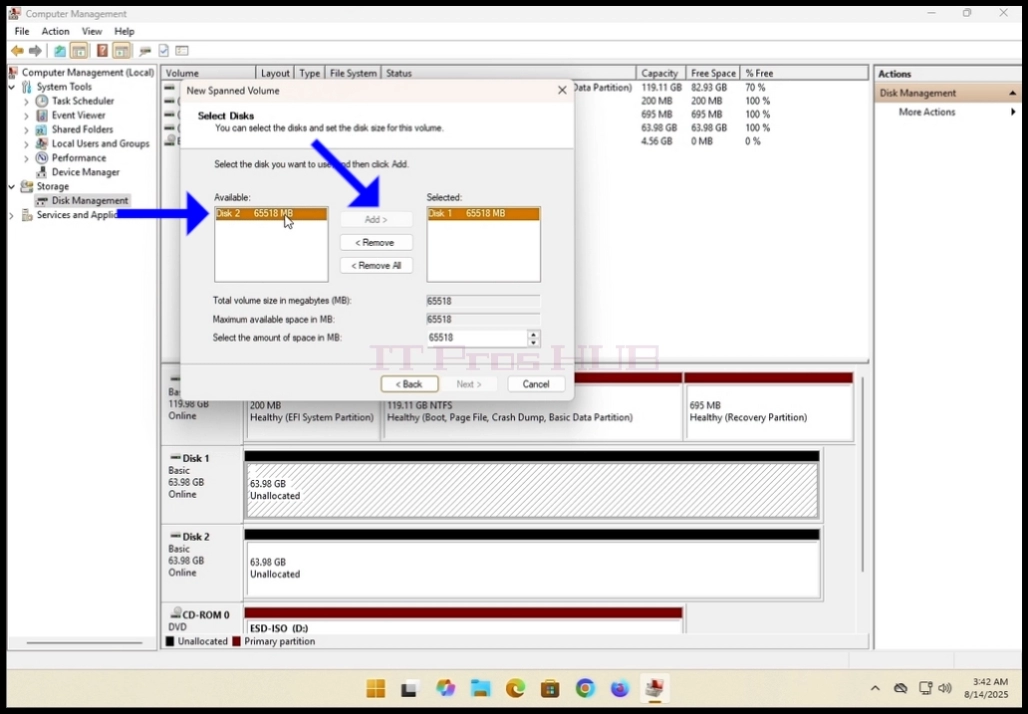
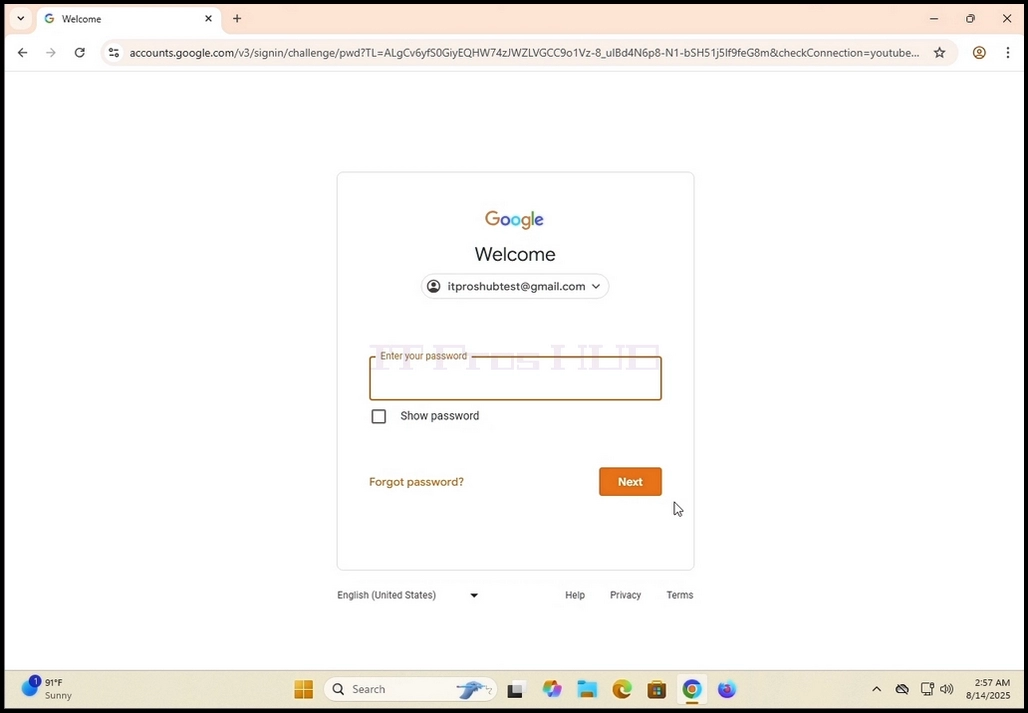
16. You have now configured a spanned volume!
- Uppgifter
- Skriven av IT Pro
- Kategori: How to Articles
- Träffar: 6352
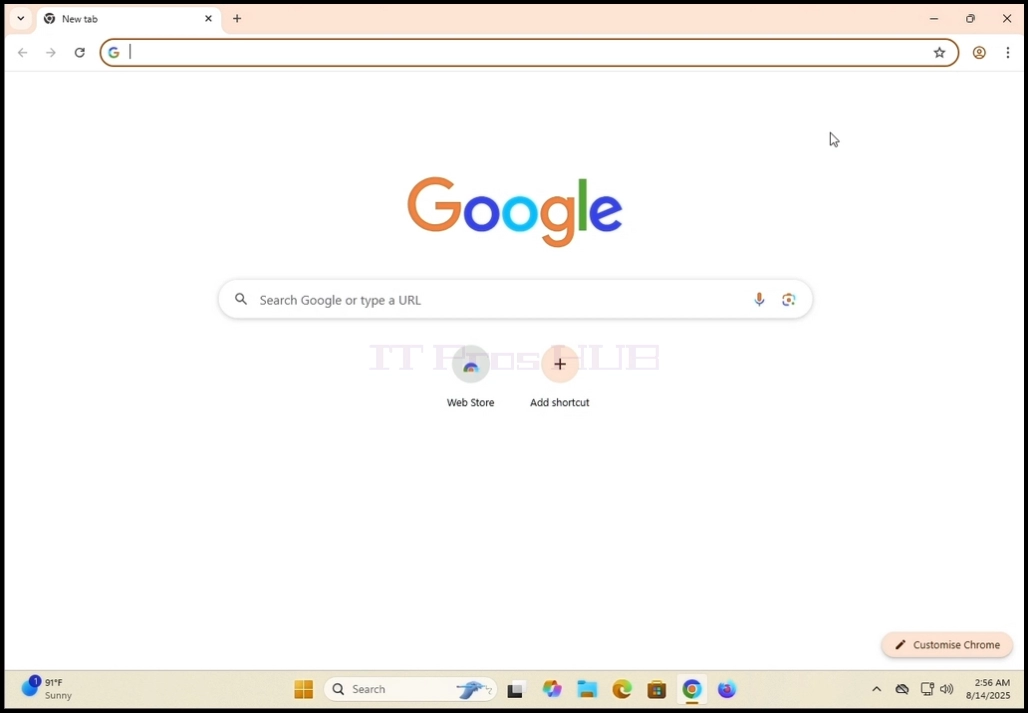
1. Open Google Chrome browser
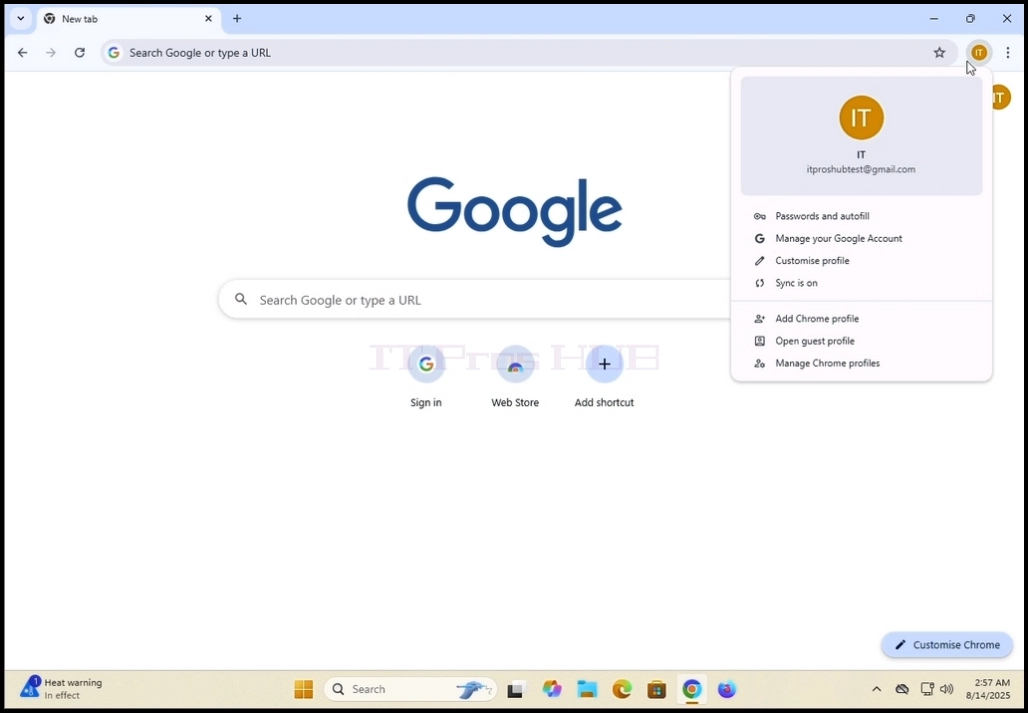
2. look for the profile icon in the top right corner of Google Chrome browser. Click on it
once and wait for a pop-up window to appear. The window is called Your Chrome.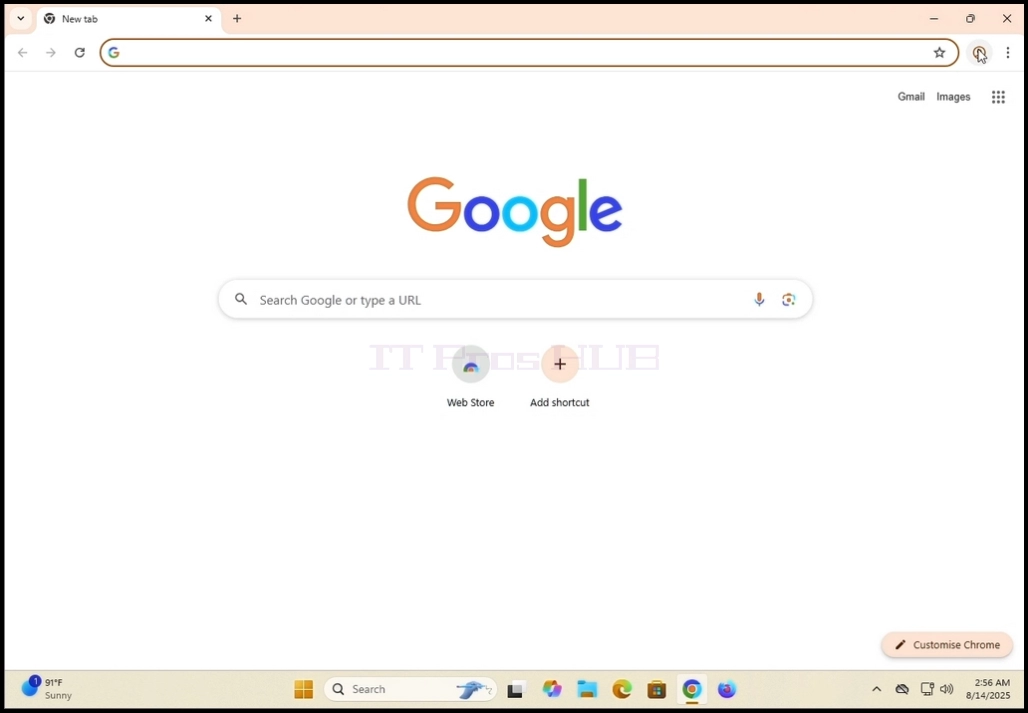
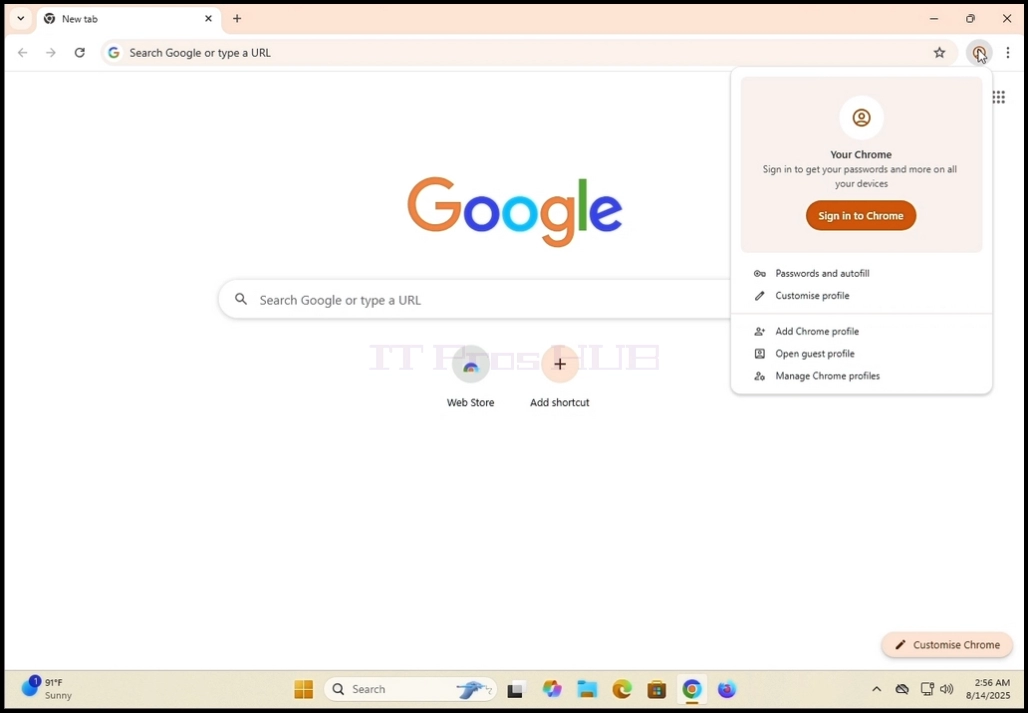
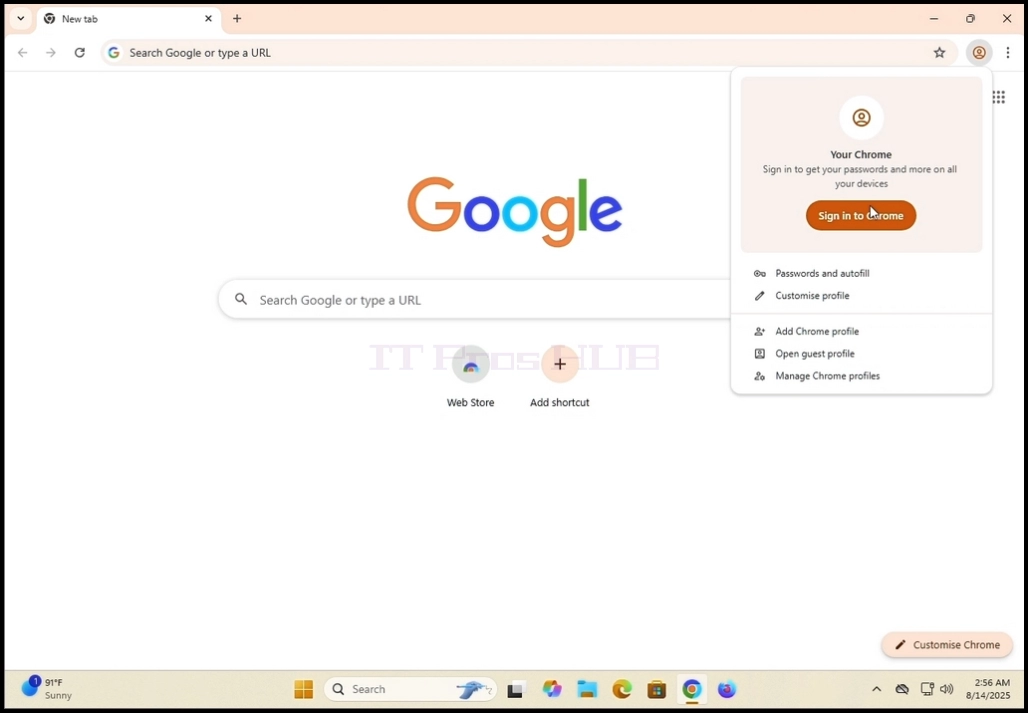
4. Once clicked, the pop-up window will get closed and Google Chrome's page should change to the Sign in to Chrome page.
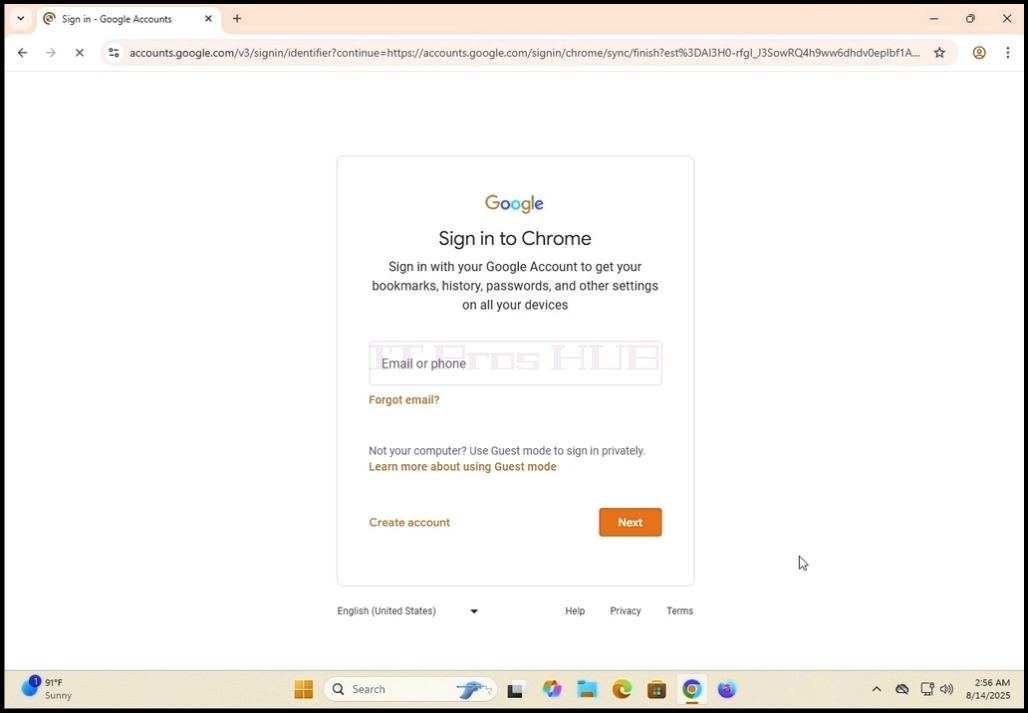
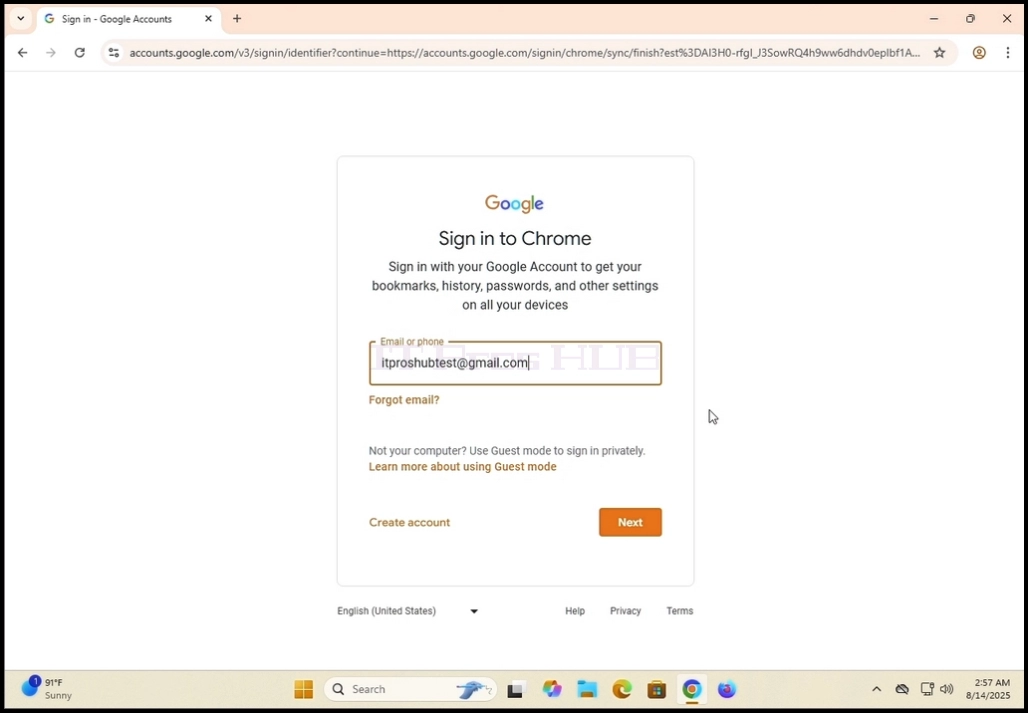
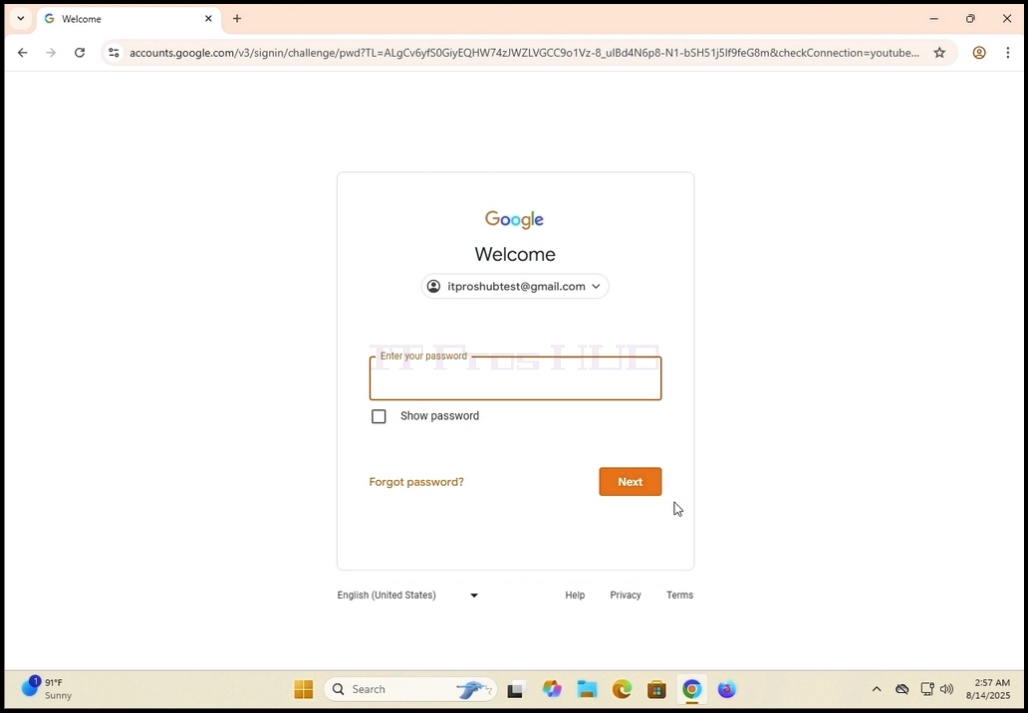
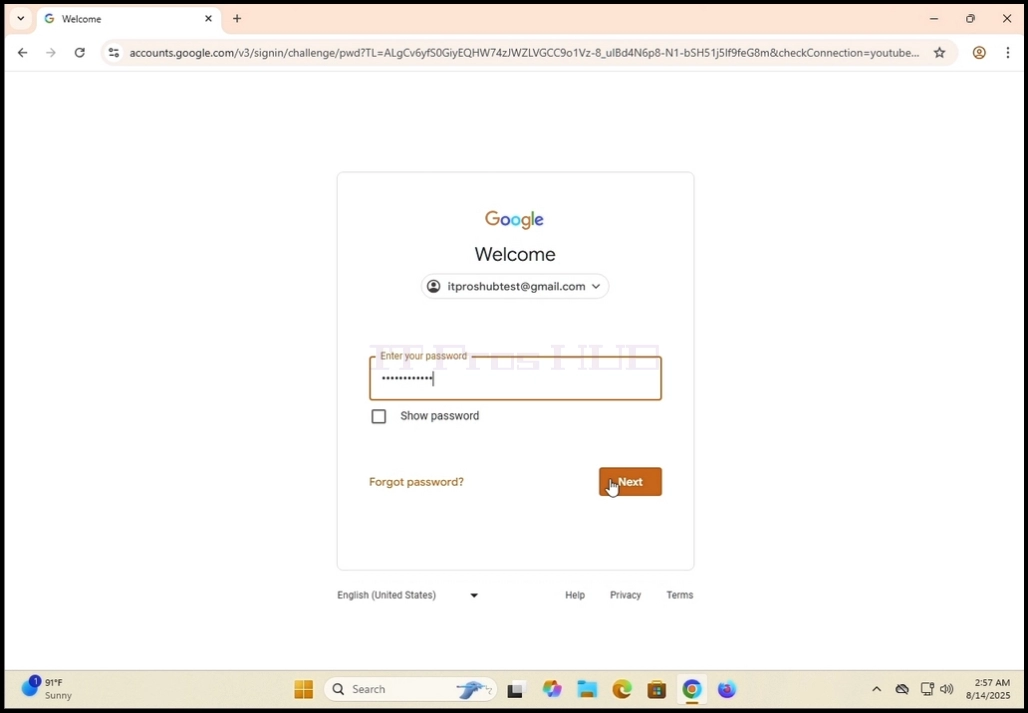
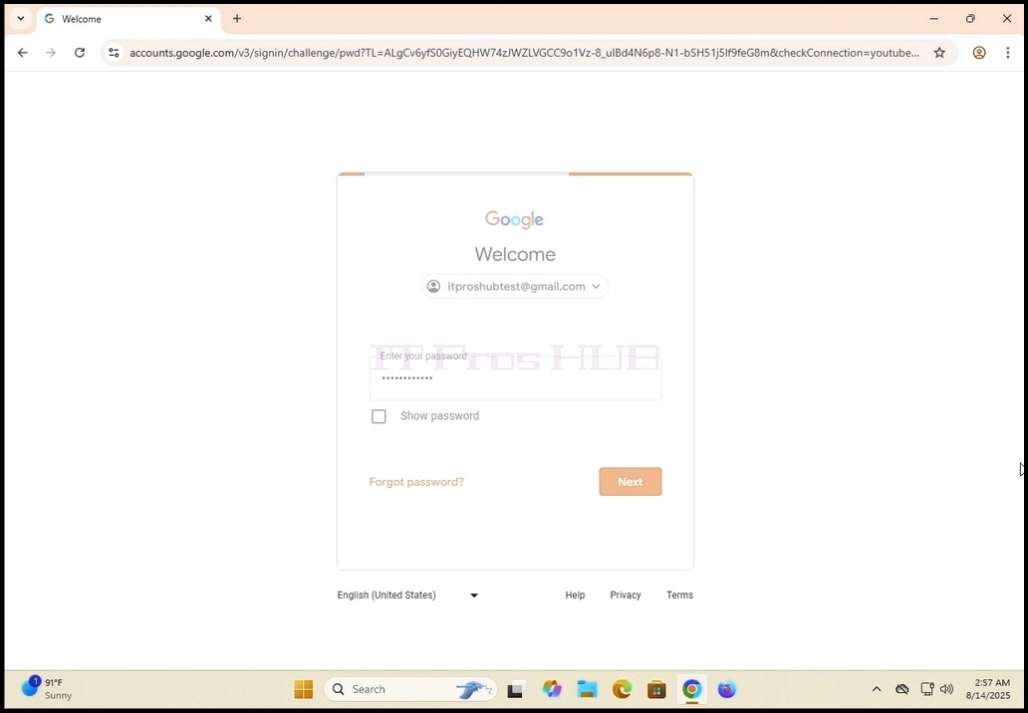
6. Wait for the password window to load. Enter your Gmail password and hit the ENTER key or
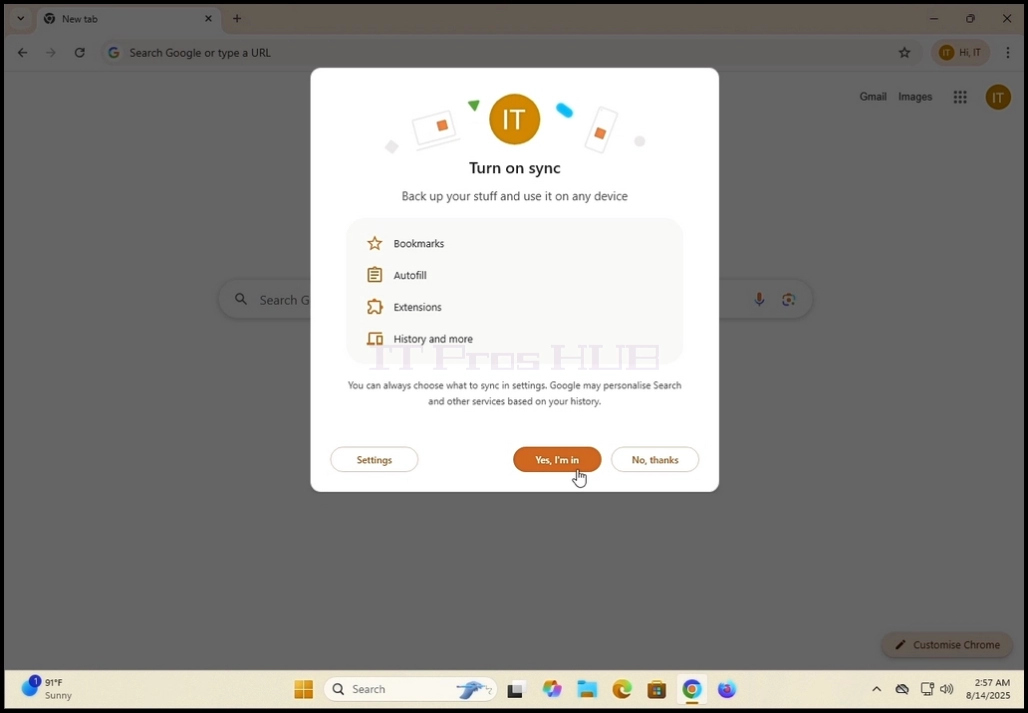
click the Next key. Wait for a Turn on sync pop-up window to appear.
7. In the Turn on Sync window, you can choose whether to sync this Google Chrome local browser to
your Google account alltogether.
Click Yes, im in in order to sync
Click No thanks to pass syncing.
Our recommendation - Sync which is what we are going to demonstrate in this article.
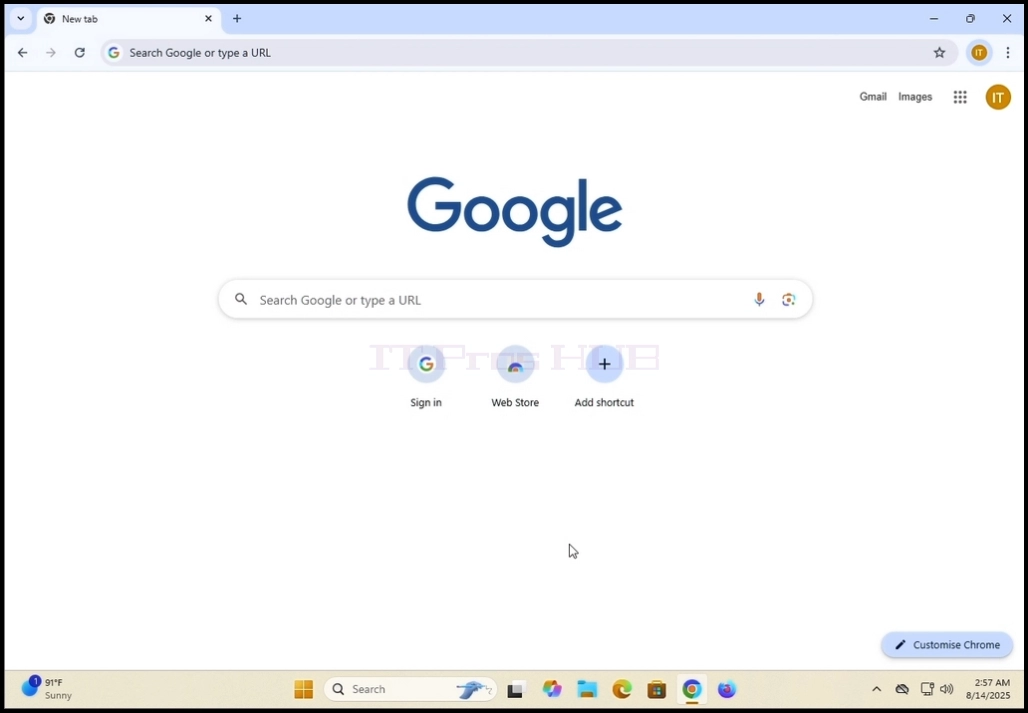
8. Google Chrome is now connected to your Google account and synced with it as well. All of your
saved data in Google Chrome under your Google account should appear locally in this browser.

- Uppgifter
- Skriven av IT Pro
- Kategori: How to Articles
- Träffar: 6739


3. Once found, click on the Computer Management icon and wait for the Computer
Management window to load

4. In the Computer Management window, on the left pane, look for the Disk Management
sentence. It should be under the Storage main branch. Once found, click on it once.
Wait for the window to change to to Disk Management.

5. Once Disk Management is loaded you will see a list of your disks. Look for the
disk you have recently plugged into your computer. Make sure the size of the disk
matches the disk you had connected to the comptuer. Most of the time that disk should be
marked with a red circle and an X inside of it, meaning it is not an initilized disk.
7. After clicking Initialize, a new pop-up window wil appear, titled Initizlie Disk.
8. In that window, mark the the disk which should be initilized. Make sure that the disk number
is the same as the one on the previous list.


11. The disk is now initialized and ready to be used

12. In the next step we will fortmat the disk to be able to start storing data on it.


15. Click Next.

16. choose the desirble size of the partition. In the case of this article, we
will use all of the available size of the disk to create the partition. Click Next.

17. Here, choose the desired drive letter for your new partition. In the case of this
article we will remain with the pre-chosen option of E. Click Next

18. Here, you can choose whether to format the new partition of to leave it be to be done later on.
Either way, in order to store data on the partition it has to be formatted on one way or another.
In the case of this article we will choose to format the partition. Therefore we will choose
the second option; "Formart this volume with the following settings:".
19. After choosing the latter mentioned option, we will be presented with the following options:
File system, Allocation unit size, Volume label, Perform a quick format and Enable file and folder compression.
20. In the case of this article we will keep the default pre-picked options and use them:
File system: NTFS
Allocation unit size: Default
Volume Label: New Volume
Perform a quick format - yes
Enable filre and folder compression - yes.
21. A bit of an explanation about these options:
File system: NTFS, exFAT or FAT32 - the most commonly used is NTFS, exFAT is used mostly for very large external volumes.
FAT32 is used with older systems
Allocation unit size: Allocation unit size (also known as cluster size) is the smallest block of disk space that a file system (like NTFS, FAT32, or exFAT) uses to store data on a drive.
Volume label: merely a name for your new volume/partition to be identified better and faster.
Perform a quick format: Saves time in preparing new volumes. A full format takes a lot of time as it is so
in bigger volumes it would take even more time.
Quick Format:
What it does:
Deletes the file system’s index (the “table of contents”).
Marks all sectors as empty, but does not actually erase the data.
Simply recreates a blank file system (e.g., NTFS, FAT32, exFAT).
Data recovery: Data can still be recovered using recovery tools until it’s overwritten.
Time required: Very fast — usually seconds or minutes, even on large drives.
Use case:
When you’re reusing a healthy drive.
When you’re in a hurry and don’t need a deep clean.
Full Format:
What it does:
Deletes the file system’s index and checks every sector on the disk for errors (bad sectors).
Writes zeros (or other patterns) to the entire disk in modern Windows versions, effectively erasing data.
Data recovery: Very difficult — data is overwritten, so recovery is unlikely.
Time required: Much longer — can take hours, depending on drive size.
Use case:
When you’re preparing a new drive for first use.
When the drive has had issues or bad sectors.
Enable folder and file compression: Available only in NTFS file system. Compresses files and folders to save space.
Good for saving space, not good for performance.


24. Wait for the Disk Management app to perform its job. Once it's done a side notification
will appear on the bottom right side of the screen declaring a new volume has been found by the operating system.


25. You can double check the volume's presence by going to This PC and checking it out.


