- تفصیل
- تحریر کردہ: IT Pro
- زمرہ: How to Articles
- مشاہدات: 6966
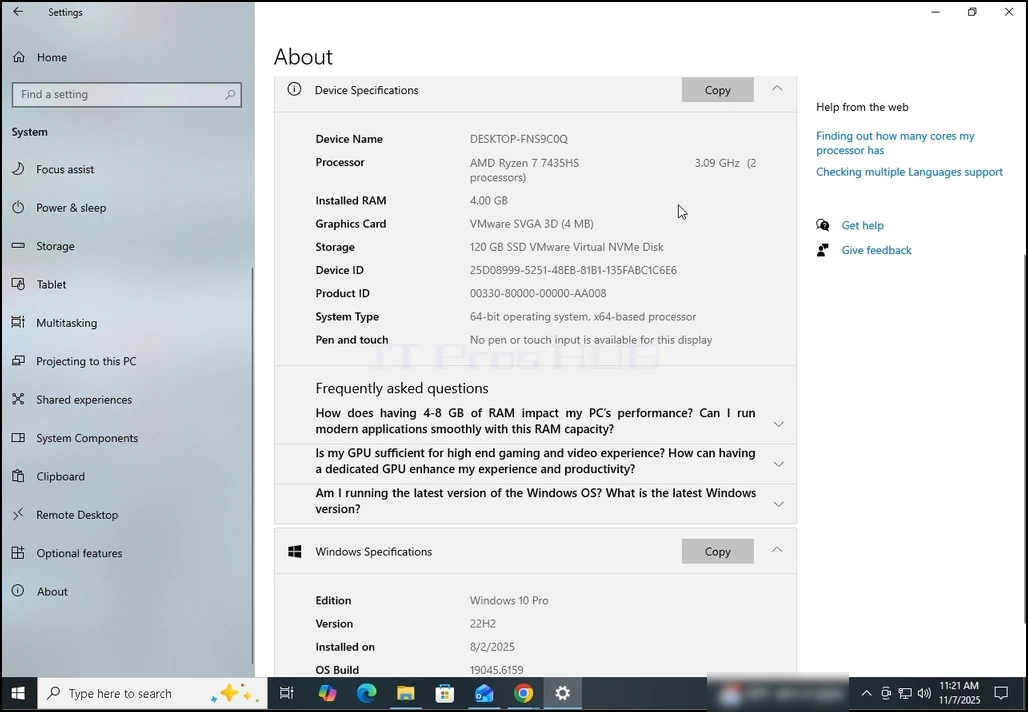
1۔ جاؤ ونڈو ترتیبات کلک کر کے مینو شروع کریں اور جا رہا ہے ترتیبات. .
ایک۔ ترتیبات نظر نہیں آتا سامان دائيں جانب کے با ئيں جانب کے بٹن مینو شروع کریں.
ب. اگر یہ اب بھی نظر نہیں آتا تو، صرف قسم ترتیبات پھر اسے شروع میں آہستہ دیکھے ایک بار دریافت ہوا، اس پر کلک کریں۔
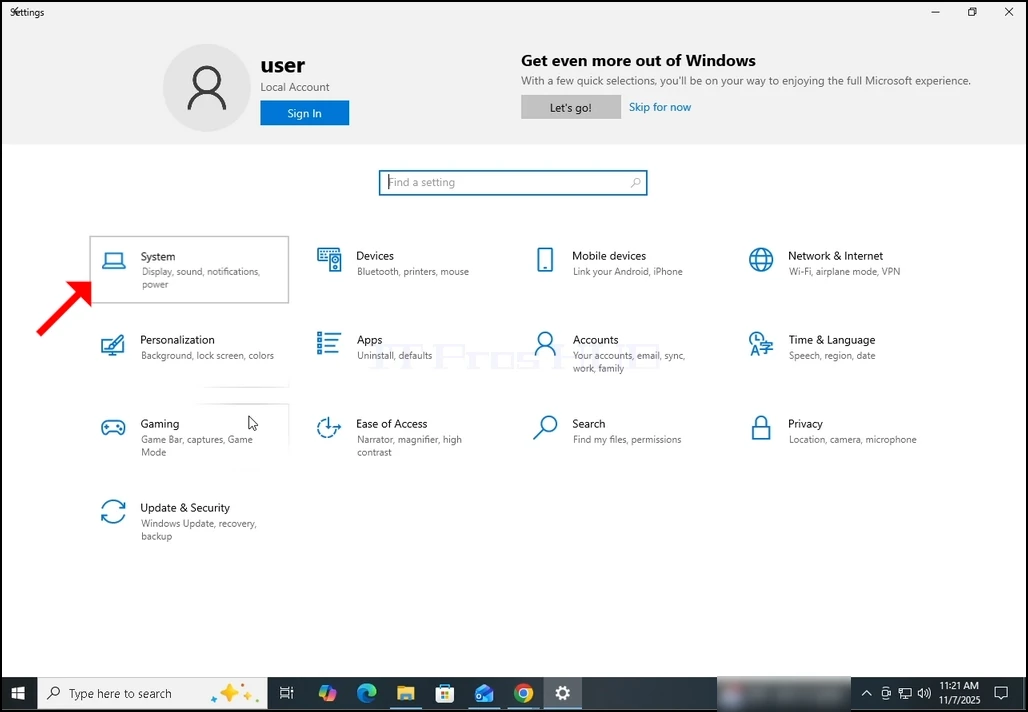
۲ ۔ ترتیبات کھڑکی، جاؤ نظام (توپ بائیں کھڑکی)۔
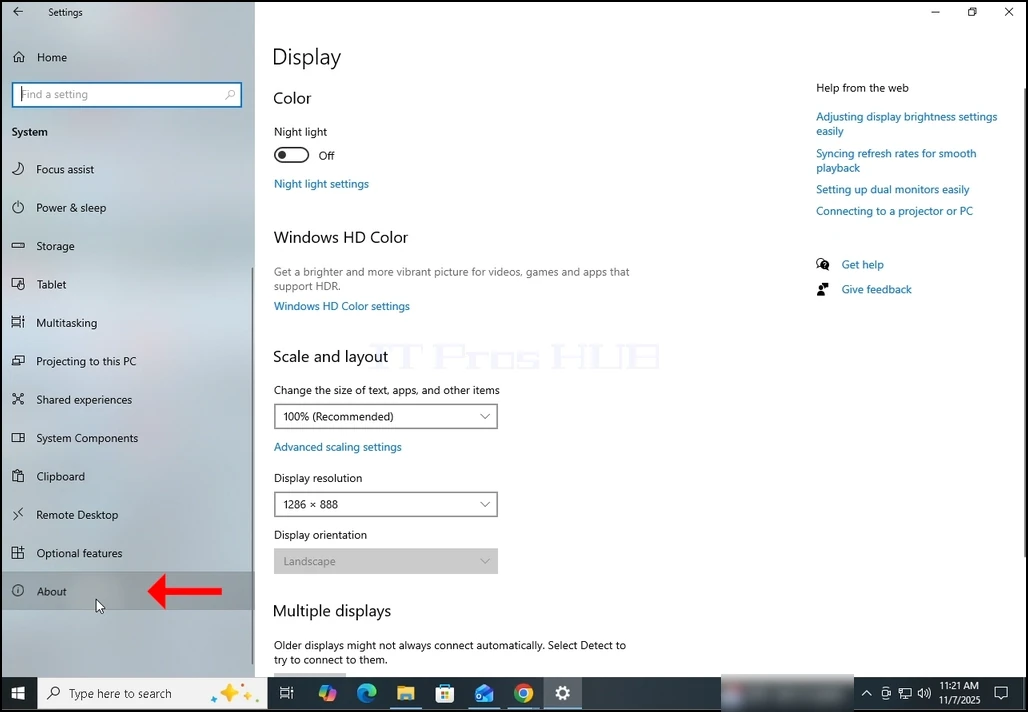
3۔ نظام، دیکھو بارے میں ونڈو کے بایاں ڈیسک پر انتخاب کريں یہ مندرجہ ذیل انتخاب ہونا چاہیے۔
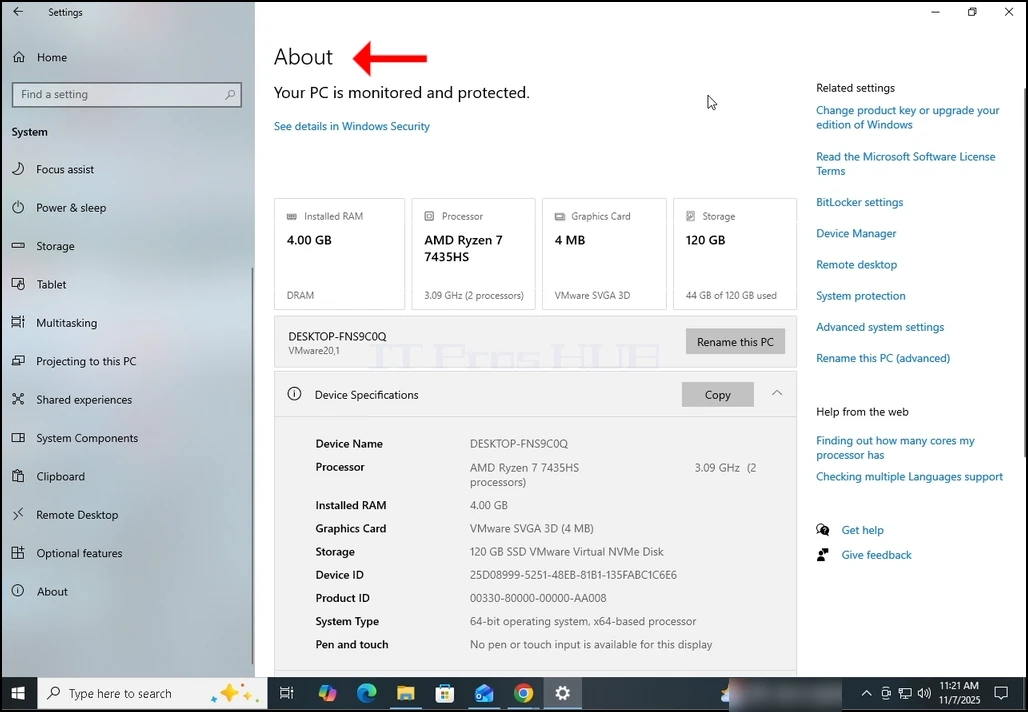
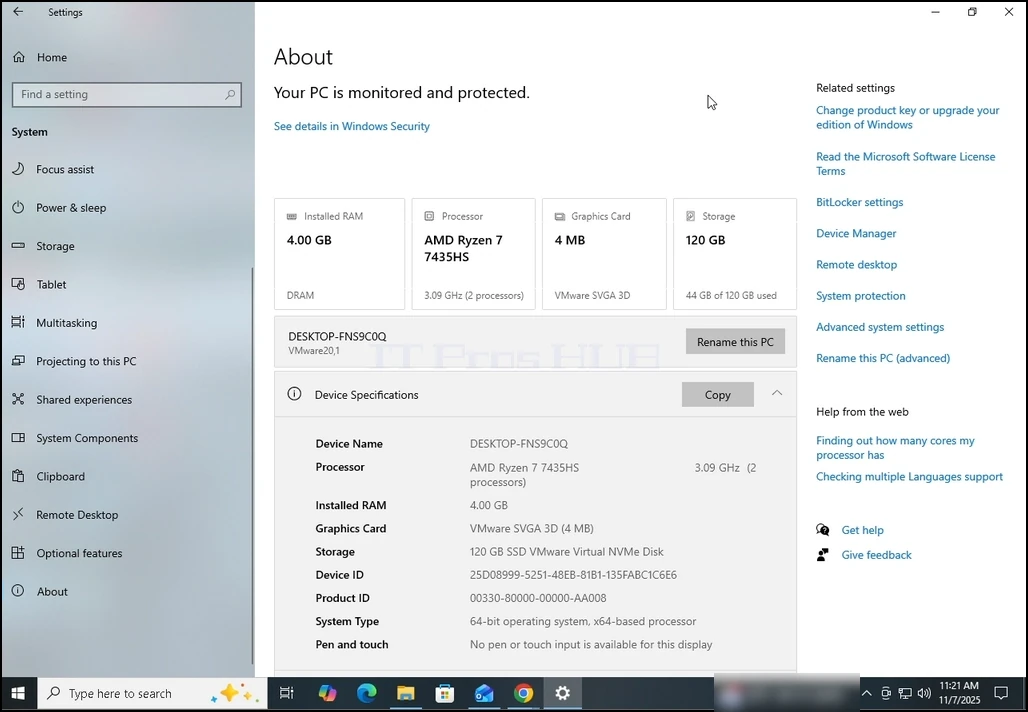
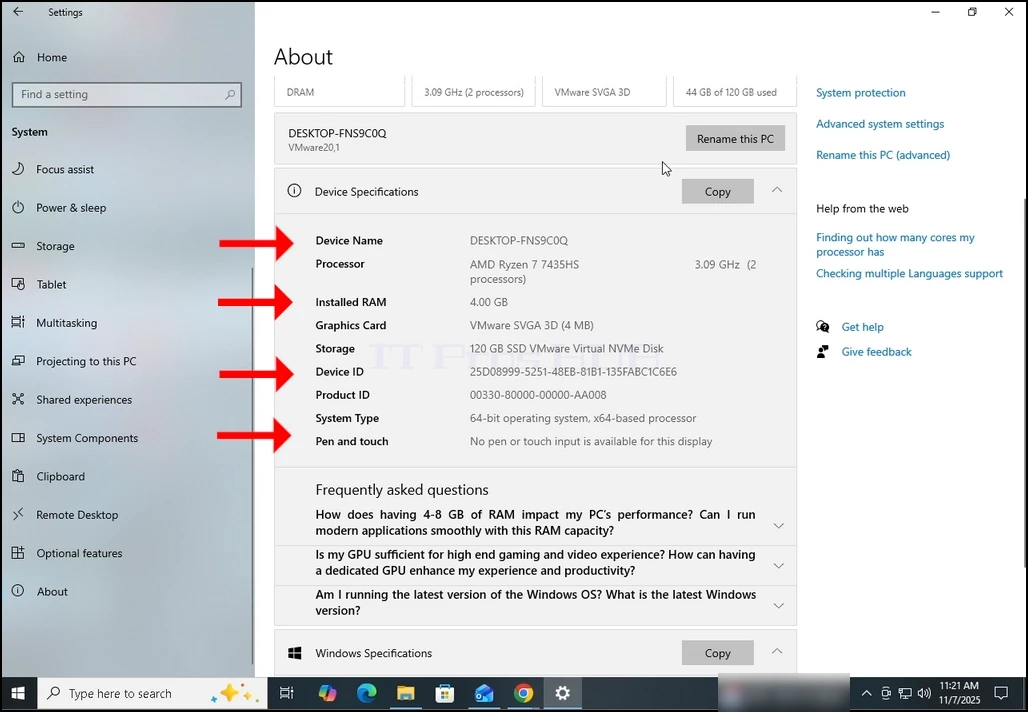
۴ ۔ بارے میں ونڈو، آپ پہلے ہی اپنے کمپیوٹر کے بارے میں معلومات دیکھ سکتے ہیں جیسے کہ روم حجم، CPU قسم. اگر آپ مزید معلومات حاصل کرنا چاہتے ہیں تو کھڑکی کو اس وقت تک اتار دیں جب تک کہ آپ اس کی تکمیل کو نہیں دیکھ سکتے ڈیوائس کی معلومات سب سے نیچے.
 Edmg src) شمسی ہجری تاریخ کو شمسی سال سے بدلیں ہجری سال کی اسلام میں اہمیت تیرہویں تاریخ کو شمسی سال سے بدلیں ہجری سال کی اسلام میں اہمیت یہ ایک نامکمل مضمون ہے۔
-out-information-about-Tour-Houdows-10-november-2025-14.webp".ho-find-out-nformation-out-Hou-Hou-Houdows-10-november-2025-14.webp. اخذ شدہ بتاریخ 1128. تحقق من التاريخ في:
- تفصیل
- تحریر کردہ: IT Pro
- زمرہ: How to Articles
- مشاہدات: 6991
اندراج:
اِس مضمون میں ہم اِس بات کا ثبوت پیش کریں گے کہ ہم اِس کے لیے تیاری کیسے کر سکتے ہیں ۔ یہ ترتیبات پہلے ایف8 کلئیر کو دبا کر اس وقت تک پہنچ جاتی تھیں جب تک ونڈوز 8 کے ساتھ نہیں آئے۔ ونڈوز میں مسئلوں کو حل کرنے کی کوشش کرتے وقت یہ ترتیبات کچھ مفید ہیں۔
- یقین کر لیں کہ آپ میں ہیں مواجہ:. اگر نہیں تو وہاں حاصل کرنے کے لئے اس مضمون کا استعمال کریں :
- پر کلک کرو پریشانی اور بار بار لوڈ کرنے کے لئے تباہ کن ونڈو کا انتظار کریں
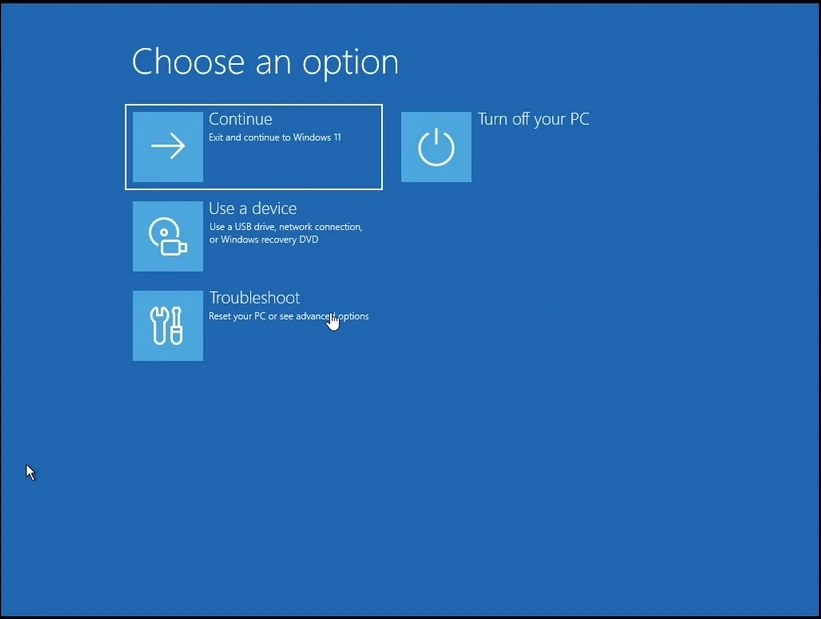
3۔ پریشانیپر کلک کرو اعلیٰ اختیاراتانتظار کرو جگہبند لوڈ کرنے کے لیے ونڈو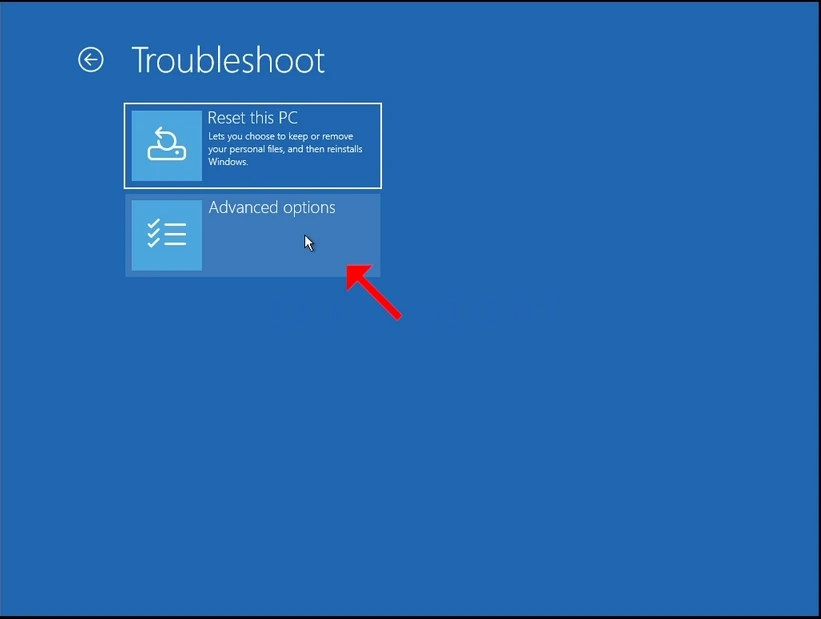
- اندر اعلیٰ اختیاراتپر کلک کرو ترتیبات شروع کریںانتظار کرو ترتیبات شروع کریں لوڈ کرنے کے لیے ونڈو
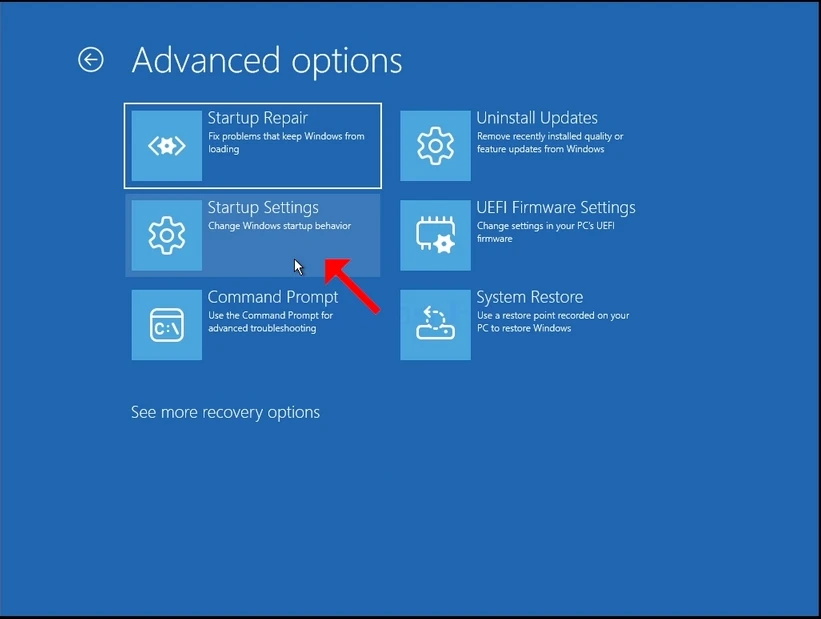
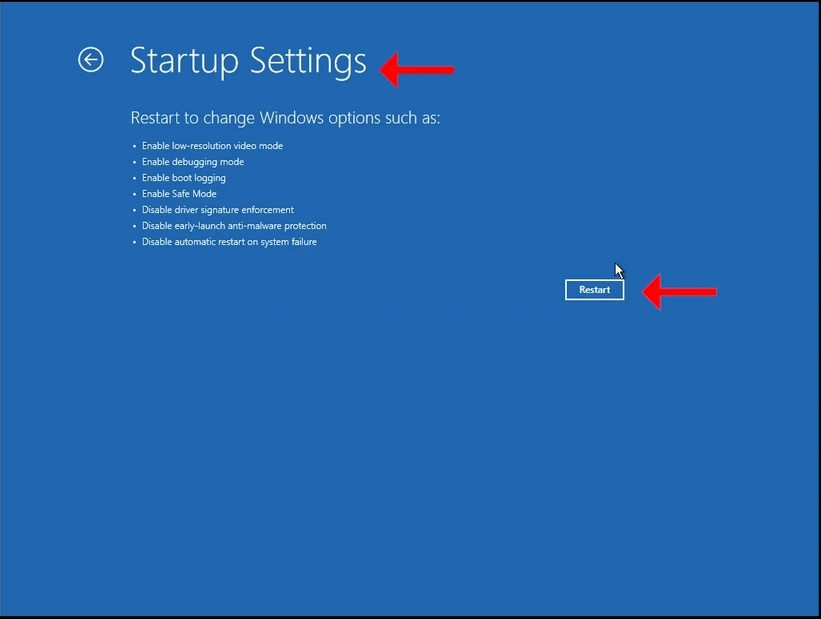
5۔ ترتیبات شروع کریں آپ کو اطلاع دی جائے گی کہ کمپیوٹر کو دوبارہ شروع کرنے کے بعد آپ مندرجہ ذیل ترتیبات میں نصب کیا جائے گا:
ایک چھوٹا سا حل ویڈیو موڈ فعال کرتا ہے۔
بِن
c. بوٹ بوٹ فعال کریں
ڈی . محفوظ طریقہ کو فعال کریں
ای .
F. ابتدائی طور پر شروع-لونچ اینٹی ملولے تحفظ کو معطل کریں.
جی ہاں. سسٹم ناکامی پر خودکار دوبارہ حل کریں
6. پر کلک کريں غیر متصل بوٹ کرنے کے لئے بٹن اور انتظار کریں
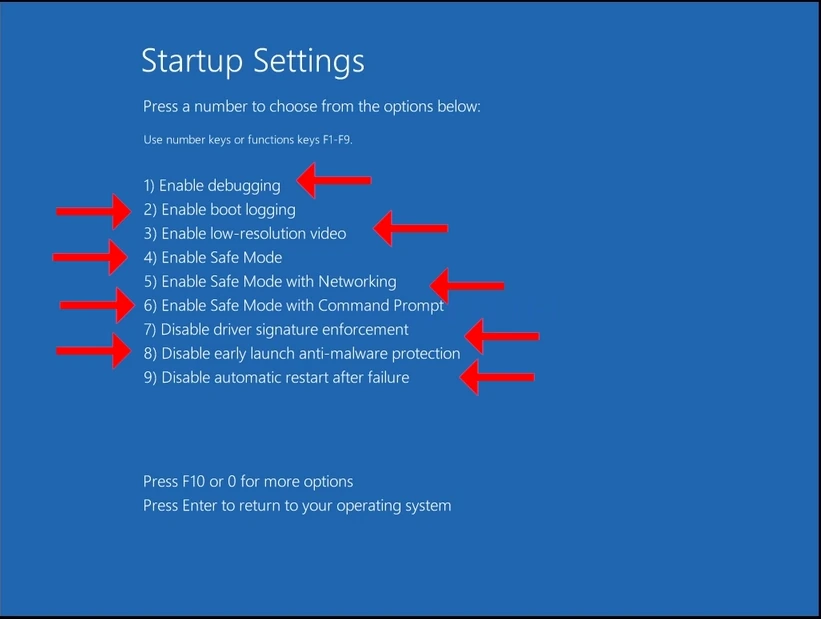
7۔ بوٹ کرنے کے بعد، ونڈوز آپ کے سامنے آخری قابل ذکر اختیارات پیش کریں گے.
8۔ ان میں سے کسی کو منتخب کریں جسے آپ دیکھ سکتے ہیں بورڈ پر نمبر کی کلیدوں کو دبا کر مثلاً 1 کے لیے ہے۔ گر تے هو ئے رنگ، 2 کے لئے ہے بوٹوں کو فعال کریں ۔
9۔ ایک بار دباو، ونڈوز منتخب سیٹ سے شروع ہو گی۔
- تفصیل
- تحریر کردہ: IT Pro
- زمرہ: How to Articles
- مشاہدات: 6669
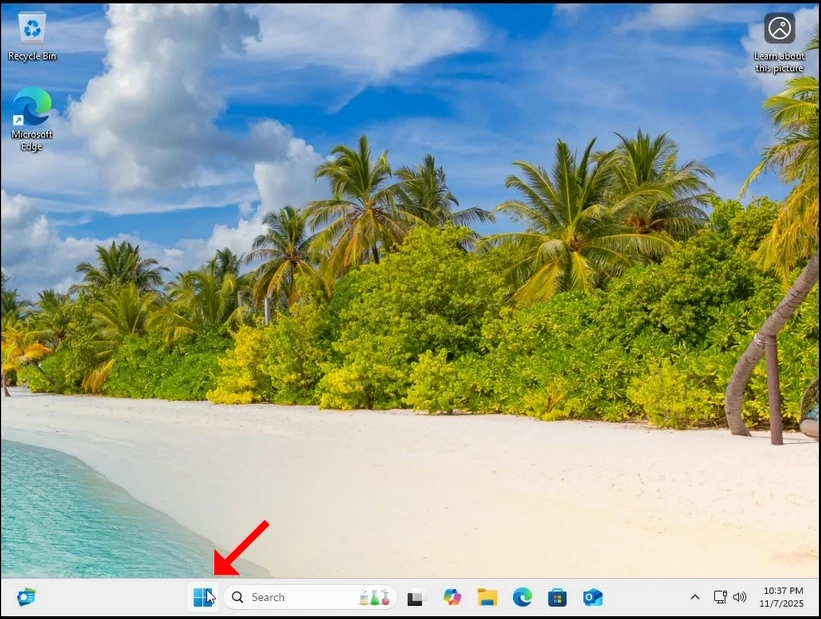
2. In the secondary Start menu, look for the Shut down or sign out option. It should be next to the last option. Hover your mouse cursor over it until the menu extends to another sub-menu. If it does not happen – click on it once.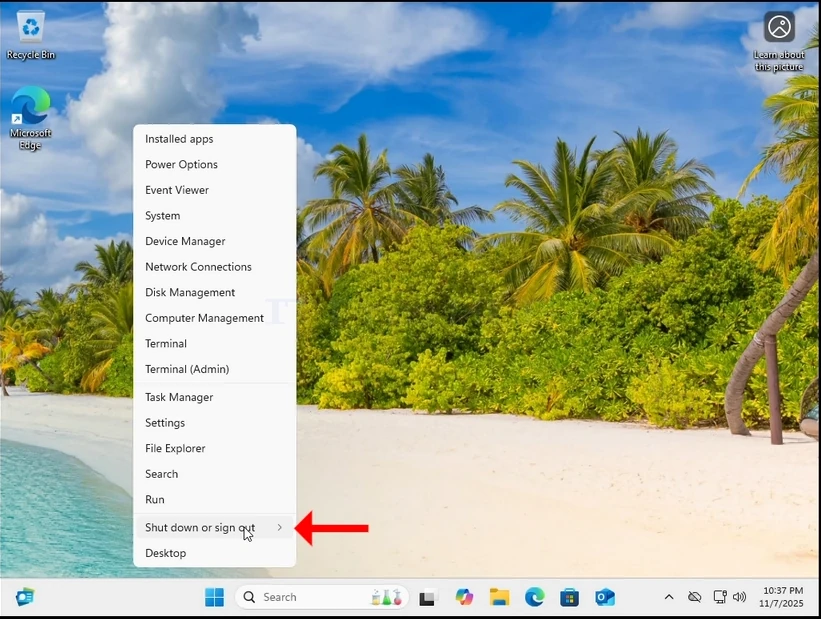
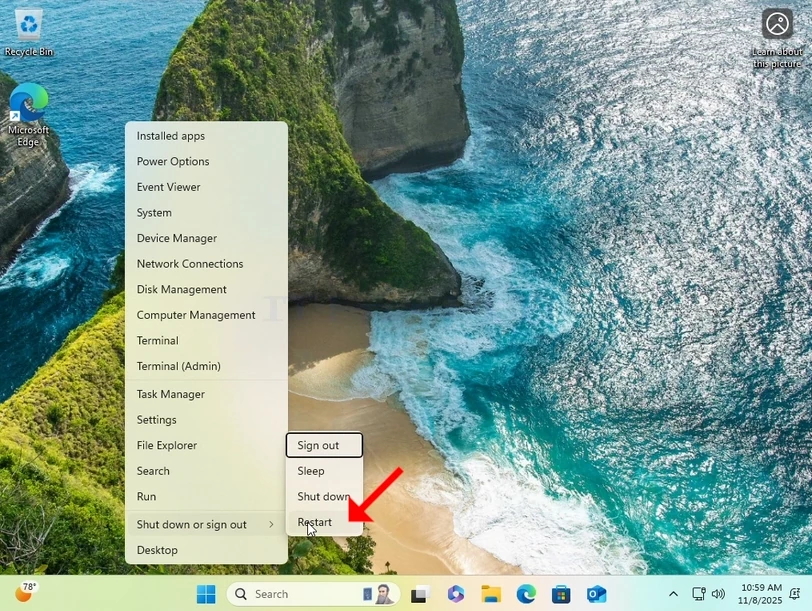
4. Wait for Windows to restart itself.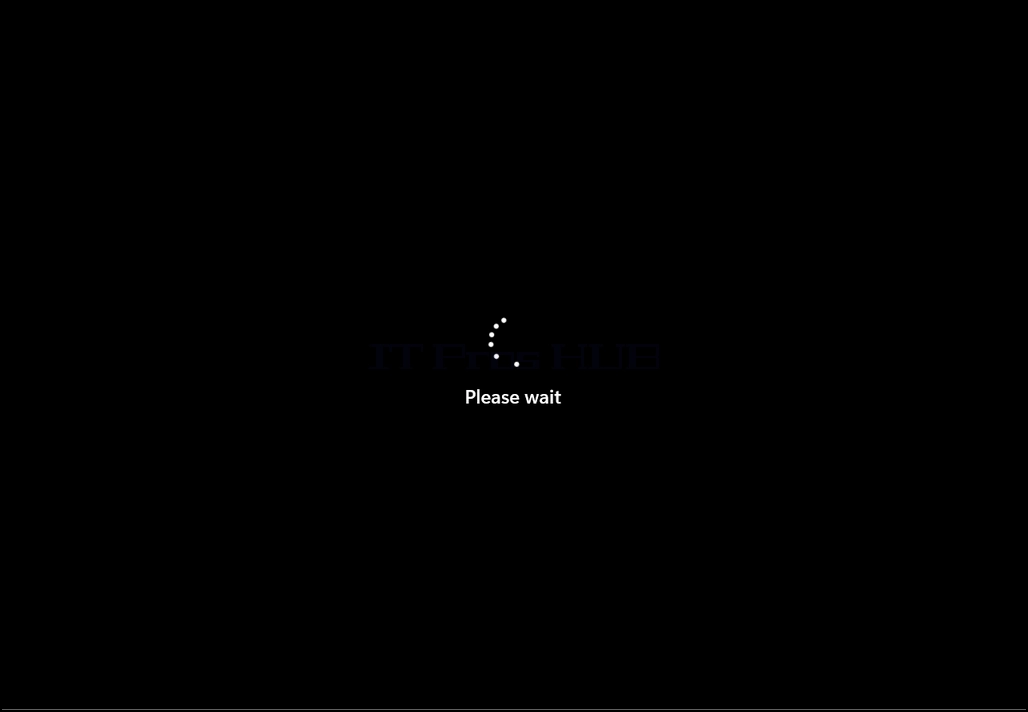
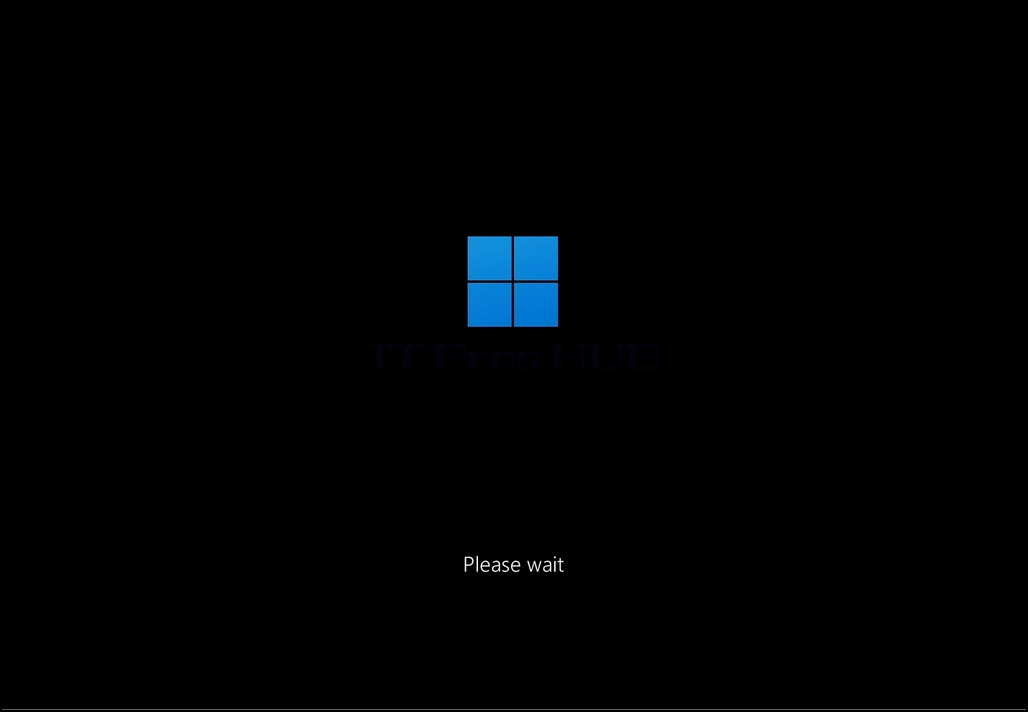
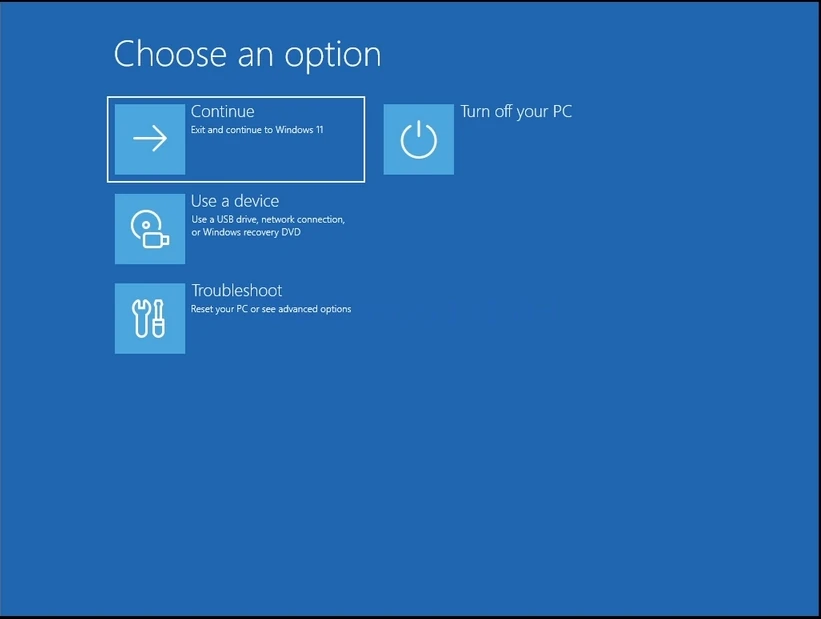
5. Windows should now boot into Recovery mode
- تفصیل
- تحریر کردہ: IT Pro
- زمرہ: How to Articles
- مشاہدات: 7163
Introduction:
In this article we will demonstrate how to reset a Windows 11 installation (PC) from within Windows itself.
1. We will start by going to Start and then Settings.
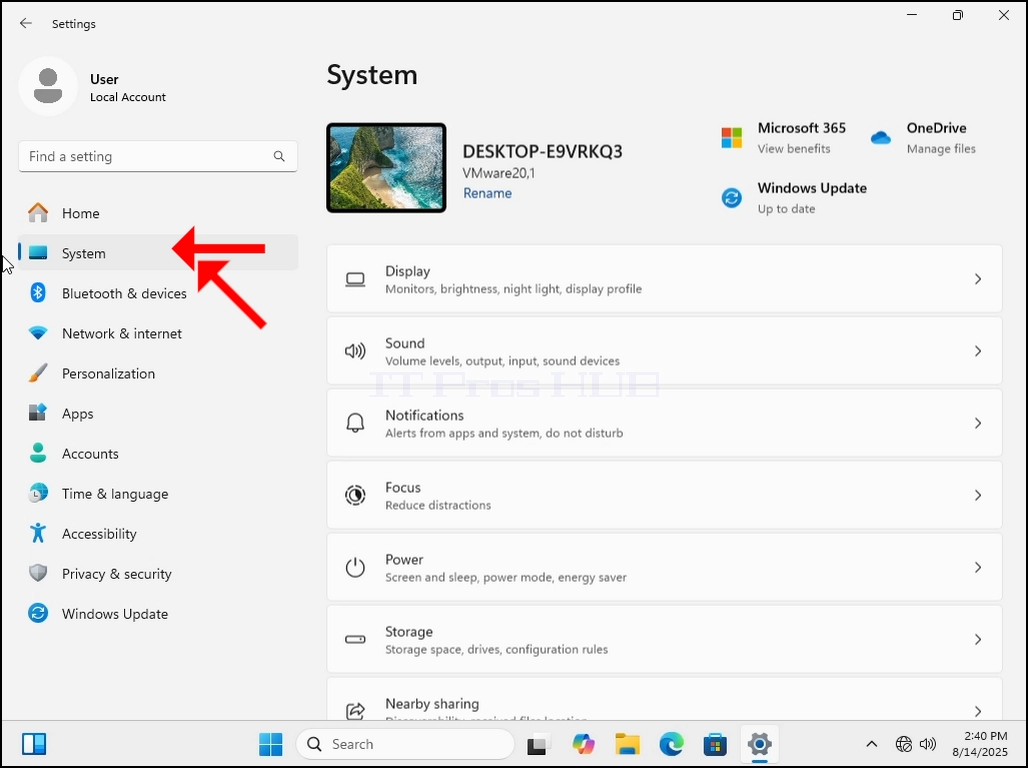
2. In Settings, we will go to System on the left pane.
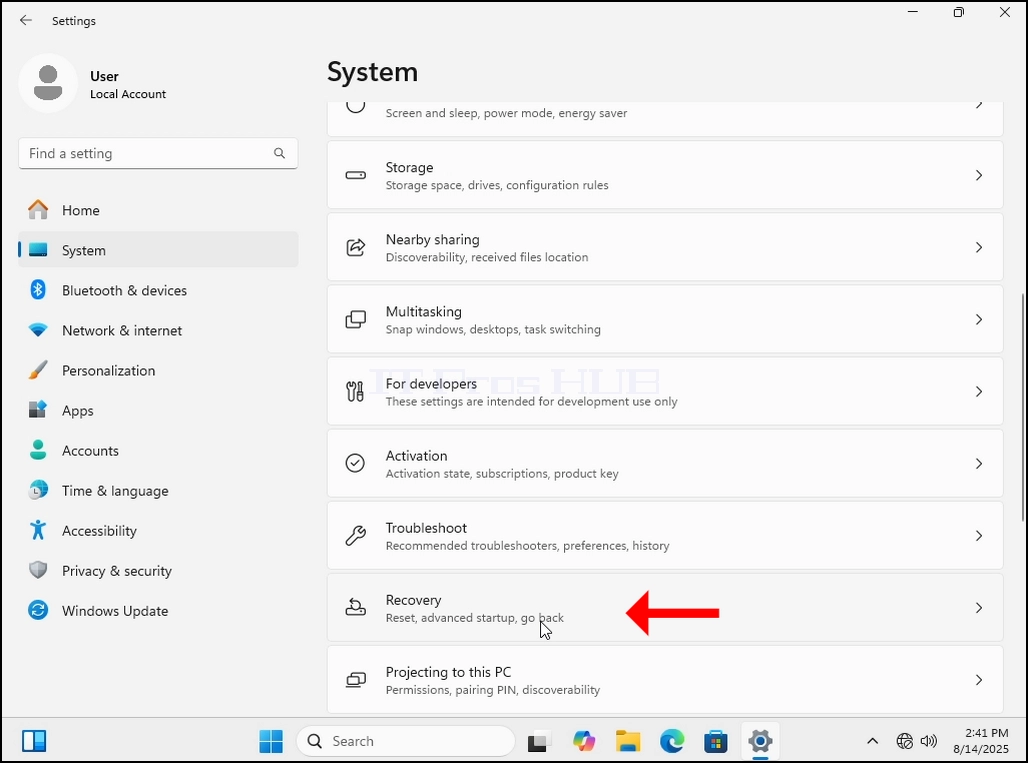
3. Once the system options are loaded, we will look for the Recovery option in the right pane. It should be close to the bottom part of the window.
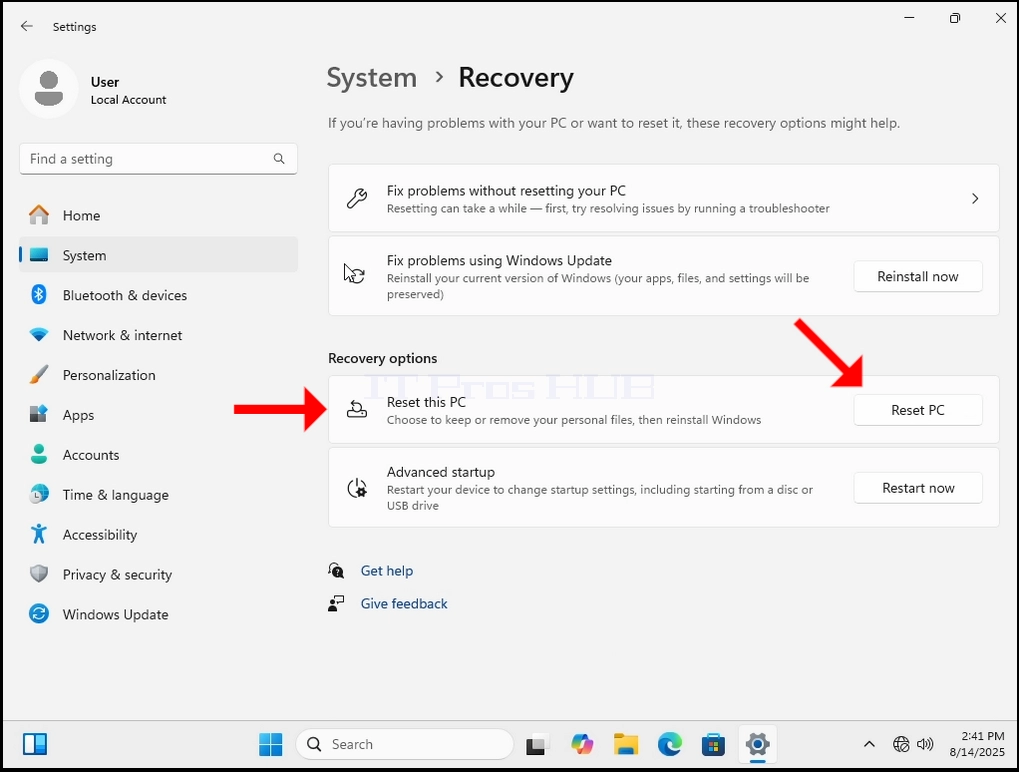
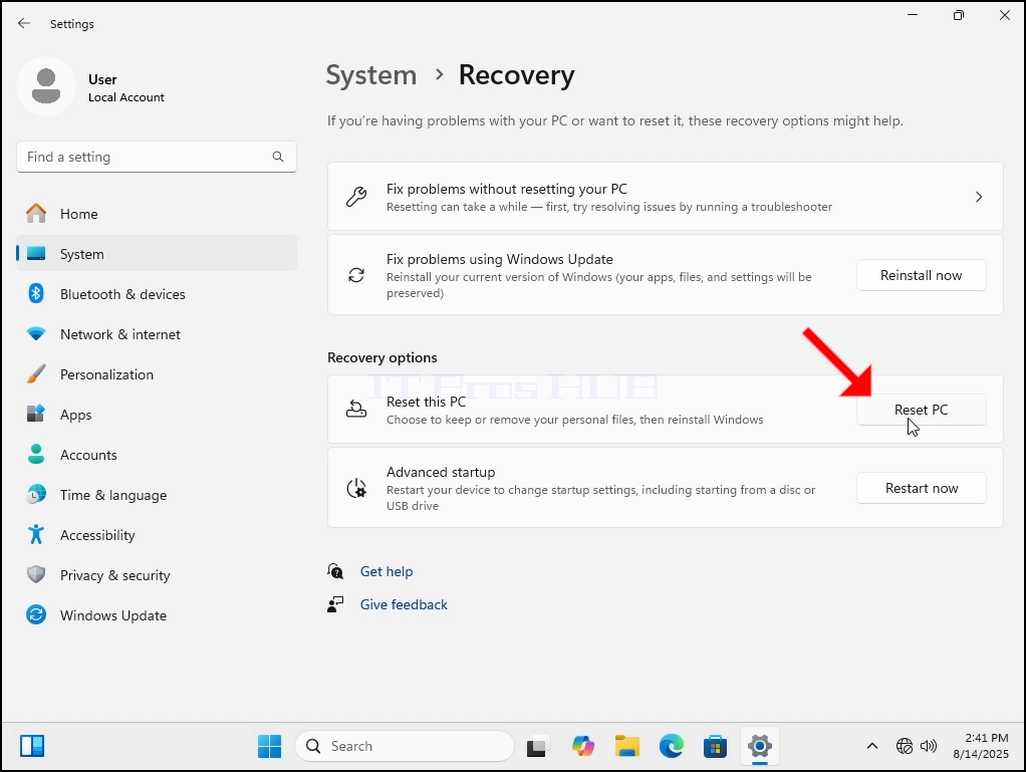
- In Recovery there is a section called Recovery options. Under it there is a rubrical called Reset this PC. On the same line as this sentence, there is a button called Reset PC, click on it once and wait for the Reset this PC window to load.
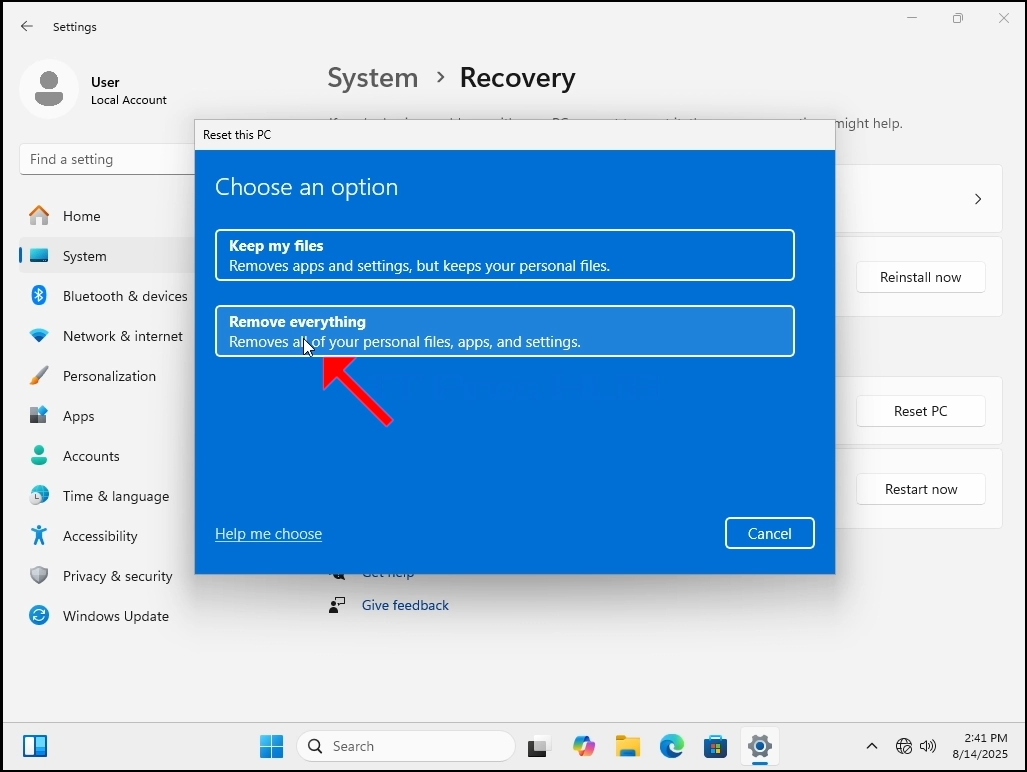
5. In the Reset this PC window you’ll see 2 options:
a. Keep my files
b. Remove everything
6. In this article we will choose the latter option which is “Remove everything”
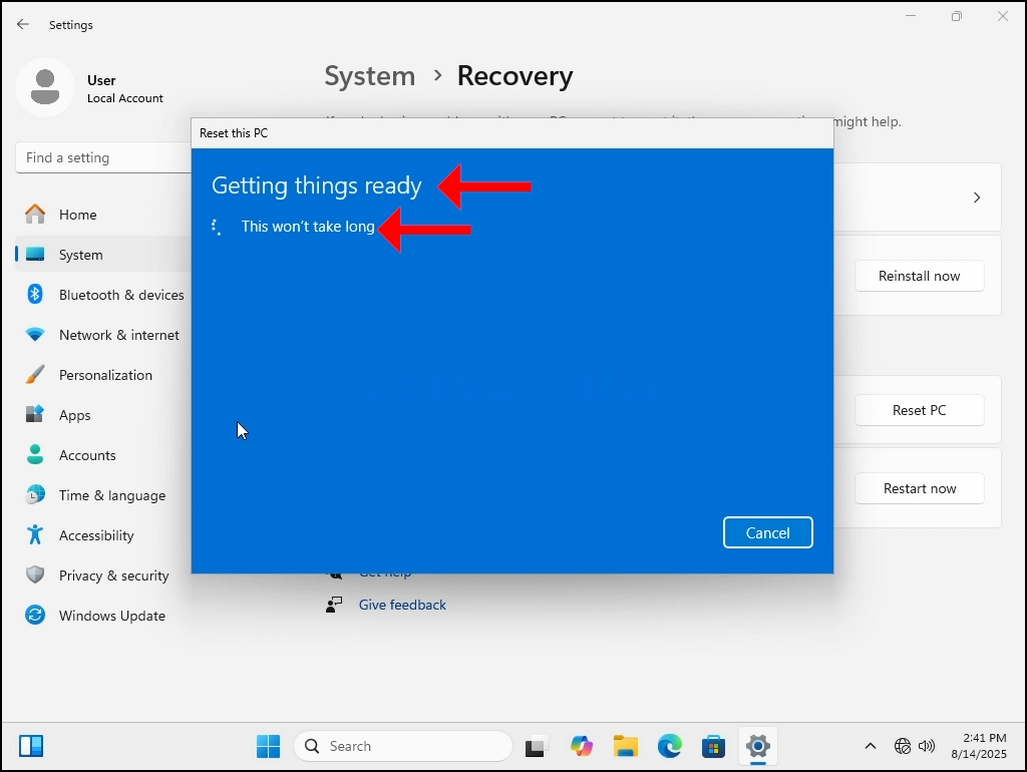
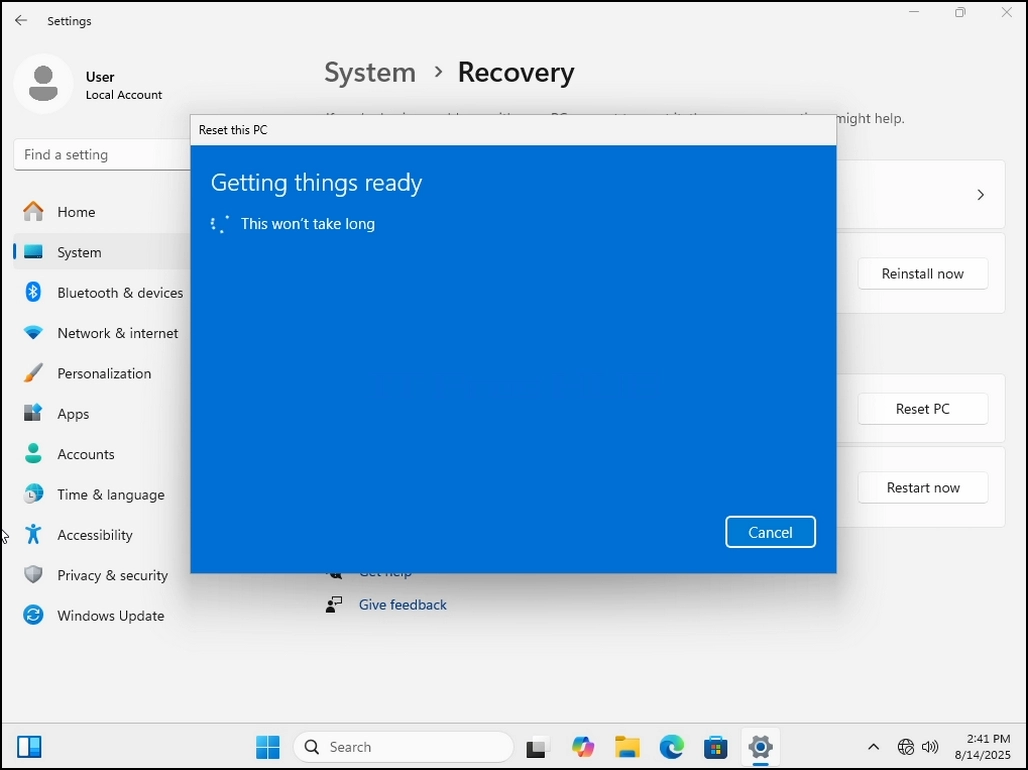
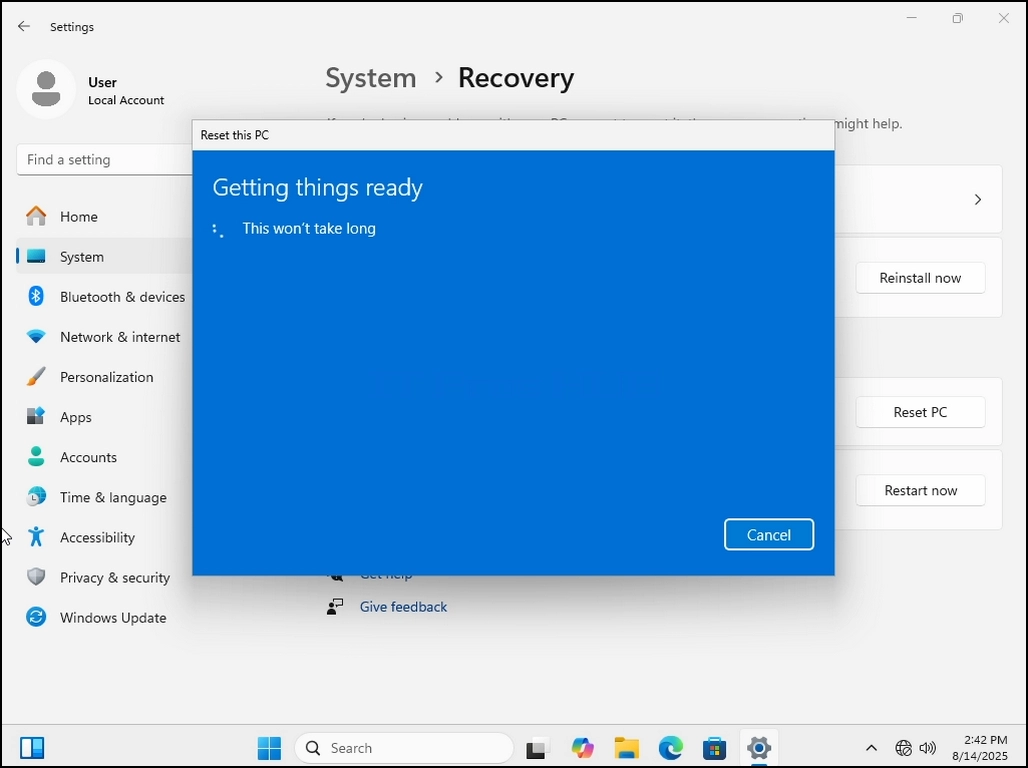
7. Once chosen, a Getting things ready sentence will appear. Wait patiently till the next stage comes.
8. Additional settings – here you can choose to clean the drive or not. Cleaning the drive means not just deleting the files on it but also wiping them entirely leaving no room for files restoration later on.
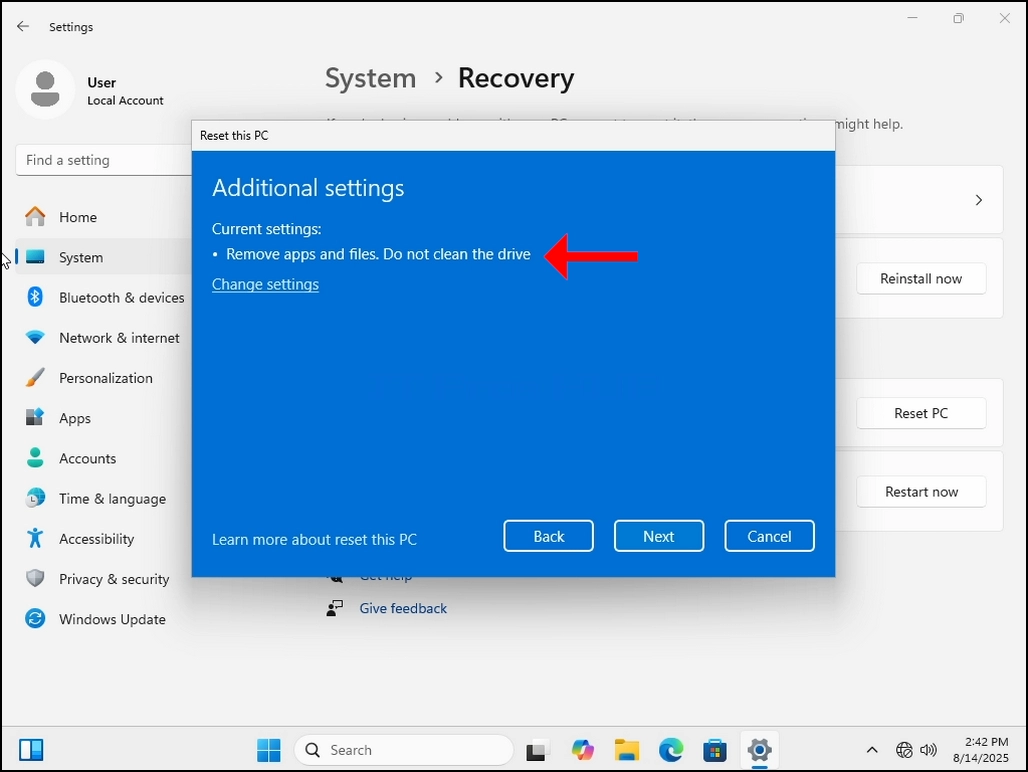
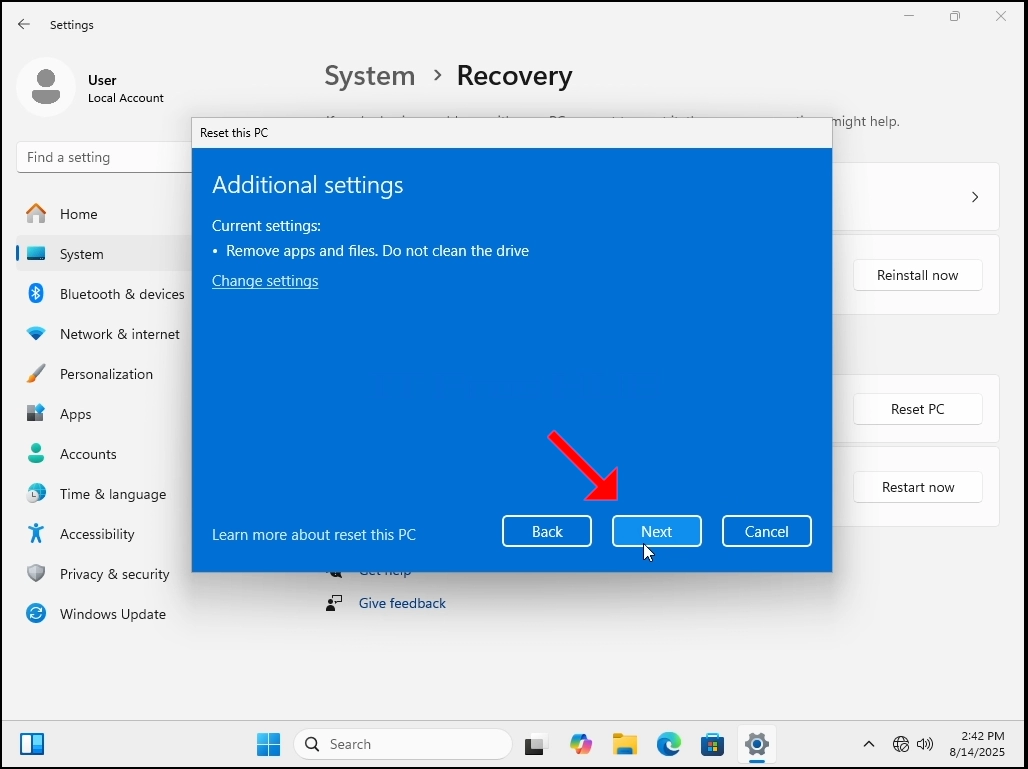
10. Wait patiently for the next stage to appear.
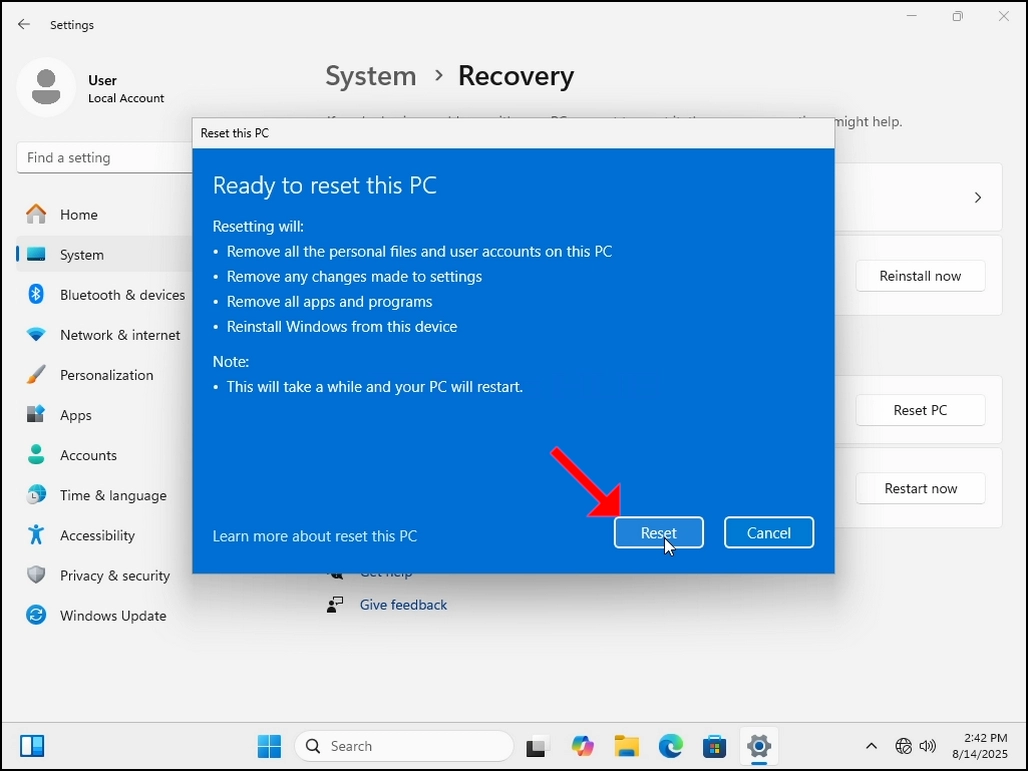
11. Here, Windows sums up the actions we have chosen to perform before performing them. Go over the actions. In this case Windows will:
a. Remove all the personal files and user accounts on this PC
b. Remove any changes made to settings
c. Remove all apps and programs
d. Reinstall Windows from this device
12. Windows is also kind enough to remind us that This will take a while and you PC will restart.
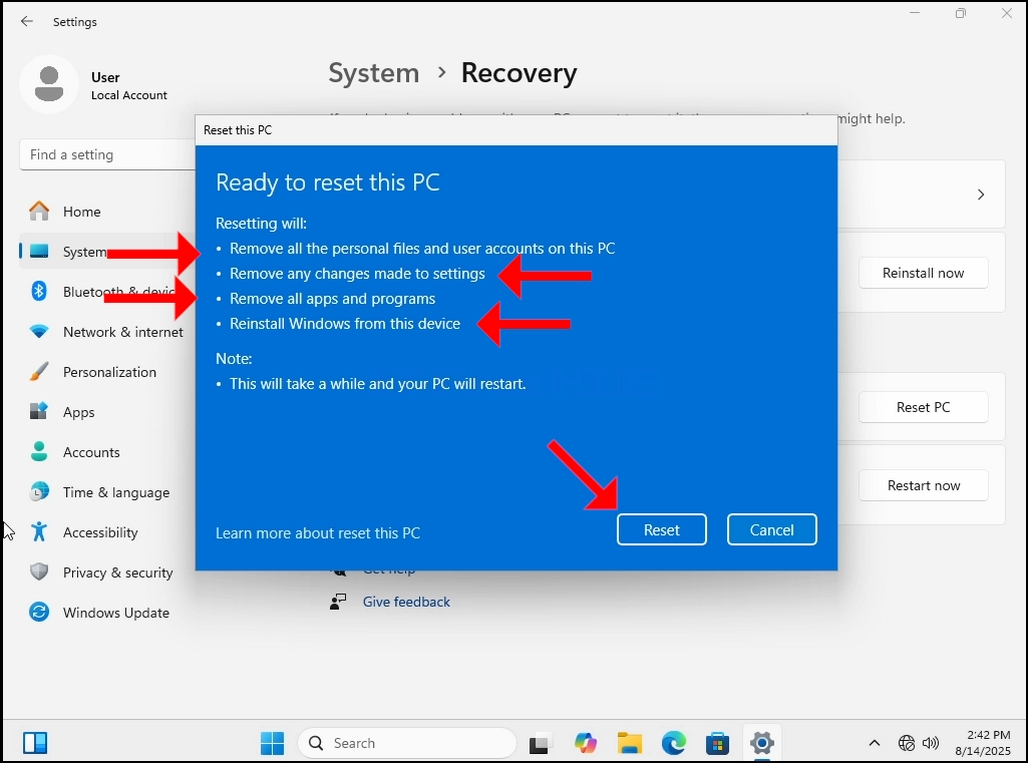
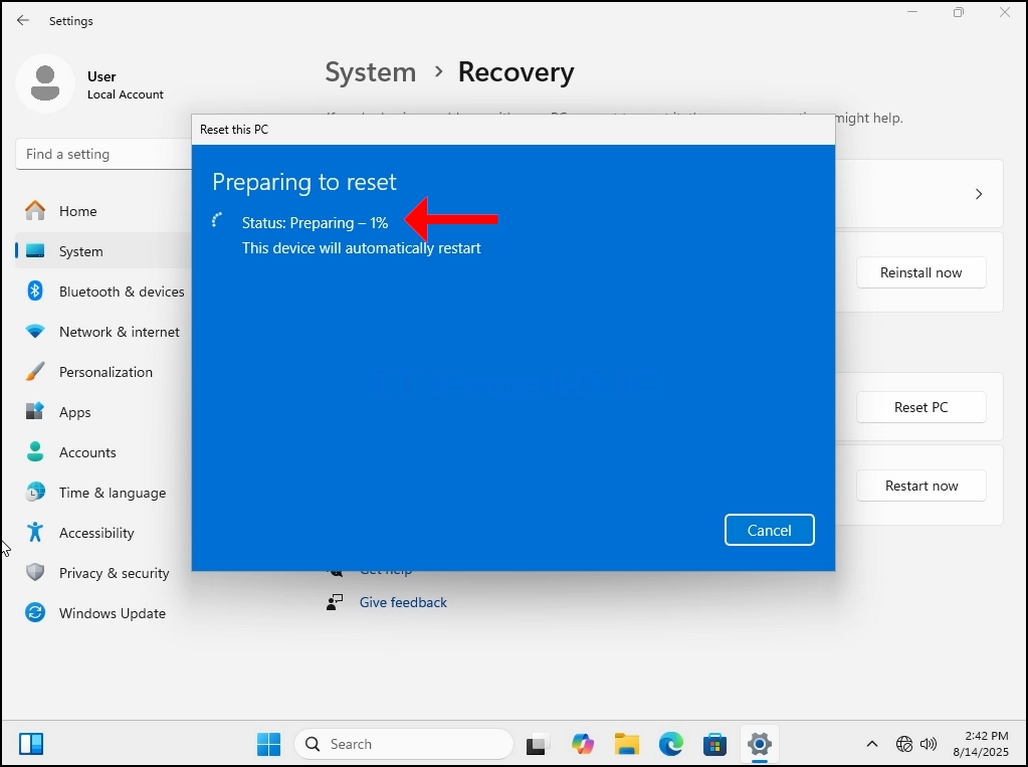
14. Here Windows is preparing to reset the PC. Once done, it will restart the PC and start the reset process.
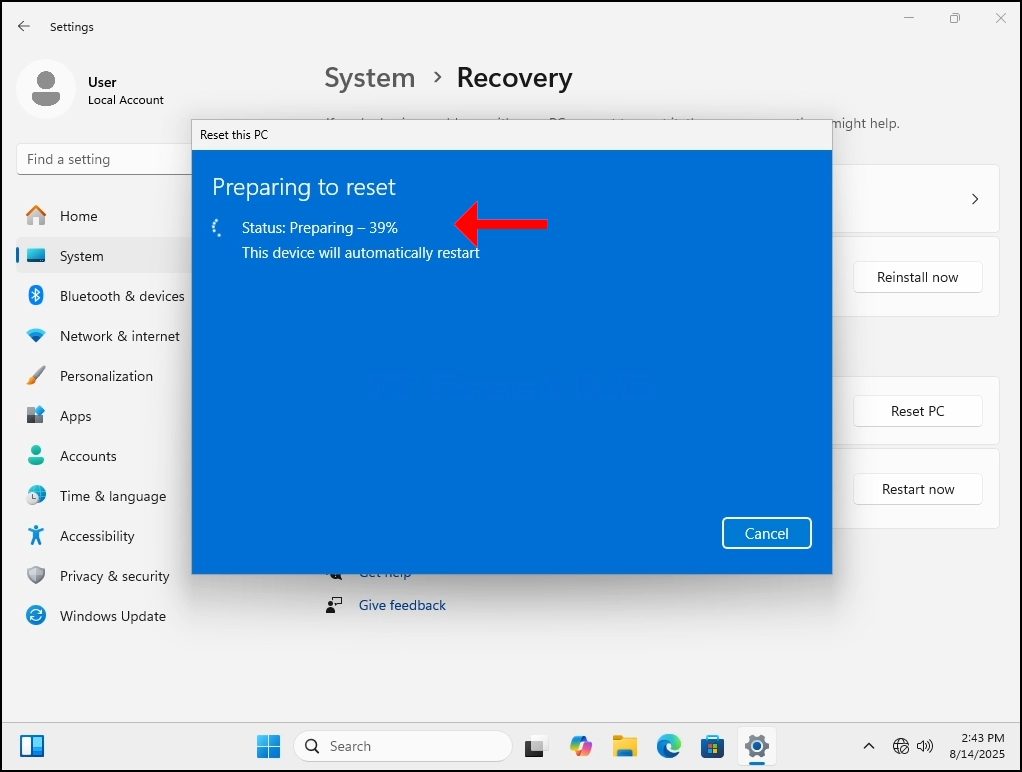
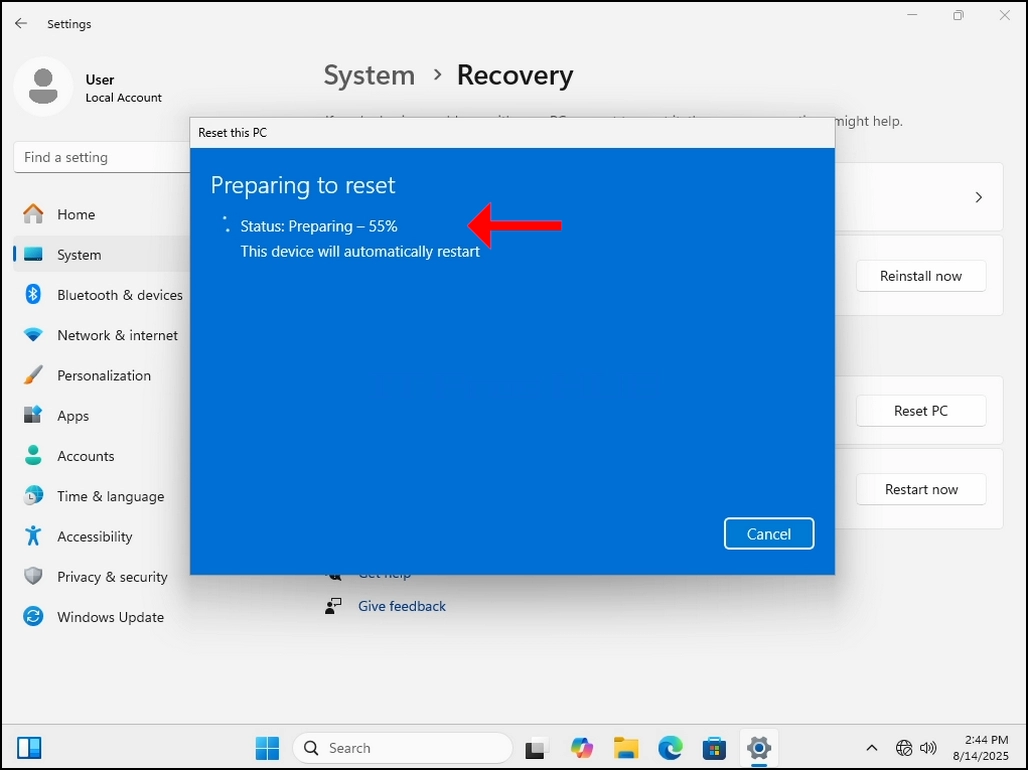
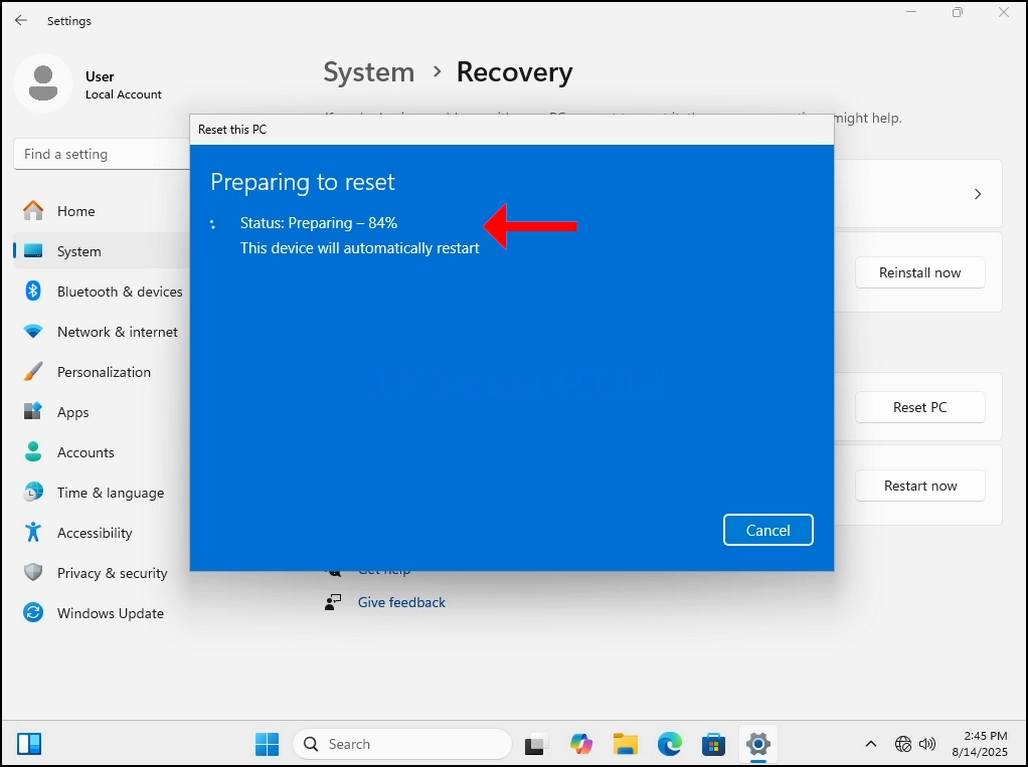
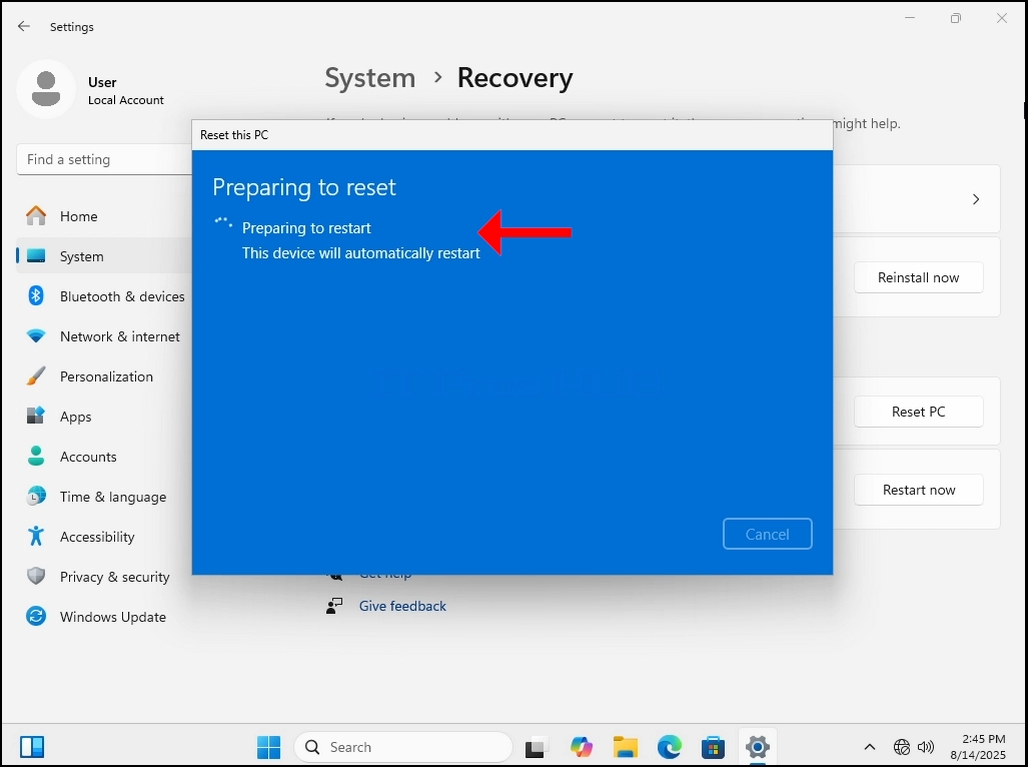
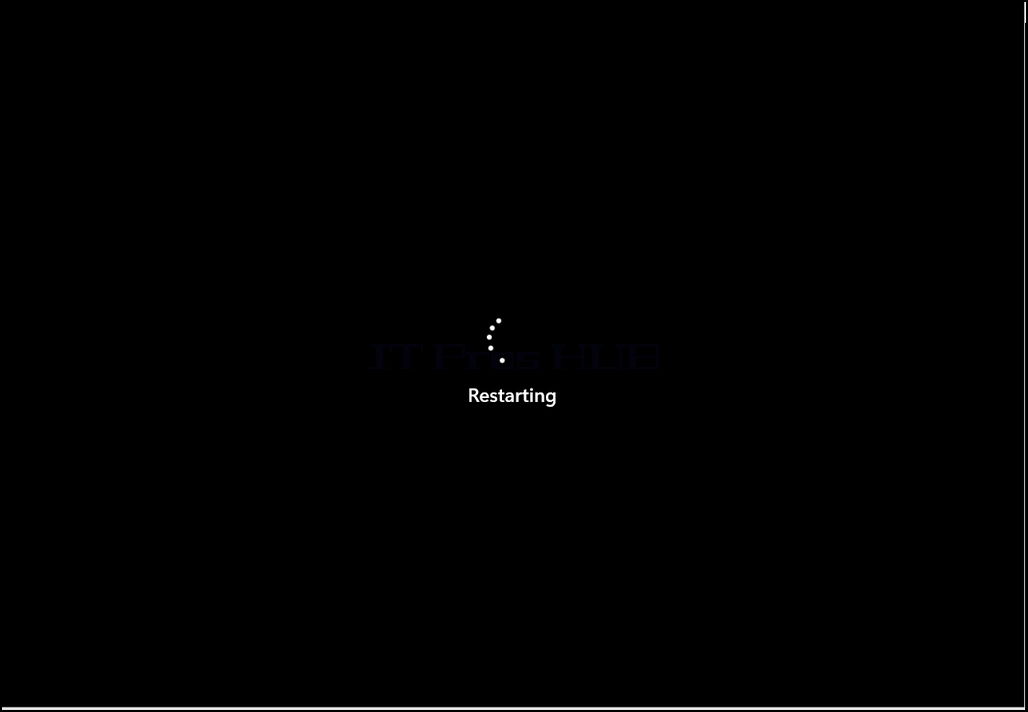
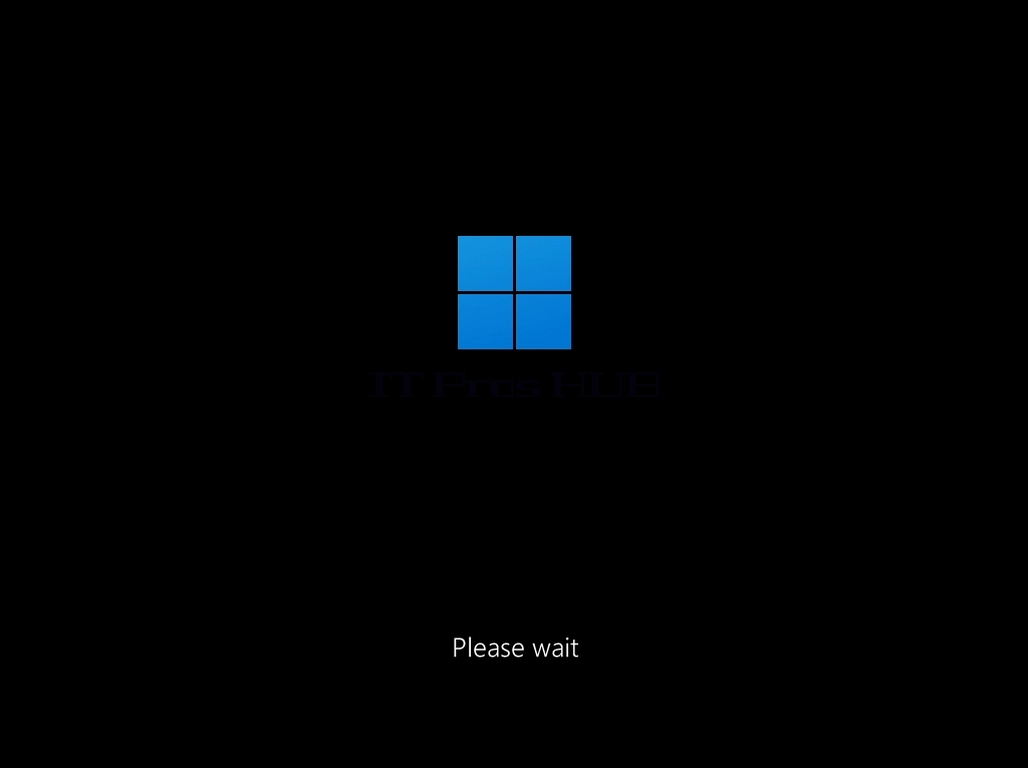
15. After finishing resetting Windows will start reinstalling itself. As noted below, keep your computer on (not turned off) and plugged into a power source or a charger if it’s a laptop.

16. After resetting the PC and installing Windows it’s time for the initial configuration stage which is the final stage of the resetting process.
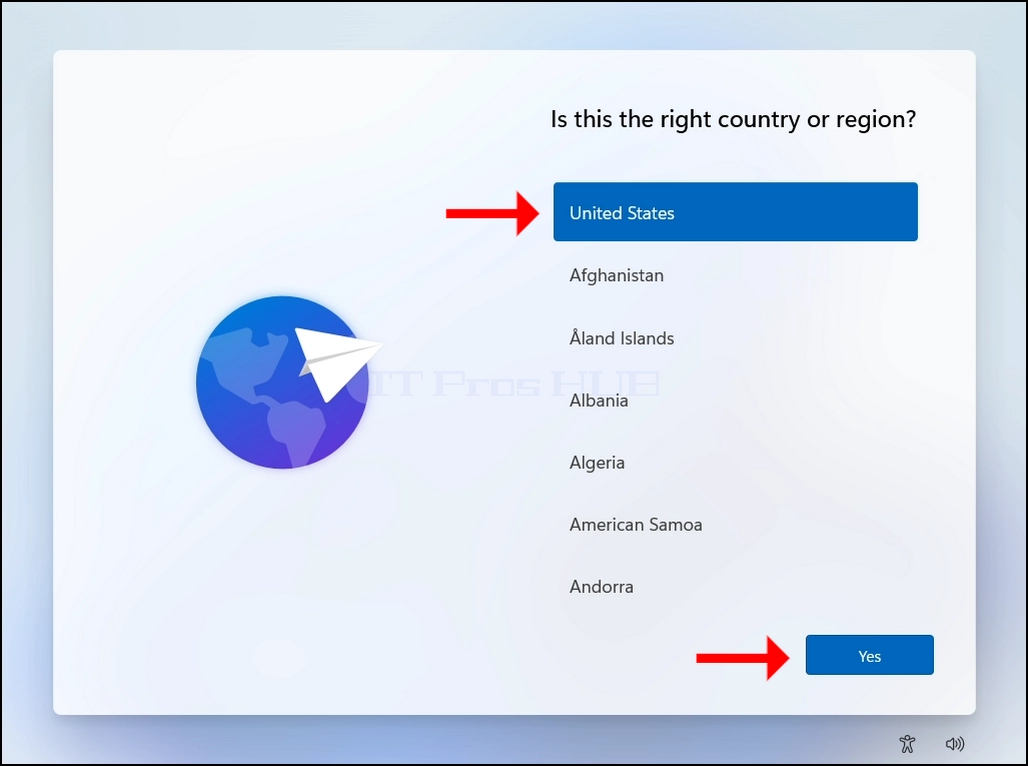
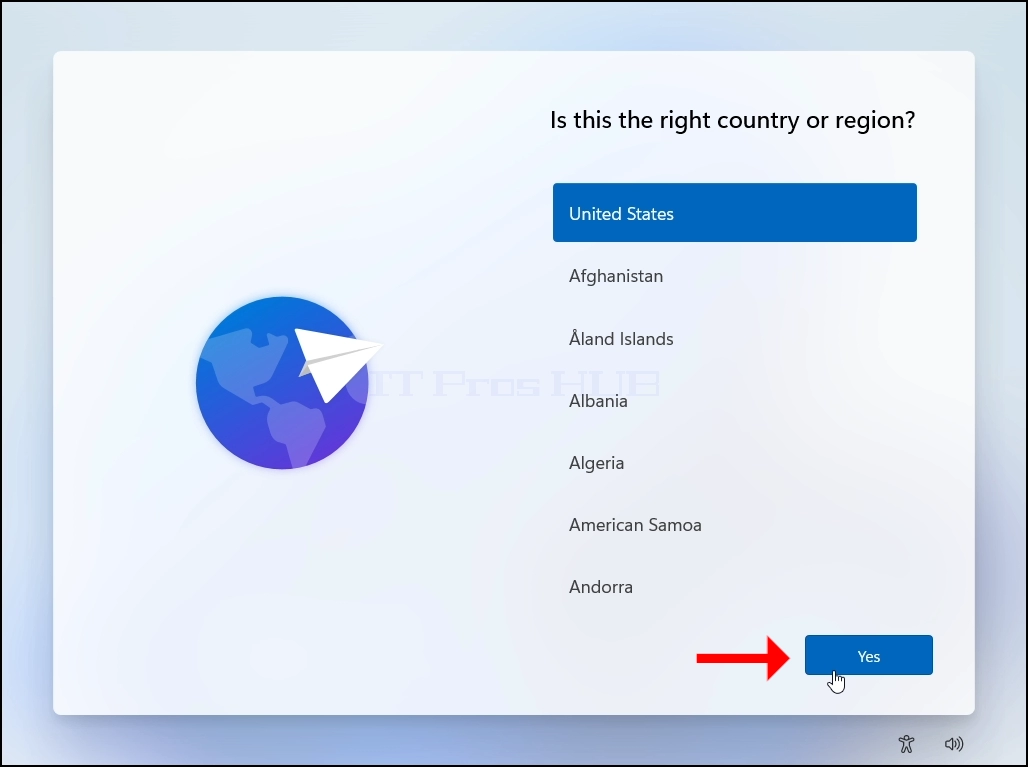
17. Choose a country or a region, click YES afterwards.
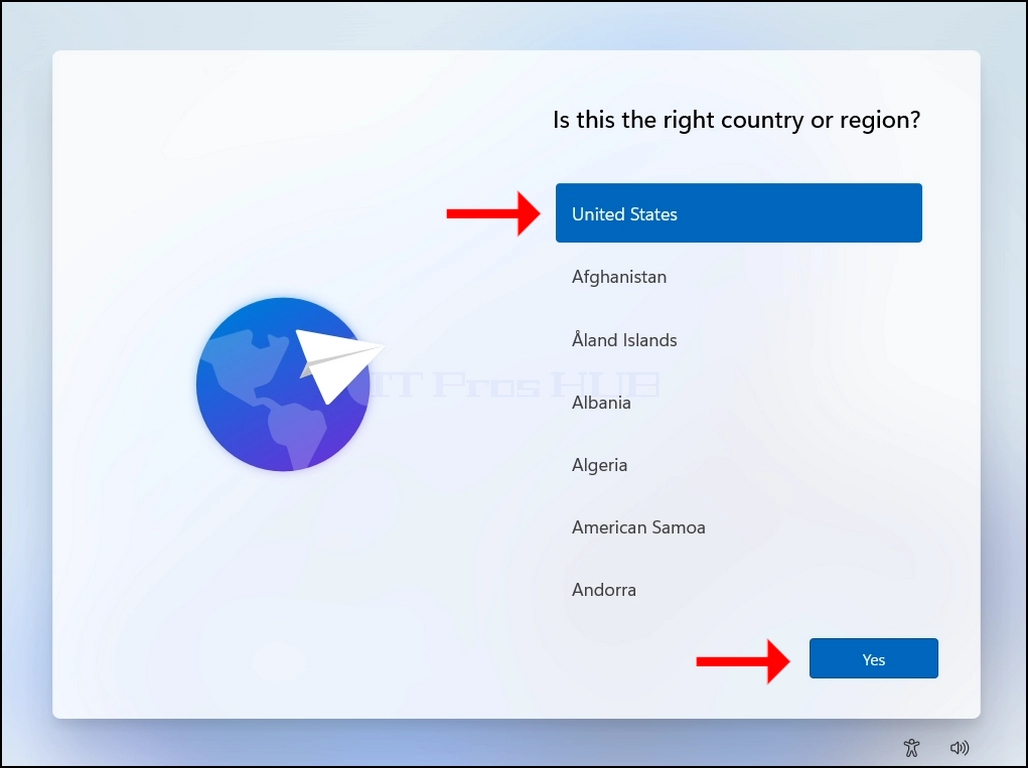
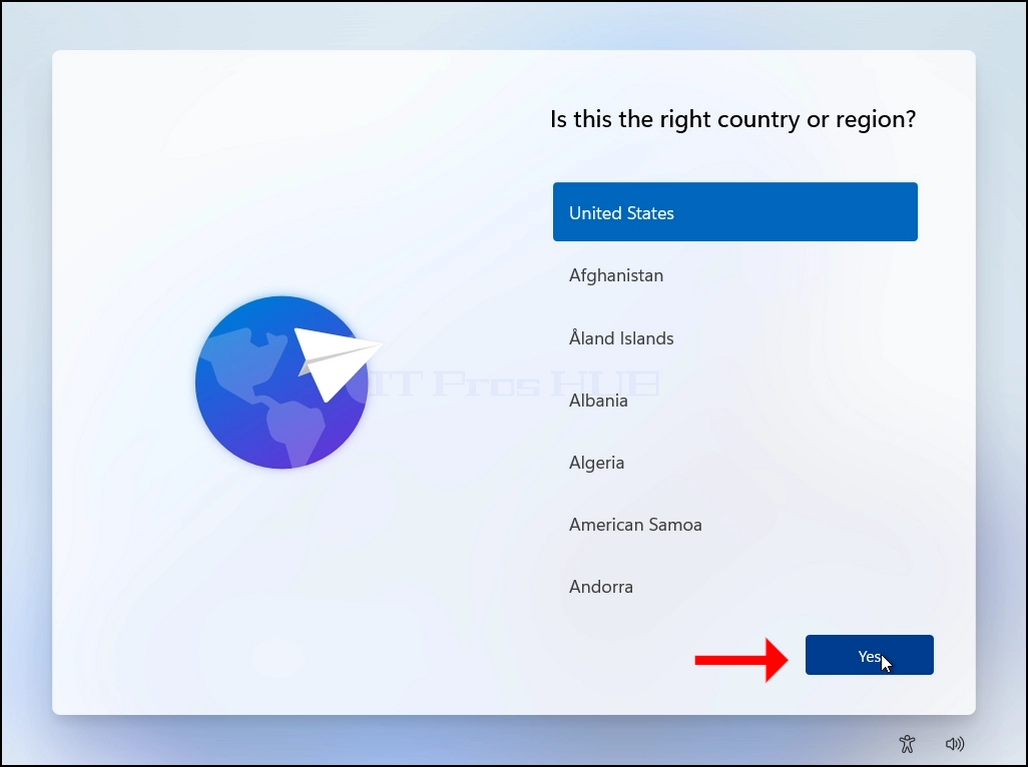
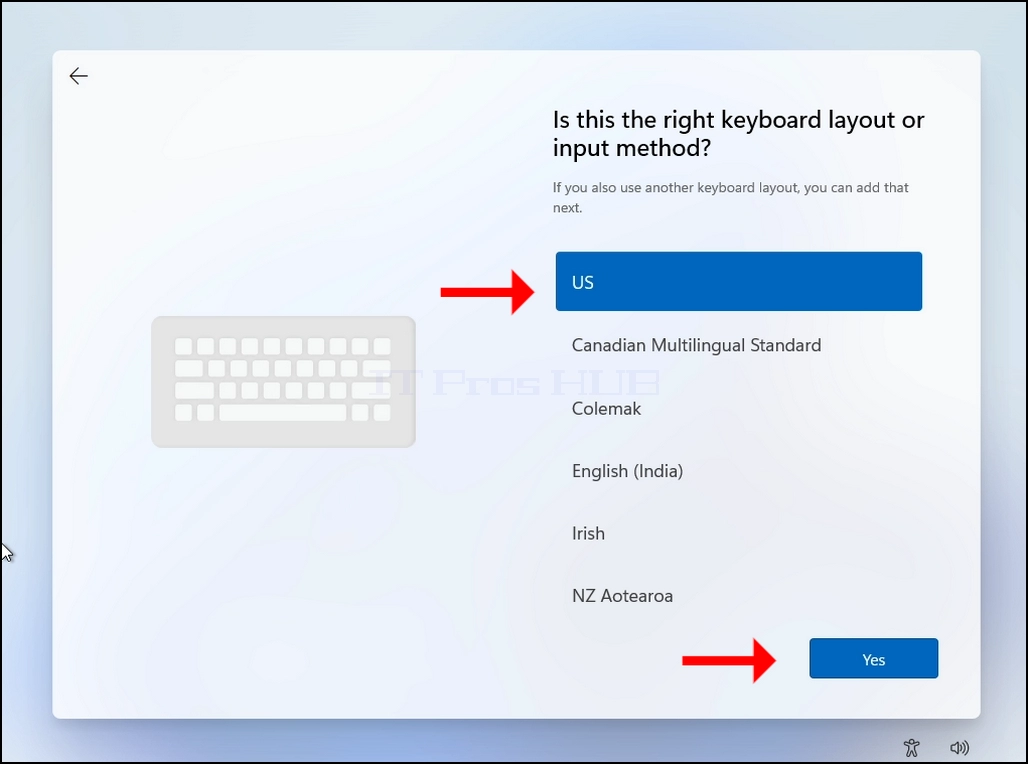
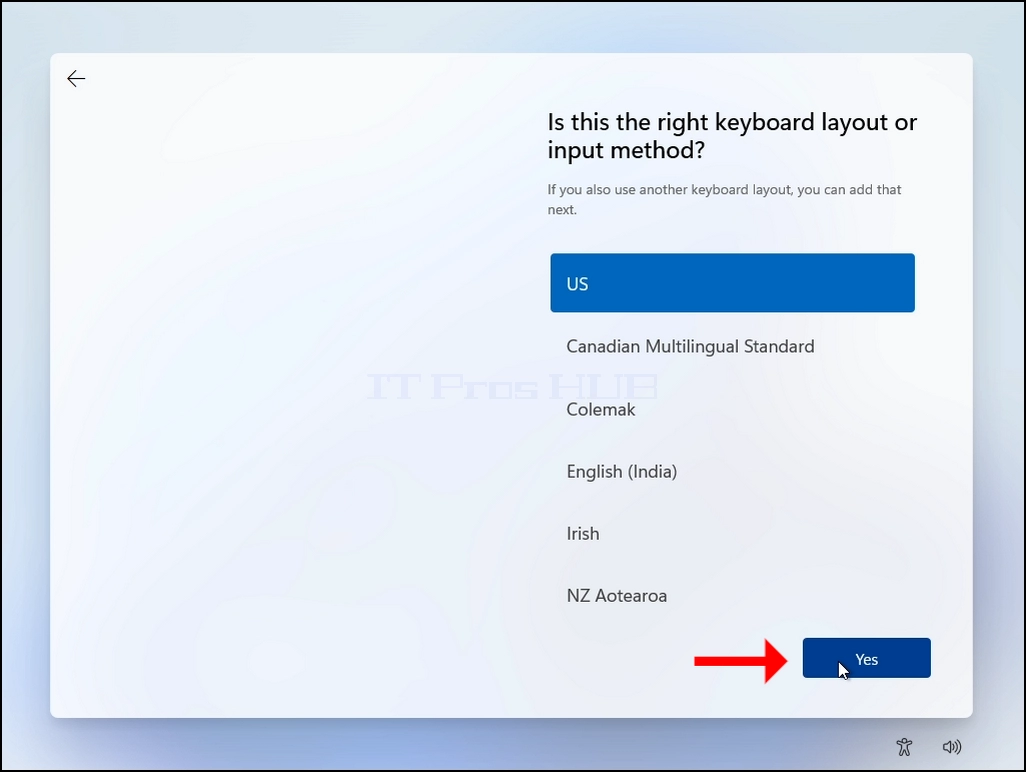
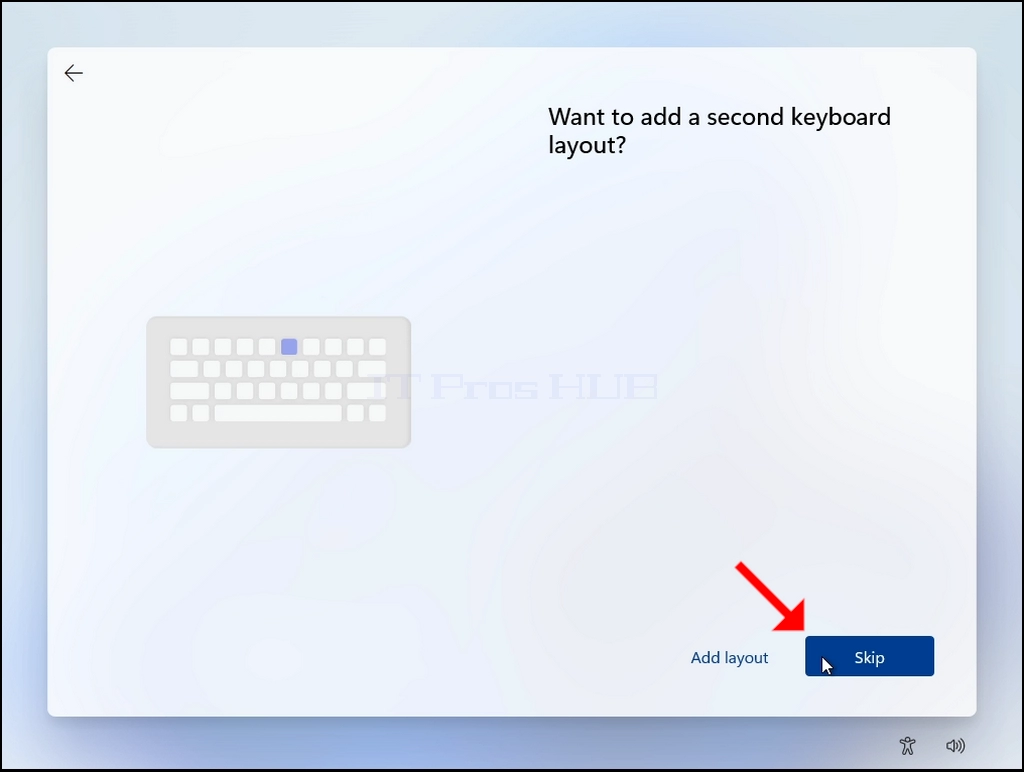
18. Choose a keyboard layout, click YES afterwards.
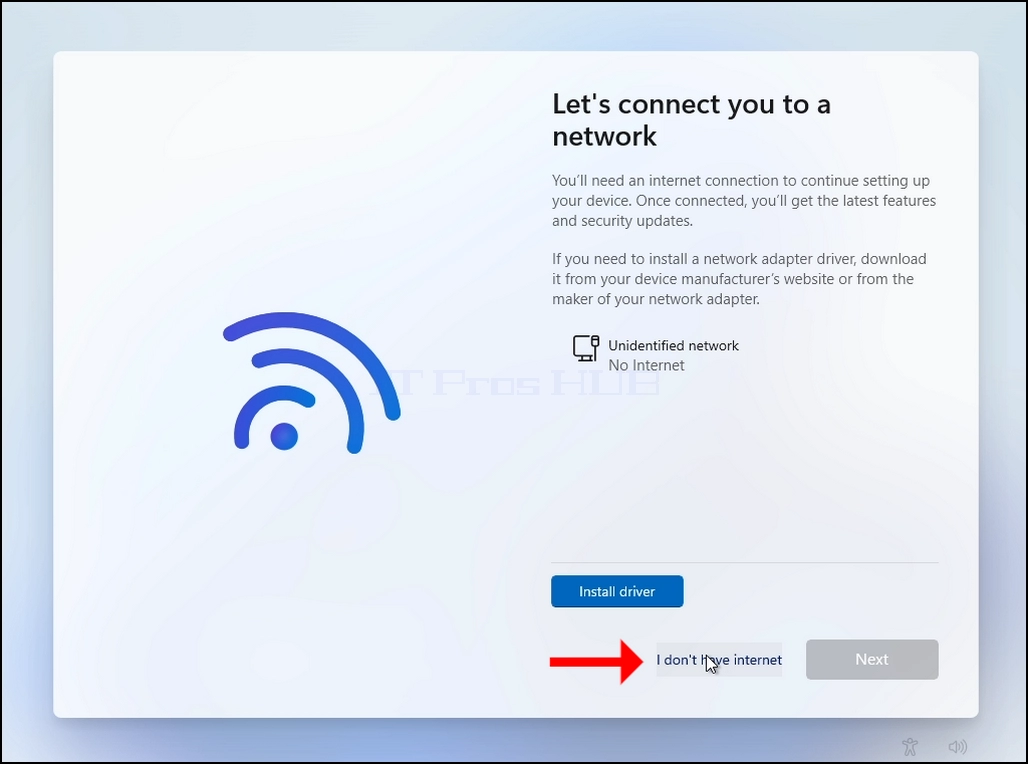
20. Network connection stage:
a. In this stage we will bypass Windows insistence of connecting to the internet in order to install itself.
b. Click I don’t have internet
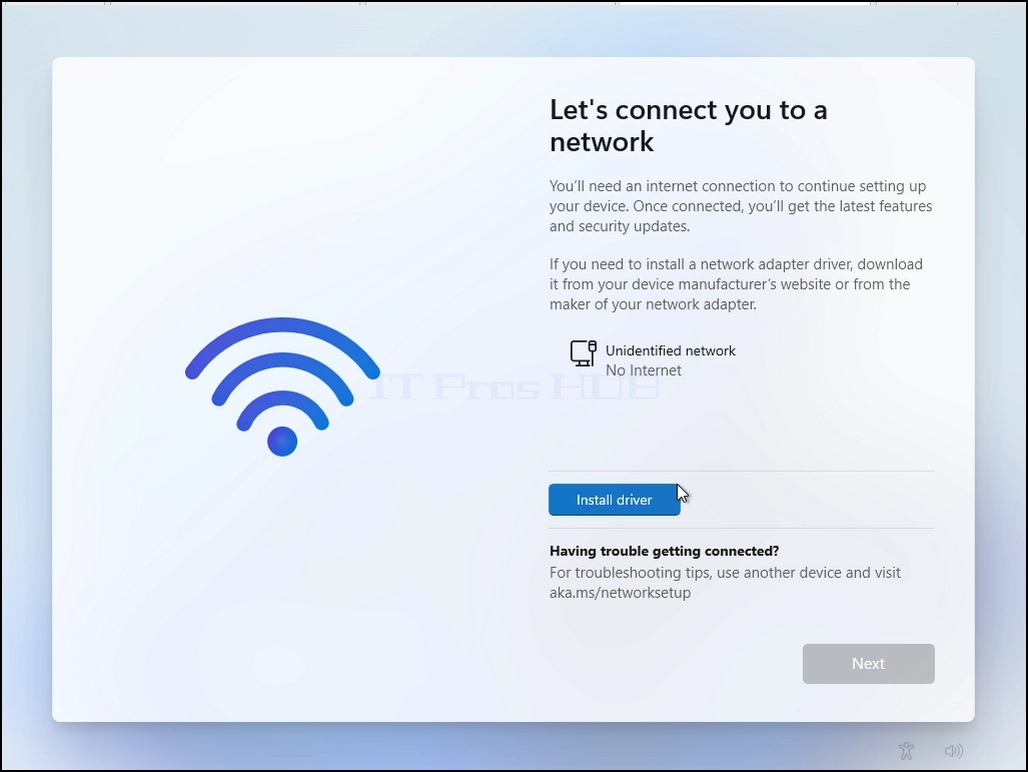
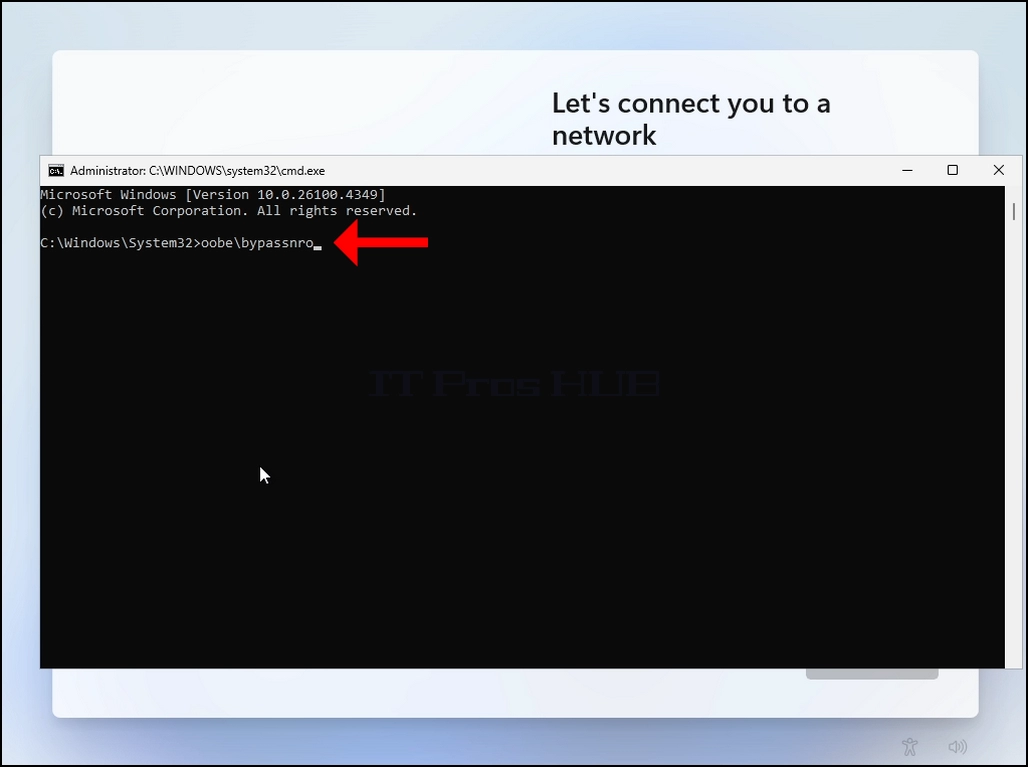
- Click and hold the CTRL key and click the F10 key momentarily. A CMD window will appear
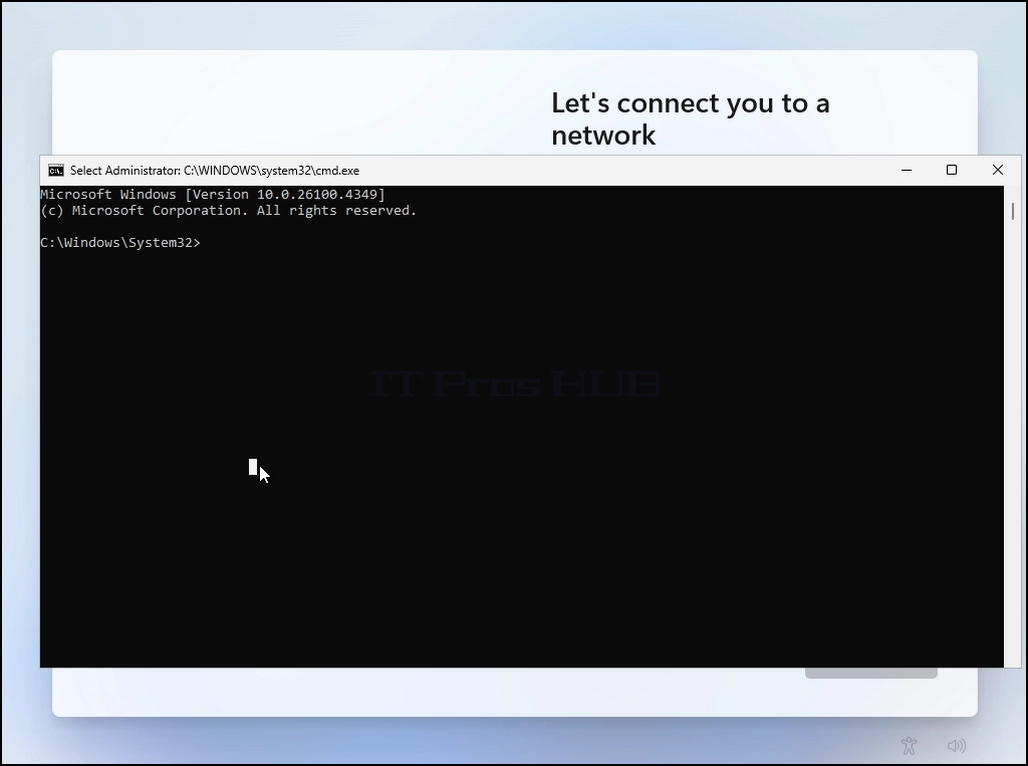
In the CMD window, type the following:
Oobe\bypassnro
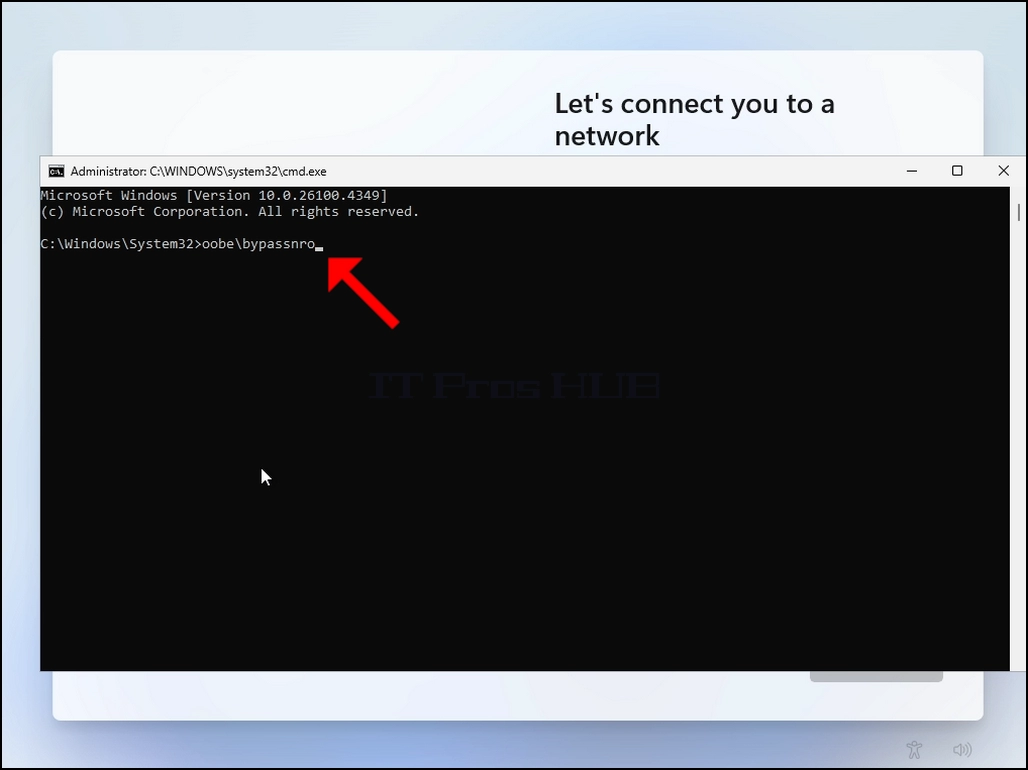
Hit the ENTER key
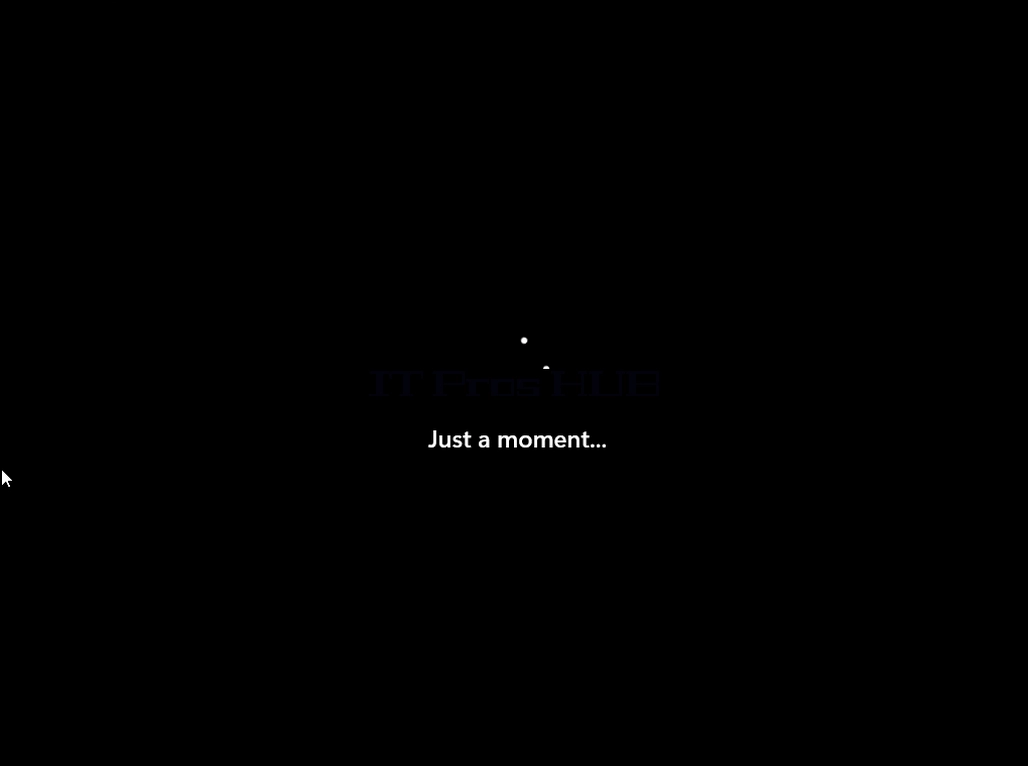
For a very brief moment you will see an output in the CMD window saying “The operation completed successfully” before the installation process restarts the computer
Go through all of the following stages (again):
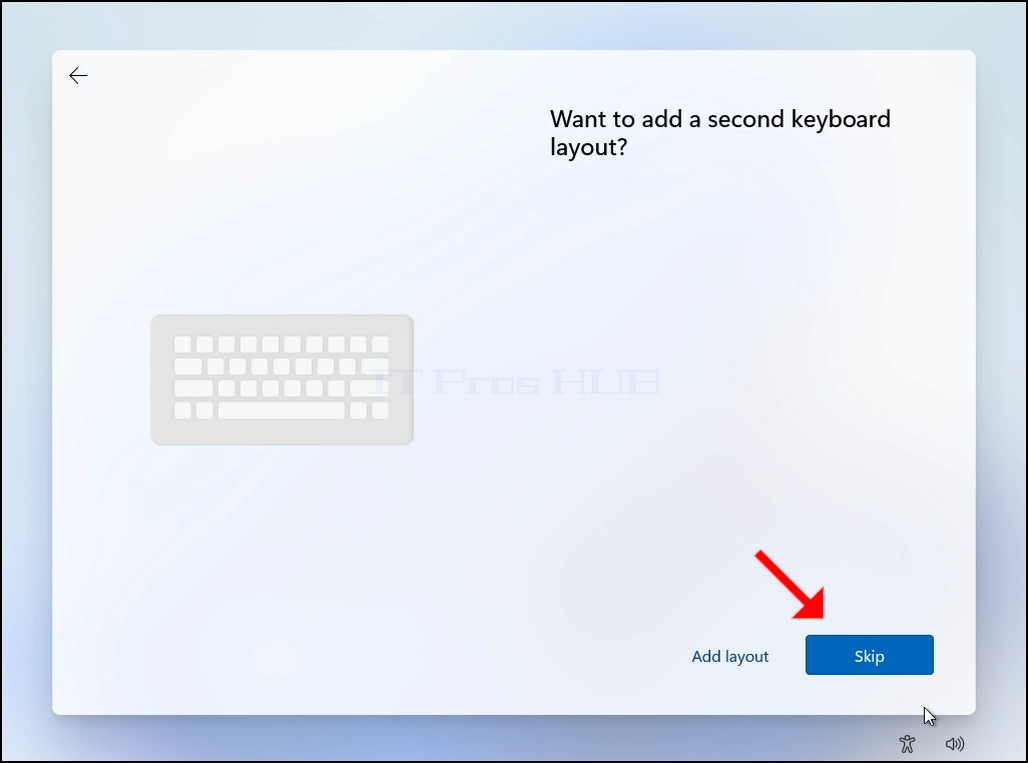
Is this the right country or region? >> Is this the right keyboard layout or input method ? >> Second keyboard layout
You will be presented with the same “Let’s connect you to a network” stage again
Click on “I don’t have internet”
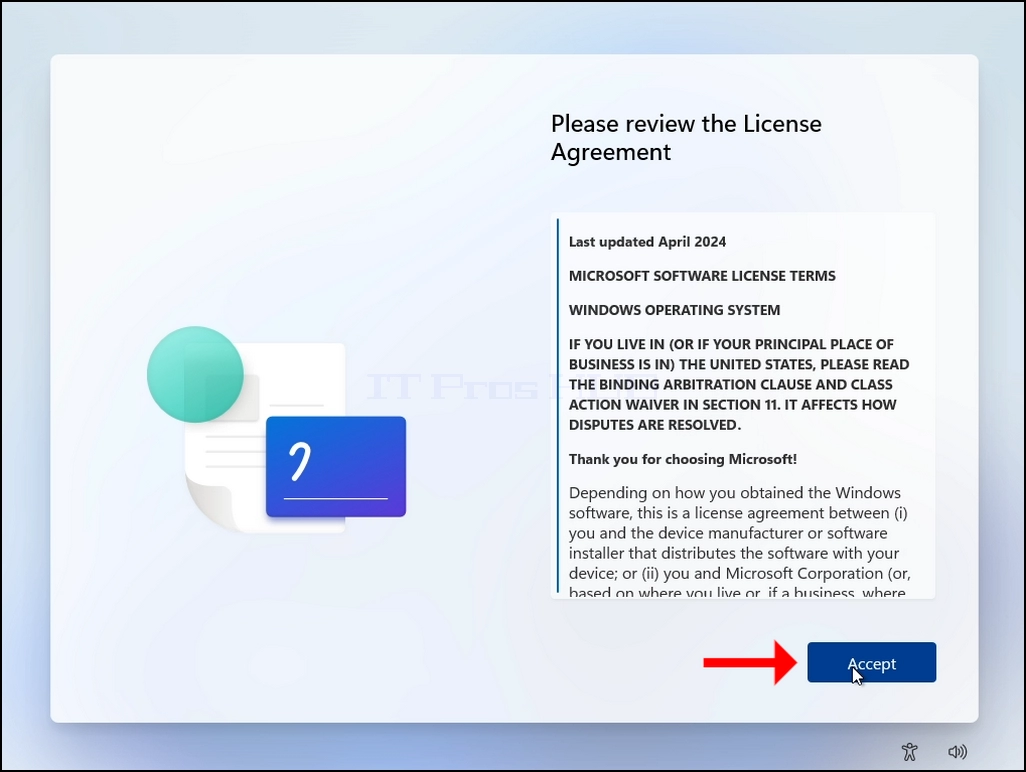
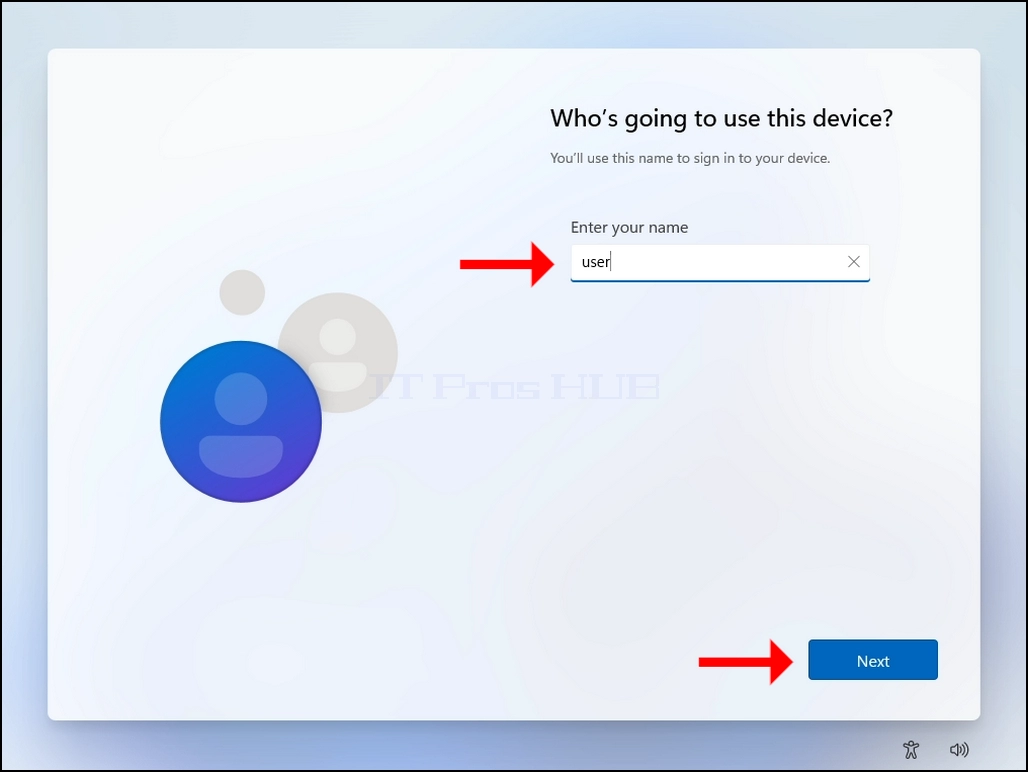
23. Password is optional, in this article’s case we will leave it blank (no password).
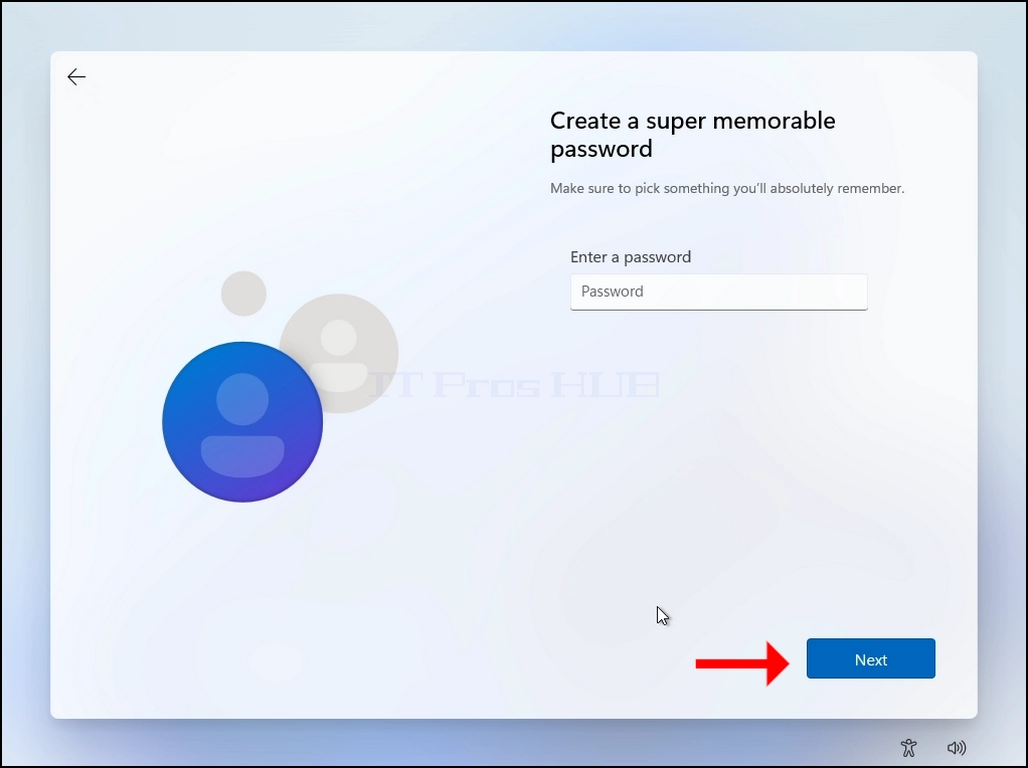
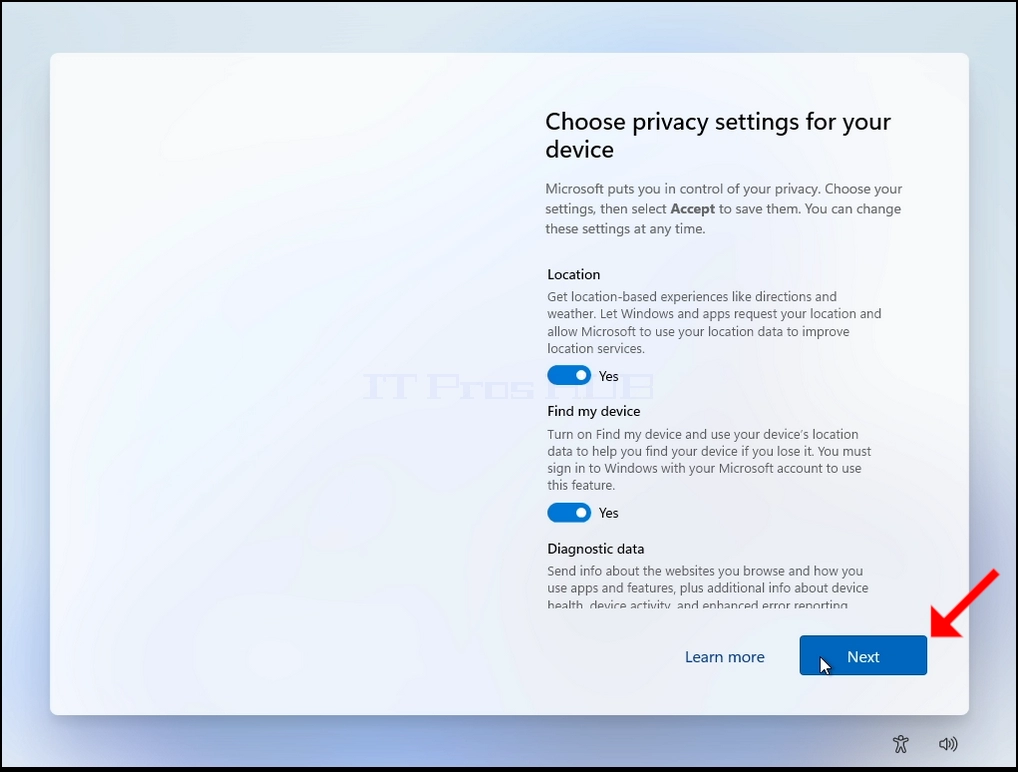
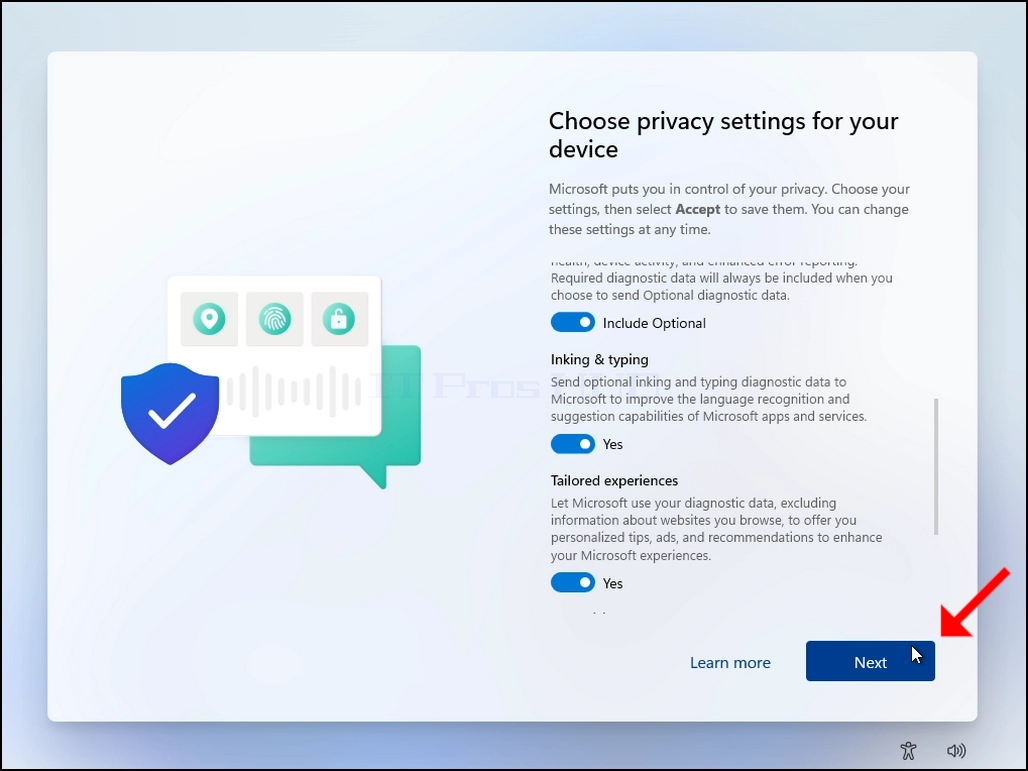
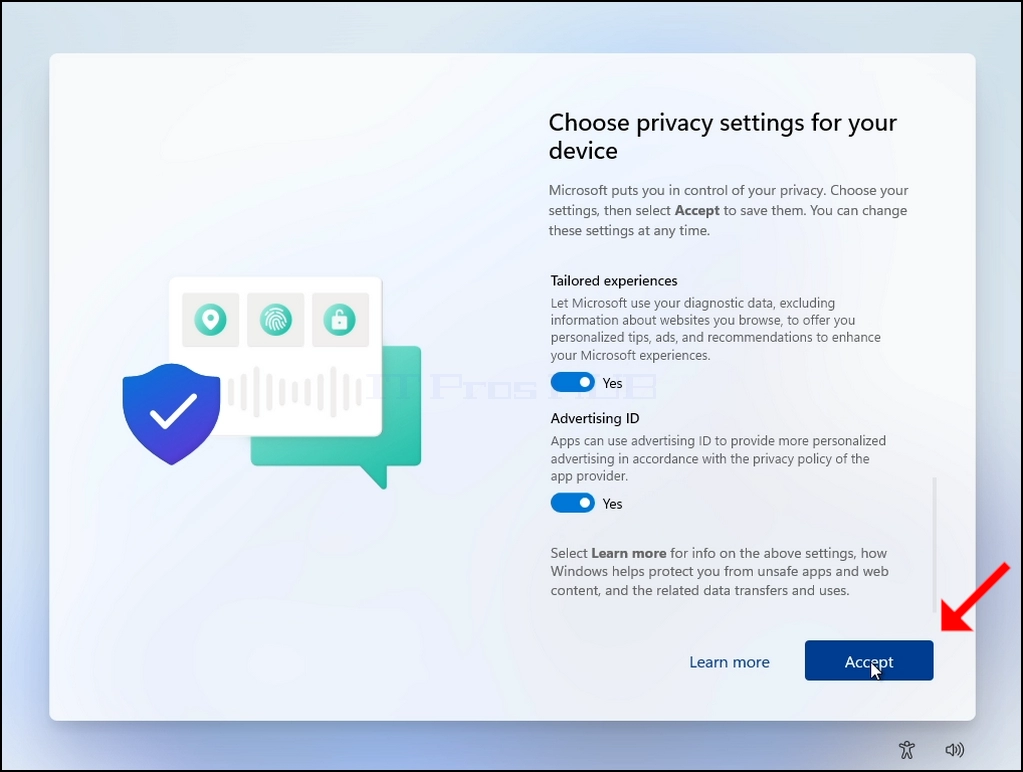



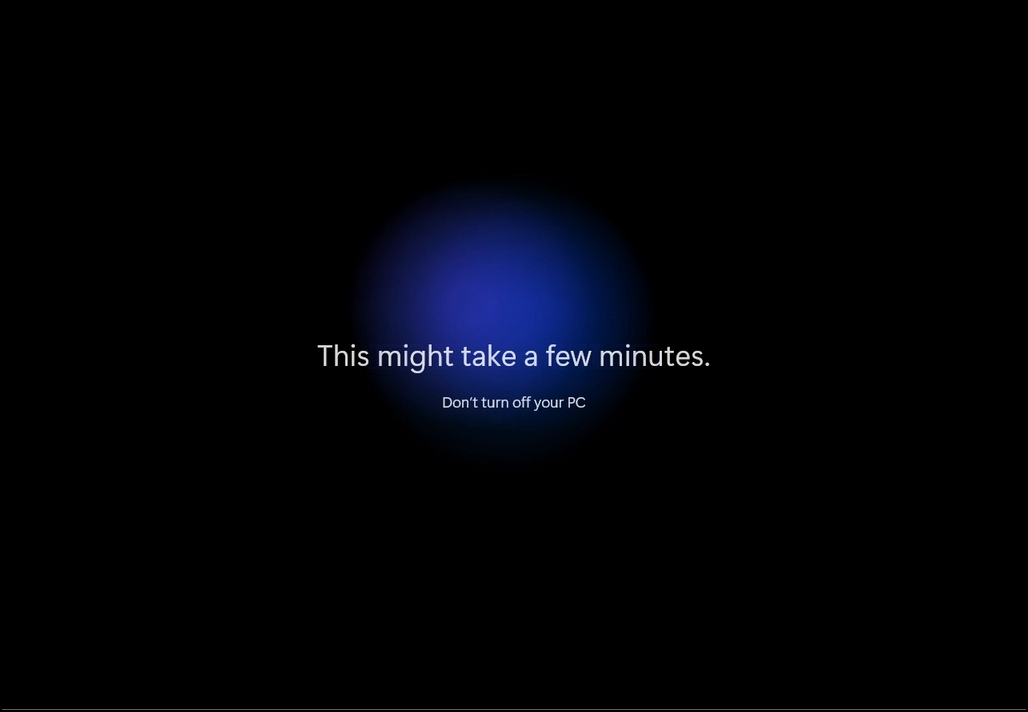
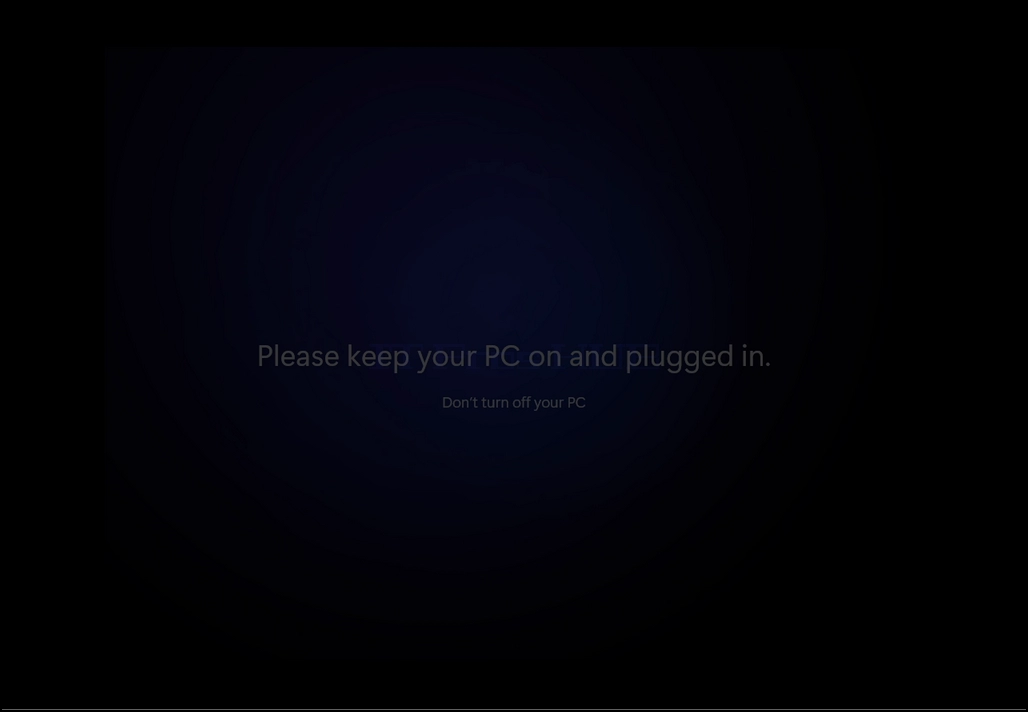
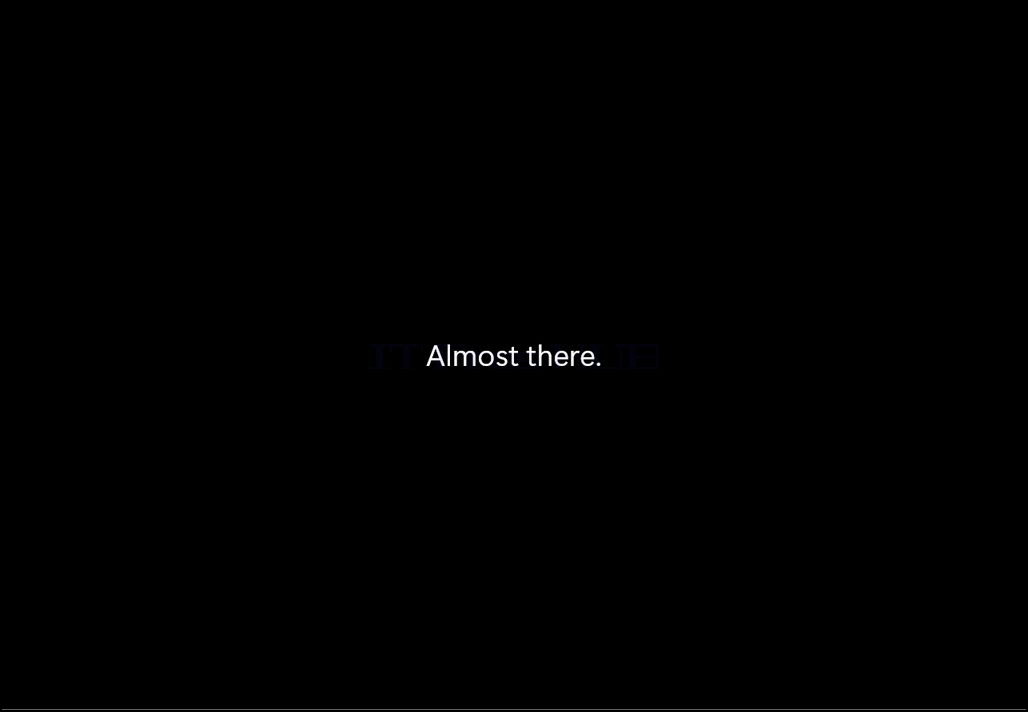
25. Windows will now finalize its installation process and start.
26. The Resetting process is done.
- تفصیل
- تحریر کردہ: IT Pro
- زمرہ: How to Articles
- مشاہدات: 6496
Introduction:
In this article we will demonstrate how to configure Windows 11 to be able to show hidden files and folders that are otherwise are like that out of the box.
1. Let’s go to where Windows is currently installed, in this case it’s the C: drive.
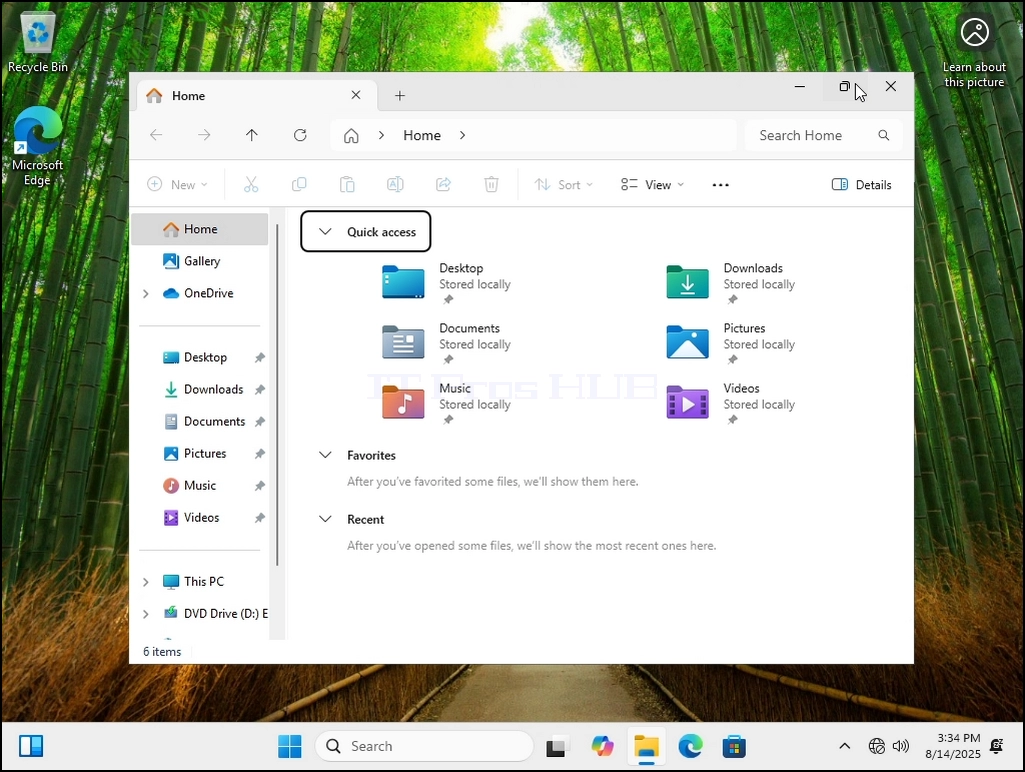
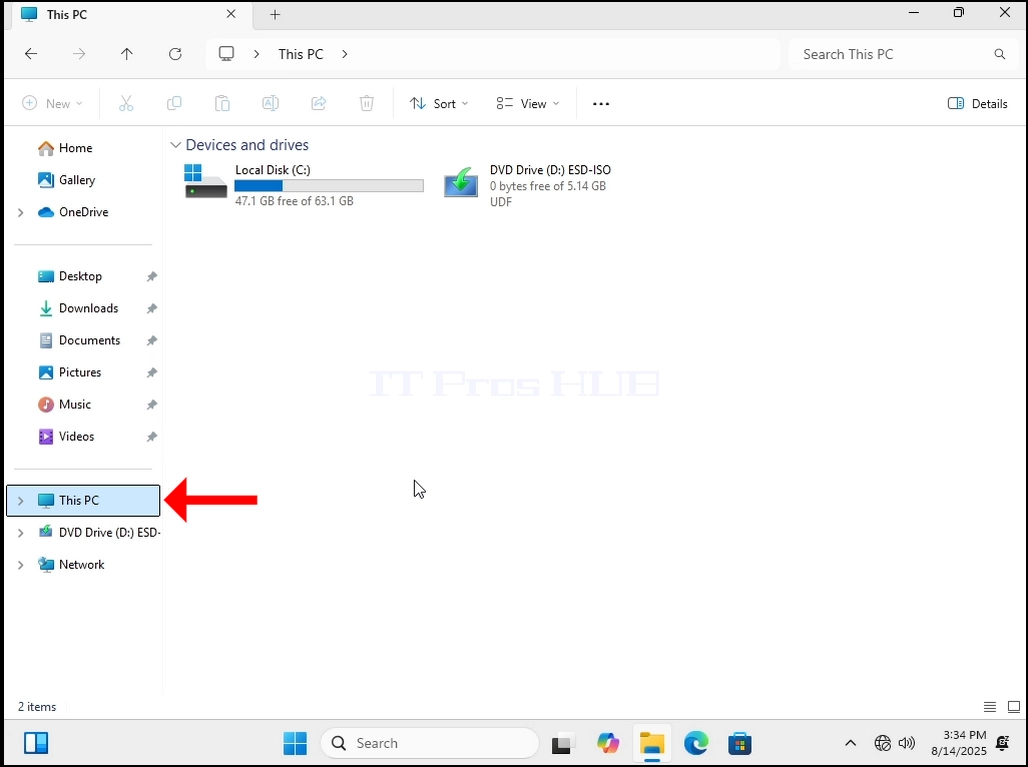
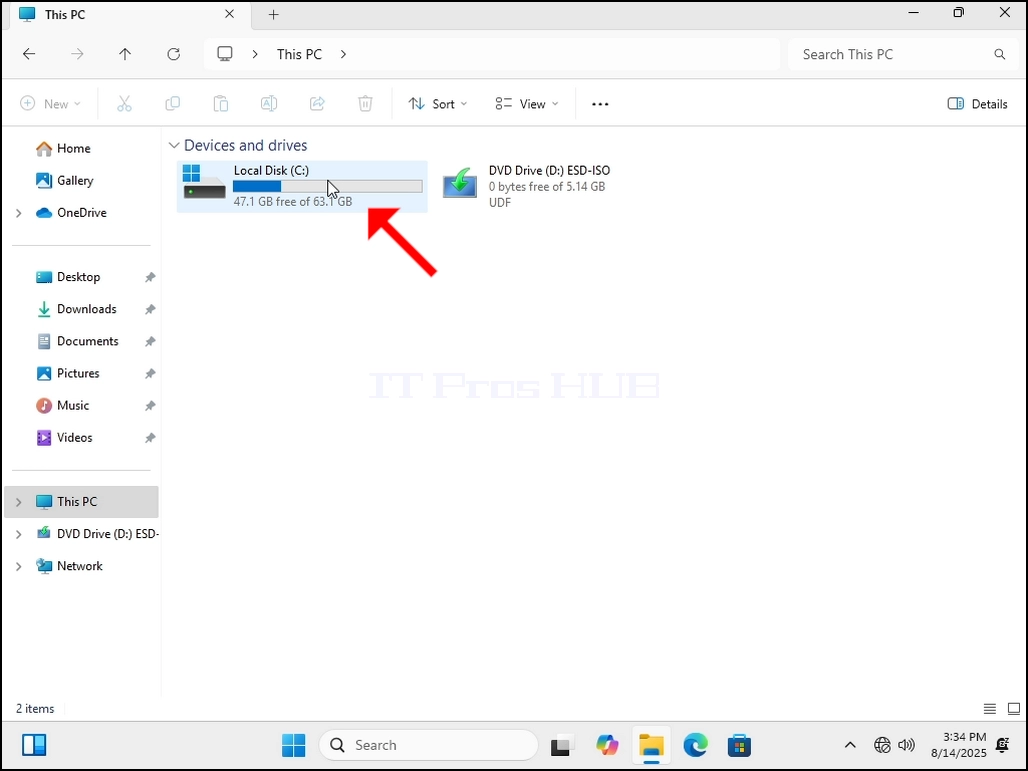
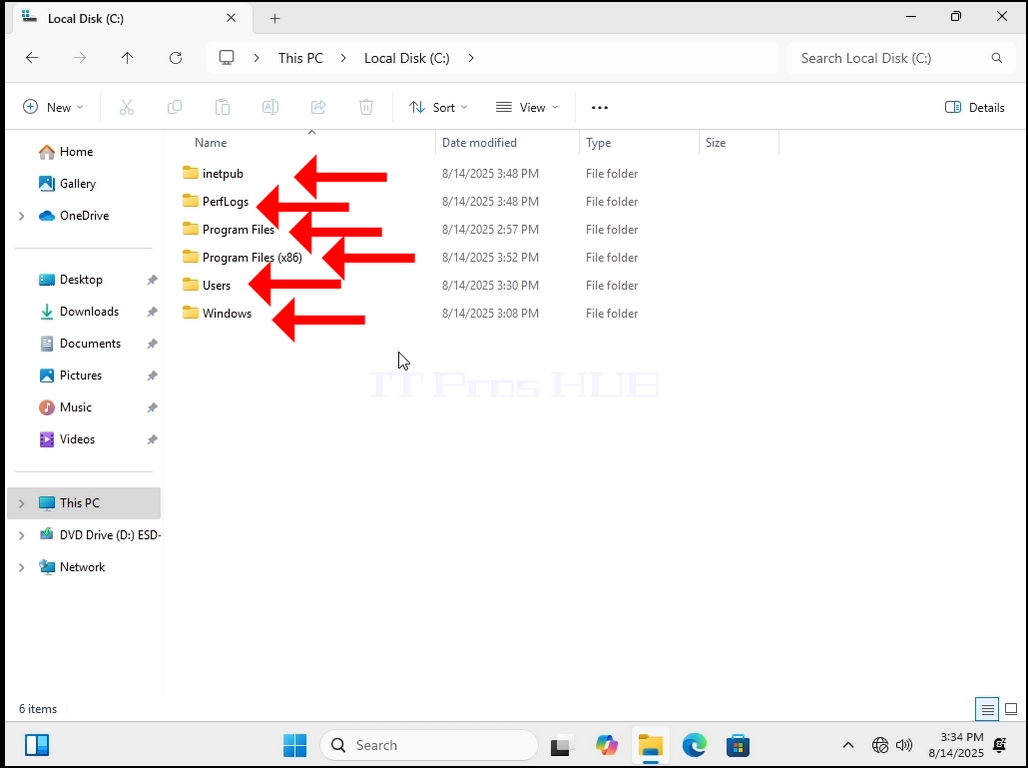
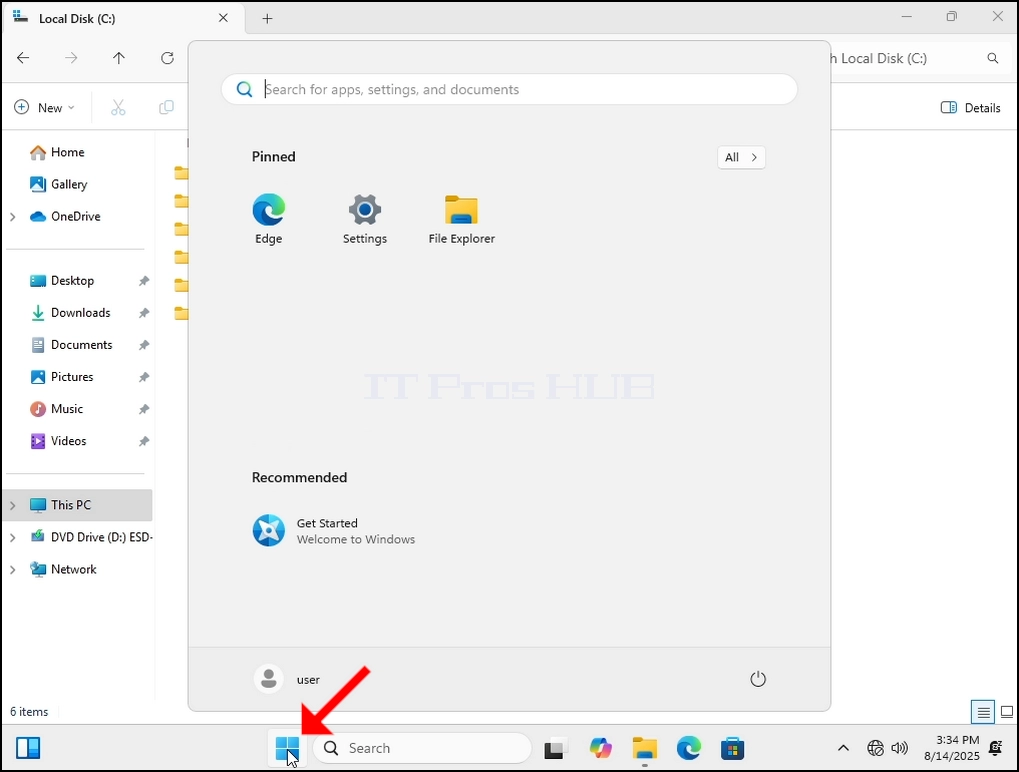
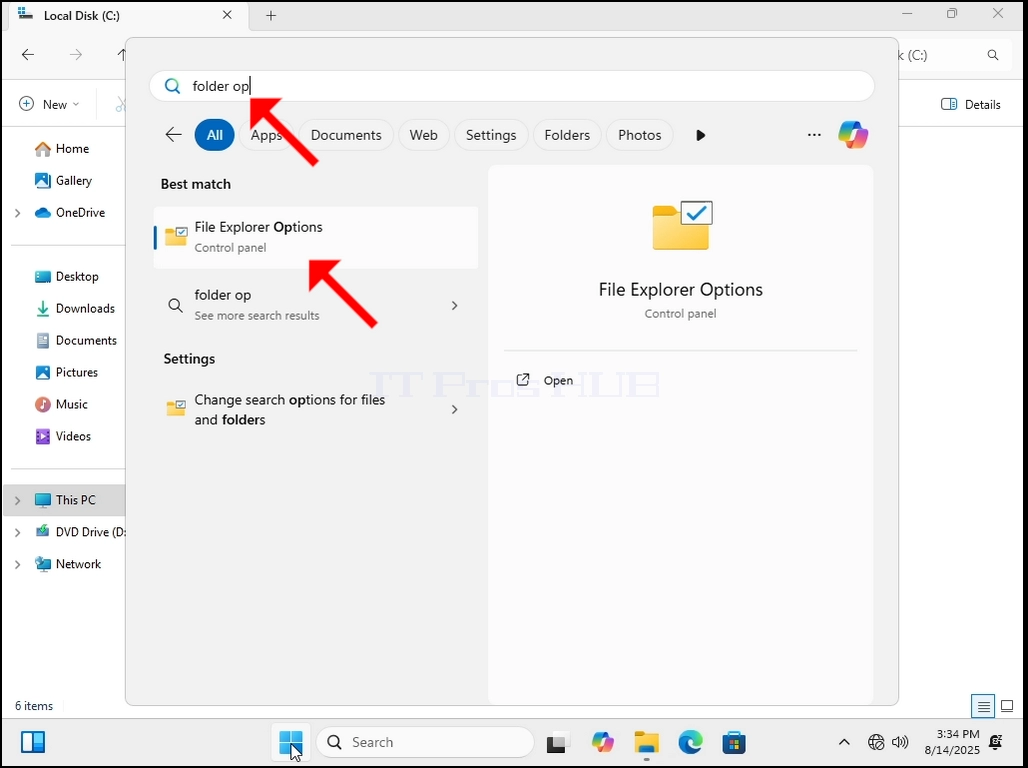
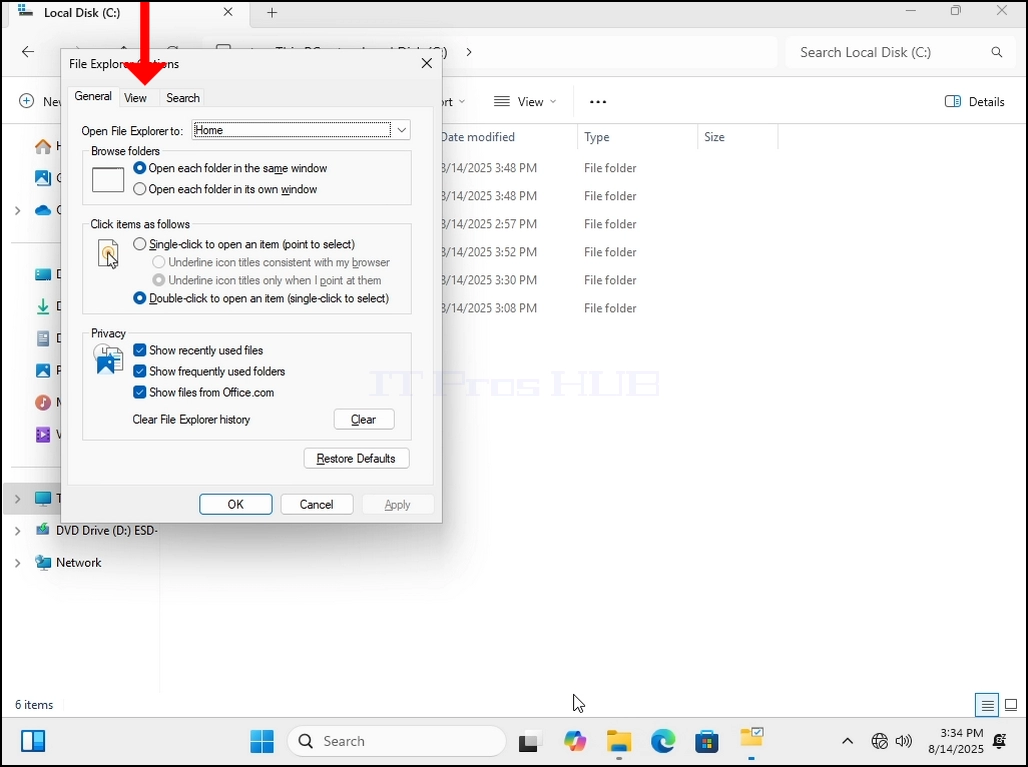
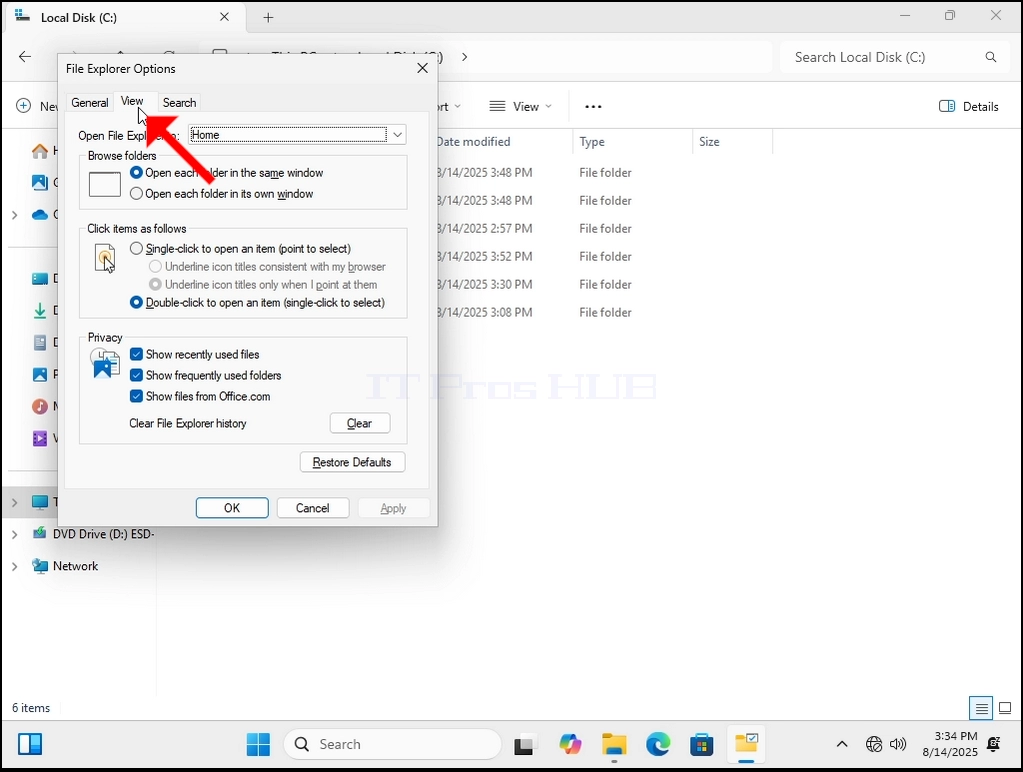
4. Once inside Folder Options, go to the VIEW tab on the top part of the window. Click on it. Wait for the View tab to load.
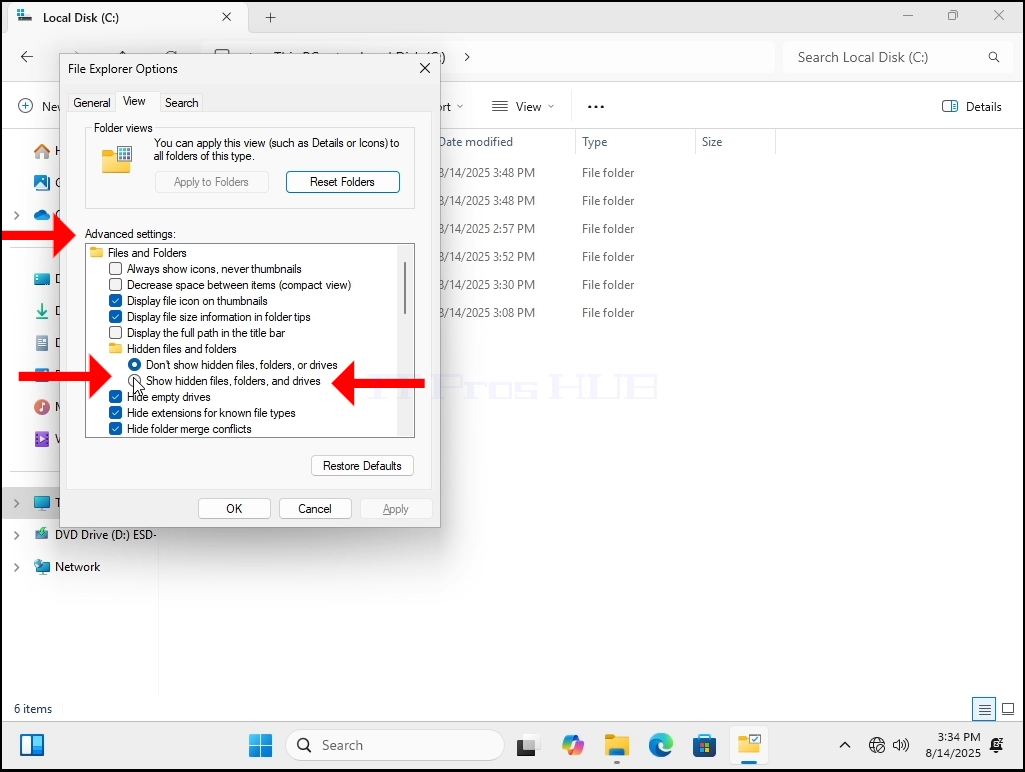
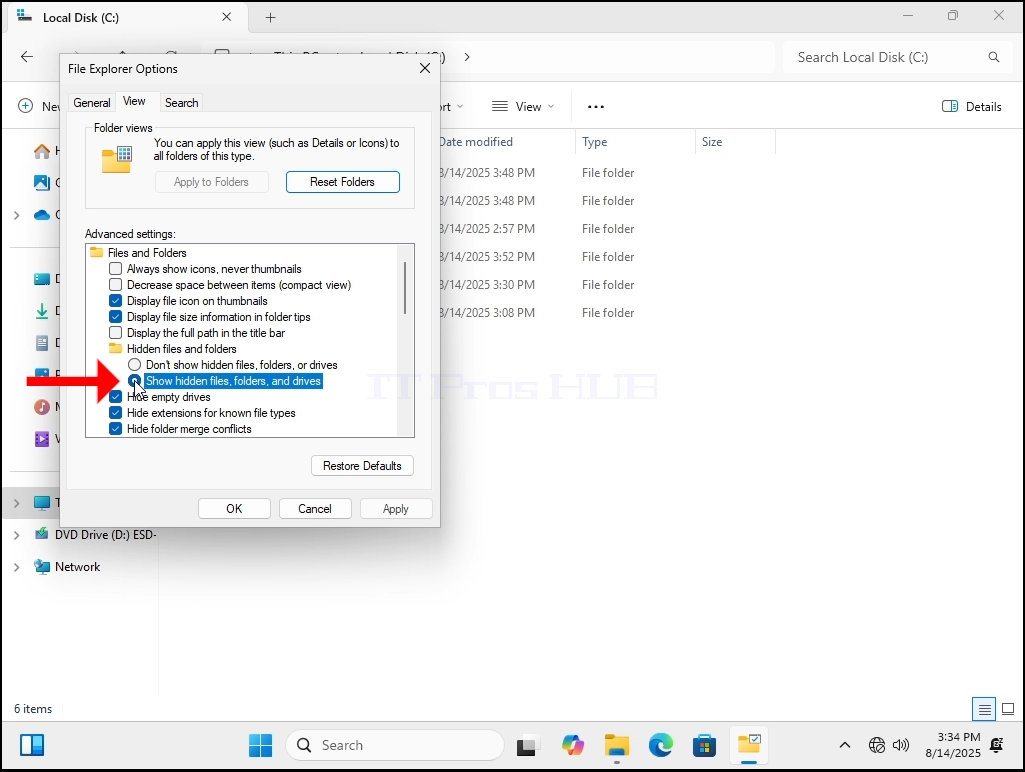
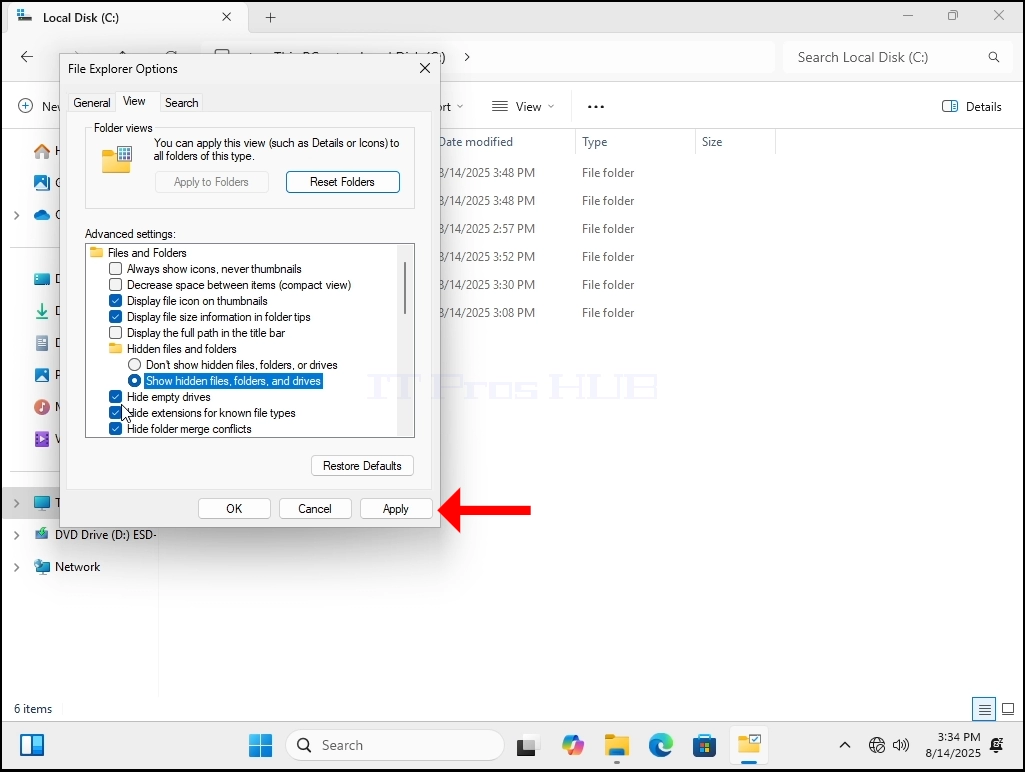
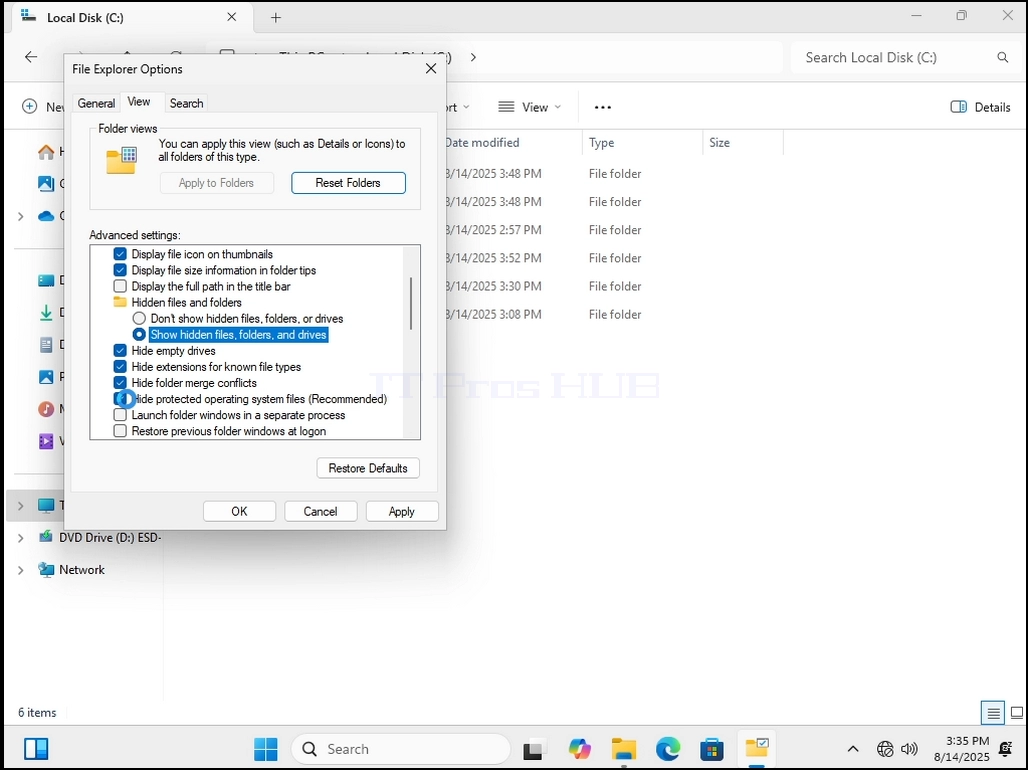
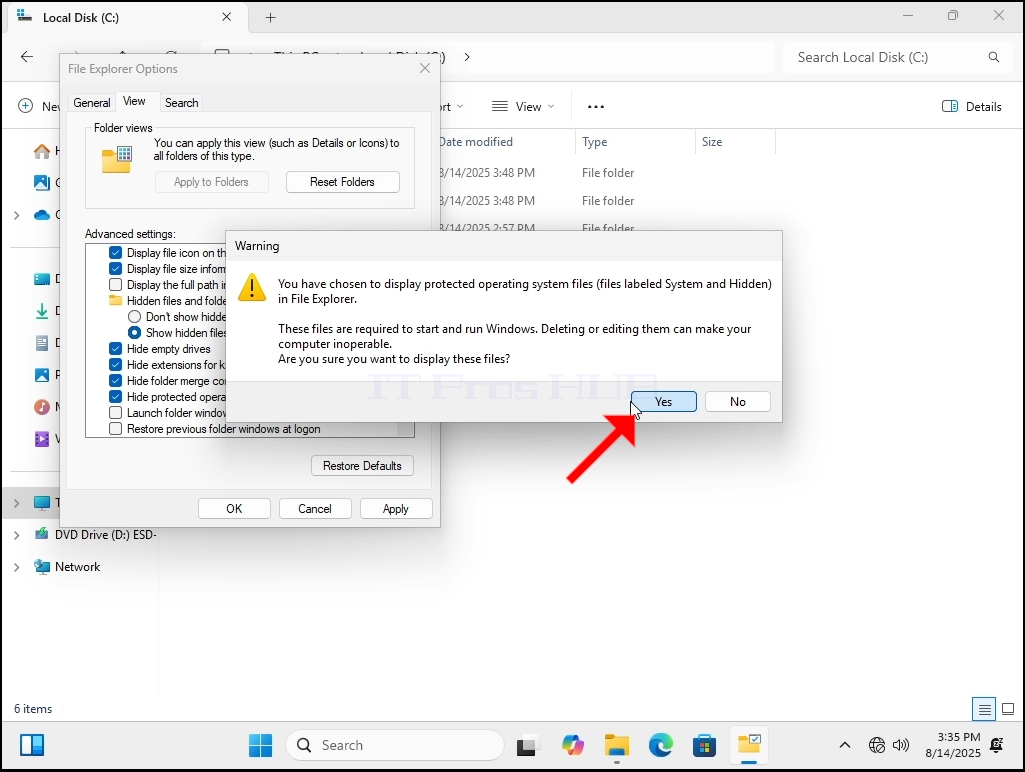
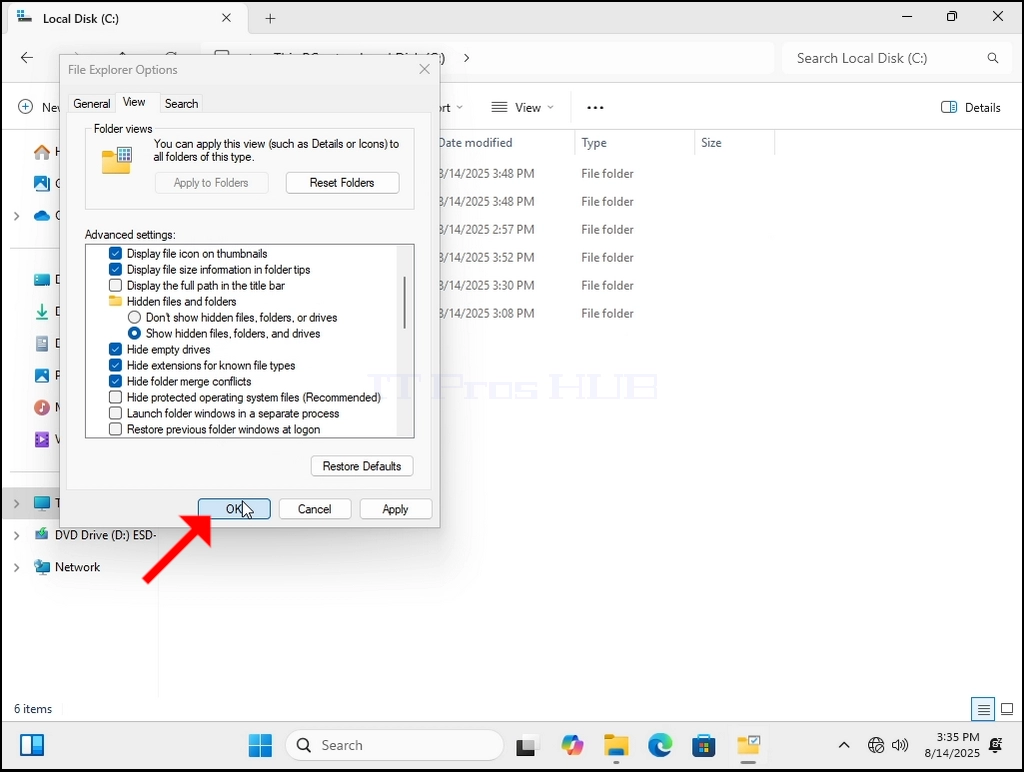
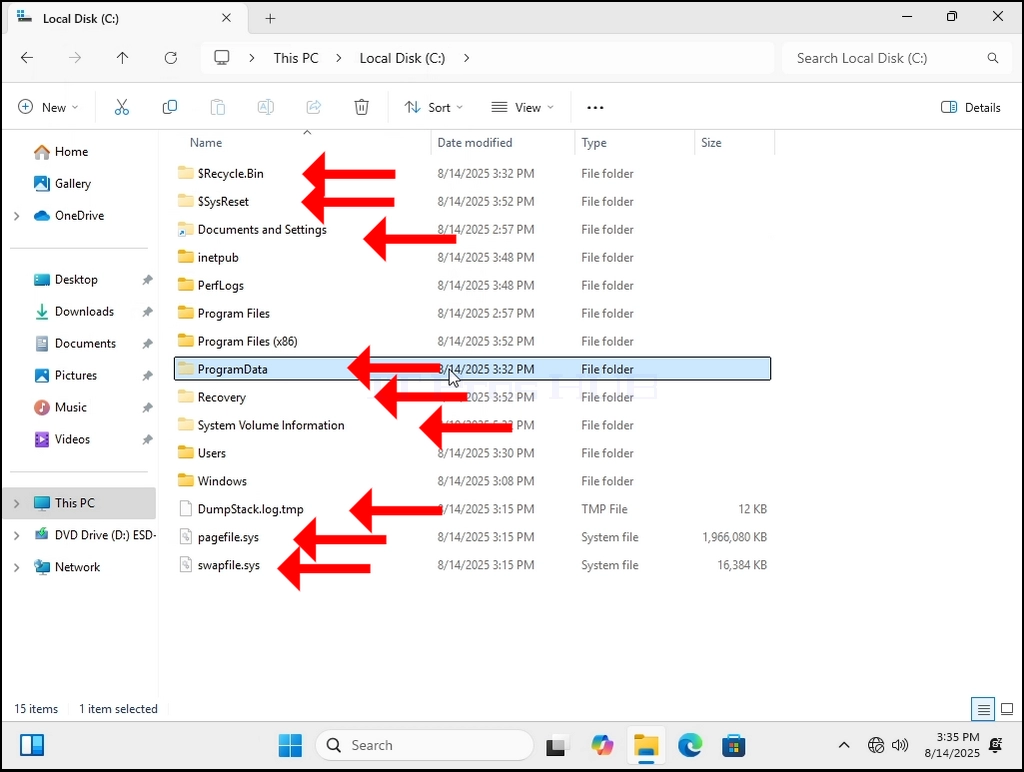
7. Let’s go back to C: drive. Now we can see many more folders, and we can see some files as well.