Online: 998 online | Members: 0 | Guests: 998
Thursday, June 4, 2026
Page Minimap
There is no translation available.

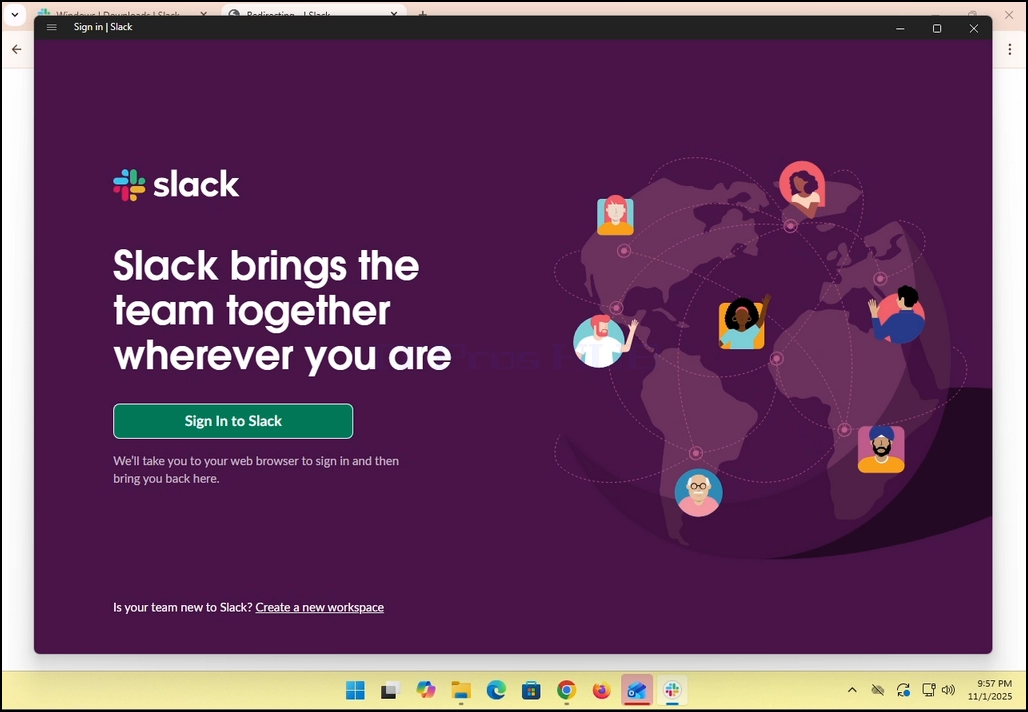
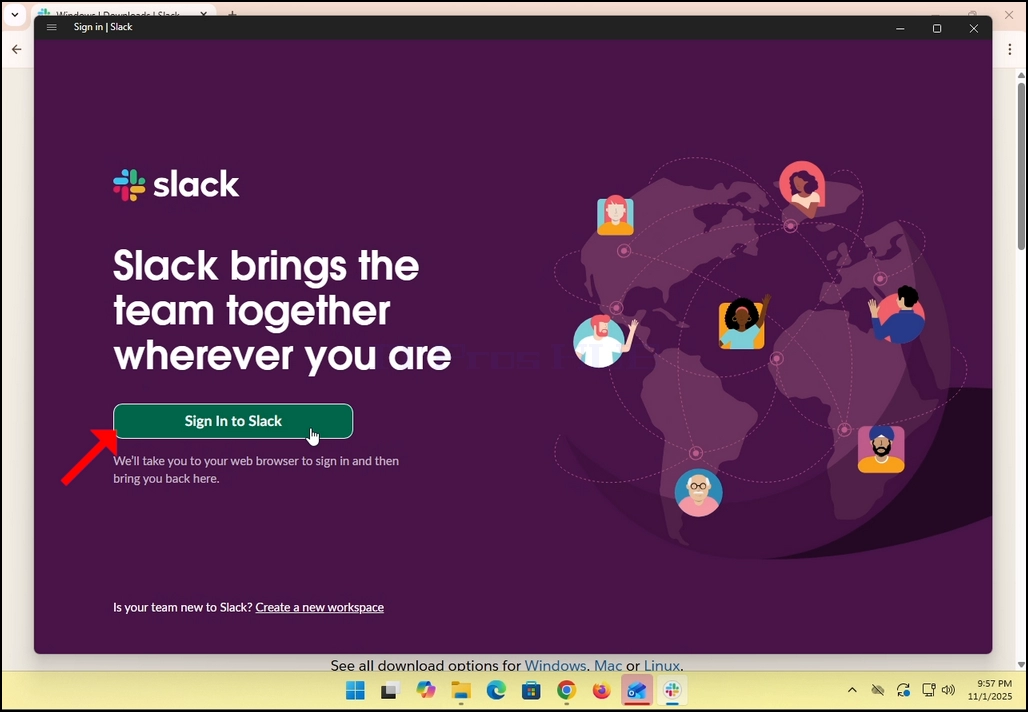
 1. Open Slack. Make sure you see the window below:
2. Click on the green button titled :”Sign in into Slack”.
how-to-sign-into-slack-using-a-google-account-2.webp

3. Slack will redirect you to a login screen in your default browser. In the case of this article, it is Chrome.

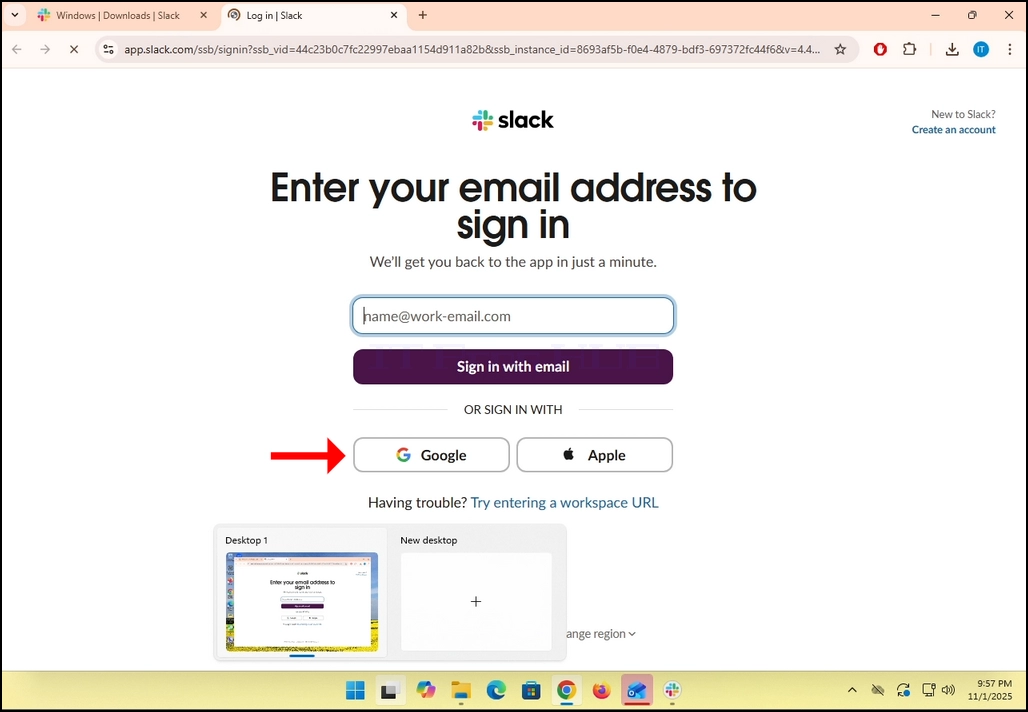
4. As you can see, Slack wants you to Enter your email address to sign in. we will use our Gmail email address to do that.

  1. Click the Google button and wait for the Google connector page to load.
how-to-sign-into-slack-using-a-google-account-4.webp

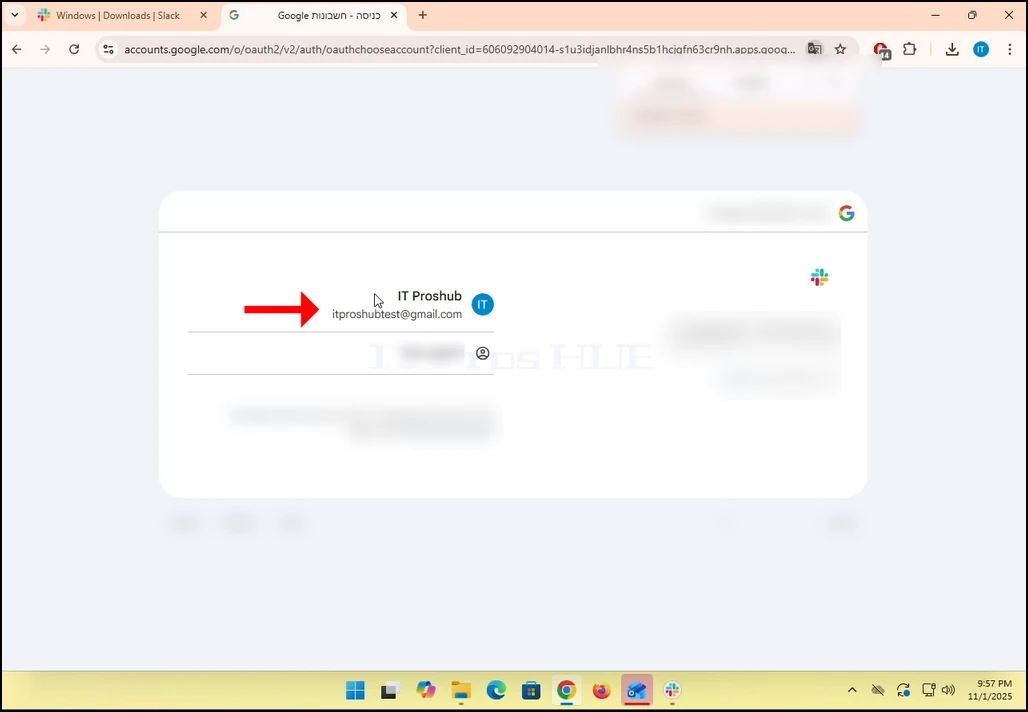
6. In the Google connector page, choose your Gmail email address. Note that in the case of this article, This email address is being protected from spambots. You need JavaScript enabled to view it. was already logged into Google Chrome browser, therefor, the default Gmail account shown is that very address.

7. If you are not logged into Chrome or use a different browser, just login to your Google account and then choose that account to continue.
how-to-sign-into-slack-using-a-google-account-6.webp

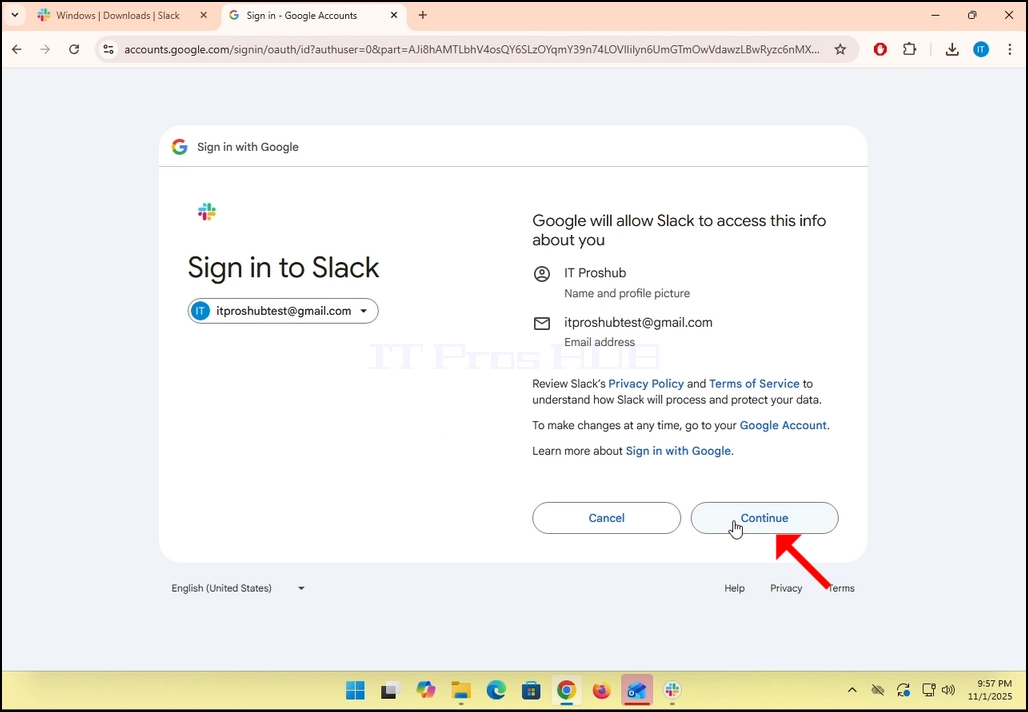
8. Once logged into Google and Chosen, click the Continue button and wait for the next page to load.

how-to-sign-into-slack-using-a-google-account-7.webp

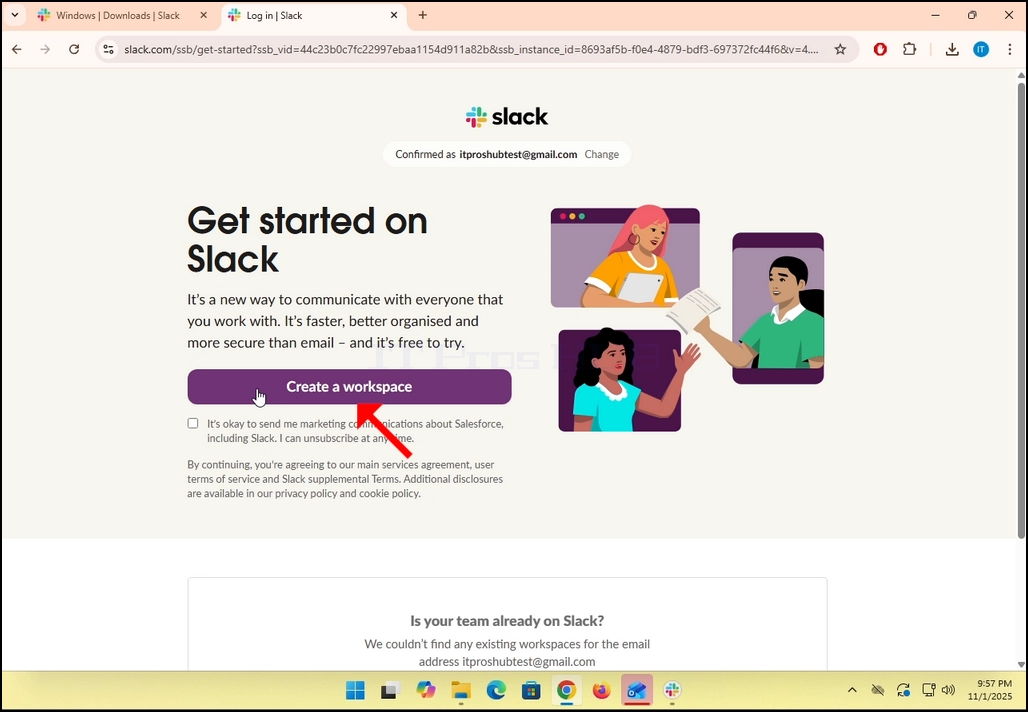
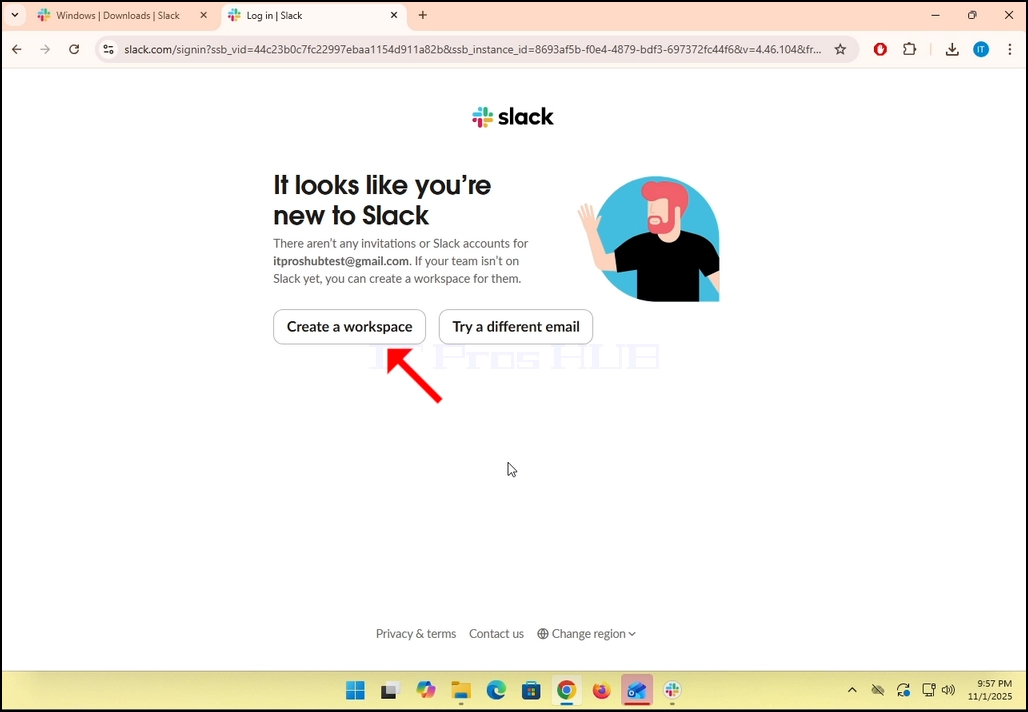
9. If you already have a Slack account under that Gmail email address, then Slack will redirect you back to itself. If not, it will ask you to either Create a workspace or Try a different email.

  1. In the case of this article, we will choose Create a workspace.
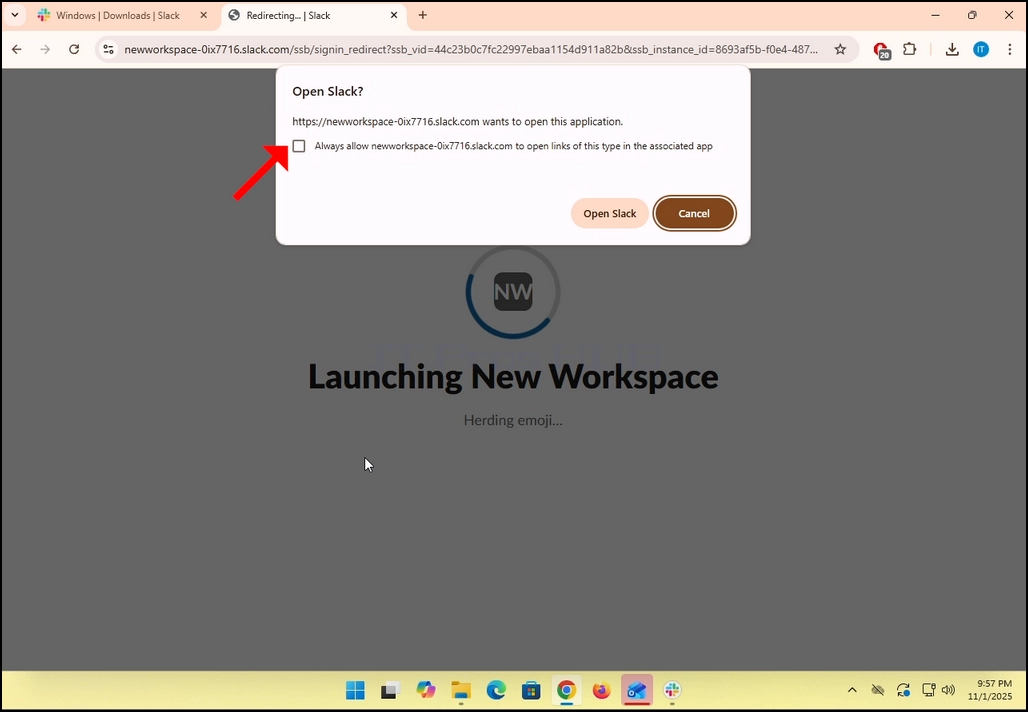
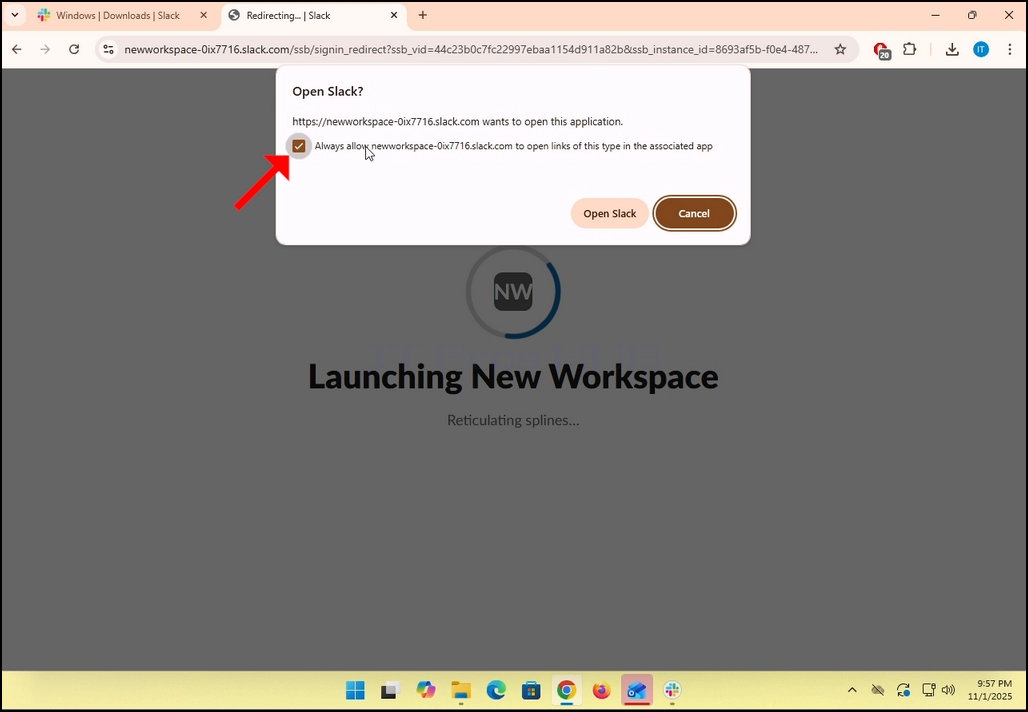
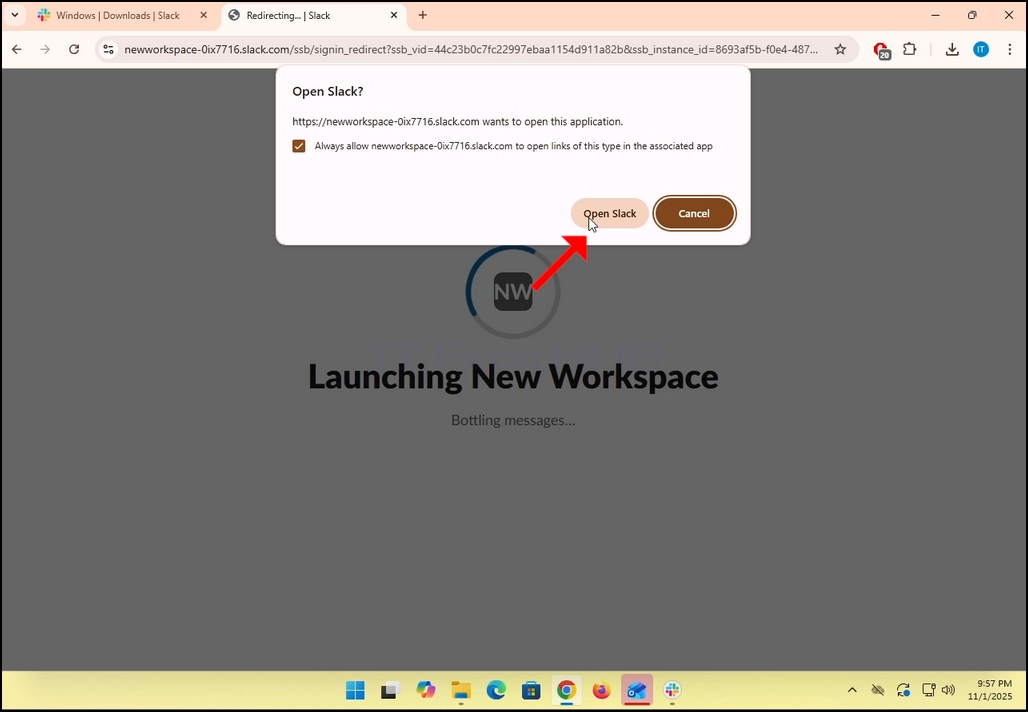
how-to-sign-into-slack-using-a-google-account-8.webphow-to-sign-into-slack-using-a-google-account-11.webp

how-to-sign-into-slack-using-a-google-account-12.webphow-to-sign-into-slack-using-a-google-account-13.webphow-to-sign-into-slack-using-a-google-account-14.webp

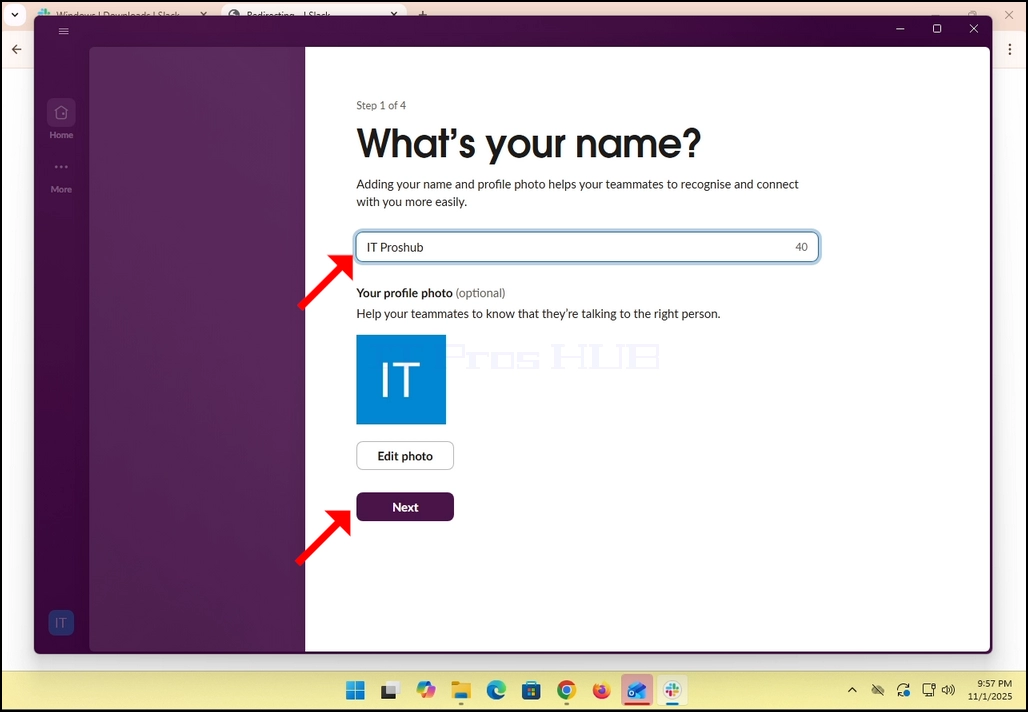
12. Again, if you already have an account with Slack with that Gmail address you should see Slack’s GUI by now, if not, like in our case here, you will be asked to fill in some basic details about yourself like name, photo etc. Click the NEXT button.

how-to-sign-into-slack-using-a-google-account-15.webp

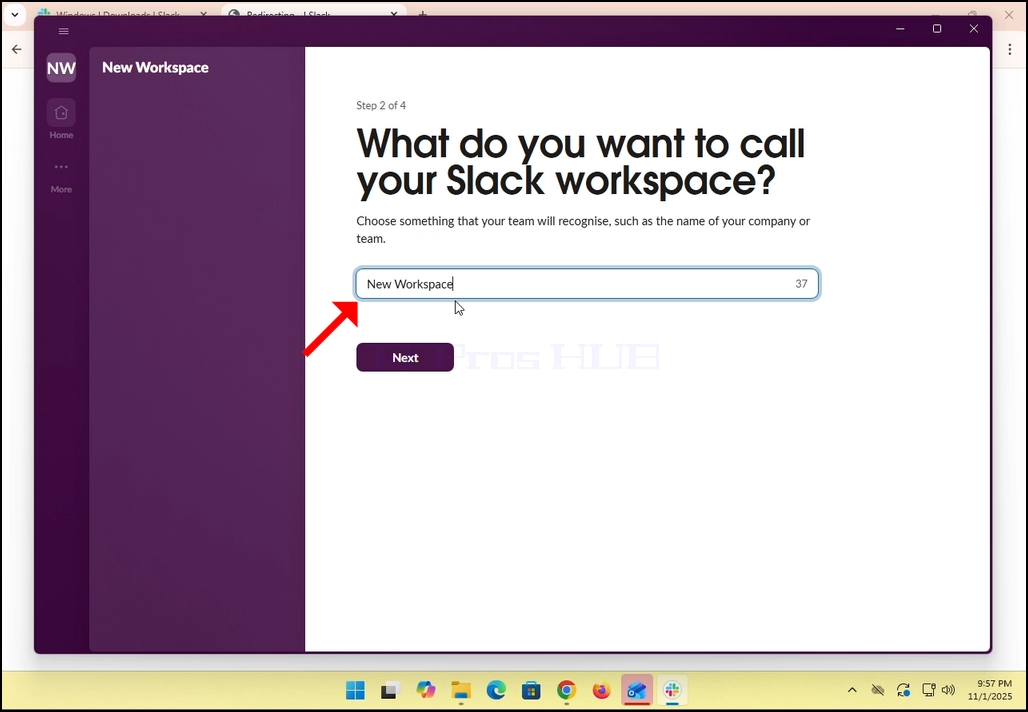
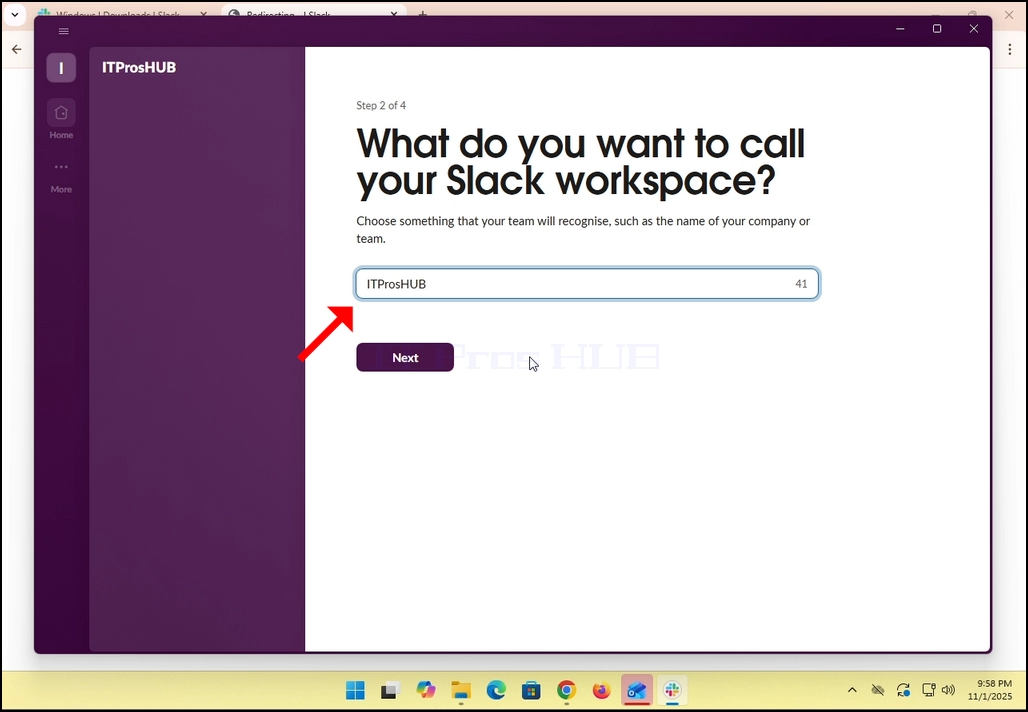
13. Name the workspace and click the NEXT button.

how-to-sign-into-slack-using-a-google-account-16.webphow-to-sign-into-slack-using-a-google-account-19.webphow-to-sign-into-slack-using-a-google-account-20.webp

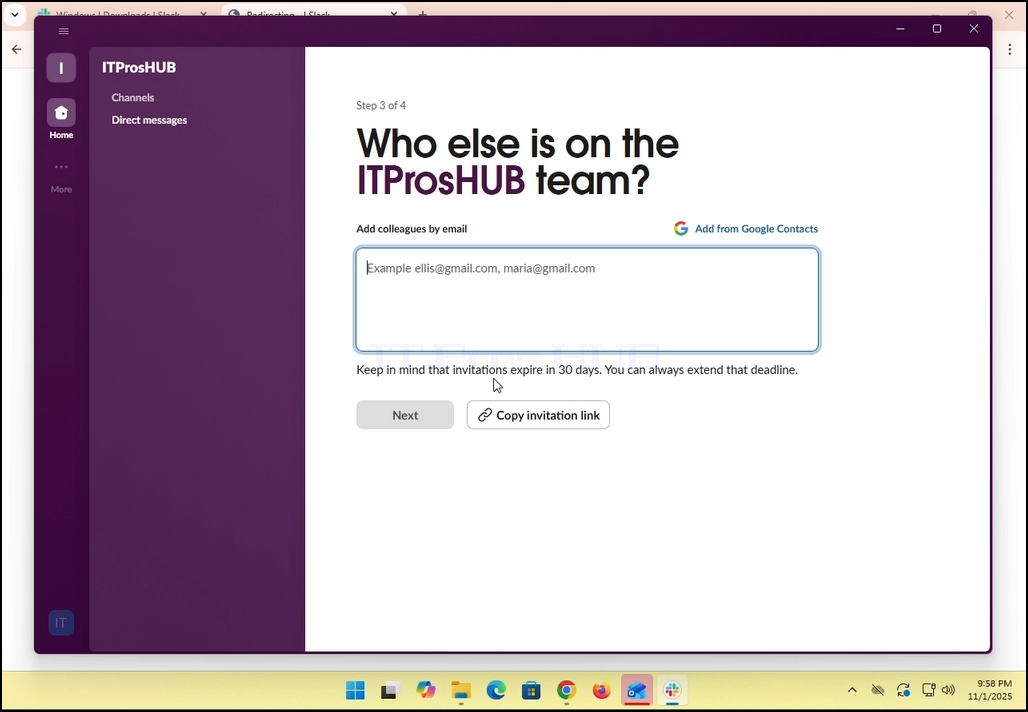
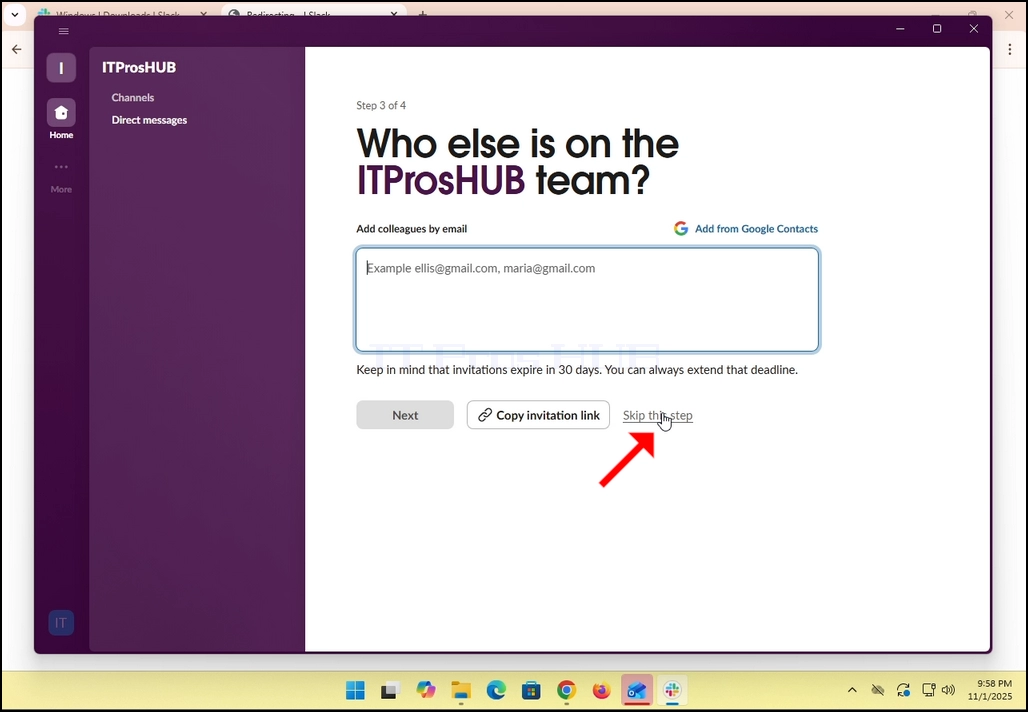
14. In the case of this article, we will skip this step by clicking in the Skip this step option.
how-to-sign-into-slack-using-a-google-account-22.webphow-to-sign-into-slack-using-a-google-account-23.webp

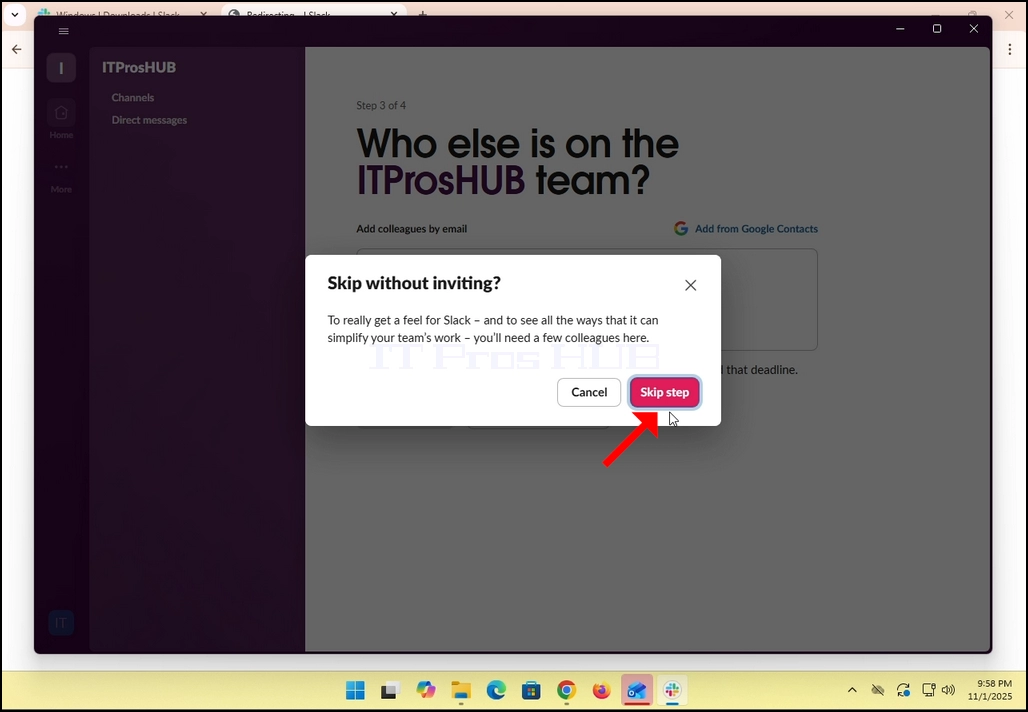
15. Click the Skip step button

how-to-sign-into-slack-using-a-google-account-24.webp

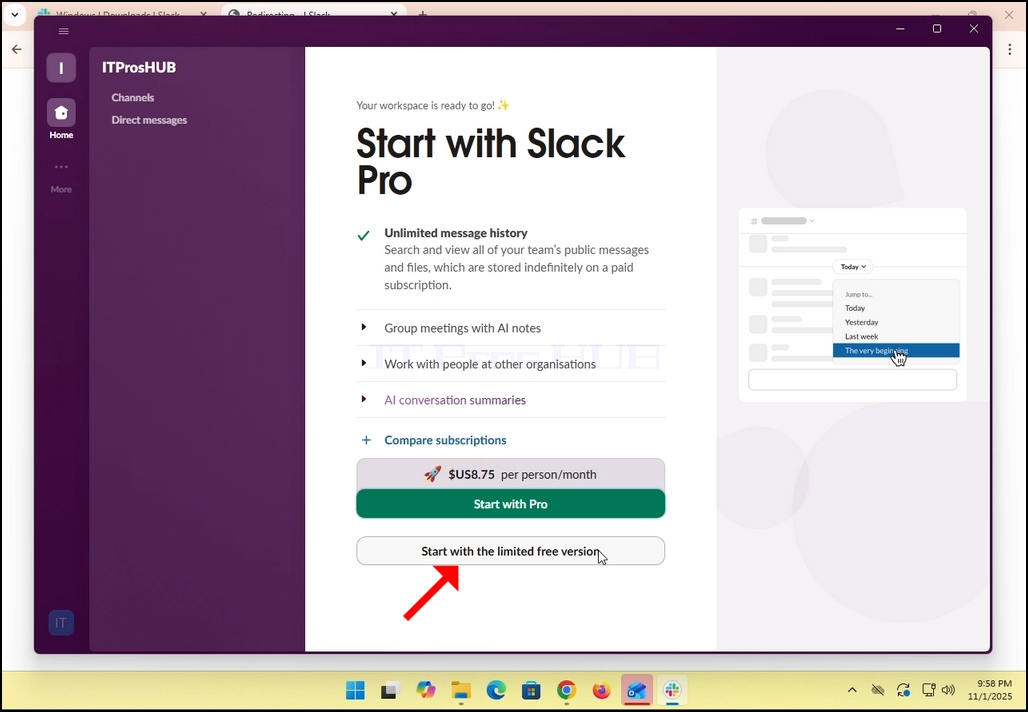
16. Click on Start with limited free version. If you wish to go pro, then click the Green button titled “Start with Pro”.

how-to-sign-into-slack-using-a-google-account-25.webphow-to-sign-into-slack-using-a-google-account-26.webp

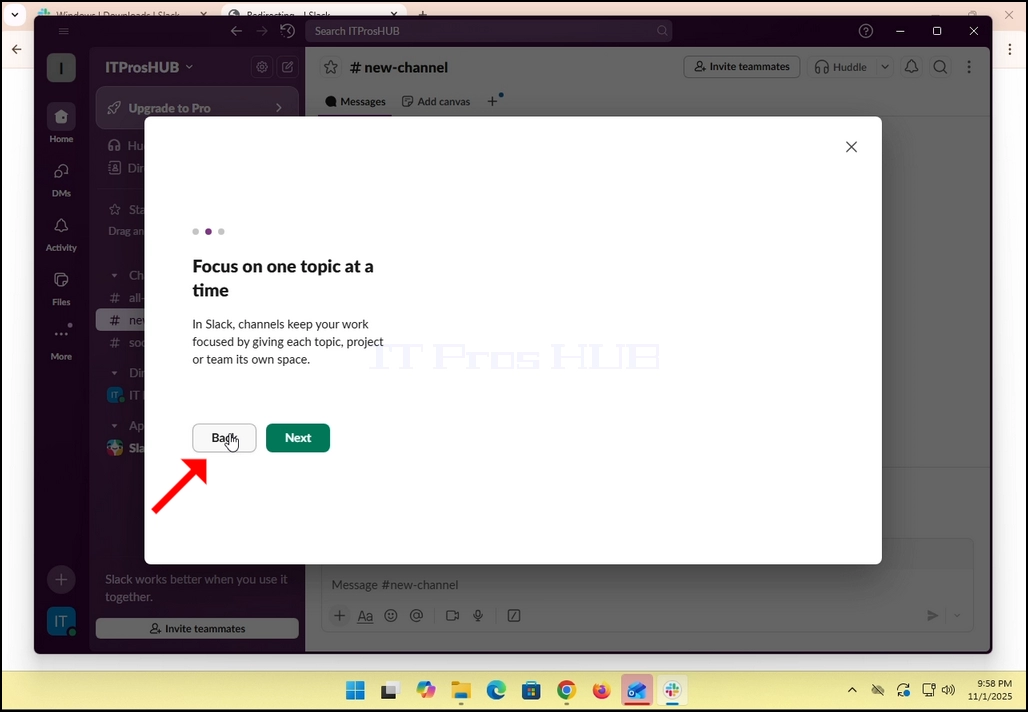
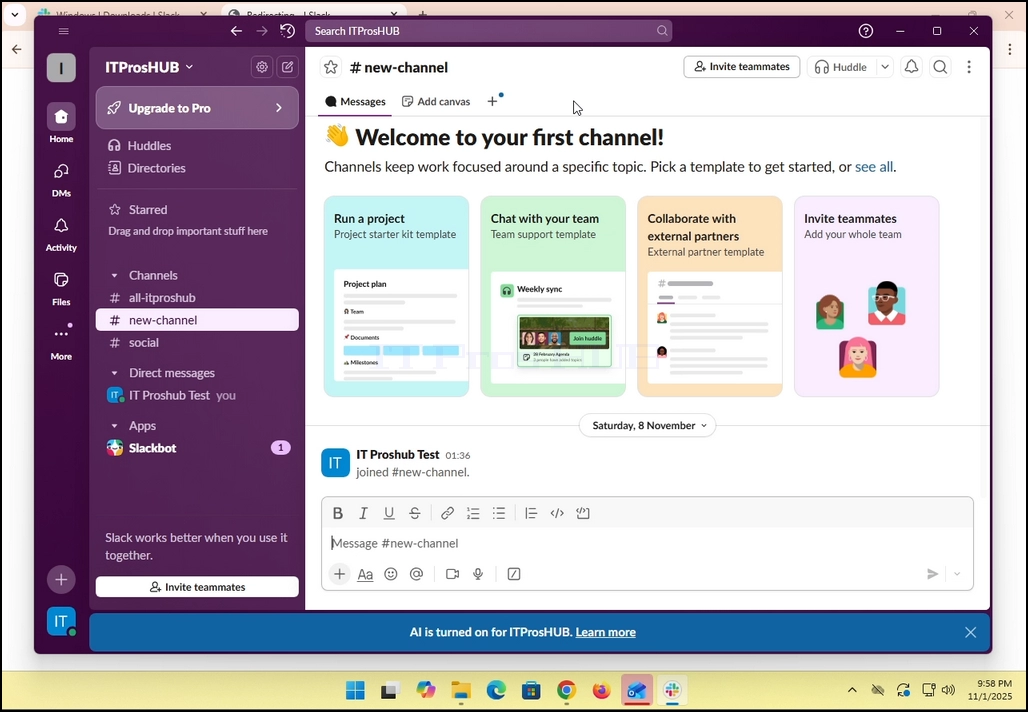
17. All done! You Slack now uses your Gmail email account!
how-to-sign-into-slack-using-a-google-account-27.webp