



- Details
- Written by: IT Pro
- Category: SaaS
- Hits: 5131
1. Open the Firefox browser
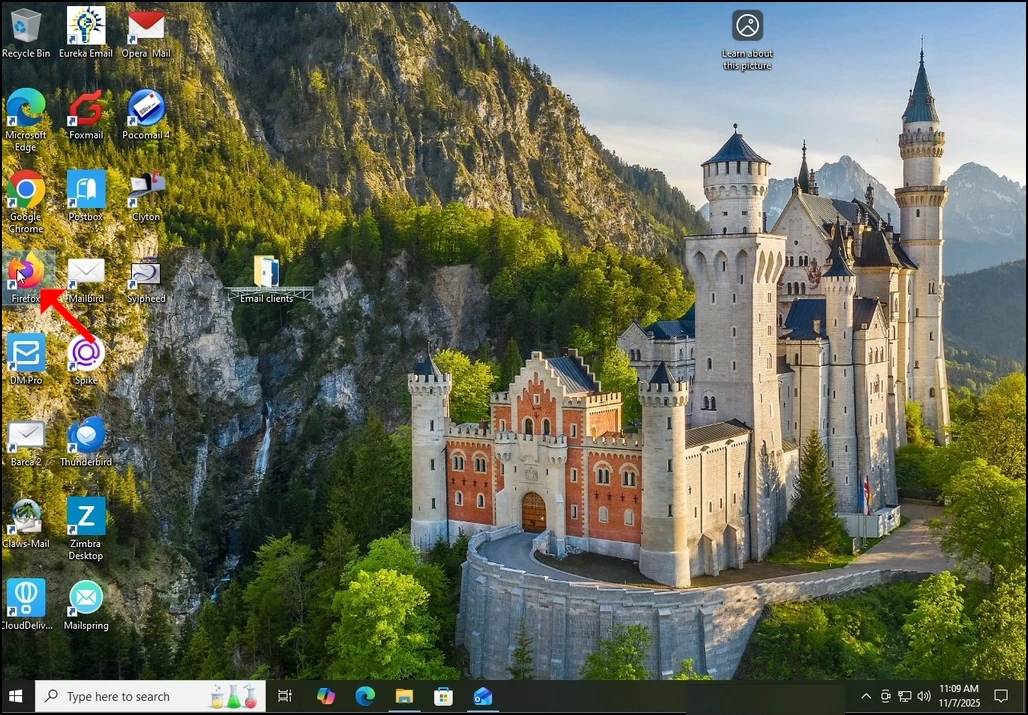
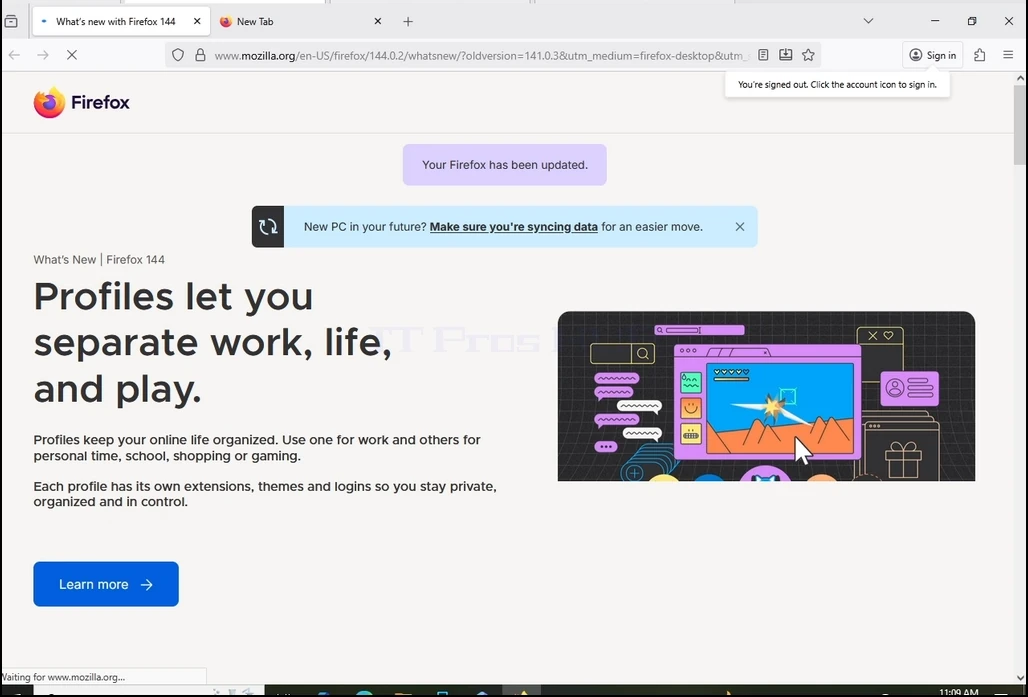
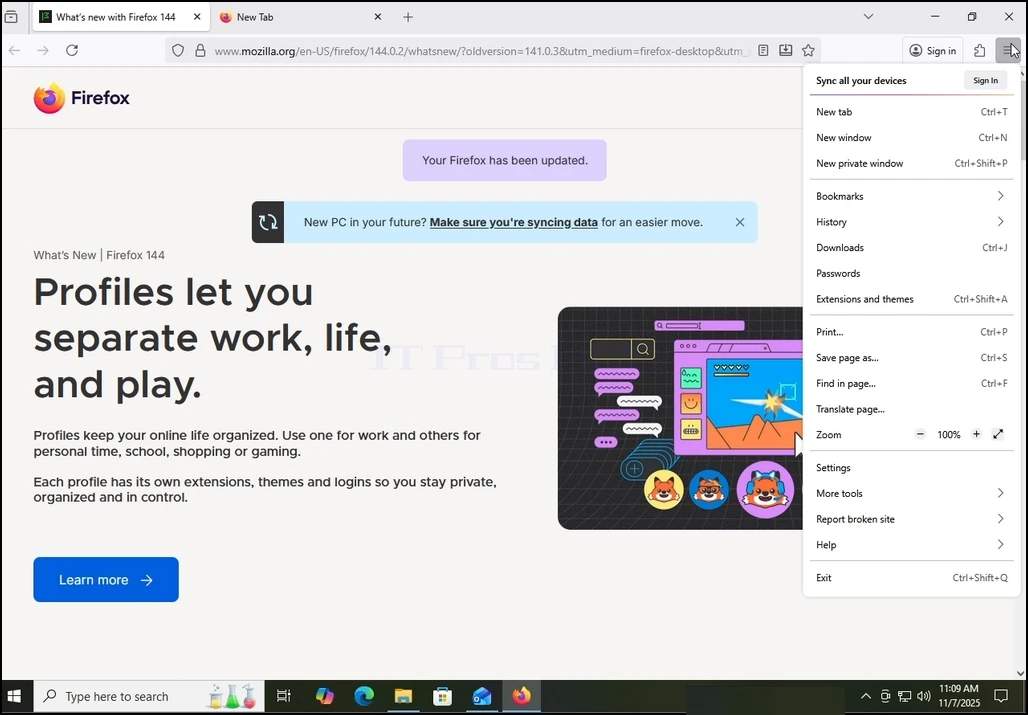
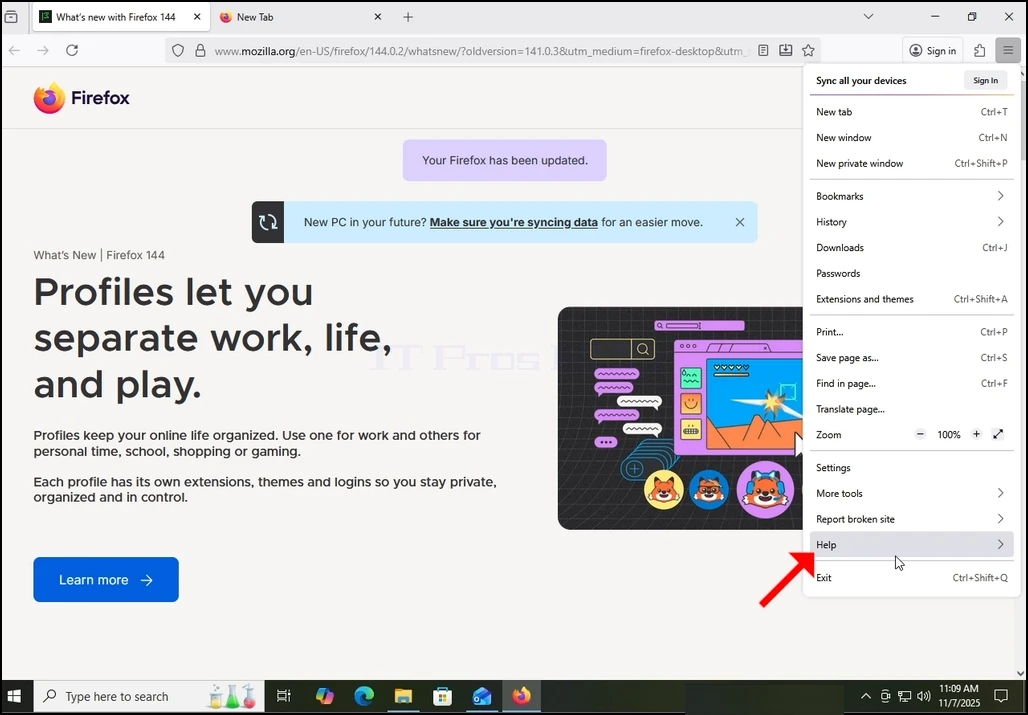
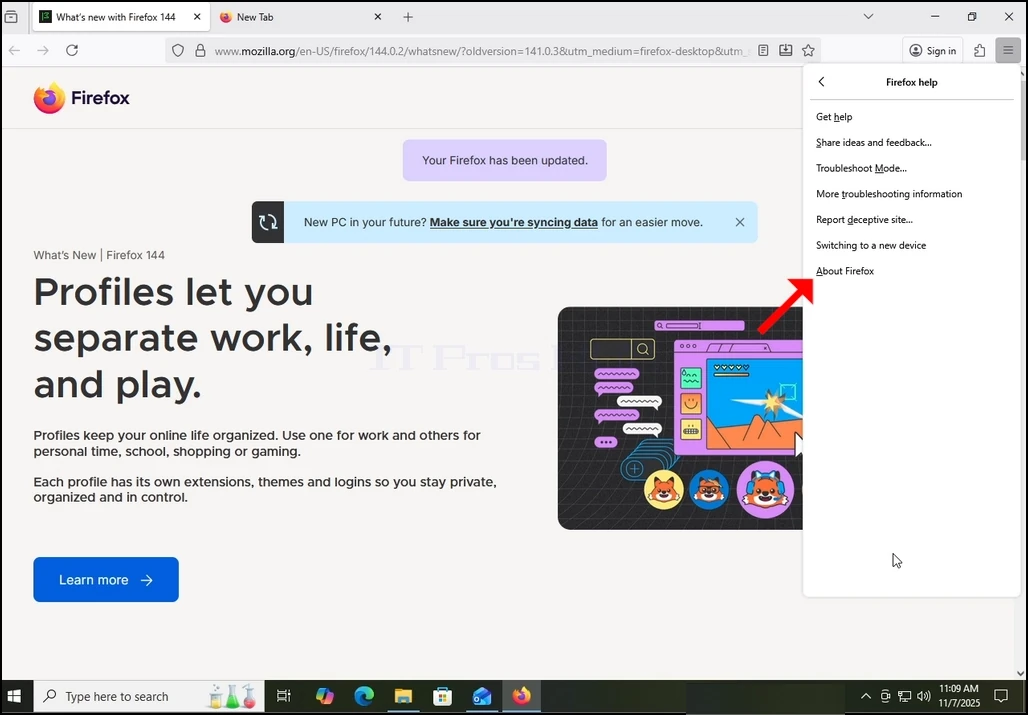
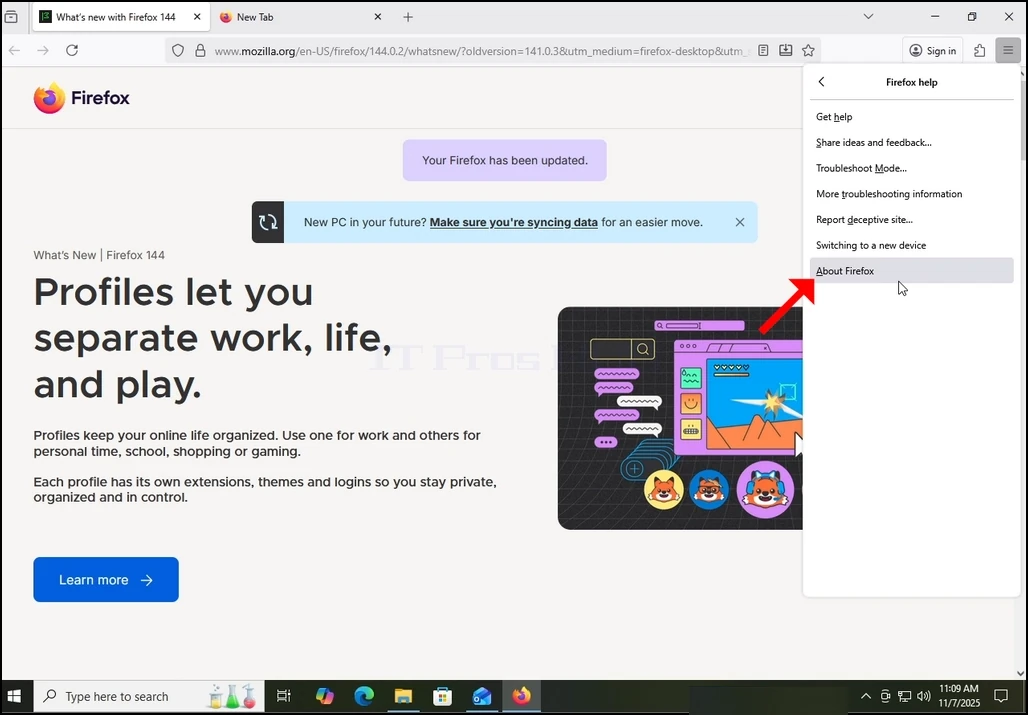
4. Once extended, more options will appear. Choose the last one. “About Firefox” and click on it once. Once clicked, a popup window will appear titled “About Mozilla Firefox”.
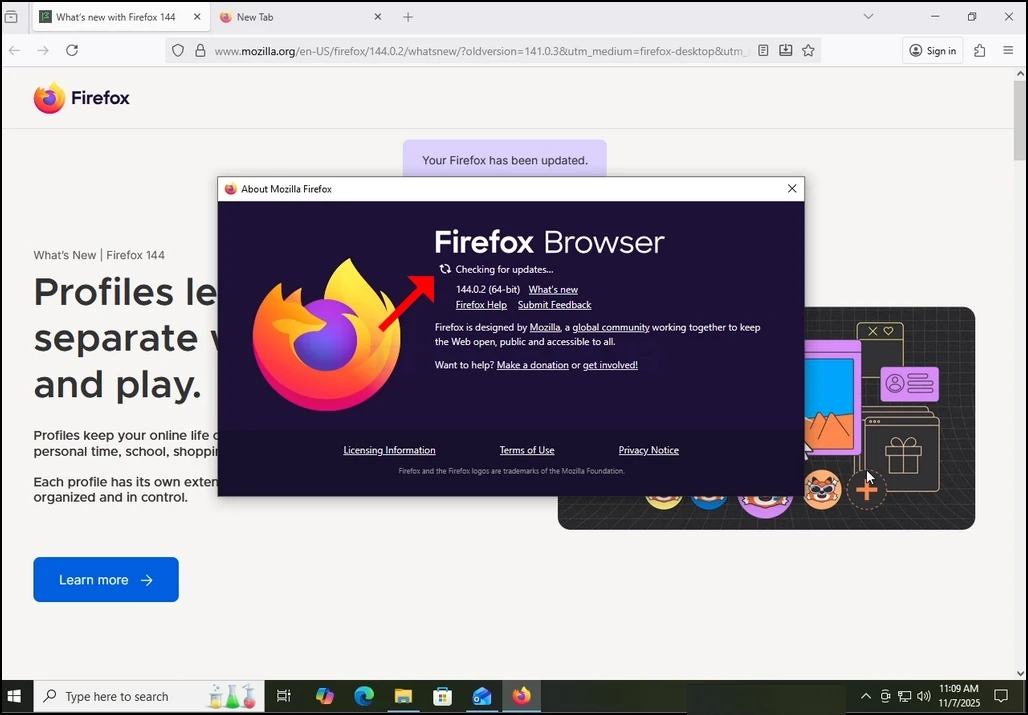
5. Once the mentioned window appears. Firefox would immediately start looking for updates for itself. It will notify you by showing the “Checking for updates…” sentence siding with a small, animated icon of 2 arrows “chasing” each other.
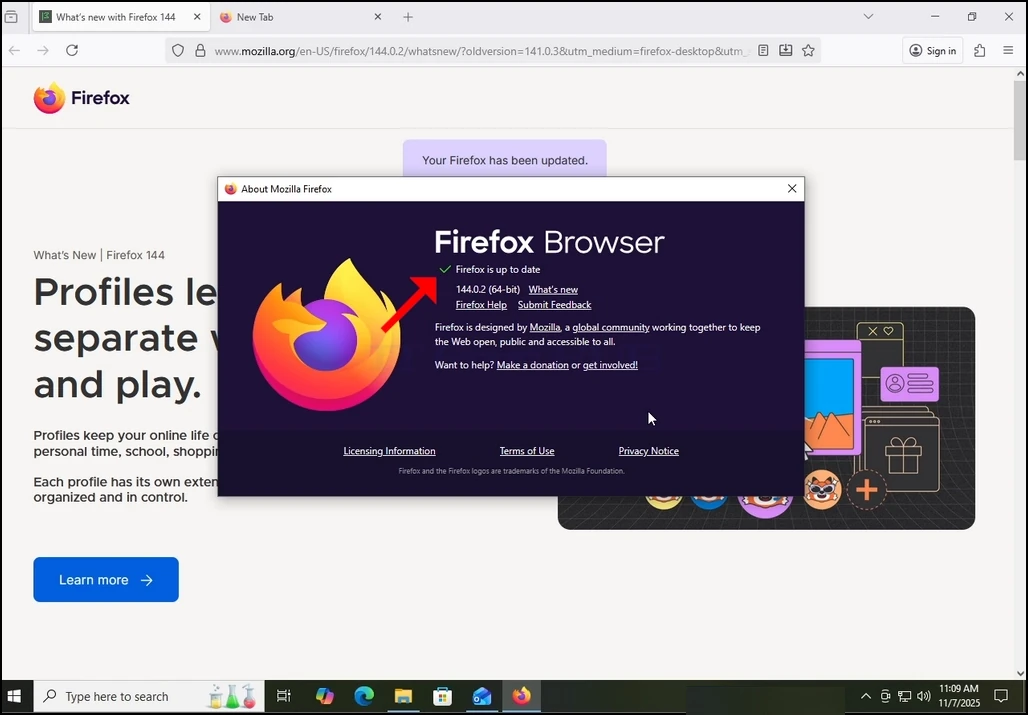
6. If there are updates pending or a newer version of Firefox available in Mozilla’s repositories, then Firefox would update itself automatically. If not, like in our case, Firefox would reply with the “Firefox is up to date” sentence instead of the “Checking for updates” one.
- Details
- Written by: IT Pro
- Category: SaaS
- Hits: 7980
1. Uddit feerorde internet. E nder haala ndee winndannde maa en kuutoro jaynirde Google Chrome.
2. Yah to njiylawu mo cuɓ-ɗaa. E nder ndee winndannde, ma en kuutoro lowre njiylawuGoogle
3. Winndu ƴettu Firefox, piy heen jokkol ngol. Waɗde ɗaɓɓu nde njeñtudi ndii loowetee.
4. Ko ɓuri heewde e njiylawu, njeñtudi njiylawu yiɗde ndee ina foti feeñde e fuɗɗoode hello njeñtudi njiylawu ngoo. E nder haala kaa ko noon.
Heɓ Firefox ngam desktop – Firefox (US).
b. Innde domen ndee foti ko firefox.com
c. URL oo ina foti wonde 5. Ɓoɗɗu njeñtudi yiɗde ndii laawol gootol, ɗaɓɓu haa hello Firefox ngoo loowee.
6. E nder hello ƴettugol Firefox, maande cuɓal Set Firefox ngam wonde feerorde maa caggal ɗuum, ɓuɗɗu e butoŋ bulo Ƴeewndo firefox. Ɓoɗɗude oon butoŋ ina foti nawde ma to hello ƴettugol ngoo e hoore mum ɗo golle ƴettugol fiilde exe jokkorgal Firefox foti fuɗɗoraade.
7. So tawii golle ƴettugol tigi rigi puɗɗiima aɗa foti yiyde won e ko hollirta e nder feerorde maa wonde fiilde exe ndee ina ƴettee. E nder ndee winndannde, Chrome hollitii en wonde ko goonga fiilngo ina ƴettee.
- So a ɓuuɓtii laawol gootol e nate ƴettugol (ɓaawoore bulo) ina hollita fiilngo ƴettugol exe ƴettuɗo no yiyraa e foto ngo.
9. So ƴettugol fiilde udditgol ngol gasii, ɓuɗɗu e maggol laabi ɗiɗi, ɗaɓɓu haa windo Windows UAC feeña.