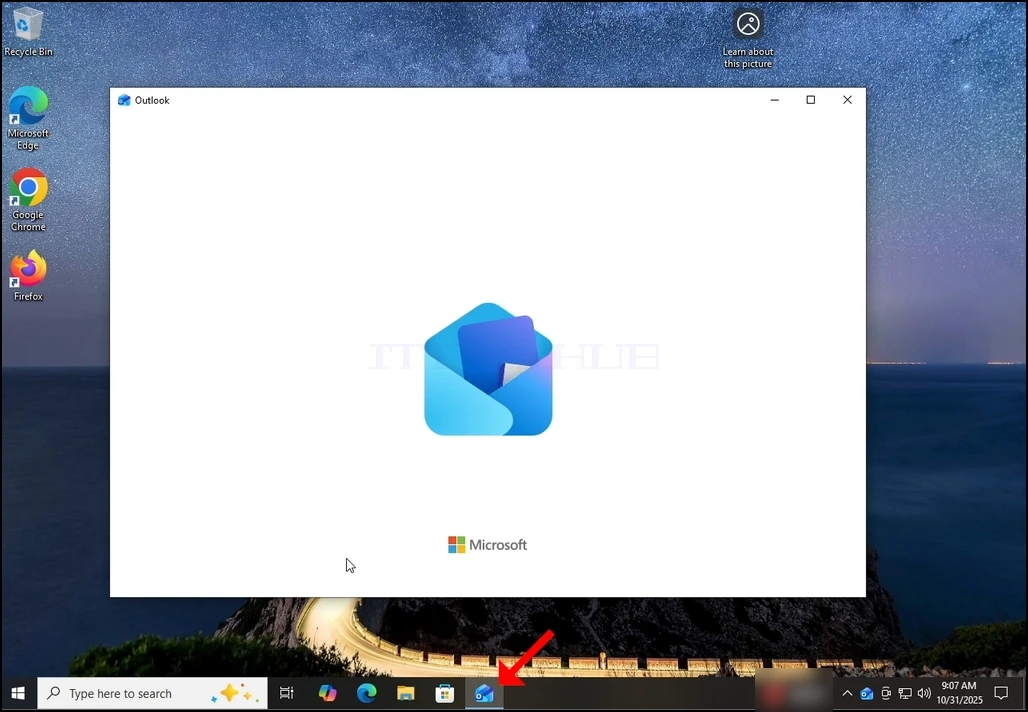
1. Start Outlook door te klikken op het pictogram in de taakbalk. In de meeste gevallen zou het Outlook-pictogram er wonen. Wacht tot het Splash scherm verschijnt en voor de Outlook-app te laden.
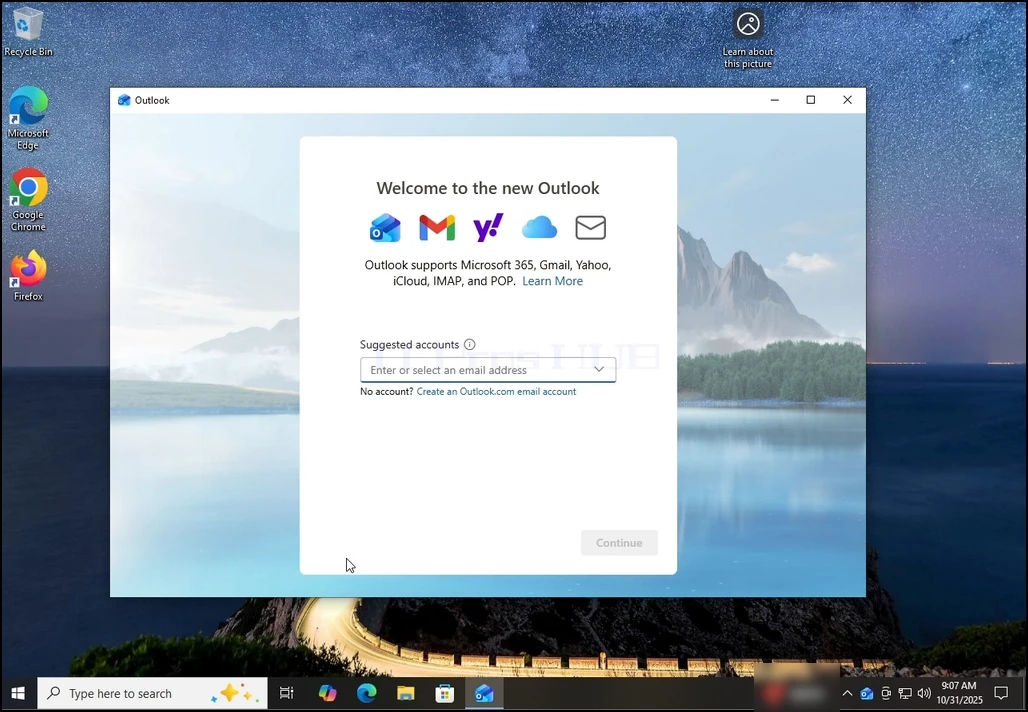
2. Na het laden, wordt u gepresenteerd met het "Welkom bij de nieuwe Outlook" scherm. Voer het e-mailadres in dat u wilt instellen. In ons geval zullen we een Gmail e-mailadres configureren.
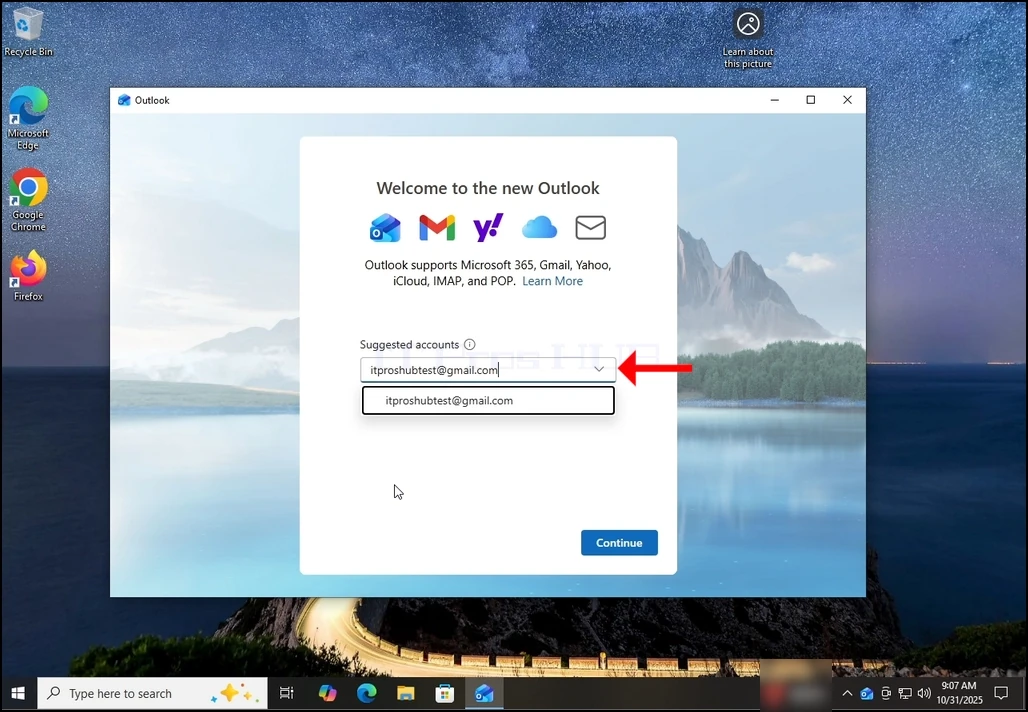
3. Typ uw Gmail adres in het tekstvak en klik op de knop Doorgaan.
4. U zult worden geïnformeerd dat Outlook zou adviseren om het om agenda, contacten en gebeurtenissen gegevens van uw Gmail accouit te krijgen voor een betere ervaring. Druk nogmaals op de knop Doorgaan en wacht tot het volgende scherm wordt geladen.

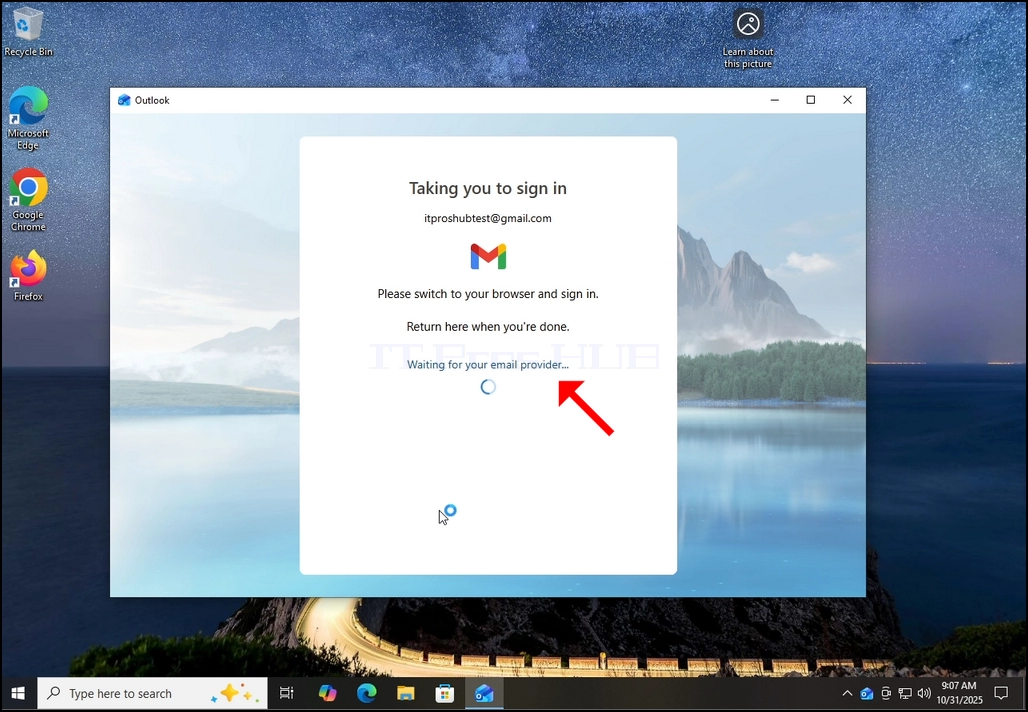
6. Na het raken van de knop Doorgaan Outlook zal gaan Google-aanmeldscherm met behulp van uw standaard browser.
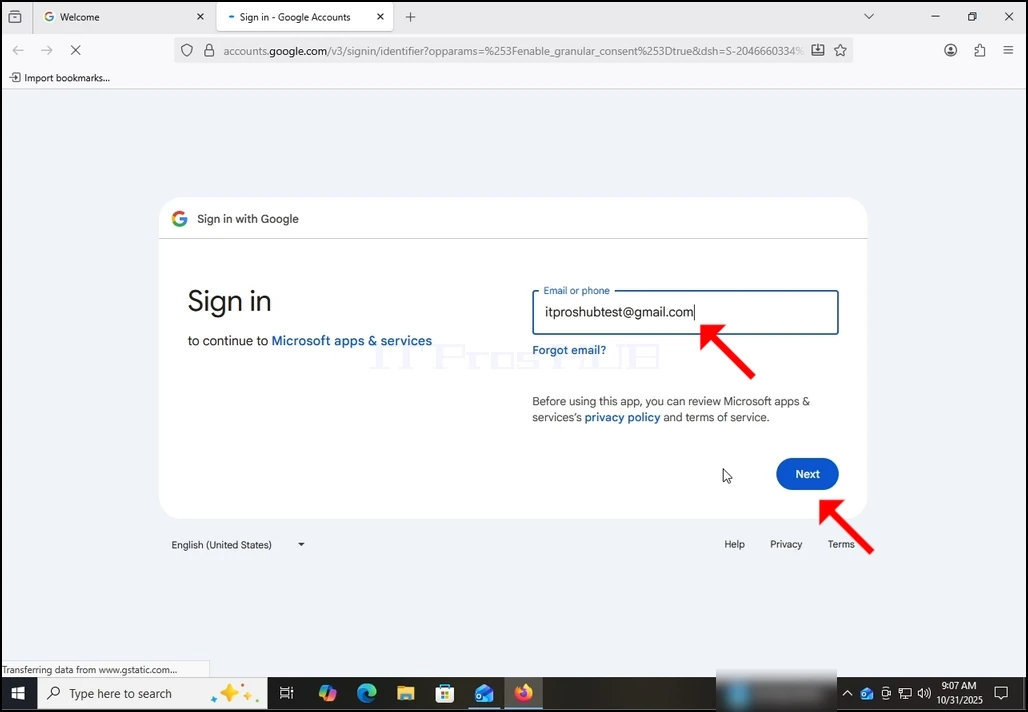
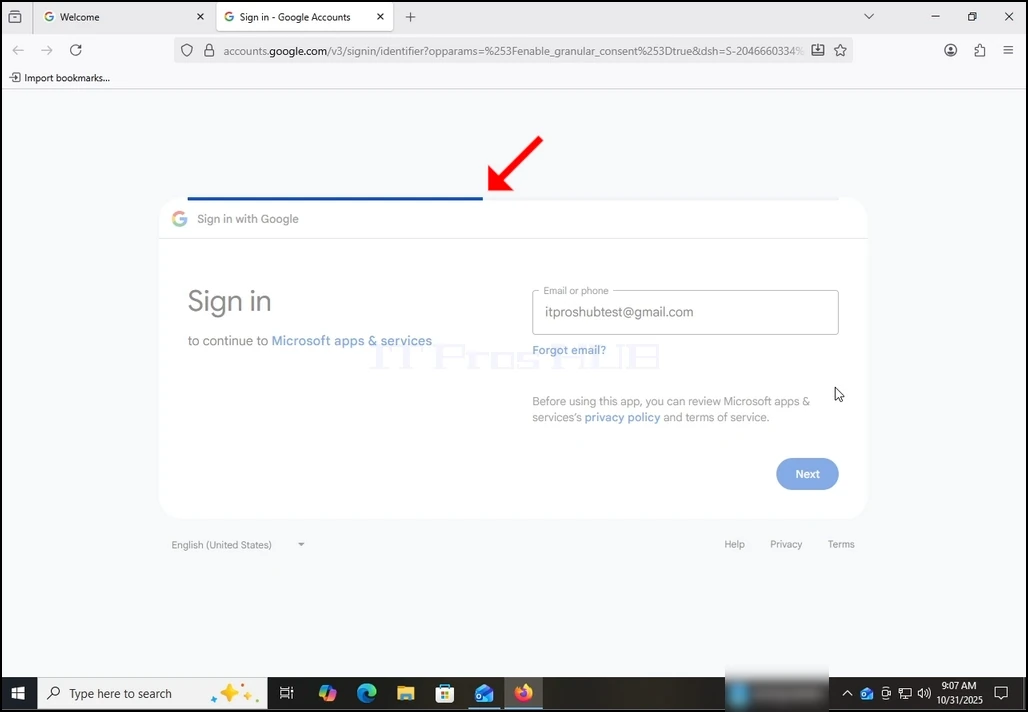
7. Vul uw Gmail e-mailadres opnieuw in en druk op de volgende knop.
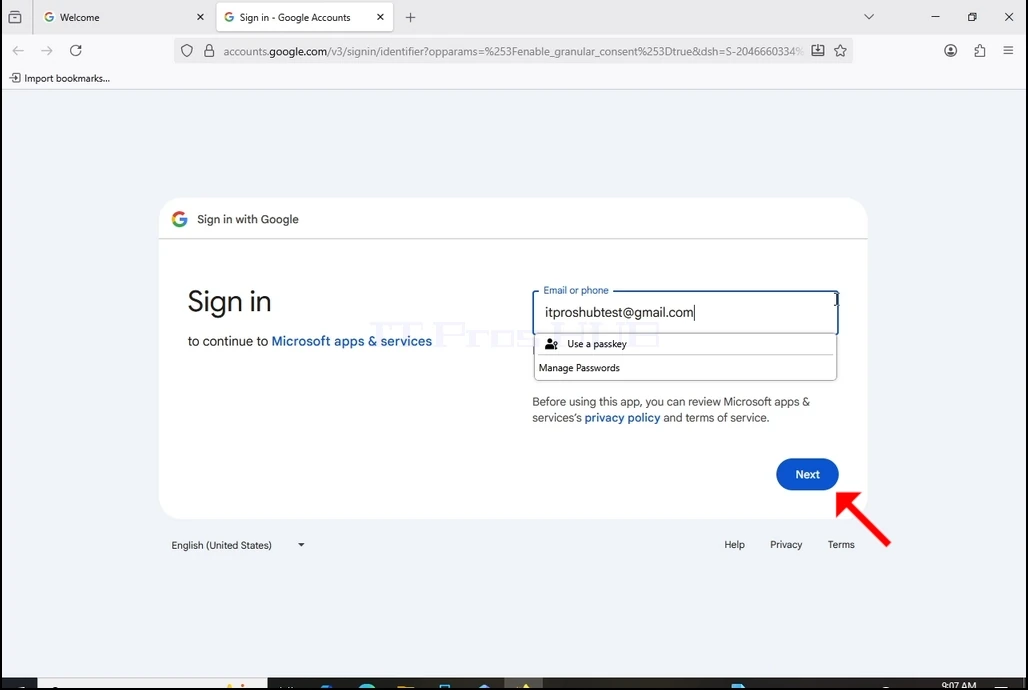
8. Na het raken van de volgende knop ziet u een laadbalk aan het bovenste deel van de login box.
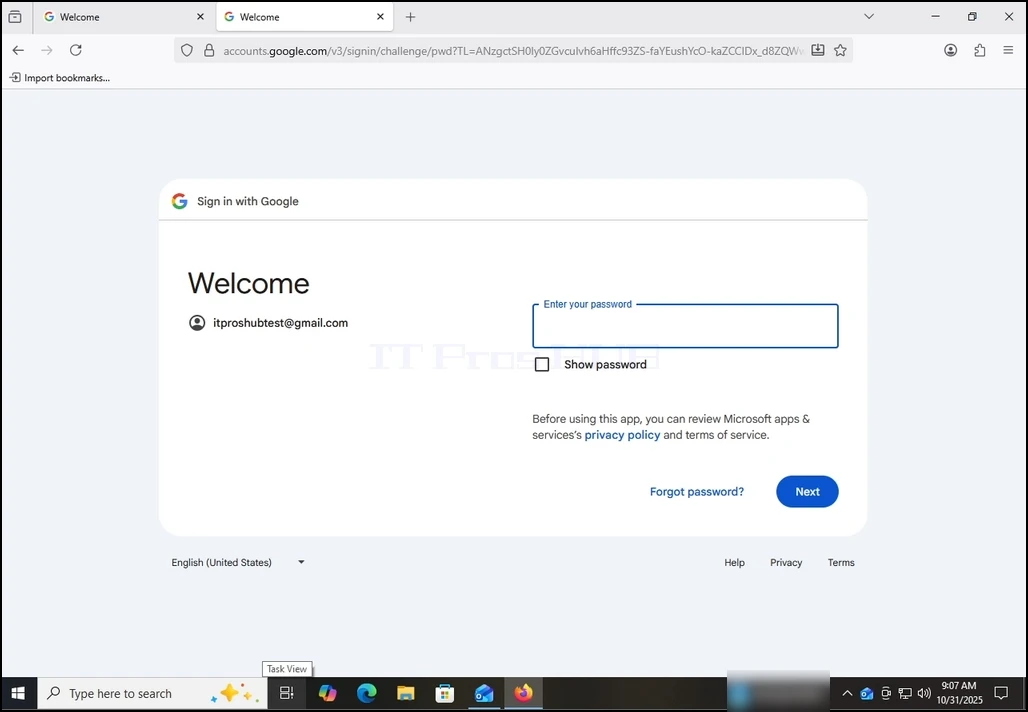
9. In de volgende fase wordt u gevraagd om het wachtwoord van uw Gmail in te voeren. Typ het en druk op de volgende knop.
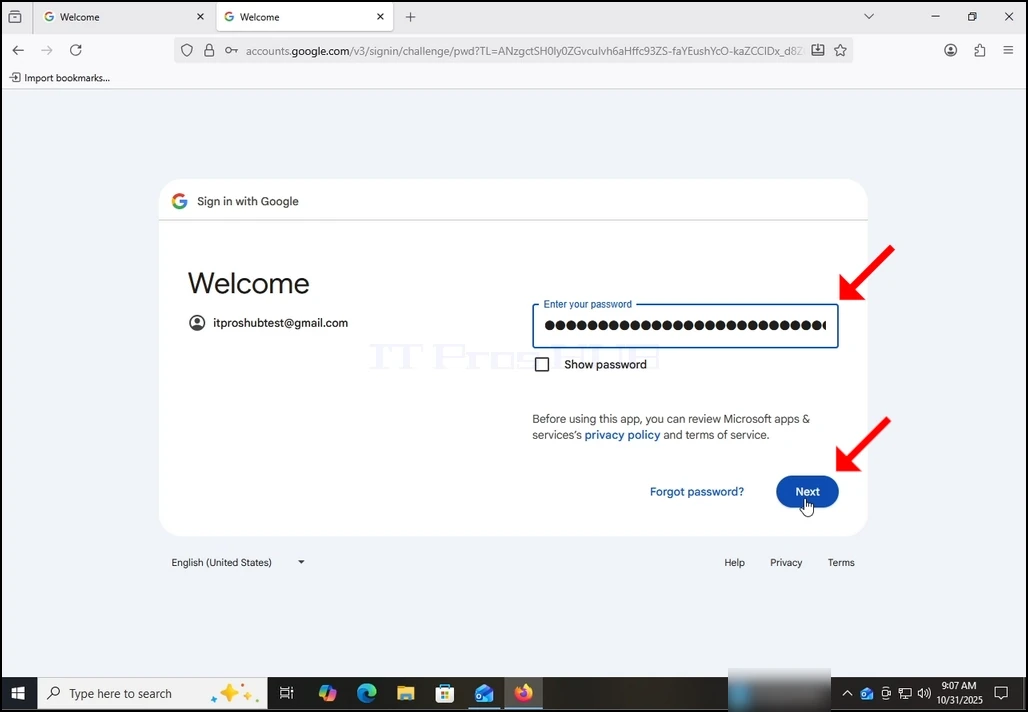
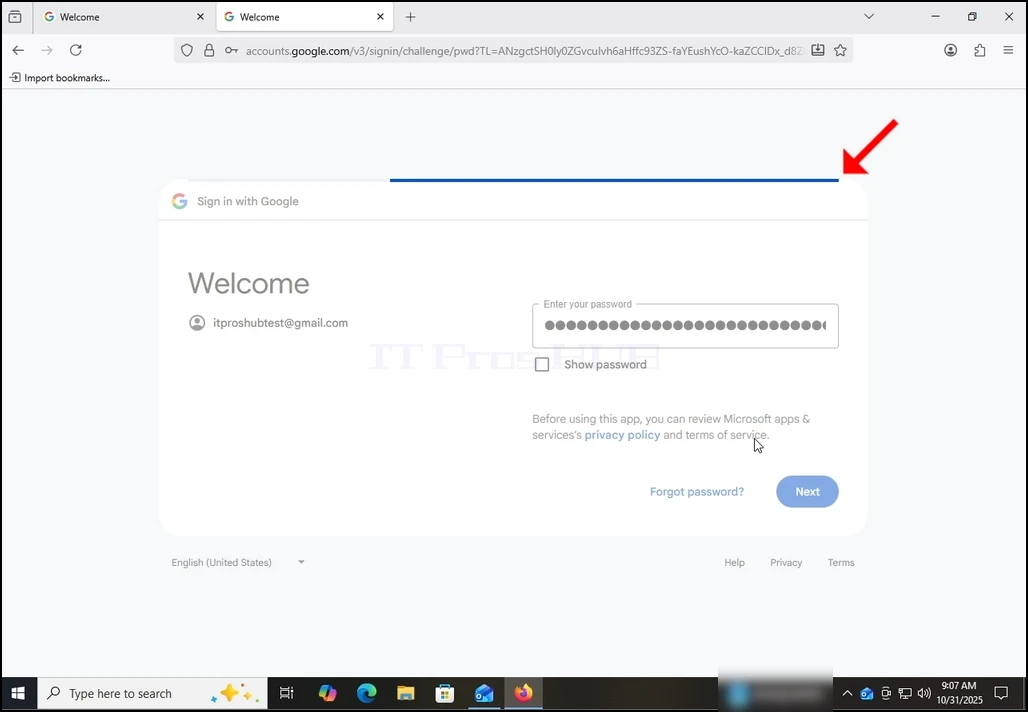
10. Wacht tot de volgende etappe geladen is.
11. Na de volgende stap ladingen kunt u worden gevraagd door de browser of u het wachtwoord op te slaan met het. In dit artikel zullen we het wachtwoord niet opslaan in de browser. Daarom kiezen we de Not Now knop.
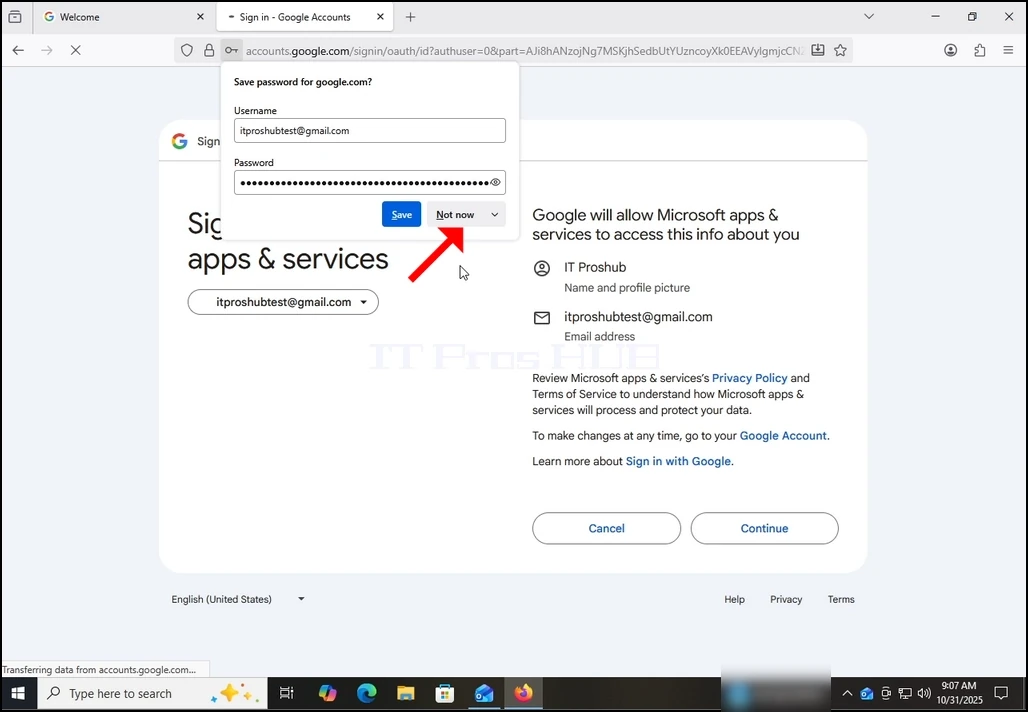
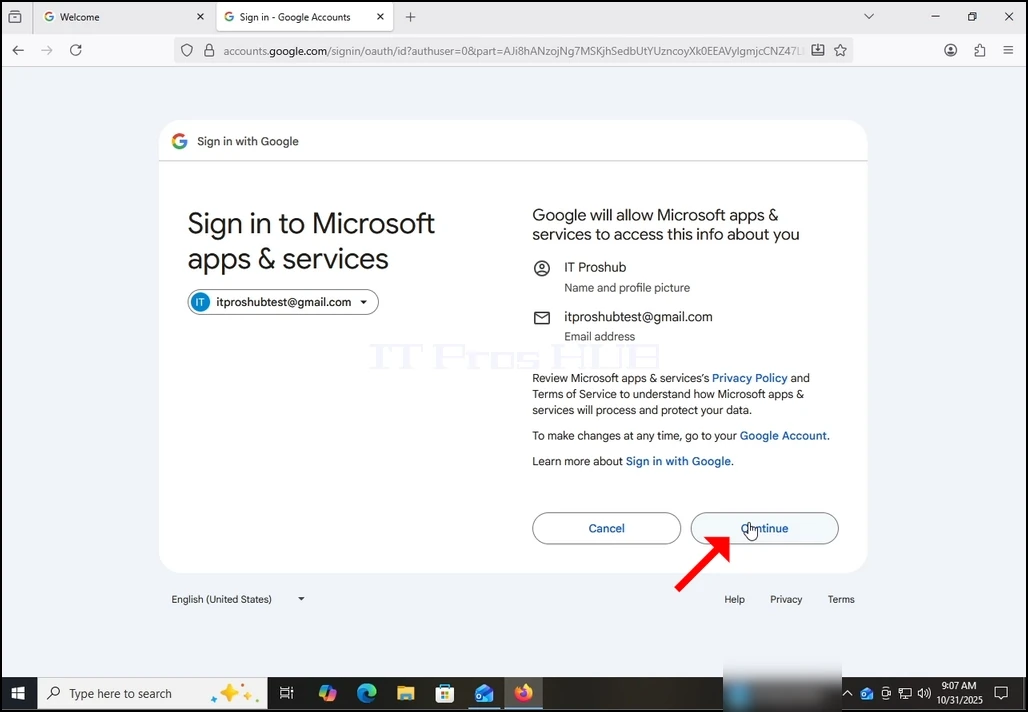
12. In het huidige stadium vraagt Google u om toestemming van Outlook (Microsoft-apps & Services) om toegang te krijgen tot uw Gmail-account. U wordt gepresenteerd met de informatie Outlook wil graag toegang tot. In dit geval wil Outlook toegang krijgen tot uw E-mail (Gmail) adres, Volledige naam en profielfoto.
Klik op de knop Doorgaan en wacht tot het volgende scherm wordt geladen.
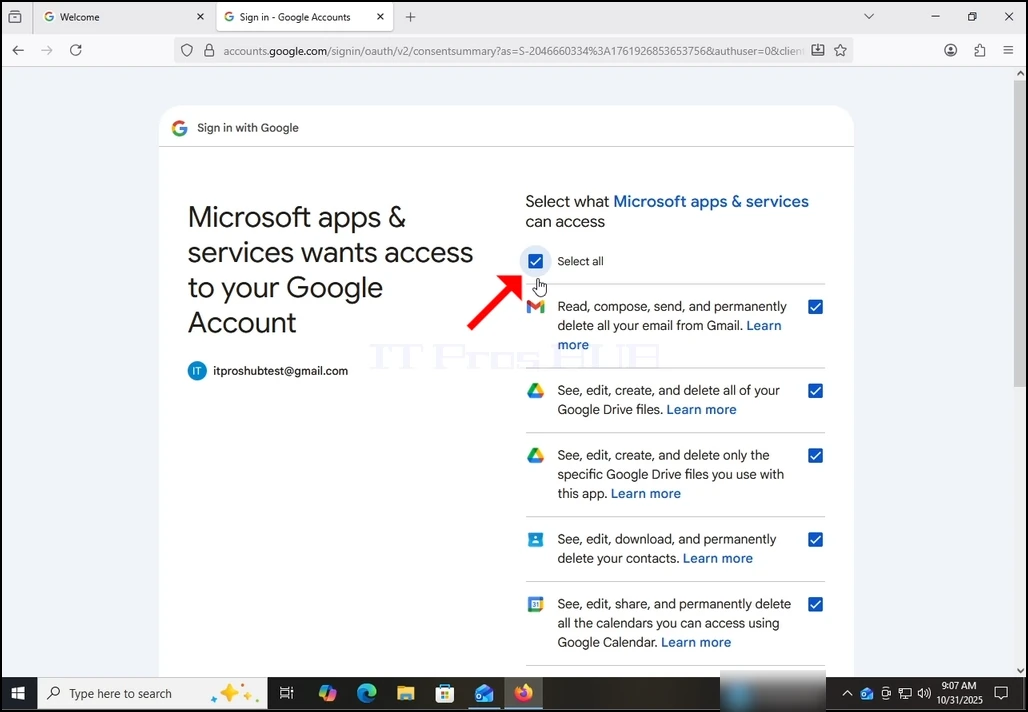
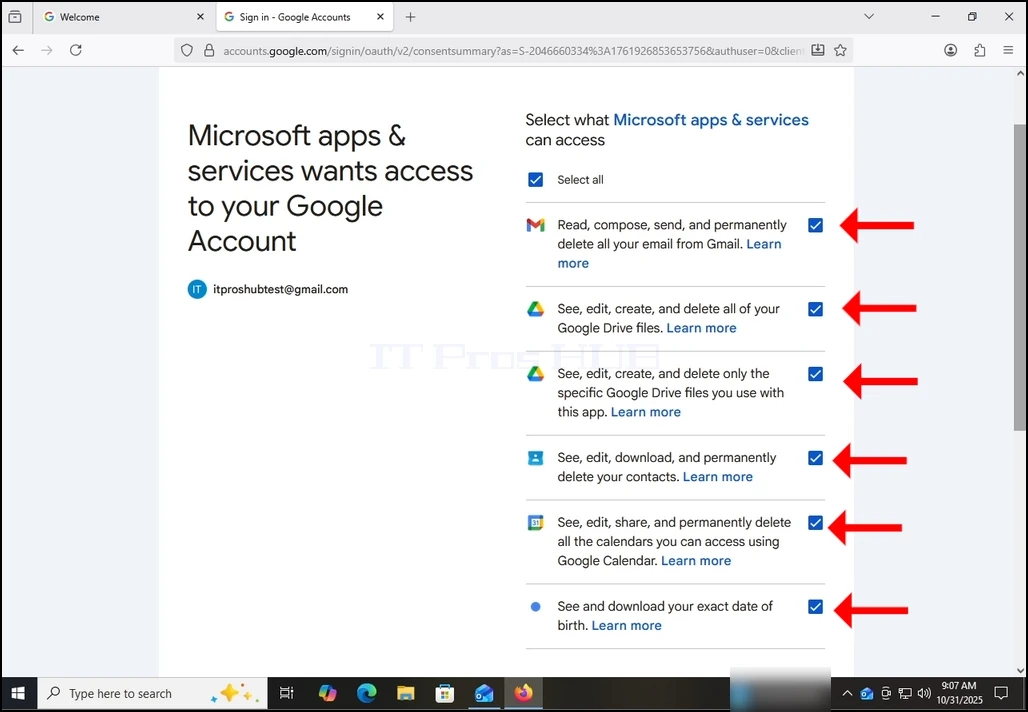
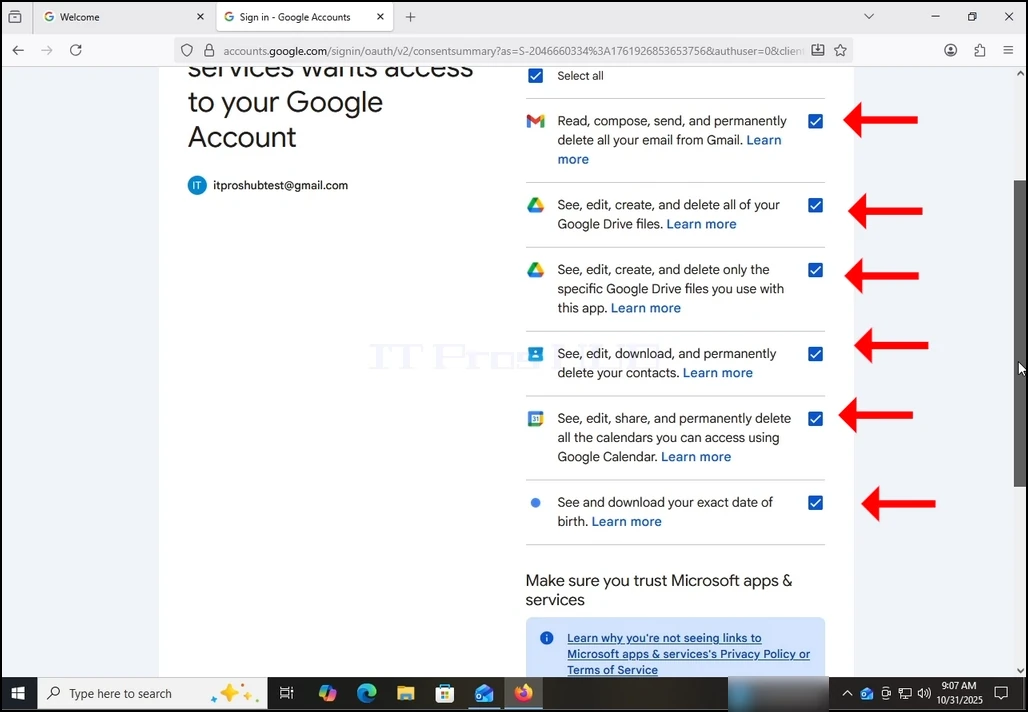
13. In deze fase breidt Google zich uit over welke informatie Outlook (Microsoft-apps & diensten) toegang zou kunnen krijgen.
Kies welke informatie u wilt toestemming te geven aan Outlook op uw eigen descretie, maar houd in gedachten dat hoe minder toestemming u toestaan hoe minder functionaliteit Outlook zou hebben.
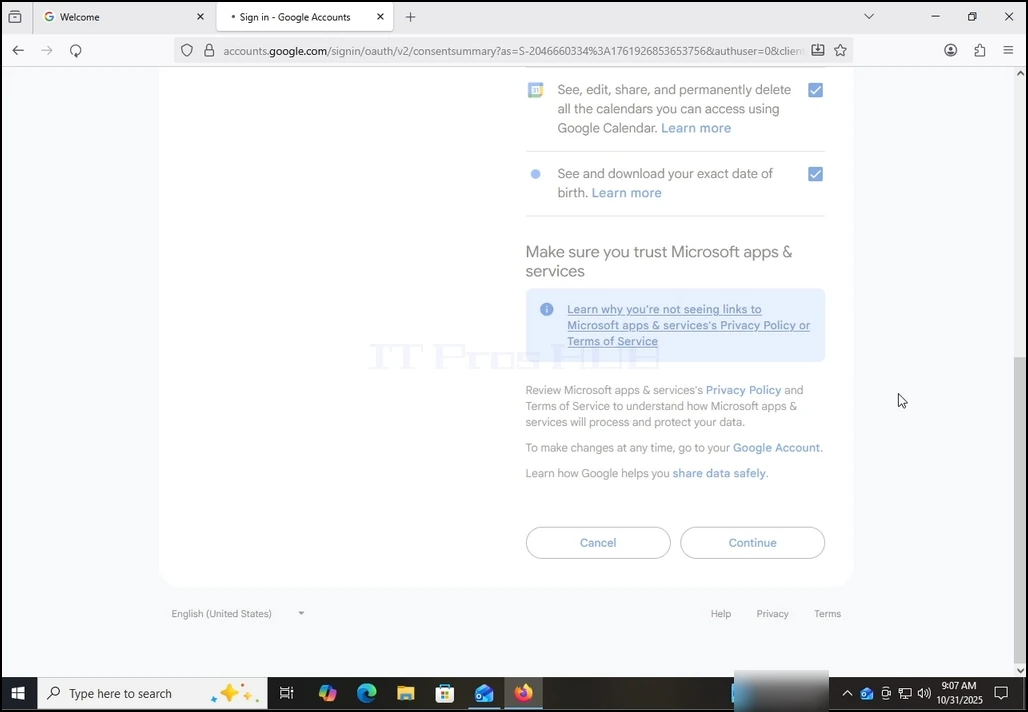
In dit geval zou het minimum voor het functioneren als e-mail client zou zijn om laat het al uw e-mail van Gmail lezen, samenstellen, verzenden en permanent verwijderen.
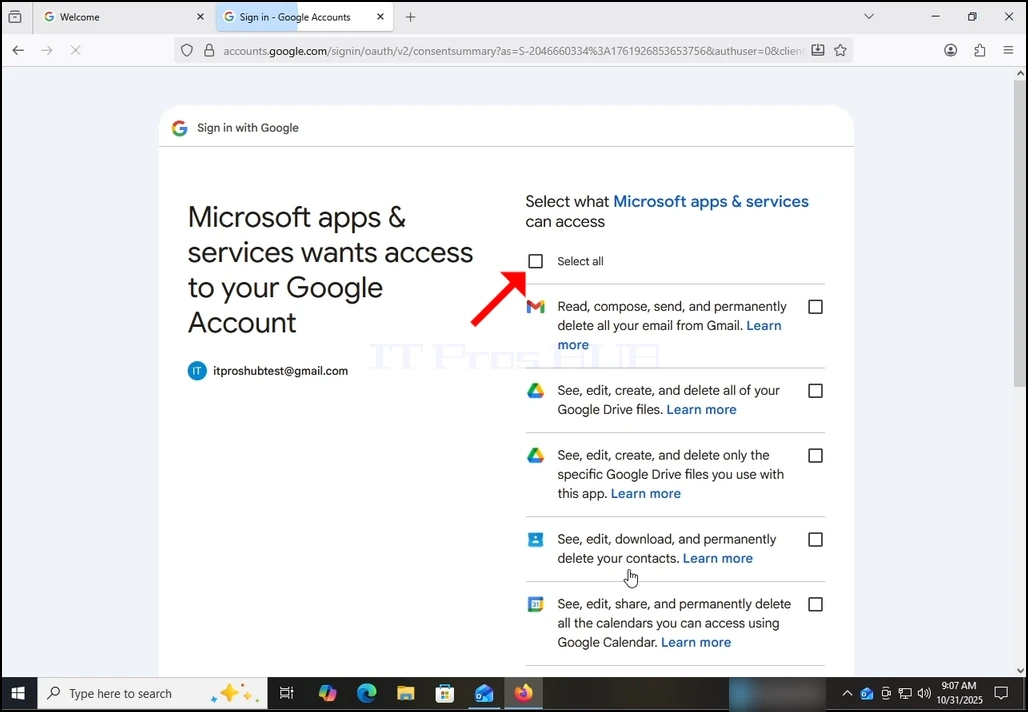
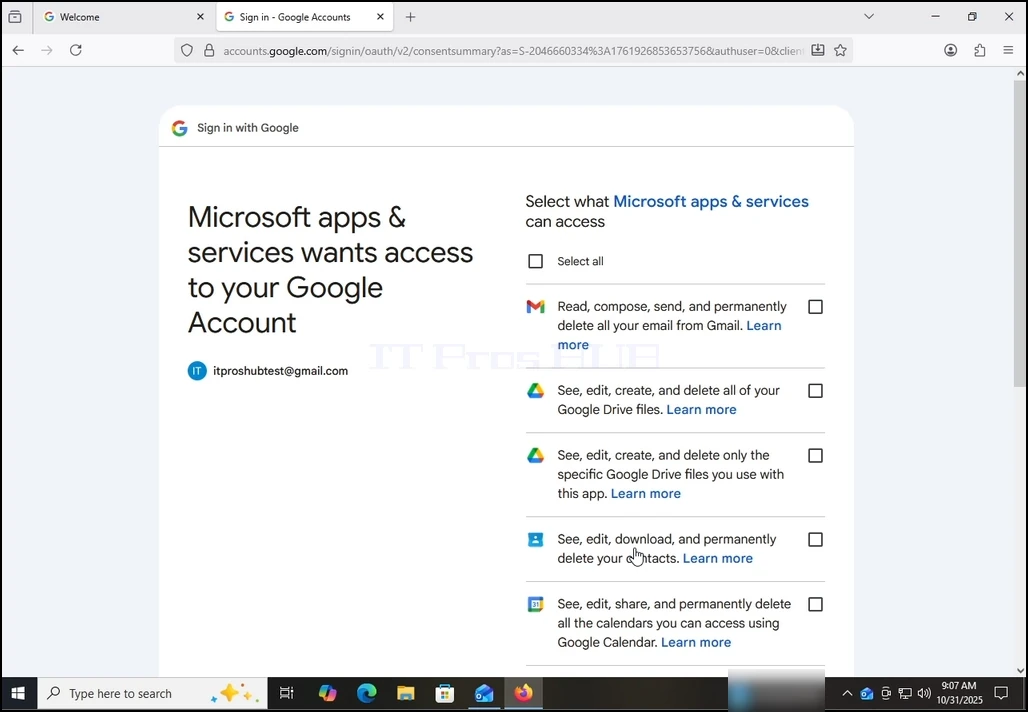
14. In het geval van dit artikel zullen we ALLE rechten selecteren en op de vervolgknop drukken.
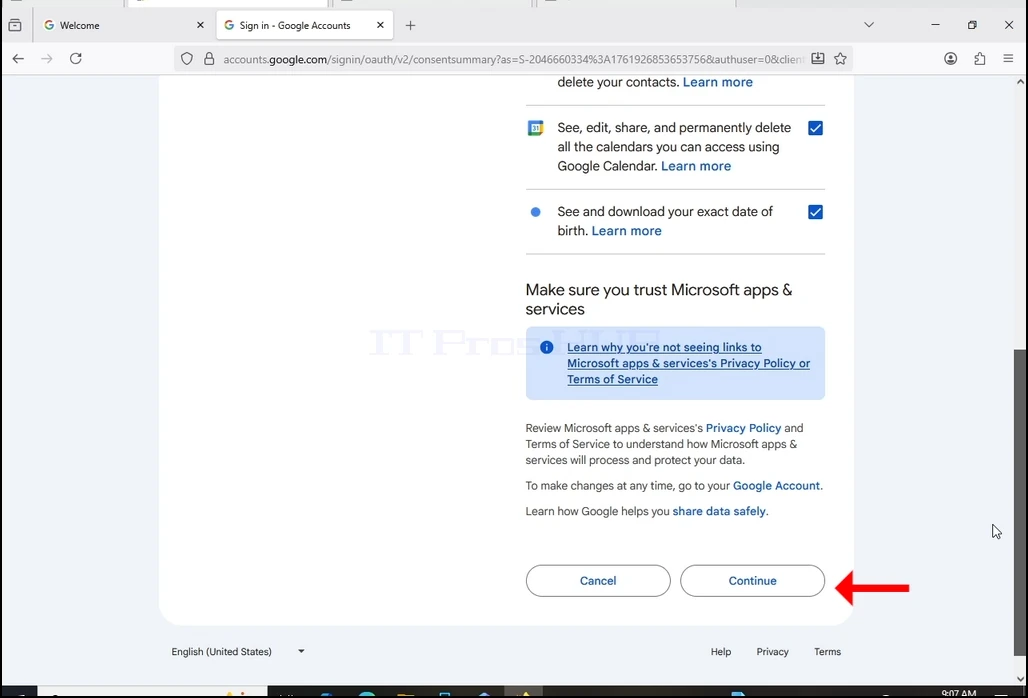
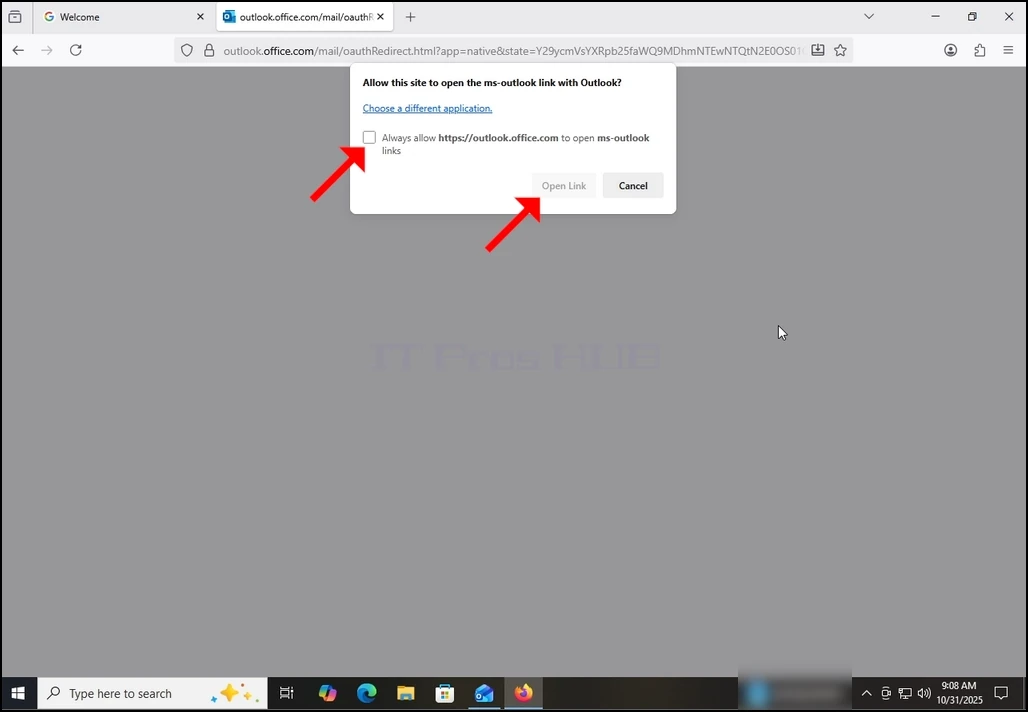
15. Na het raken van de vorige knop Doorgaan, de browser zou proberen om een Outlook-link te openen door middel van zichzelf. Markeer de Altijd toestaan https://outlook.office.com ms outlook-links openen zin en druk één keer op de knop Open Link.

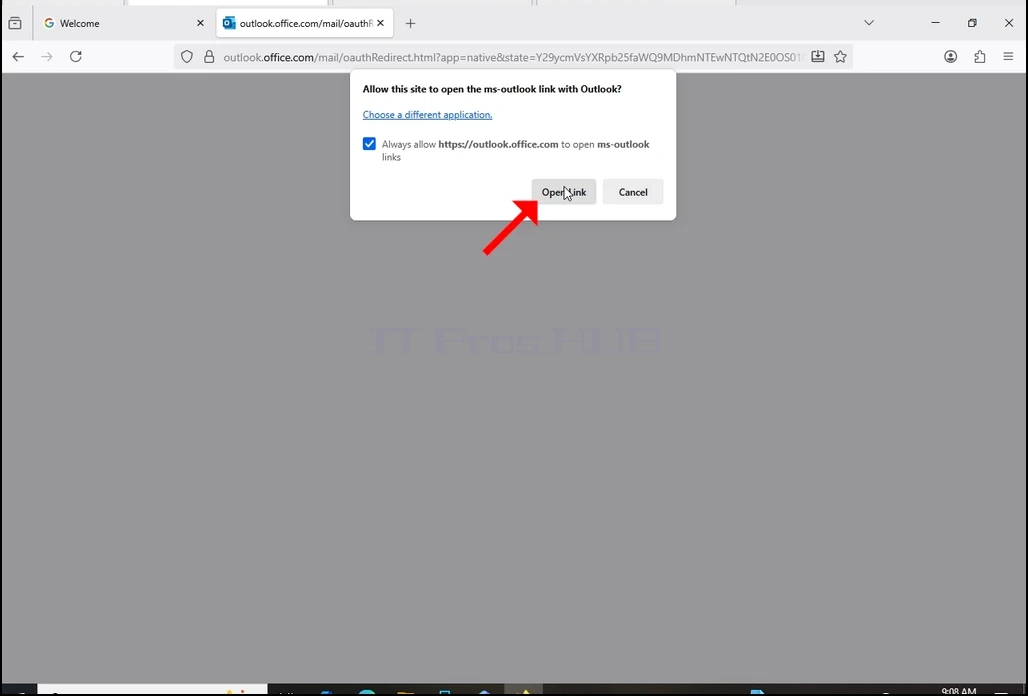
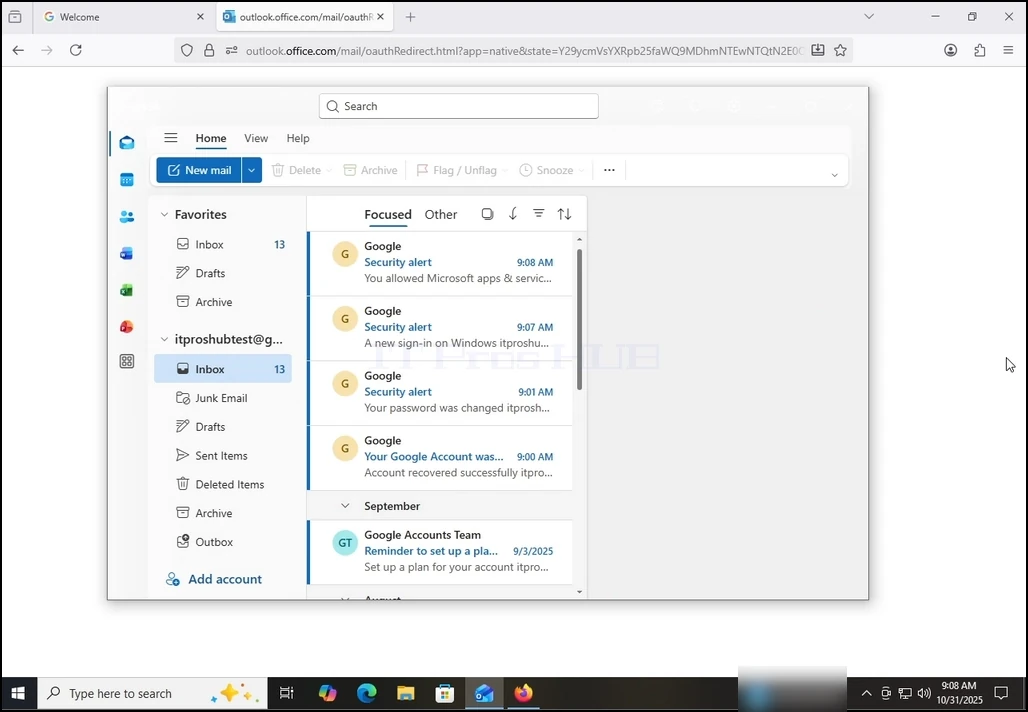
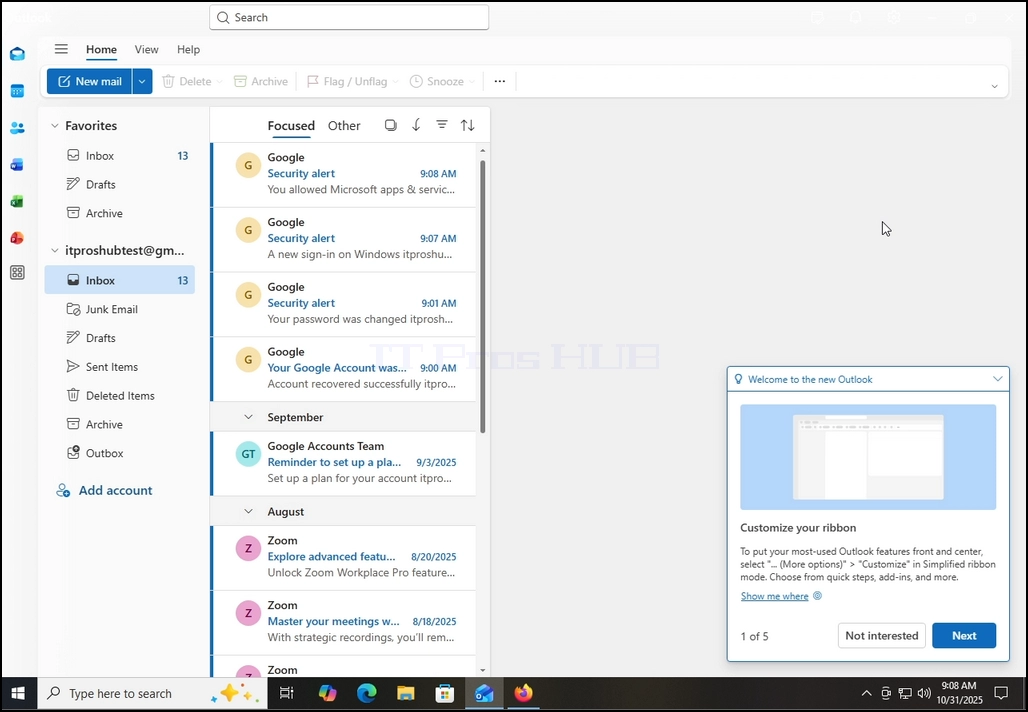
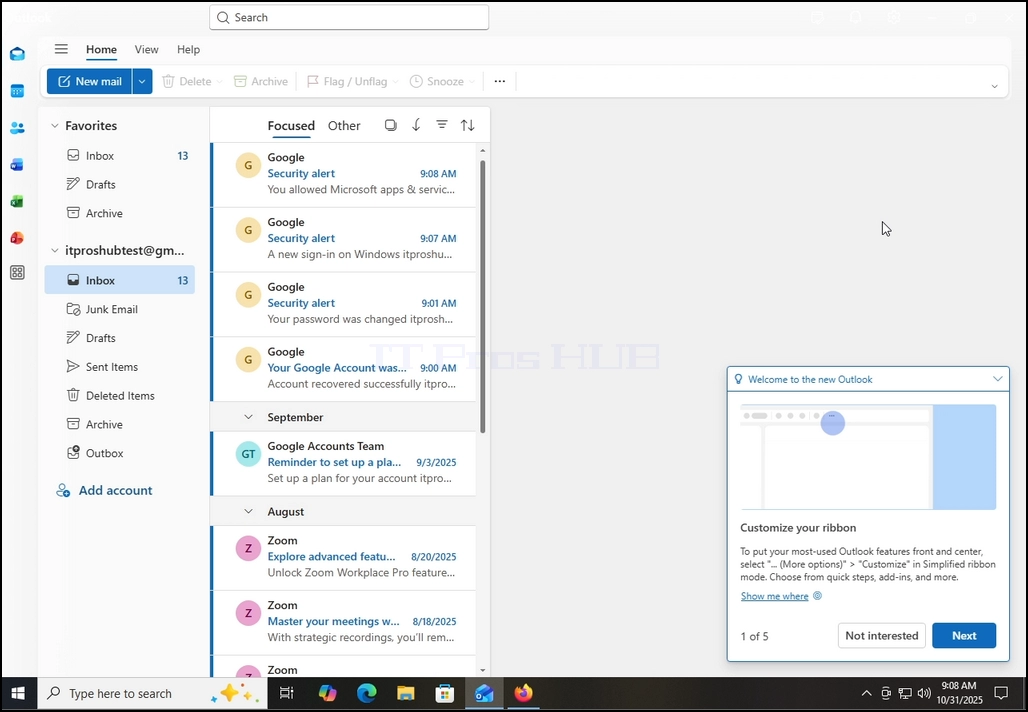
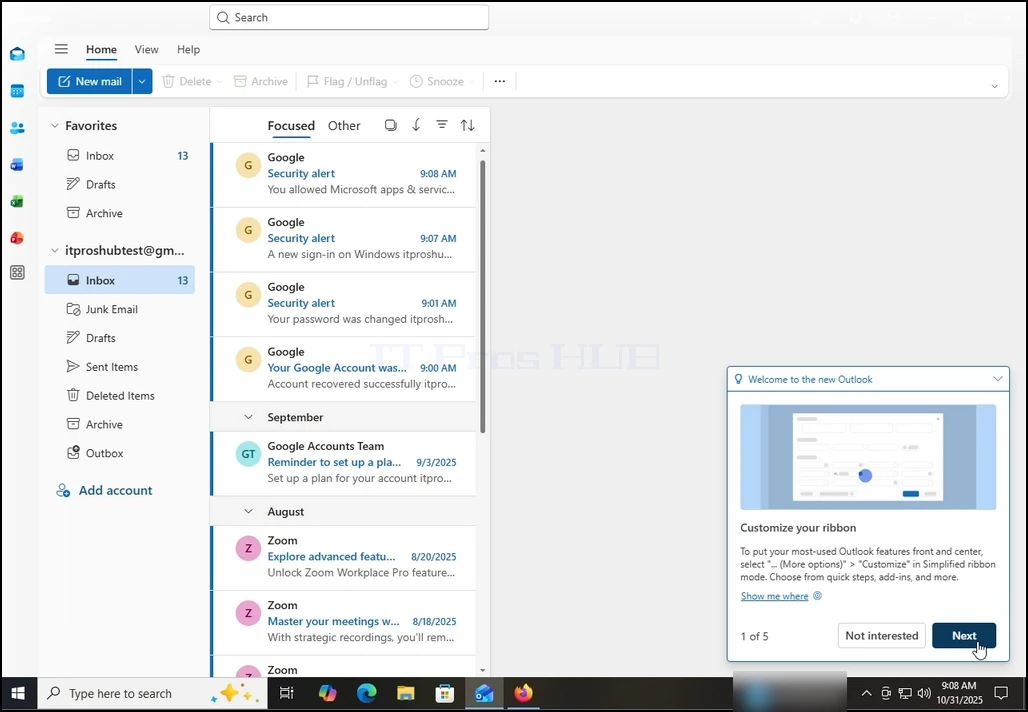
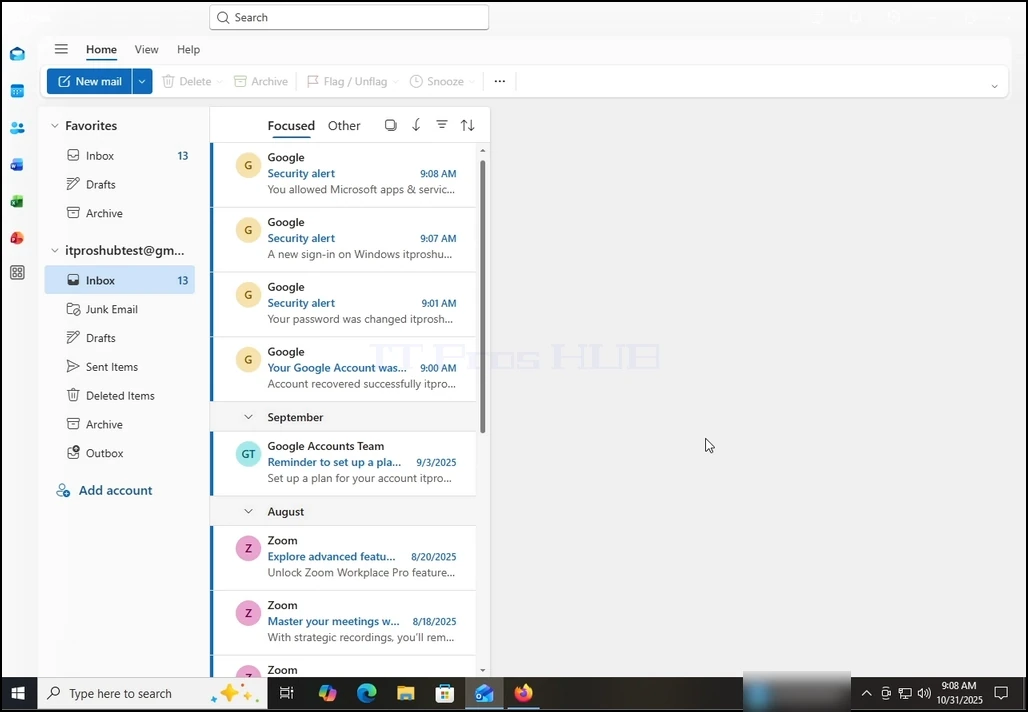
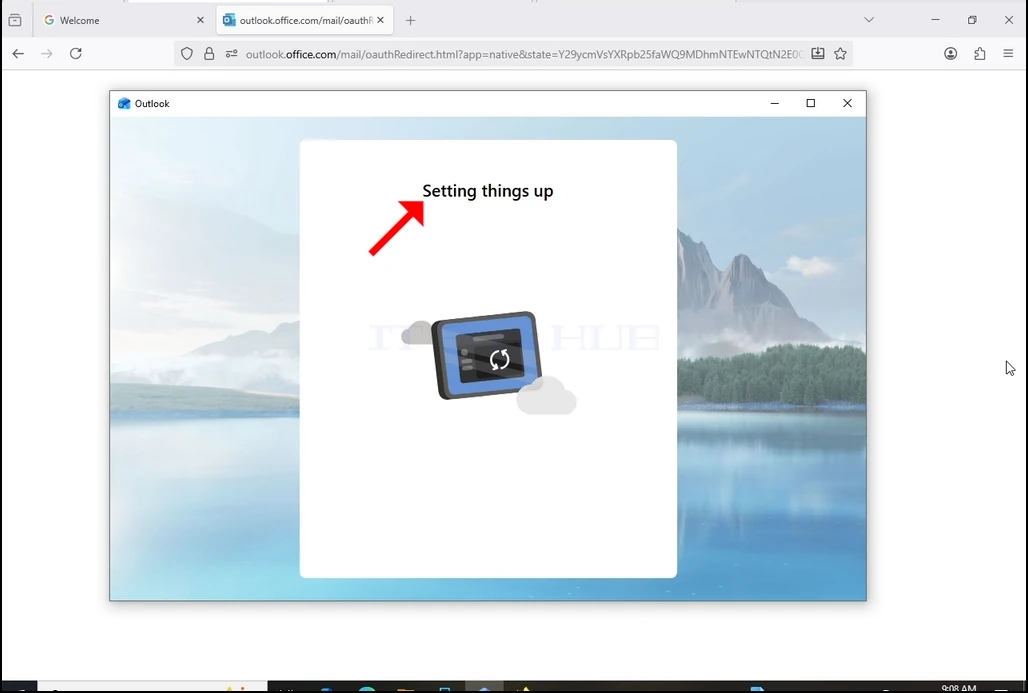
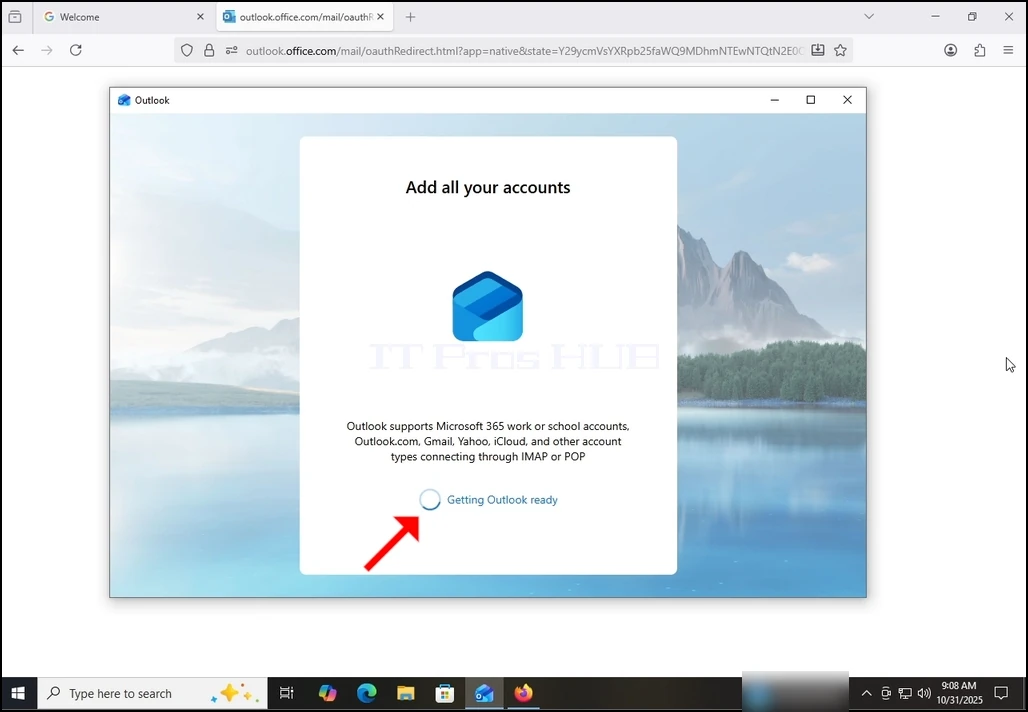
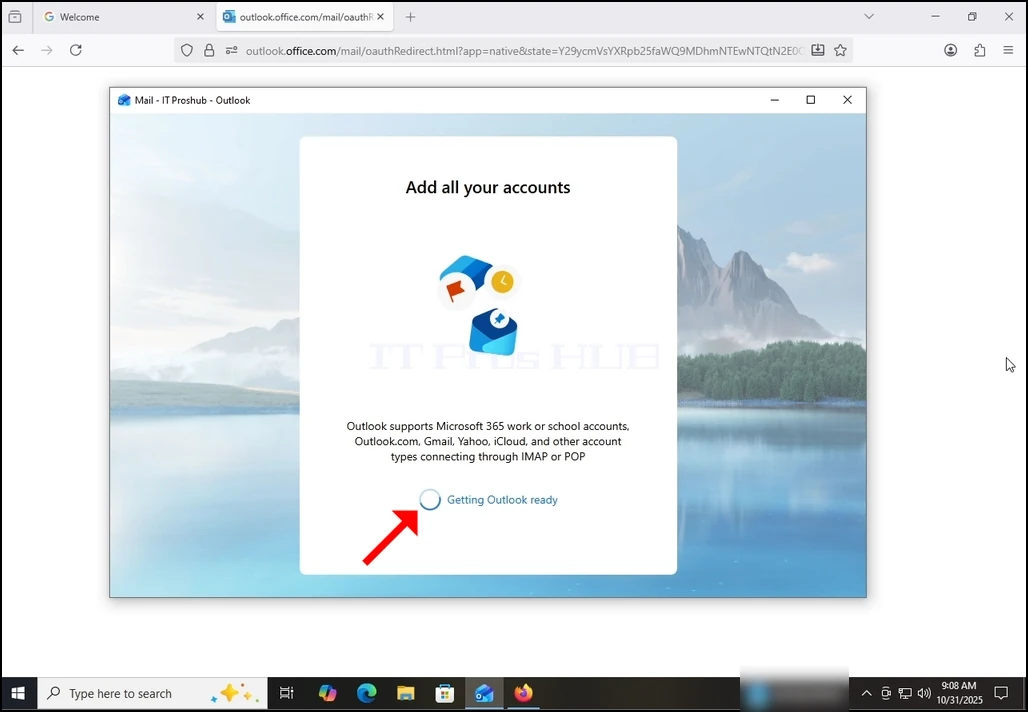
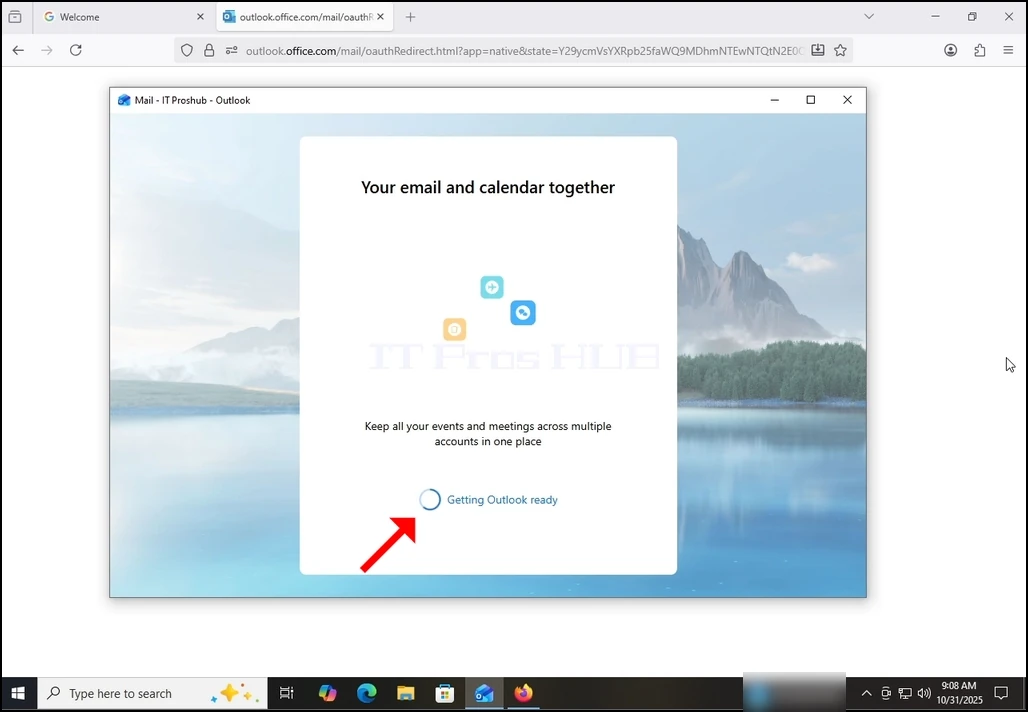
16. Na het doen van de vorige, Outlook zou uw Gmail-account laden.
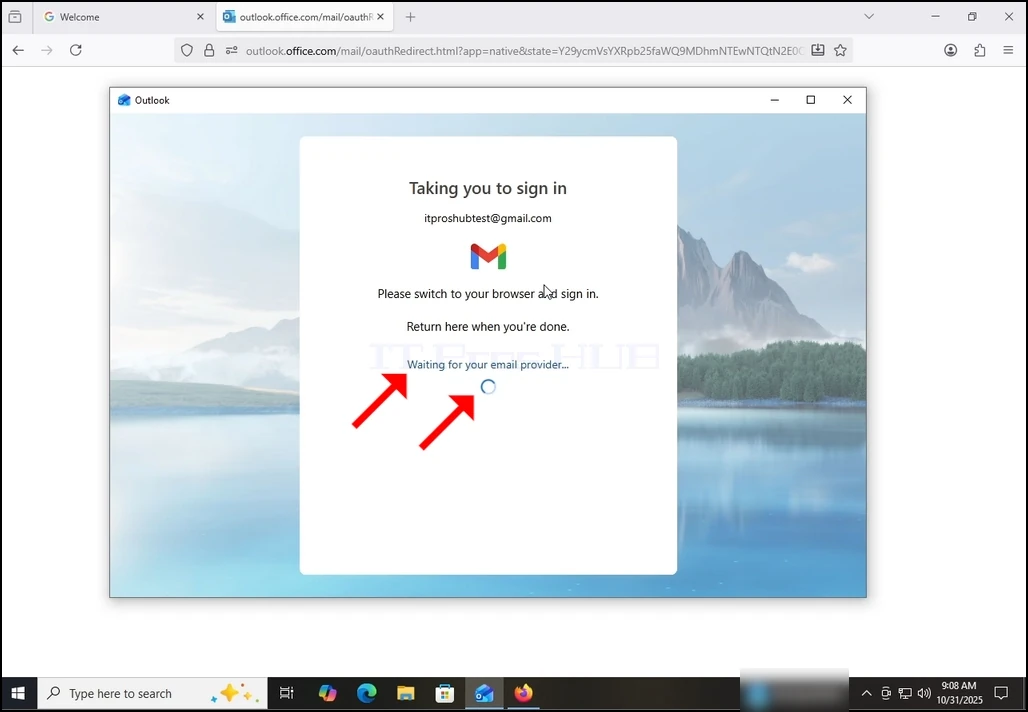
17. Klaar! Uw Gmail is nu geconfigureerd om binnen Outlook te werken!