Online: 786 online | Members: 0 | Guests: 786
onsdag, juni 3, 2026
Page Minimap
Reading time: 4 min read
Tagline:HowtoSeeHiddenFilesandFoldersinWindows11November2025+1
There is no translation available.

 Introduction:
In this article we will demonstrate how to configure Windows 11 to be able to show hidden files and folders that are otherwise are like that out of the box.

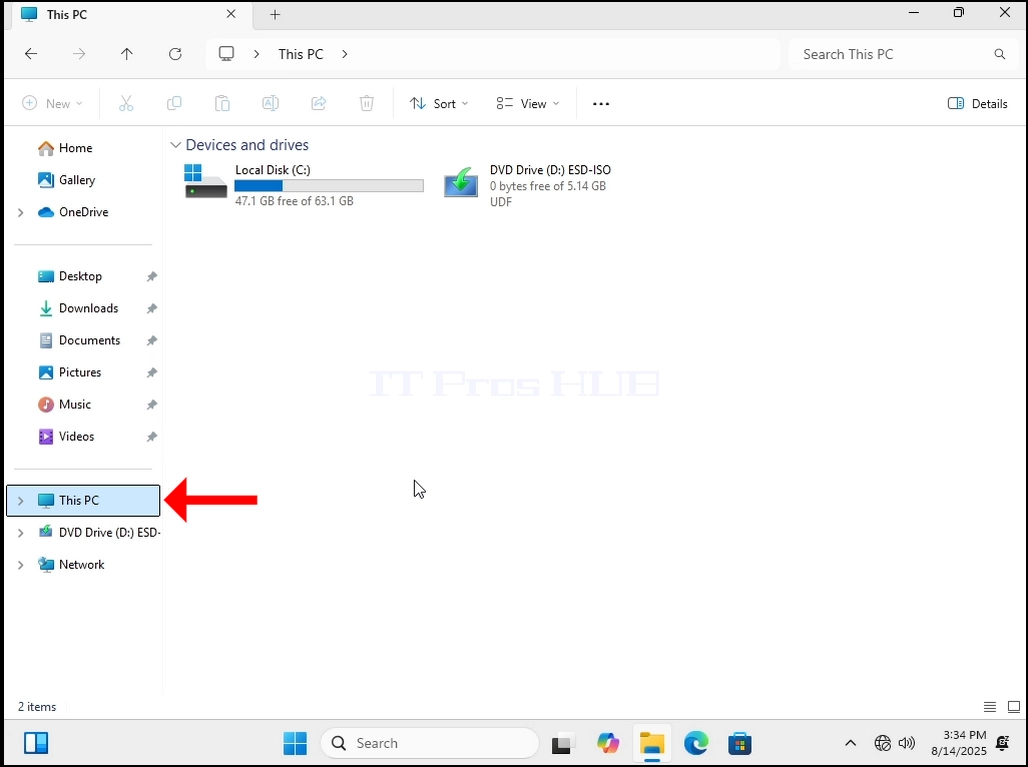
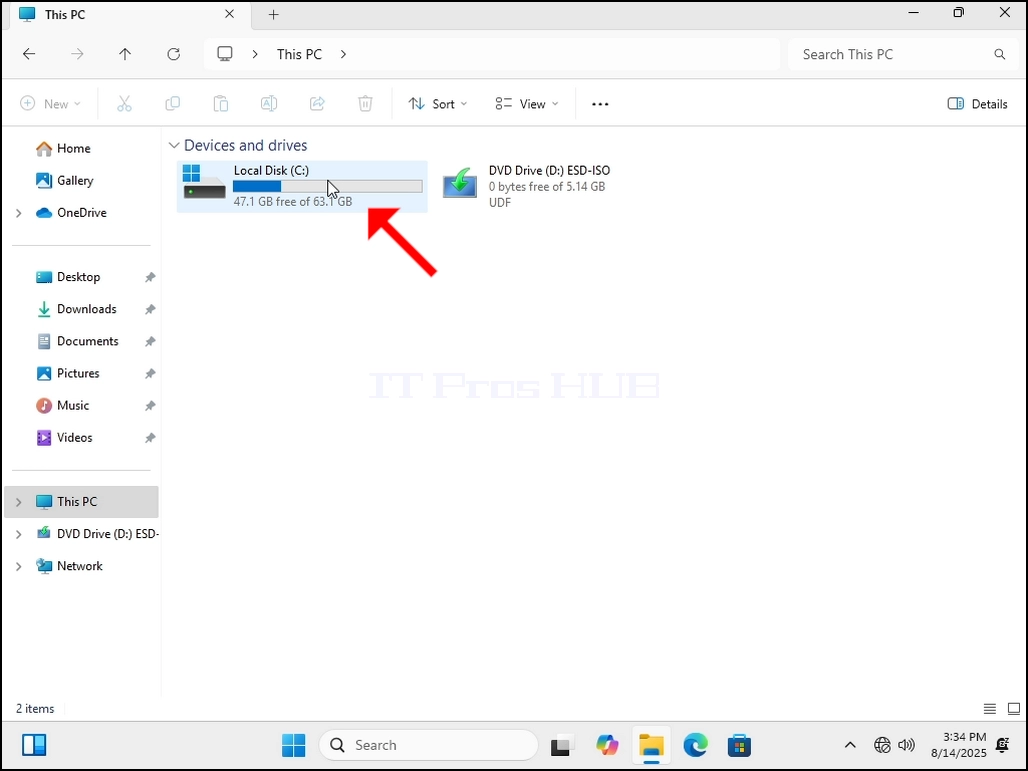
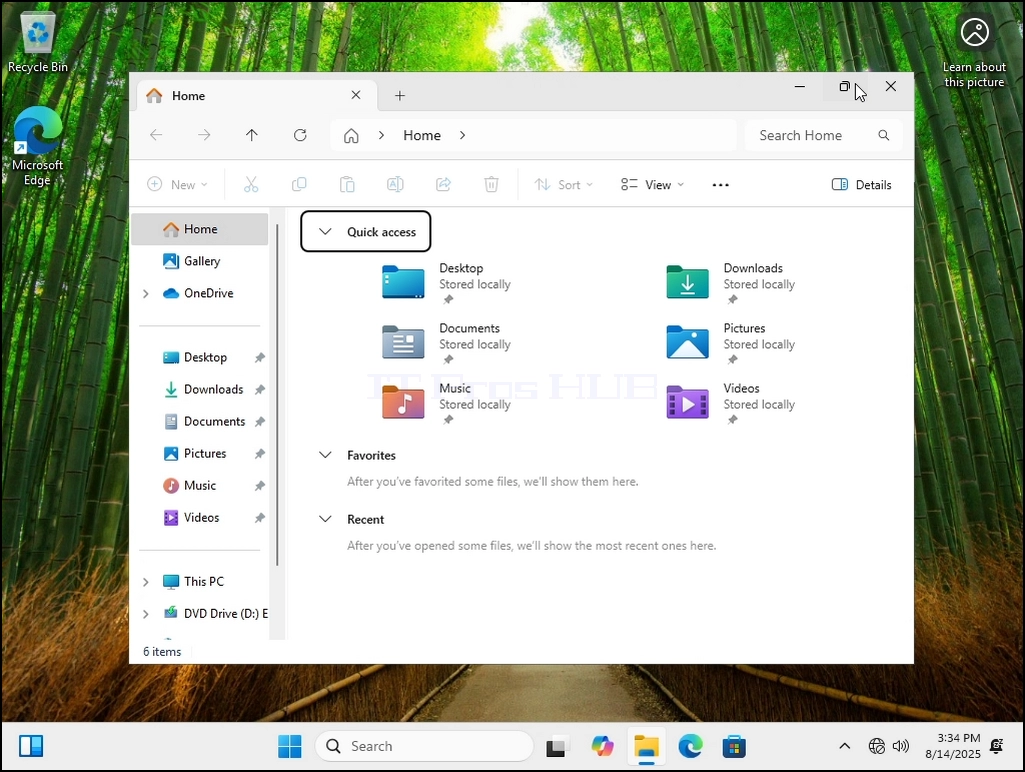
1. Let’s go to where Windows is currently installed, in this case it’s the C: drive.
how-to-see-hidden-files-and-folders-in-windows-11-5.webphow-to-see-hidden-files-and-folders-in-windows-11-8.webphow-to-see-hidden-files-and-folders-in-windows-11-9.webp

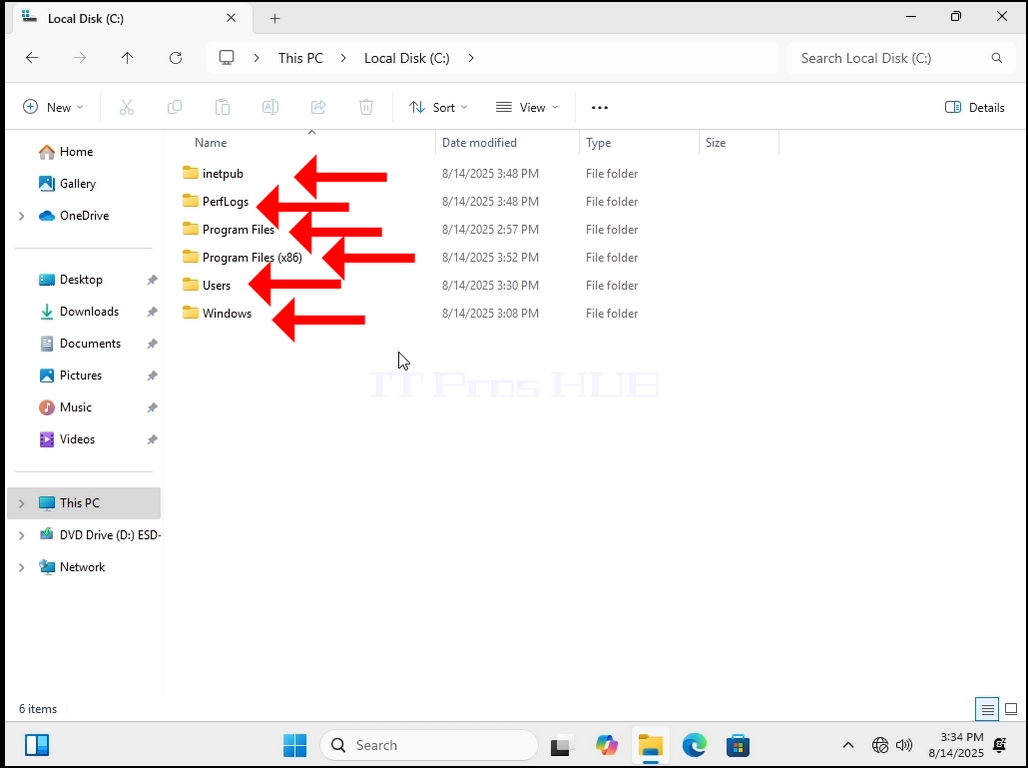
2. As you can see below, all of the current folders are ones that are not hidden. If there were any files that were not hidden, we would have seen them too. Note that there are 6 folders In total.

how-to-see-hidden-files-and-folders-in-windows-11-11.webp

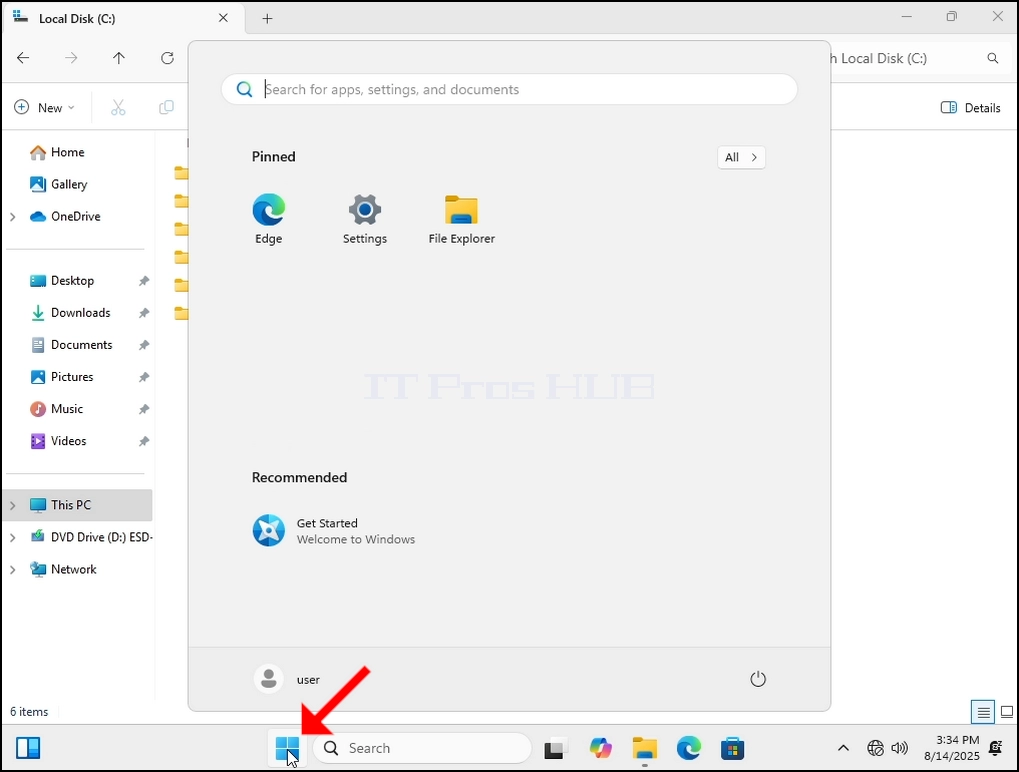
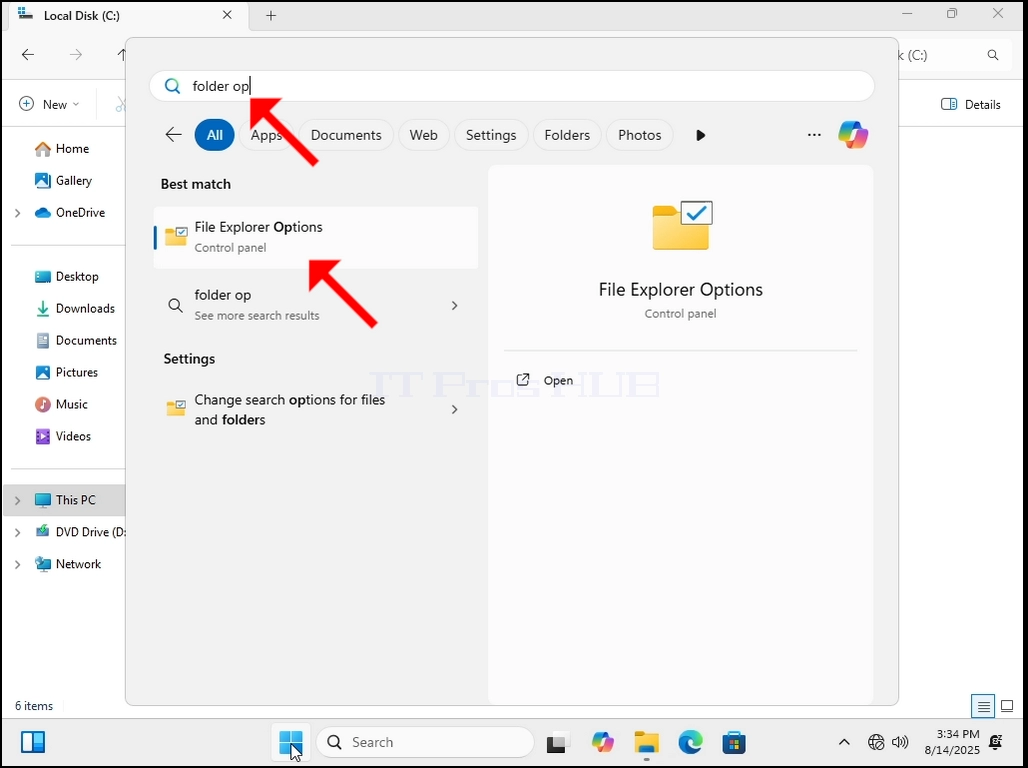
3. Now let’s go to the Start button and search for the Folder Options feature in Windows. We will look for it by typing folder op and let the Start menu find it. Once it’s found, click on it and wait for it.

how-to-see-hidden-files-and-folders-in-windows-11-13.webphow-to-see-hidden-files-and-folders-in-windows-11-14.webp

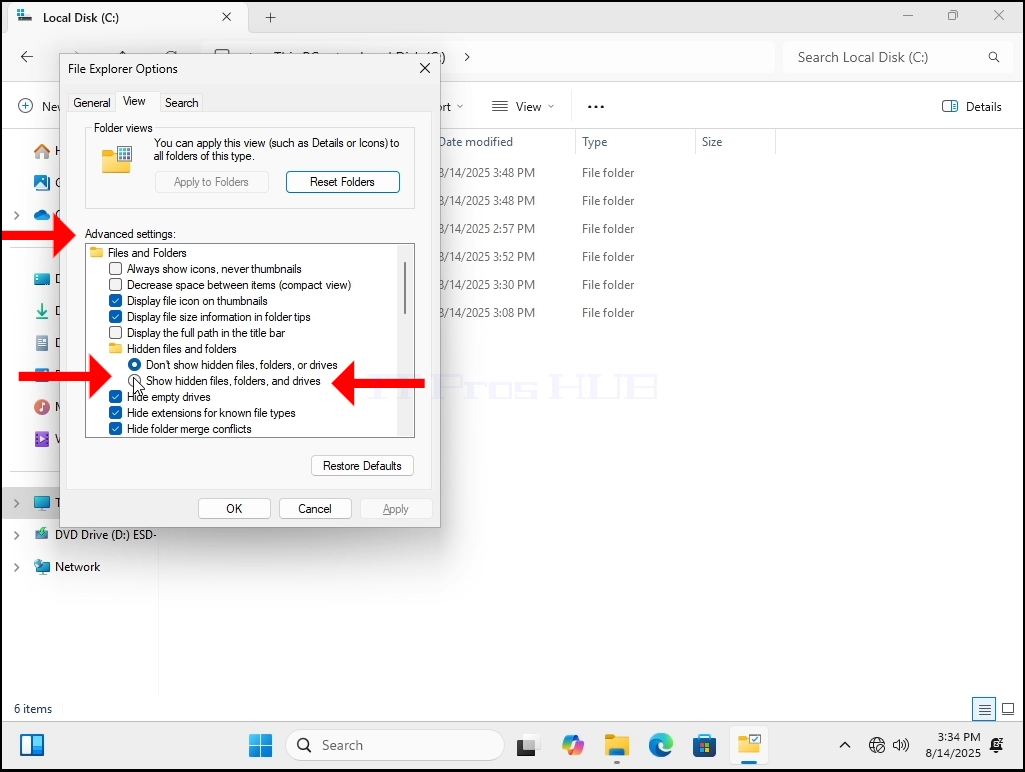
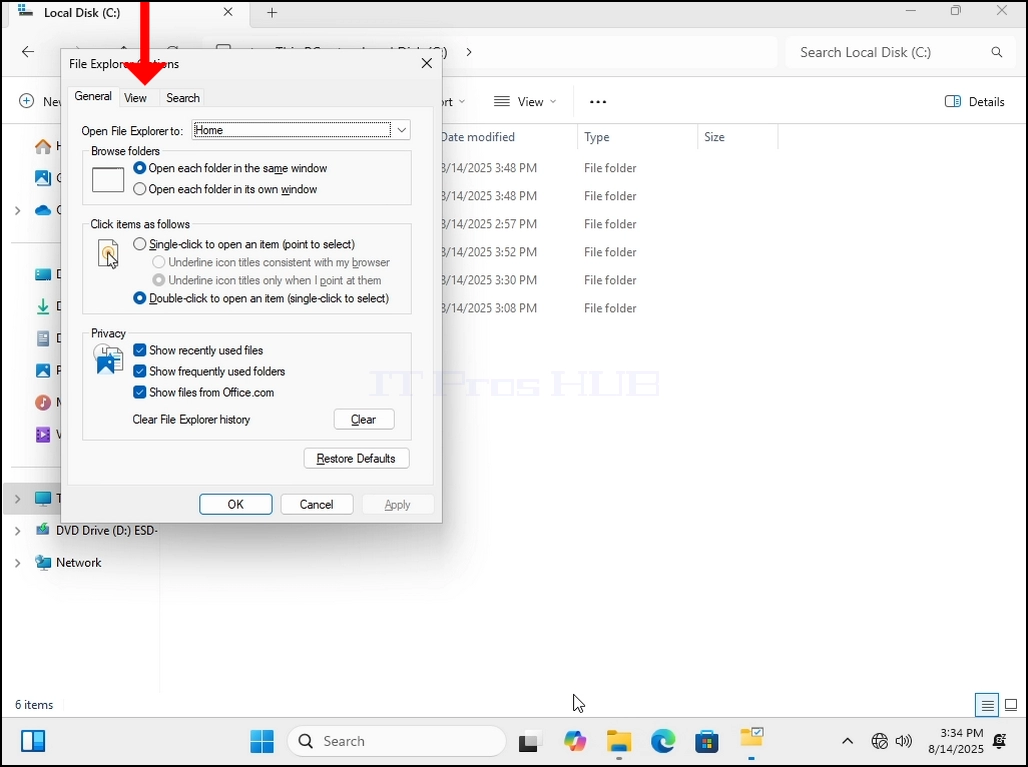
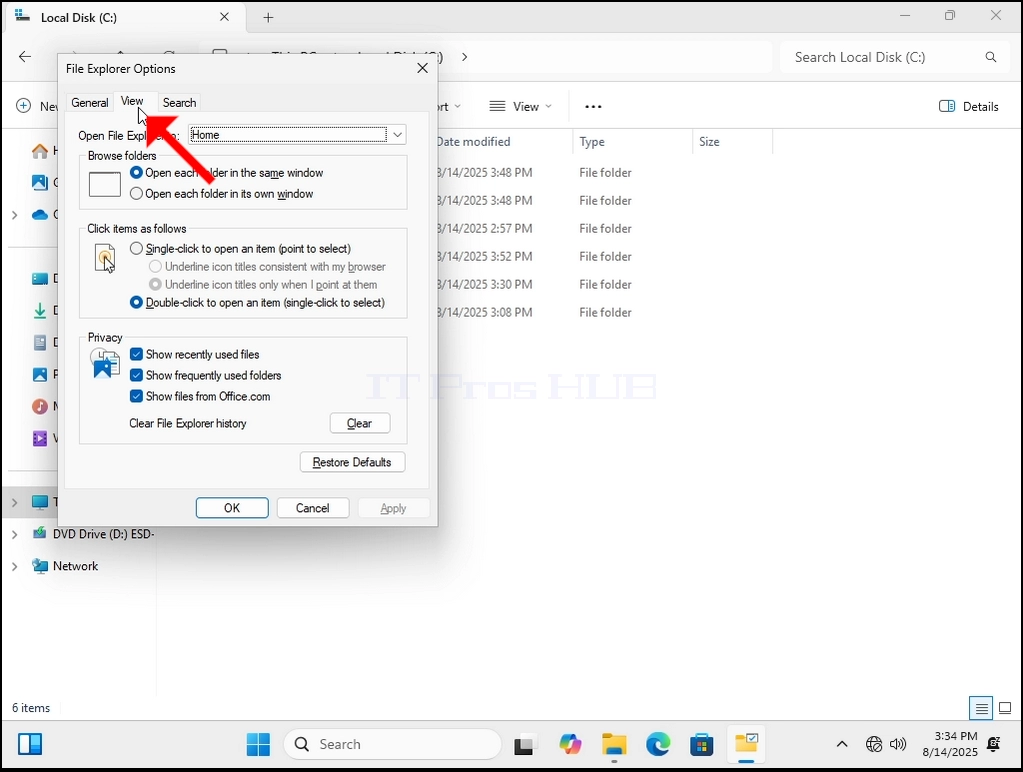
4. Once inside Folder Options, go to the VIEW tab on the top part of the window. Click on it. Wait for the View tab to load.
how-to-see-hidden-files-and-folders-in-windows-11-15.webphow-to-see-hidden-files-and-folders-in-windows-11-16.webp

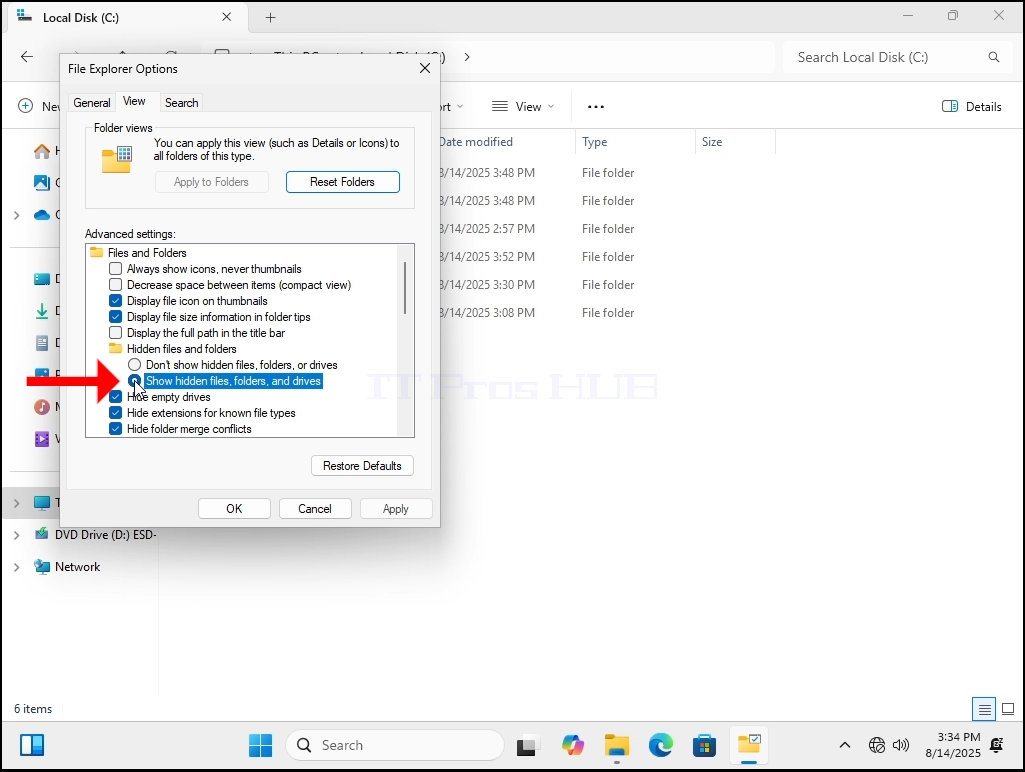
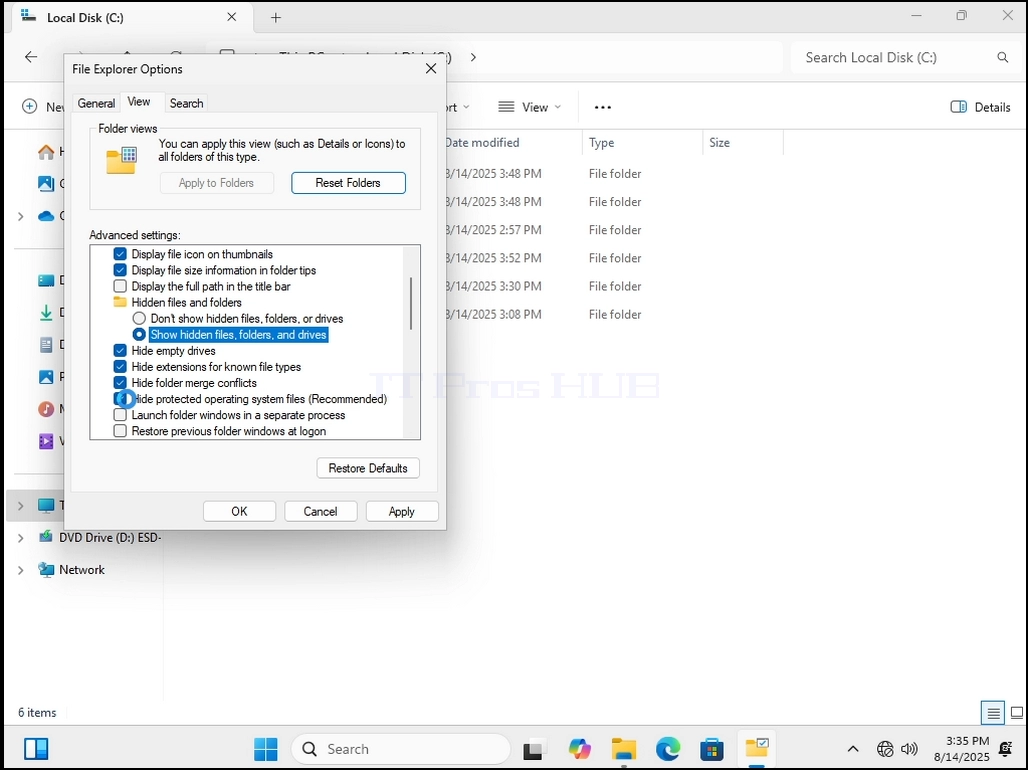
5. Once loaded, look for ADVANCED SETTINGS and the box under it. This box is filled with a lot of options. Look for the Hidden files and folders main option and look for the 2 options below it. The default one, “Don’t show hidden files, folders and drives” would be marked. Unmark it by choosing the opposite option that lays below it: “Show hidden files, folder and drives”.

how-to-see-hidden-files-and-folders-in-windows-11-17.webphow-to-see-hidden-files-and-folders-in-windows-11-18.webp

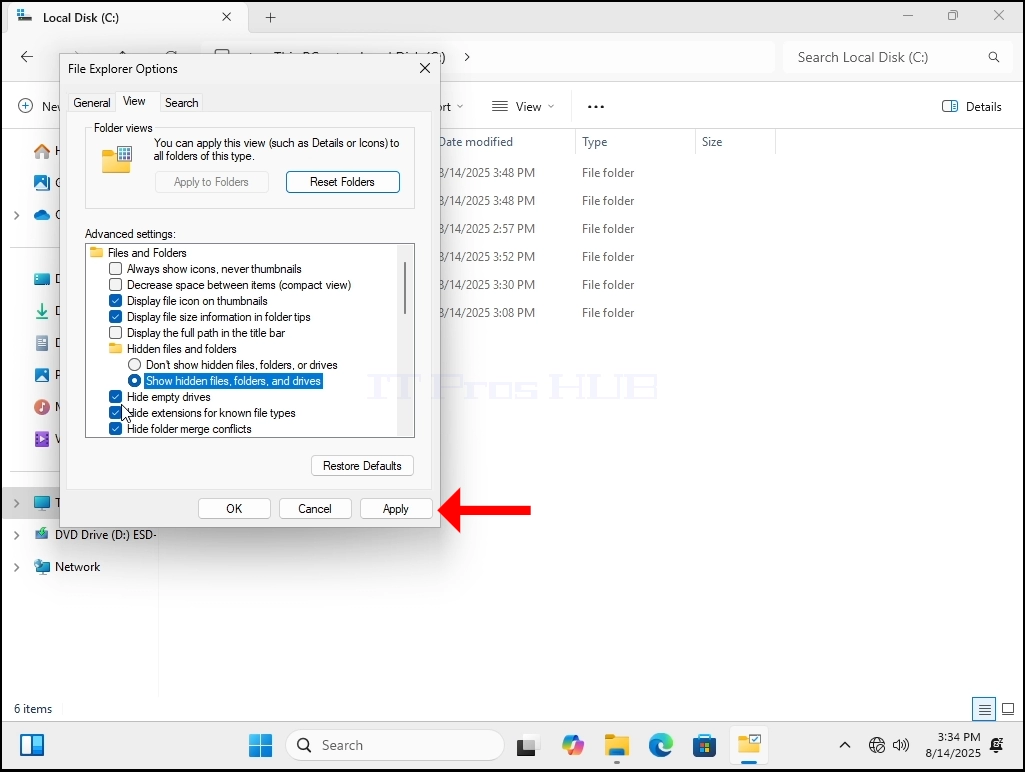
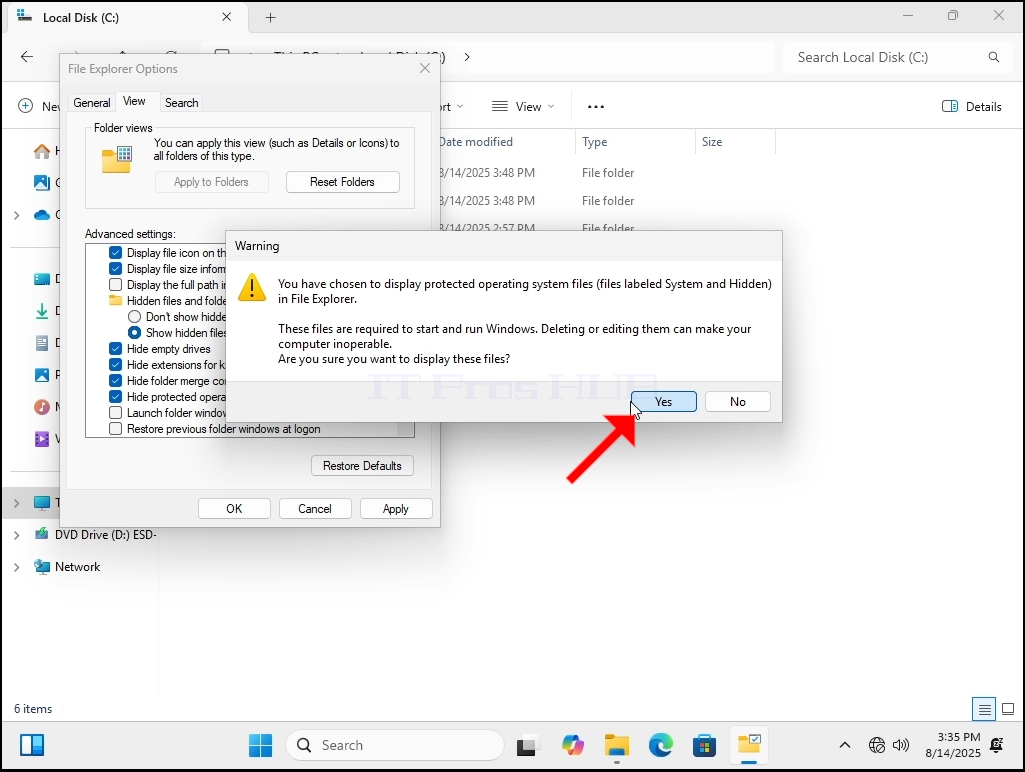
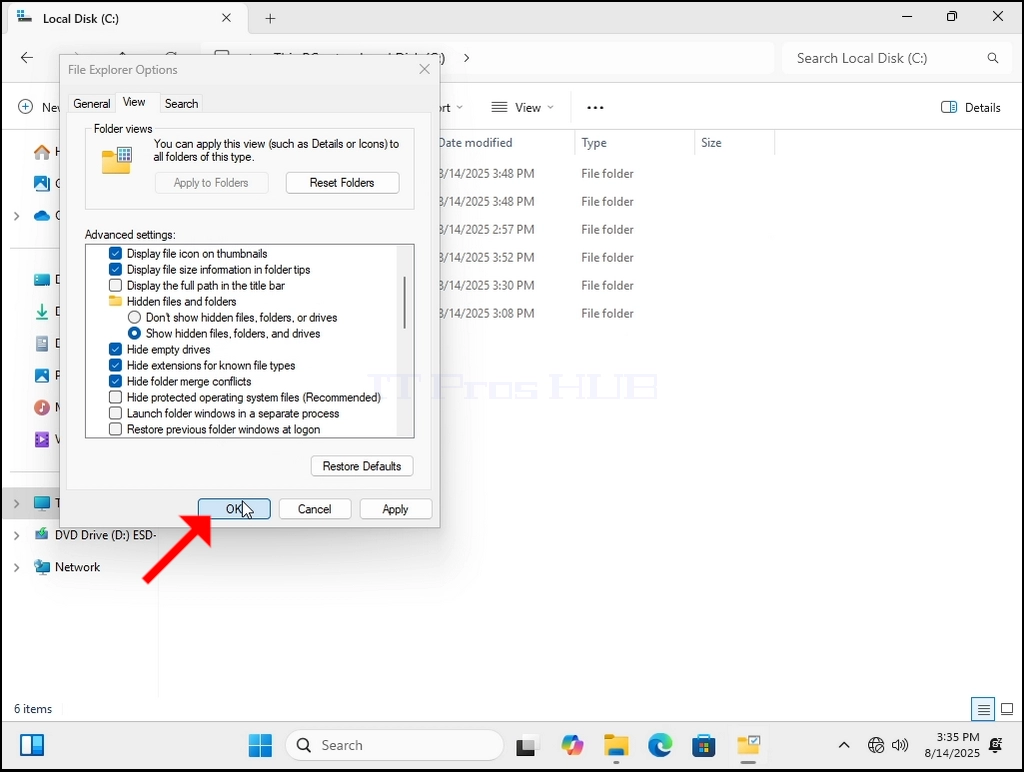
6. Once marked, click the Apply button. You will be met with a warning regarding the option you have just changed. Click Yes, and then the OK button to close the entire File Explorer Options window.

how-to-see-hidden-files-and-folders-in-windows-11-19.webphow-to-see-hidden-files-and-folders-in-windows-11-20.webphow-to-see-hidden-files-and-folders-in-windows-11-21.webphow-to-see-hidden-files-and-folders-in-windows-11-23.webp

7. Let’s go back to C: drive. Now we can see many more folders, and we can see some files as well.
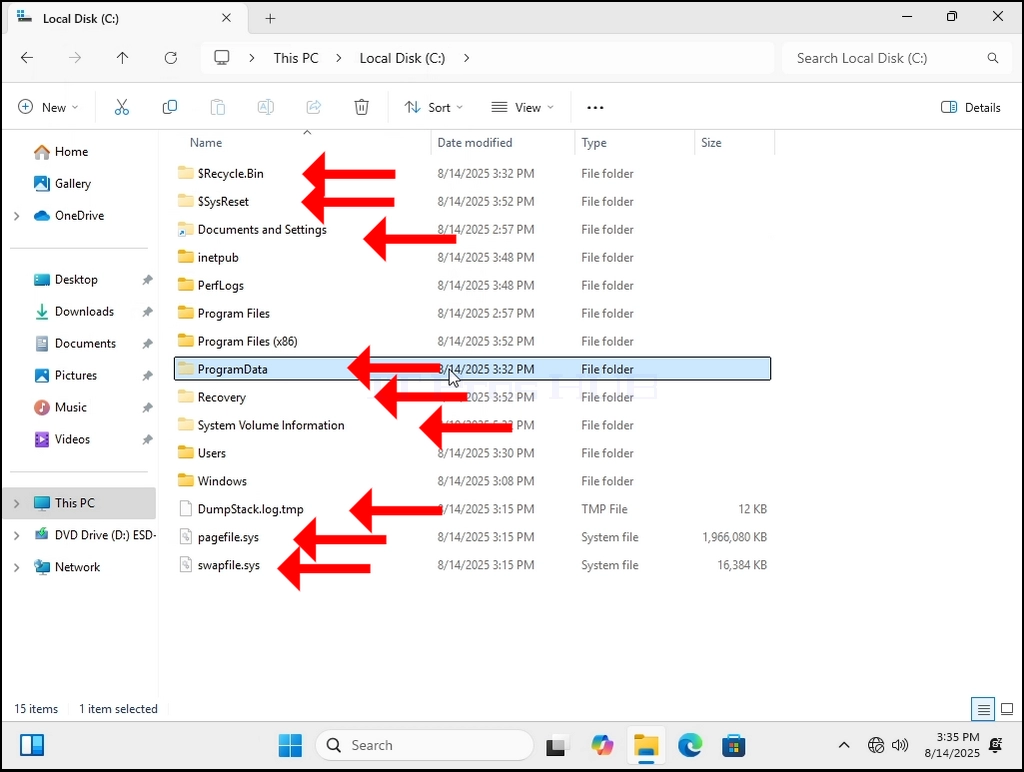
8. Notice that the additional files and folders are semi-transparent. That means they are hidden by configuration but then again, we can now see them.

9. Notice#2: in most cases and specifically in the case of the C: drive, the hidden files and folders are protected by being hidden for reason. They are sensitive files and folders that are essential for Windows 11 to operate normally. Think twice before tampering or deleting them.

how-to-see-hidden-files-and-folders-in-windows-11-24.webp